|
The Disciplinary Report section allows field staff to complete disciplinary reports, disciplinary reports need to be
created after incidents or issues arise with the work of field staff. Disciplinary reports include a description of
the incident or issues with the work of field staff, what actions should and will be taken to improve the situation.
These reports can be filed by field staff directly from the IPhone application.
When Disciplinary Reports are submitted to R & T Electric Pro a email is sent to the companies representative, a copy of the
disciplinary report.
Configuring Disciplinary Report Submission Email Alert
The company representative that receives a email from R & T Electric Pro, when a disciplinary report is submitted is a function
of who is set up to receive the Disciplinary Report Submission. The person whom should receive this email, should
probably be someone in management or human resources. To configure R & T Electric Pro for whom receives
receives this email alert in the Company Email Alert section.
Management, Office Staff and Safety Officers can edit who should receive the Disciplinary Report Submission email alert in the company email alert section. For more information about configuring your
company email alerts in this web site manual click here to view the company email alert section.
|
|
|
1.Add Disciplinary Report |
Steps
- From the Main Menu screen, tap the After Incident button.
- Then tap on the Disciplinary Reports button to open the Disciplinary Reports section. Which opens the Add Disciplinary Reports tab.
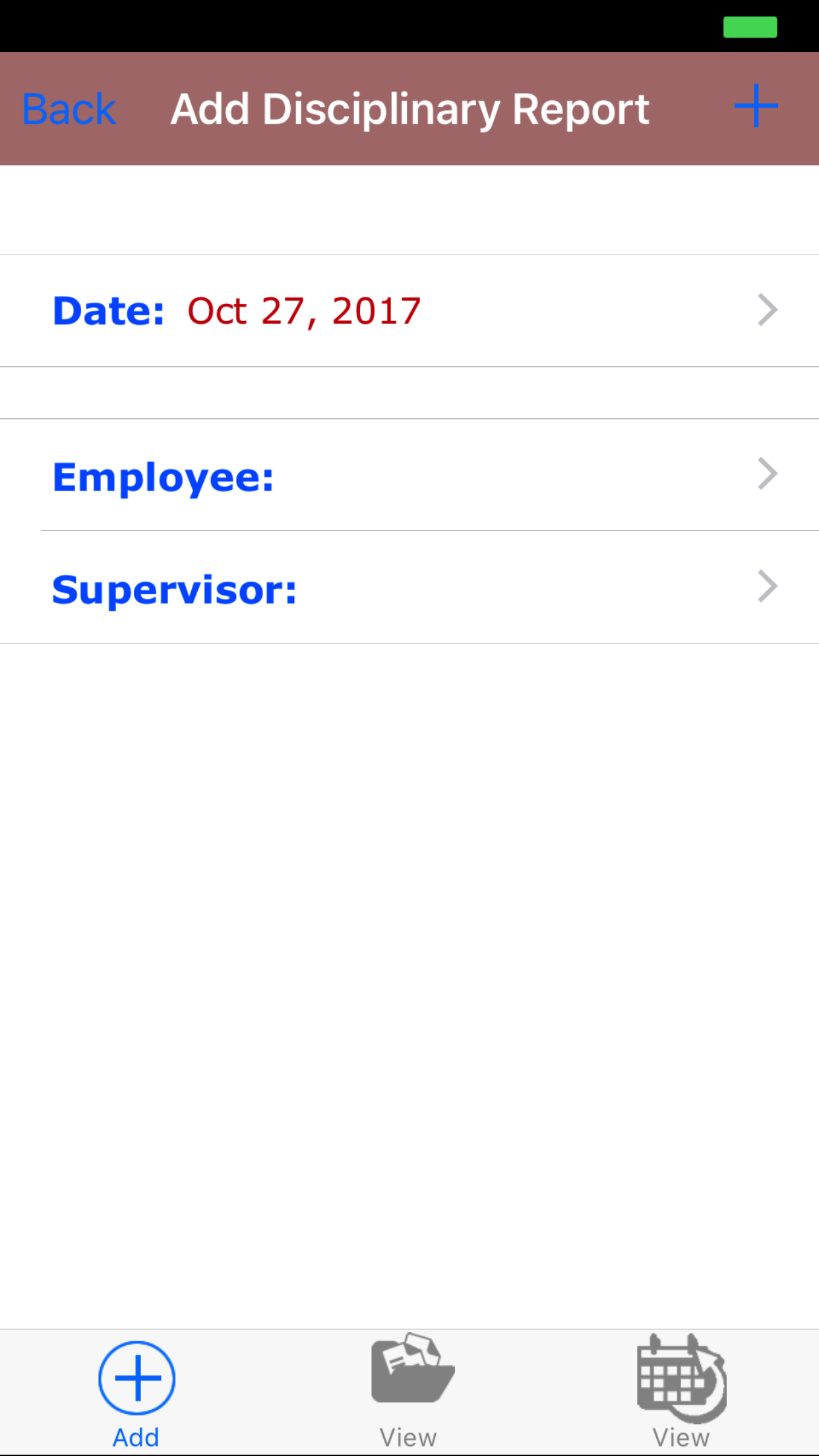
- Date: The date field will set violation date and notice date for the disciplinary report.
- Tap the Date field to open the Choose Date screen.
- Scroll the date wheel on the far left of the screen until the desired date is highlighted.
- Return to the Add Disciplinary Report screen by either tapping Save in the top right corner to select the highlighted date or tapping Cancel in the top left corner to leave the Date: field unchanged.
- Tap the Employee field to open the Choose Employee screen.
Employees are listed in descending order.
To Search Employees: Pull down on the list view, the search is defaulted to search by last name.
The other option for the Employee search is by first name. Enter your search
criteria and click the Search button.
- Scroll the list of employees until the desired employee is displayed on the screen.
- Tap the desired employee to select it or tap Back in the top left corner to leave the Supervisor field unchanged and return to the Add Disciplinary Report screen.
- Return to the Add Disciplinary Report screen by either tapping the appropriate vehicle or tapping Cancel in the top left corner to leave the employee field unchanged.
- Tap the Supervisor field to open the Choose Supervisor screen.
Employees are listed in descending order.
To Search Employees: Pull down on the list view, the search is defaulted to search by last name.
The other option for the Employee search is by first name. Enter your search
criteria and click the Search button.
- Scroll the list of employees until the desired employee is displayed on the screen.
- Tap the desired employee to select it or tap Back in the top left corner to leave the Supervisor field unchanged and return to the Add Disciplinary Report screen.
- Return to the Add Disciplinary Report screen by either tapping the appropriate vehicle or tapping Cancel in the top left corner to leave the employee field unchanged.
- Tap the + icon in the top right corner to add the Disciplinary Report.
- A pop-up message that reads 'Disciplinary Report Added!' indicates that the Disciplinary Report has been saved.
Error Messages on Add Discipline Report if
- Employee disciplined missing: if no employee is selected a error message will appear asking users to select a employee.
- Supervisor missing: if no supervisor is selected a error message will appear asking users to select a supervisor.
- Supervisor equals Employee: if employee equals supervisor a error message will appear telling the users the employee can not equal the supervisor.
|
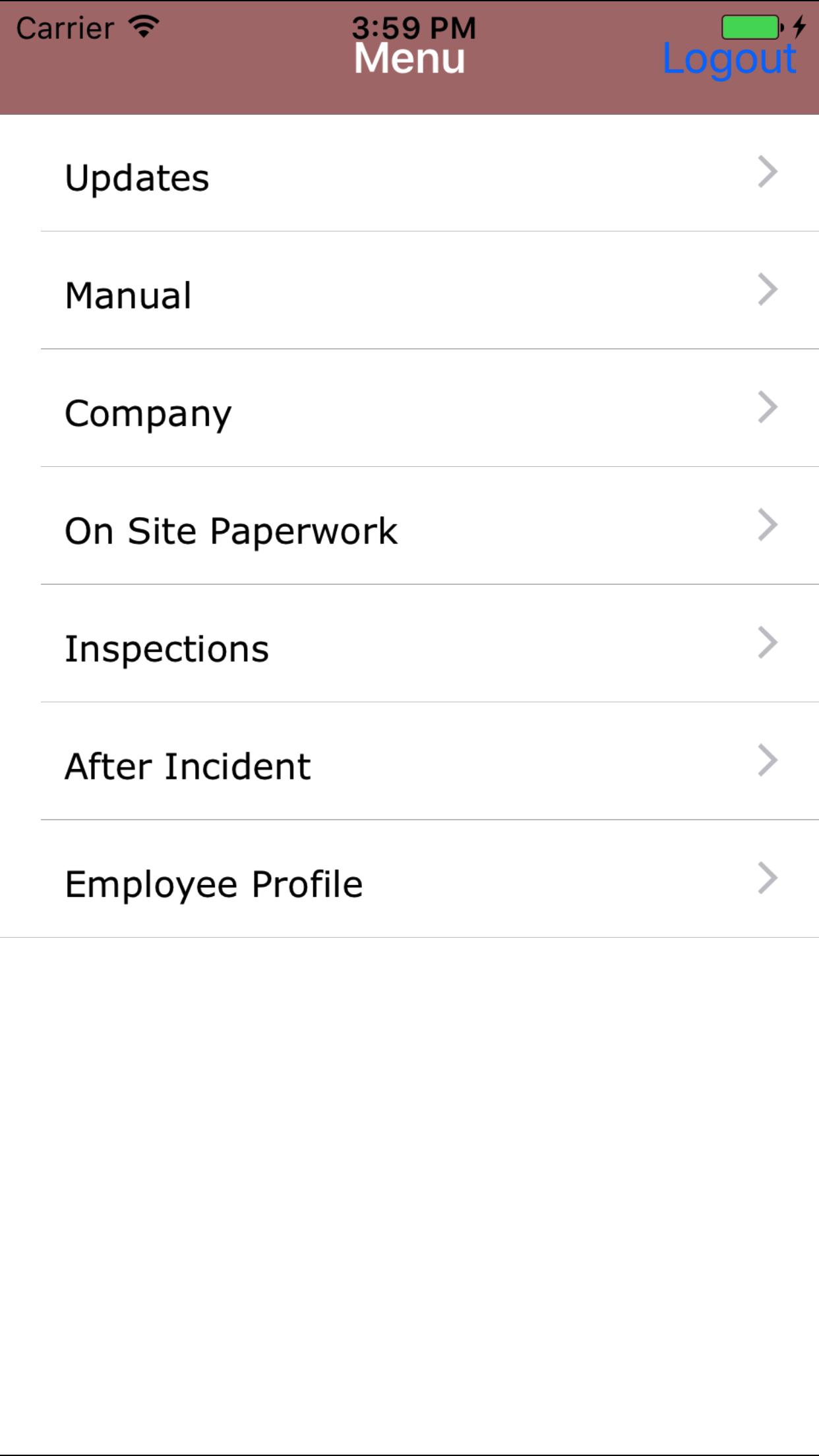
|
| Step 1 |
|
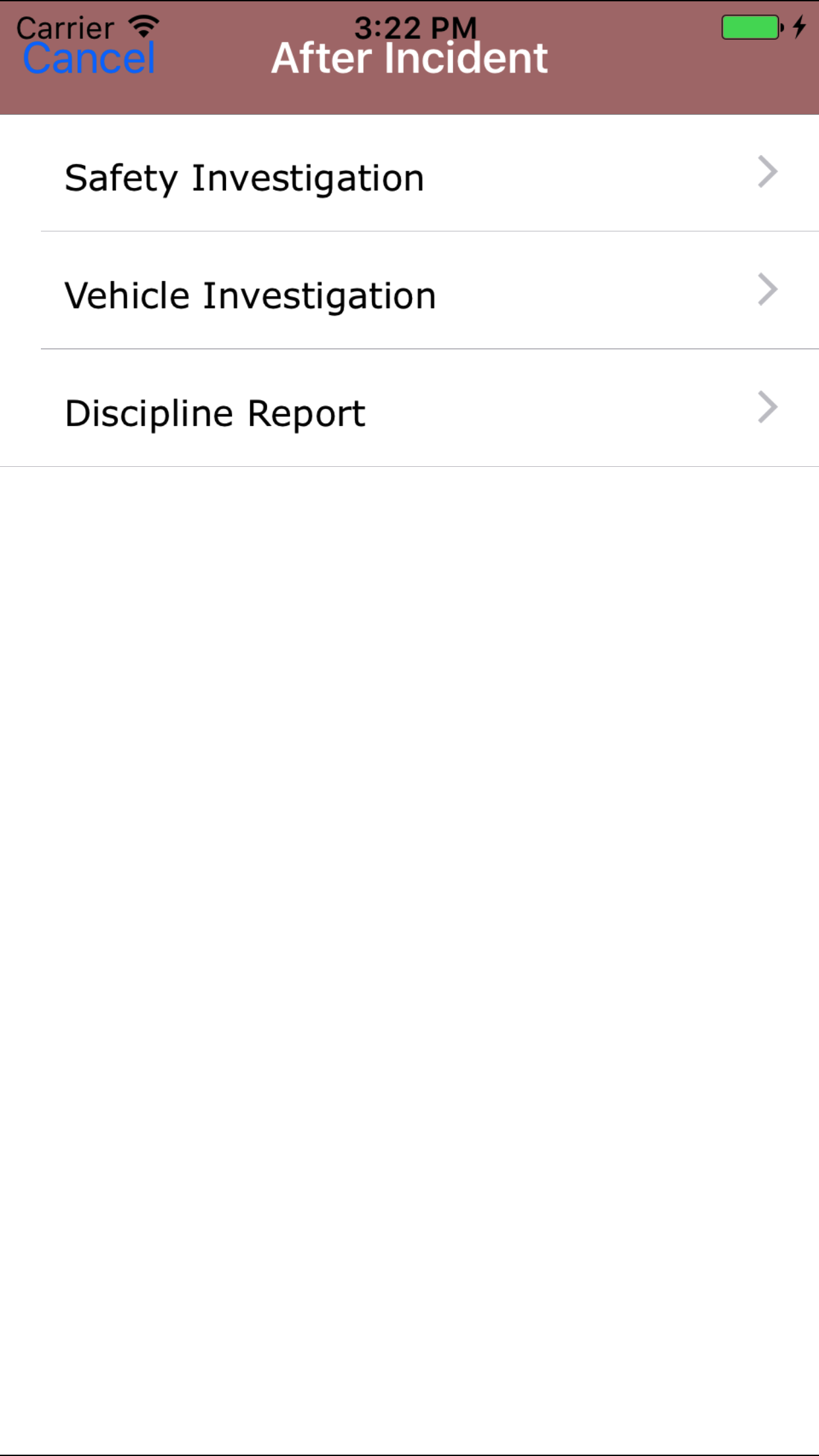
|
| Step 2 |
|
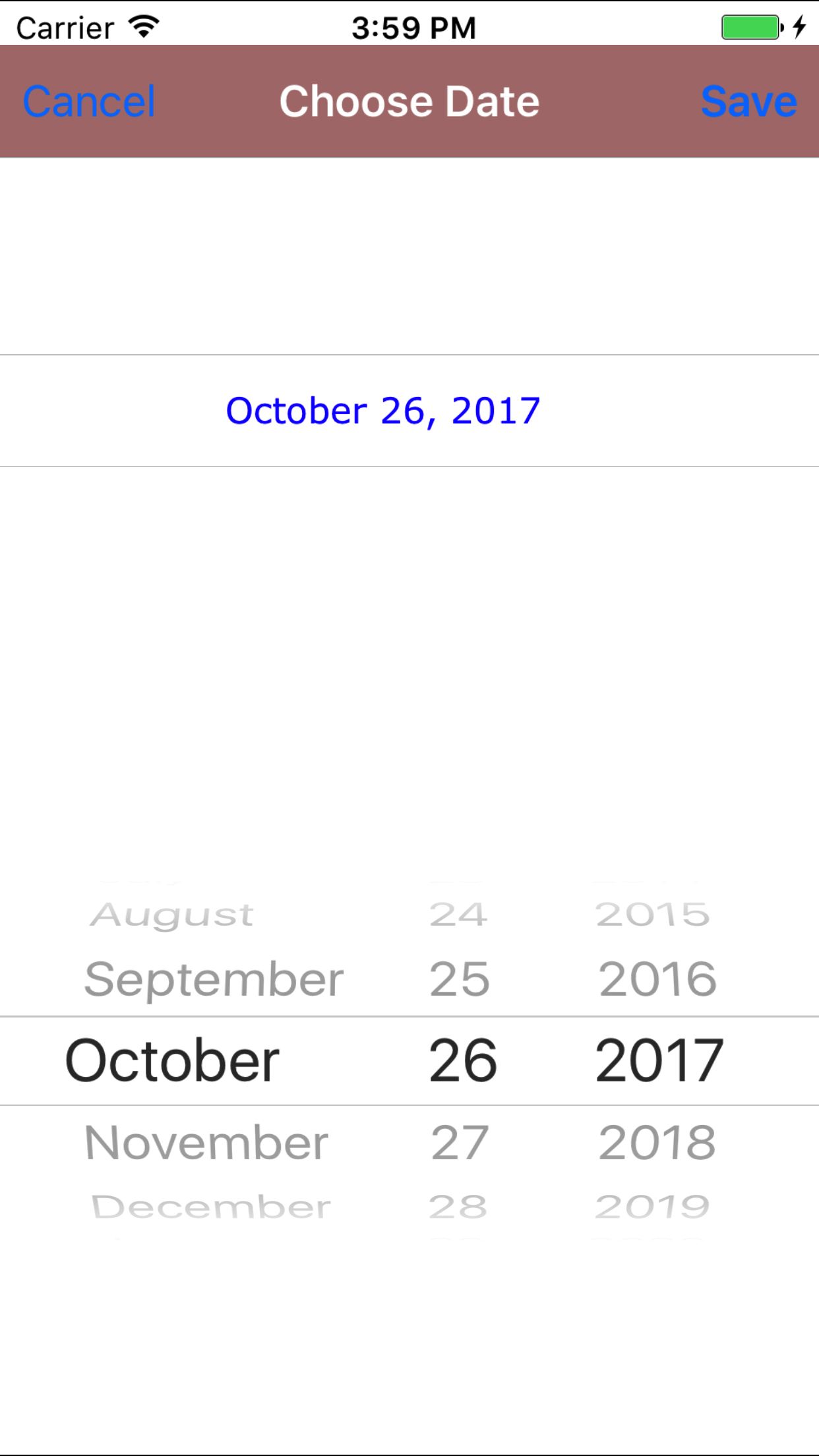
|
| Steps 3-4 |
|
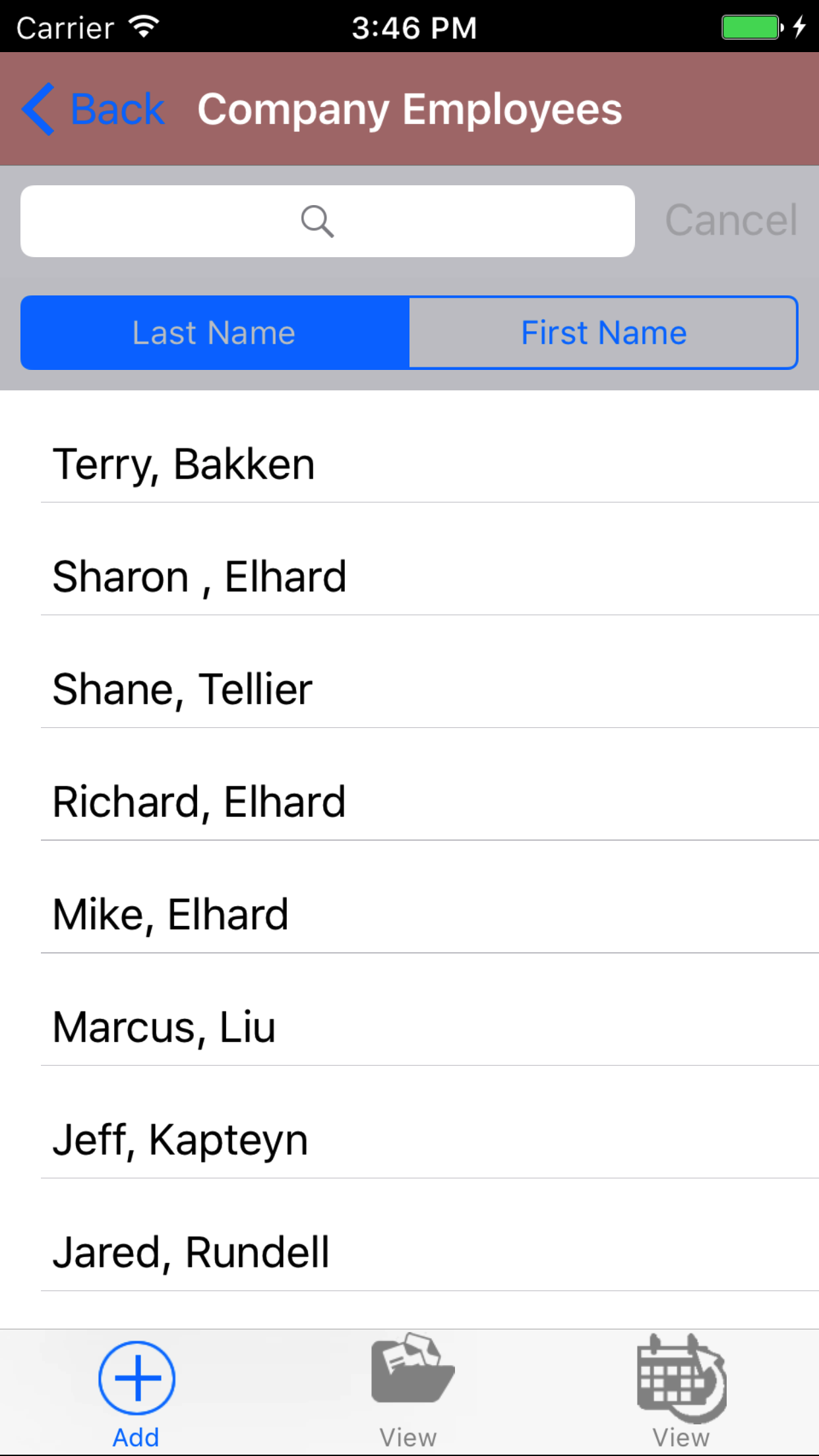
|
| Steps 5-6 |
|
|
| Step 7 |
|
|
2.Look Up un submitted Disciplinary Report |
|
Once a disciplinary report has been created, it can be accessed on the View un submitted tab. From this tab field staff can:
Once in the Disciplinary Report section
Steps
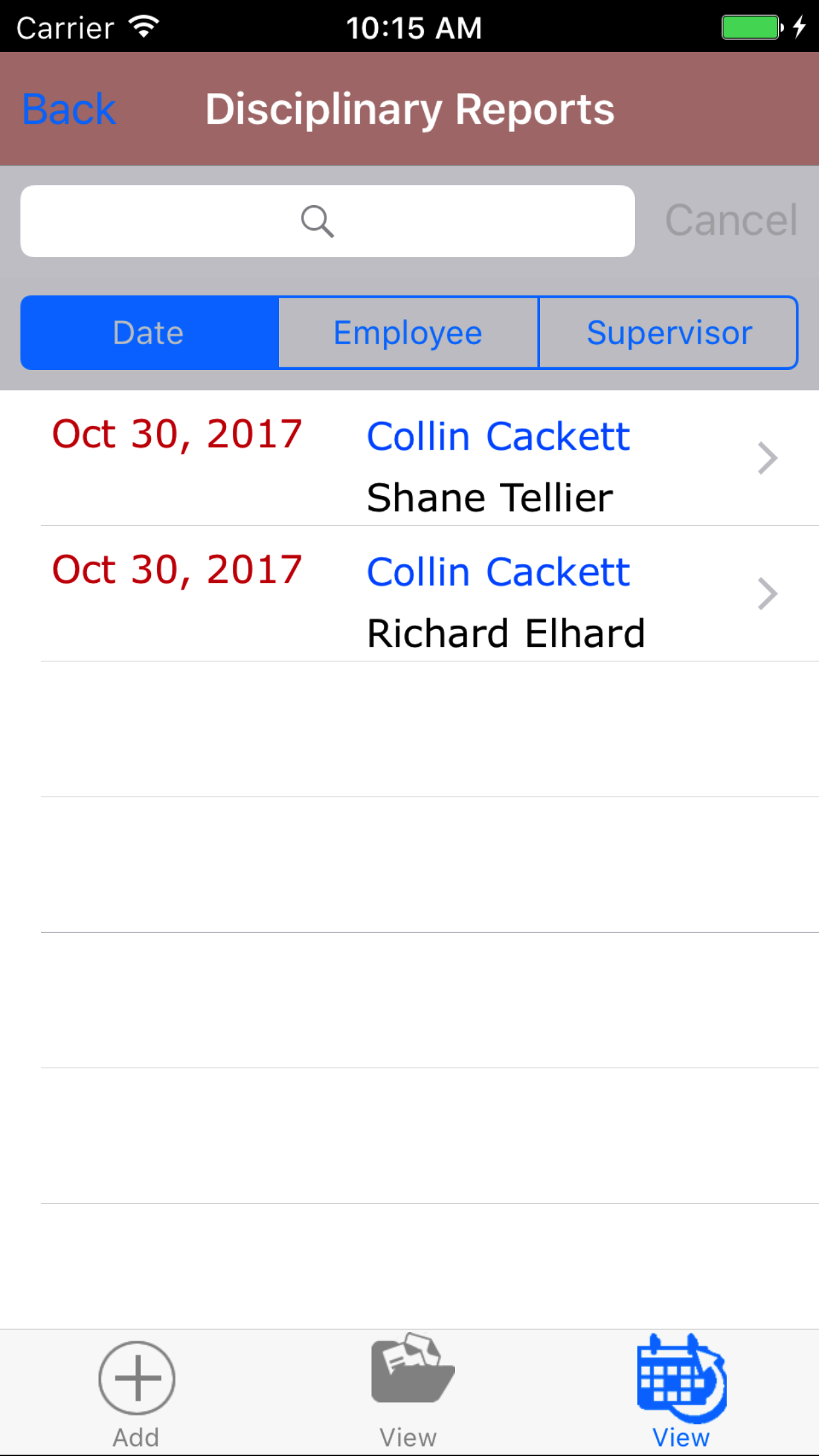
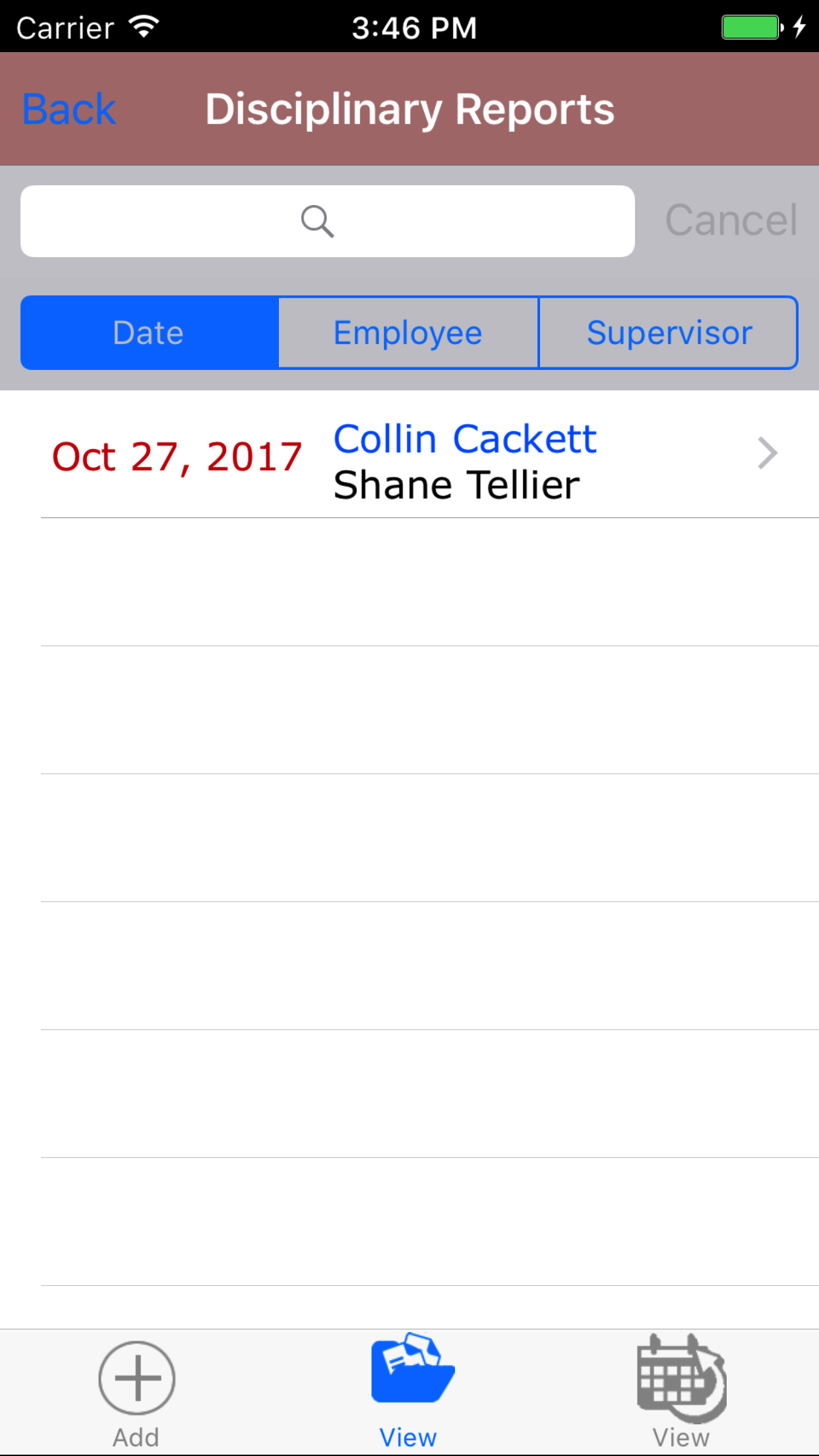
- Tap the second tab on the menu, the Un submitted view. If their are disciplinary reports to view they will be listed
with the violation date in red text, the employee in blue text, and the
supervisor in black text.
To Search Disciplinary Reports: Pull down on the list view, the search is defaulted to search by date enter the date in following
format YYYY-MM-DD. The other options for the Disciplinary Report search are employee last name and supervisor last name. Enter your search
criteria and click the Search button.
- Scroll the list of Disciplinary Report until the desired Disciplinary Report is displayed on the screen.
- Tap on the Disciplinary Report you would like to view. This loads the disciplinary report.
|
|
| Steps 1-3 |
|
|
3.Edit Disciplinary Report |
|
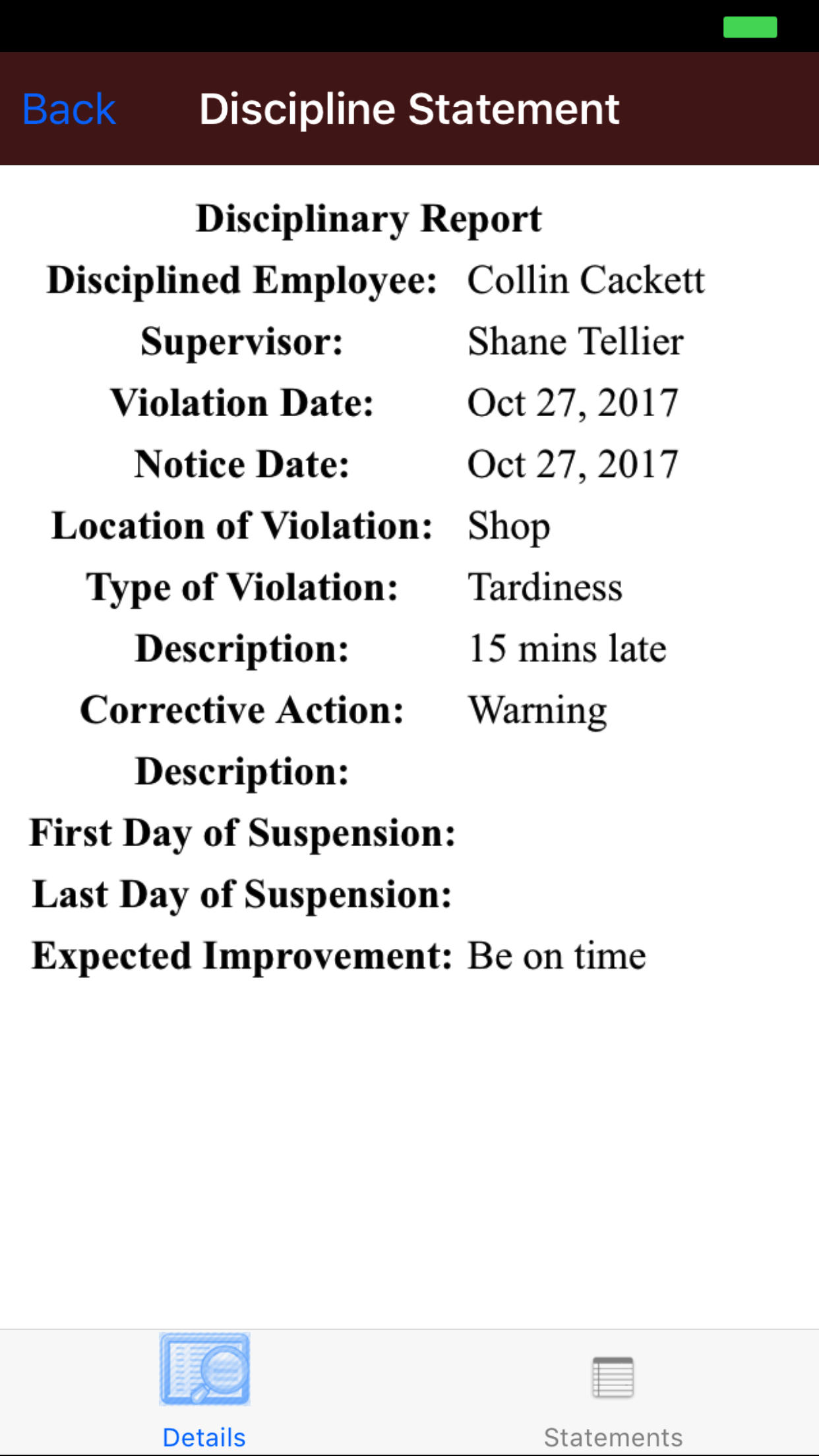
Once on the Disciplinary Report you would like to Edit
Steps
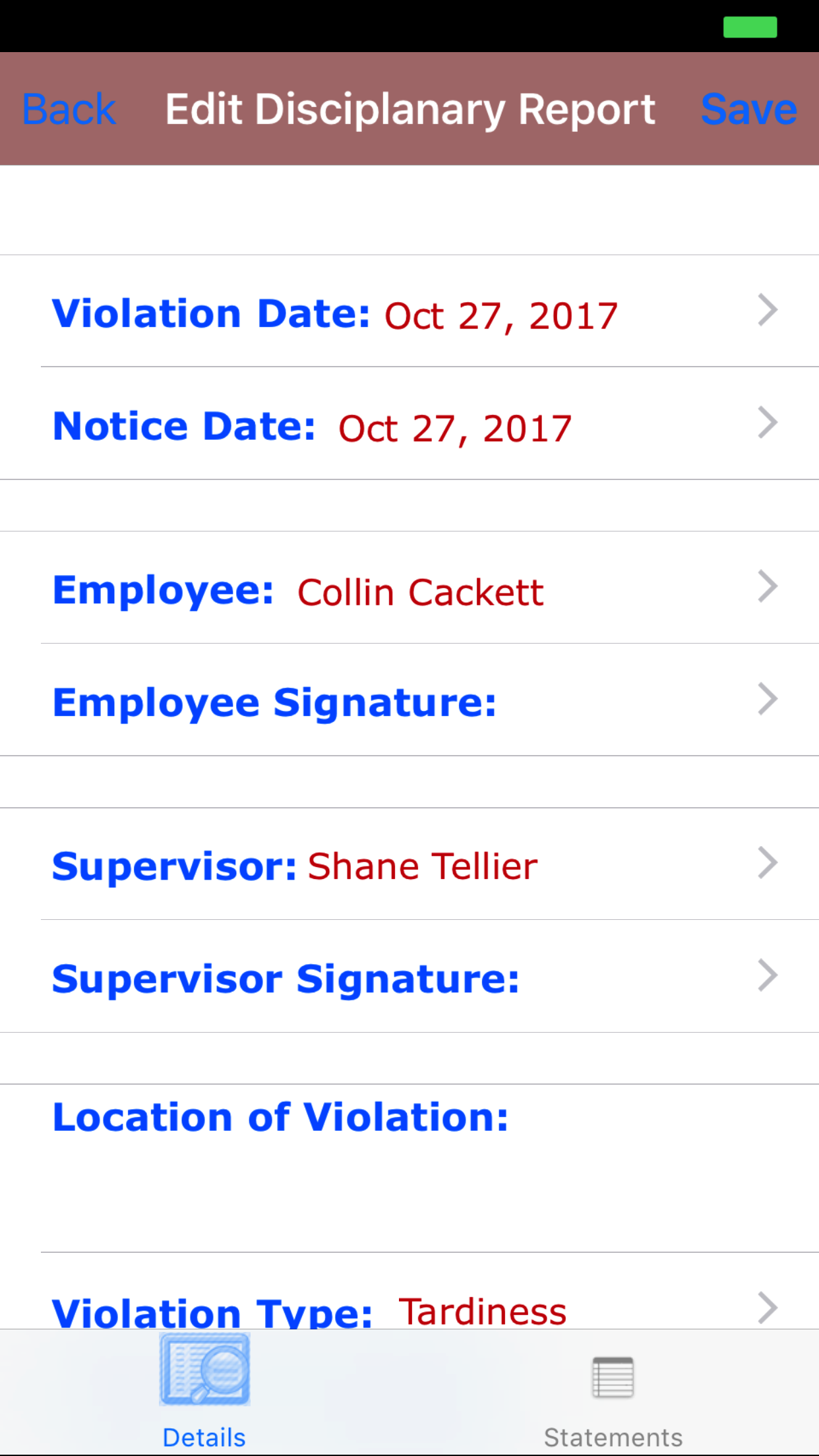
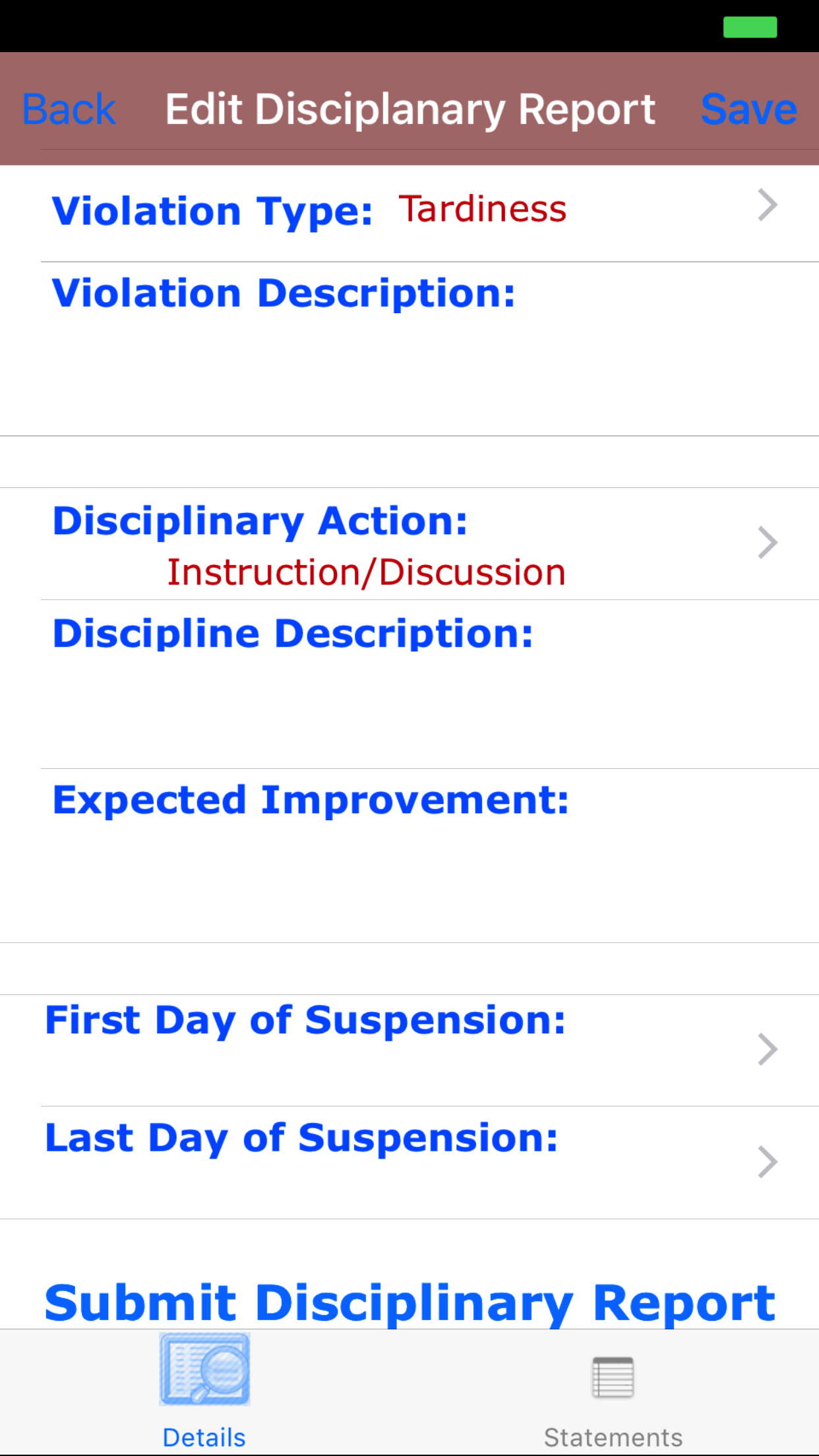
- Violation Date: The violation date field will set the date the violation occurred.
- Tap the Date field to open the Choose Violation Date screen.
- Scroll the date wheel on the far left of the screen until the desired date is highlighted.
- Return to the Edit Disciplinary Report screen by either tapping Save in the top right corner to select the highlighted date or tapping Cancel in the top left corner to leave the Date: field unchanged.
- Notice Date: The date field will set the date the notice of the disciplinary action was submitted.
- Tap the Date field to open the Choose Date screen.
- Scroll the date wheel on the far left of the screen until the desired date is highlighted.
- Return to the Edit Disciplinary Report screen by either tapping Save in the top right corner to select the highlighted date or tapping Cancel in the top left corner to leave the Date: field unchanged.
- Tap the Employee field to open the Choose Employee screen.
Employees are listed in descending order.
To Search Employees: Pull down on the list view, the search is defaulted to search by last name.
The other option for the Employee search is by first name. Enter your search
criteria and click the Search button.
- Scroll the list of employees until the desired employee is displayed on the screen.
- Tap the desired employee to select it or tap Back in the top left corner to leave the Supervisor field unchanged and return to the Edit Disciplinary Report screen.
- Return to the Edit Disciplinary Report screen by either tapping the appropriate vehicle or tapping Cancel in the top left corner to leave the employee field unchanged.
- Tap the Supervisor field to open the Choose Supervisor screen.
Employees are listed in descending order.
To Search Employees: Pull down on the list view, the search is defaulted to search by last name.
The other option for the Employee search is by first name. Enter your search
criteria and click the Search button.
- Scroll the list of employees until the desired employee is displayed on the screen.
- Tap the desired employee to select it or tap Back in the top left corner to leave the Supervisor field unchanged and return to the Edit Disciplinary Report screen.
- Return to the Edit Disciplinary Report screen by either tapping the appropriate vehicle or tapping Cancel in the top left corner to leave the employee field unchanged.
- Location of Violation: The Location of Violation field allows field staff to enter the location where the violation occurred. Location of Violation is a required field. The character limit of this field is 500.
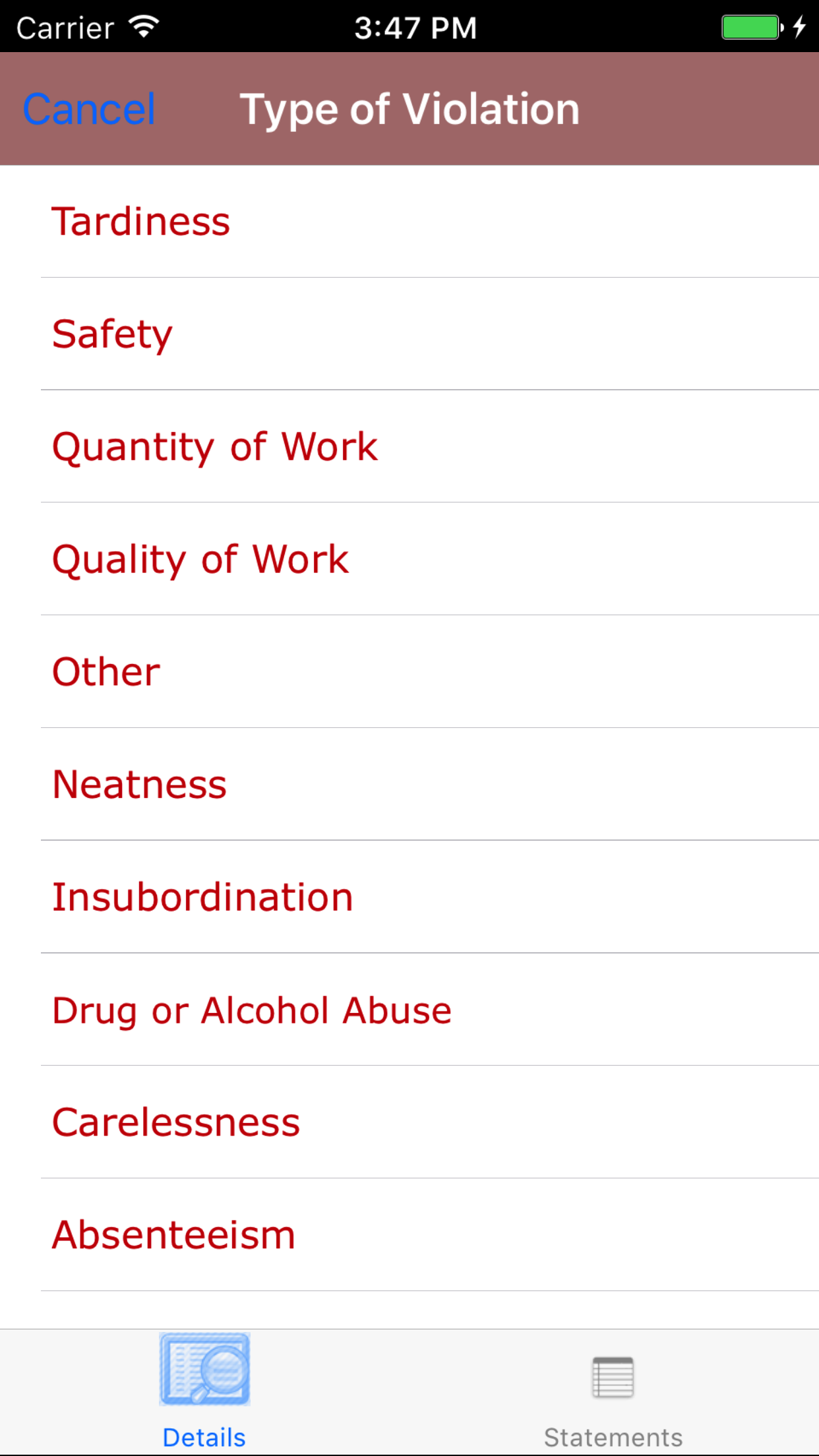
- Tap the Violation Type field to open the Choose Supervisor screen.
Violation Type are listed in descending order.
- Scroll the list of violation type until the desired violation type is displayed on the screen.
- Tap the desired violation type to select it or tap Back in the top left corner to leave the Violation Type field unchanged and return to the Edit Disciplinary Report screen.
- Return to the Edit Disciplinary Report screen by either tapping the appropriate vehicle or tapping Cancel in the top left corner to leave the violation type field unchanged.
- Violation Description: The Violation Description field allows field staff to enter the a description of the violation that occurred. Violation description is a required field. The character limit of this field is 500.
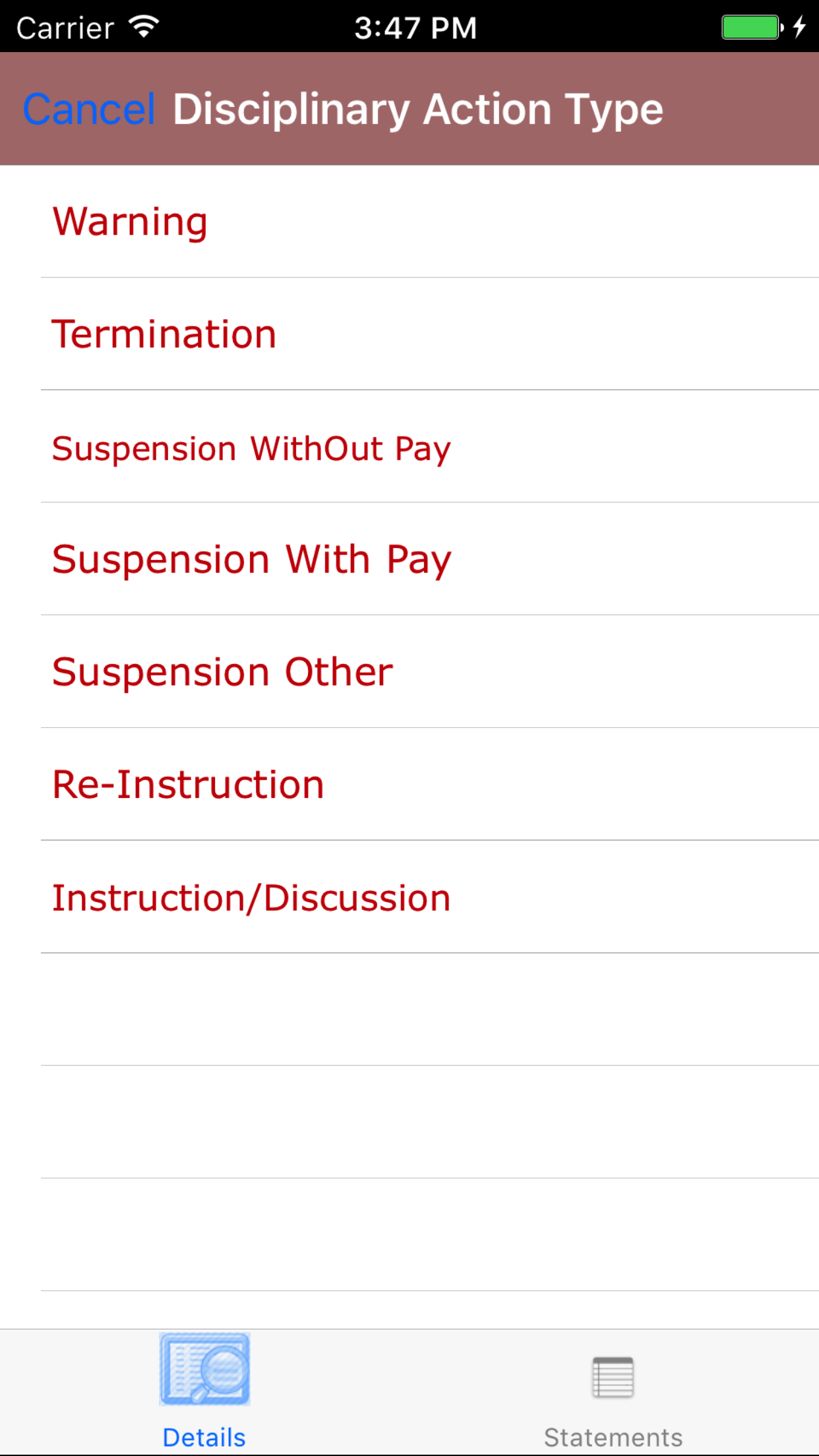
- Tap the Disciplinary Action field to open the Choose Disciplinary Action screen.
Disciplinary Actions are listed in descending order.
- Scroll the list of disciplinary actions until the desired disciplinary action is displayed on the screen.
- Tap the desired disciplinary action to select it or tap Back in the top left corner to leave the Disciplinary Action field unchanged and return to the Add Disciplinary Report screen.
- Return to the Add Disciplinary Report screen by either tapping the appropriate vehicle or tapping Cancel in the top left corner to leave the disciplinary action field unchanged.
- Discipline Description:: The Discipline Description field allows field staff to enter the a description of the disciplinary action taken. The character limit of this field is 500.
- Expected Improvement:: The Expected Improvement field allows field staff to enter the a description of the disciplinary action taken. Violation description is a required field. The character limit of this field is 500.
- First Day of Suspension The date field will set the date the notice of the disciplinary action was submitted.
- Tap the First Day of Suspension field to open the Choose First Day of Suspension screen.
- Scroll the date wheel on the far left of the screen until the desired date is highlighted.
- Return to the Edit Disciplinary Report screen by either tapping Save in the top right corner to select the highlighted date or tapping Cancel in the top left corner to leave the Date: field unchanged.
- First Day of Suspension: The date field will set the date the notice of the disciplinary action was submitted.
- Tap the Date field to open the Choose Date screen.
- Scroll the date wheel on the far left of the screen until the desired date is highlighted.
- Return to the Edit Disciplinary Report screen by either tapping Save in the top right corner to select the highlighted date or tapping Cancel in the top left corner to leave the Date: field unchanged.
- Tap Save in the top right corner to save any changes to the Disciplinary Report.
- A pop-up message that reads Disciplinary Report have been Saved indicates that the disciplinary report have been saved.
|
|
|
| Steps 1-2 |
|
|
|
| Steps 3-4 |
|
|
| Step 5 |
|
|
|
| Step 6 |
|
|
| Step 7 & Steps 9-13 |
|
|
| Step 8 |
|
|
|
4.Add Employee Signature |
|
The Employee whom is having the disciplinary report submitted for them must provide an electronic signature
to indicate that they have been made aware of disciplinary report.
Once on the Disciplinary Report you would like to Edit
Steps
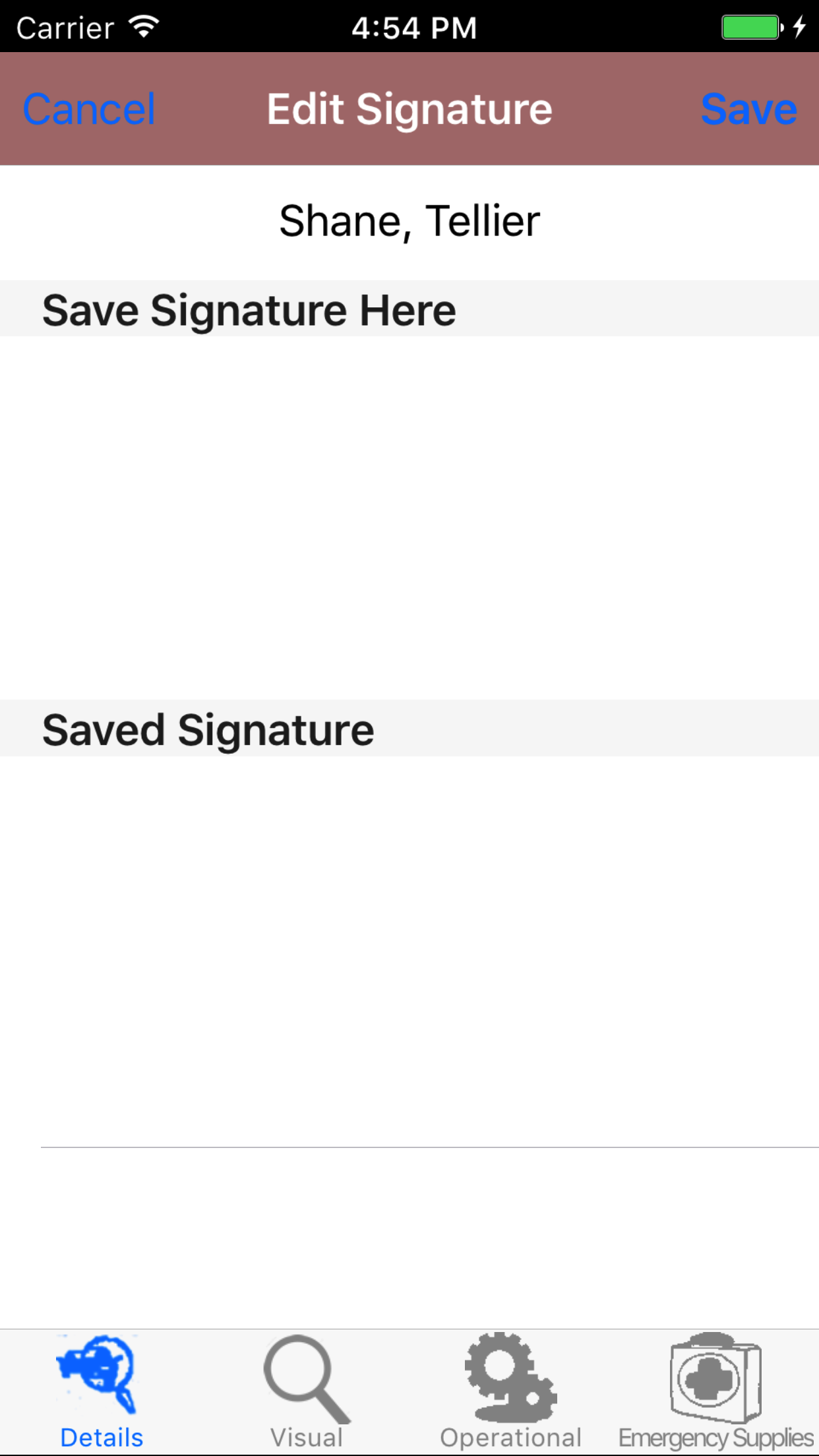
- Tap the first tab, the details tab.
- Tap the employee signature button.
- Sign in the white space beneath the Save New Signature Here label.
- Tap Save in the top right corner of the screen to update the Saved Signature field.
The saved signature will appear below the signature entry screen.
|
|
|
| Steps 1-2 |
|
|
| Steps 3-4 |
|
|
|
5.Add Supervisor Signature |
|
The Supervisor whom is performing the disciplinary report submitted for them must provide an electronic signature
to indicate that they have been made aware of disciplinary report.
Once on the Disciplinary Report you would like to Edit
Steps
- Tap the first tab, the details tab.
- Tap the supervisor signature button.
- Sign in the white space beneath the Save New Signature Here label.
- Tap Save in the top right corner of the screen to update the Saved Signature field.
The saved signature will appear below the signature entry screen.
|
|
|
| Steps 1-2 |
|
|
|
| Steps 3-4 |
|
|
|
6.Add Statement |
|
The Statement section of the Disciplinary Report allows field staff to enter statements of what has occurred as part of the incident
or the meeting to discuss the disciplinary action.
Once on the Disciplinary Report you would like to Edit
Steps
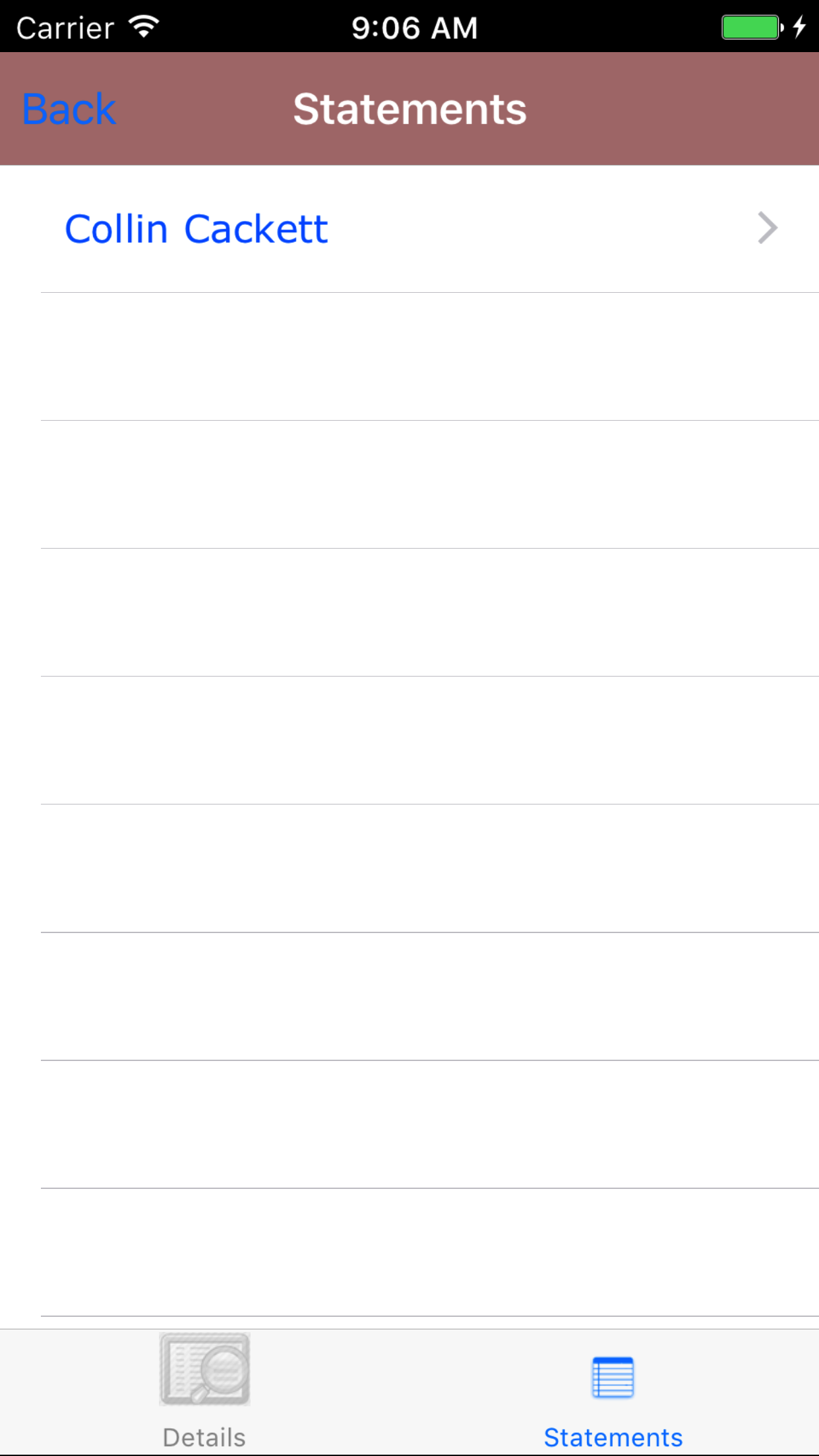
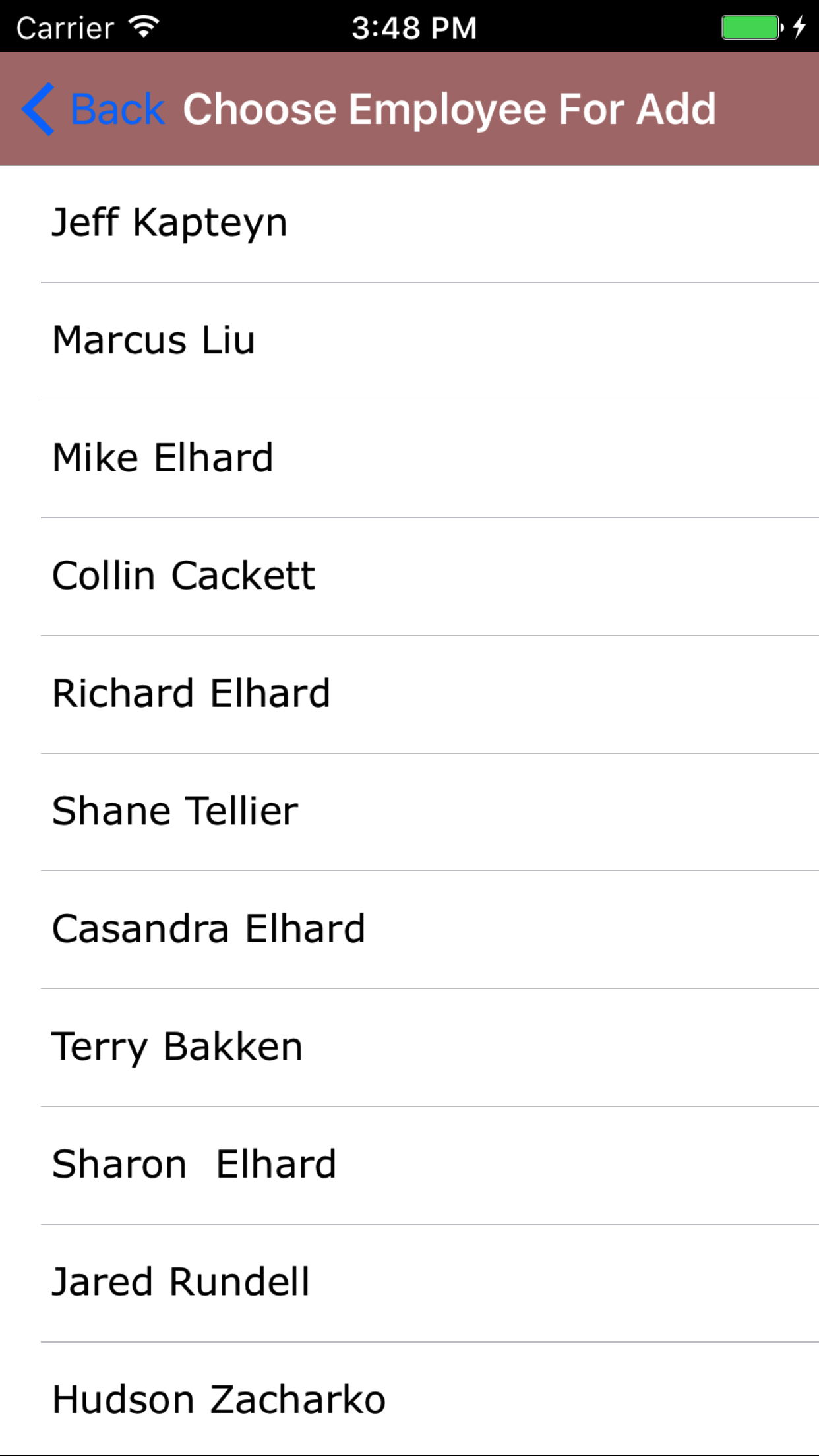
- Tap the second tab, the statements tab.
- Tap + icon button, in the top right corner.
- This loads a list of company field staff
- Scroll the list of employees until the desired employee is displayed on the screen.
- Tap on the employee you would like to add a statement for. This will take you back to the statements screen.
Error Messages on Add Employee Statement if
- Employee cannot be added twice: if employee added twice a error message will appear telling users employee cannot be add a second statement.
|
|
|
| Steps 3-4 |
|
|
| Steps 3-4 |
|
|
|
7.Add Paragraph to Statement |
|
Statements are made up of as many paragraphs required, each
paragraph can be moved up or down a statement by changing the order of paragraph value.
Once on the Disciplinary Report you would like to Edit
Steps
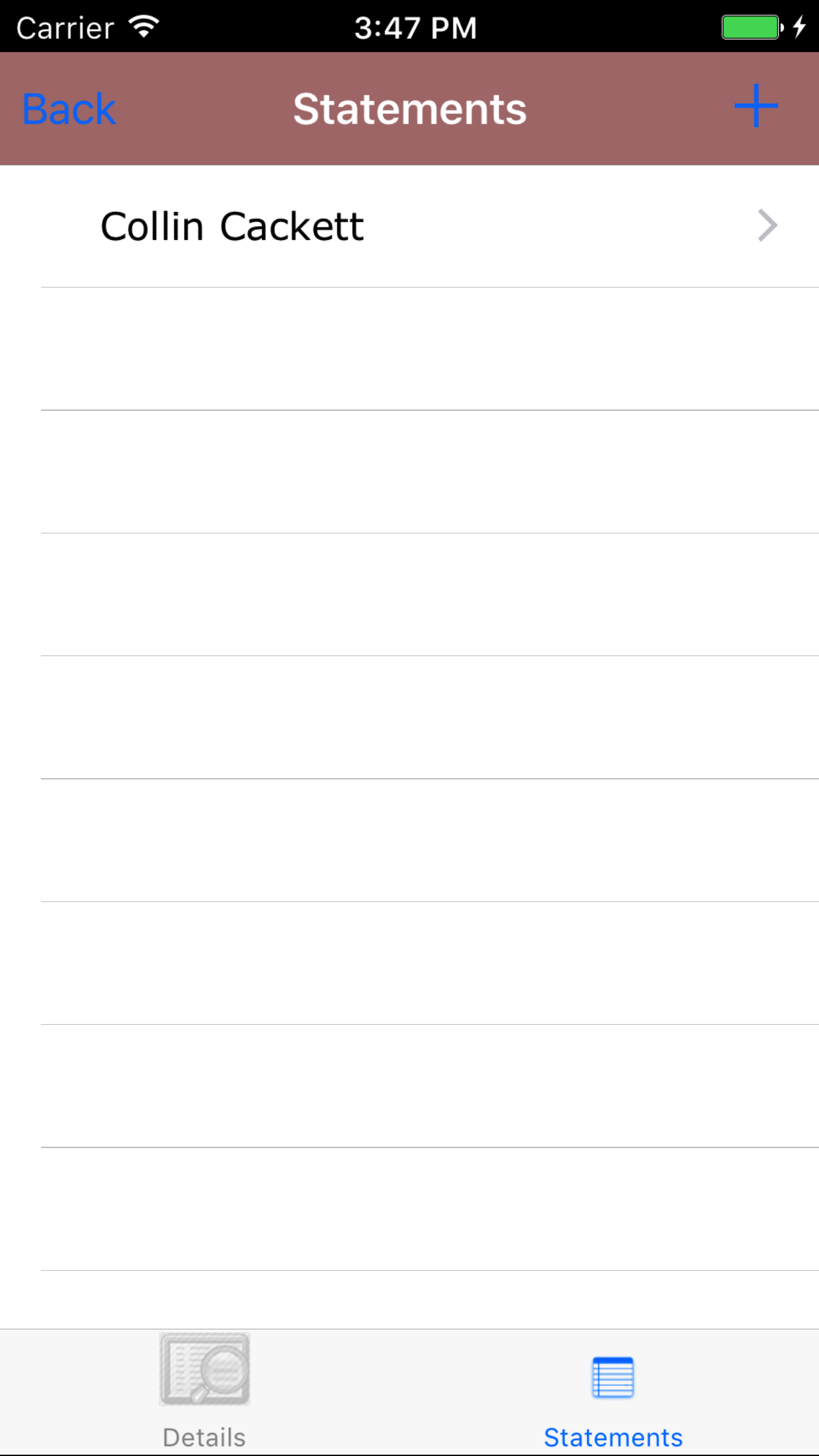
- Tap the second tab, the statements tab. This loads the list of employee statements started. If their are no
statements started yet, follow the instructions in the Add Statement section above.
- Scroll the list of statements until the desired employee statement is displayed on the screen.
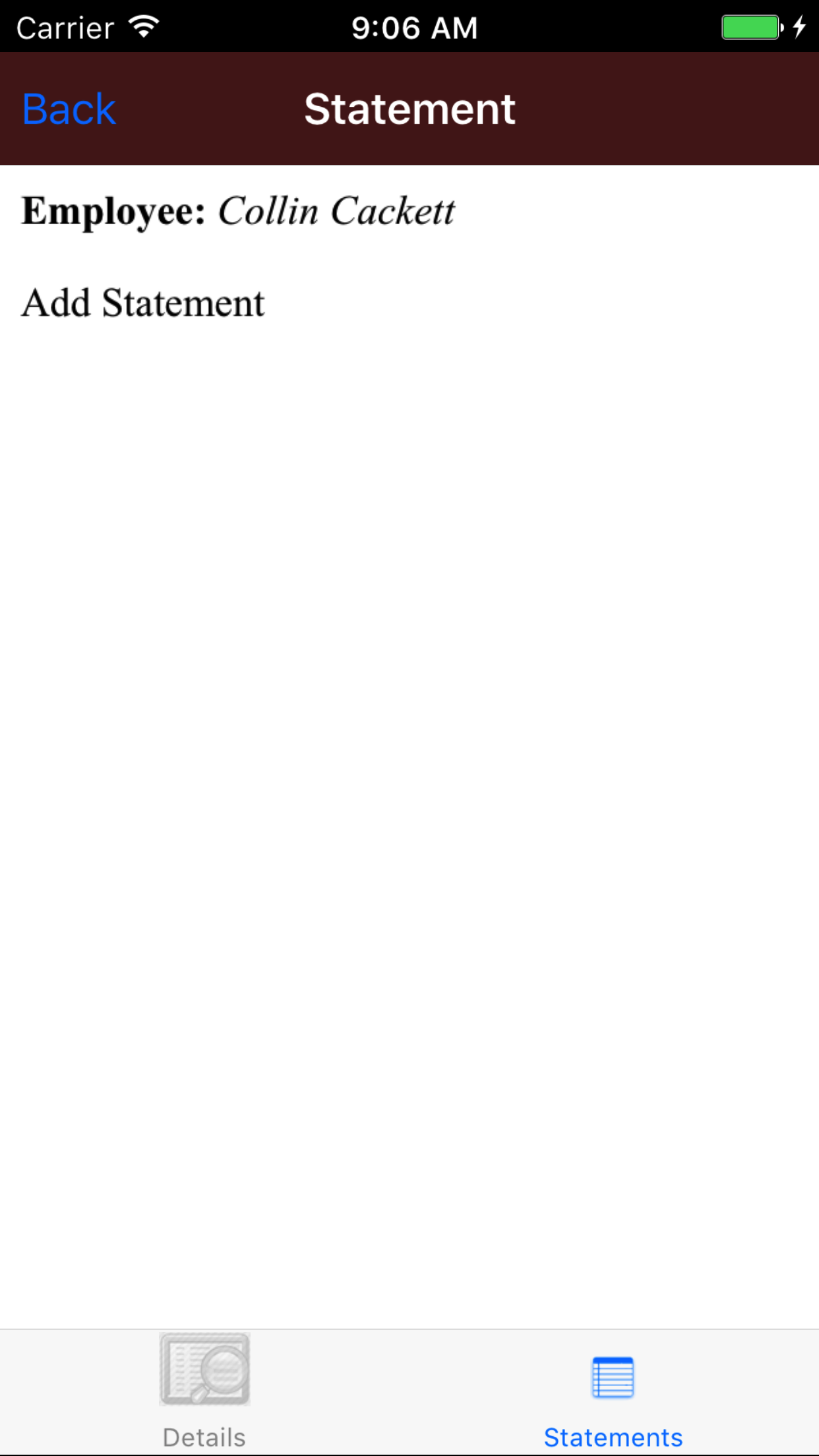
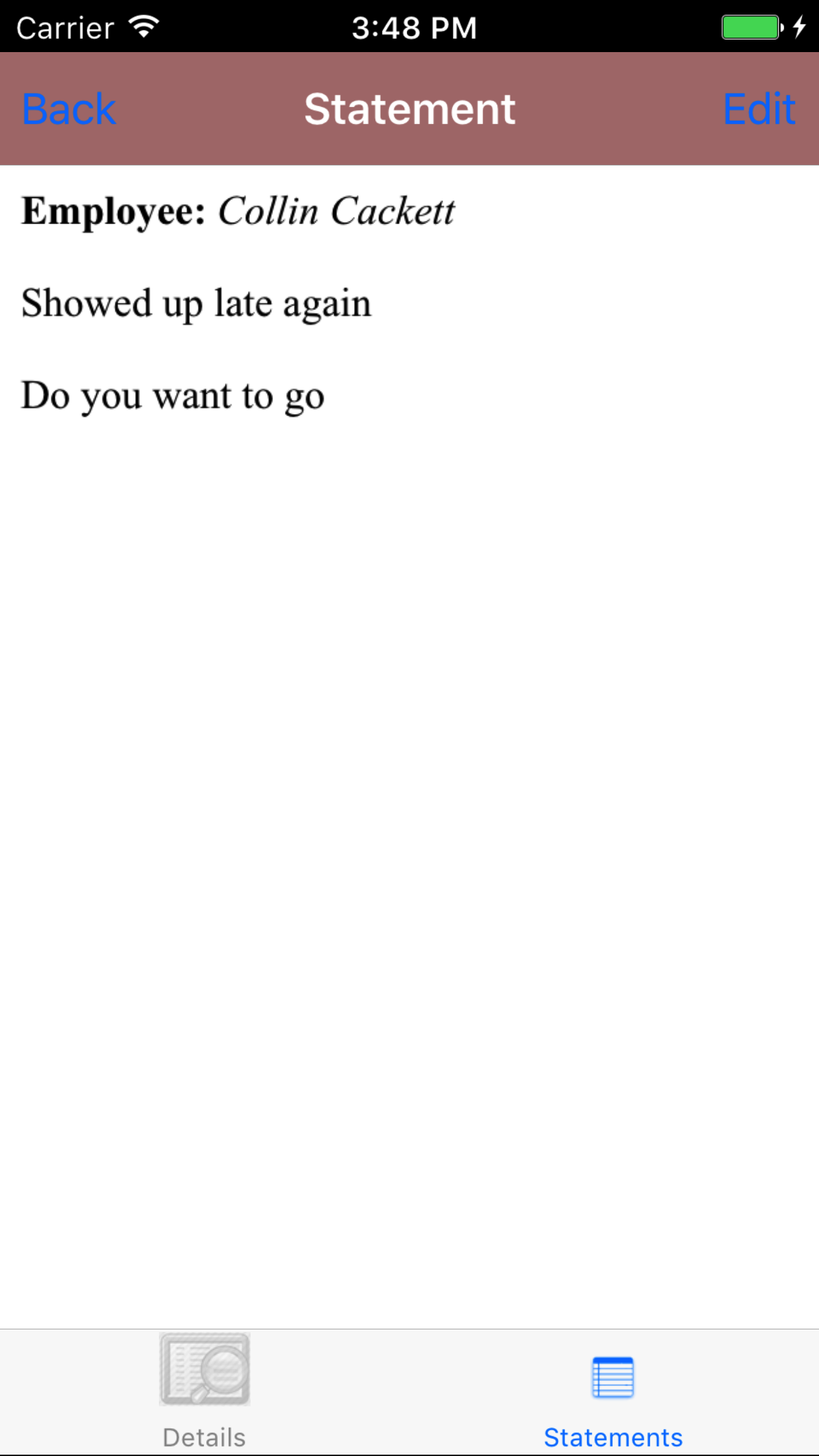
- Tap on the employee statement you would like to add a paragraph to. This will take you statements screen. On this screen you will
see a representation of the statement. With the employee name at the top and the paragraphs below.
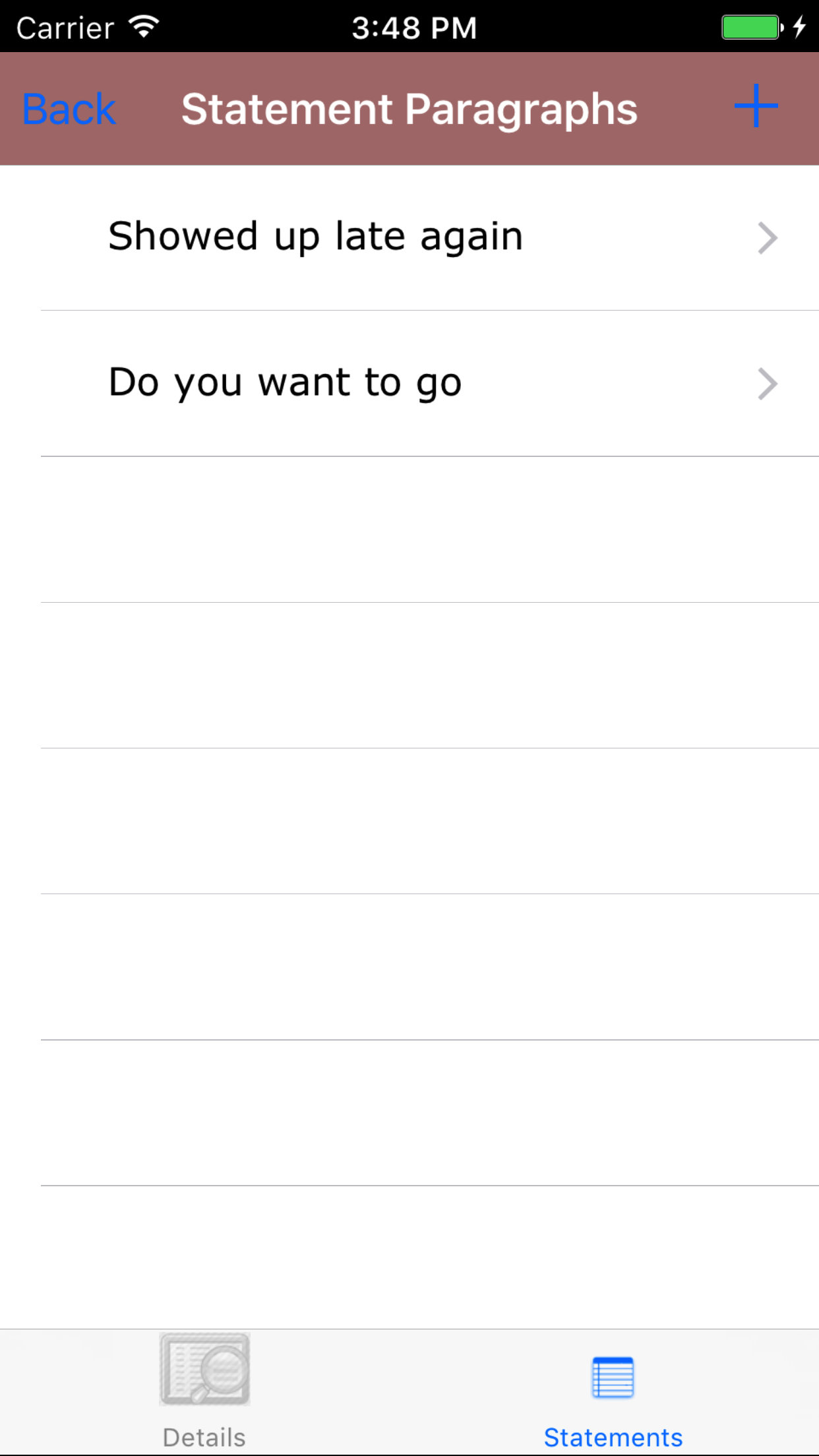
- Tap the Edit button in the top right corner to enter the Paragraph Edit list screen. The screen will load with the paragraphs listed
in the order they will appear in the document.
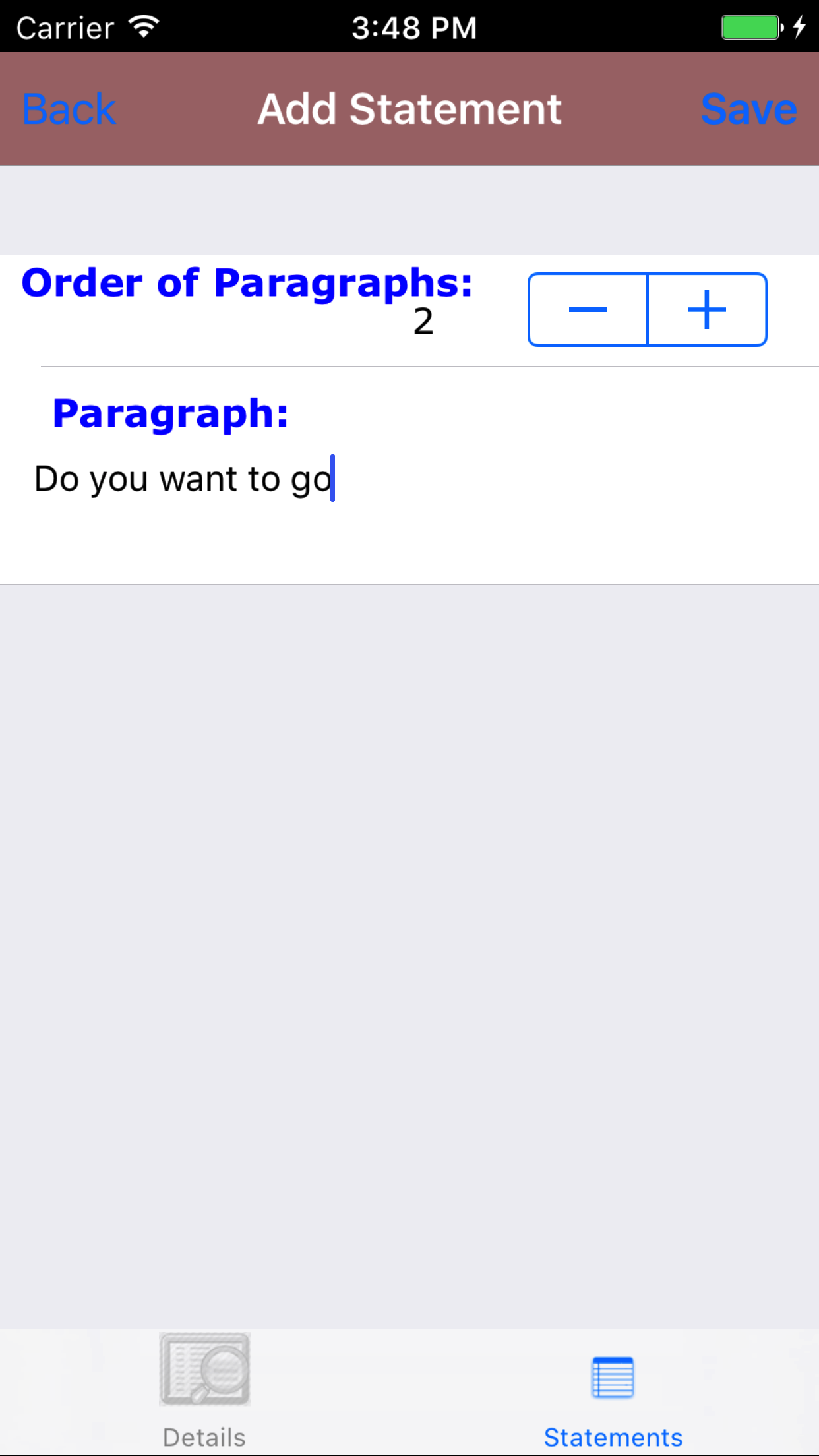
- Tap + icon in the top right corner to enter the Add Paragraph screen
Fields
- Order of Paragraphs: The order of paragraph field allows user to tap the + sign on the stepper to increase or - sign on the stepper to decrease the value of the paragraph. Paragraphs of a
statement will appear in ascending order of paragraphs when the statement is printed out.
- Paragraph:the paragraph field allows field staff to enter a paragraph of text to be included in a statement. The statement is a required field. The character limit of this field is 500.
- Tap the Save button to add the paragraph to the statement.
|
|
|
|
|
| Steps 1-3 |
|
|
| Step 4 |
|
|
|
| Step 5 |
|
|
| Step 6-8 |
|
|
|
8.Look Up Paragraph |
|
Statements are made up of as many paragraphs required, each
paragraph can be moved up or down a statement by changing the order of paragraph value.
Once on the Disciplinary Report you would like to Edit
Steps
- Tap the second tab, the statements tab. This loads the list of employee statements started. If their are no
statements started yet, follow the instructions in the Add Statement section above.
- Scroll the list of statements until the desired employee statement is displayed on the screen.
- Tap on the employee statement you would like to add a paragraph to. This will take you statements screen. On this screen you will
see a representation of the statement. With the employee name at the top and the paragraphs below.
- Tap the Edit button in the top right corner to enter the Paragraph Edit list screen. The screen will load with the paragraphs listed
in the order they will appear in the document.
- Scroll the list of paragraphs until the desired paragraph is displayed on the screen.
- Tap on the desired paragraph to load the Edit Paragraph screen.
|
|
|
|
9.Edit Paragraph |
|
Once on the Statement Paragraph you would like to Edit
Fields
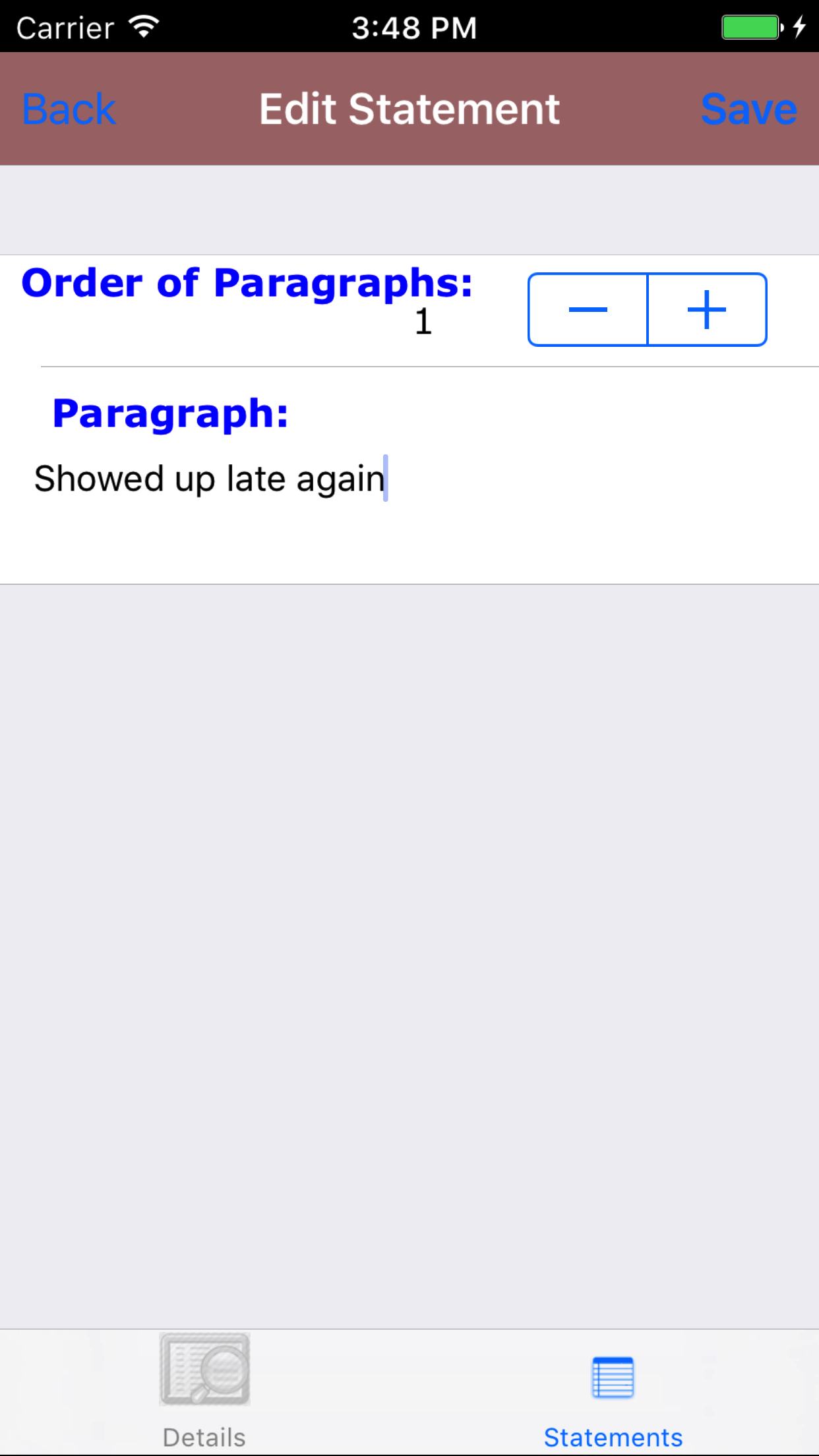
Order of Paragraphs: The order of paragraph field allows user to tap the + sign on the stepper to increase or - sign on the stepper to decrease the value of the paragraph. Paragraphs of a
statement will appear in ascending order of paragraphs when the statement is printed out.
Paragraph:the paragraph field allows field staff to enter a paragraph of text to be included in a statement. The statement is a required field. The character limit of this field is 500.
Tap the Save button to edit the paragraph to the statement.
|
|
| Steps 1-3 |
|
|
10.Delete Paragraph |
|
Once on the Statement you would like to view
Steps
- Tap the Edit button in the top right corner to enter the Paragraph Edit list screen. The screen will load with the paragraphs listed
in the order they will appear in the document.
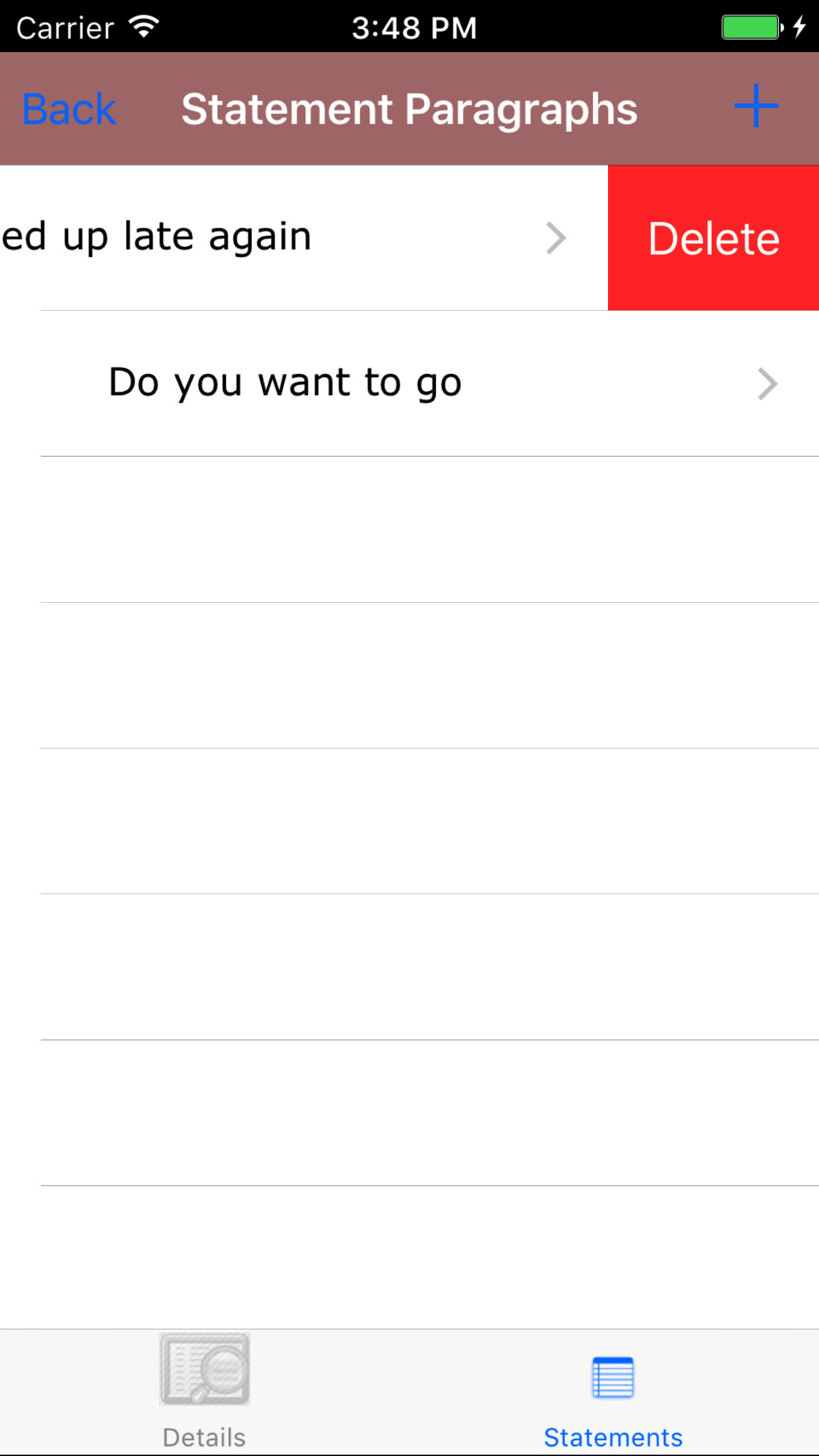
- Scroll the list of paragraphs until the desired paragraph is displayed on the screen.
- Swipe from the right edge to the left to bring up the delete button for the paragraph.
- Tap the Delete button. The paragraph will be deleted from the IPhone application.
|
|
|
| Step 1 |
|
|
| Steps 2-3 |
|
|
11.Submit Disciplinary Report |
|
Once in the Disciplinary Report Edit screen.
Steps
- Tap the Submit Disciplinary Report button on the bottom of the screen
- A pop-up message that reads Disciplinary Report have been submitted indicates that the disciplinary report have been submitted to R & T Electric Pro.
Error Messages on Submit Disciplinary Report if
- Employee Signature Missing: if the employee has not signed the disciplinary report a error message will appear telling users the disciplinary report could not be submitted with out signature from the employee.
- Supervisor Signature Missing: if the supervisor has not signed the disciplinary report a error message will appear telling users the disciplinary report could not be submitted with out signature from the supervisor.
- Report is submitted out of order: if the disciplinary report is submitted out of order a error message will appear telling users the disciplinary report is submitted out of order.
|
|
|
| Steps 1-3 |
|
|
12.Delete Disciplinary Report |
|
Once in the Disciplinary Report section
Steps
- Tap the second tab on the menu, the Un submitted view. If their are timecard entries to view they will be listed
with the Start date in blue, the End date in
red beside the customer name in black on the first line. The second line
will be the entered reason for time off in black.
To Search Disciplinary Reports: Pull down on the list view, the search is defaulted to search by date enter the date in following
format YYYY-MM-DD. The other options for the Disciplinary Report search are employee last name and supervisor last name. Enter your search
criteria and click the Search button.
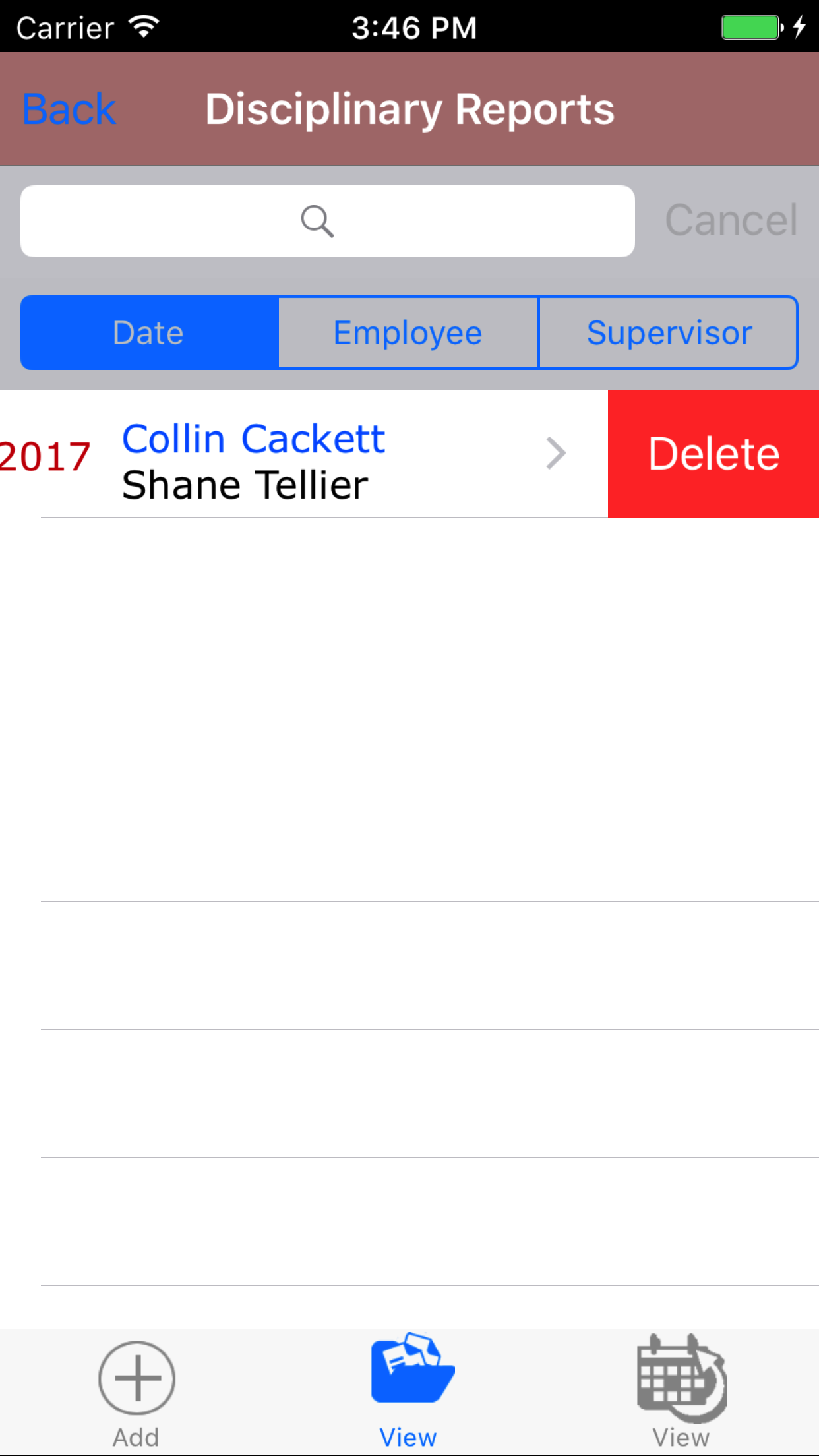
- Scroll the list of Disciplinary Reports until the desired Disciplinary Report is displayed on the screen.
- Swipe from the right edge to the left to bring up the delete button for the disciplinary report.
- Tap the Delete button. The disciplinary report will be deleted from the IPhone application.
|
|
| Steps 1-3 |
|
|
13.View Historic Disciplinary Report |
|
|
14.Update Disciplinary Reports |
|
Disciplinary Reports may be started on one field staff members device and finished on another field staff members device. To get a copy of the report field staff can download the report. Steps
- From the Menu screen, tap the Updates button.
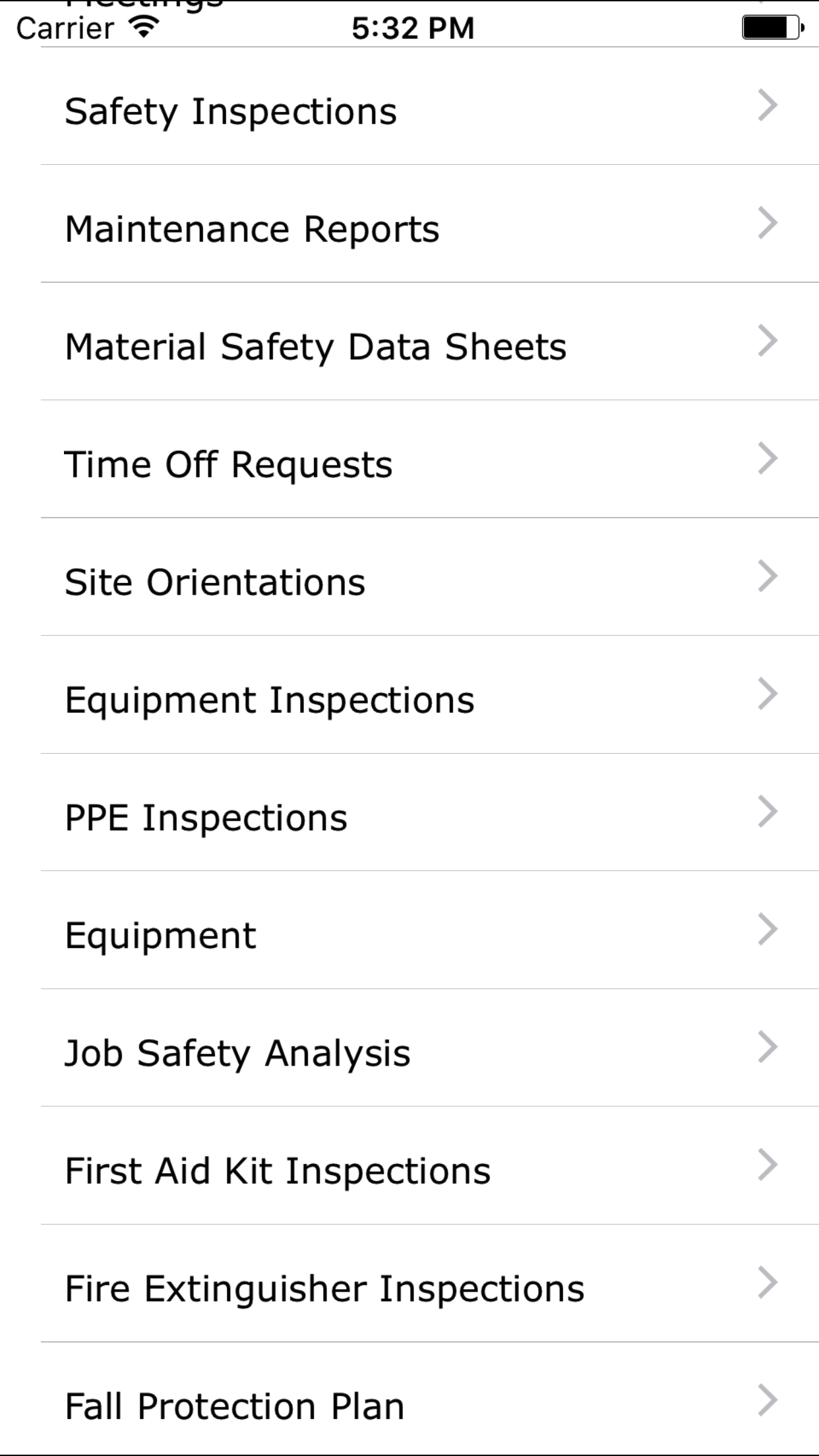
- Scroll the list of sections until you find the Disciplinary Report button.
- Tap on the Disciplinary Report button.
|
|
|
|
| Step 1 |
|
|
| Step 2 |
|
|