Manual Web Site Manual

First Aid Requirements Calculator

The first aid requirements calculator gives field staff a quick reference to requirements of first aid based on the type of work being preformed, the work location in relation to a medical or treatment facility and the number of workers working on the job site. Based on this the calculator will tell field staff the type of first aid kit required, other first aid requirements and the contents of the required first aid kit details.

Emergency Response Plan has the First Aid Requirements built into Report

As part of a Emergency Response Plan the same questions are asked as the first aid requirement calculator, meaning once the emergency response plan is created you will get the same information.

For more information about creating a Emergency Response Plan in this manual click here to view the emergency response plan section.

Table of Contents

#Section Name#Section Name
1Using First Aid Requirements Calculator 6Update System Updates

1.Using First Aid Requirements Calculator

First Aid Requirements can be calculated through the SafetyNet IPhone Application.

Steps
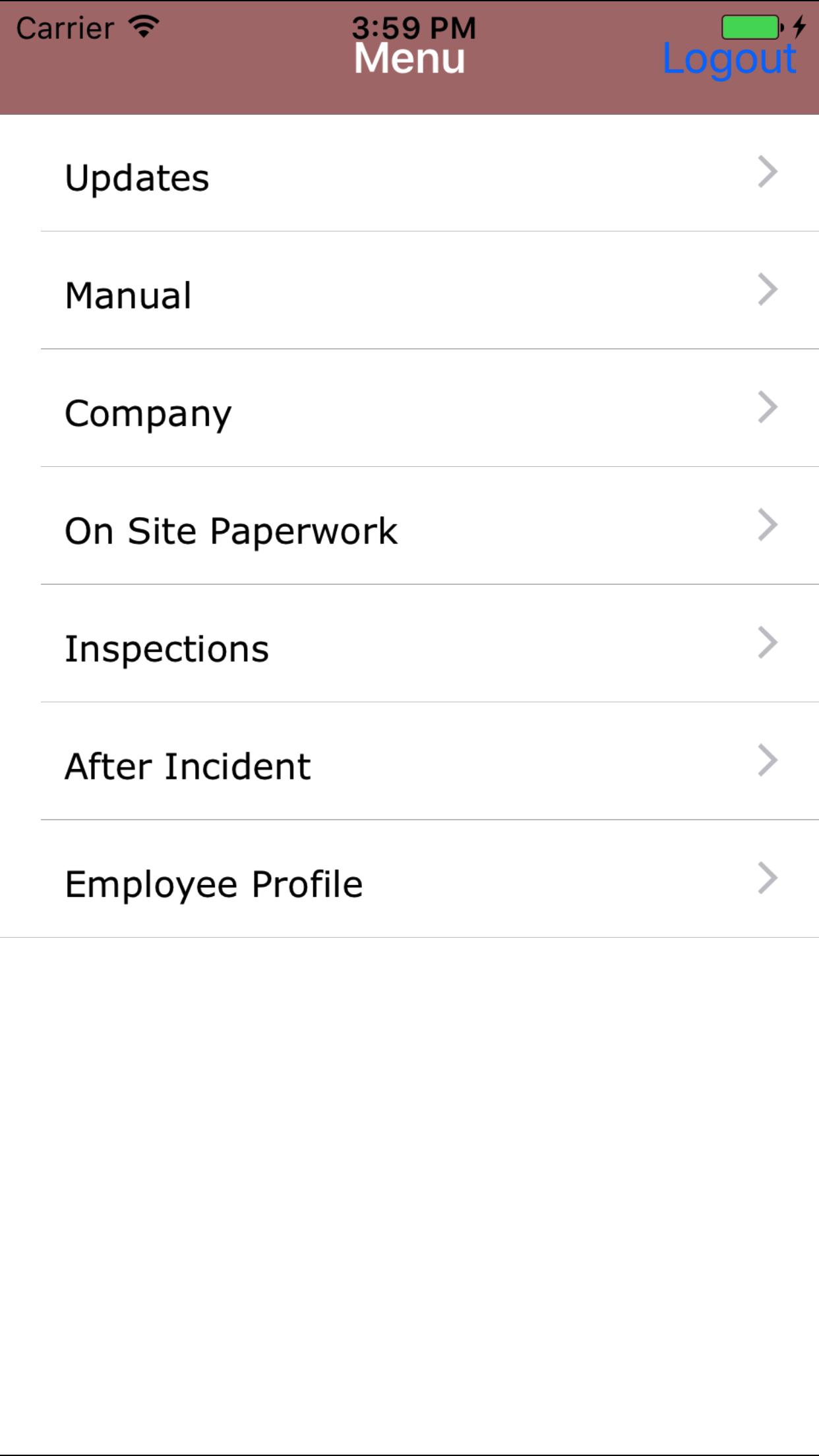
  1. From the Menu screen, tap the Manual button.
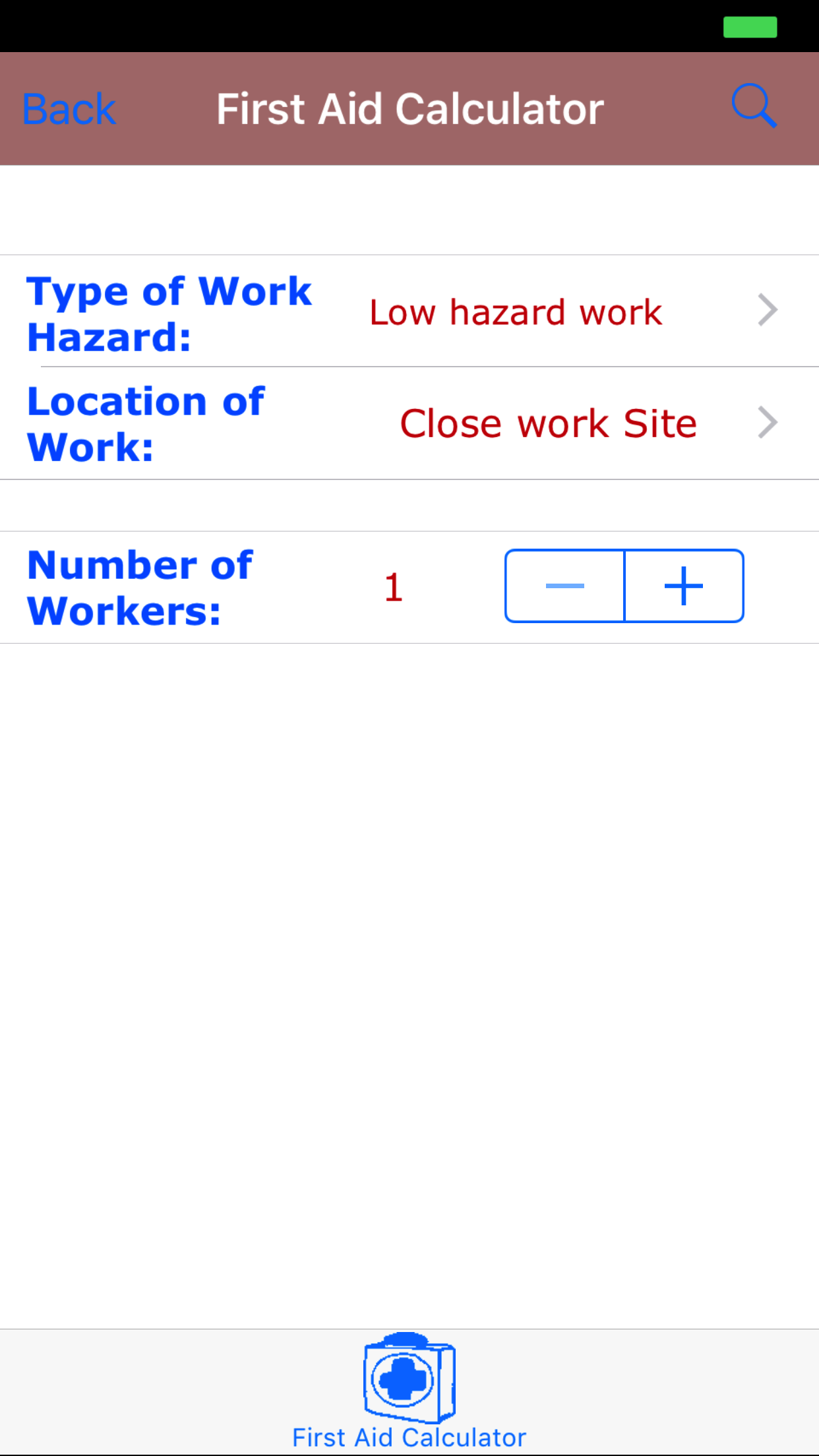
  2. Then tap on the First Aid Requirements Calculator button to open the First Aid Requirements Calculator screen.
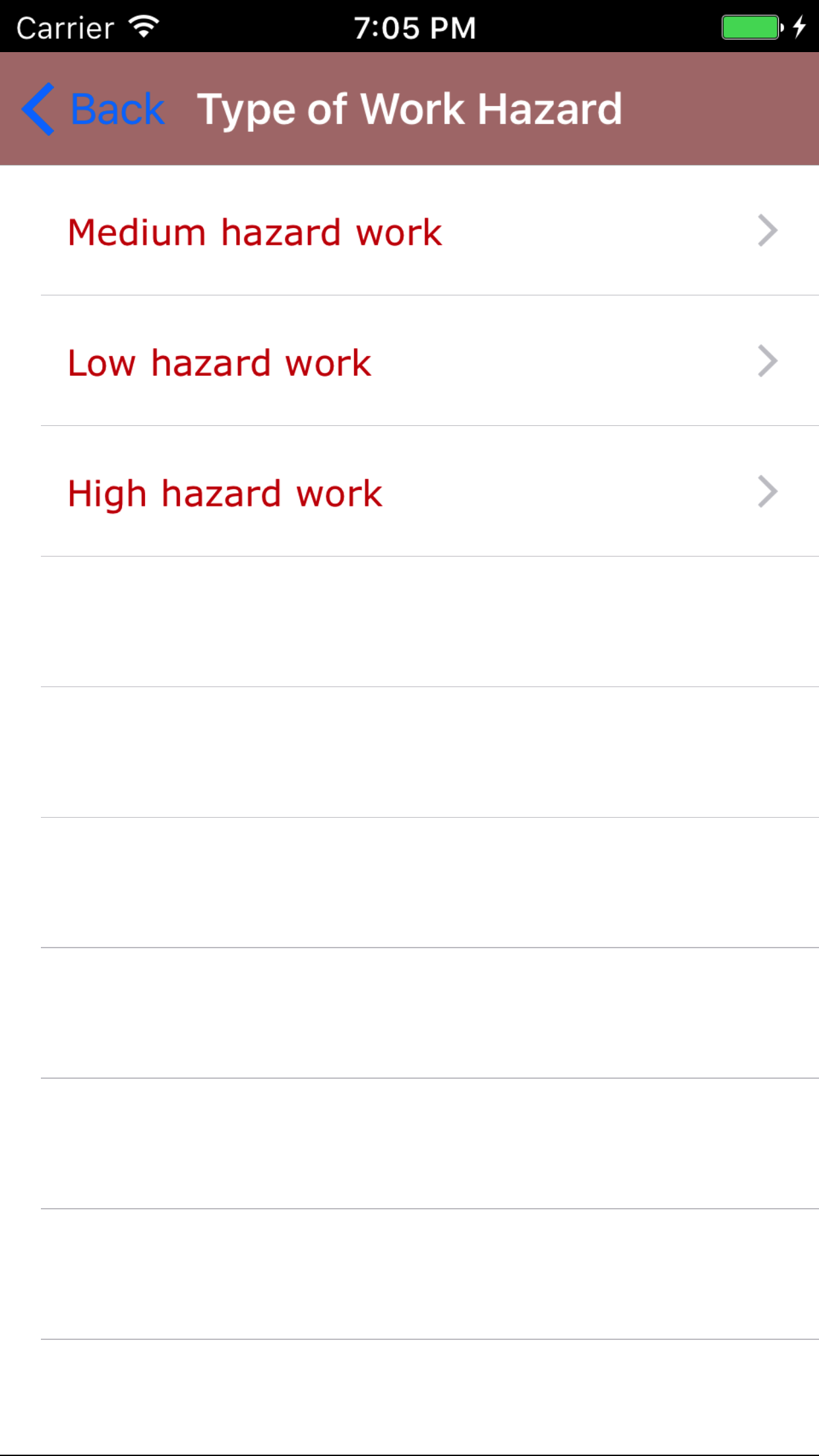
  3. Type of Work Hazard: The Type of Work Hazard field refers to the type of hazards involved with the type of work occurring on the job site.
  4. The type of work hazard are listed in red text.

    1. Tap the Type of Work Hazard field to open the Choose Type of Work Hazard screen.
    2. Scroll the list of type of work hazards until the desired type of work hazard is displayed on the screen.
    3. Tap the desired type of work hazard to select it or tap Back in the top left corner to leave the type of work hazard field unchanged and return to the First Aid Requirements Calculator screen.
    4. Return to the First Aid Requirements Calculator screen by either tapping Save in the top right corner to select the highlighted date or tapping Cancel in the top left corner to leave the Type of Work Hazard field unchanged.
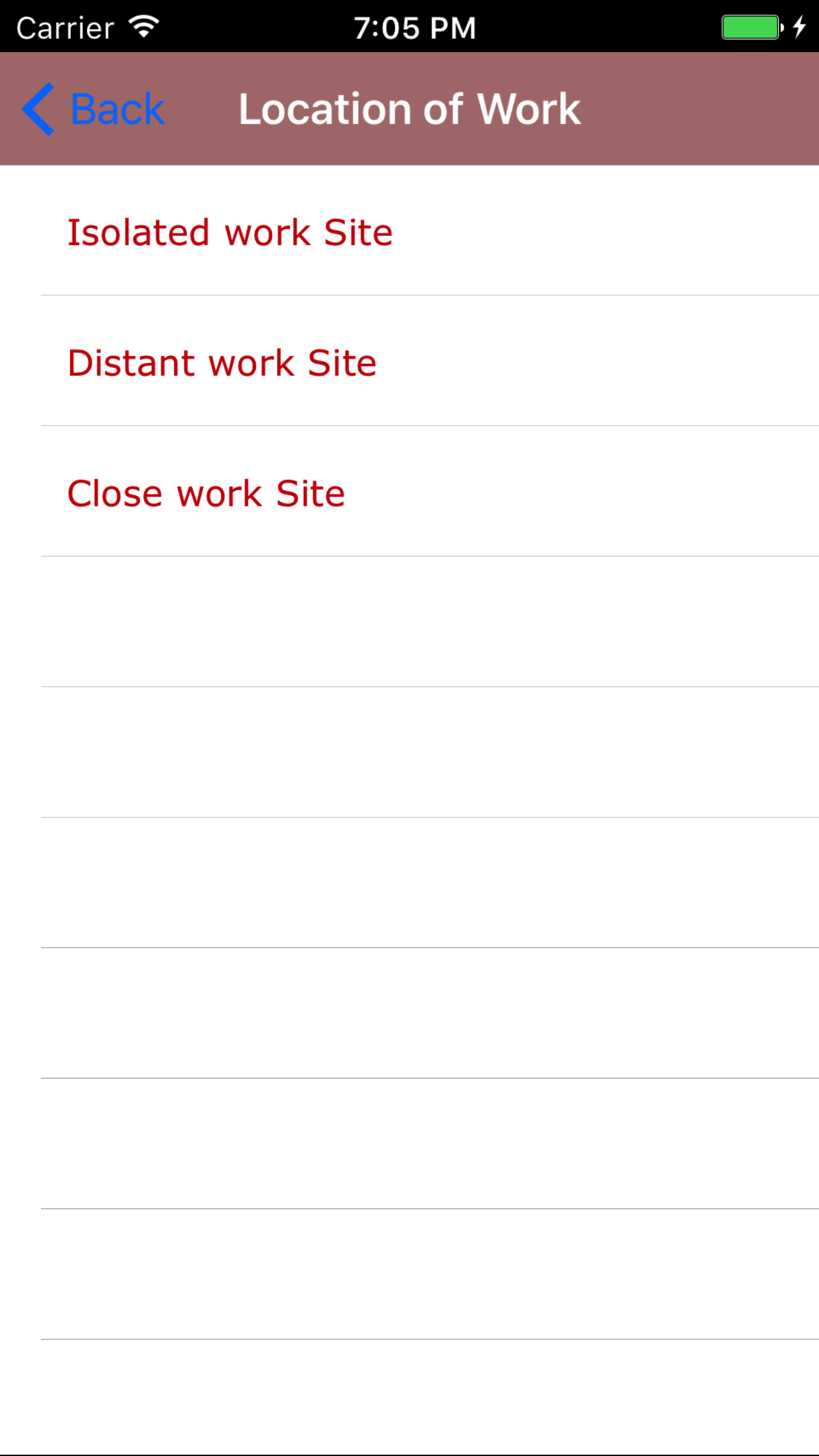
  5. Location of Work: The Location of Work field refers to the proximity to a medical treatment facility in relation to the job site.
  6. The location of work are listed in red text.

    1. Tap the Location of Work field to open the Choose Location of Work screen.
    2. Scroll the list of location of work until the desired location of work is displayed on the screen.
    3. Tap the desired location of work to select it or tap Back in the top left corner to leave the location of work field unchanged and return to the First Aid Requirements Calculator screen.
    4. Return to the First Aid Requirements Calculator screen by either tapping Save in the top right corner to select the highlighted date or tapping Cancel in the top left corner to leave the Location of Work field unchanged.
  7. Number of Workers: The Number of Workers field enter the number of workers that will be working on the job site.
    1. Tap + to increase the number of workers or - to decrease the number of workers on the Stepper
  8. Tap the Search icon in the top right corner to calculate the first aid requirements.
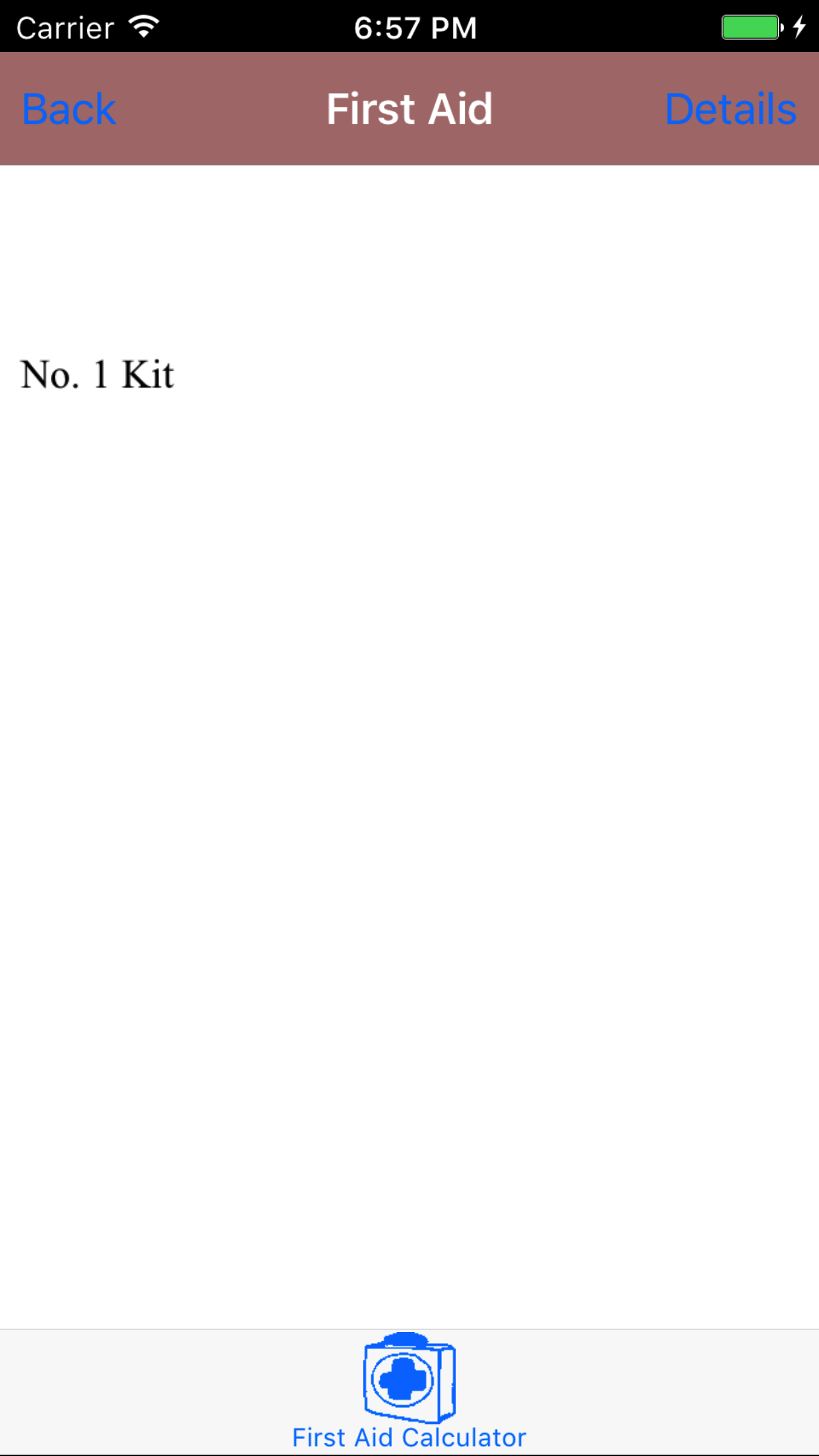
  9. The next screen loads with the first aid requirements given the criteria that has been previously entered. Including the first aid kit type required.
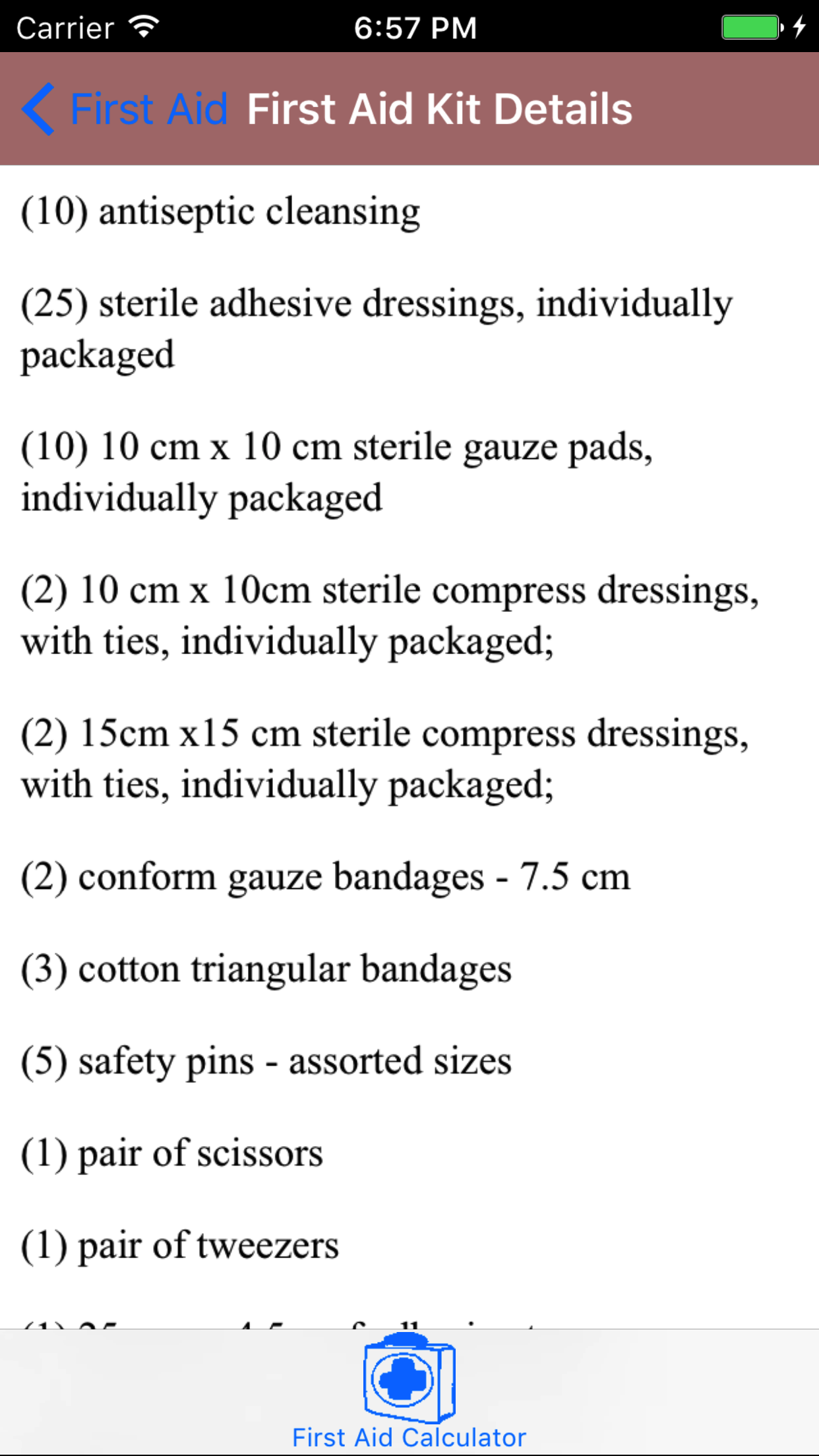
  10. Tap the Details button in the top right corner to view the first aid kit details.
  11. The next screen loads with the list first aid kit details for the type of first aid kit required.
Step 1
Step 2
Step 3
Step 4
Steps 5-6
Steps 7-8
Step 9

2.Update System Updates

As with everything in safety requirements are always changing. In particular first aid requirements may change. The IPhone App will need to be updated.

Steps
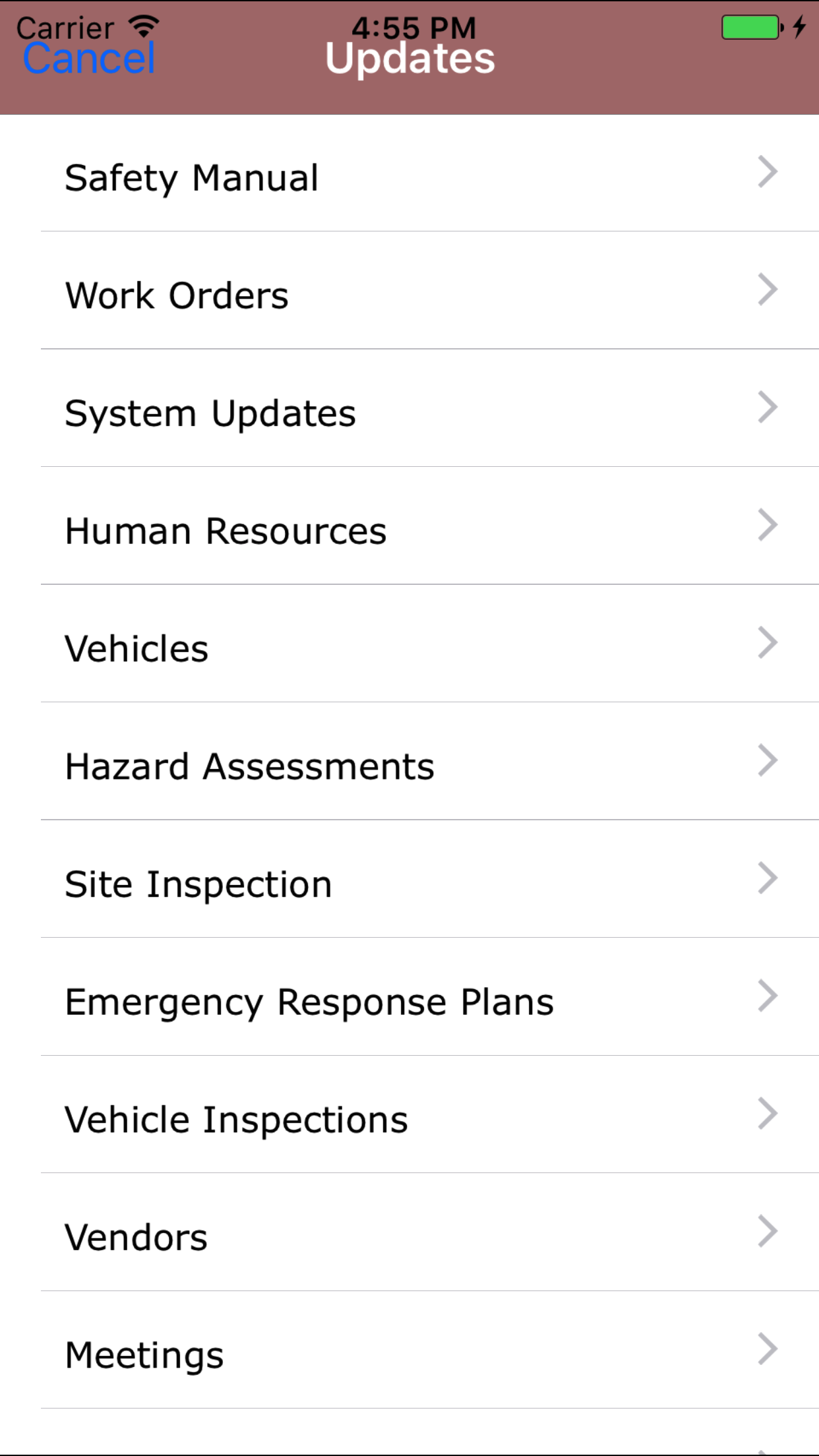
  1. From the Menu screen, tap the Updates button.
  2. Scroll the list of sections until you find the System Updates button.
  3. Tap on the System Updates button.
Step 1
Step 2