|
A hazard is any practice, behavior, substance, condition, or combination of these that can cause
injury or illness to people, or damage to property. A Hazard Assessment involves identifying hazards
and ranking the risks so that you can develop an action plan to eliminate or control them.
Configuring how often Hazard Assessments are to Occur
How often hazard assessments must occur is a function of your companies policy regarding hazard assessments. To configure R & T Electric Pro for how often hazard assessments
should occur can be configured in the company safety settings.
Management, Office Staff and Safety Officers can edit how often hazard assessments should occur in the Company section when they edit the Company Safety settings. For more information about configuring your
company safety settings in this web site manual click here to view the company section.
Adding Work Orders to R & T Electric Pro
In order to carry out a Hazard Assessment, the work order must be first added to R & T Electric Pro. The important information that will need to be added:
- The Work Order Number
- Select the Job Site
- Scope of Work
- Work Type
- The Work Type selected help determine what tasks from the company task list will be added the hazard assessment.
Management, Office Staff and Safety Officers can add and edit Work Orders. For more information about adding or editing in this website manual click here to view the work order section.
Configuring for Hazard Assessments company task list
R & T Electric Pro allows companies create lists of tasks and the related hazards and plans for elimination, which are added automatically to hazard assessments when they are created.
Management, Office Staff and Safety Officers can edit how company task lists in the Hazard Assessment Tasks section when they edit the hazard assessment tasks. For more information about configuring your
task list in this web site manual click here to view the Hazard Assessment Tasks section.
|
|
|
1.Add Hazard Assessment |
|
At the start of the day/shift, before work can commence, a Hazard Assessment must be created and
must be reviewed when a new worker comes to the job site or when a new hazard is identified due
to a change in scope of work or working conditions.
Steps
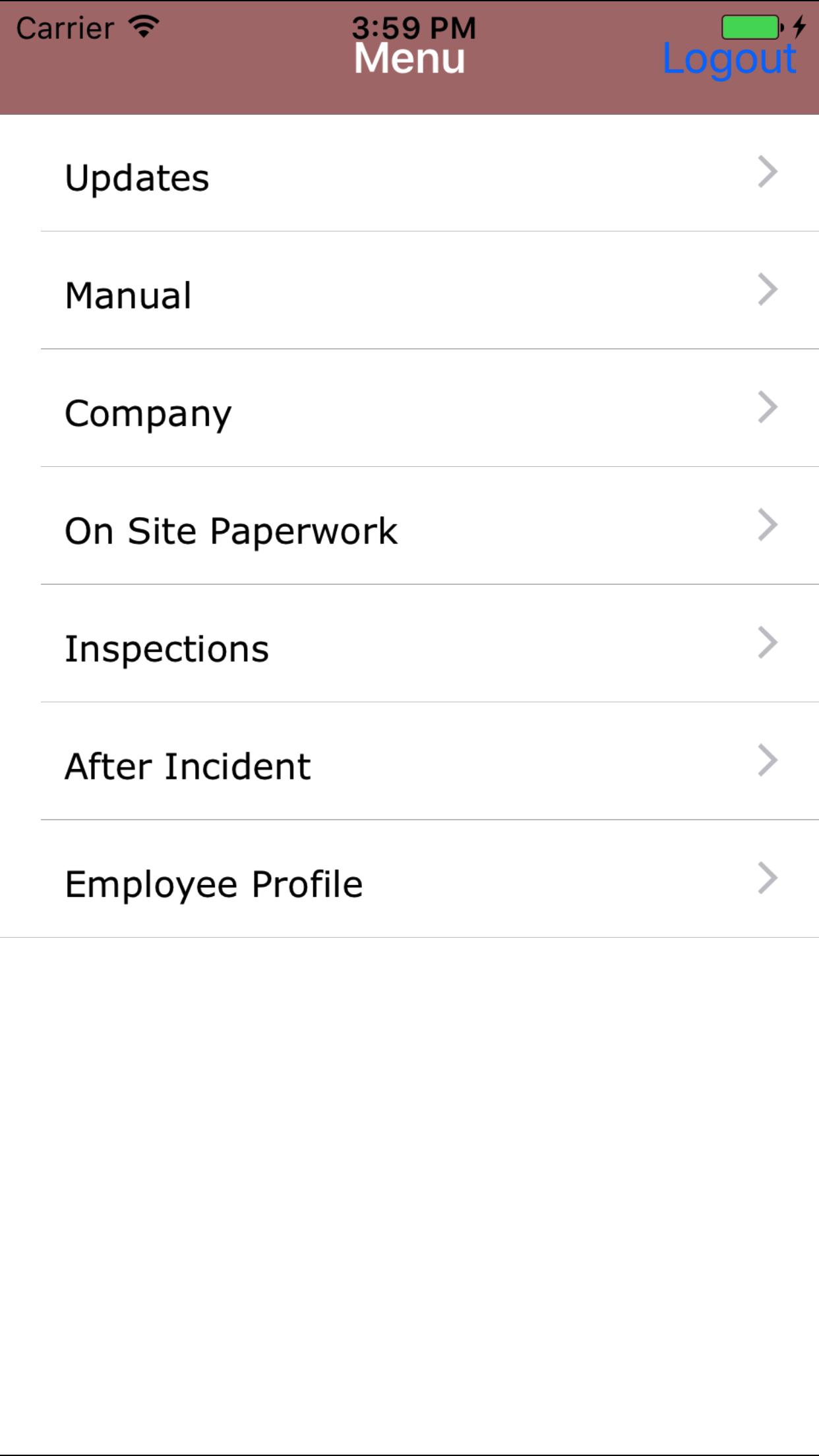
- From the Main Menu screen, tap the On Site Paperwork button.
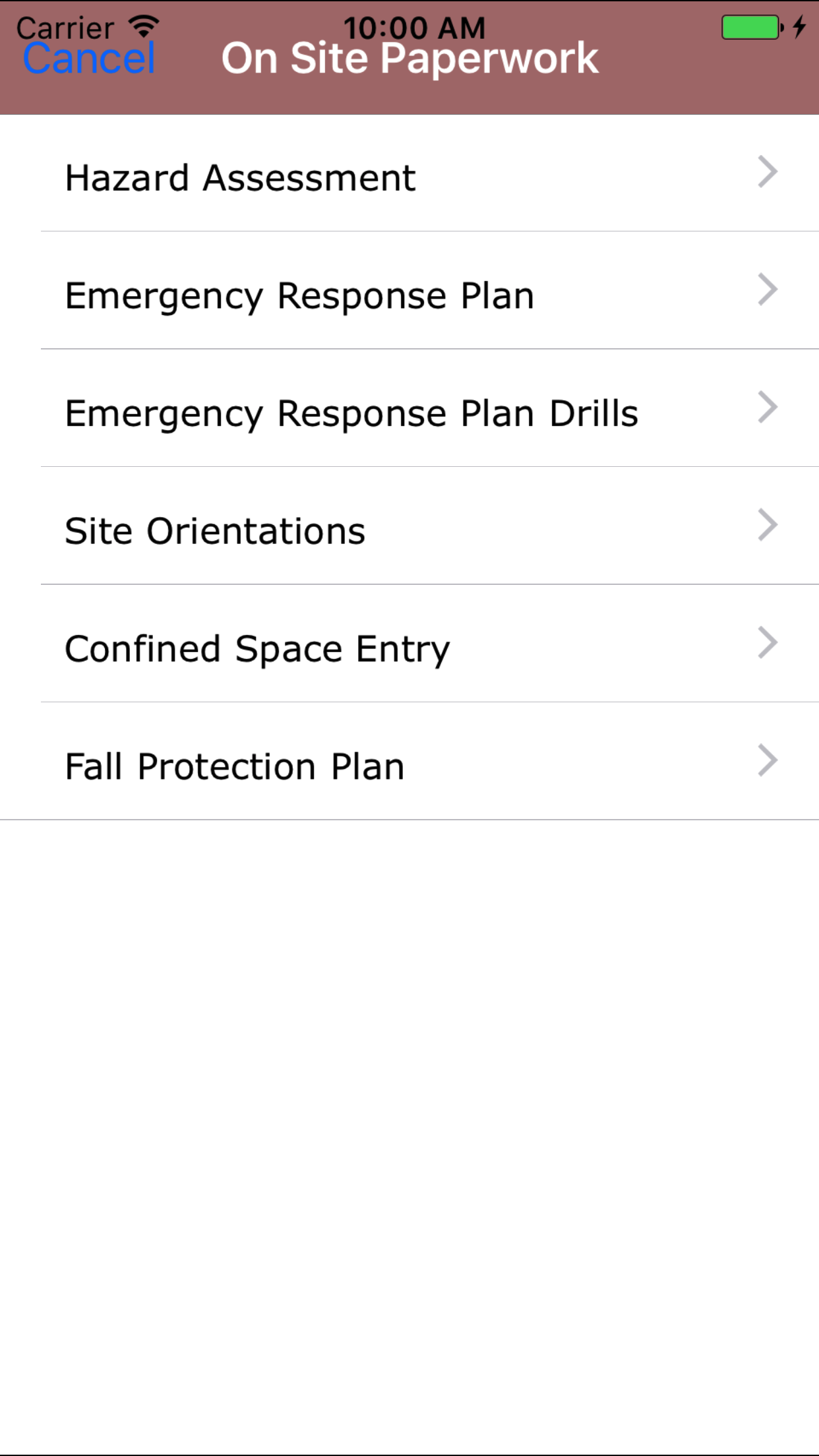
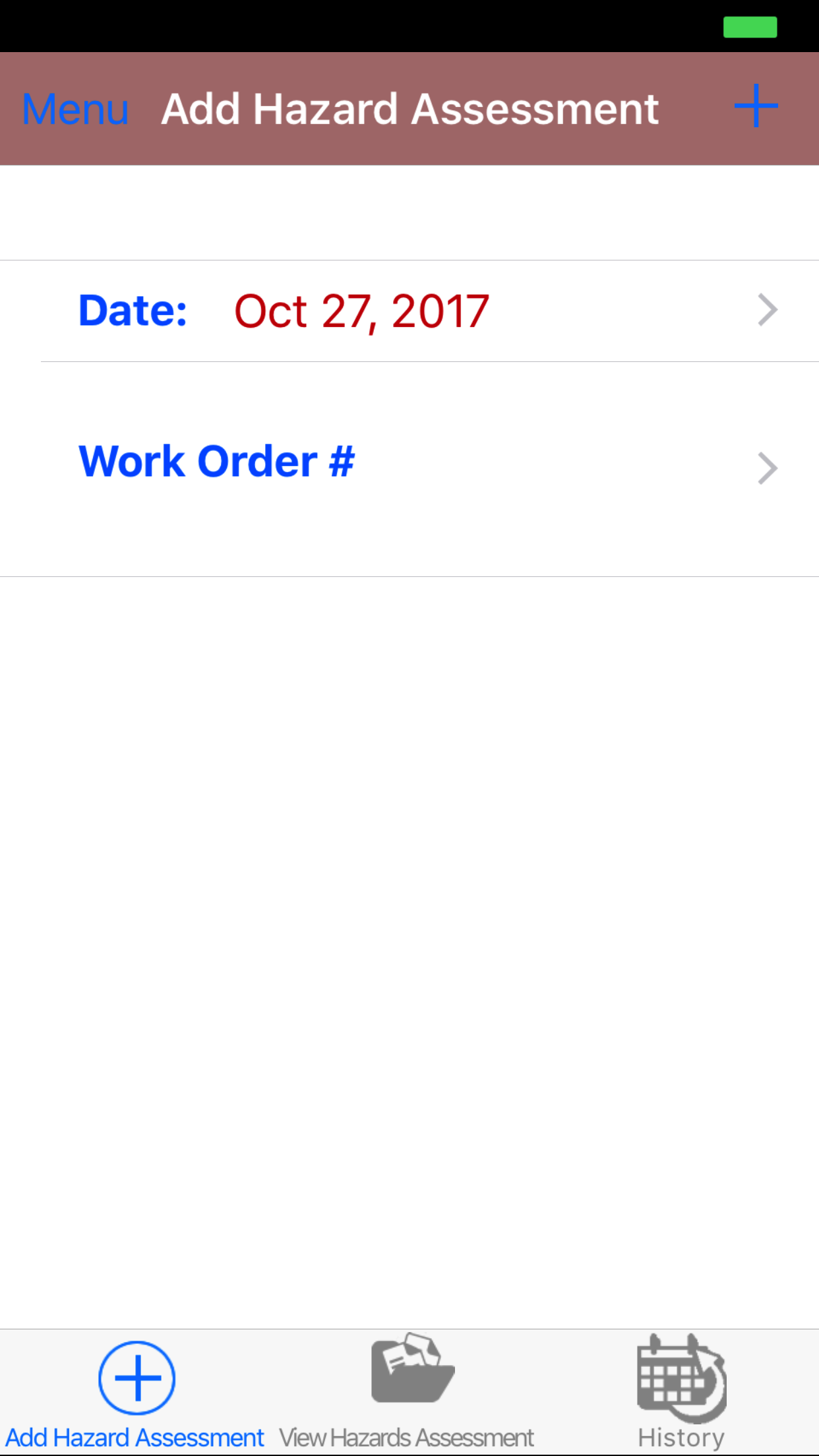
- Then tap on the Hazard Assessment button to open the Add Hazard Assessment screen.
- Date: The date field will default to the current date and should not be modified.
However, if a Hazard Assessment was completed on site and not entered into the application (due to internet
access issues, for example) or the Hazard Assessment is being completed in advance (not
recommended, as hazards need to be identified and reviewed on site), the Date: field can be rolled back or advanced:
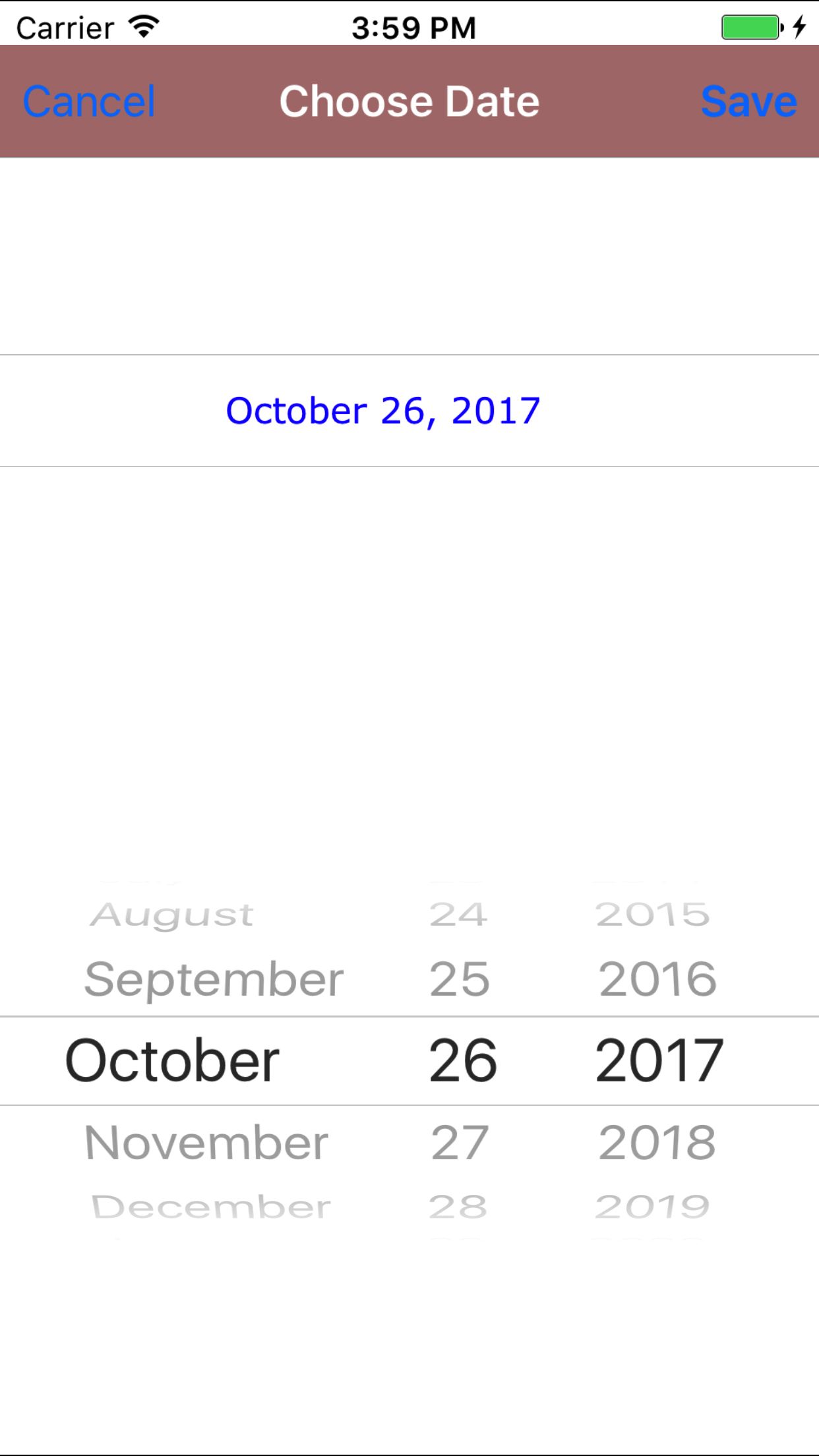
- Tap the Date field to open the Choose Date screen.
- Scroll the date wheel on the far left of the screen until the desired date is highlighted.
- Return to the Add Hazard Assessment screen by either tapping Save in the top right corner to select the highlighted date or tapping Cancel in the top left corner to leave the Date: field unchanged.
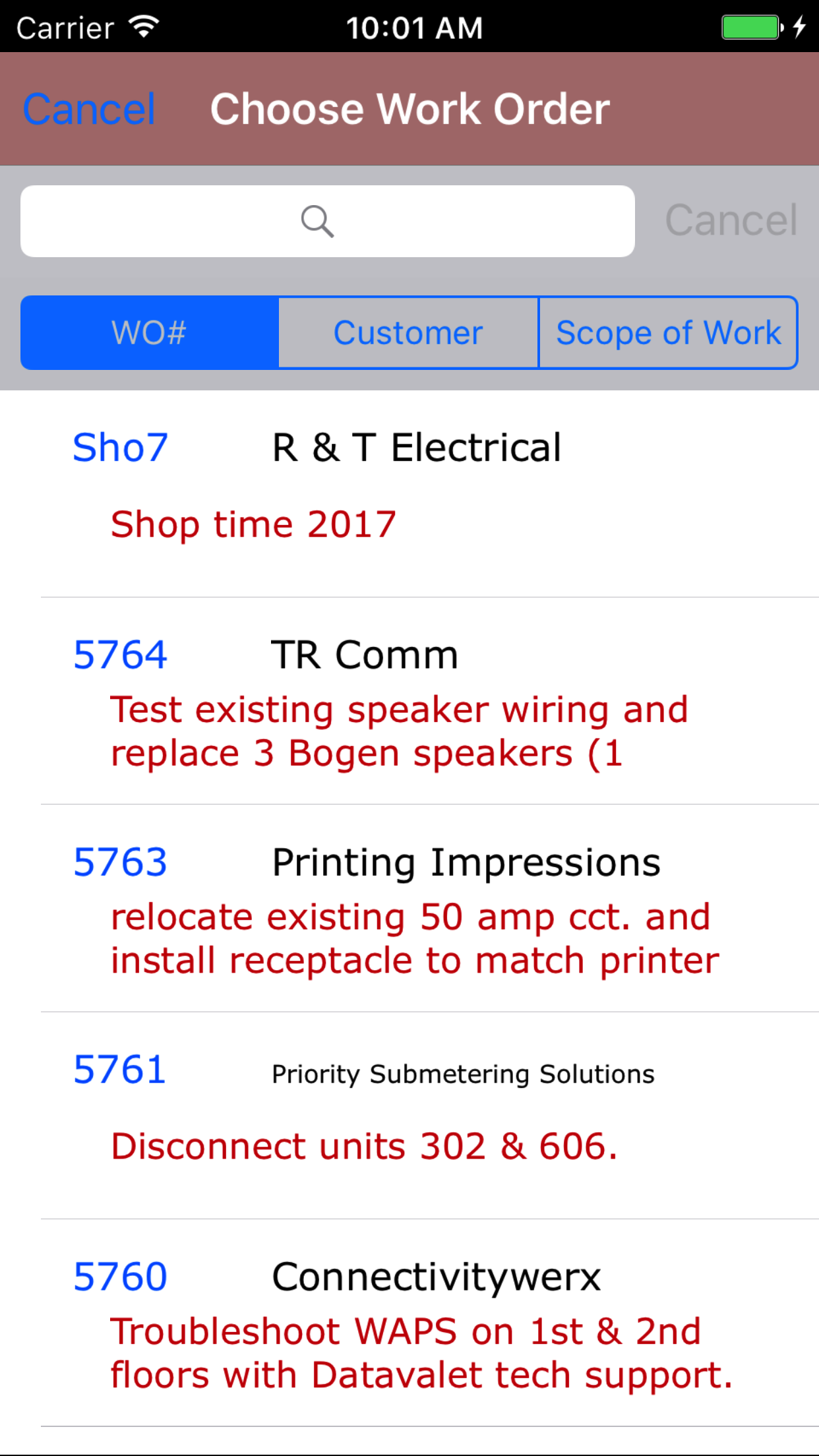
- Tap the Work Order # field to open the Choose Work Order screen.
Work orders are listed in descending order with the work order number in blue text,
the customer name in black text, and the scope of work in red text.
Note: New work orders are not automatically added to the list when they are created, so it may be necessary to update the list click here to view information about updating for the desired work order to be included in the list.
To Search Work Orders: Pull down on the list view, the search is defaulted to search by date enter the date in following
format YYYY-MM-DD. The other options for the Work Order search are by work order number and customer. Enter your search
criteria and click the Search button.
- Scroll the list of work orders until the desired work order is displayed on the screen.
- Tap the desired work order to select it or tap Back in the top left corner to leave the Work Order # field unchanged and return to the Add Hazard Assessment screen.
- Return to the Add Hazard Assessment screen by either tapping Save in the top right corner to select the highlighted work order or tapping Cancel in the top left corner to leave the Work Order field unchanged.
- Tap the + icon in the top right corner to add the Hazard Assessment.
- A pop-up message that reads Hazard Assessment Added indicates that the Hazard Assessment is ready for job, employee, and task information to be entered.
- Work Orders with Safety Contact Email address associated with them will automatically set the Safety Contact Email on the new Hazard Assessment to the given value.
- The Task Location on the new Hazard Assessment will be defaulted to the address of the job site.
|
|
| Step 1 |
|
|
| Step 2 |
|
|
| Step 3 |
|
|
| Step 4 |
|
|
| Step 5 |
|
|
2.Look Up Open Hazard Assessments |
|
Once a hazard assessment has been created, it can be accessed on the View Hazard Assessment tab. From this tab field staff can:
- Edit the hazard assessment details
- Add/Edit Employees participation
- Add/Edit tasks, related task hazards and the associated plans for elimination
- Edit finish details
- Submitting and Closing out hazard assessments
Once in the Hazard Assessment section
Steps
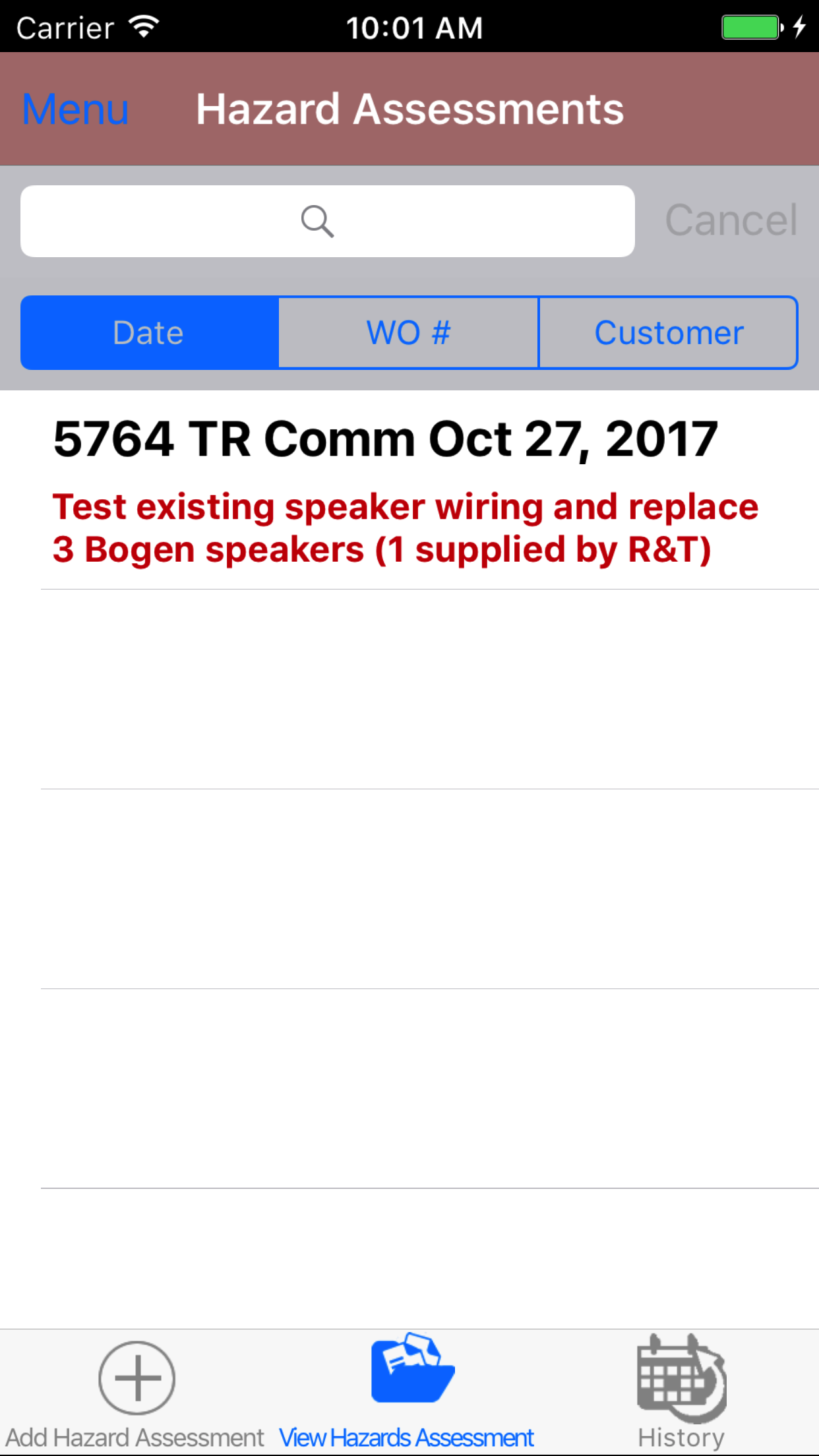
- Tap the second tab on the menu, the Hazard Assessment view.
To Search Hazard Assessments: Pull down on the list view, the search is defaulted to search by date enter the date in following
format YYYY-MM-DD. The other options for the Hazard Assessment search are by work order number and customer. Enter your search
criteria and click the Search button.
<- Scroll the list of Hazard Assessments until the desired Hazard Assessment is displayed on the screen.
- Tap on the Hazard Assessment you would like to view. This loads the hazard assessment details.
|
|
| Steps 1-3 |
|
|
3.Edit Hazard Assessment Details |
|
The first step in completing a Hazard Assessment is entering the details of the job itself - employee responsible for ensuring a safe
work site, scope of work, location, etc.
Once on the Hazard Assessment you would like to Edit
Steps
- Date: The date field will display the date which the Hazard Assessment was added and should not be modified.
However, if a Hazard Assessment was completed on site and not entered into the application (due to internet
access issues, for example) or the Hazard Assessment is being completed in advance (not
recommended, as hazards need to be identified and reviewed on site), the Date: field can be rolled back or advanced:
- Tap the Date field to open the Choose Date screen.
- Scroll the date wheel on the far left of the screen until the desired date is highlighted.
- Return to the Edit Hazard Assessment screen by either tapping Save in the top right corner to select the highlighted date or tapping Cancel in the top left corner to leave the Date field unchanged.
- Work Order #: The work order field to open the Choose Work Order screen.
Work orders are listed in descending order with the work order number in blue text,
the customer name in black text, and the scope of work in red text.
Note: New work orders are not automatically added to the list when they are created, so it may be necessary to update the list click here to view information about updating for the desired work order to be included in the list.
To Search Work Orders: Pull down on the list view, the search is defaulted to search by date enter the date in following
format YYYY-MM-DD. The other options for the Work Order search are by work order number and customer. Enter your search
criteria and click the Search button.
If the Hazard Assessment was entered into the application with the incorrect work order number (the work order may not have been created until after work had commenced or it may not have been possible to update the list of work orders due to internet access issues and a
different work order number was used as a placeholder, for example), the Work Order Number: field can be updated:
- Scroll the list of work orders until the desired work order is displayed on the screen.
- Tap the desired work order to select it or tap Back in the top left corner to leave the Work Order # field unchanged and return to the Edit Hazard Assessment screen.
- Return to the Edit Hazard Assessment screen by either tapping Save in the top right corner to select the highlighted work order or tapping Cancel in the top left corner to leave the Work Order field unchanged.
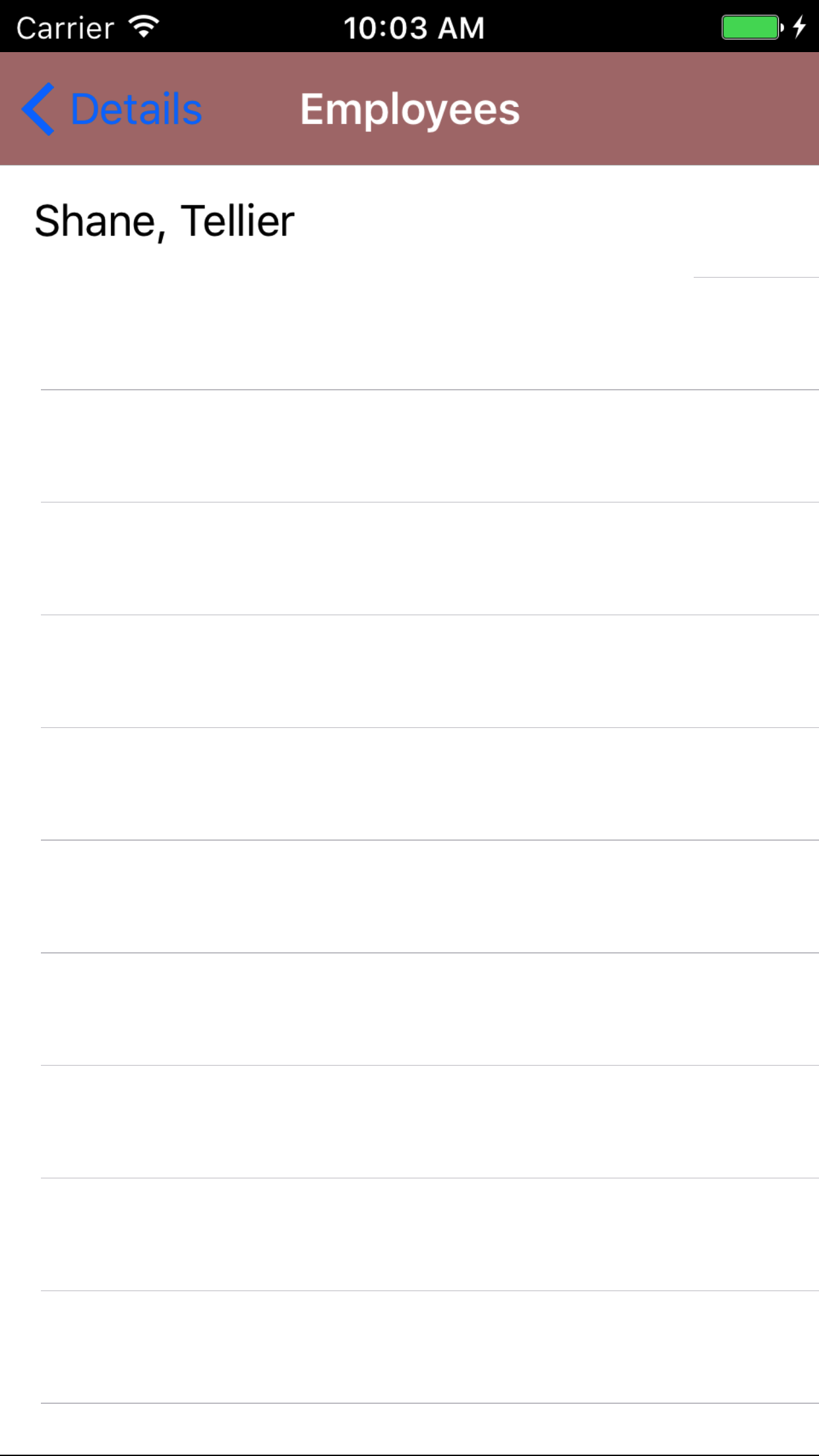
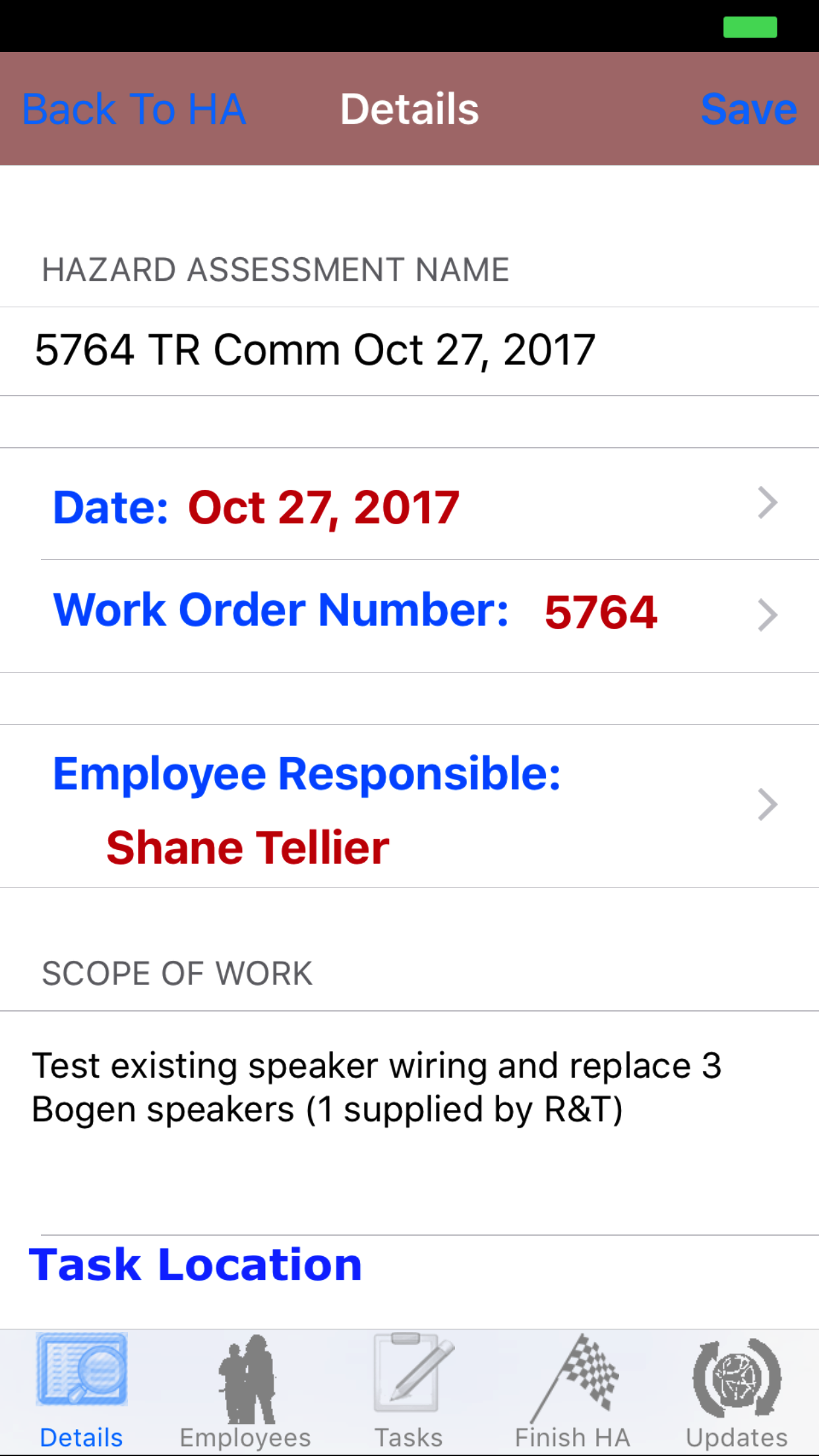
- Employee Responsible: The employee responsible field initially displays the name of the person who added the Hazard Assessment and should be updated to indicate the employee on site who is responsible for safety.
- Tap the Employee Responsible: field to open the Employees screen.
Employees are listed in the order they were added to the Hazard Assessment.
- Tap the desired employee to select it or tap Back in the top left corner to leave the Employee Responsible field unchanged and return to the Edit Hazard Assessment screen.
- Return to the Edit Hazard Assessment screen by either tapping Save in the top right corner to select the highlighted date or tapping Cancel in the top left corner to leave the Employee field unchanged.
|
|
|
| Step 1 |
|
|
|
| Step 2 |
|
|
|
- Scope of Work: The Scope of Work field initially displays the scope of work from the work order and, therefore, may need to be refined to reflect the scope of work for the day/shift. The character limit of this field is 250.
- Task Location: The Task Location field should be as specific as possible, as work orders may include tasks in a number of locations at a job site and the Hazard Assessment needs to identify the
specific location(s) that were reviewed. The character limit of this field is 75.The Task Location field must be entered or the application will not allow the Hazard Assessment to be submitted
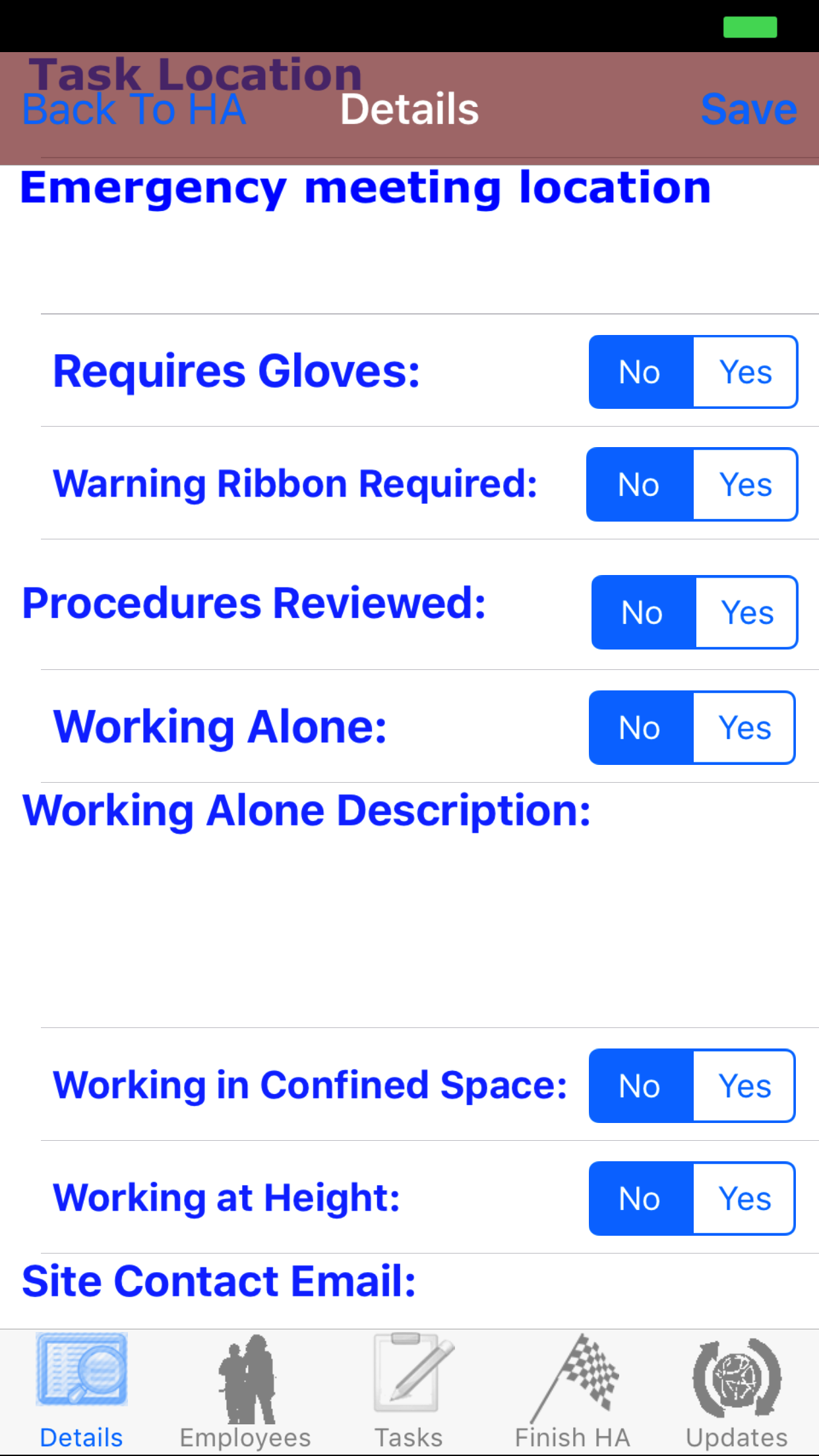
- Emergency meeting location: The Emergency meeting location field should identify the specific location where all employees will meet in the event of an emergency and a roll called. The character limit of this field is 75.
Large sites may have multiple meeting or muster points and some job sites may not have identified meeting or muster points (in this case, a location must be chosen by the employee responsible for safety on the site) and all
employees must know at which specific location they are to gather.
- Site Contact Email: The site contact email field allows field staff to include the email address for a site contact. The character limit of this field is 100.
If a site contact email address is included in a hazard assessment, a email with a link to view the hazard assessment will be sent to the included email address.
- Requires Gloves: The Requires Gloves field should be set to Yes if the task(s) present pinching, burning, shock, cutting, slipping, etc. hazards.
- Tap Yes on the No|Yes selector to indicate that gloves are required to be worn while working on site.
- Warning Ribbon Required: The Warning Ribbon Required field should be set to Yes when working around others, either in pedestrian or other high traffic locations or where there are crews working on other tasks, as it may be necessary to temporarily
cordon off the area where work is being performed to warn away passersby or restrict access to prevent injury.
- Tap Yes on the No|Yes selector to indicate that a warning ribbon is required to cordon off the area(s) where work is being done.
- Working in Confined Space: The Working in Confined Space field should be set to Yes if work is going to be preformed in a confined space. If working in a confined space a confined space entry plan will be required.
- Tap Yes on the No|Yes selector to indicate that work is going to be preformed in a confined space.
- Working at Height: The Working at Height field should be set to Yes if work is going to be preformed at height. If working at height a working at height plan will be required.
- Tap Yes on the No|Yes selector to indicate that work is going to be preformed at height.
|
|
| Step 3 |
|
|
|
- Procedures Reviewed: The Procedures Reviewed field should only be set to Yes after safe work procedures and safe job practices for every task have been reviewed with all employees.
- Tap Yes on the No|Yes slider to indicate that safe work procedures for every task have been discussed with all employees.
- Working Alone: The Working Alone field must be set to Yes if one or more employees are working alone at the site and assistance is not readily available if there is an emergency or the worker is injured or ill.
- Tap Yes on the No|Yes selector to indicate that one or more employees will be working alone.
- Working Alone Description: The Working Alone Description field should indicate the type of work being performed, the hazards associated with performing that work (working at height, in confined spaces, with electricity, etc.), and the check-in
procedure that will be followed (visual or verbal contact, regularity of contact, who is responsible for checking-in, etc.).
- Tap Save in the top right corner to save any changes to the Hazard Assessment Details.
- A pop-up message that reads Hazard Assessment Details have been Saved indicates that the job information has been saved.
|
|
| Steps 3-6 |
|
|
| Steps 7-11 |
|
|
|
4.Add Employee to Hazard Assessment |
|
Adding employees to the Hazard Assessment is crucial to reporting accurately. In order to have an accurate picture of the job site, adding employees to
the Hazard Assessment needed. Adding other field staff to the hazard assessment allows a group of workers to share the same hazard assessment. Once a hazard assessment is submitted all employee's added to the hazard assessment will have access to the hazard assessment.
Here are the steps on how to do it:
Once on the Hazard Assessment you would like to Edit
Steps
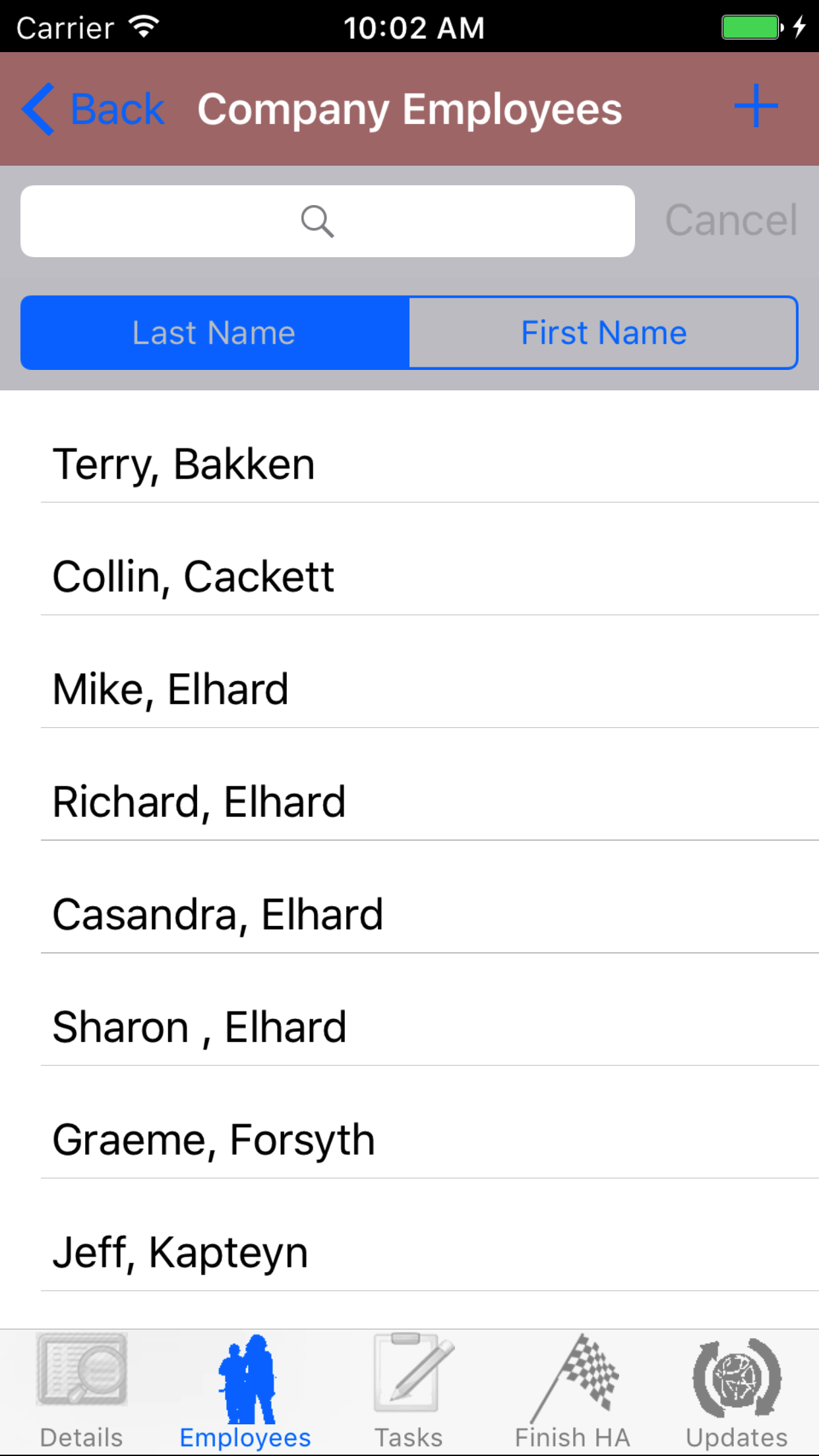
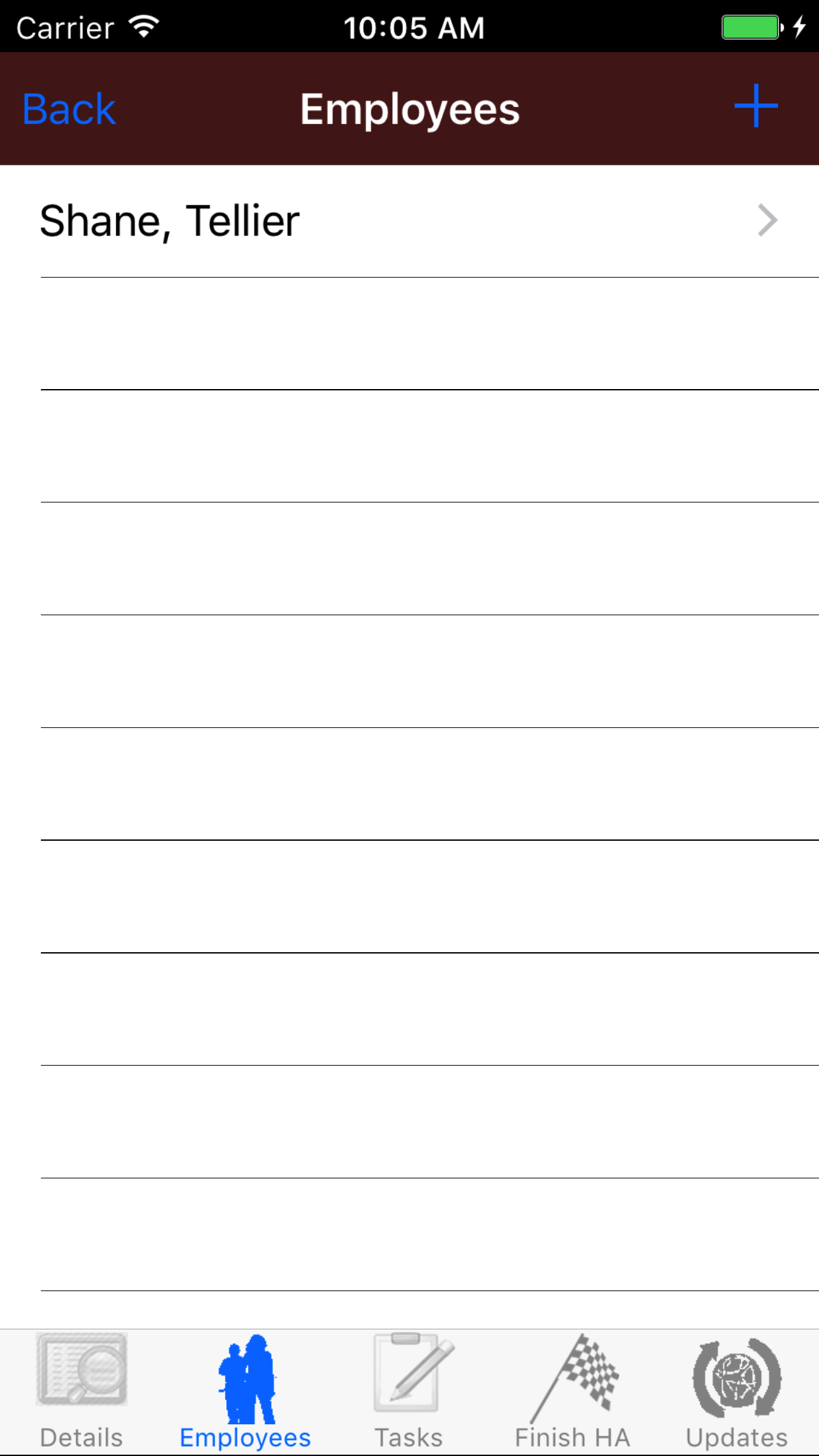
- Tap the Employees icon at the bottom of the screen to open the Employees screen.
- Tap the + icon in the top right corner to open the Employees list or tap Employees in the top left corner to return to the Employees screen.
Employees are listed in descending order of last name.
- Scroll the list of employees until the desired employee is displayed on the screen.
- If the desired employee is in the list, tap the employee to add them to the Hazard Assessment.
A pop-up message that reads Employee Added indicates that the employee is now listed on the Hazard Assessment Employees screen.
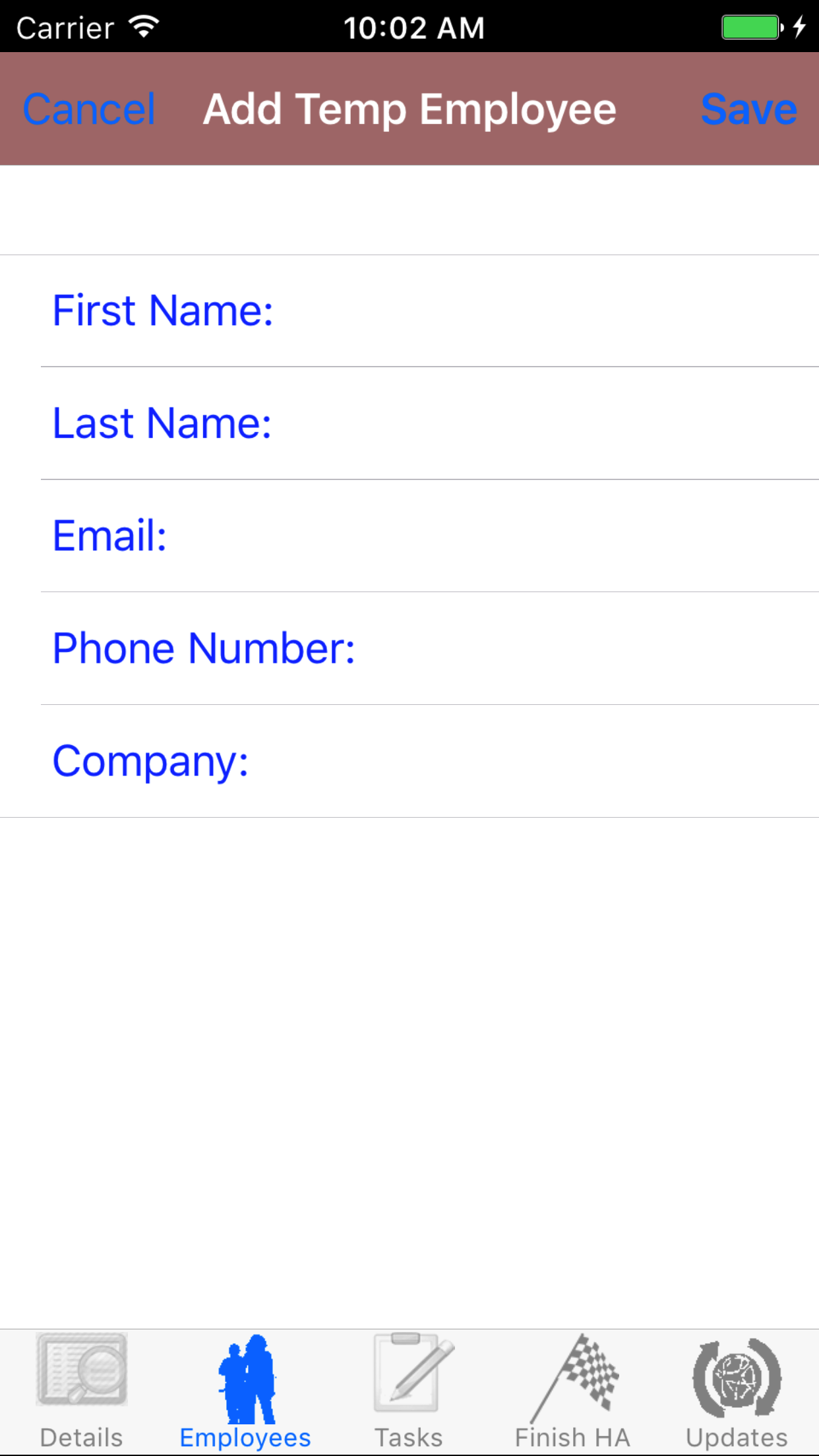
- If the desired employee is not in the list, tap Add Outside Employee in the top left corner of the screen to open the New Employee screen.
- First Name: The First Name field should indicate the legal given name of the employee. The character limit of this field is 25.
- Last Name: The Last Name field should indicate the legal surname of the employee. The character limit of this field is 25.
- Email: The Email field should indicate the best (i.e., most often used for business purposes) e-mail address for the employee. The character limit of this field is 25.
- Phone Number: The Phone Number field should indicate the best (i.e., most often used for business purposes) telephone number (land line or cellular) for the employee. The character limit of this field is 13.
- Company: The Company field should indicate the name of the company for which the employee works. The character limit of this field is 75.
- Tap Save in the top right corner of the screen to add the outside employee to the Hazard Assessment
|
|
|
|
5.Add Employee Signature |
|
Each employee added to the Hazard Assessment must provide an electronic signature to indicate that they have been made aware of all tasks and hazards and will comply with all safe work procedures and plans for elimination.
Once on the Hazard Assessment you would like to Edit
Steps
- Tap the Employees icon at the bottom of the screen to open the Employees screen.
- Scroll the list of employees until the desired employee is displayed on the screen.
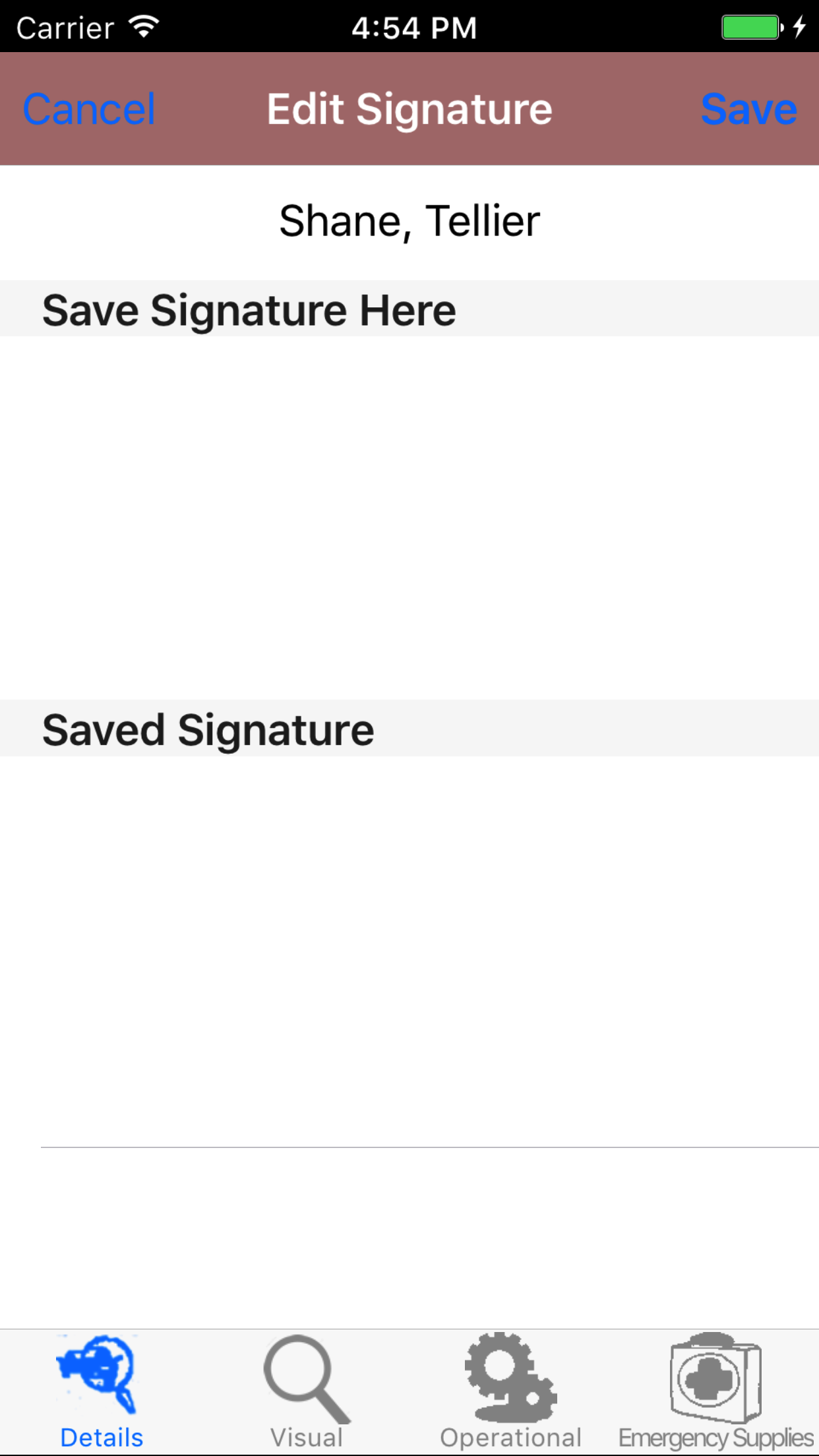
- Tap the desired employee to select them and open the Edit Employee screen
- Have the selected employee sign in the white space beneath the Save New Signature Here label.
- Tap Save in the top right corner of the screen to update the Saved Signature field.
The saved signature will appear below the signature entry screen.
|
|
| Steps 1-2 |
|
|
| Steps 3-4 |
|
|
|
6.Delete Employee |
|
Once on the Hazard Assessment you would like to Edit
Steps
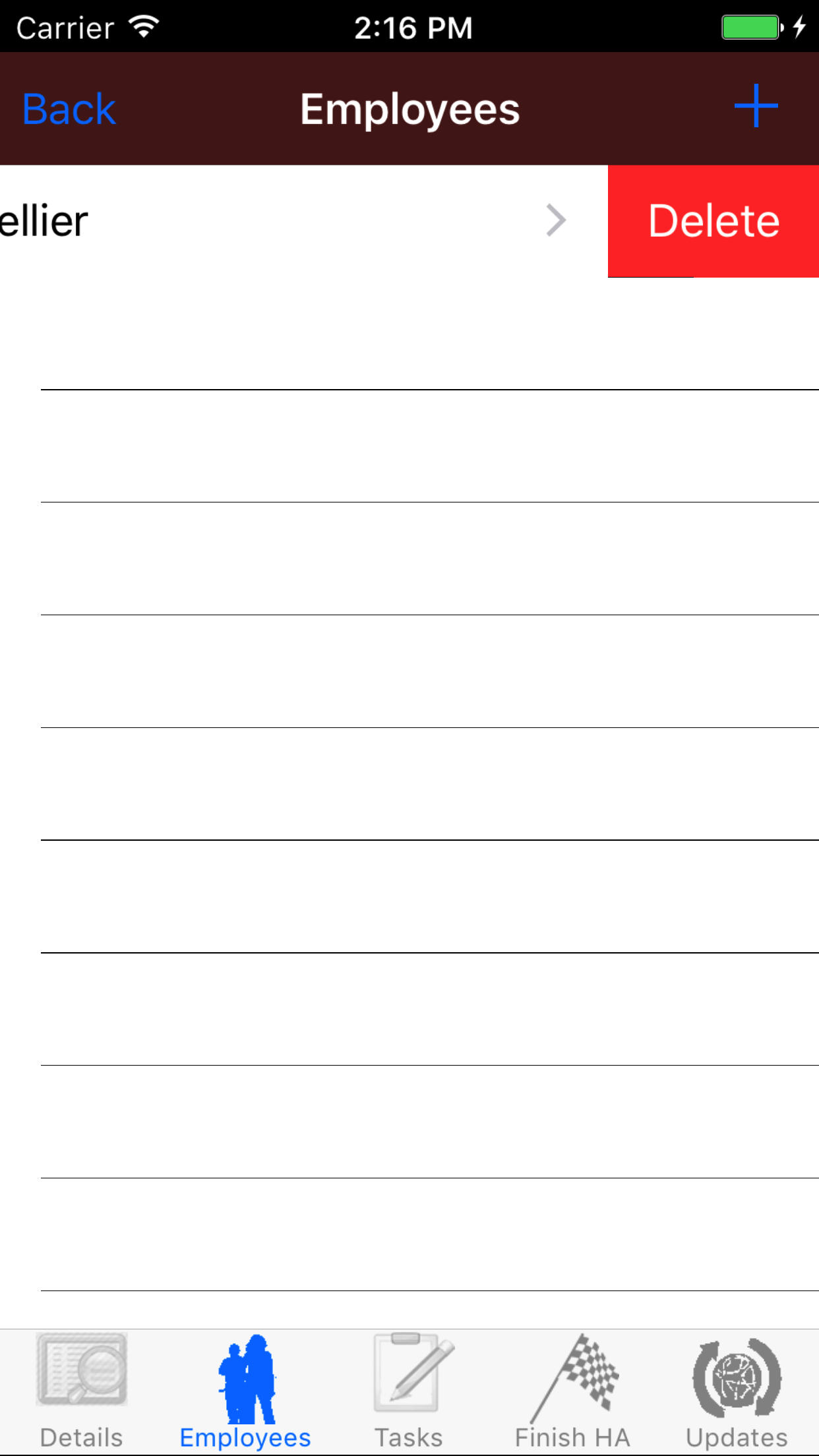
- Tap the Employees icon at the bottom of the screen to open the Employees screen.
- Scroll the list of employees until the desired employee is displayed on the screen.
- Swipe from the right edge to the left to bring up the delete button for the employee.
- Tap the Delete button. The employee will be deleted.
|
|
|
| Steps 1-2 |
|
|
| Steps 3-4 |
|
|
|
Tasks, Task Hazards and Plans for Elimination |
|
The task section of Hazard Assessment is the most important part of the entire application. The tasks represent
the different individual jobs that will be performed on the job site for the given day and the given conditions.
The task hazards are the hazards associated with the each of the tasks. The plans for elimination are the plans
to eliminate each of the hazards found on the job site. This section of the walk through is broken down into
several parts:
|
|
Tasks |
7.Tasks Review |
|
Once on the Hazard Assessment you would like to Edit
Steps
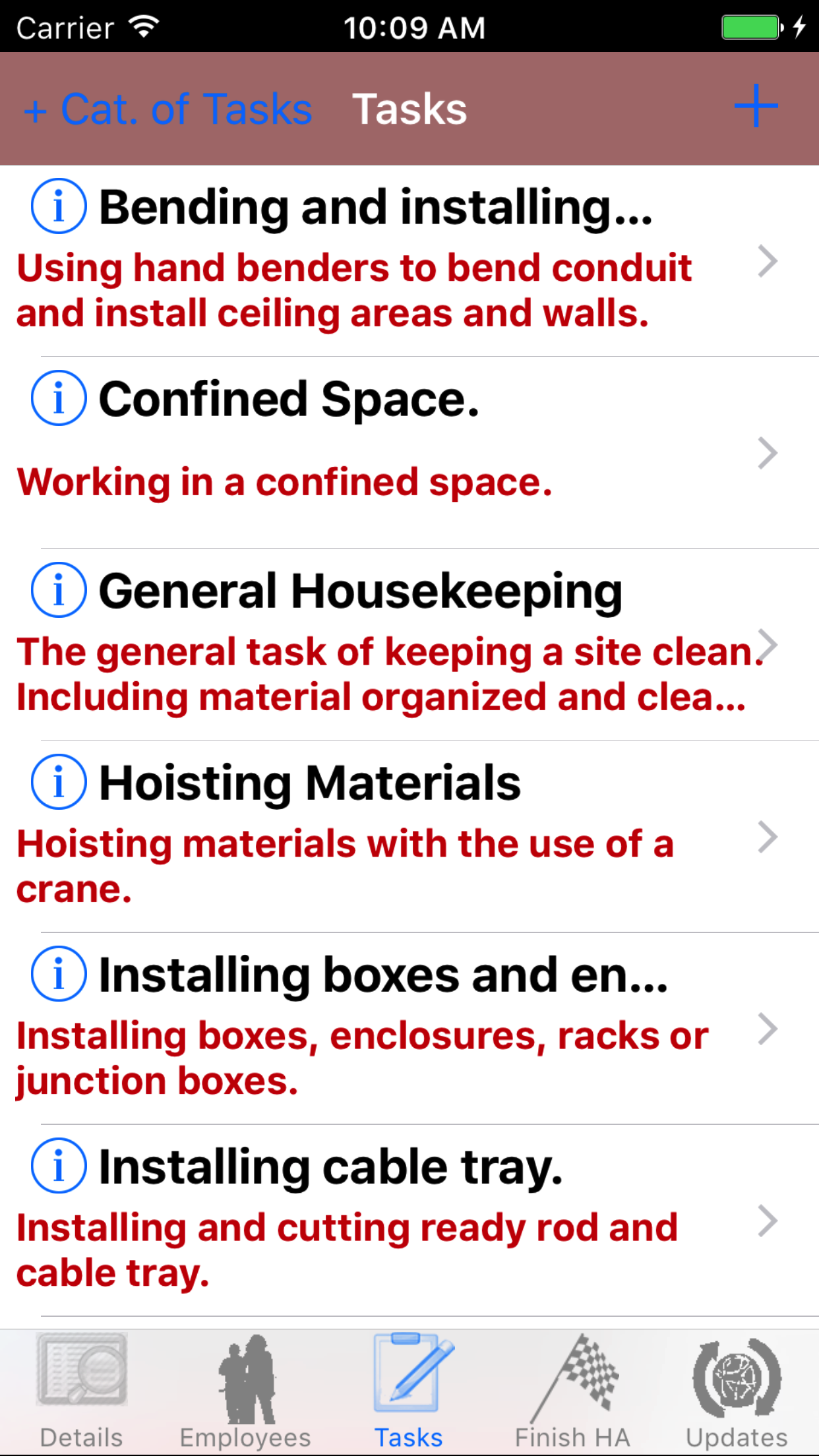
- Tap on the third tab, the task tab of the Hazard Assessment view. This loads the Tasks view, on this view you can see the task name and the task description.
|
|
8.View Safe Work Practices and Safe Job Procedures |
|
A main focus of safety management programs is, Are field staff given the resources they need to complete any task they are going to work on? Companies Safe Work Practices
and Safe Job Procedures represent this knowledge base for their field staff. R & T Electric Pro provides access to Safe Work Practices and Safe Job Procedures outside the Hazard
Assessment section through the safety manual section. *For more information about the Safety Manual Section click here.
While inside the Hazard Assessment section field staff can access the related Safe Work Practices and Procedures to given tasks by:
Steps
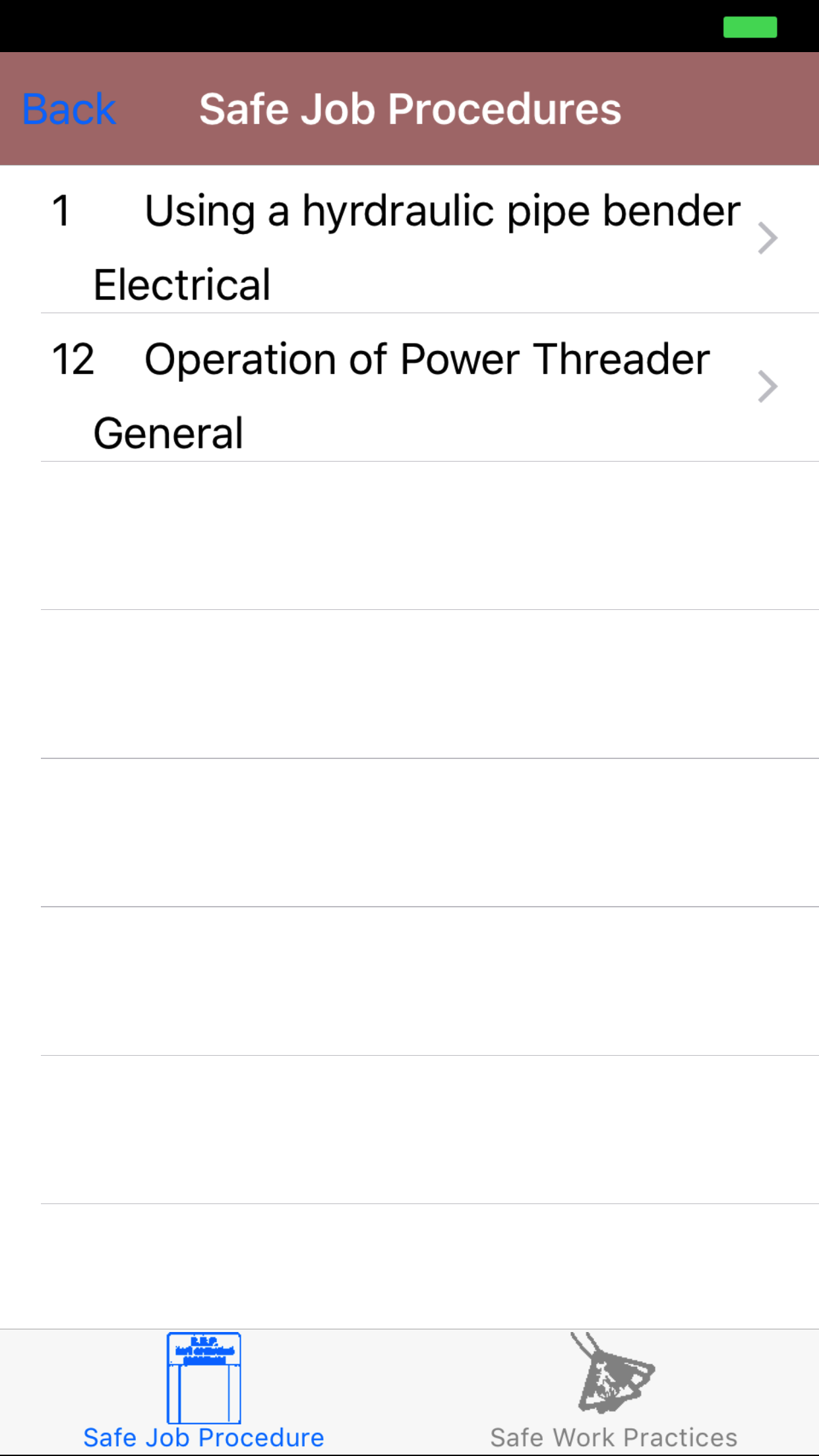
- Tap on the information icon of task.
- The First Tab loads with the Safe Job Procedures(s) related to the task.
- The Second Tab loads with the Safe Work Practices(s) related to the task.
|
|
| Step 1 |
|
| Steps 2-3 |
|
|
|
9.Add Task |
|
While R & T Electric Pro's Hazard Assessment system is created to start field staff with a list of tasks to start every hazard assessment with.
Cutting down on the amount of time having staff writing out every task, task hazard and plans for elimination. There will be times field
staff will require the ability to add in new tasks to their list of tasks on a hazard assessment.
Tasks being added on a regular basis by field staff to hazard assessments, can be added to companies list of tasks. Saving field staff the time
of entering these tasks on a regular basis. A companies list of tasks should be a ever evolving list of tasks, task hazards and plans for elimination. *For more information about
Tasks List Management click here.
Once on the Hazard Assessment you would like to Edit
Steps
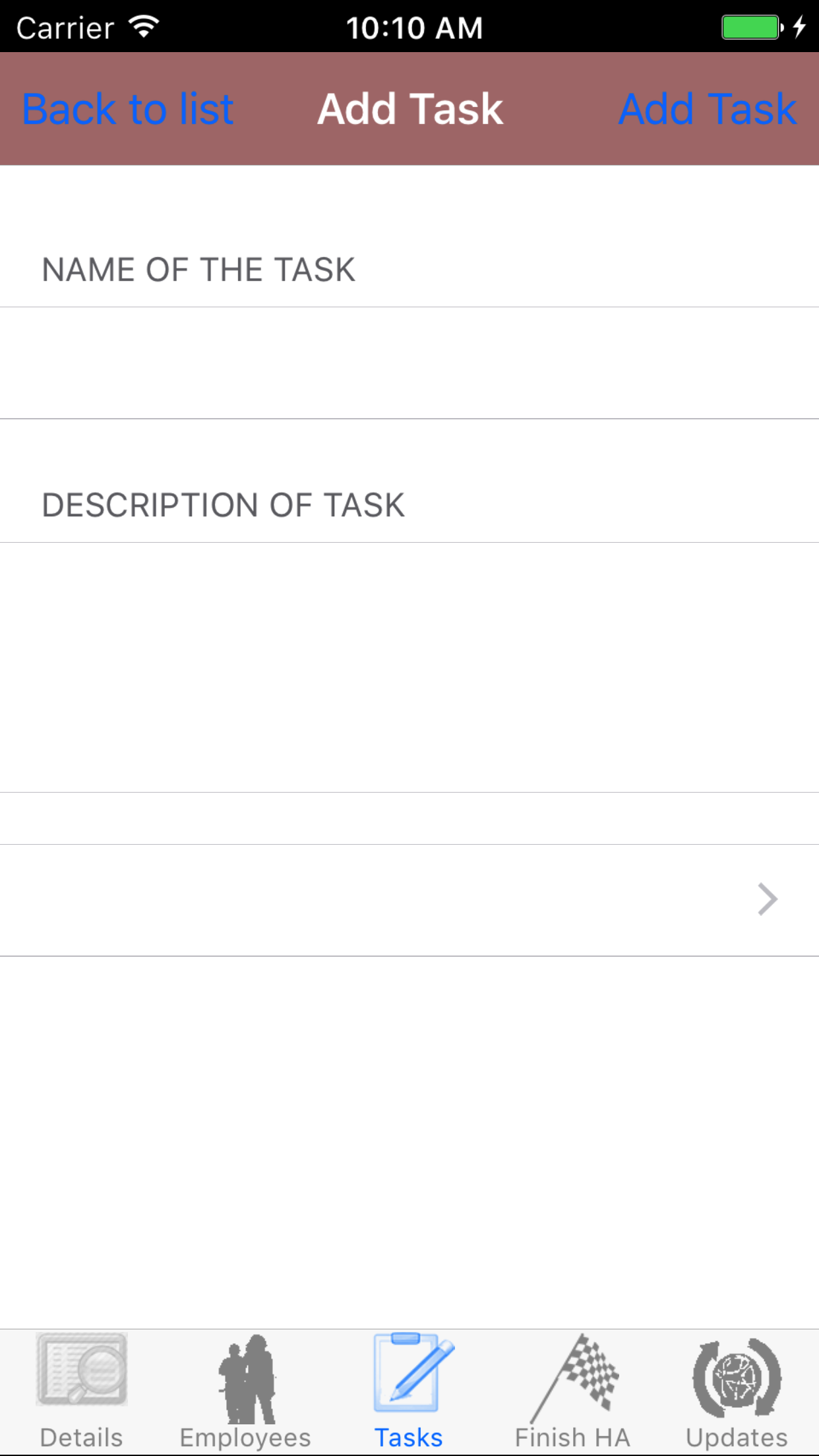
- Tap on the third tab, the task tab of the Hazard Assessment view. This loads the Tasks view, on this view you can see the task name and the task description.
- Tap on the + button in the top right corner of the screen.
- Task Name: Enter the name of the task. The name of the task will be your short description of the task you will be performing. The character limit of this field is 75 characters.
- Task Description: Enter the description of the task. The description of the task will be your long description of the task you will be performing. The character limit of this field is 350 characters.
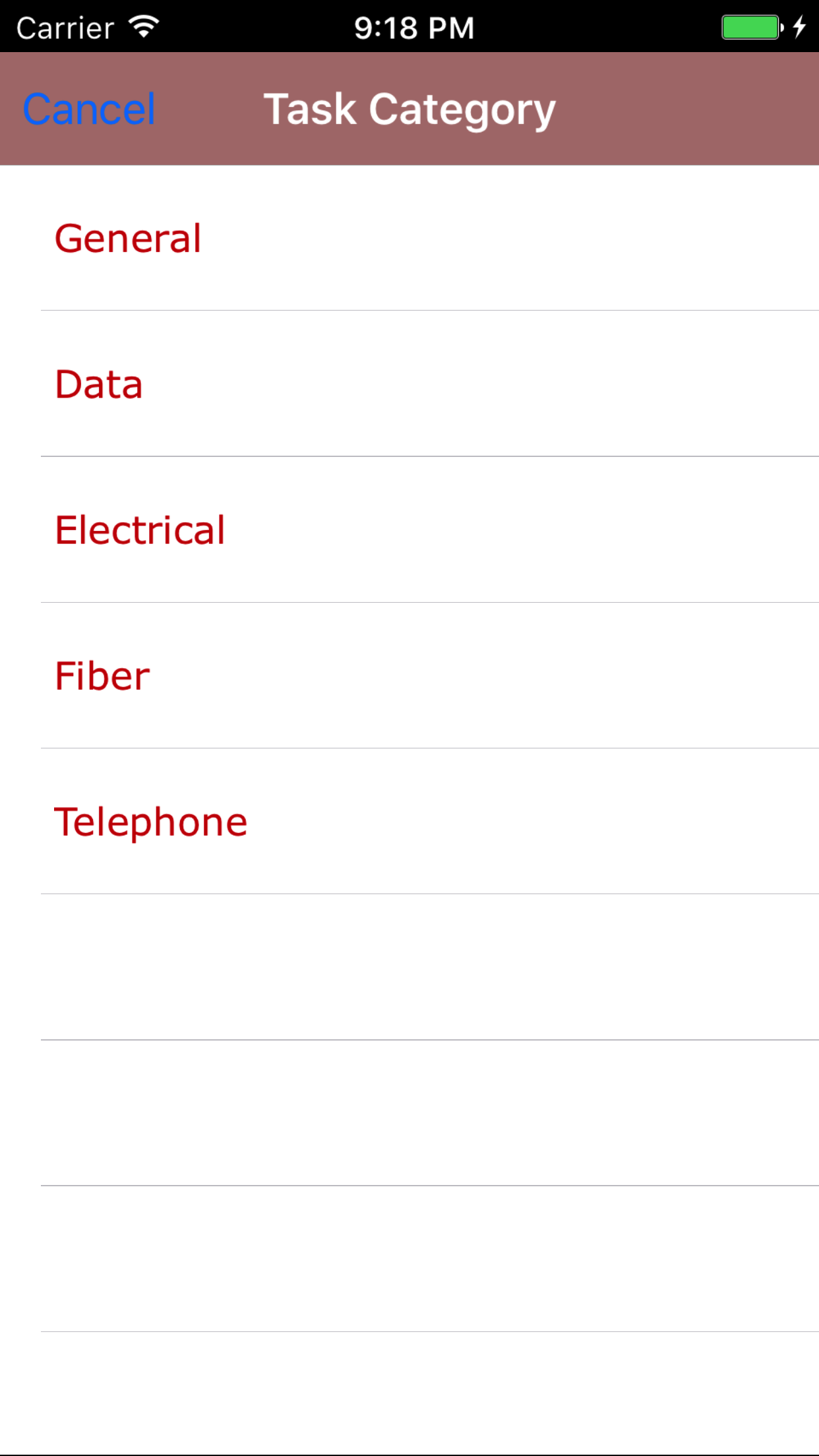
- Task Category: The task category field allows field staff to choose what category the new task falls into. The choices of task categories is dependent on the companies list of task categories based on their business.
- Tap the Task Category field to open the Choose Task Category screen.
- Scroll the list of task categories until the desired task category is displayed on the screen.
- Tap the desired task category to select it or tap Back in the top left corner to leave the Task Category field unchanged and return to the Add Task screen.
- Tap Add Task in the top right corner of the screen to add the task to the Hazard Assessment
Be sure to continue on to add your task hazards for the task you added. As important as identifying a task field staff are to complete it is as equally important to identify the task hazards of each task added.
|
|
|
|
| Steps 1-2 |
|
|
| Steps 3-4 & 6 |
|
|
| Step 5 |
|
|
10.Add Task By Category |
|
Adding Task’s by Category allows a user to add all the tasks, task hazards, and plans for elimination for a task category selected. This would be done because the job has changed and adding
in an entire category saves the work of adding the tasks, task hazards, and plans for elimination individually.
Once on the Hazard Assessment you would like to Edit
Steps
- Tap on the third tab, the task tab of the Hazard Assessment view. This loads the Tasks view, on this view you can see the task name and the task description.
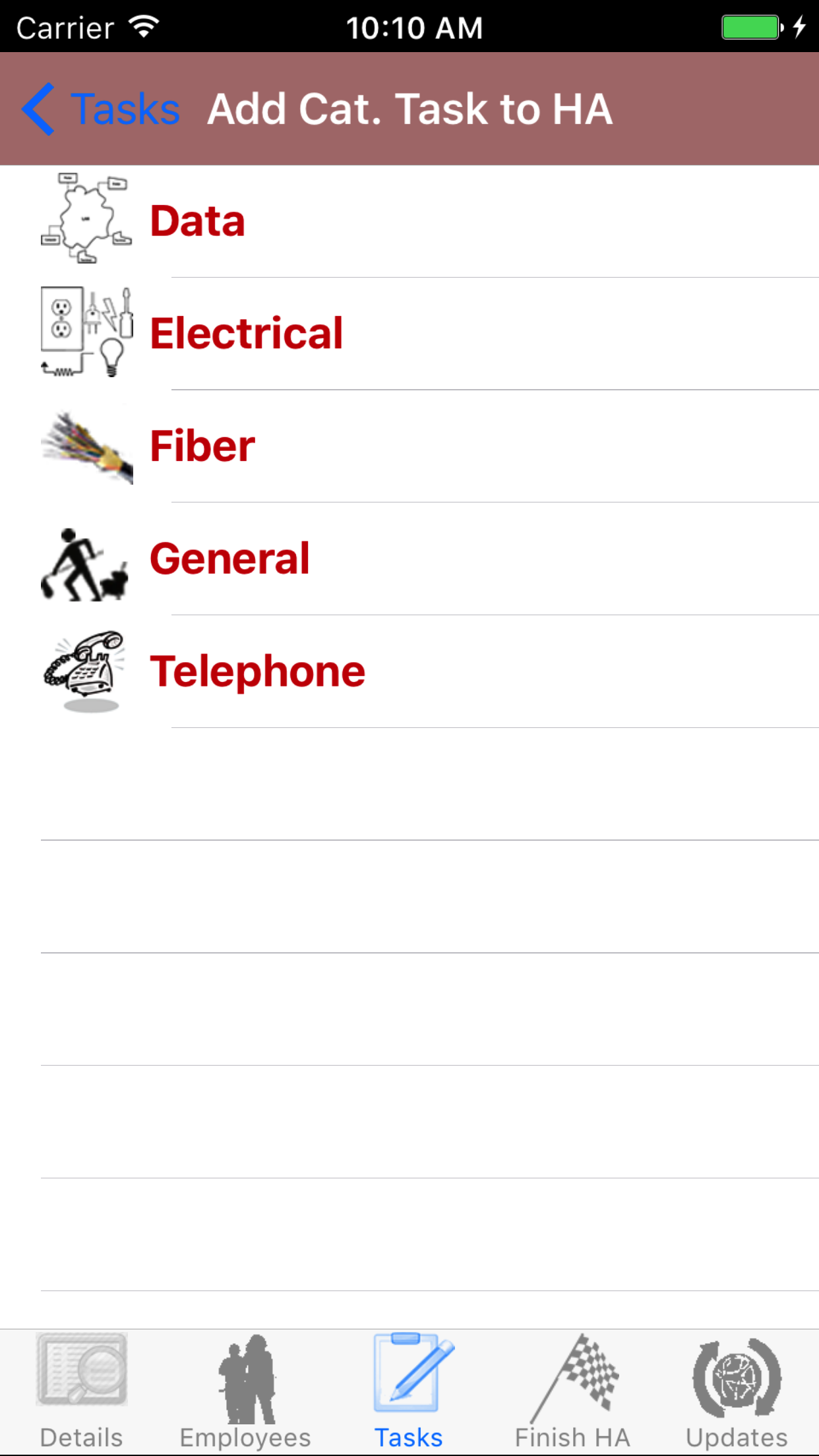
- Tap on the + Cat. of Tasks button in the top left corner of the screen.
- Scroll the list of task categories until the desired task category is displayed on the screen.
- Tap the desired task category to select it or tap Back in the top left corner to leave the Task Category field unchanged and return to the Add Task screen.
This will add all the tasks associated with the selected task category that are not already added to the hazard assessment.
|
|
|
|
| Steps 1-2 |
|
|
| Steps 3-4 |
|
|
|
11.Look Up Task |
|
Once on the third tab, the task tab of the Hazard Assessment view
Steps
- Scroll the list of task until the desired task is displayed on the screen.
- Tap the desired task to select it.
The Screen will load with two new tabs'
- Tab one loads with task details, the details of the task.
- Tab two loads with task hazards, the task hazards associated with the selected task.
|
|
|
| Steps 1-2 |
|
|
12.Edit Task |
|
Once on the Task details you would like to Edit
Steps
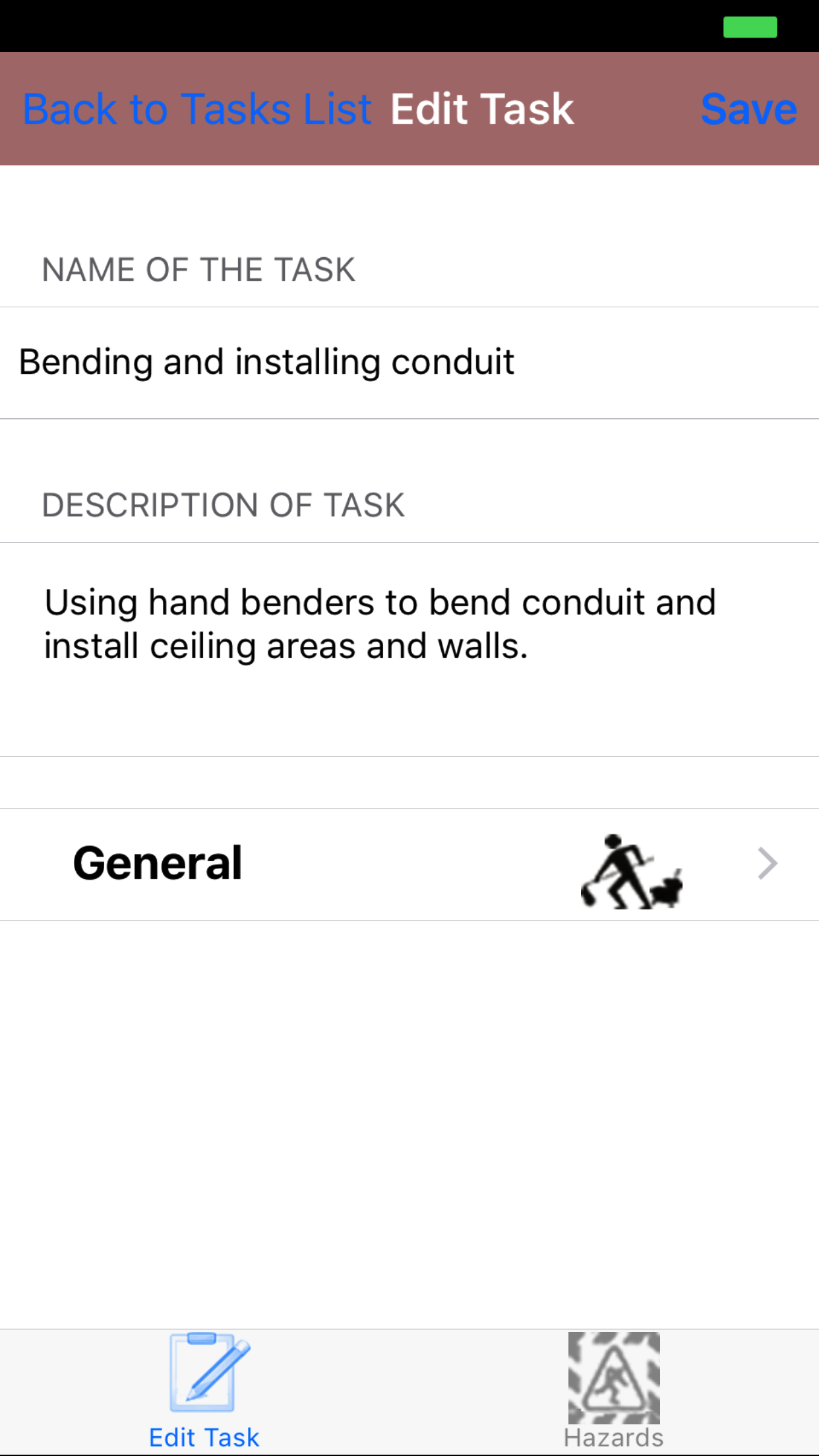
- Task Name: Enter the name of the task. The name of the task will be your short description of the task you will be performing. The character limit of this field is 75 characters.
- Task Description: Enter the description of the task. The description of the task will be your long description of the task you will be performing. The character limit of this field is 350 characters.
- Task Category: The task category field also field staff to choose what category the new task falls into. The choices of task categories is dependent on the companies list of task categories based on their business.
- Tap the Task Category field to open the Choose Task Category screen.
- Scroll the list of task categories until the desired task category is displayed on the screen.
- Tap the desired task category to select it or tap Back in the top left corner to leave the Task Category field unchanged and return to the Save Task screen.
- Tap Save in the top right corner of the screen to save the task to the Hazard Assessment.
|
|
| Steps 1-4 |
|
|
13.Delete Task |
|
Once on the third tab, the task tab of the Hazard Assessment view
Steps
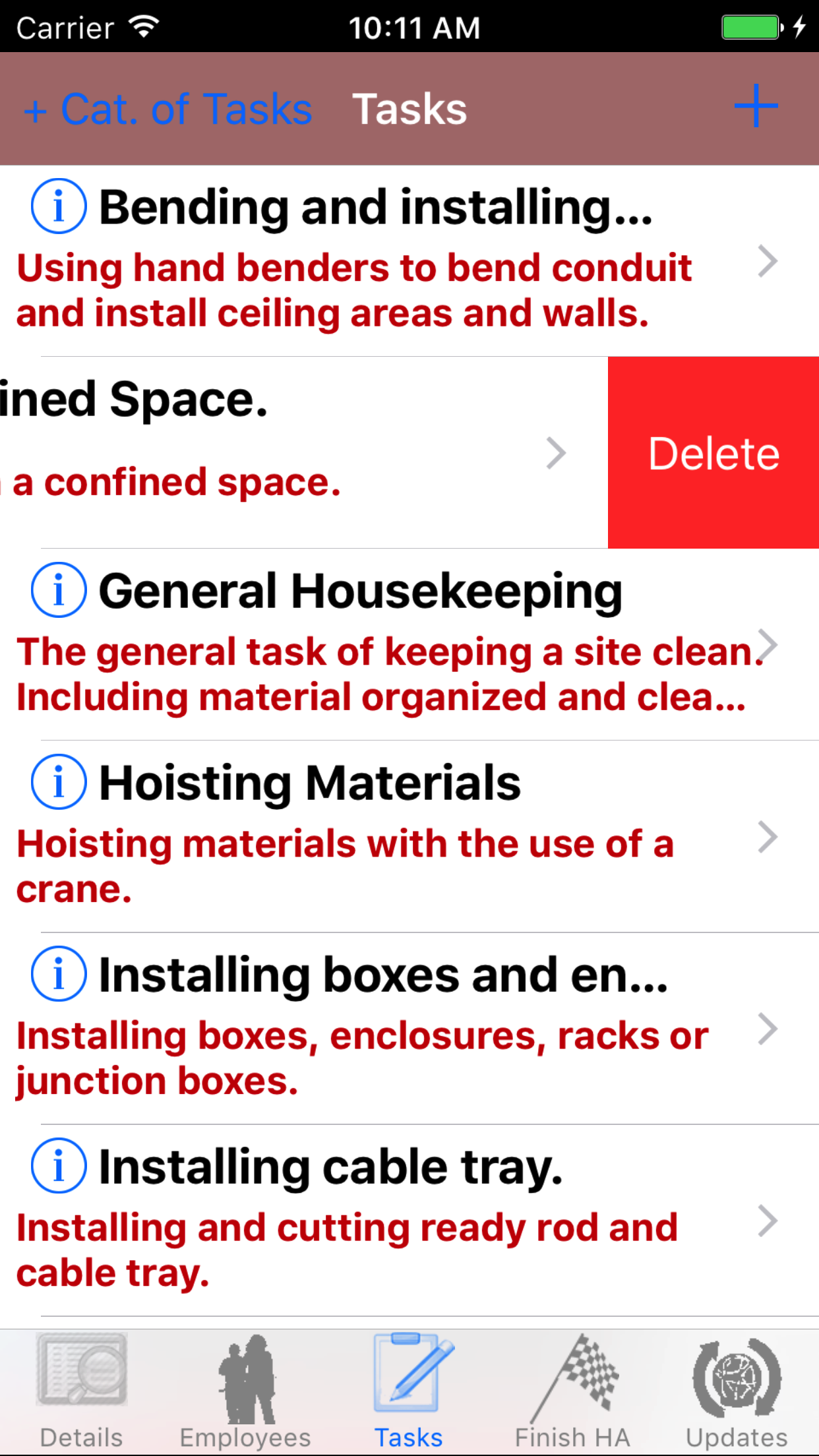
- Scroll the list of task until the desired task is displayed on the screen.
- Swipe from the right edge to the left to bring up the delete button for the task.
- Tap the Delete button. The task and all related task hazards and plans for elimination will be deleted from the hazard assessment.
|
|
| Steps 1-3 |
|
|
Task Hazards |
14.Task Hazards Review |
|
Once on the Task Details for the task you would like to Edit
Steps
- Tap on the second tab, the task hazard tab of the edit task view.
This loads the task hazards view, on this view you can see the task hazard description in black and the risk levels both Pre Control and Post Control in red that has been assigned to that task hazard.
|
15.Add Task Hazard |
|
While R & T Electric Pro's Hazard Assessment system is created to start field staff with a list of tasks to start every hazard assessment with.
Cutting down on the amount of time having staff writing out every task, task hazard and plans for elimination. There will be times field
staff will require the ability to add in a new task hazard to their list for a task on a hazard assessment.
Task Hazards being added on a regular basis by field staff to tasks on a hazard assessments, can be added to companies list of tasks. Saving field staff the time
of entering these task hazards on a regular basis. A companies list of tasks should be a ever evolving list of tasks, task hazards and plans for elimination. *For more information about
Tasks List Management click here.
|
|
|
| Step 1 |
|
|
|
Once on the Task Details for the task you would like to Edit
Steps
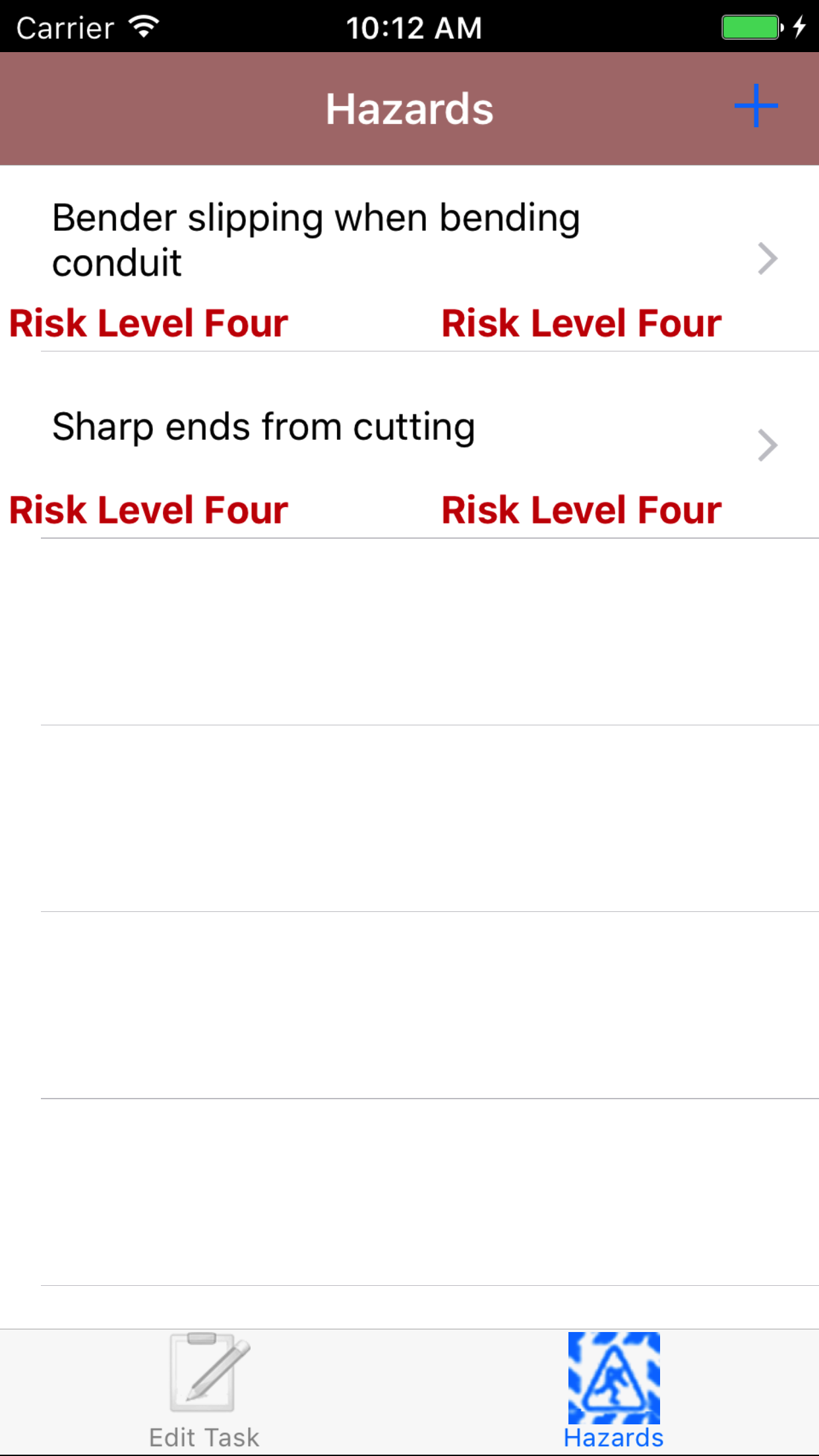
- Tap on the second tab, the task hazard tab of the edit task view.
This loads the task hazards view, on this view you can see the task hazard description in black and the risk levels both Pre Control and Post Control in red that has been assigned to that task hazard.
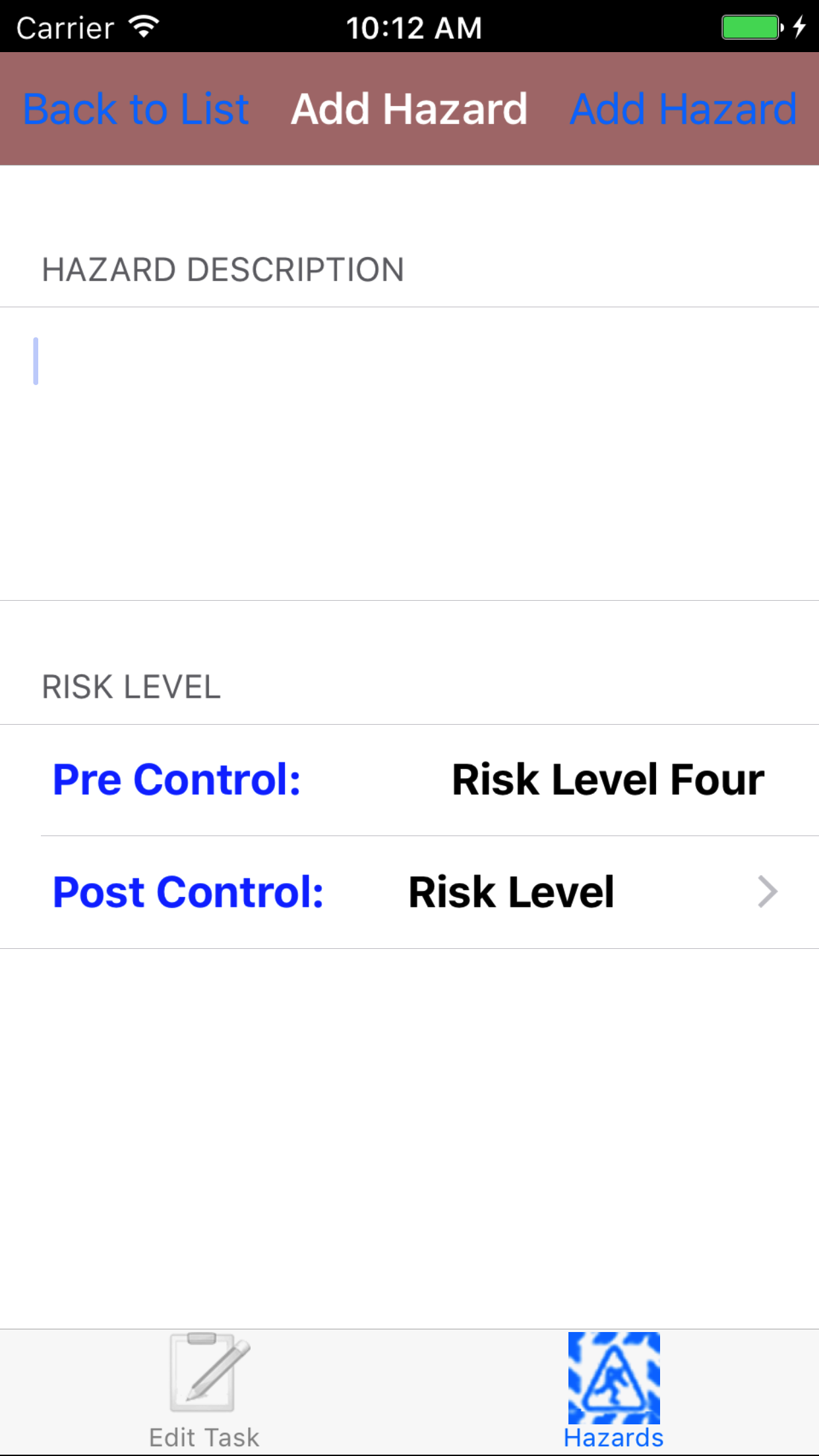
- Tap on the + button in the top right corner of the screen.
- Hazard Description: The hazard description is the description of the hazard that exists involved with the task that they are associated with. The character limit of this field is 350.
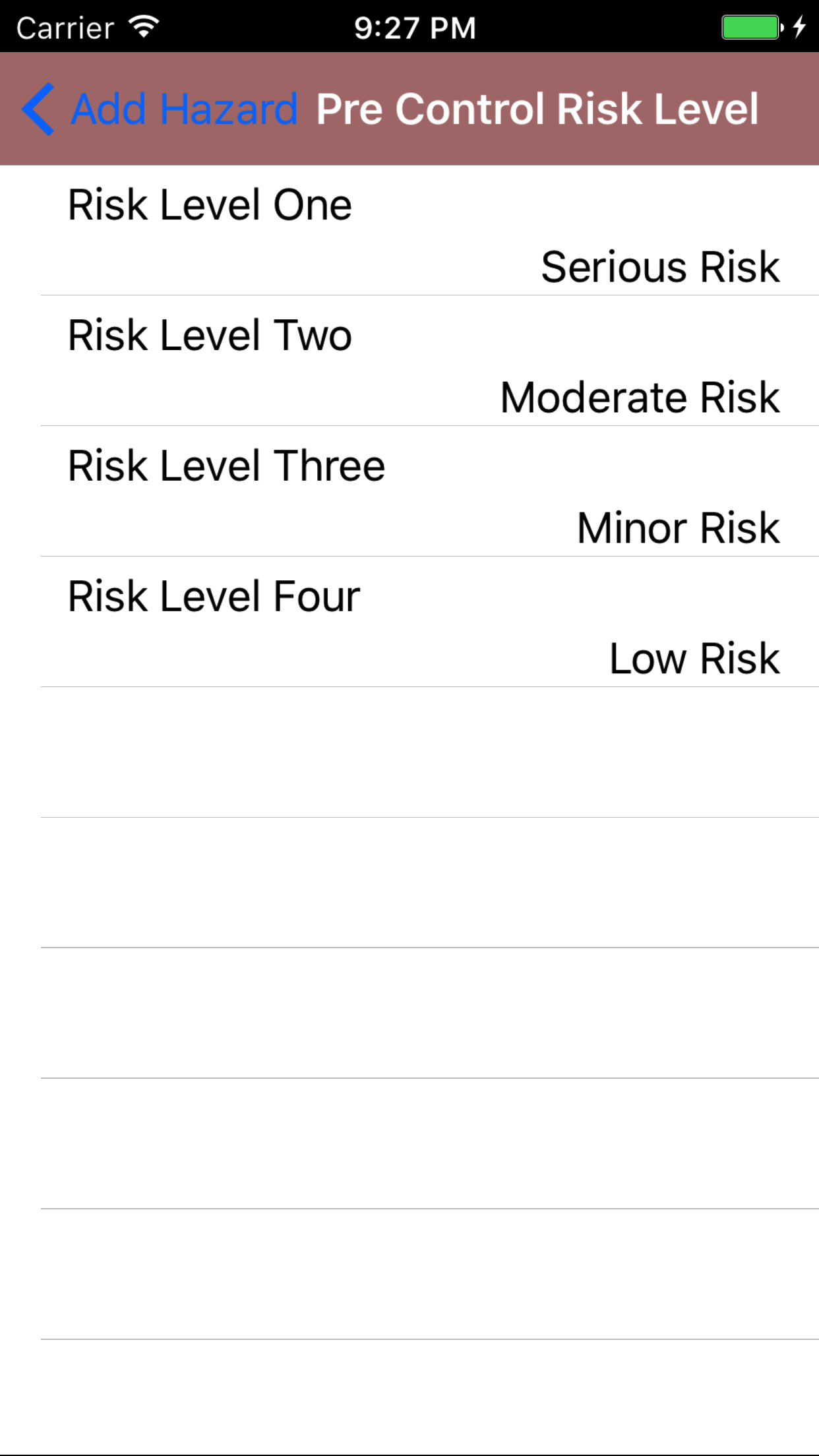
- Pre Control Risk Level: The pre control risk level field also field staff to choose what pre control risk level of the task hazard falls into. The choices of risk levels is dependent on the companies choice of how they determine risk level rankings.
Some companies view Risk Level One as High Risk and Risk Level Four as Low Risk, while others view Risk Level One as Low Risk and Risk Level Four as High Risk. In any case the Pre Control Risk Level represents the risk of injury or
incident caused by the hazard before a control is implemented lessen the chances of incident or injury.
- Tap the Pre Control Risk Level field to open the Choose Risk Level screen.
- Scroll the list of risk level until the desired risk level is displayed on the screen.
- Tap the desired risk level to select it or tap Back in the top left corner to leave the Risk Level field unchanged and return to the Add Task Hazard screen.
- Post Control Risk Level: The post control risk level field also field staff to choose what post control risk level of the task hazard falls into. The choices of risk levels is dependent on the companies choice of how they determine risk level rankings.
Some companies view Risk Level One as High Risk and Risk Level Four as Low Risk, while others view Risk Level One as Low Risk and Risk Level Four as High Risk. In any case the Post Control Risk Level represents the risk of injury or
incident caused by the hazard after a control is implemented lessen the chances of incident or injury. A Post Control Risk Level should be lower than Pre Control Risk Level.
- Tap the Post Control Risk Level field to open the Choose Risk Level screen.
- Scroll the list of risk level until the desired risk level is displayed on the screen.
- Tap the desired risk level to select it or tap Back in the top left corner to leave the Risk Level field unchanged and return to the Add Task Hazard screen.
- Tap Add Hazard in the top right corner of the screen to add the task hazard for the task to the Hazard Assessment
Be sure to continue on to add your plan for elimination for the Task Hazard you just added. As important as identifying a task hazard is as equally important to identify the plan of elimination for said task hazard.
*Note: When a task hazard has its pre control risk level set to high risk or moderate risk, you must include a plan for elimination for task hazard. You cannot submit or close a Hazard Assessment with a task hazard with a pre control risk level set to high risk or moderate risk, without a plan of elimination for the task hazard.
*Note: Management will do a critical review on any task hazards submitted with a pre control risk level set to high risk or moderate risk, meaning management will phone you to review your plan for elimination you have developed for the task hazard.
|
|
|
|
| Step 1 |
|
|
|
| Step 2 |
|
|
| Steps 3 & 6 |
|
|
| Steps 4-5 |
|
|
16.Look Up Task Hazard |
|
Once on the Task Details for the task you would like to Edit
Steps
- Tap on the second tab, the task hazard tab of the edit task view.
This loads the task hazards view, on this view you can see the task hazard description in black and the risk levels both Pre Control and Post Control in red that has been assigned to that task hazard.
- Scroll the list of task hazards until the desired task hazard is displayed on the screen.
- Tap the desired task hazard to select it.
The Screen will load with two new tabs'
- Tab one loads with task hazard details, the details of the task hazard.
- Tab two loads with plans for elimination, the plans for elimination associated with the selected task hazard.
|
|
|
| Steps 1-2 |
|
|
17.Edit Task Hazard |
|
Once on the Task Hazard details you would like to Edit
Steps
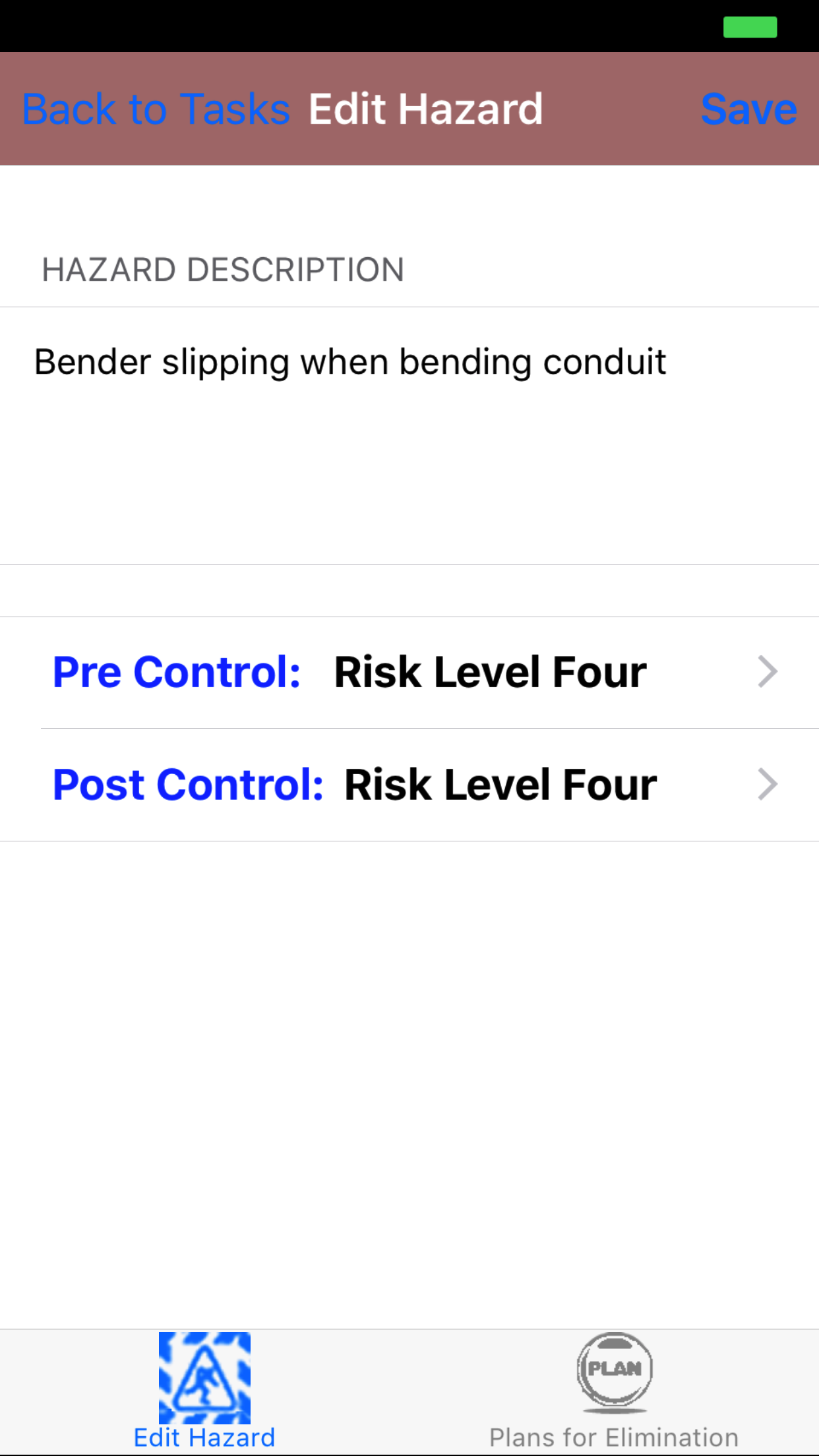
- Hazard Description: The hazard description is the description of the hazard that exists involved with the task that they are associated with. The character limit of this field is 350.
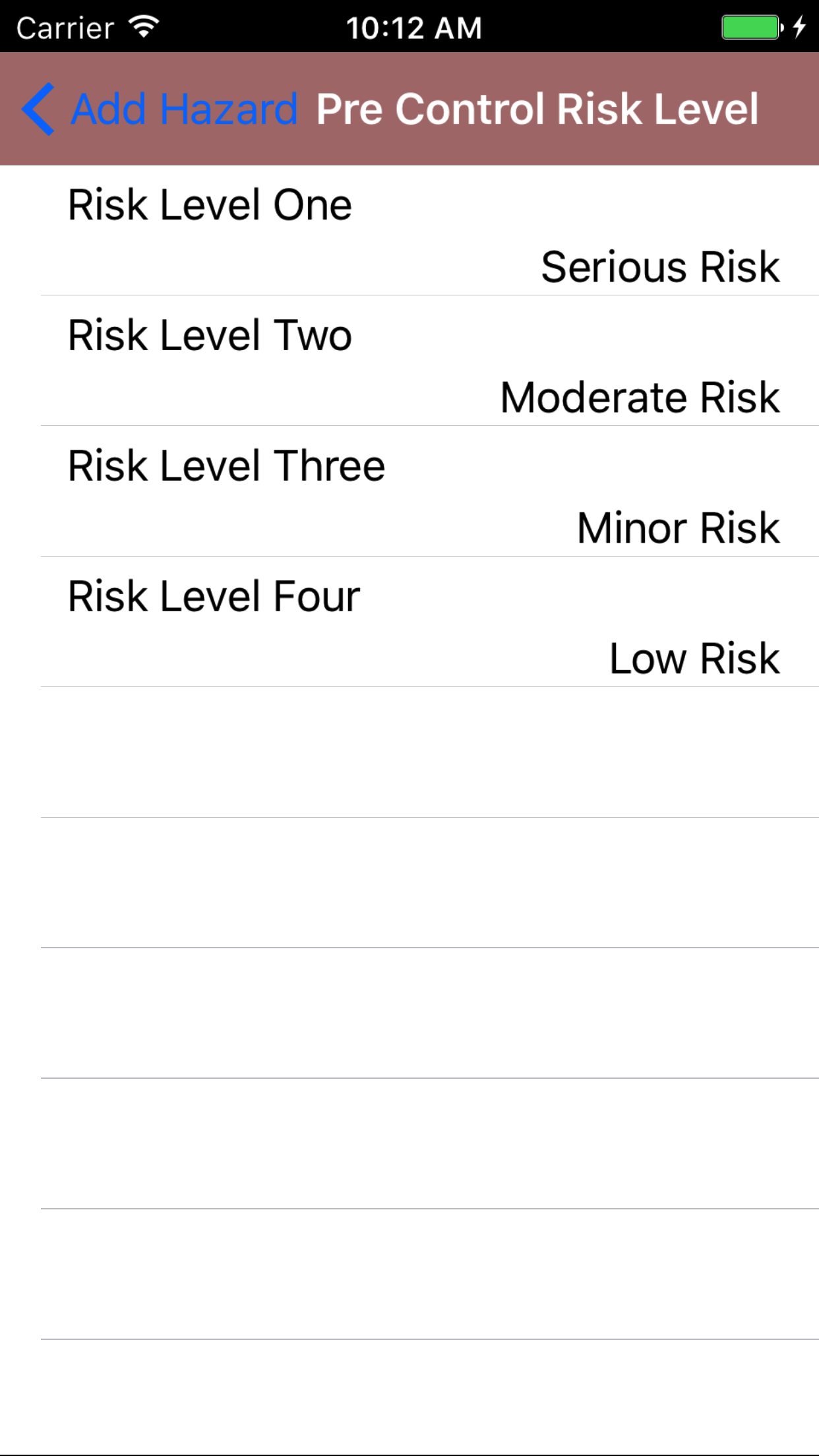
- Pre Control Risk Level: The pre control risk level field also field staff to choose what pre control risk level of the task hazard falls into. The choices of risk levels is dependent on the companies choice of how they determine risk level rankings.
Some companies view Risk Level One as High Risk and Risk Level Four as Low Risk, while others view Risk Level One as Low Risk and Risk Level Four as High Risk. In any case the Pre Control Risk Level represents the risk of injury or
incident caused by the hazard before a control is implemented lessen the chances of incident or injury.
- Tap the Pre Control Risk Level field to open the Choose Risk Level screen.
- Scroll the list of risk level until the desired risk level is displayed on the screen.
- Tap the desired risk level to select it or tap Back in the top left corner to leave the Risk Level field unchanged and return to the Add Task Hazard screen.
|
|
| Steps 1-4 |
|
|
| Steps 2-3 |
|
|
- Post Control Risk Level: The post control risk level field also field staff to choose what post control risk level of the task hazard falls into. The choices of risk levels is dependent on the companies choice of how they determine risk level rankings.
Some companies view Risk Level One as High Risk and Risk Level Four as Low Risk, while others view Risk Level One as Low Risk and Risk Level Four as High Risk. In any case the Post Control Risk Level represents the risk of injury or
incident caused by the hazard after a control is implemented lessen the chances of incident or injury. A Post Control Risk Level should be lower than Pre Control Risk Level.
- Tap the Post Control Risk Level field to open the Choose Risk Level screen.
- Scroll the list of risk level until the desired risk level is displayed on the screen.
- Tap the desired risk level to select it or tap Back in the top left corner to leave the Risk Level field unchanged and return to the Add Task Hazard screen.
- Tap Save in the top right corner of the screen to save the task hazard for the task to the Hazard Assessment.
|
|
|
18.Delete Task Hazard |
|
Once on the Task Details for the task you would like to Edit
Steps
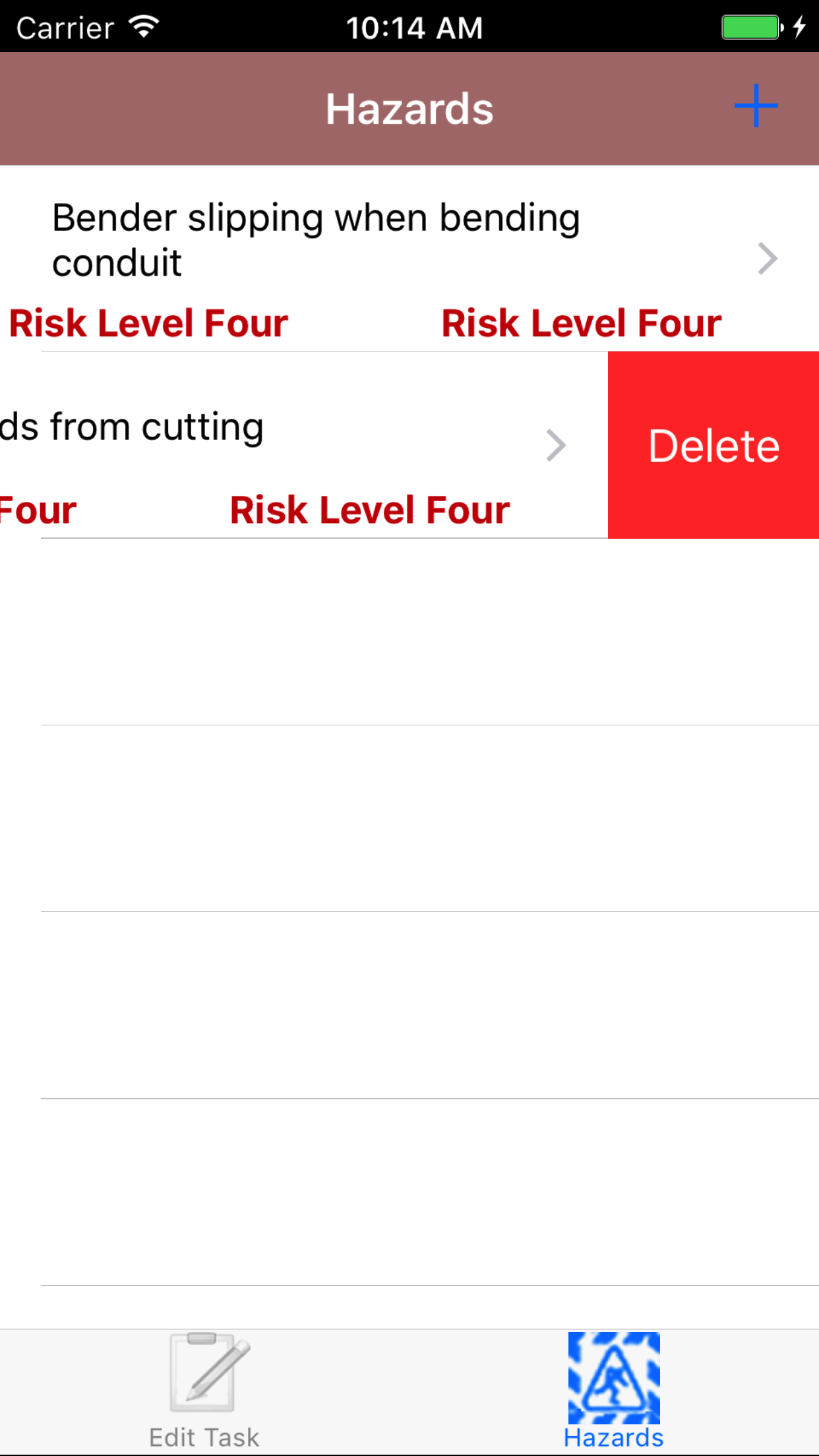
- Tap on the second tab, the task hazard tab of the edit task view.
This loads the task hazards view, on this view you can see the task hazard description in black and the risk levels both Pre Control and Post Control in red that has been assigned to that task hazard.
- Scroll the list of task hazards until the desired task hazard is displayed on the screen.
- Swipe from the right edge to the left to bring up the delete button for the task hazard.
- Tap the Delete button. The task and all related plans for elimination will be deleted from the hazard assessment.
|
|
| Steps 1-2 |
|
|
Plans for Eliminations |
19.Plans for Elimination Review |
|
Once on the Task Hazard Details for the task hazard you would like to Edit
Steps
- Tap on the second tab, the plans for elimination tab of the edit task hazard view.
This loads the plans for elimination view, on this view you can see the plans for elimination
description in black and the elimination date Elimination date in blue and Employee Responsible in red that has been assigned to eliminate the task hazard.
|
20.Add Plans for Elimination |
|
While R & T Electric Pro$s Hazard Assessment system is created to start field staff with a list of tasks to start every hazard assessment with.
Cutting down on the amount of time having staff writing out every task, task hazard and plans for elimination. There will be times field
staff will require the ability to add in a new plans for elimination to their list for a task on a hazard assessment.
Plans for Elimination being added on a regular basis by field staff to task hazards on a hazard assessments, can be added to companies list of tasks. Saving field staff the time
of entering these plans for Elimination on a regular basis. A companies list of tasks should be a ever evolving list of tasks, task hazards and plans for elimination. *For more information about
Tasks List Management click here.
|
|
|
| Step 1 |
|
|
|
Once on the Task Hazards Details for the task hazard you would like to Edit
Steps
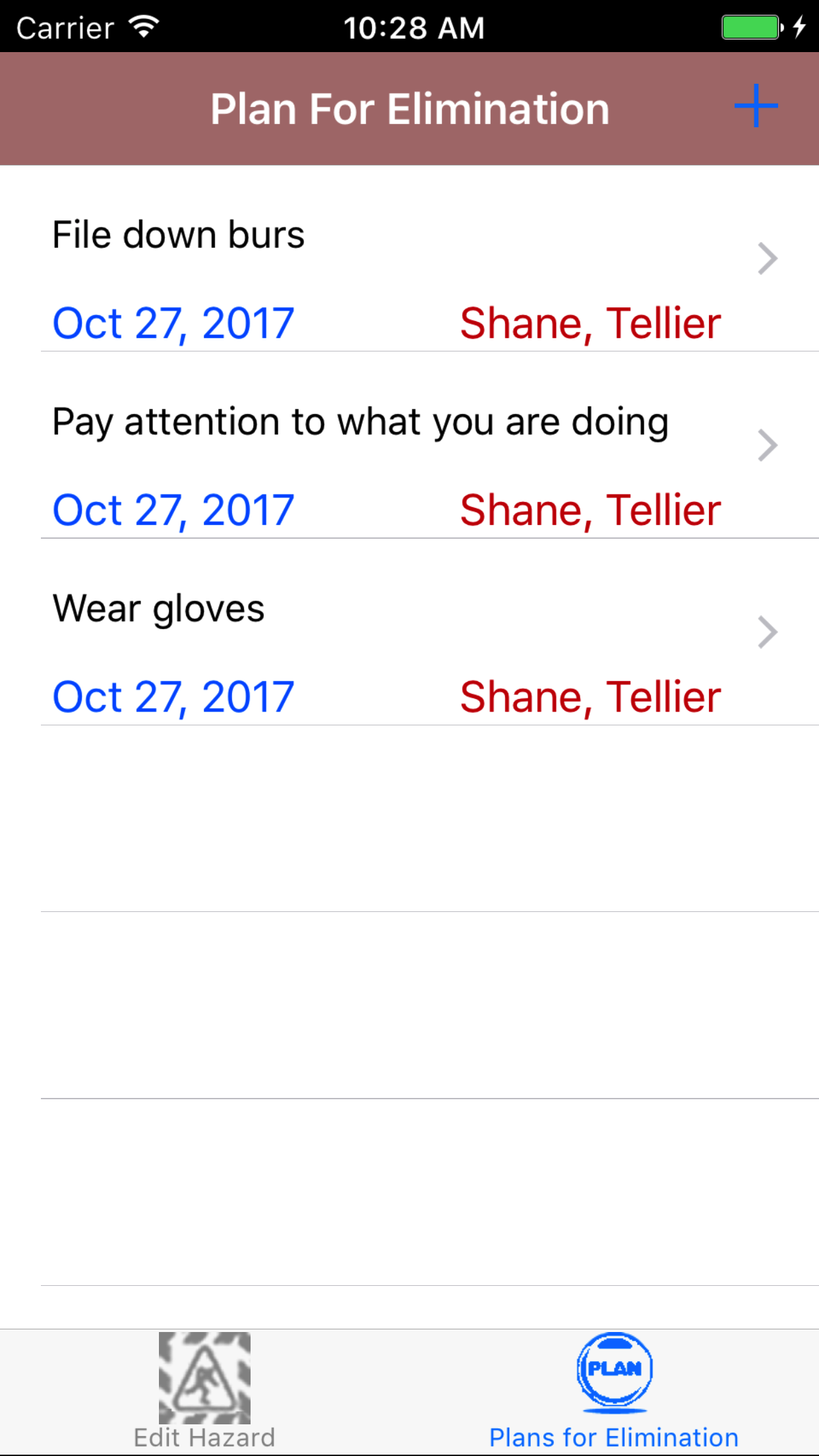
- Tap on the second tab, the plans for elimination tab of the edit task hazard view.
This loads the plans for elimination view, on this view you can see the plans for elimination
description in black and the Elimination date in blue and Employee Responsible in red that has been assigned to eliminate the task hazard.
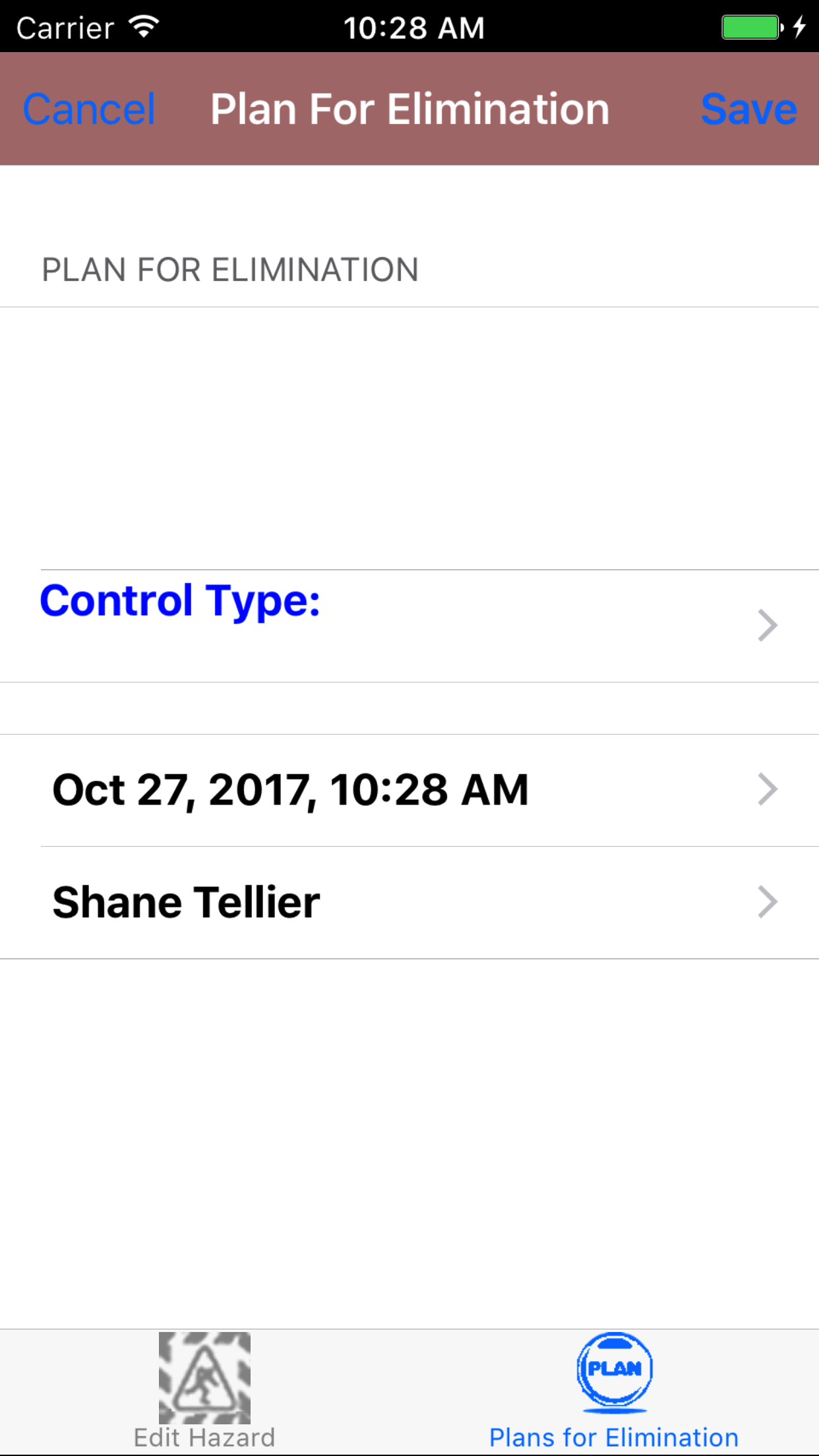
- Tap on the + button in the top right corner of the screen.
- Plan for elimination:The plan for elimination is a description of the field staffs plan to eliminate a hazard on the job site. Field Staff should enter a plan for elimination for all task hazards; while they
must enter a plan for elimination for all task hazards assigned a risk level of Serious Risk or Moderate Risk. The character limit of this field is 250.
- Date: The date field will display the date which the Hazard Assessment was added. The date should be set to the date of which the plans for elimination was put into place.
- Tap the Date field to open the Choose Date screen.
- Scroll the date wheel on the far left of the screen until the desired date is highlighted.
- Return to the Add Plan for Elimination screen by either tapping Save in the top right corner to select the highlighted date or tapping Cancel in the top left corner to leave the Date field unchanged.
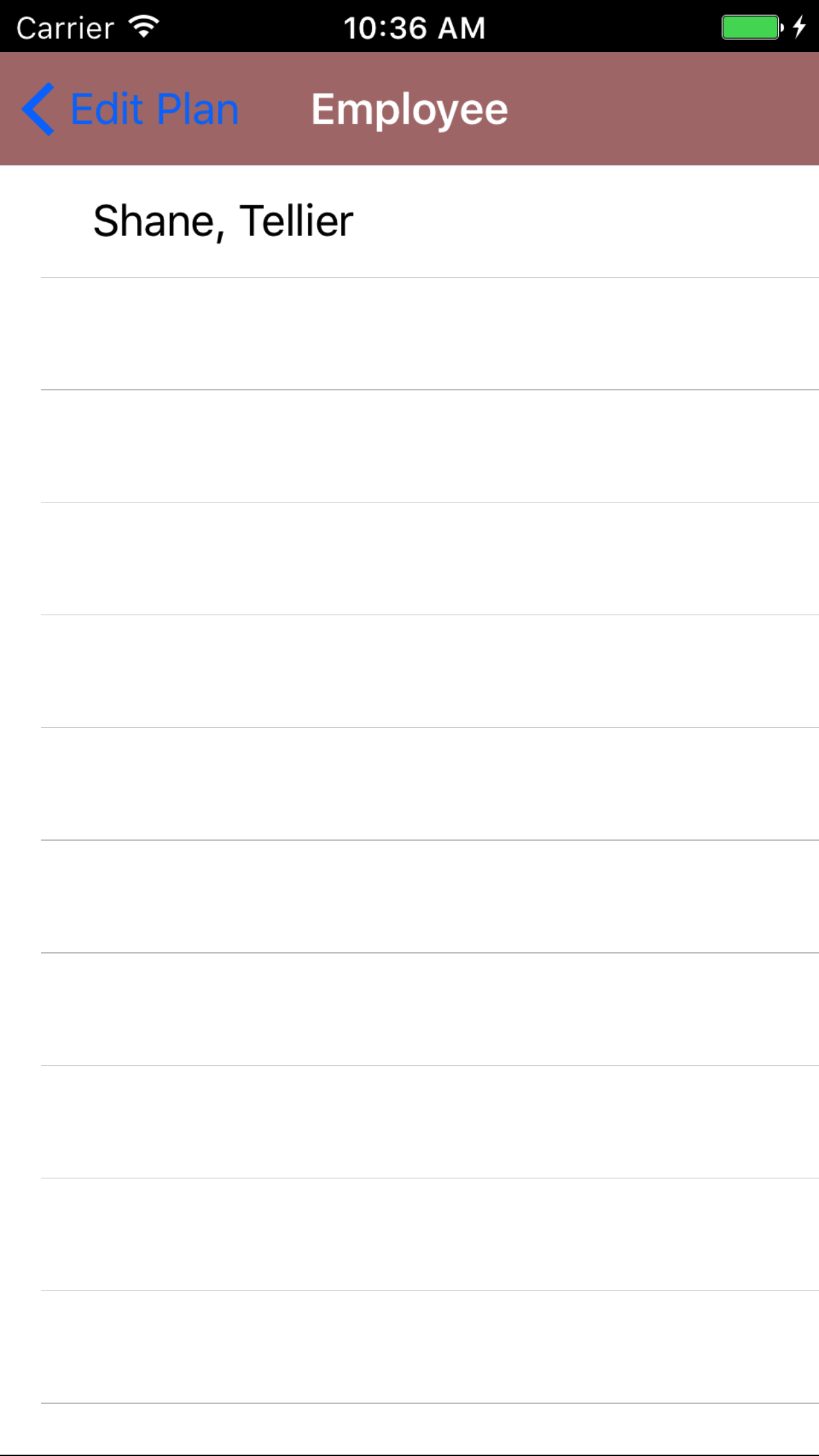
- Employee Responsible: The employee responsible field, allows field staff to assign a employee the responsibility to eliminate the task hazard.
- Tap the employee responsible field, to open the Choose Employee screen.
- Scroll the list of employees until the desired employee is displayed on the screen.
- Tap the desired employee to select it or tap Back in the top left corner to leave the employee responsible field unchanged and return to the Add Plan for Elimination screen.
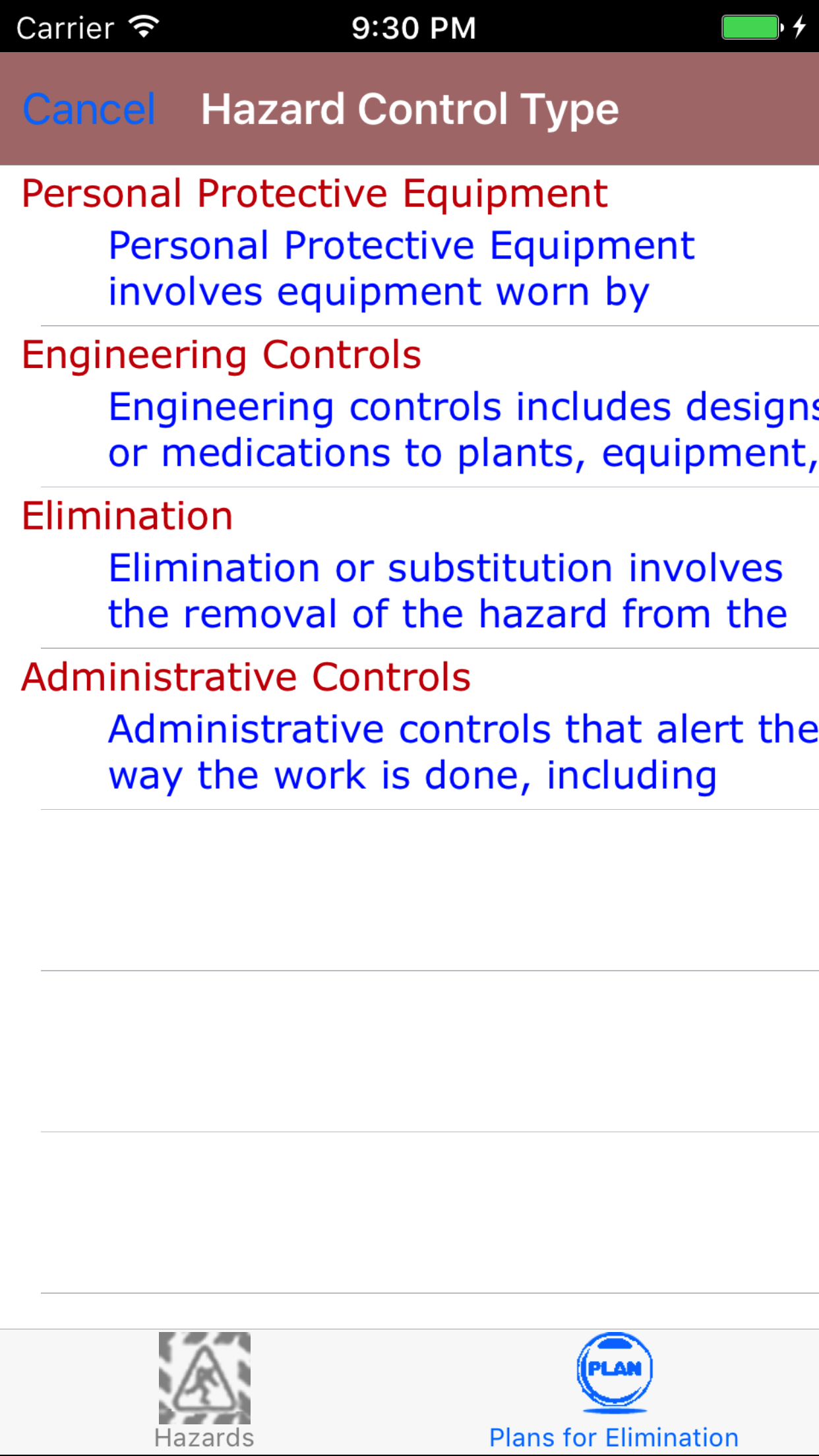
- Hazard Control Type: The hazard control type field, allows field staff to assign a the type of hazard control type used to eliminate the task hazard.
- Tap the hazard control type field, to open the Hazard Control Type screen.
- Scroll the list of hazard control type until the desired hazard control type is displayed on the screen.
- Tap the desired hazard control type to select it or tap Back in the top left corner to leave the hazard control type field unchanged and return to the Add Plan for Elimination screen.
- Tap Save in the top right corner of the screen to add the plan for elimination for the task hazard for the task.
|
|
|
|
| Step 1 |
|
|
|
| Step 2 |
|
|
| Steps 3-7 |
|
|
|
| Step 4 |
|
|
|
| Step 5 |
|
|
| Step 6 |
|
|
21.Look Up Plans for Elimination |
|
Once on the Task Hazard view of Hazard Assessment you would like to Edit
Steps
- Tap on the second tab, the plans for elimination tab of the edit task hazard view.
- Scroll the list of plans for elimination until the desired plan for elimination is displayed on the screen.
- Tap the desired plan for elimination to select and open the Edit Plan for Elimination screen.
|
|
|
|
| Steps 1-3 |
|
|
22.Edit Plan for Elimination |
|
Once on the Plans for Elimination you would like to Edit
Steps
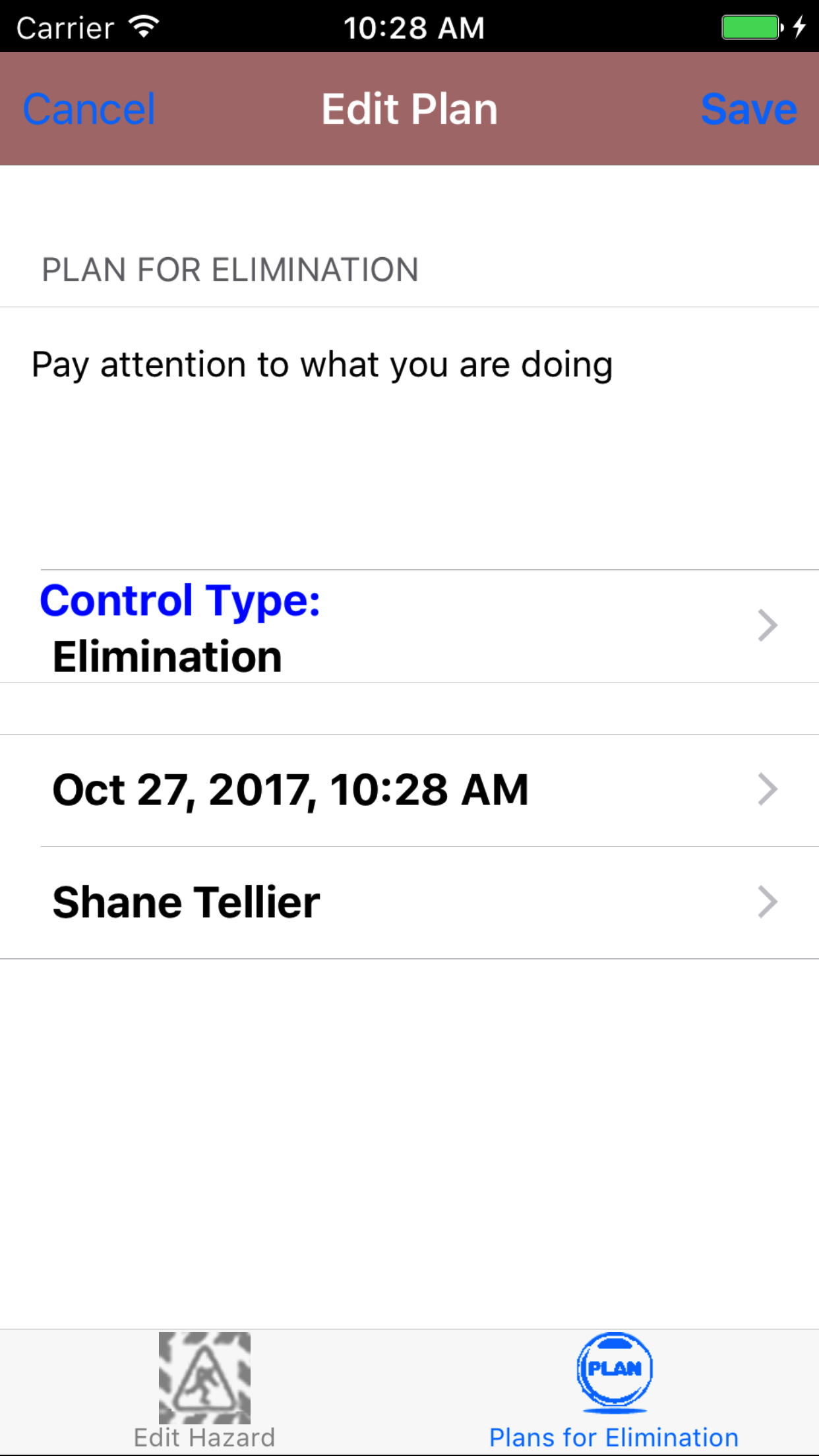
- Plan for elimination:The plan for elimination is a description of the field staffs plan to eliminate a hazard on the job site. Field Staff should enter a plan for elimination for all task hazards; while they
must enter a plan for elimination for all task hazards assigned a risk level of Serious Risk or Moderate Risk. The character limit of this field is 250.
- Date: The date field will display the date which the Hazard Assessment was added. The date should be set to the date of which the plans for elimination was put into place.
- Tap the Date field to open the Choose Date screen.
- Scroll the date wheel on the far left of the screen until the desired date is highlighted.
- Return to the Edit Plan for Elimination screen by either tapping Save in the top right corner to select the highlighted date or tapping Cancel in the top left corner to leave the Date field unchanged.
- Employee Responsible: The employee responsible field, allows field staff to assign a employee the responsibility to eliminate the task hazard.
- Tap the employee responsible field, to open the Choose Employee screen.
- Scroll the list of employees until the desired employee is displayed on the screen.
- Tap the desired employee to select it or tap Back in the top left corner to leave the employee responsible field unchanged and return to the Add Plan for Elimination screen.
- Hazard Control Type: The hazard control type field, allows field staff to assign a the type of hazard control type used to eliminate the task hazard.
- Tap the hazard control type field, to open the Hazard Control Type screen.
- Scroll the list of hazard control type until the desired hazard control type is displayed on the screen.
- Tap the desired hazard control type to select it or tap Back in the top left corner to leave the hazard control type field unchanged and return to the Edit Plan for Elimination screen.
- Tap Save in the top right corner of the screen to edit the plan for elimination for the task hazard for the task.
|
|
|
| Steps 1-2 |
|
|
|
|
| Step 1 |
|
|
|
| Step 2 |
|
|
| Steps 3-7 |
|
|
|
| Step 4 |
|
|
23.Delete Plan for Elimination |
|
Once on the Task Hazards Details for the task hazard you would like to Edit
Steps
- Tap on the second tab, the plans for elimination tab of the edit task hazard view.
- Scroll the list of plans for elimination until the desired plans for elimination is displayed on the screen.
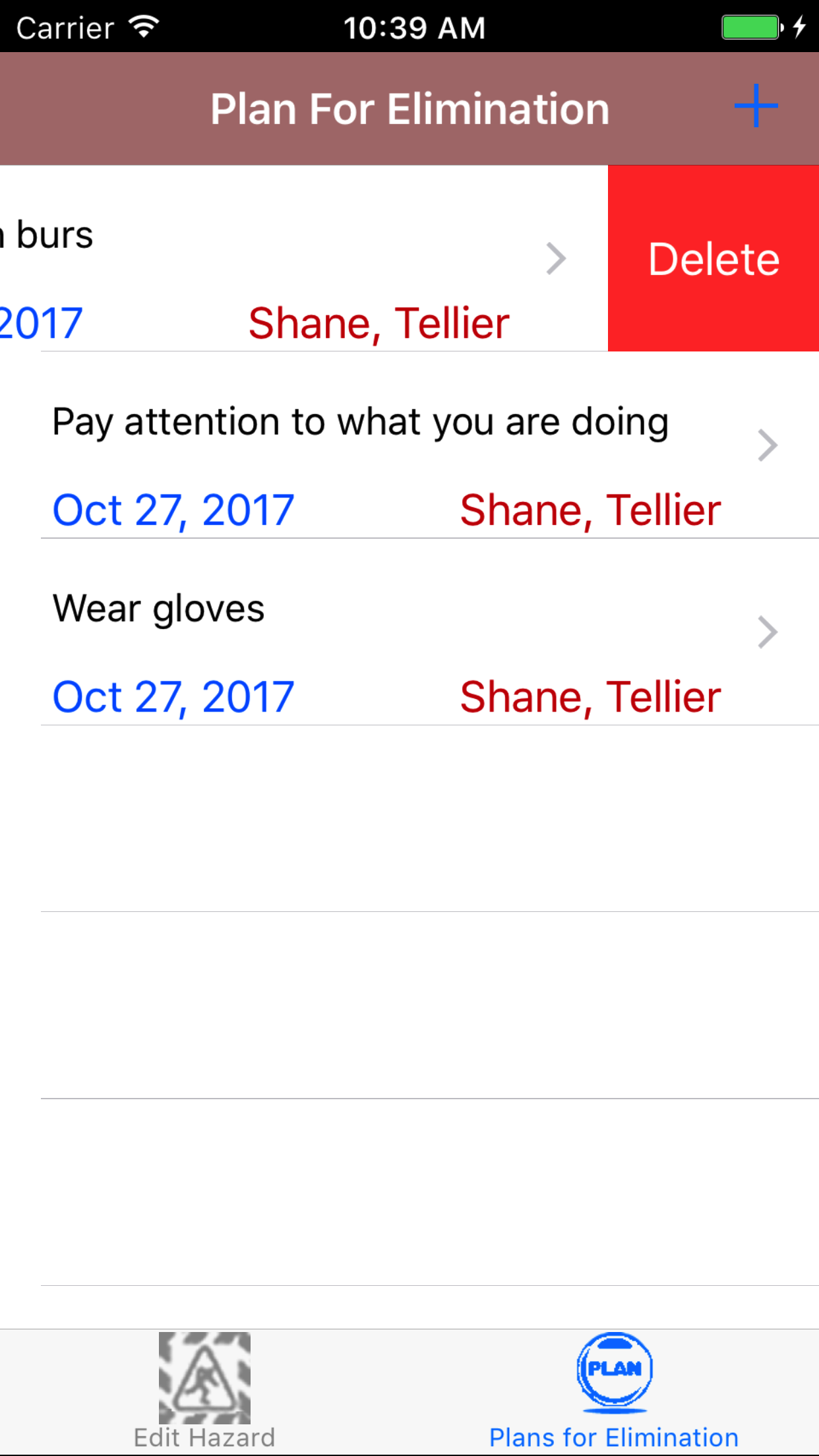
- Swipe from the right edge to the left to bring up the delete button for the plan for elimination.
- Tap the Delete button. The plan for elimination will be deleted from the hazard assessment.
|
|
| Steps 1-3 |
|
|
24.Submit Hazard Assessment |
|
Once the Hazard Assessment details have been entered, the employees added, the list of tasks/ task hazards and plans for elimination edited to
reflect the work to be preformed, the Hazard Assessment should be submitted.
Once on the Hazard Assessment you would like to Edit
Steps
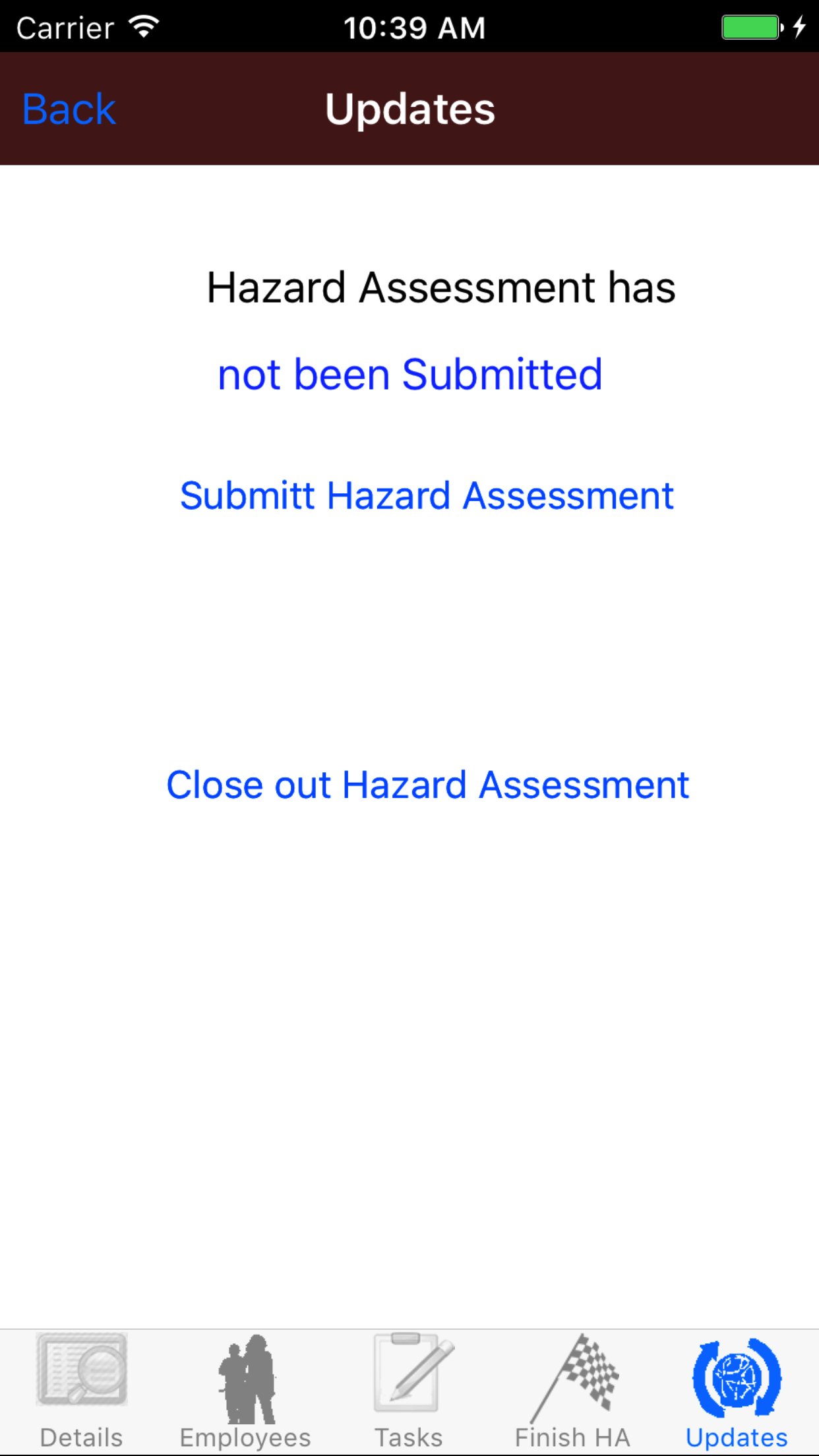
- Tap on the fourth tab, the downloads view.
- Tap the Submit Hazard Assessment button.
Once a hazard assessment has been submitted a email will be sent to the employee set up in safetynet to receive hazard assessment updates,
and all field staff included on the hazard assessment.
|
25.Edit Finish Details |
|
Once the Hazard Assessment details have been entered, the employees added, the list of tasks/ task hazards and plans for elimination edited to
reflect the work to be preformed and the work for the given day is completed the Hazard Assessment should be closed out.
Once on the Hazard Assessment you would like to Edit
|
|
|
| Steps 1-2 |
|
|
|
Steps
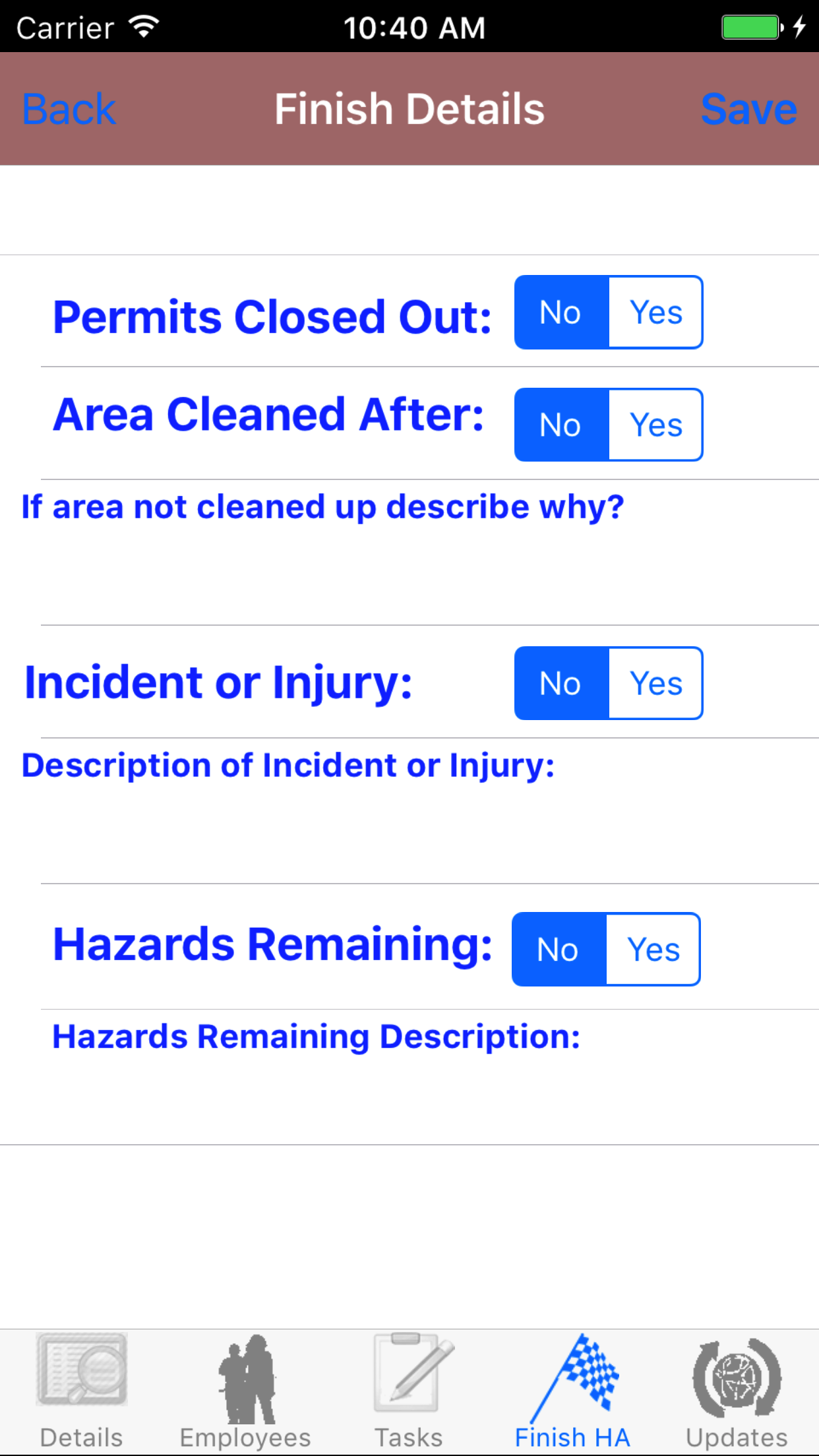
- Tap on the third tab, the finish details view.
- Permit Closed Out: Select yes or no for Permit Closed Out by sliding the switch between yes and no. If you have filled out a permit with a site supervisor, make sure that you have closed out the permit.
- Area Cleaned After: Select yes or no for Area Cleaned After by sliding the switch between yes or no. If you have cleaned up your work area after finishing for the day, set the switch to yes. If you have not you will
have to fill in an explanation of why not.
- Area Cleaned After Description: The area clean after description is required to be filled in if the slider above is set to no. Field staff must include a description of why their work area was not cleaned up. The character limit of this field is 250.
- Incident or Injury: Select yes or no for Incident or Injury by sliding the switch between yes or no. If there had been an incident or injury, including a near miss, slide the switch to yes.
- Incident or Injury Description: The incident or injury description is required to be filled in if the slider above is set to yes. Enter description of the incident or injury that has occurred. The character limit of this field is 250.
- Hazards Remaining: Select yes or no for hazards remaining by sliding the switch between yes or no. If there is Hazards Remaining on the job site slide the switch to yes.
- Hazards Remaining Description: The hazard remaining description is required to be filled in if the slider above is set to yes. Enter description of the hazards remaining that has occurred. The character limit of this field is 250.
- Tap Add Save in the top right corner of the screen to edit the plan for elimination for the task hazard for the task.
|
|
| Steps 1-7 |
|
|
|
26.Close Out Hazard Assessment |
|
Once the Hazard Assessment details have been entered, the employees added, the list of tasks/ task hazards and plans for elimination edited to
reflect the work to be preformed and the work for the given day is completed the Hazard Assessment should be closed out.
Once on the Hazard Assessment you would like to Edit
Steps
- Tap on the fourth tab, the downloads view.
- Tap the Close Out Hazard Assessment button.
Once a hazard assessment has been closed out a email will be sent to the employee set up in safetynet to receive hazard assessment updates,
and all field staff included on the hazard assessment.
|
|
|
27.Delete Hazard Assessments |
|
Once in the Hazard Assessment section
Steps
- Tap the second tab on the menu, the Hazard Assessment view.
To Search Hazard Assessments: Pull down on the list view, the search is defaulted to search by date enter the date in following
format YYYY-MM-DD. The other options for the Hazard Assessment search are by work order number and customer. Enter your search
criteria and click the Search button.
- Scroll the list of Hazard Assessments until the desired Hazard Assessment is displayed on the screen.
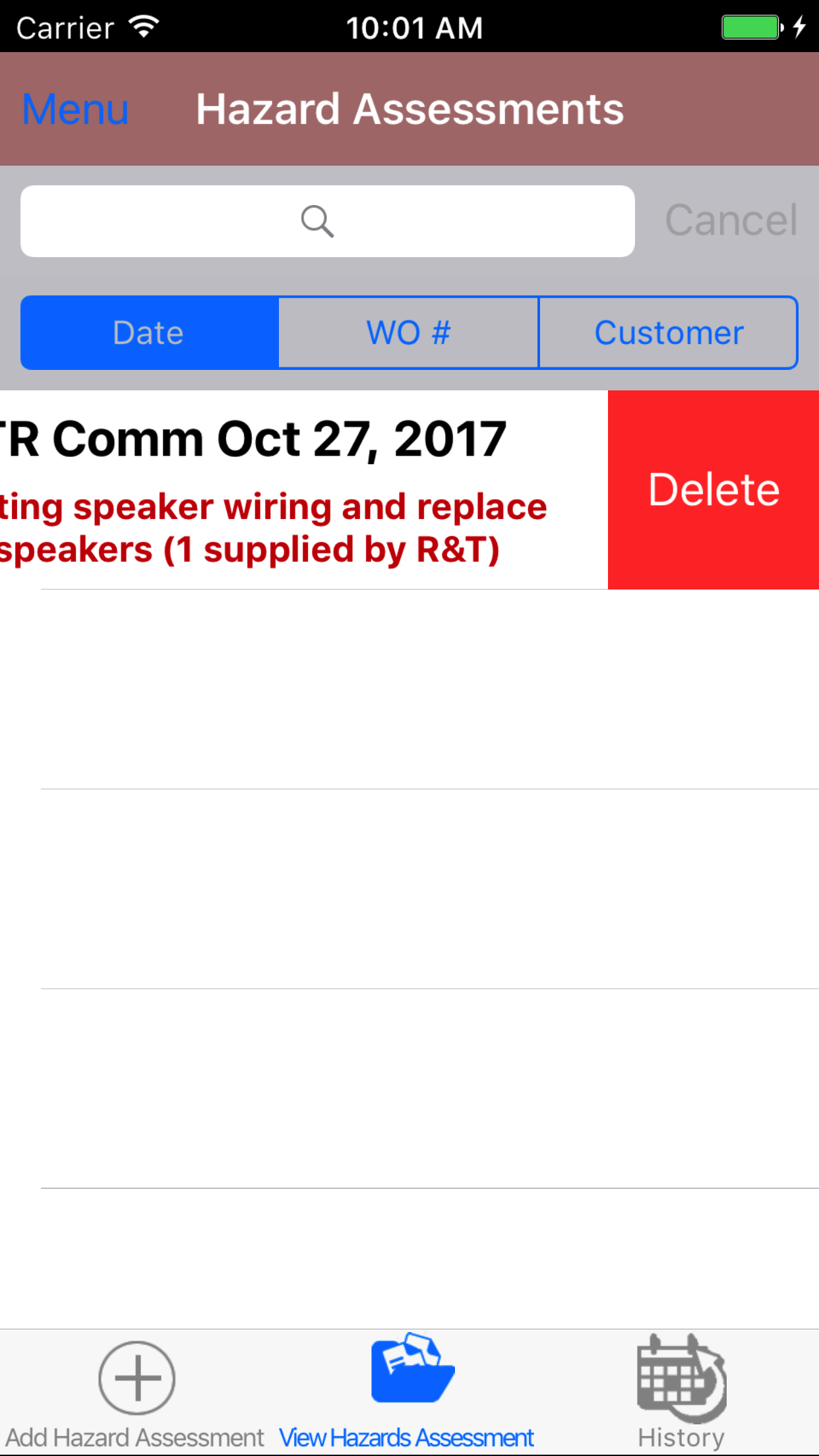
- Swipe from the right edge to the left to bring up the delete button for the hazard assessment.
- Tap the Delete button. The hazard assessment will be deleted.
|
|
| Steps 1-4 |
|
|
28.View Closed Out Hazard Assessment |
|
After Hazard Assessments have been closed out, they will be available to look at through the History view on the iPhone Application
Once on the Hazard Assessment section
Steps
|
|
|
|
| Steps 1-2 |
|
|
|
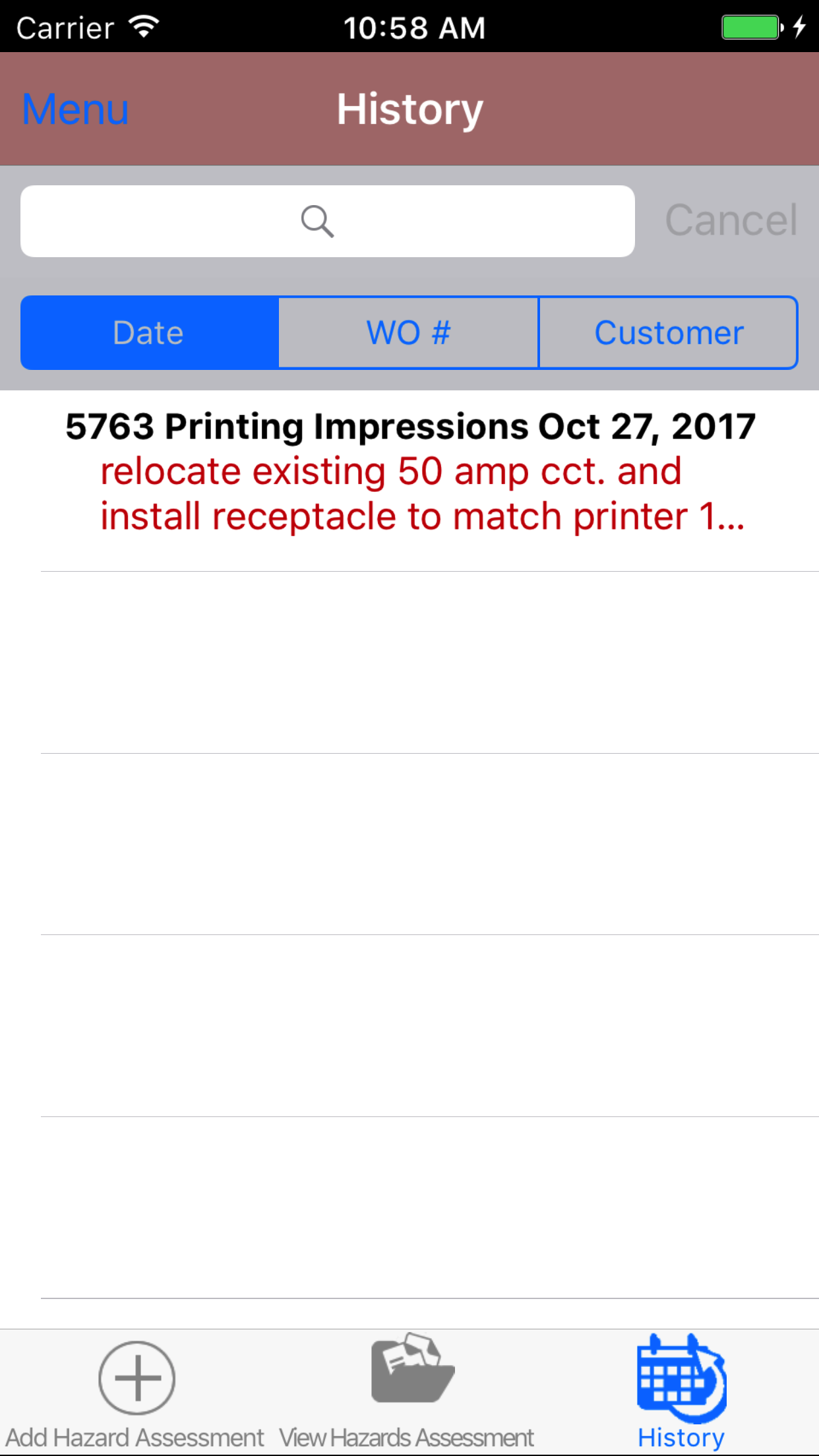
- Tap the third tab on the menu, the History tab of the main menu view. This loads with a list of the closed out Hazard
Assessments listing the the work order number, customer name, date of the Hazard Assessment in black and below that
the scope of work in red.
To Search Hazard Assessments: Pull down on the list view, the search is defaulted to search by date enter the date in following
format YYYY-MM-DD. The other options for the Hazard Assessment search are by work order number and customer. Enter your search
criteria and click the Search button.
- Scroll the list of Hazard Assessments until the desired Hazard Assessment is displayed on the screen.
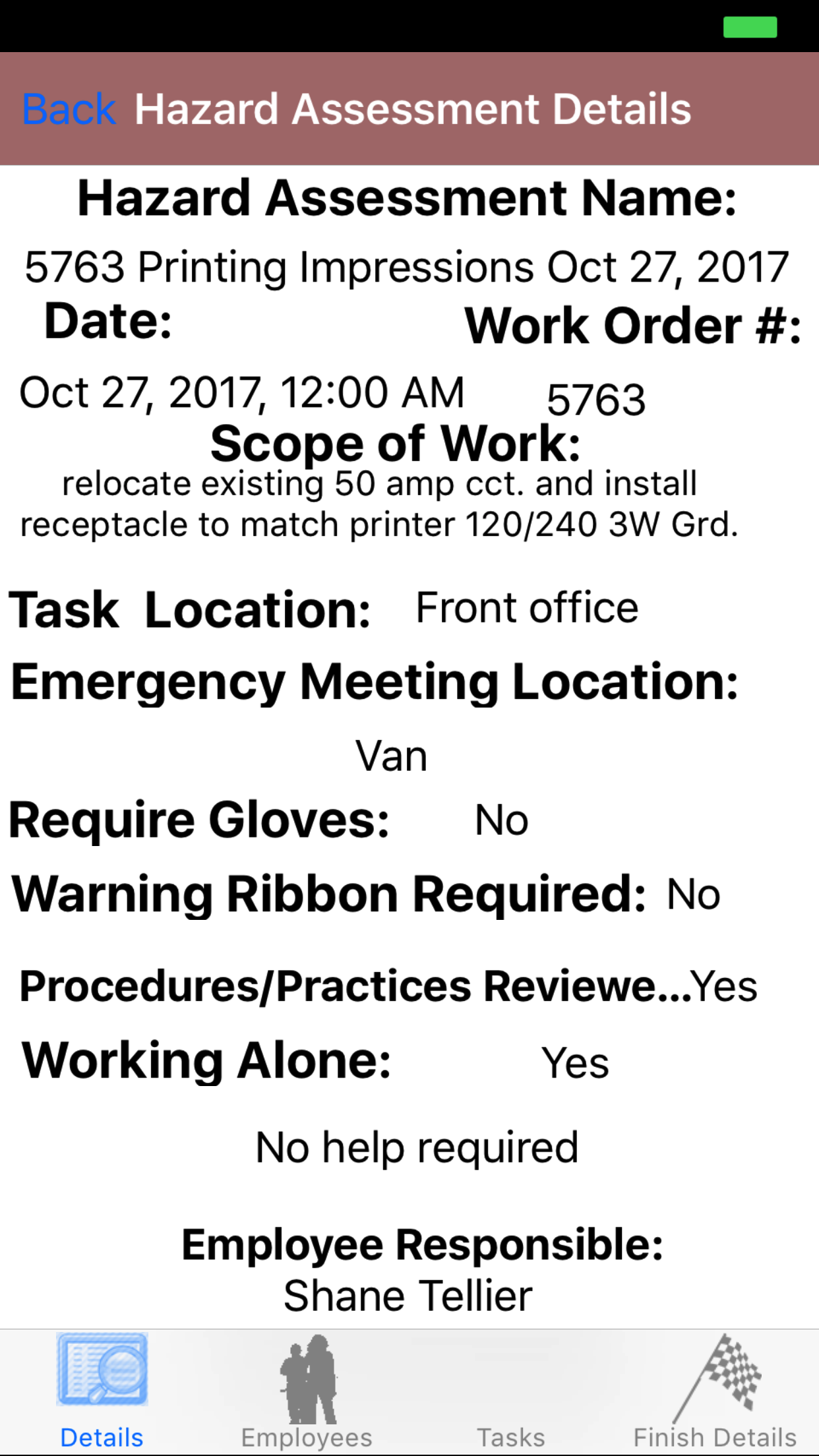
- Tap on the Hazard Assessment you would like to view. This loads the first tab, the Hazard Assessment details tab of the History view.
It loads the following details including date, work order number, scope of work, task location, emergency meeting location, requires
gloves, warning ribbon required, and the working alone description.
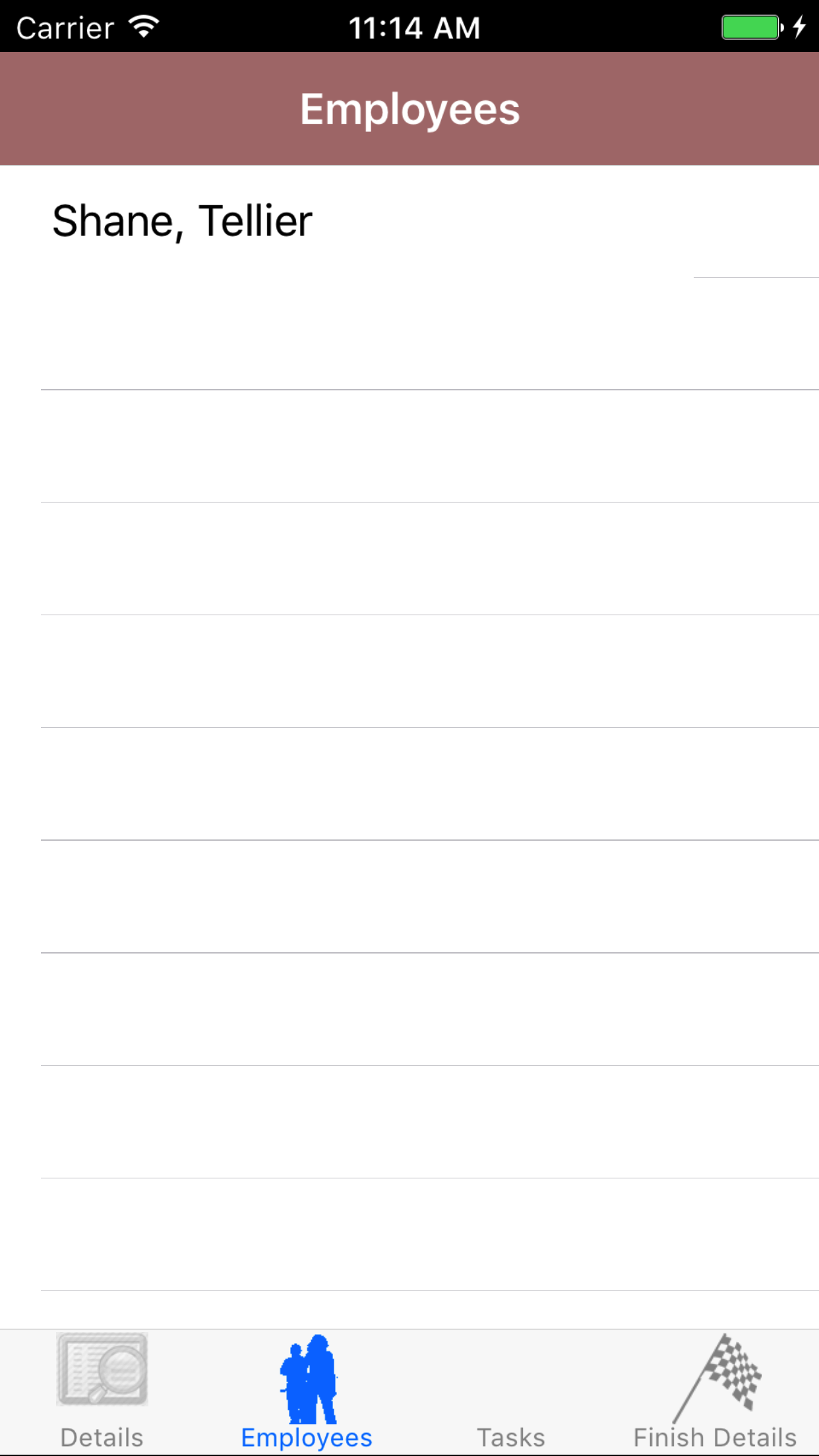
- Tap the second tab, the Hazard Employee’s tab of the History view. This loads with the employee’s names and their signatures
of the employees assigned to the Hazard Assessment.
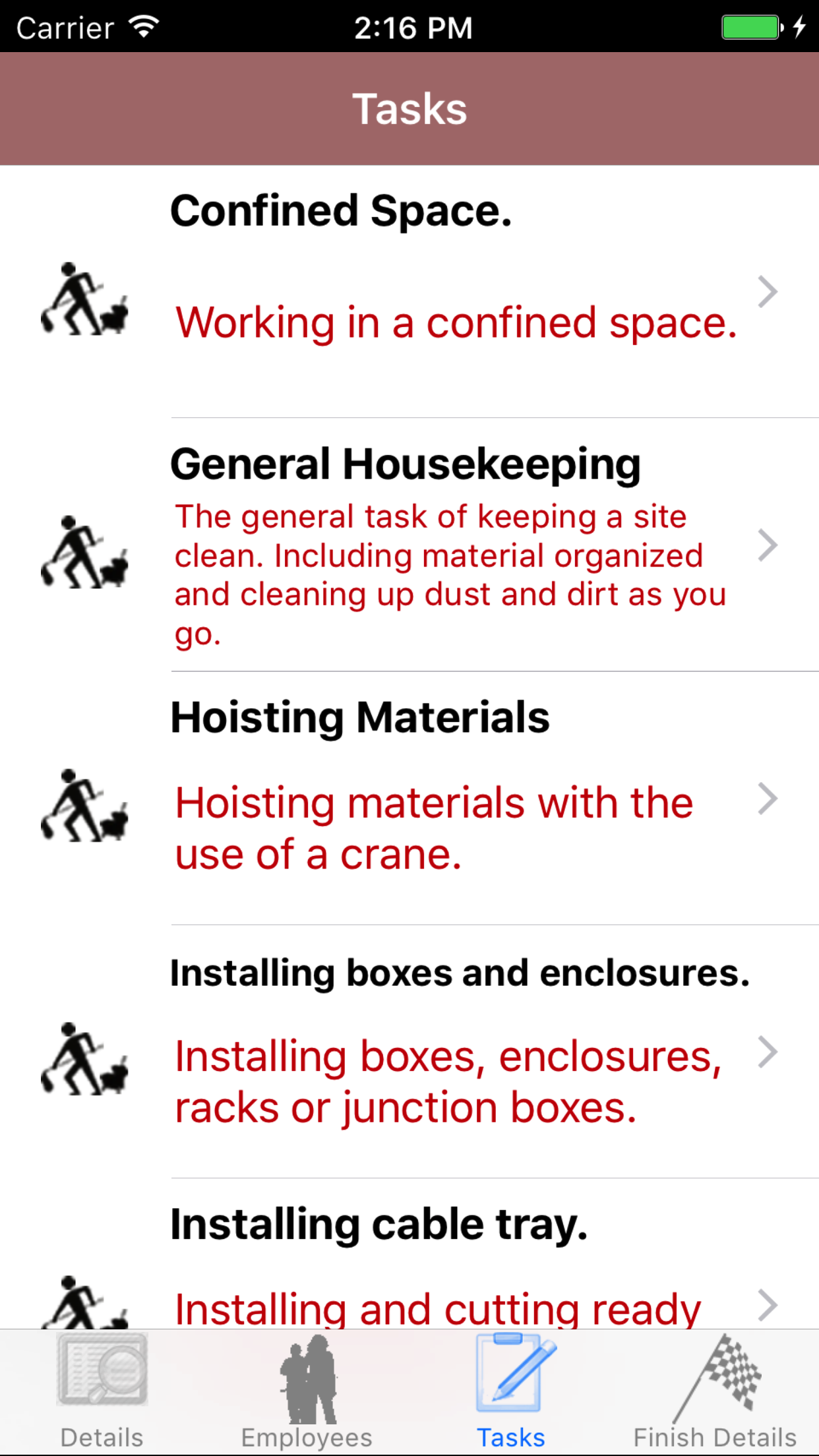
- Tap the third tab, the Tasks tab of the History view. This loads the list of the Tasks that were added for the Hazard Assessment,
listing the task category graphic, the task name and the task description of all the tasks.
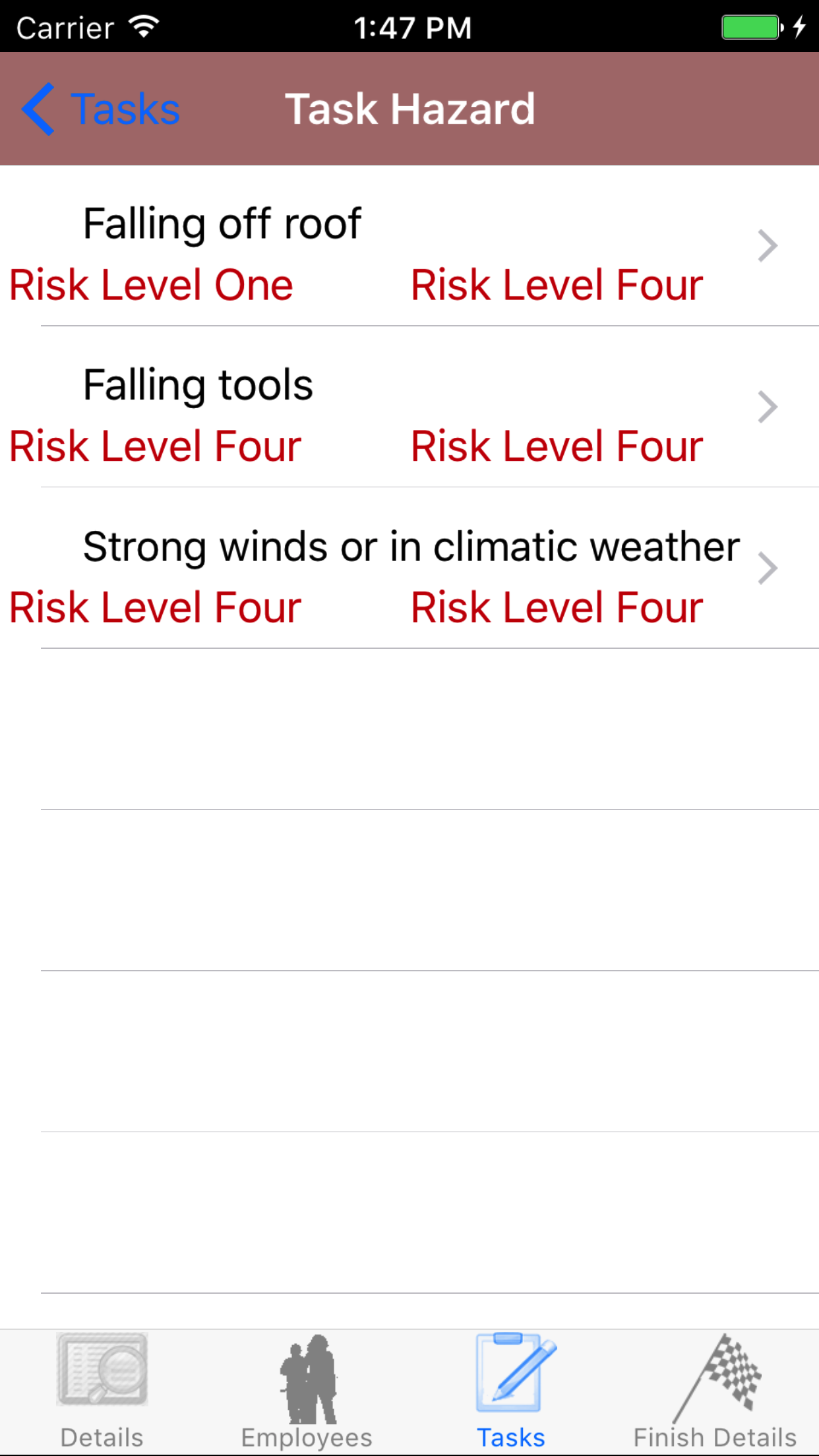
- Tap on a Task, to load the Task Hazard view. This loads the list of Task Hazards of a Task, displaying the hazard description, and the risk level of each task hazard.
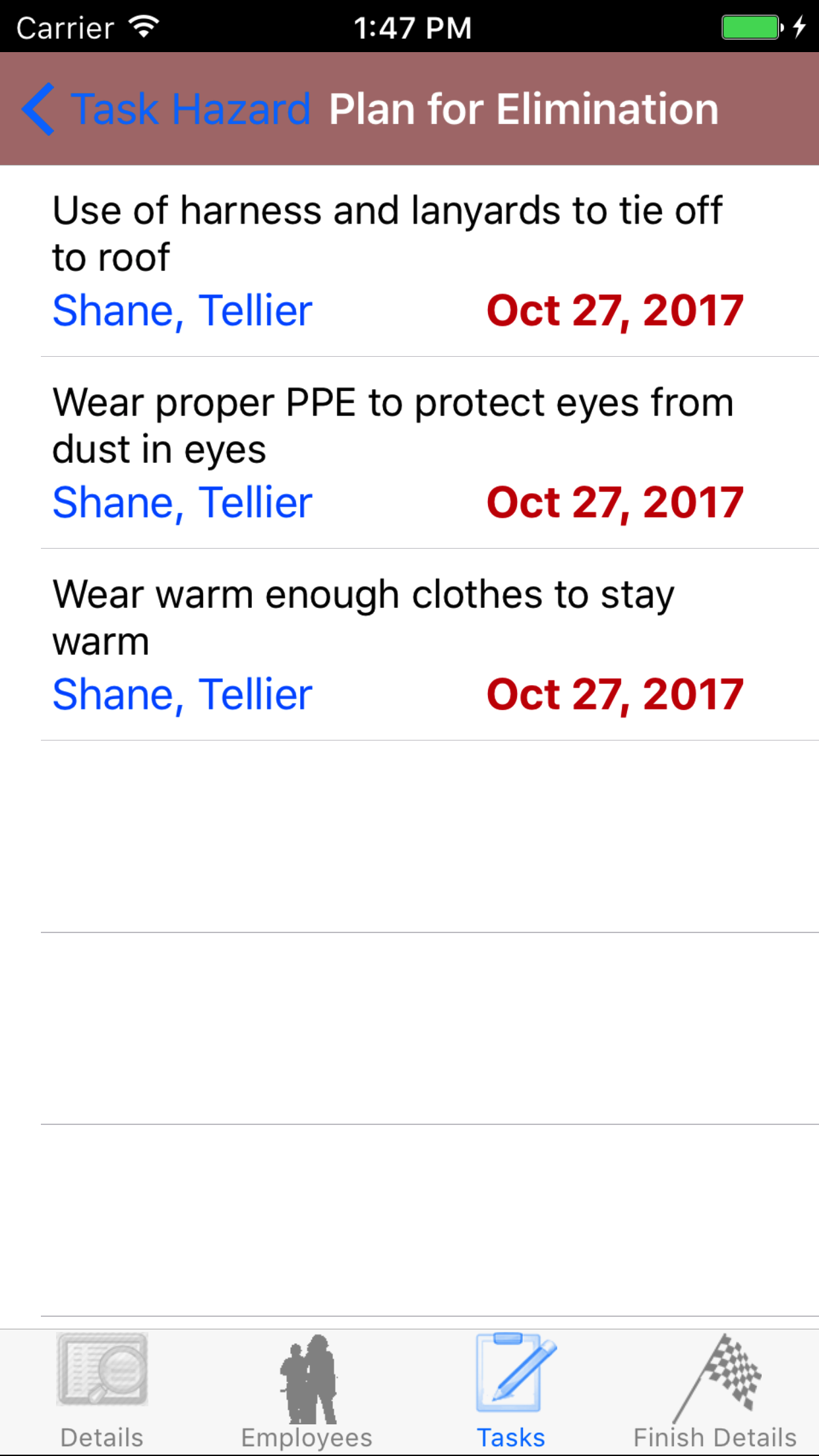
- Tap on a Task Hazard, to load the Plans for Elimination view. This loads the list of Plans for Elimination of a Task Hazard,which displays, the employee name of who is responsible for the plan, hazard control type name, and the date.
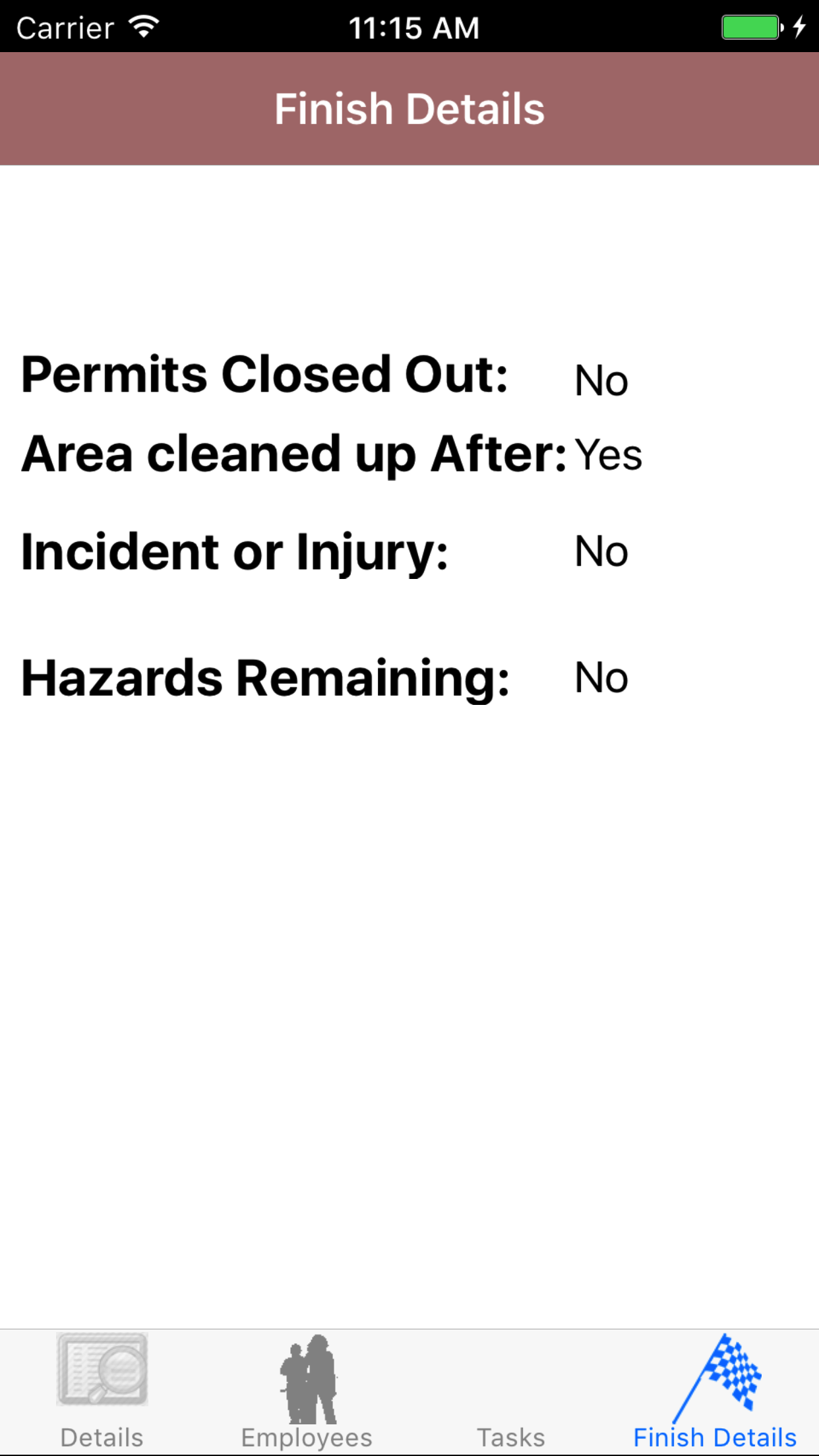
- Tap the fourth tab, the Final Details tab of the History view. This loads with the permits closed out, area cleaned up after, incident or injury description, hazards remaining description and the site contact email address.
|
|
| Steps 1-2 |
|
|
|
|
| Step 3 |
|
|
|
| Step 4 |
|
|
|
| Step 5 |
|
|
|
| Step 5.a |
|
|
|
| Step 5.b |
|
|
|
| Step 6 |
|
|
|
29.Update Hazard Assessments |
|
As other field staff create hazard assessments and include other field staff on their hazard assessment staff will
have to update their phones in order to have a copy of their updated hazard assessments on their phone.
Steps
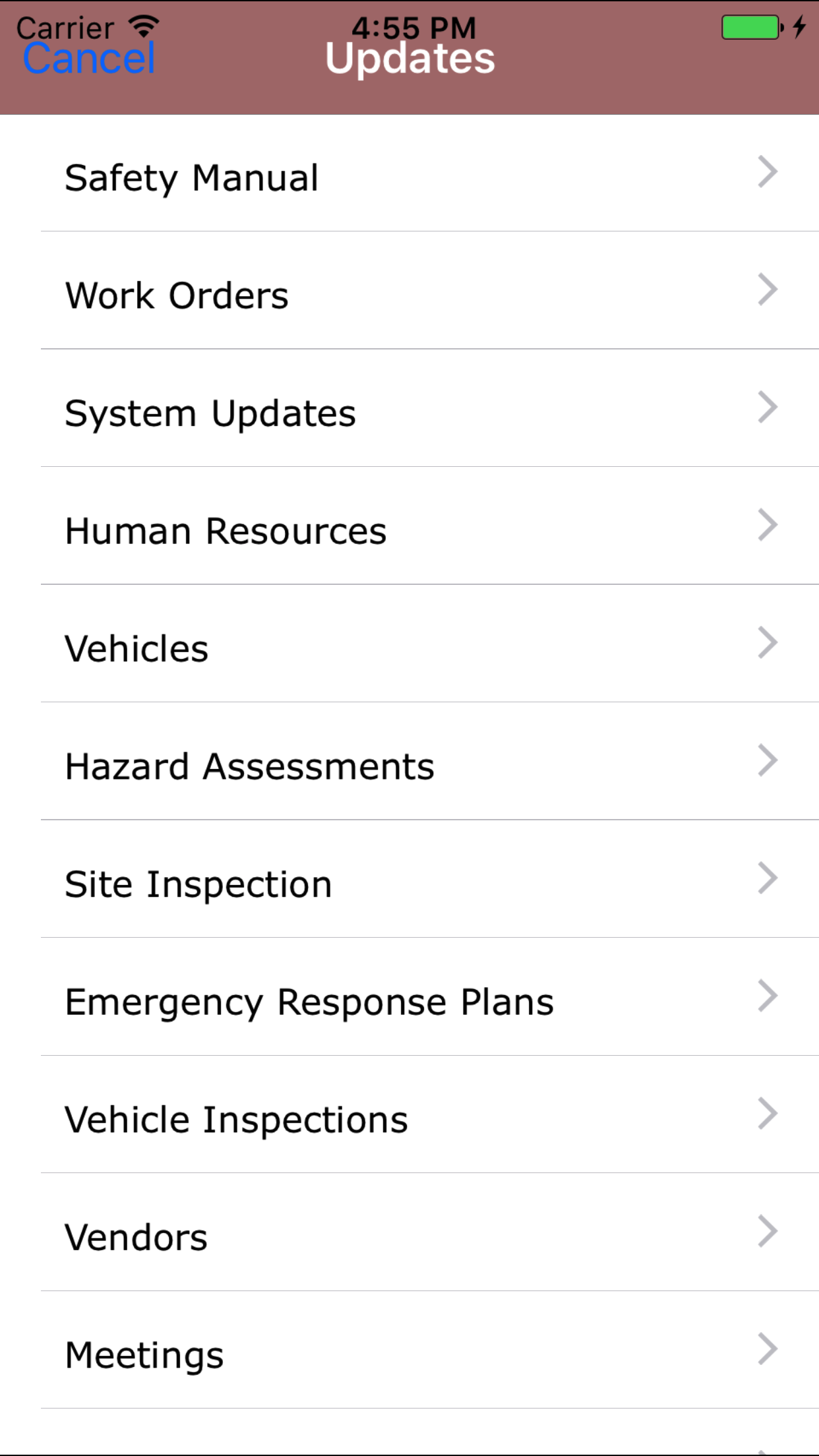
- From the Menu screen, tap the Updates button.
- Scroll the list of sections until you find the Hazard Assessment button.
- Tap on the Hazard Assessment button.
|
|
|
|
| Step 1 |
|
|
| Step 2 |
|
|