|
Job Safety Analysis reports are a over looked instrument in most safety management programs. R & T Electric Pro is built to harness
the power of these reports and allow multiple employees develop these reports in concert with each other.
Job Safety Analysis Reports are an important aspect of a safety program because they give companies a mechanism to review existing
tasks or add new tasks the company completes and ensure the employees are completing the task the proper and safe way. Updating both the hazard assessments
list of tasks/hazards/plans that are added automatically when created, and the Safe Job Procedure for the task.
Job Safety Analysis Reports are a perfect mechanism to improve a growing safety program.
Why they are Job Safety Analysis Reports Important
They are used to create and update the following
- Safe Job Procedures
- Tasks for Companies Company Task lists, along with the associated hazards and plans for elimination.
-
Users can create Job Safety Analysis Reports for
- Company Tasks
- Company Safe Job Procedures
-
- New Tasks
-
When a Job Safety Analysis Reports is completed
- Tasks are added to the list of companies tasks, with the the hazards and plans for elimination added also.
- Safe Job Procedures are added or update to reflect changes
-
Configuring Hazard Assessments company task list
R & T Electric Pro allows companies create lists of tasks and the related hazards and plans for elimination, which are added automatically to hazard assessments when they are created.
Management, Office Staff and Safety Officers can edit how company task lists in the Hazard Assessment Tasks section when they edit the hazard assessment tasks. For more information about configuring your
task list in this web site manual click here to view the Hazard Assessment Tasks section.
Configuring Safe Job Procedures for company
R & T Electric Pro allows companies create and manage safe job procedures, as they are living documents, they can be added, edited and review by staff.
Management, Office Staff and Safety Officers can edit how safe job procedures in the Safe Job Procedure section where they can manage the safe job procedures. For more information about configuring your
safe job procedure list in this web site manual click here to view the Safe Job Procedure section.
|
|
|
1.Add Job Safety Analysis from Task |
|
A Job Safety Analysis Report, is created to determine the issues involved with the safe completion of a task a employee will be
completing. They include the steps involved with the task, the hazards of each task and the plans for elimination of the hazards. To add
context reports include the job roles whom will be completing the task, the assumptions and the personal protective equipment required.
Steps
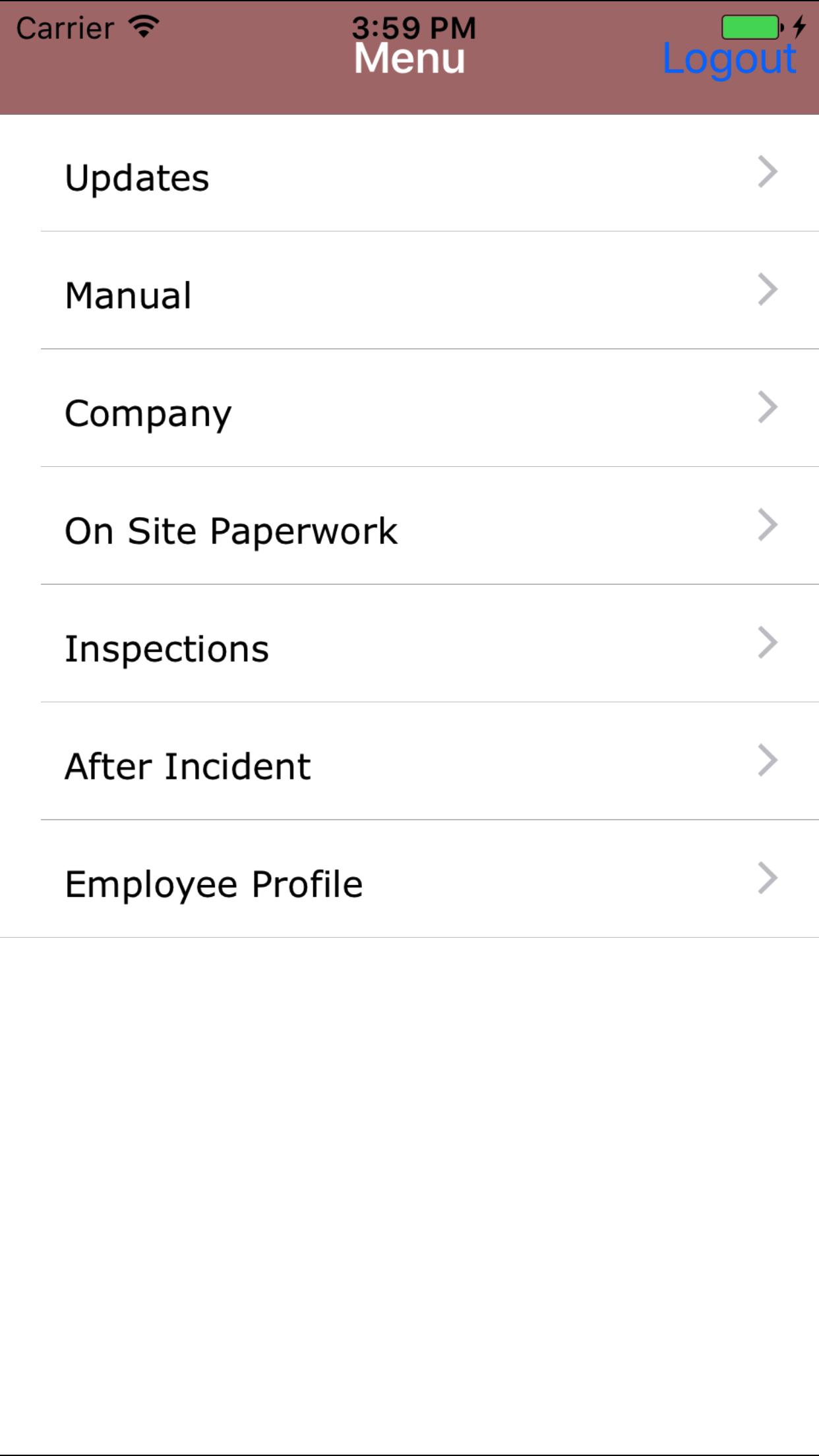
- From the Main Menu screen, tap the Manual button.
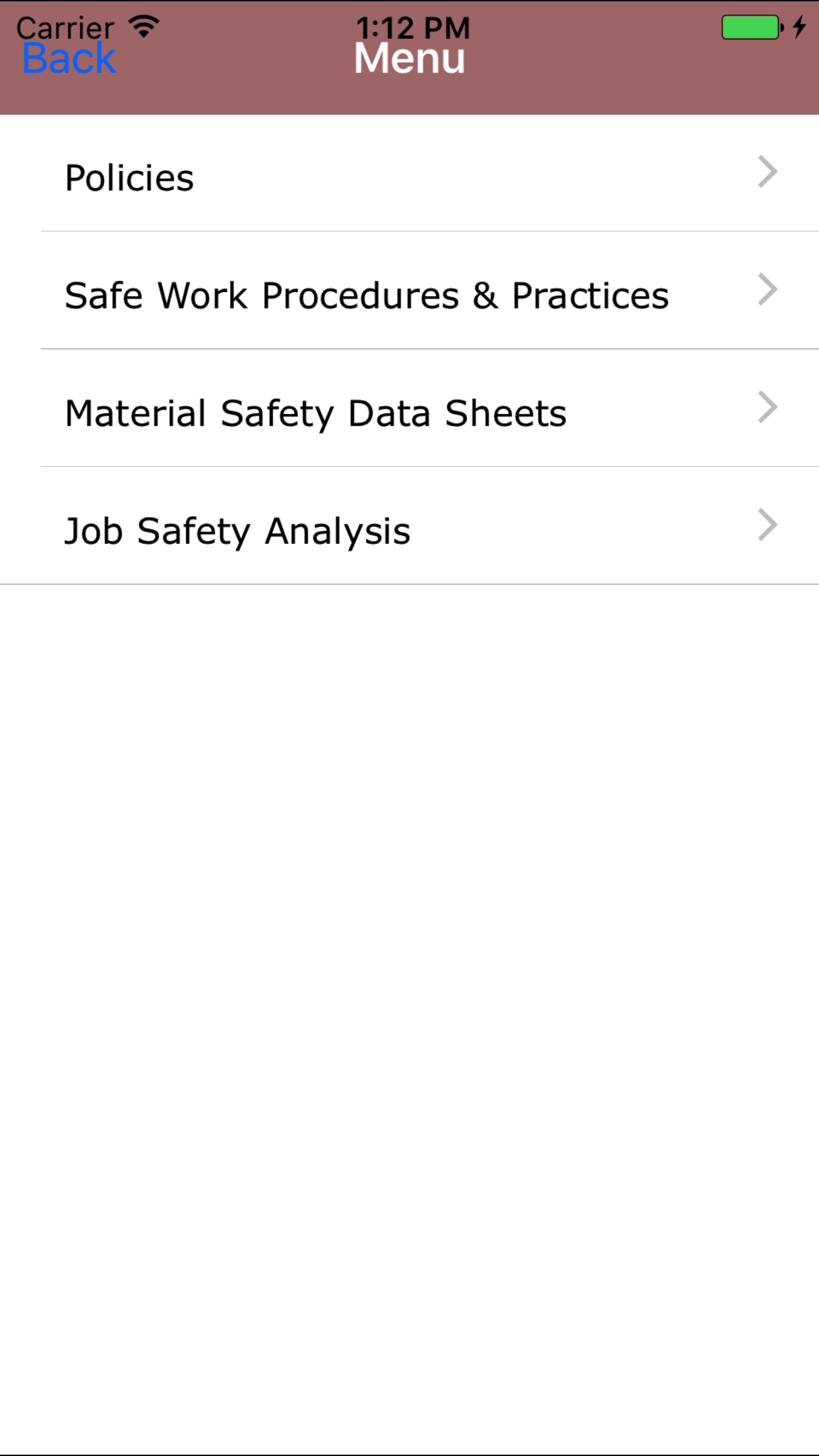
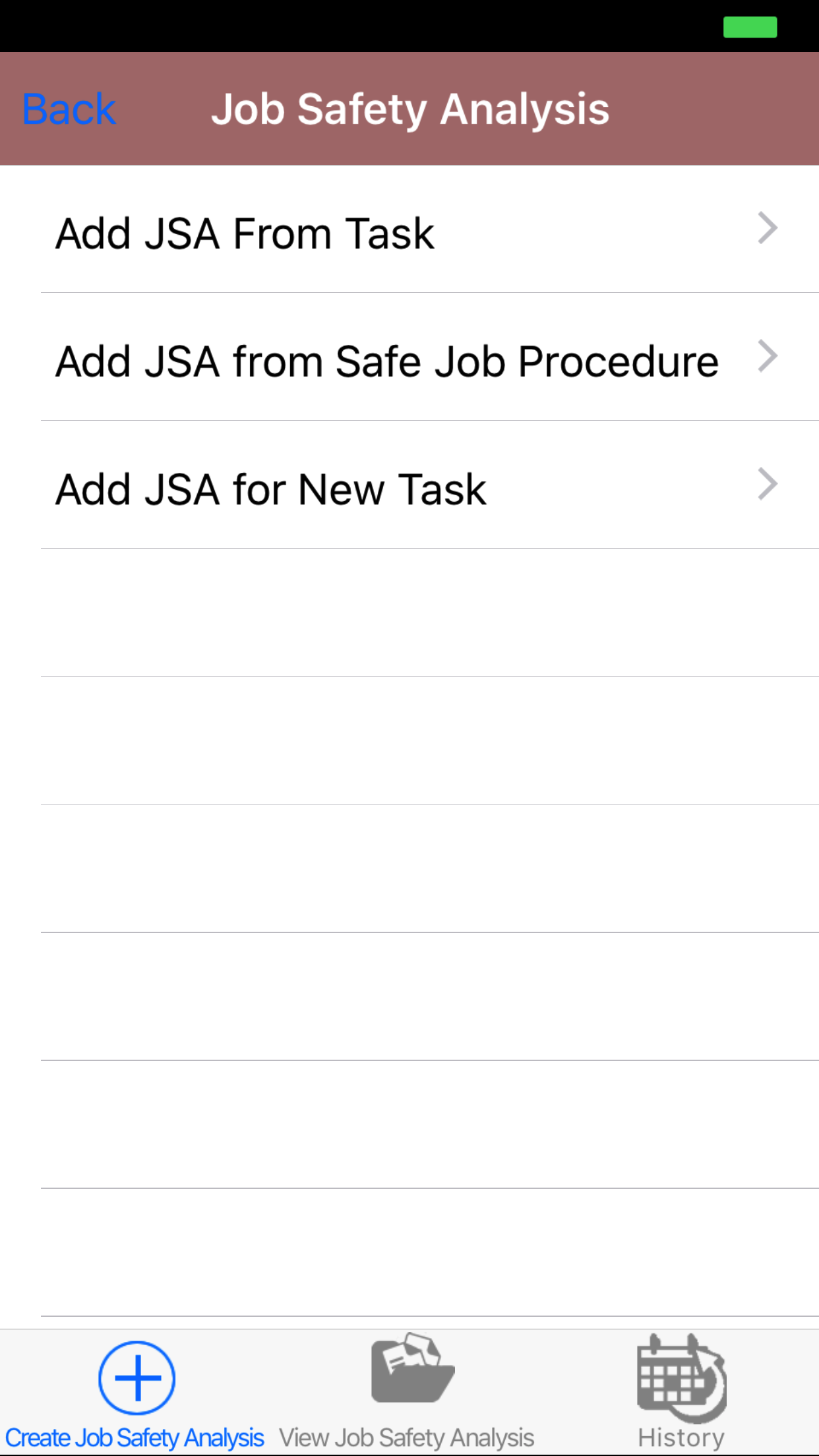
- Then tap on the Job Safety Analysis button to open the Choose Add Job Safety Analysis screen. The Three options are:
- Add JSA from Task
- Add JSA from Safe Job Procedure
- Add JSA for New Task
- Then tap on the Add JSA from Task button to open the Add JSA from Task screen.
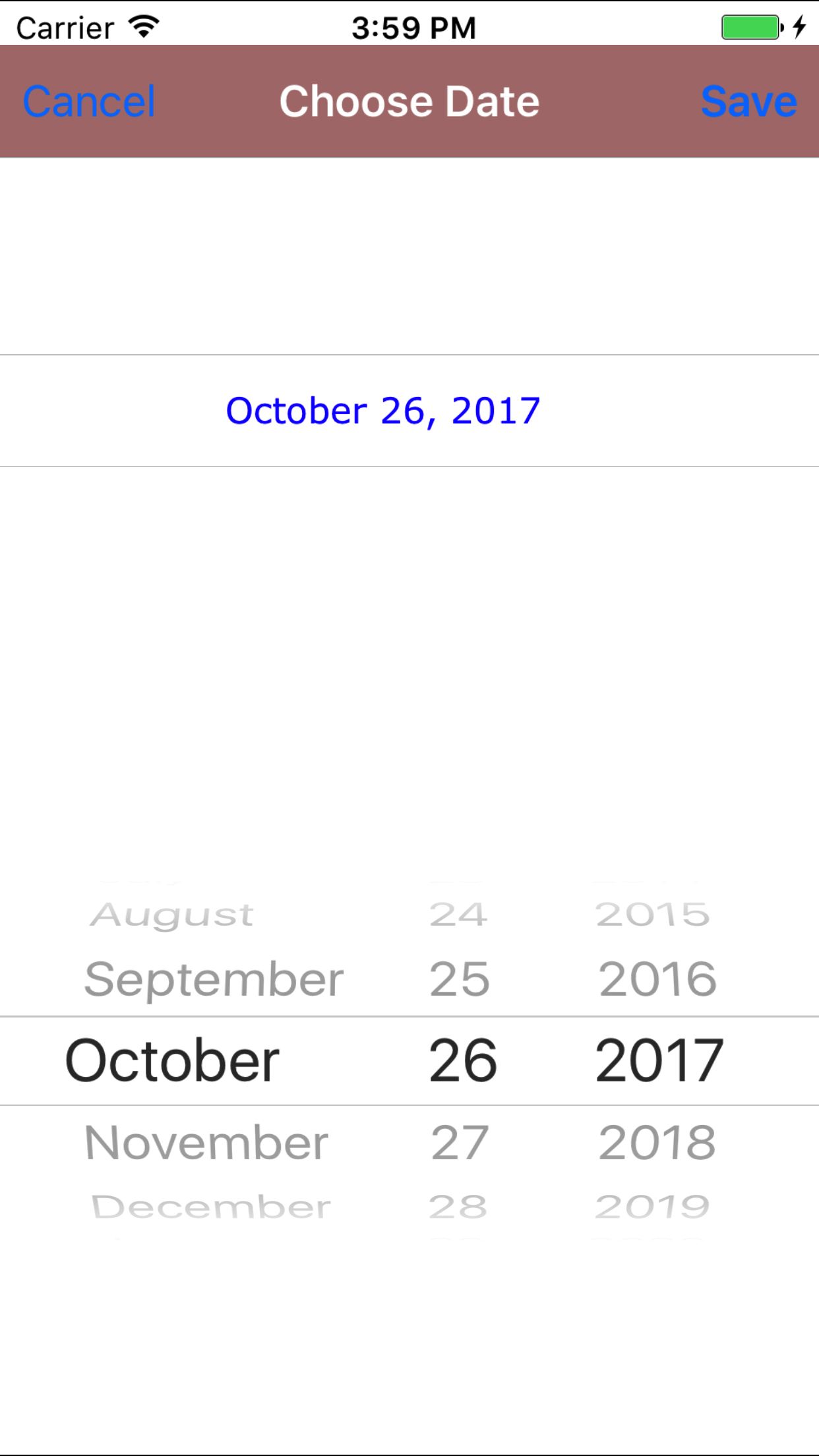
- Date: The date field will default to the current date.
- Tap the Date field to open the Choose Date screen.
- Scroll the date wheel on the far left of the screen until the desired date is highlighted.
- Return to the Add Job Safety Analysis screen by either tapping Save in the top right corner to select the highlighted date or tapping Cancel in the top left corner to leave the Date: field unchanged.
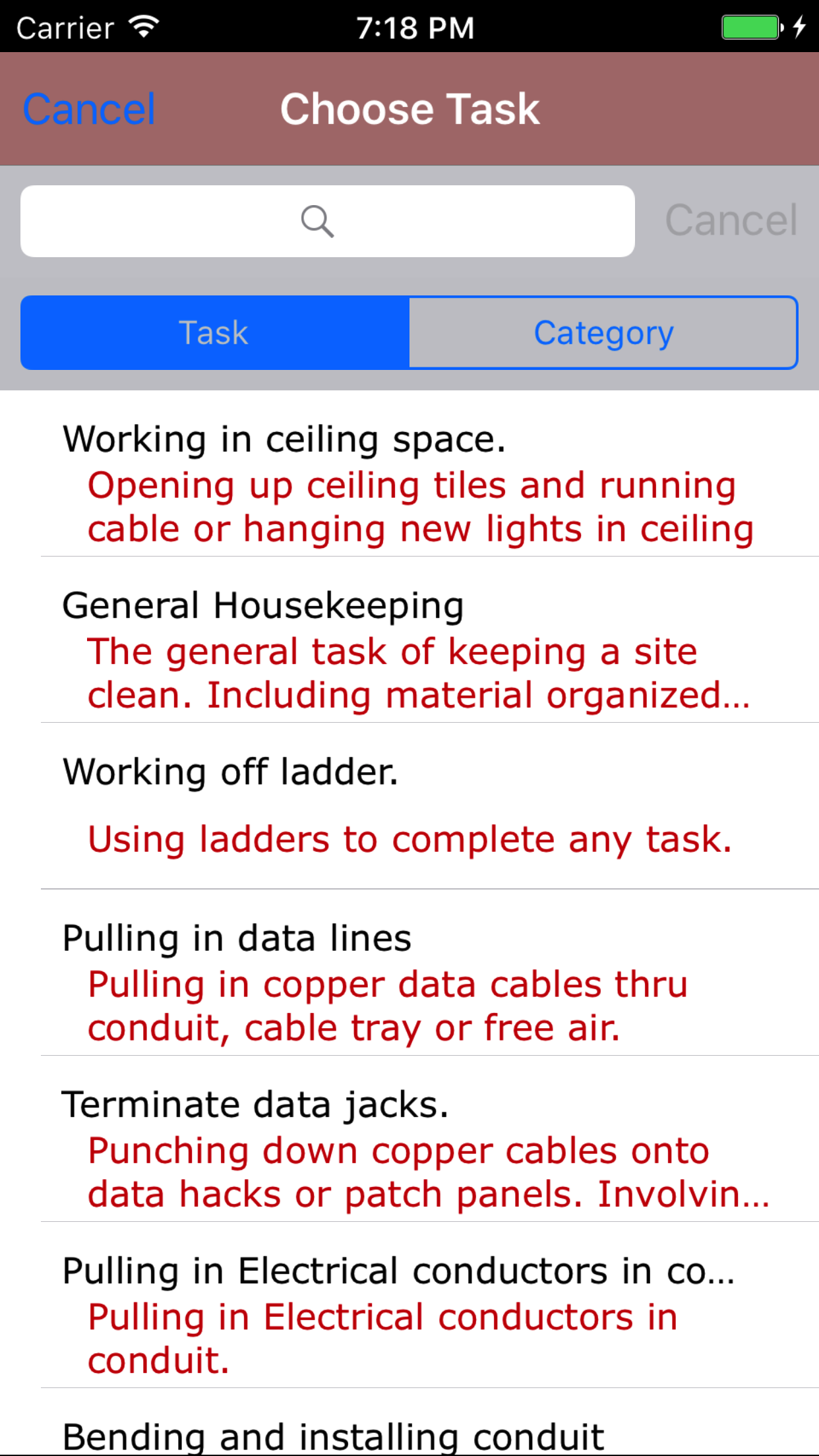
- Tap the Task field to open the Choose Task screen.
Tasks are listed in descending order with the task name inred text.
Note: New tasks are not automatically added to the list when they are created, so it may be necessary to update the list click here to view information about updating for the desired task to be included in the list.
- Scroll the list of tasks until the desired task is displayed on the screen.
- Tap the desired task to select it or tap Back in the top left corner to leave the Task field unchanged and return to the Add Job Safety Analysis screen.
- Return to the Add Job Safety Analysis screen by either tapping Save in the top right corner to select the highlighted task or tapping Cancel in the top left corner to leave the Task field unchanged.
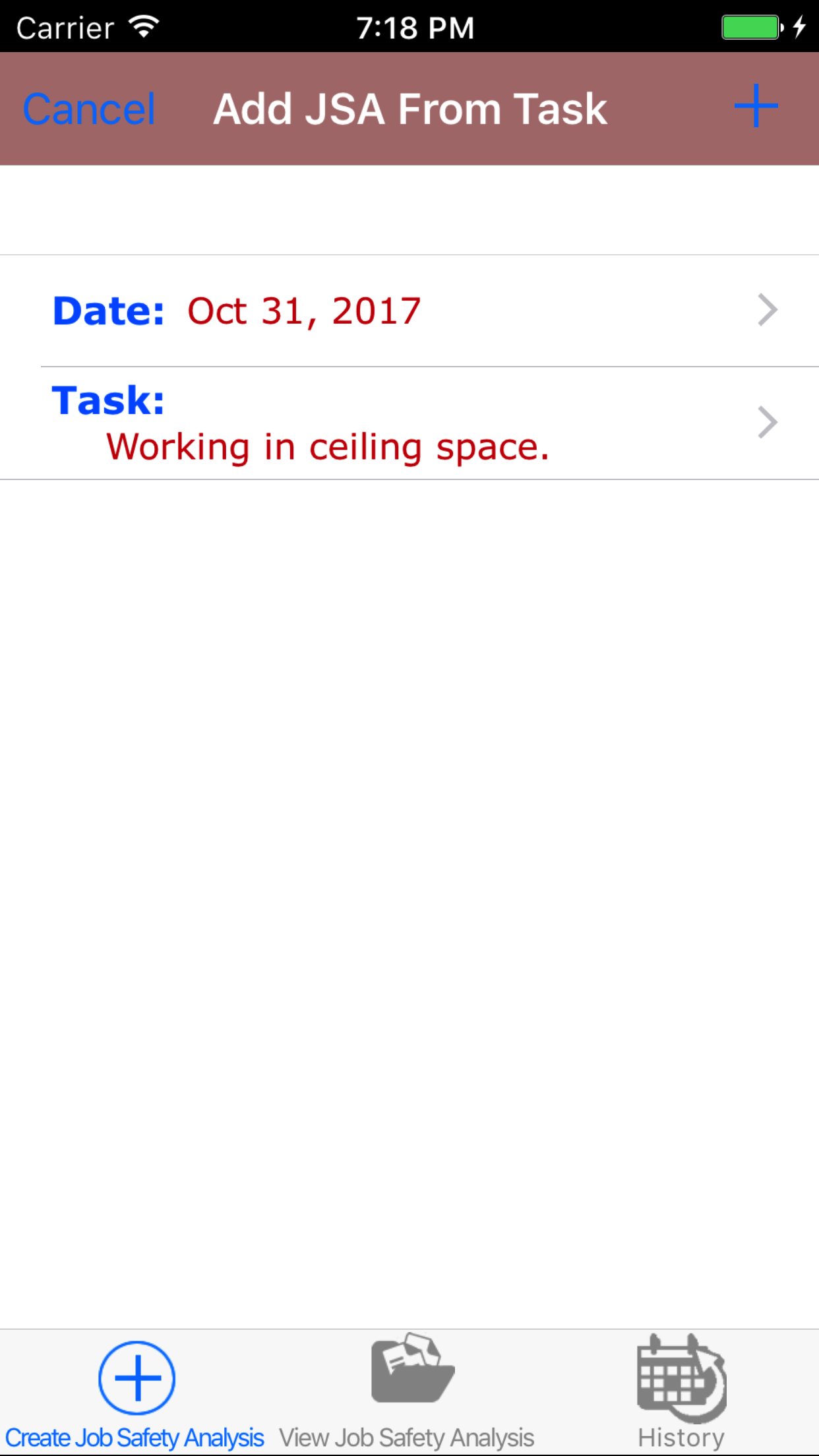
- Tap the + icon in the top right corner to add the Job Safety Analysis.
- A pop-up message that reads Job Safety Analysis Added indicates that the Job Safety Analysis is ready for employee, and step information to be entered.
|
|
| Step 1 |
|
|
| Step 2 |
|
|
| Step 3 |
|
|
| Step 4 |
|
|
| Step 5 |
|
|
| Step 6 |
|
|
2.Add Job Safety Analysis from Safe Job Procedure |
|
A Job Safety Analysis Report, is created to determine the issues involved with the safe completion of a task a employee will be
completing. They include the steps involved with the task, the hazards of each task and the plans for elimination of the hazards. To add
context reports include the job roles whom will be completing the task, the assumptions and the personal protective equipment required.
Steps
- From the Main Menu screen, tap the Manual button.
- Then tap on the Job Safety Analysis button to open the Choose Add Job Safety Analysis screen. The Three options are:
- Add JSA from Task
- Add JSA from Safe Job Procedure
- Add JSA for New Task
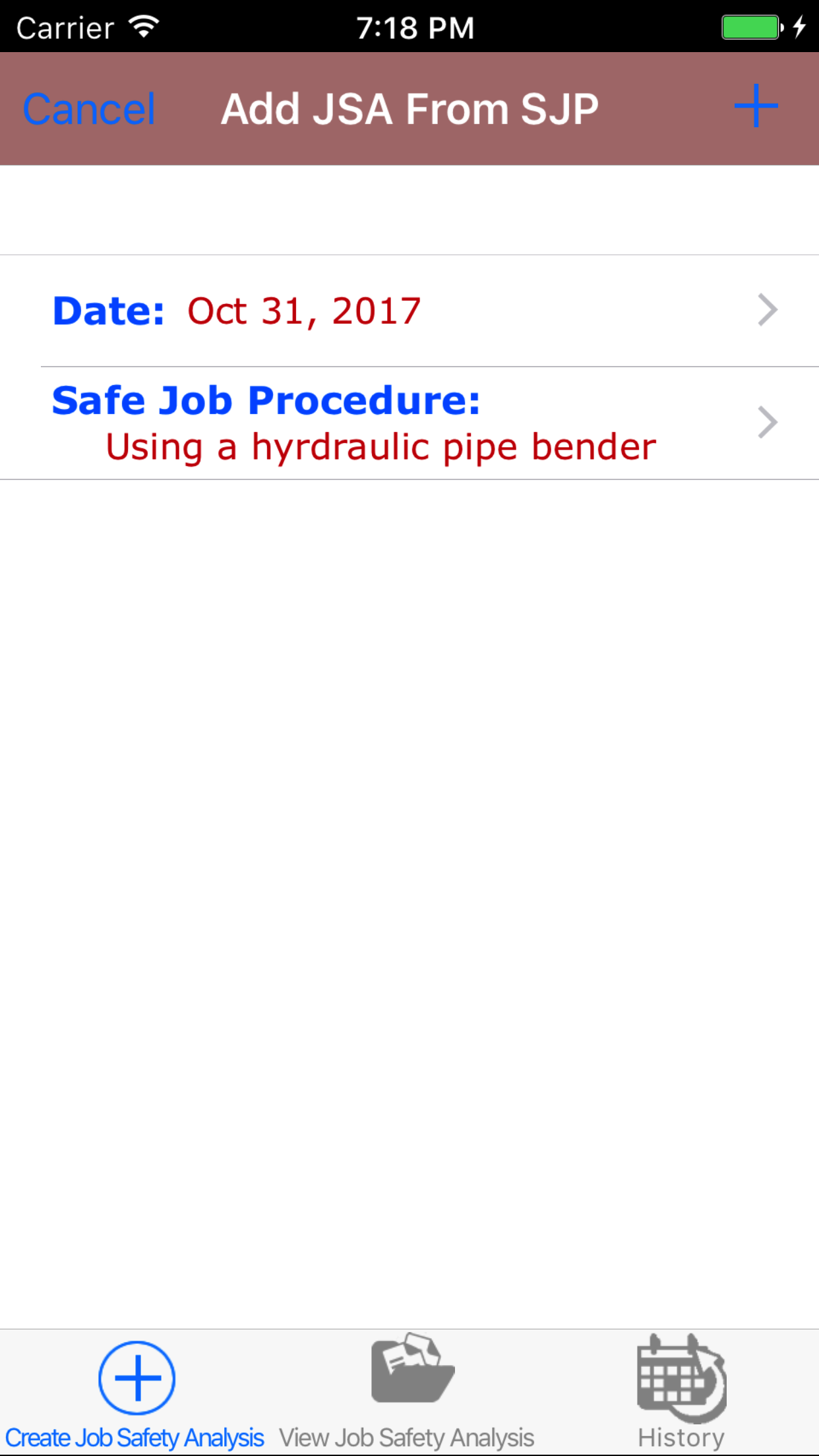
- Then tap on the Add JSA from Safe Job Procedure button to open the Add JSA from Safe Job Procedure screen.
- Date: The date field will default to the current date.
- Tap the Date field to open the Choose Date screen.
- Scroll the date wheel on the far left of the screen until the desired date is highlighted.
- Return to the Add Job Safety Analysis screen by either tapping Save in the top right corner to select the highlighted date or tapping Cancel in the top left corner to leave the Date: field unchanged.
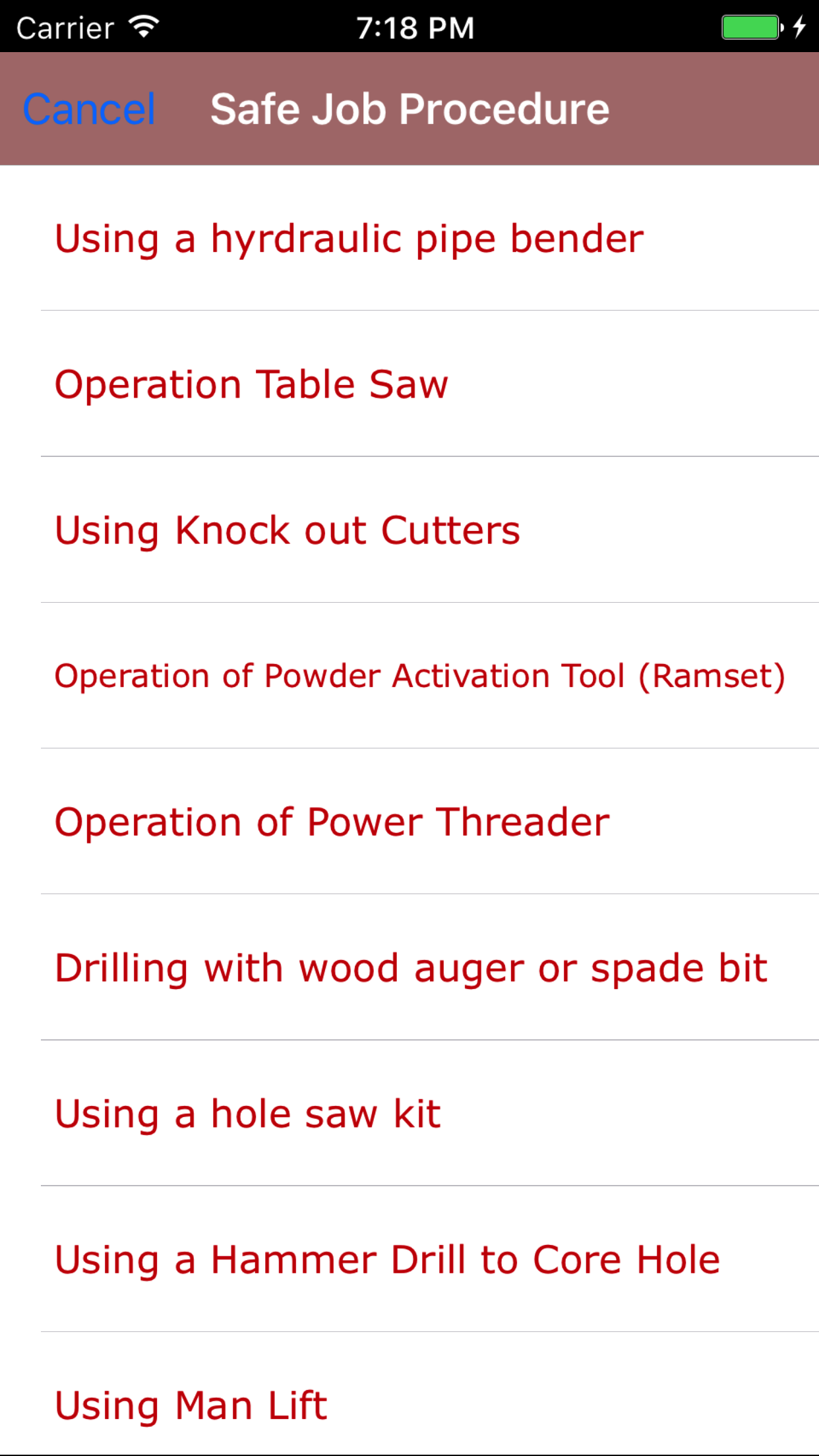
- Tap the Safe Job Procedure field to open the Choose Safe Job Procedure screen.
Safe Job Procedures are listed in descending order with the safe job procedure name inred text.
Note: New safe job procedures are not automatically added to the list when they are created, so it may be necessary to update the list click here to view information about updating for the desired safe job procedure to be included in the list.
- Scroll the list of tasks until the desired task is displayed on the screen.
- Tap the desired safe job procedure to select it or tap Back in the top left corner to leave the Safe Job Procedure field unchanged and return to the Add Job Safety Analysis screen.
- Return to the Add Job Safety Analysis screen by either tapping Save in the top right corner to select the highlighted safe job procedure or tapping Cancel in the top left corner to leave the Safe Job Procedure field unchanged.
- Tap the + icon in the top right corner to add the Job Safety Analysis.
- A pop-up message that reads Job Safety Analysis Added indicates that the Job Safety Analysis is ready for employee, and step information to be entered.
|
|
|
| Step 1 |
|
|
|
| Step 2 |
|
|
|
| Step 3 |
|
|
|
| Step 4 |
|
|
| Step 5 |
|
|
| Step 6 |
|
|
3.Add Job Safety Analysis for new Task |
|
A Job Safety Analysis Report, is created to determine the issues involved with the safe completion of a task a employee will be
completing. They include the steps involved with the task, the hazards of each task and the plans for elimination of the hazards. To add
context reports include the job roles whom will be completing the task, the assumptions and the personal protective equipment required.
Steps
- From the Main Menu screen, tap the Manual button.
- Then tap on the Job Safety Analysis button to open the Choose Add Job Safety Analysis screen. The Three options are:
- Add JSA from Task
- Add JSA from Safe Job Procedure
- Add JSA for New Task
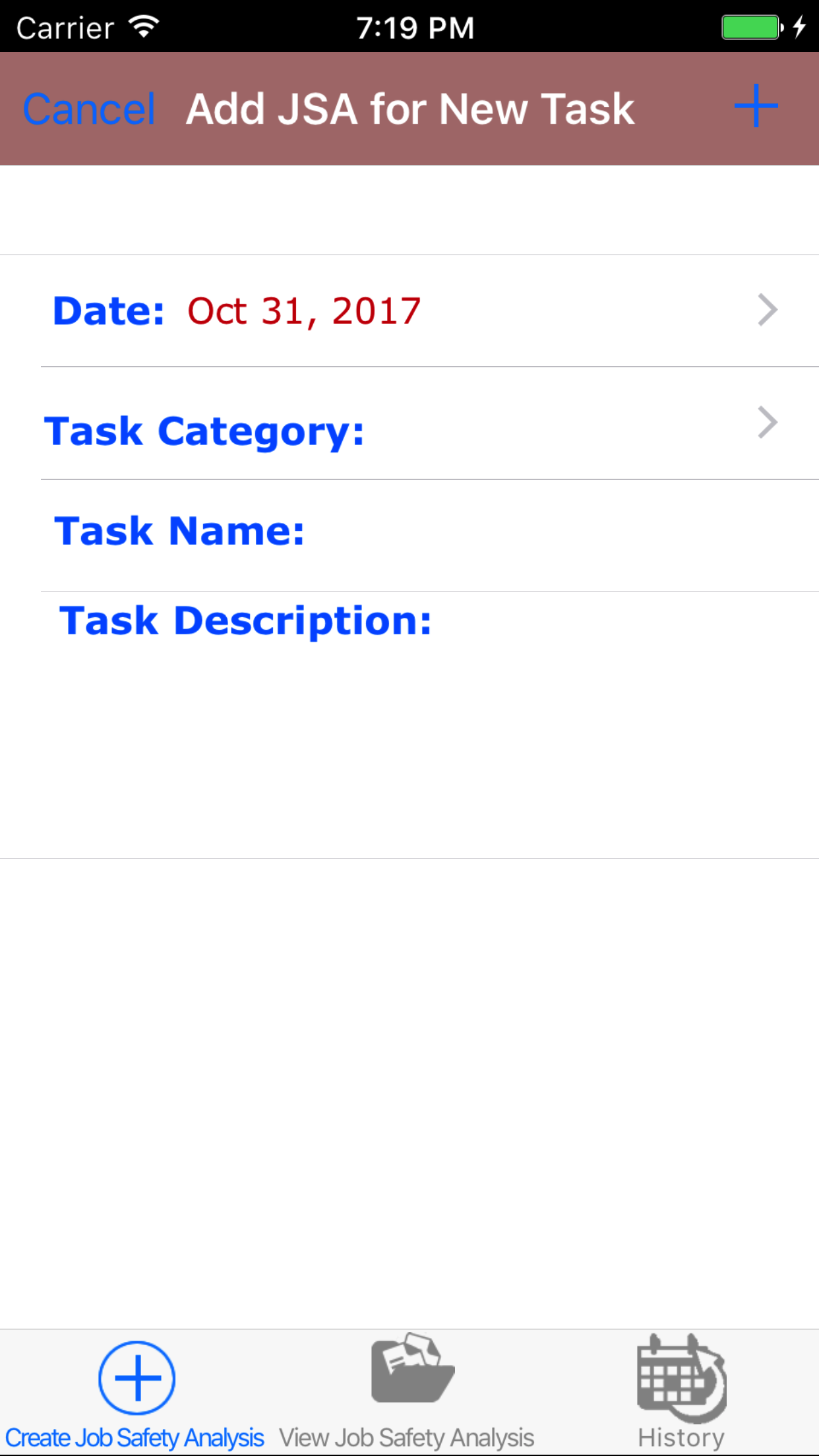
- Then tap on the Add JSA for New Task button to open the Add JSA for New Task screen.
- Date: The date field will default to the current date.
- Tap the Date field to open the Choose Date screen.
- Scroll the date wheel on the far left of the screen until the desired date is highlighted.
- Return to the Add Job Safety Analysis screen by either tapping Save in the top right corner to select the highlighted date or tapping Cancel in the top left corner to leave the Date: field unchanged.
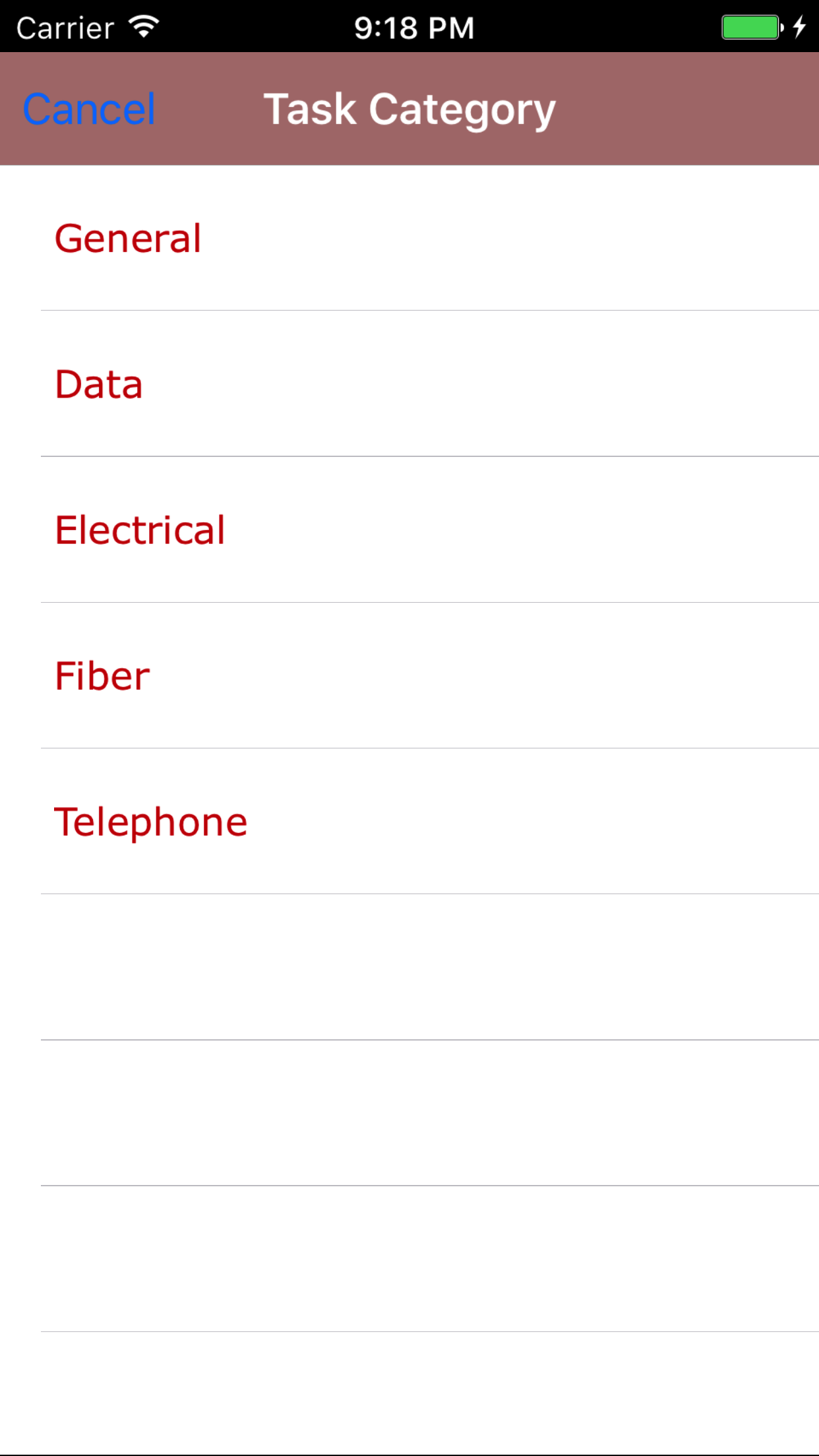
- Tap the Task Category field to open the Choose Task Category screen.
Task Categories are listed in descending order with the task category name inred text.
Note: New task categories are not automatically added to the list when they are created, so it may be necessary to update the list click here to view information about updating for the desired task category to be included in the list.
- Scroll the list of task categories until the desired task category is displayed on the screen.
- Tap the desired task category to select it or tap Back in the top left corner to leave the Task Category field unchanged and return to the Add Job Safety Analysis screen.
- Return to the Add Job Safety Analysis screen by either tapping Save in the top right corner to select the highlighted task category or tapping Cancel in the top left corner to leave the Task Category field unchanged.
- Task Name: The Task name field should describe the task. The character limit of this field is 75.
- TasK Description: The Task Description field should give a more complete description of the task. The character limit of this field is 350.
- Tap the + icon in the top right corner to add the Job Safety Analysis.
- A pop-up message that reads Job Safety Analysis Added indicates that the Job Safety Analysis is ready for job, employee, and task information to be entered.
|
|
|
| Step 1 |
|
|
|
| Step 2 |
|
|
|
| Step 3 |
|
|
|
| Step 4 |
|
|
| Step 5 |
|
|
| Step 6 |
|
|
2.Look Up Open Job Safety Analysis |
|
Once a job safety analysis has been created, it can be accessed on the View Job Safety Analysis tab. From this tab field staff can:
- Edit the job safety analysis details
- Add/Edit Employees participation
- Add/Edit steps, related step hazards and the associated plans for elimination
- Submitting and Closing out job safety analysis
Once in the Job Safety Analysis section
Steps
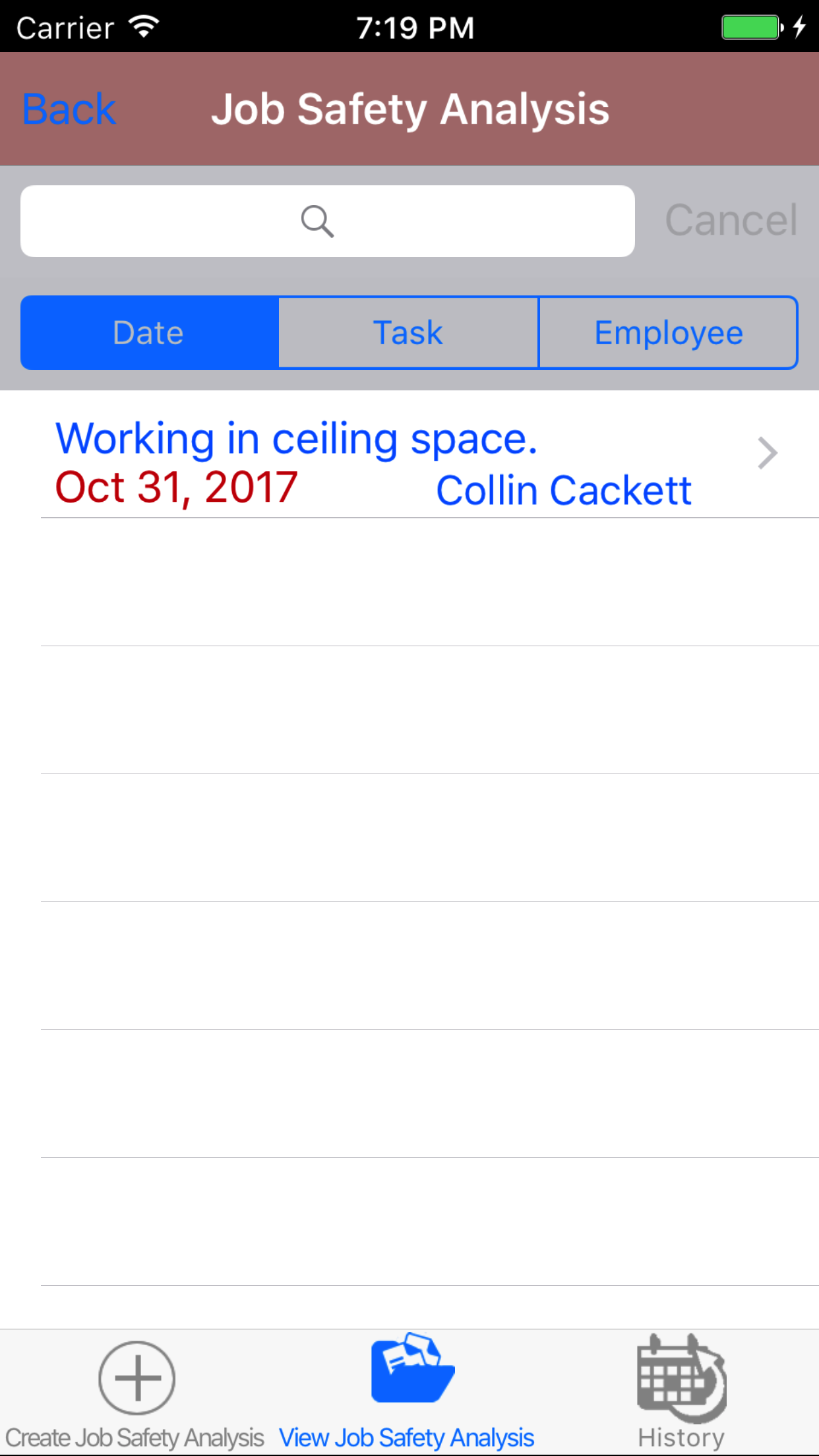
- Tap the second tab on the menu, the Job Safety Analysis view.
To Search Job Safety Analysis: Pull down on the list view, the search is defaulted to search by date enter the date in following
format YYYY-MM-DD. The other options for the Job Safety Analysis search are by task and employee last name. Enter your search
criteria and click the Search button.
- Scroll the list of Job Safety Analysis until the desired Job Safety Analysis is displayed on the screen.
- Tap on the Job Safety Analysis you would like to view. This loads the job safety analysis details.
|
|
| Steps 1-3 |
|
|
3.Edit Job Safety Analysis Details |
|
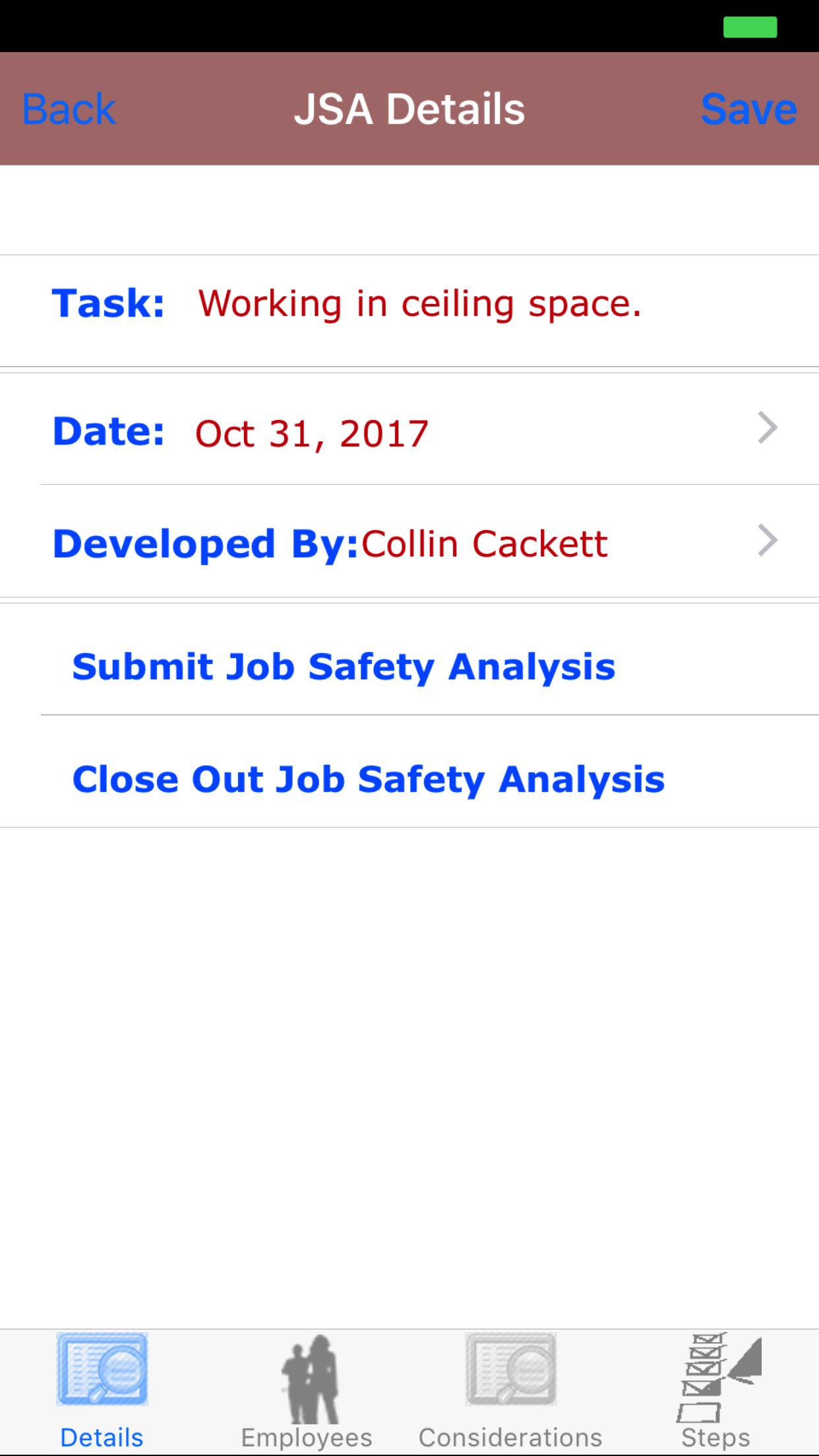
The first step in completing a Job Safety Analysis is entering the details.
Once on the Job Safety Analysis you would like to Edit
Steps
- Date: The date field will display the date which the Job Safety Analysis was added and should not be modified. and should not be modified.
However, if a Job Safety Analysis was completed on site and not entered into the application (due to internet
access issues, for example) or the Job Safety Analysis is being completed in advance (not
recommended, as hazards need to be identified and reviewed on site), the Date: field can be rolled back or advanced:
- Tap the Date field to open the Choose Date screen.
- Scroll the date wheel on the far left of the screen until the desired date is highlighted.
- Return to the Edit Job Safety Analysis screen by either tapping Save in the top right corner to select the highlighted date or tapping Cancel in the top left corner to leave the Date field unchanged.
- Developed By: The developed by field initially displays the name of the person who added the Job Safety Analysis and should be updated to indicate the employee on site who is responsible for the development.
- Tap the Developed By: field to open the Employees screen.
Employees are listed in the order they were added to the Job Safety Analysis.
- Tap the desired employee to select it or tap Back in the top left corner to leave the Employee Responsible field unchanged and return to the Edit Job Safety Analysis screen.
- Return to the Edit Job Safety Analysis screen by either tapping Save in the top right corner to select the highlighted date or tapping Cancel in the top left corner to leave the Employee field unchanged.
- Tap Save in the top right corner to save any changes to the Job Safety Analysis Details.
- A pop-up message that reads Job Safety Analysis Details have been Saved indicates that the job information has been saved.
|
|
|
| Step 1 |
|
|
| Steps 2-3 |
|
|
|
6.Add Employee to Job Safety Analysis |
|
Adding employees to the Job Safety Analysis is crucial to reporting accurately. Adding other field staff to the job safety analysis
allows a group of workers to share the same job safety analysis and develop the analysis together. The more peoples input into
the analysis will improve its quality. Once a job safety analysis is submitted all employee's added to the job safety analysis will have access to the job safety analysis.
Here are the steps on how to do it:
Once on the Job Safety Analysis you would like to Edit
Steps
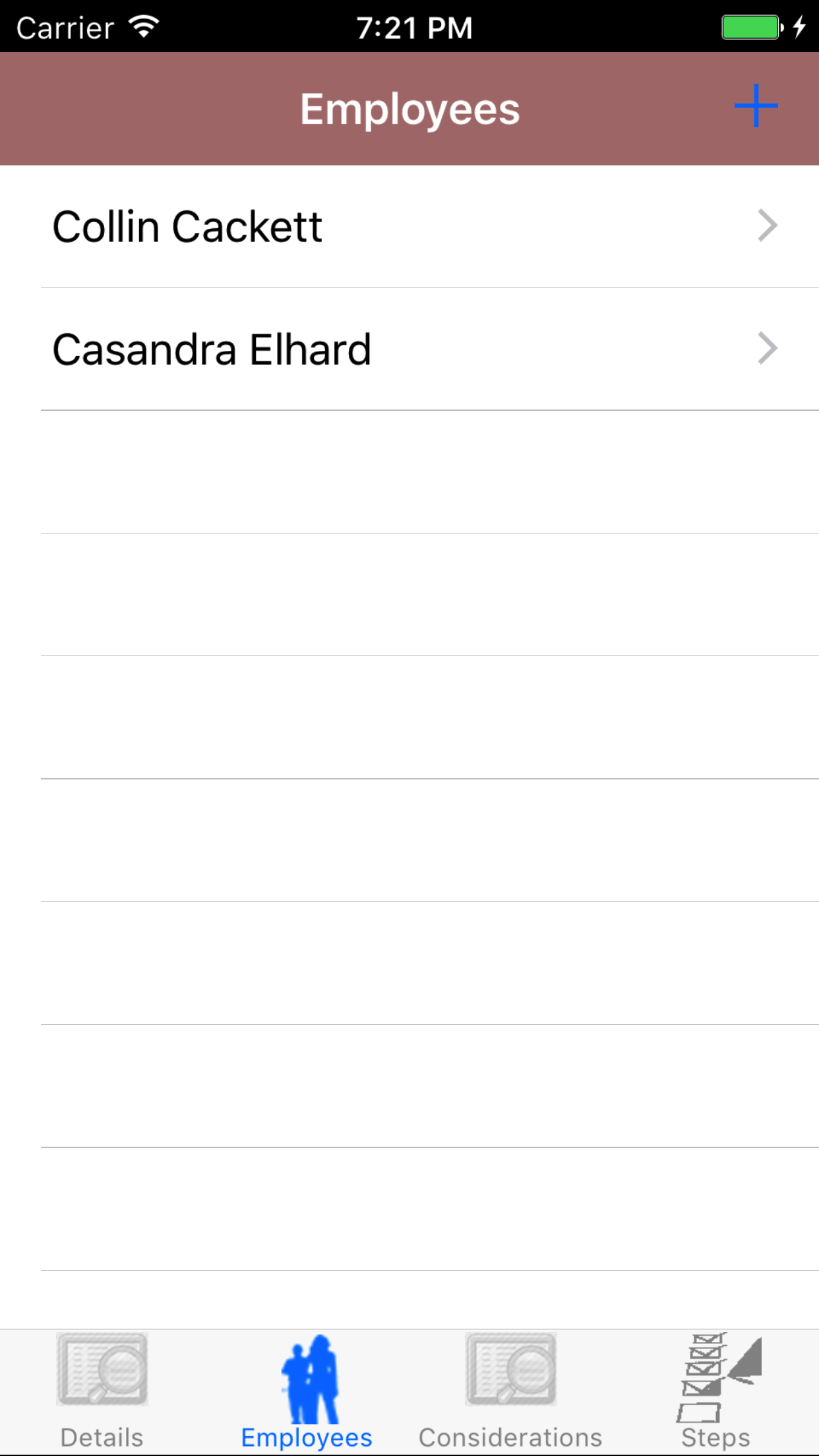
- Tap the Employees icon at the bottom of the screen to open the Employees screen.
- Tap the + icon in the top right corner to open the Employees list or tap Employees in the top left corner to return to the Employees screen.
Employees are listed in descending order of last name.
To Search Employees: Pull down on the list view, the search is defaulted to search by last name.
The other option for the Employee search is by first name. Enter your search
criteria and click the Search button.
- Scroll the list of employees until the desired employee is displayed on the screen.
- If the desired employee is in the list, tap the employee to add them to the Job Safety Analysis.
A pop-up message that reads Employee Added indicates that the employee is now listed on the Job Safety Analysis Employees screen.
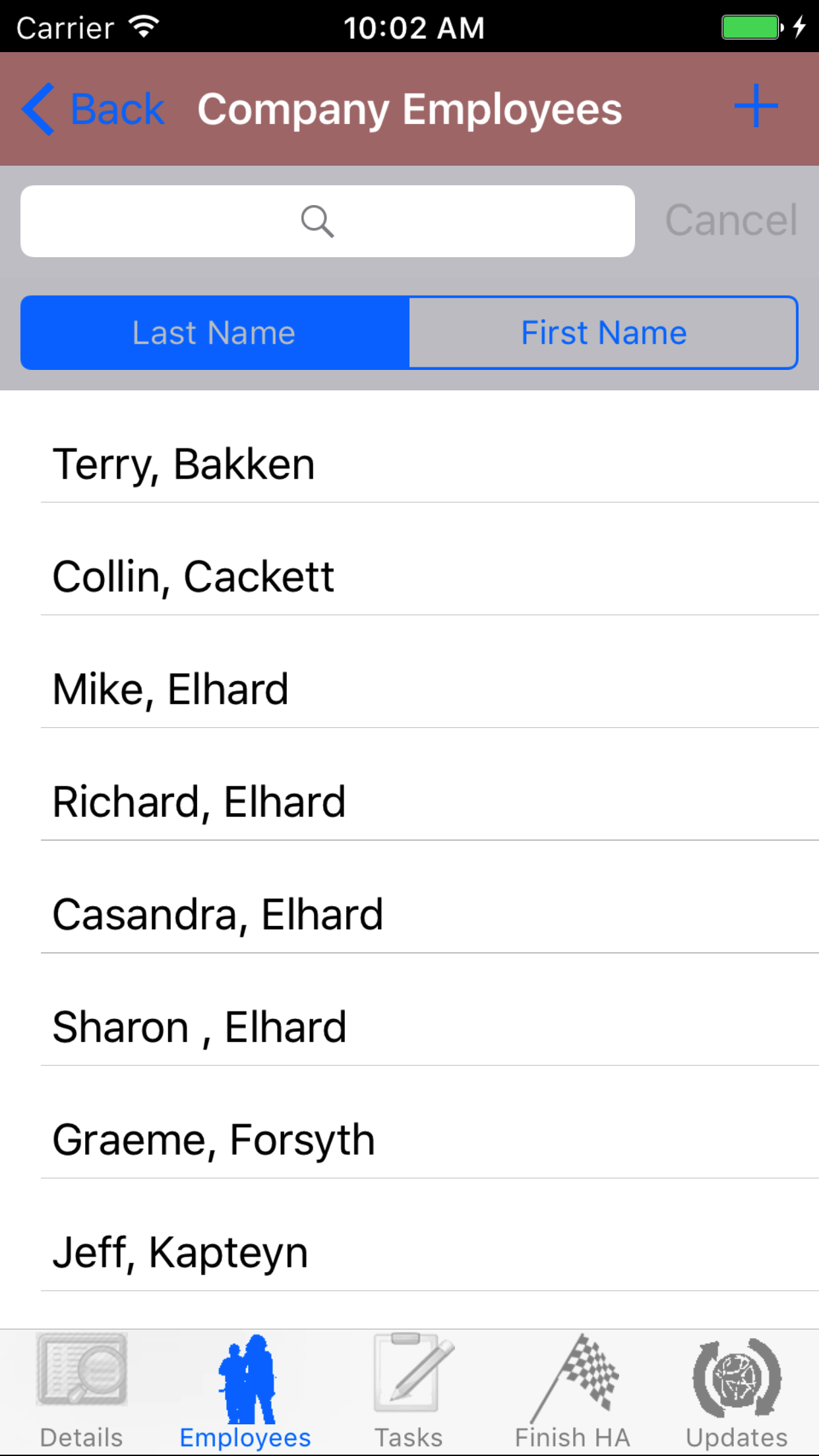
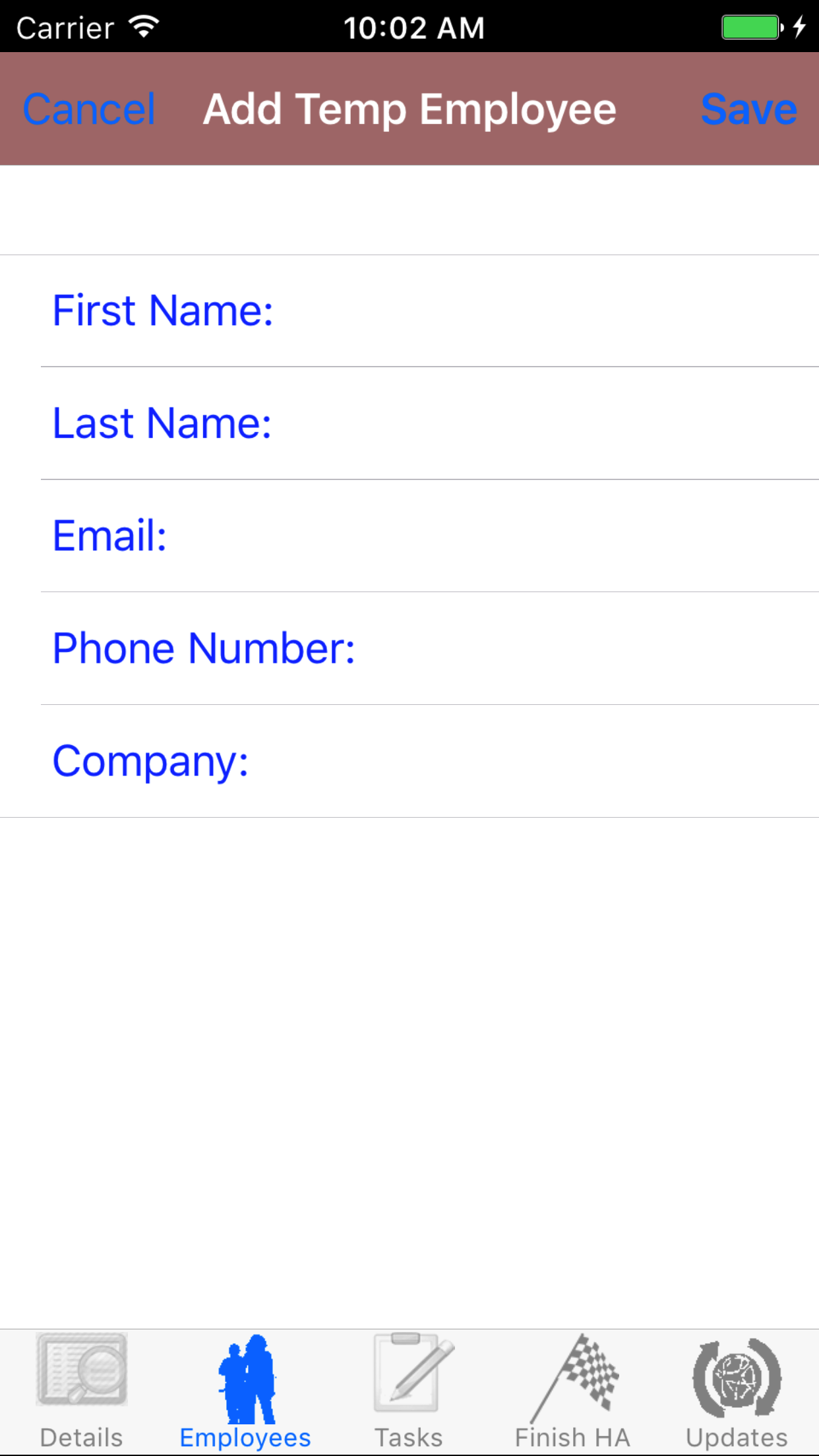
- If the desired employee is not in the list, tap Add Outside Employee in the top left corner of the screen to open the New Employee screen.
- First Name: The First Name field should indicate the legal given name of the employee. The character limit of this field is 25.
- Last Name: The Last Name field should indicate the legal surname of the employee. The character limit of this field is 25.
- Email: The Email field should indicate the best (i.e., most often used for business purposes) e-mail address for the employee. The character limit of this field is 25.
- Phone Number: The Phone Number field should indicate the best (i.e., most often used for business purposes) telephone number (land line or cellular) for the employee. The character limit of this field is 13.
- Company: The Company field should indicate the name of the company for which the employee works. The character limit of this field is 75.
- Tap Save in the top right corner of the screen to add the outside employee to the Job Safety Analysis.
|
|
|
|
7.Add Employee Signature |
|
Each employee added to the Job Safety Analysis must provide an electronic signature to indicate that they have been involved and reviewing the job safety analysis.
Once on the Job Safety Analysis you would like to Edit
Steps
- Tap the Employees icon at the bottom of the screen to open the Employees screen.
- Scroll the list of employees until the desired employee is displayed on the screen.
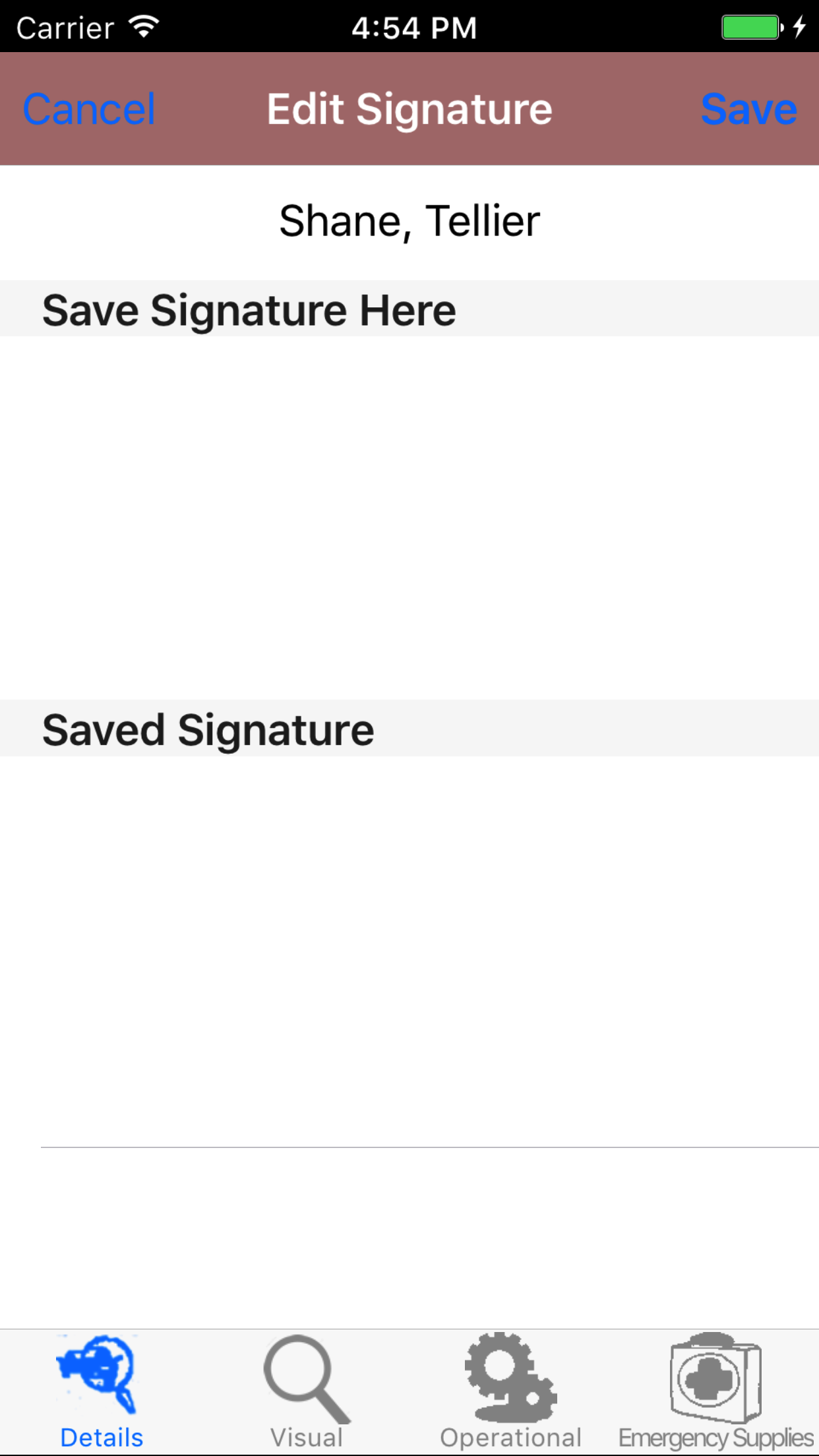
- Tap the desired employee to select them and open the Edit Employee screen
- Have the selected employee sign in the white space beneath the Save New Signature Here label.
- Tap Save in the top right corner of the screen to update the Saved Signature field.
The saved signature will appear below the signature entry screen.
|
|
| Steps 1-2 |
|
|
| Steps 3-4 |
|
|
|
8.Delete Employee |
|
Once on the Job Safety Analysis you would like to Edit
Steps
- Tap the Employees icon at the bottom of the screen to open the Employees screen.
- Scroll the list of employees until the desired employee is displayed on the screen.
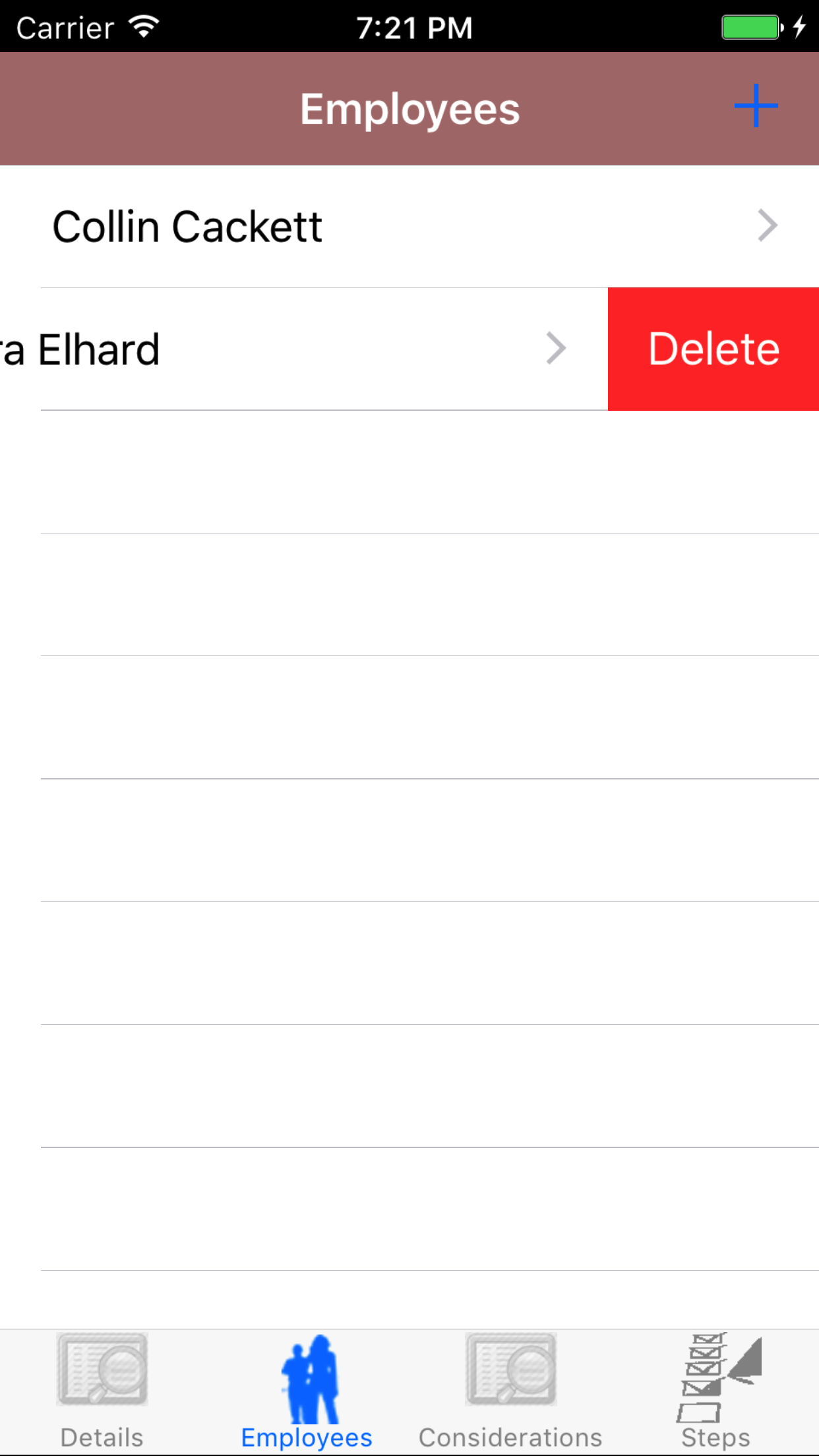
- Swipe from the right edge to the left to bring up the delete button for the employee.
- Tap the Delete button. The employee will be deleted.
|
|
|
| Steps 1-2 |
|
|
| Steps 3-4 |
|
|
|
9.Add Job Role |
|
The Job Roles, refers to the type of the work the task is related to. R & T Electric Pro allows users to select Administrative or Field.
Once on the Job Safety Analysis you would like to Edit
Steps
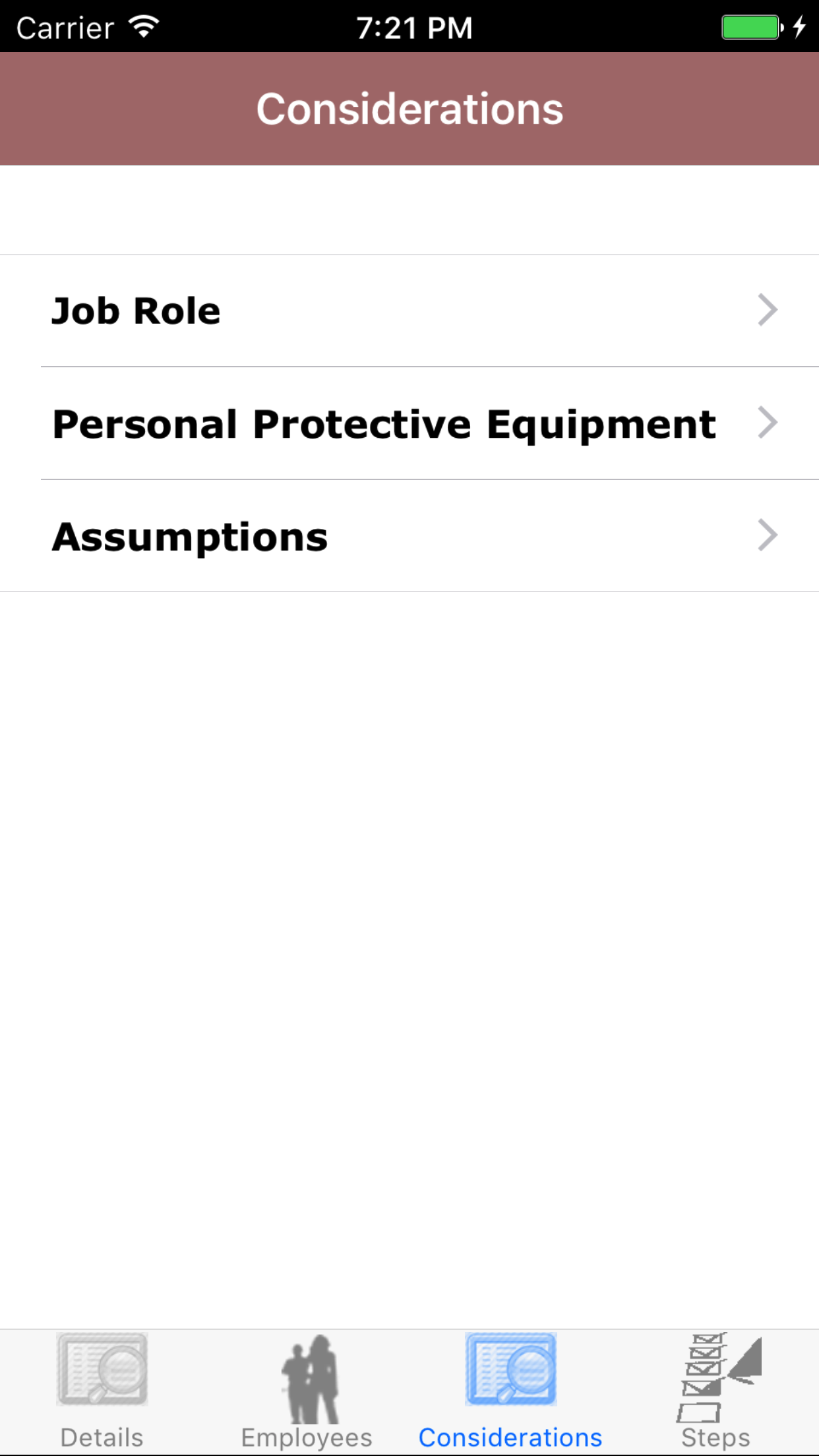
- Tap on the third tab, the consideration tab of the Job Safety Analysis view. This loads the Considerations section.
- Tap the Job Role button, this loads the list of Job Roles
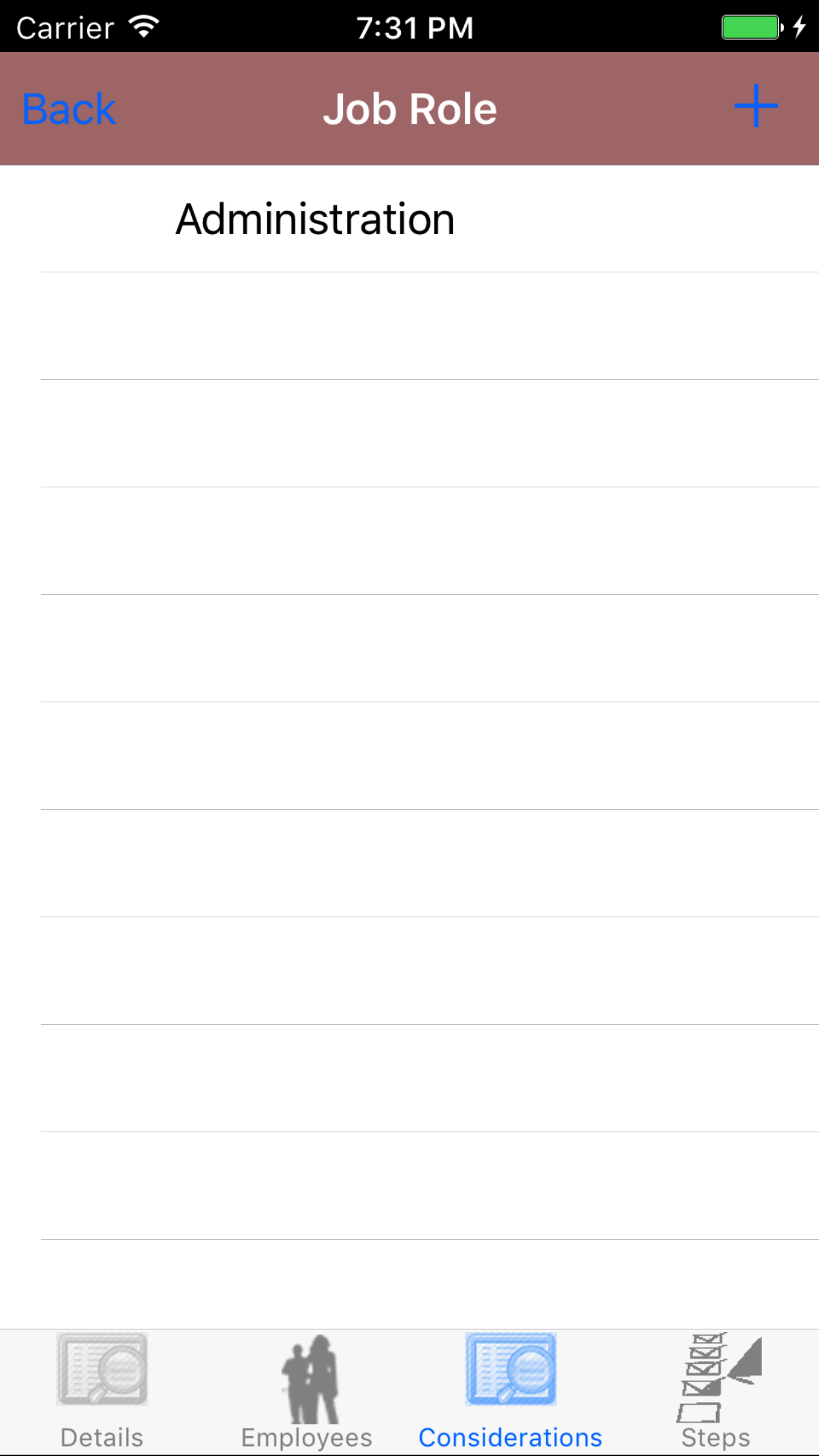
- Tap on the + button in the top right corner of the screen.
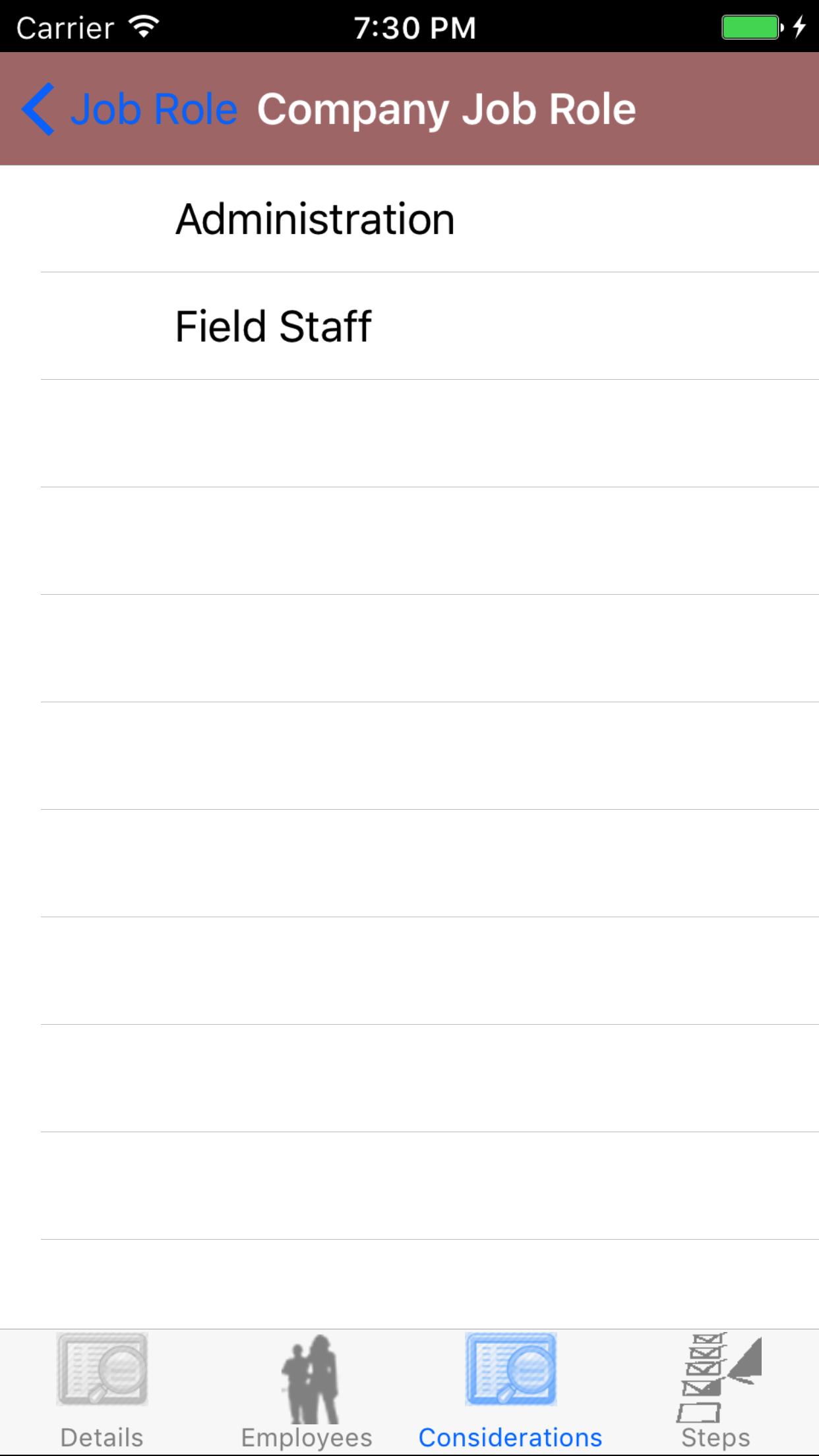
- Scroll the list of job roles
- Tap the Job Role you want to add to the role to Job Safety Analysis.
|
|
|
| Steps 1-2 |
|
|
| Step 3 |
|
|
| Steps 4-5 |
|
|
10.Look Up Job Role |
|
Once on the third tab, the consideration tab of the Job Safety Analysis view
Steps
- Tap the Job Role button, this loads the list of Job Roles
- Scroll the list of job roles on the screen.
|
|
|
| Step 1 |
|
|
|
| Step 2 |
|
|
11.Delete Job Role |
|
Once on the third tab, the consideration tab of the Job Safety Analysis view
Steps
- Tap on the third tab, the consideration tab of the Job Safety Analysis view. This loads the Considerations section.
- Tap the Job Role button, this loads the list of Job Roles
- Scroll the list of job roles
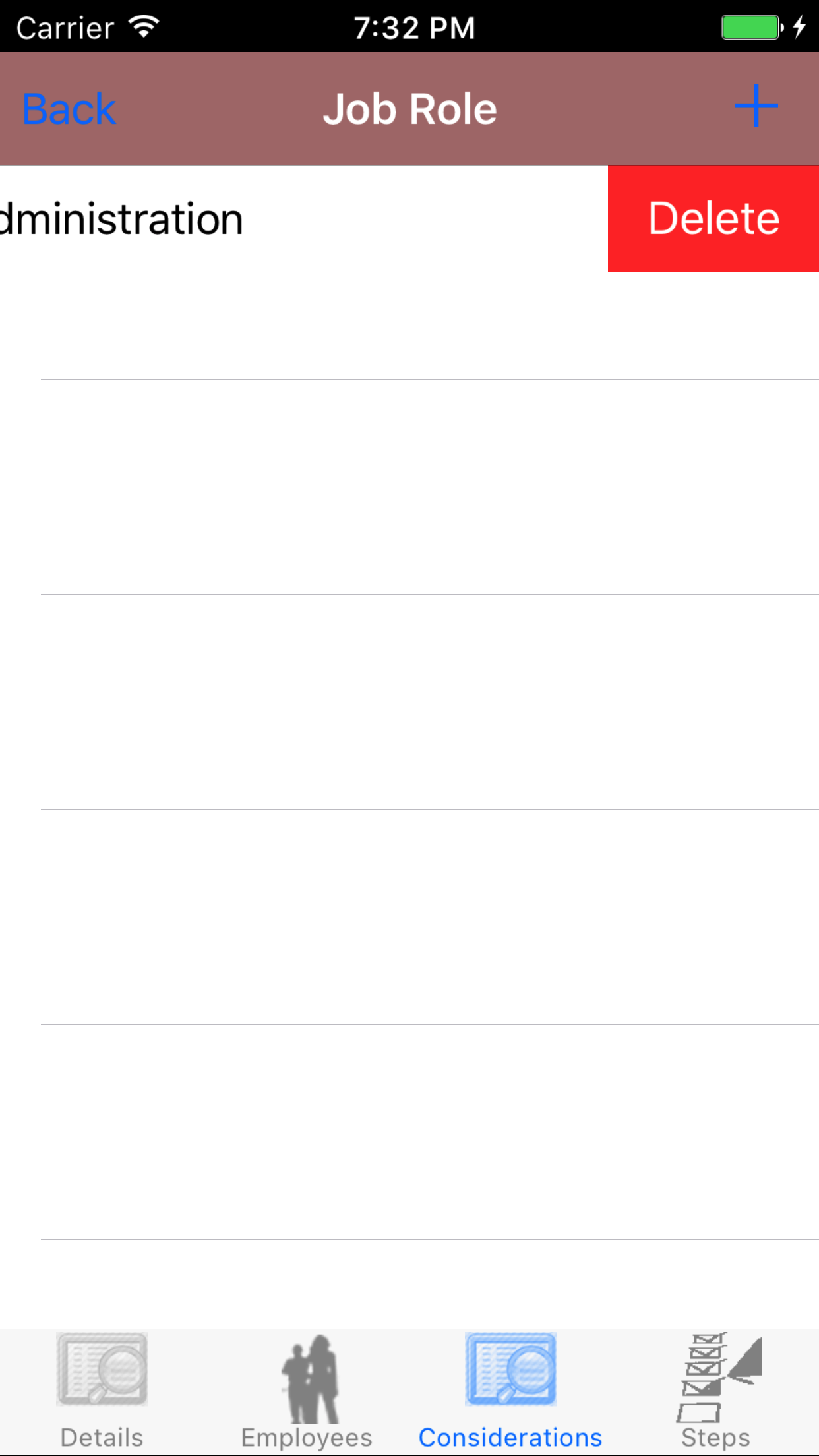
- Swipe from the right edge to the left to bring up the delete button for the job role.
- Tap the Delete button. The job role will be deleted from the job safety analysis.
|
|
|
|
| Steps 1-2 |
|
|
|
| Steps 3-4 |
|
|
| Step 5 |
|
|
|
12.Add Personal Protective Equipment |
|
The Personal Protective Equipment, refers to the personal protective equipment that would be recommended for the task, in order to ensure the staffs safety.
Once on the Job Safety Analysis you would like to Edit
Steps
- Tap on the third tab, the considerations tab of the Job Safety Analysis view. This loads the Considerations section.
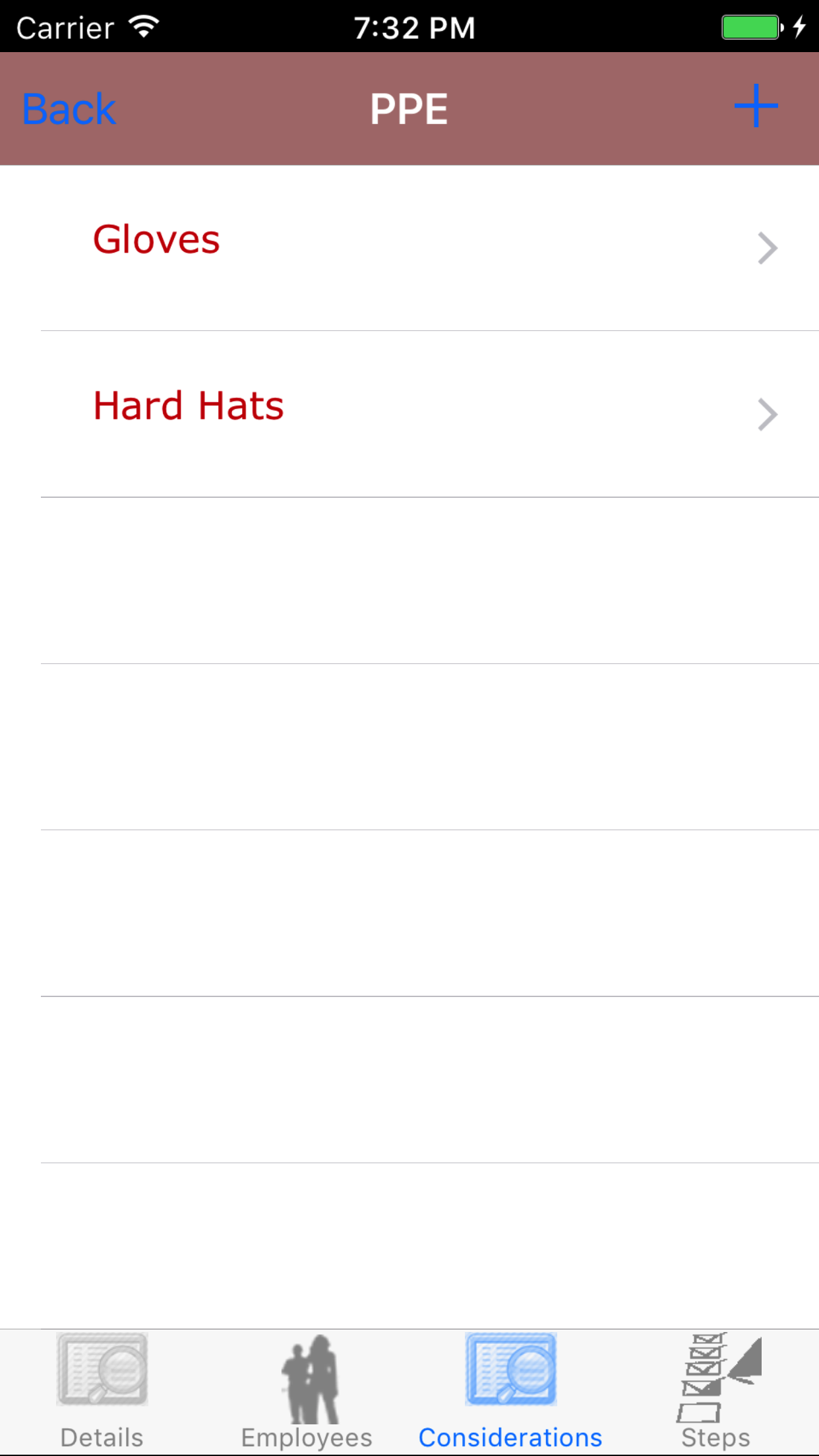
- Tap the Personal Protective Equipment button, this loads the list of Personal Protective Equipment
- Tap on the + button in the top right corner of the screen.
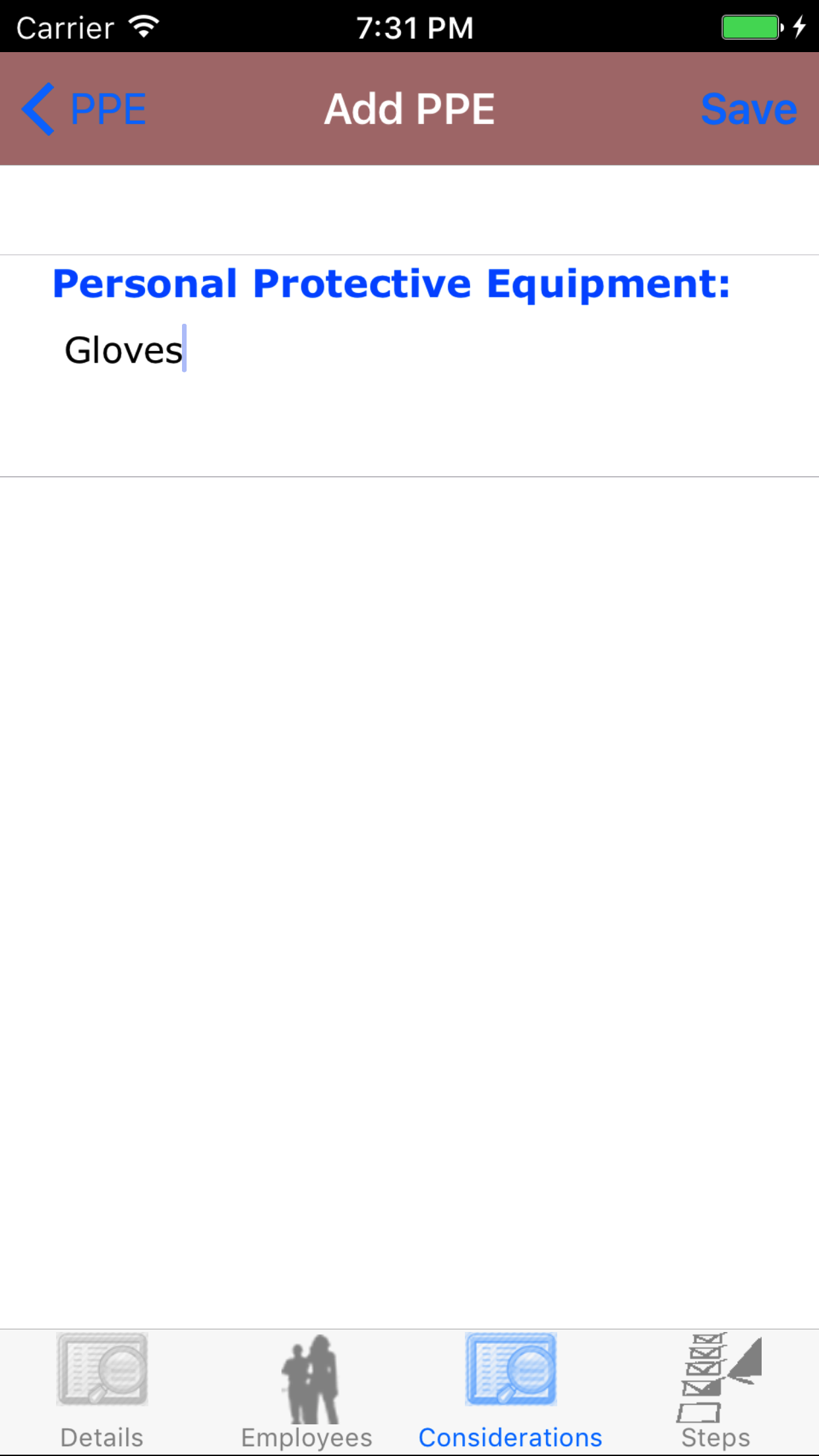
- Personal Protective Equipment: Enter the name of the personal protective equipment. The character limit of this field is 500 characters.
- Tap Save in the top right corner of the screen to save the personal protective equipment to the Job Safety Analysis.
|
|
|
|
| Steps 1-2 |
|
|
| Step 3 |
|
|
| Steps 3-5 |
|
|
13.Look Up Personal Protective Equipment |
|
Once on the third tab, the consideration tab of the Job Safety Analysis view
Steps
- Tap the Personal Protective Equipment button, this loads the list of Personal Protective Equipment
- Scroll the list of personal protective equipment on the screen.
- Tap the desired personal protective equipment to select it.
|
|
|
|
| Step 1 |
|
|
|
| Step 2-3 |
|
|
14.Edit Personal Protective Equipment |
|
Once on the Personal Protective Equipment details you would like to Edit
Steps
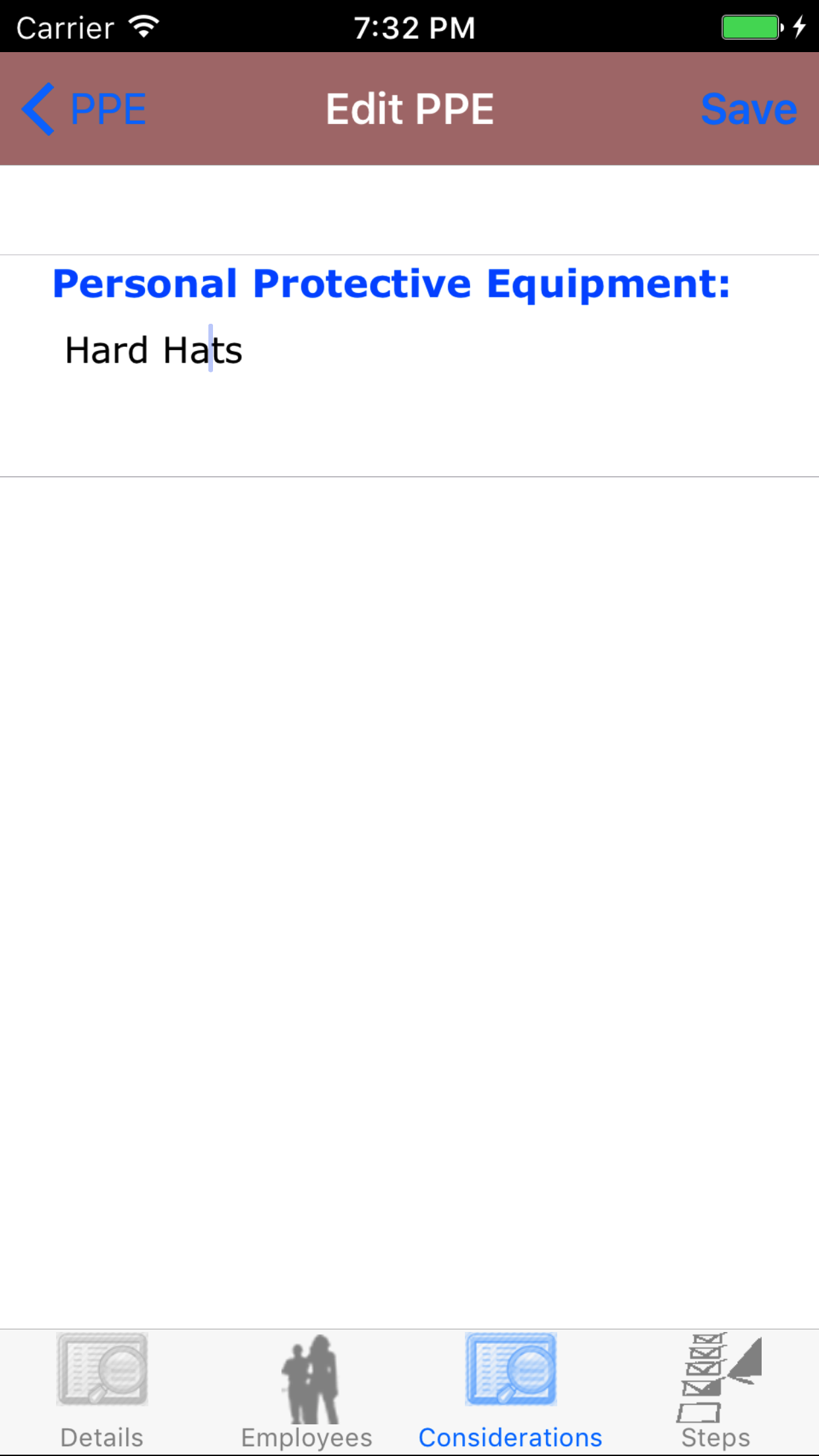
- Personal Protective Equipment: Enter the name of the personal protective equipment. The character limit of this field is 500 characters.
- Tap Save in the top right corner of the screen to save the personal protective equipment to the Job Safety Analysis.
|
|
| Steps 1-2 |
|
|
15.Delete Personal Protective Equipment |
|
Once on the third tab, the consideration tab of the Job Safety Analysis view
Steps
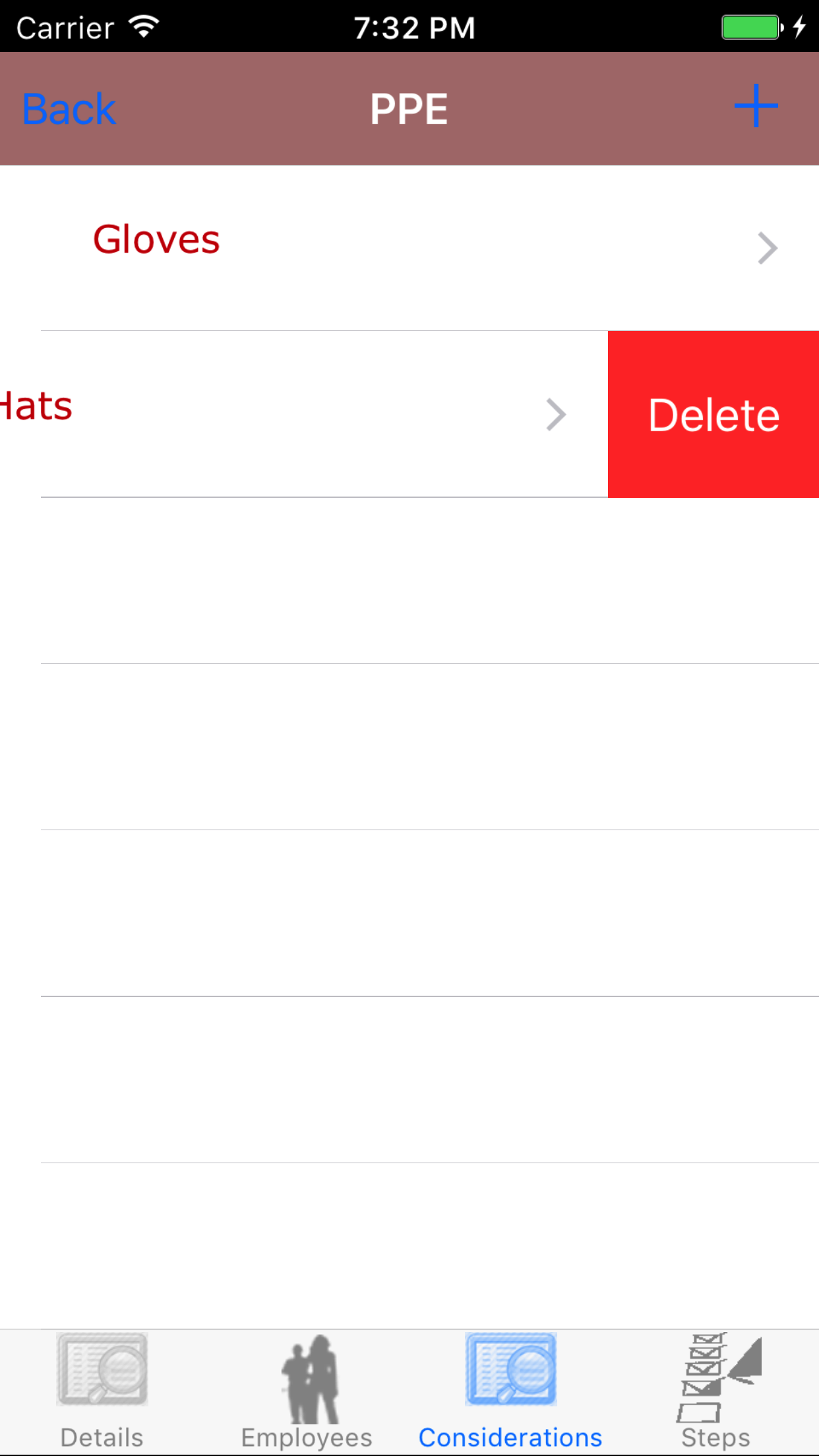
- Tap the Personal Protective Equipment button, this loads the list of Personal Protective Equipment
- Scroll the list of personal protective equipment until the desired personal protective equipment is displayed on the screen.
- Swipe from the right edge to the left to bring up the delete button for the personal protective equipment.
- Tap the Delete button. The personal protective equipment will be deleted from the job safety analysis.
|
|
|
| Steps 1-2 |
|
|
| Step 3 |
|
|
|
16.Add Assumption |
|
The Assumption, refers to the any assumptions involved in completing the task.
Once on the Job Safety Analysis you would like to Edit
Steps
- Tap on the third tab, the consideration tab of the Job Safety Analysis view. This loads the Considerations section.
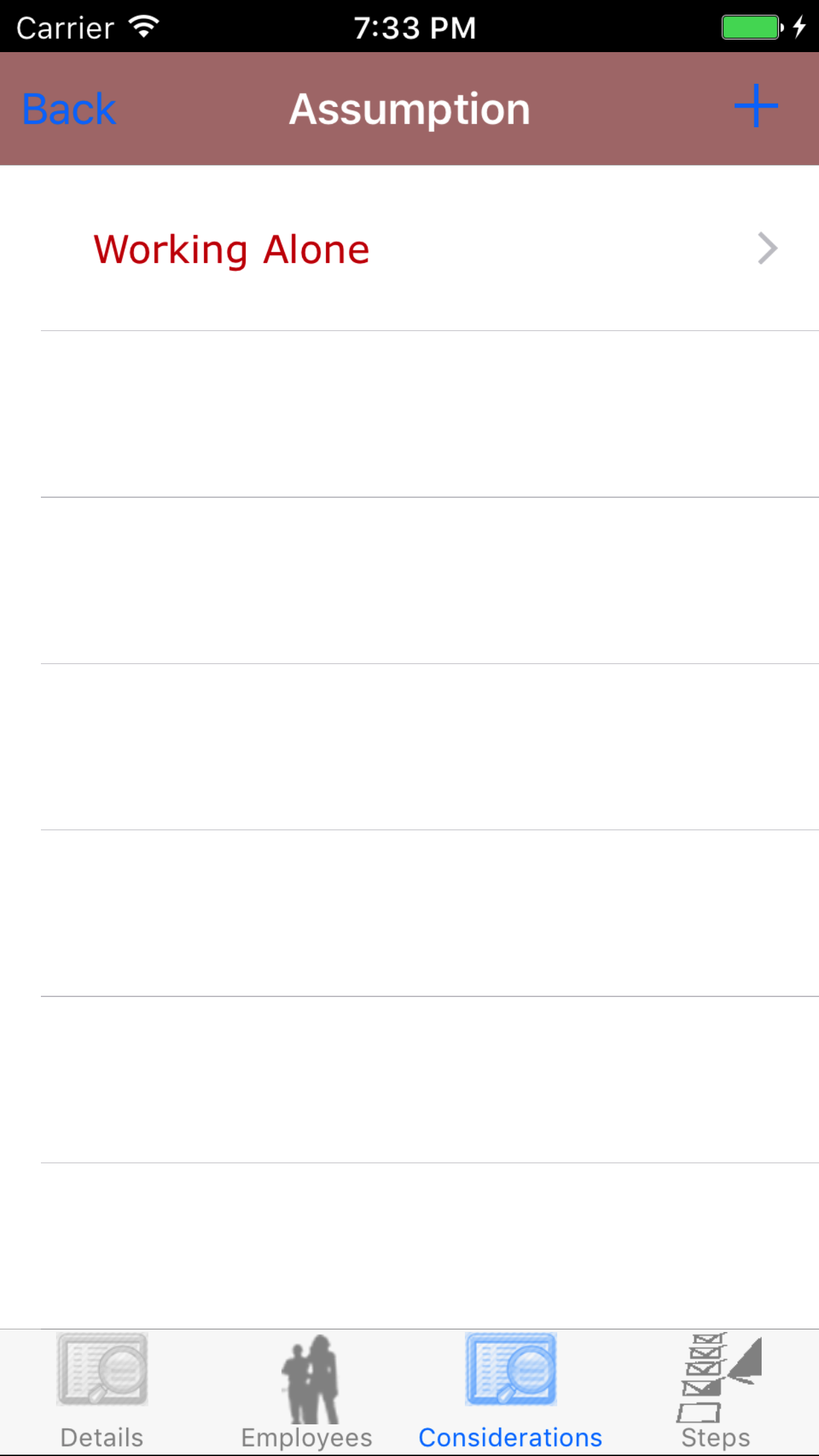
- Tap the Assumption button, this loads the list of Personal Protective Equipment
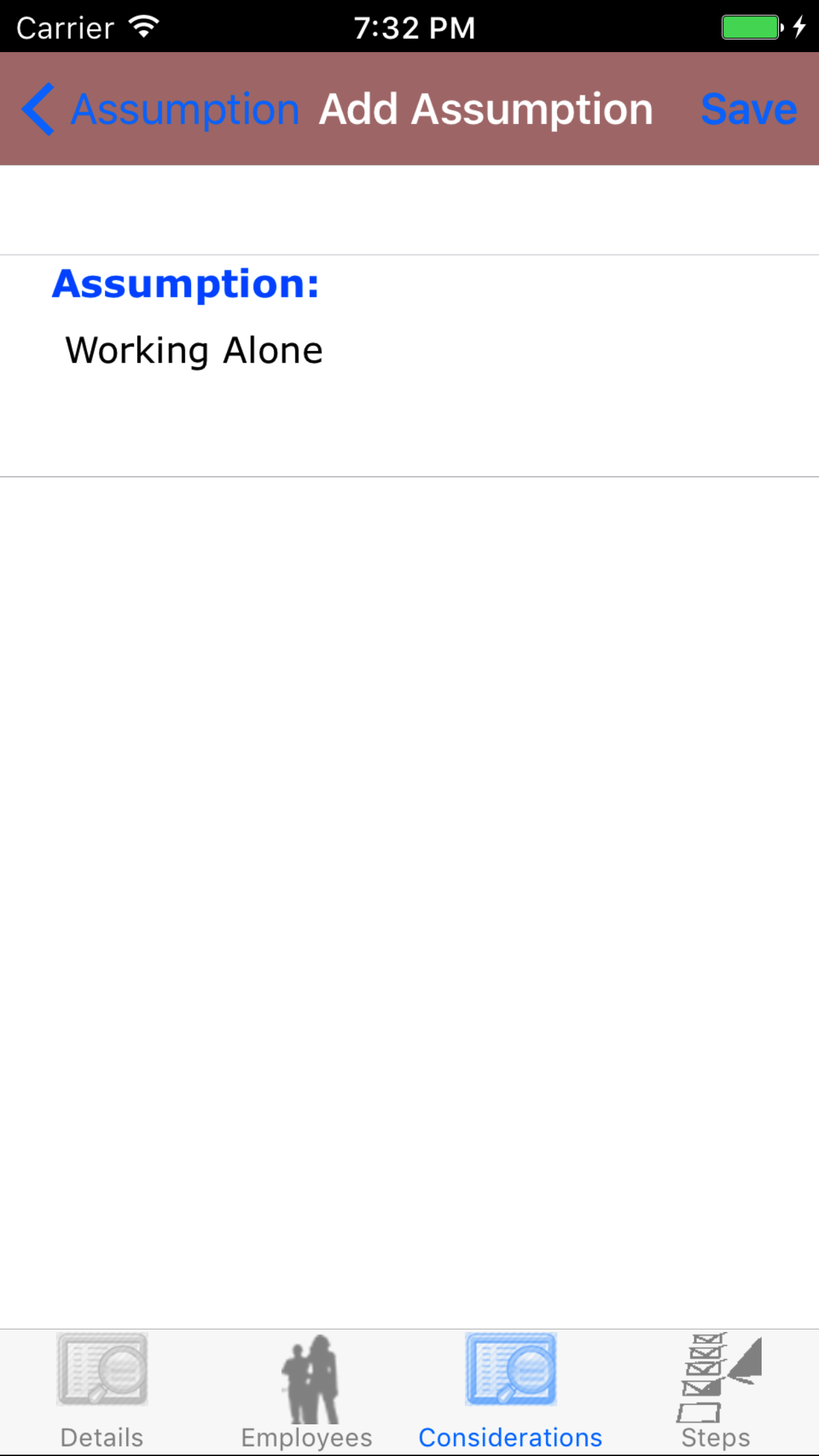
- Tap on the + button in the top right corner of the screen.
- Assumption: Enter the assumption. The character limit of this field is 500 characters.
- Tap Save in the top right corner of the screen to save the assumption to the Job Safety Analysis.
|
|
|
|
| Steps 1-2 |
|
|
| Step 3 |
|
|
| Steps 3-5 |
|
|
17.Look Up Assumption |
|
Once on the third tab, the consideration tab of the Job Safety Analysis view
Steps
- Tap the Assumption button, this loads the list of Assumption
- Scroll the list of assumption on the screen.
- Tap the desired assumption to select it.
|
|
|
|
| Step 1 |
|
|
|
| Step 2-3 |
|
|
18.Edit Assumption |
|
Once on the Assumption details you would like to Edit
Steps
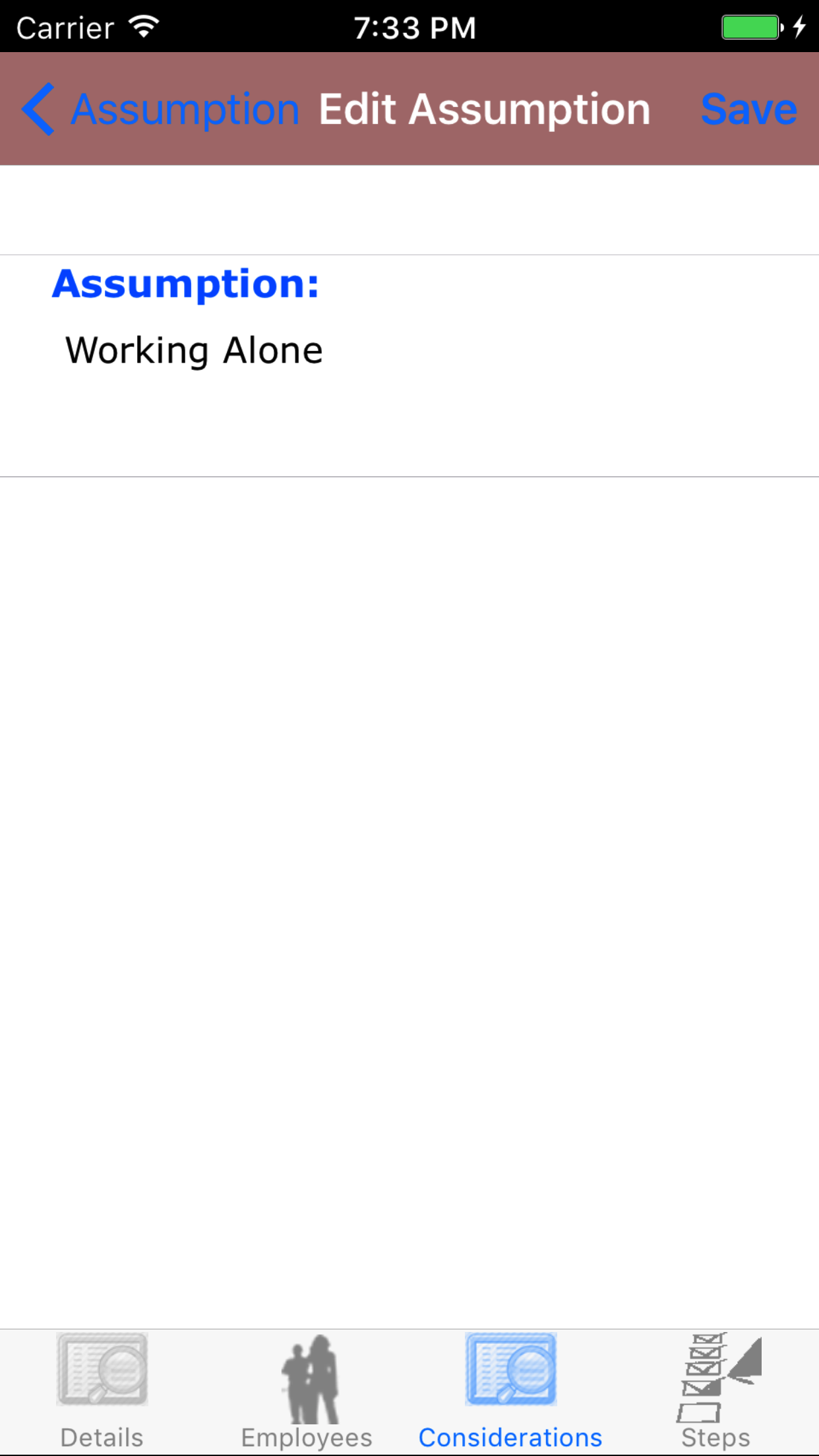
- Assumption: Enter the assumption. The character limit of this field is 500 characters.
- Tap Save in the top right corner of the screen to save the assumption to the Job Safety Analysis.
|
|
| Steps 1-2 |
|
|
19.Delete Assumption |
|
Once on the third tab, the consideration tab of the Job Safety Analysis view
Steps
- Tap the Assumption button, this loads the list of Assumption
- Scroll the list of assumption until the desired assumption is displayed on the screen.
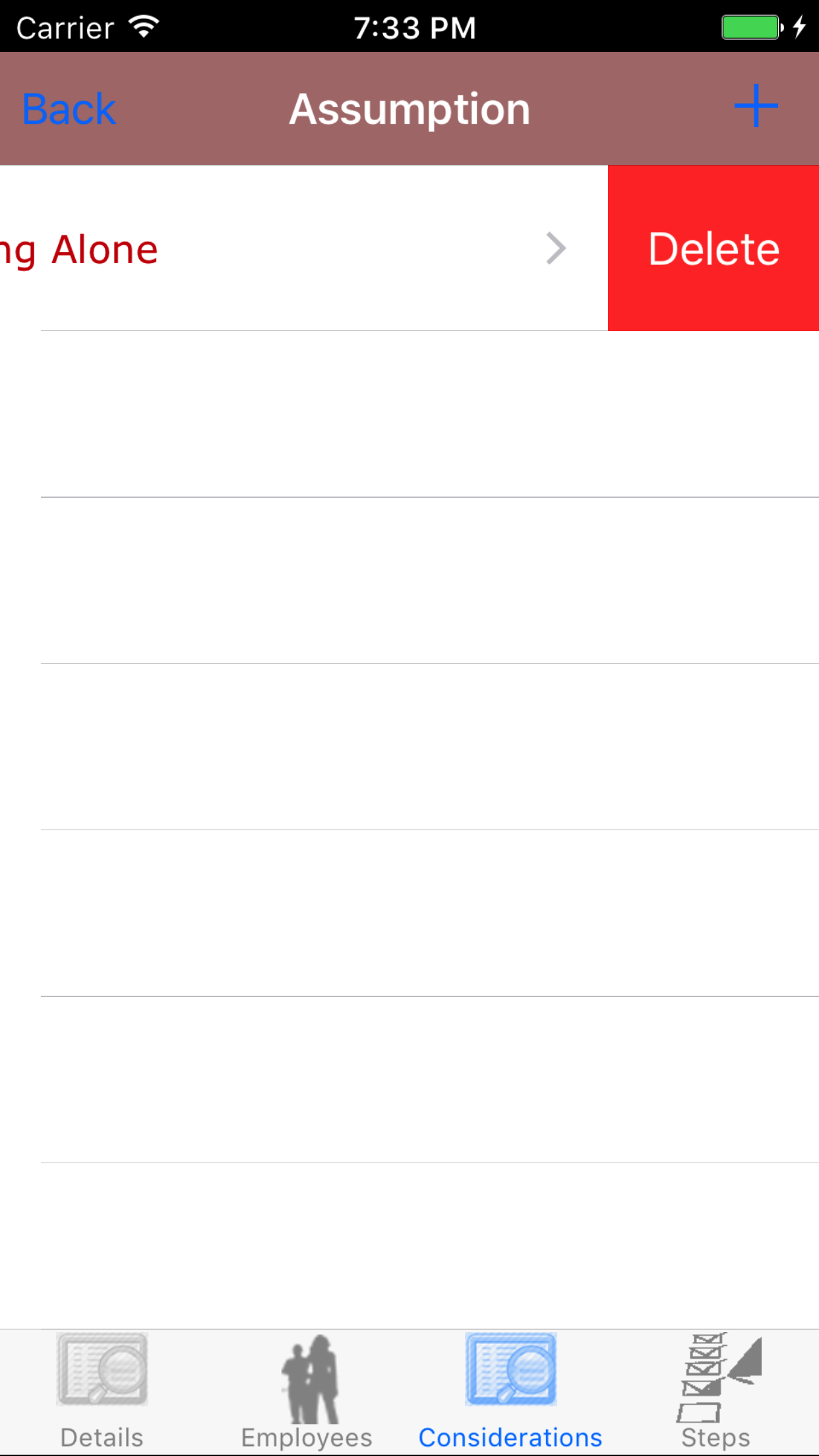
- Swipe from the right edge to the left to bring up the delete button for the assumption.
- Tap the Delete button. The assumption will be deleted from the job safety analysis.
|
|
|
| Steps 1-2 |
|
|
| Step 3 |
|
|
|
20.Add Step |
|
The Steps are the most important of a job safety analysis. Users should be careful to add all required steps to complete the task
to the best quality, while making sure workers are safe. For each step, users will have the ability to number the steps.
Once on the Job Safety Analysis you would like to Edit
Steps
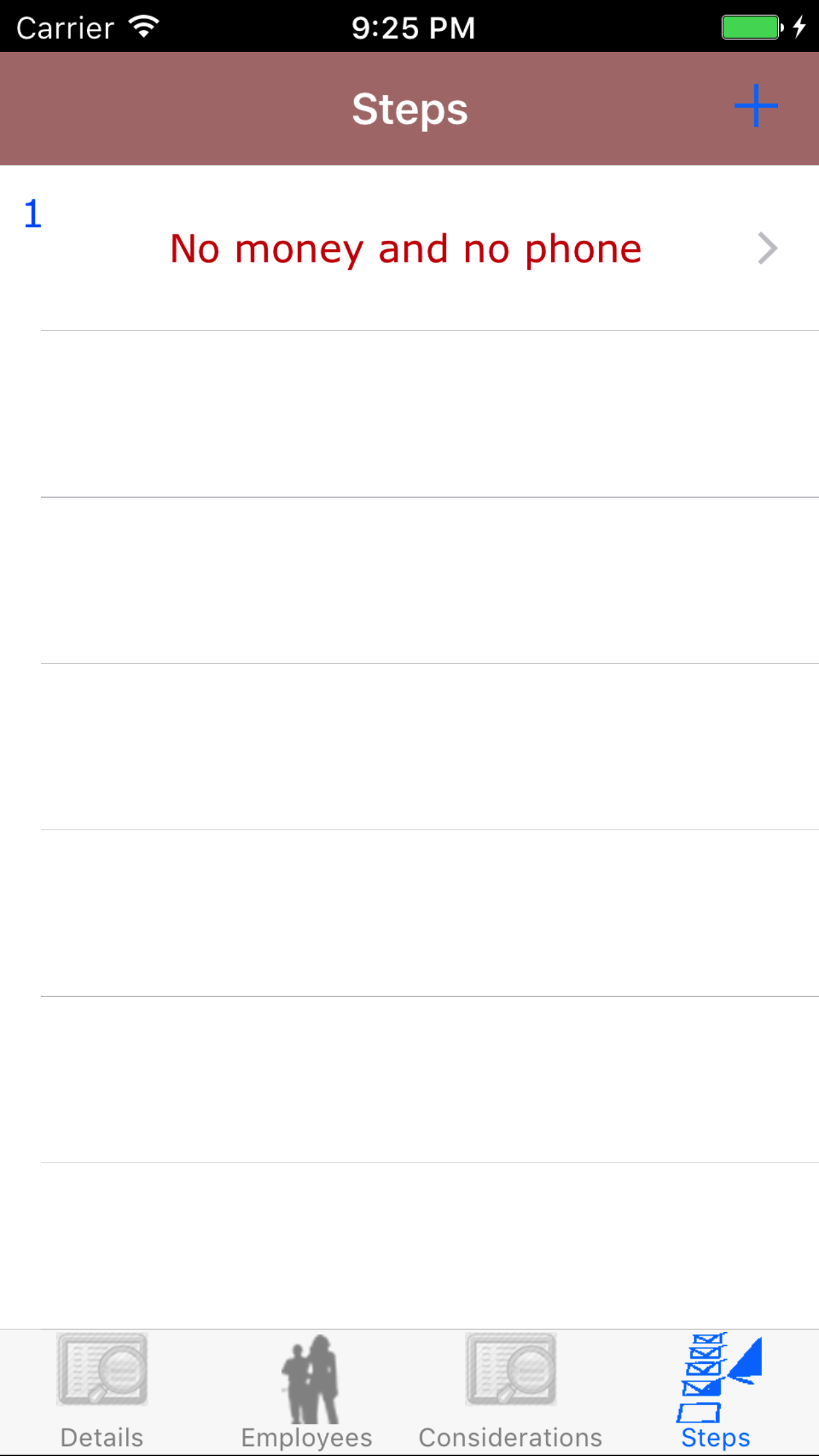
- Tap on the third tab, the steps tab of the Job Safety Analysis view. This loads the Steps view, on this view you can see the step name and the step number.
- Tap on the + button in the top right corner of the screen.
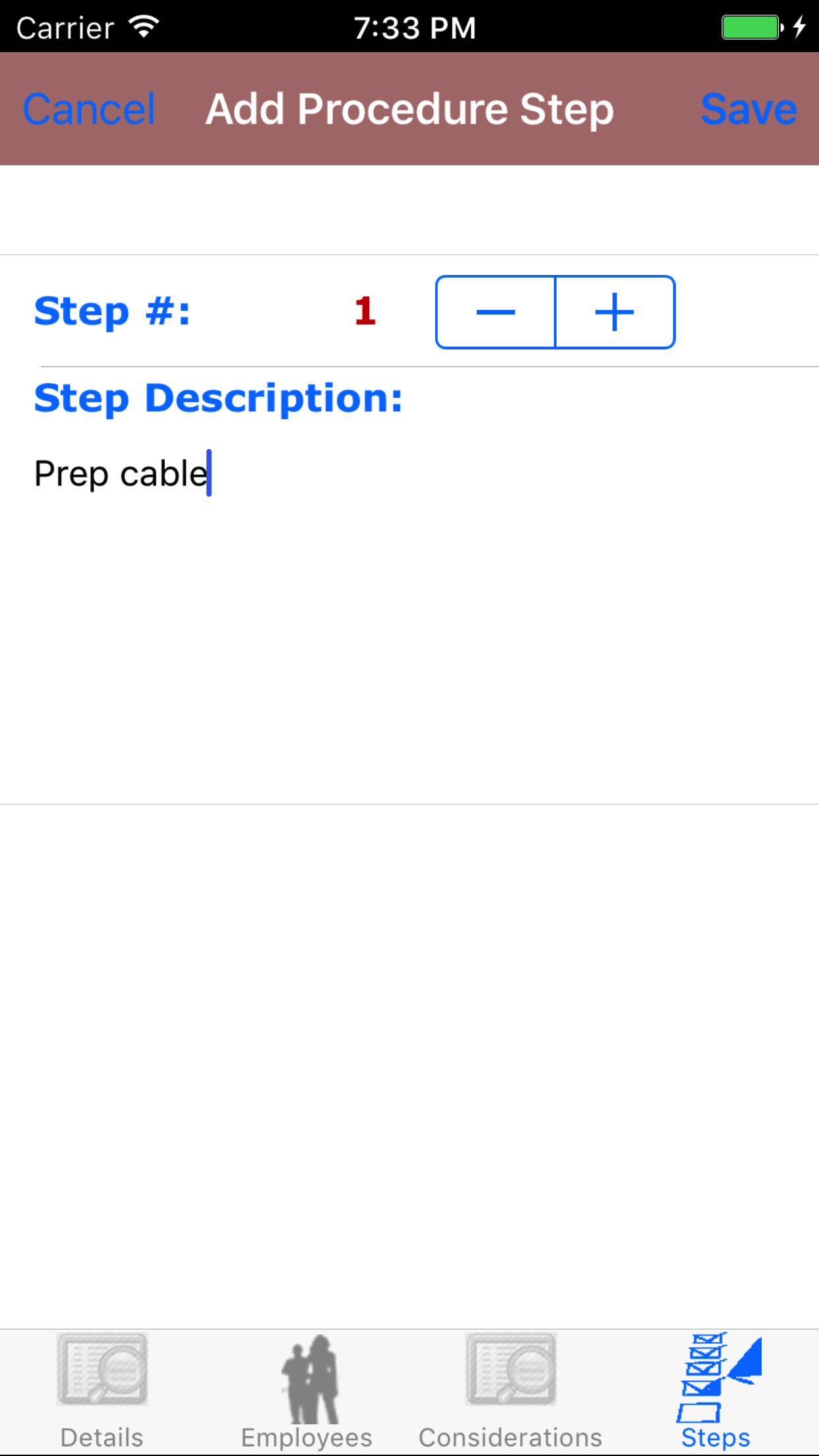
- Step #: The Step # field enter the number of step in the sequence to complete the task.
- Tap + to increase the step number or - to decrease the step number on the Stepper
- Step Description: Enter the description of the step. The description of the step will be your long description of the step you will be performing. The character limit of this field is 350 characters.
- Tap Save in the top right corner of the screen to add the step to the Job Safety Analysis
Be sure to continue on to add your step hazards for the step you added. As important as identifying a step field staff are to complete it is as equally important to identify the step hazards of each step added.
|
|
|
| Steps 1-2 |
|
|
| Steps 3-5 |
|
|
21.Look Up Step |
|
Once on the third tab, the step tab of the Job Safety Analysis view
Steps
- Scroll the list of step until the desired steps is displayed on the screen.
- Tap the desired step to select it.
The Screen will load with two new tabs'
- Tab one loads with step details, the details of the step.
- Tab two loads with step hazards, the step hazards associated with the selected step.
|
|
|
| Steps 1-2 |
|
|
22.Edit Step |
|
Once on the Step details you would like to Edit
Steps
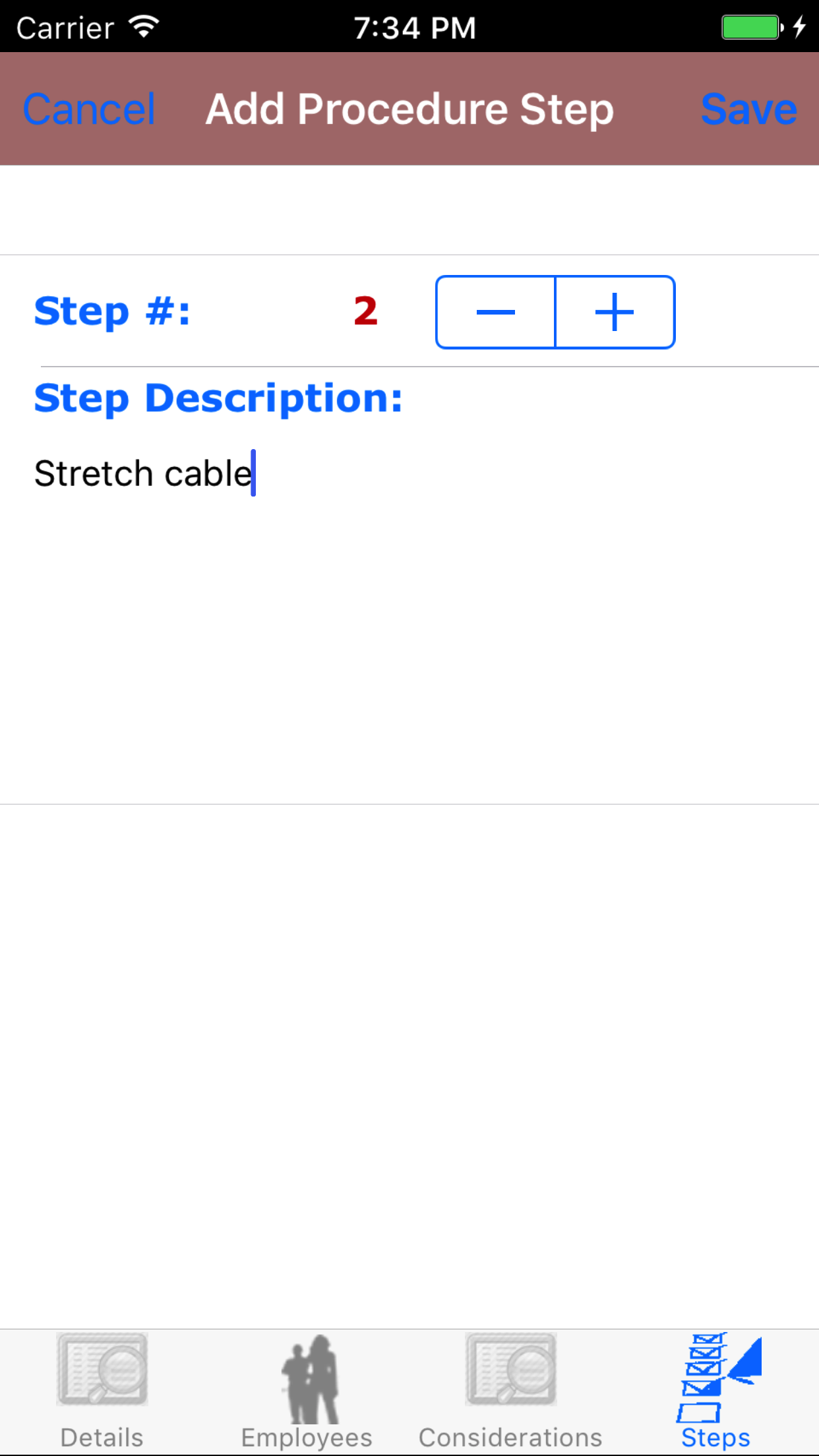
- Step #: The Step # field enter the number of step in the sequence to complete the task.
- Tap + to increase the step number or - to decrease the step number on the Stepper
- Step Description: Enter the description of the step. The description of the step will be your long description of the step you will be performing. The character limit of this field is 350 characters.
- Tap Save in the top right corner of the screen to save the step to the Job Safety Analysis.
|
|
| Steps 1-4 |
|
|
23.Delete Step |
|
Once on the third tab, the task tab of the Job Safety Analysis view
Steps
- Scroll the list of steps until the desired step is displayed on the screen.
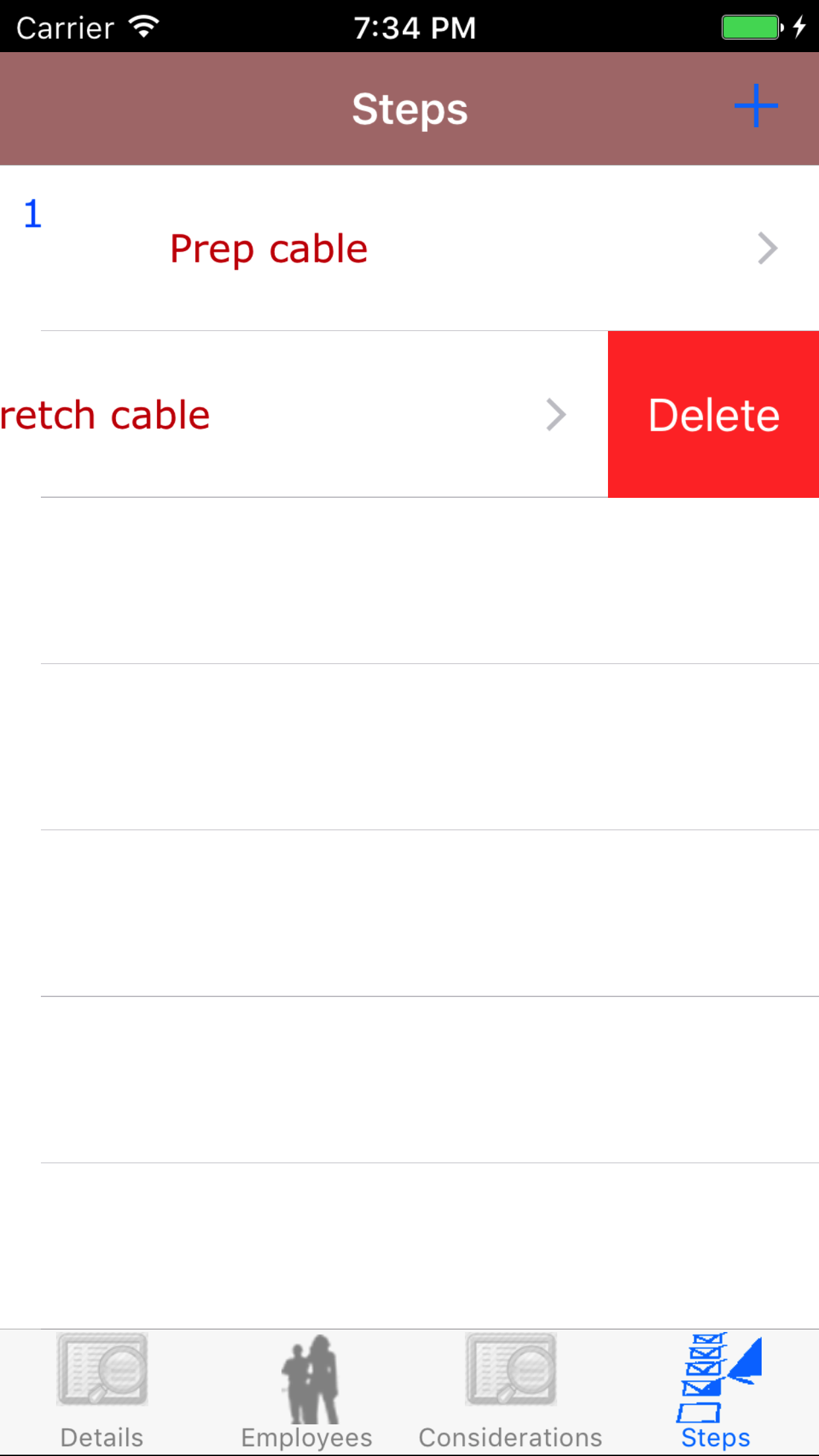
- Swipe from the right edge to the left to bring up the delete button for the step.
- Tap the Delete button. The step and all related step hazards and plans for elimination will be deleted from the job safety analysis.
|
|
|
| Steps 1-2 |
|
|
| Step 3 |
|
|
|
Step Hazards |
|
|
|
Once on the Step Details for the step you would like to Edit
Steps
- Tap on the second tab, the step hazard tab of the edit step view.
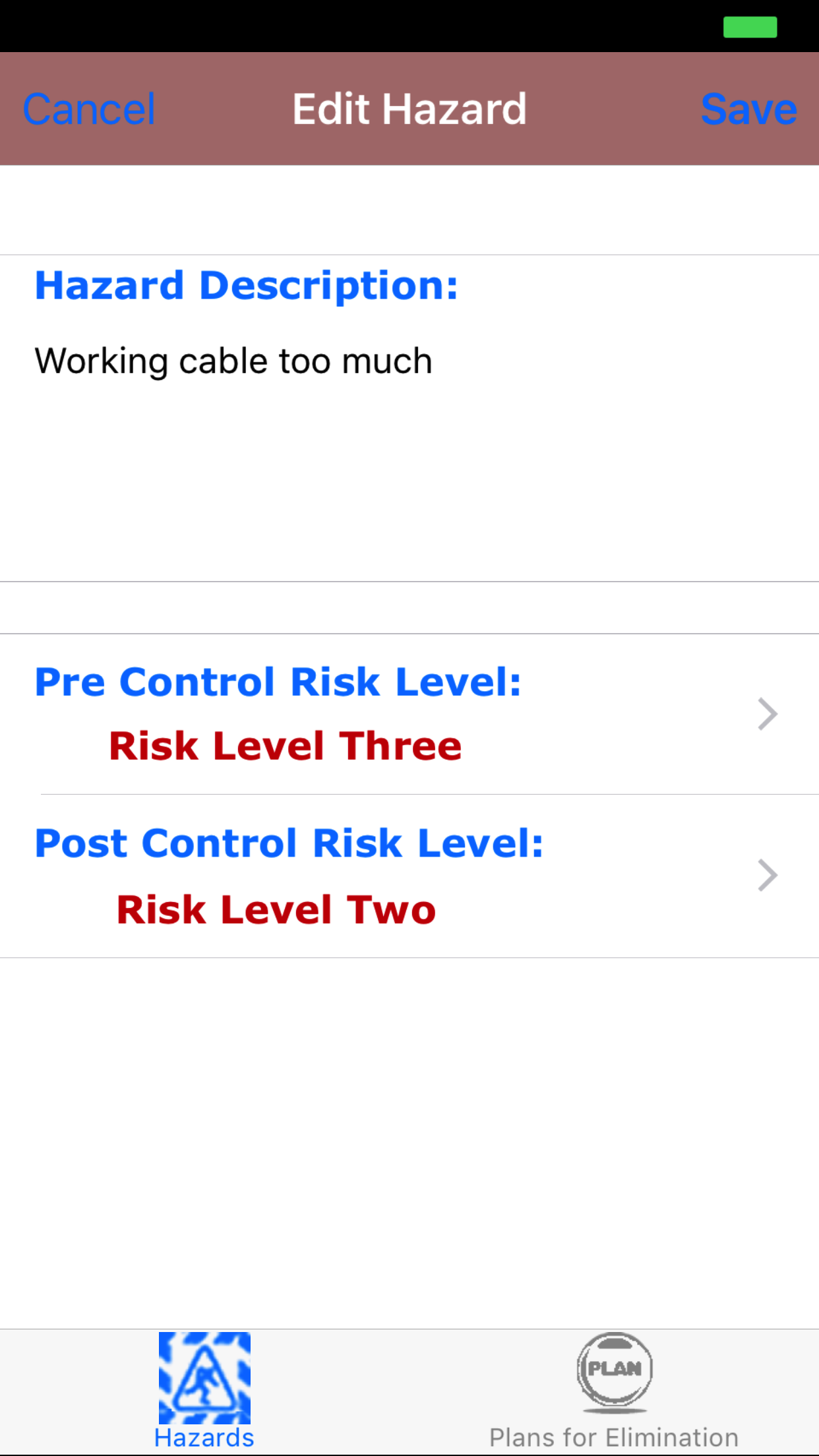
This loads the step hazards view, on this view you can see the step hazard description in black and the risk levels both Pre Control and Post Control in red that has been assigned to that step hazard.
- Tap on the + button in the top right corner of the screen.
- Hazard Description: The hazard description is the description of the hazard that exists involved with the step that they are associated with. The character limit of this field is 350.
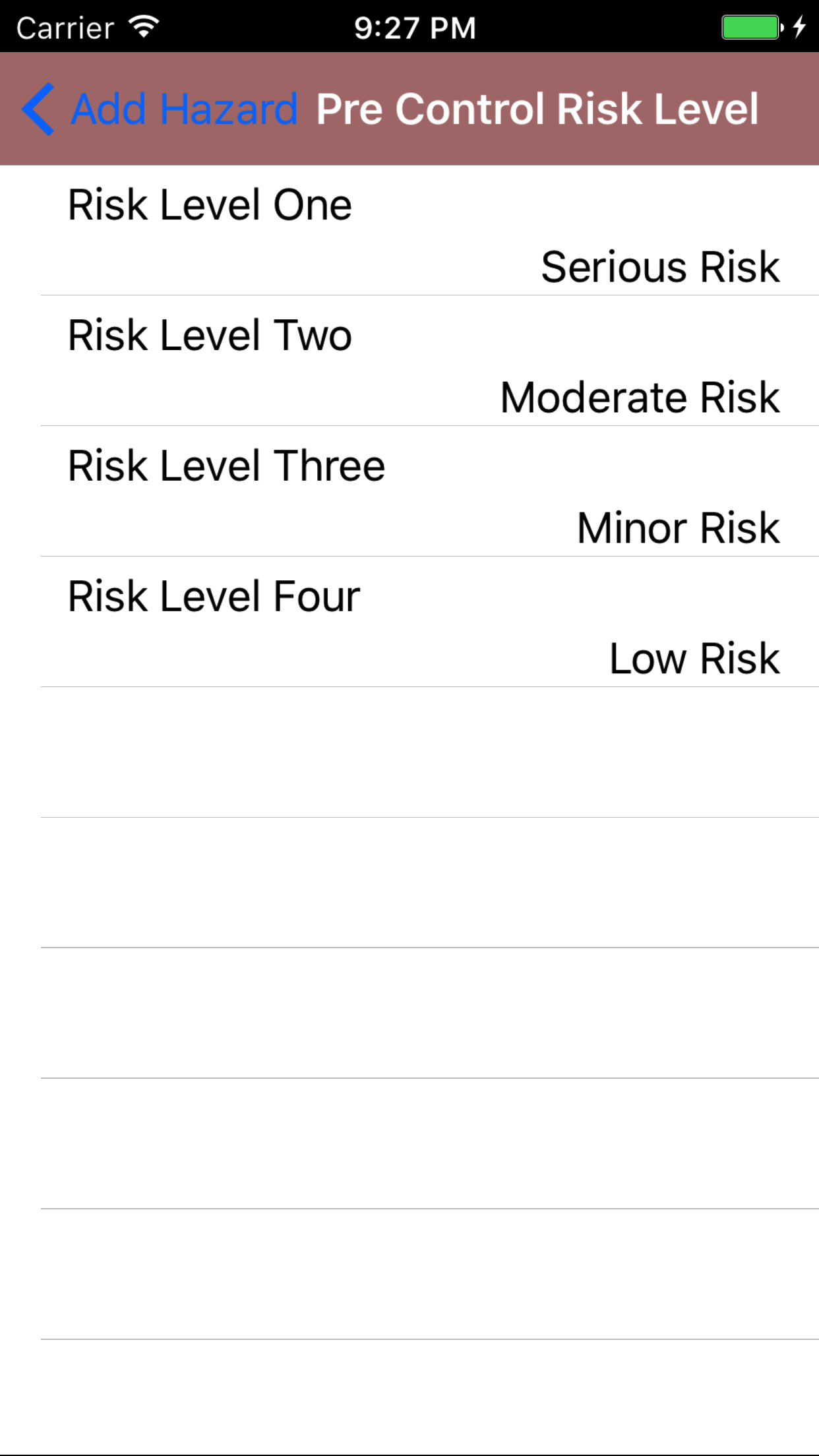
- Pre Control Risk Level: The pre control risk level field also field staff to choose what pre control risk level of the step hazard falls into. The choices of risk levels is dependent on the companies choice of how they determine risk level rankings.
Some companies view Risk Level One as High Risk and Risk Level Four as Low Risk, while others view Risk Level One as Low Risk and Risk Level Four as High Risk. In any case the Pre Control Risk Level represents the risk of injury or
incident caused by the hazard before a control is implemented lessen the chances of incident or injury.
- Tap the Pre Control Risk Level field to open the Choose Risk Level screen.
- Scroll the list of risk level until the desired risk level is displayed on the screen.
- Tap the desired risk level to select it or tap Back in the top left corner to leave the Risk Level field unchanged and return to the Add Task Hazard screen.
- Post Control Risk Level: The post control risk level field also field staff to choose what post control risk level of the step hazard falls into. The choices of risk levels is dependent on the companies choice of how they determine risk level rankings.
Some companies view Risk Level One as High Risk and Risk Level Four as Low Risk, while others view Risk Level One as Low Risk and Risk Level Four as High Risk. In any case the Post Control Risk Level represents the risk of injury or
incident caused by the hazard after a control is implemented lessen the chances of incident or injury. A Post Control Risk Level should be lower than Pre Control Risk Level.
- Tap the Post Control Risk Level field to open the Choose Risk Level screen.
- Scroll the list of risk level until the desired risk level is displayed on the screen.
- Tap the desired risk level to select it or tap Back in the top left corner to leave the Risk Level field unchanged and return to the Add Step Hazard screen.
- Tap Save in the top right corner of the screen to add the step hazard for the task to the Job Safety Analysis
Be sure to continue on to add your plan for elimination for the Task Hazard you just added. As important as identifying a step hazard is as equally important to identify the plan of elimination for said step hazard.
*Note: When a step hazard has its pre control risk level set to high risk or moderate risk, you must include a plan for elimination for step hazard. You cannot submit or close a Job Safety Analysis with a step hazard with a pre control risk level set to high risk or moderate risk, without a plan of elimination for the step hazard.
*Note: Management will do a critical review on any step hazards submitted with a pre control risk level set to high risk or moderate risk, meaning management will phone you to review your plan for elimination you have developed for the step hazard.
|
|
|
|
| Step 1 |
|

|
| Step 2 |
|

|
| Steps 3 & 6 |
|
|
| Steps 4-5 |
|
|
25.Look Up Step Hazard |
|
Once on the Step Details for the task you would like to Edit
Steps
- Tap on the second tab, the step hazard tab of the edit task view.
This loads the step hazards view, on this view you can see the step hazard description in black and the risk levels both Pre Control and Post Control in red that has been assigned to that step hazard.
- Scroll the list of step hazards until the desired step hazard is displayed on the screen.
- Tap the desired step hazard to select it.
The Screen will load with two new tabs'
- Tab one loads with step hazard details, the details of the step hazard.
- Tab two loads with plans for elimination, the plans for elimination associated with the selected step hazard.
|
|
|
| Steps 1-2 |
|
|
26.Edit Step Hazard |
|
Once on the Step Hazard details you would like to Edit
Steps
- Hazard Description: The hazard description is the description of the hazard that exists involved with the step that they are associated with. The character limit of this field is 350.
- Pre Control Risk Level: The pre control risk level field also field staff to choose what pre control risk level of the step hazard falls into. The choices of risk levels is dependent on the companies choice of how they determine risk level rankings.
Some companies view Risk Level One as High Risk and Risk Level Four as Low Risk, while others view Risk Level One as Low Risk and Risk Level Four as High Risk. In any case the Pre Control Risk Level represents the risk of injury or
incident caused by the hazard before a control is implemented lessen the chances of incident or injury.
- Tap the Pre Control Risk Level field to open the Choose Risk Level screen.
- Scroll the list of risk level until the desired risk level is displayed on the screen.
- Tap the desired risk level to select it or tap Back in the top left corner to leave the Risk Level field unchanged and return to the Edit Step Hazard screen.
|

|
| Steps 1-4 |
|
|
|
| Steps 2-3 |
|
|
- Post Control Risk Level: The post control risk level field also field staff to choose what post control risk level of the step hazard falls into. The choices of risk levels is dependent on the companies choice of how they determine risk level rankings.
Some companies view Risk Level One as High Risk and Risk Level Four as Low Risk, while others view Risk Level One as Low Risk and Risk Level Four as High Risk. In any case the Post Control Risk Level represents the risk of injury or
incident caused by the hazard after a control is implemented lessen the chances of incident or injury. A Post Control Risk Level should be lower than Pre Control Risk Level.
- Tap the Post Control Risk Level field to open the Choose Risk Level screen.
- Scroll the list of risk level until the desired risk level is displayed on the screen.
- Tap the desired risk level to select it or tap Back in the top left corner to leave the Risk Level field unchanged and return to the Edit Step Hazard screen.
- Tap Save in the top right corner of the screen to save the step hazard for the task to the Job Safety Analysis.
|
|
|
27.Delete Step Hazard |
|
Once on the Step Details for the task you would like to Edit
Steps
- Tap on the second tab, the step hazard tab of the edit step view.
This loads the step hazards view, on this view you can see the step hazard description in black and the risk levels both Pre Control and Post Control in red that has been assigned to that step hazard.
- Scroll the list of task hazards until the desired step hazard is displayed on the screen.
- Swipe from the right edge to the left to bring up the delete button for the step hazard.
- Tap the Delete button. The step and all related plans for elimination will be deleted from the job safety analysis.
|

|
| Steps 1-2 |
|
|
Plans for Eliminations |
28.Add Plans for Elimination |
|
|
Once on the Step Hazards Details for the step hazard you would like to Edit
Steps
- Tap on the second tab, the plans for elimination tab of the edit step hazard view.
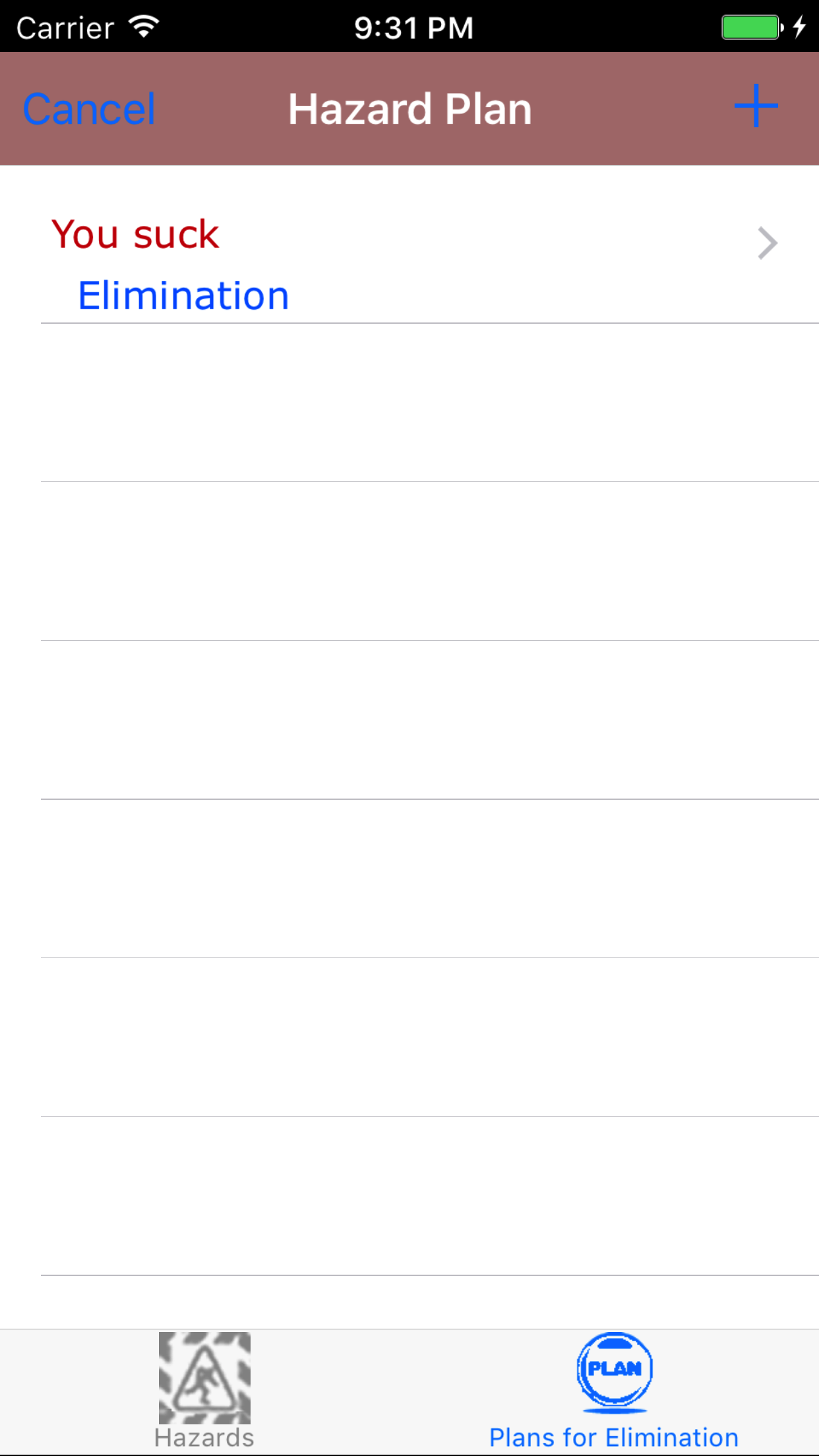
This loads the plans for elimination view, on this view you can see the plans for elimination
description in black and the Elimination date in blue and Employee Responsible in red that has been assigned to eliminate the task hazard.
- Tap on the + button in the top right corner of the screen.
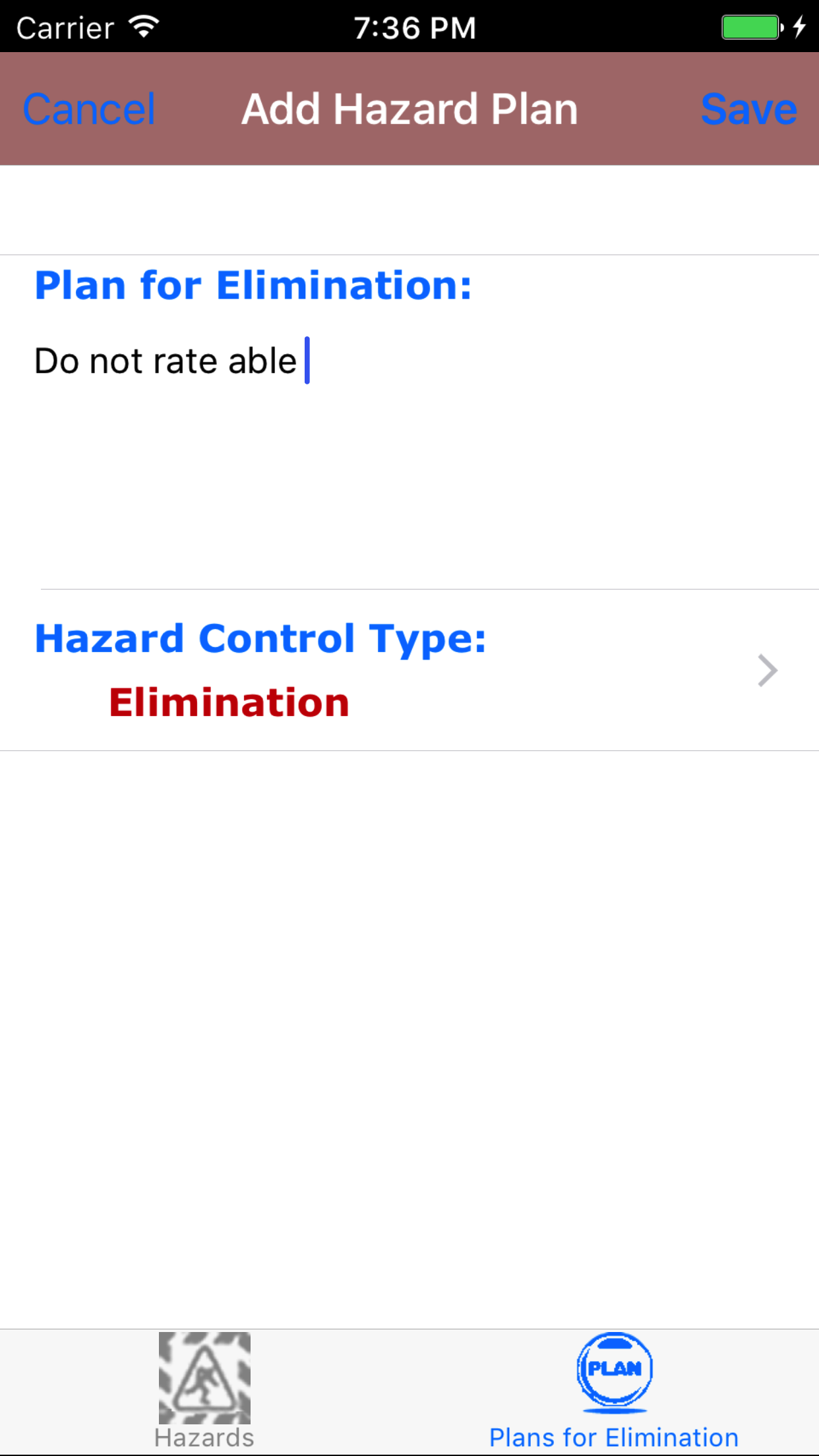
- Plan for elimination:The plan for elimination is a description of the field staffs plan to eliminate a hazard on while working on the step. Field Staff should enter a plan for elimination for all step hazards; while they
must enter a plan for elimination for all task hazards assigned a risk level of Serious Risk or Moderate Risk. The character limit of this field is 250.
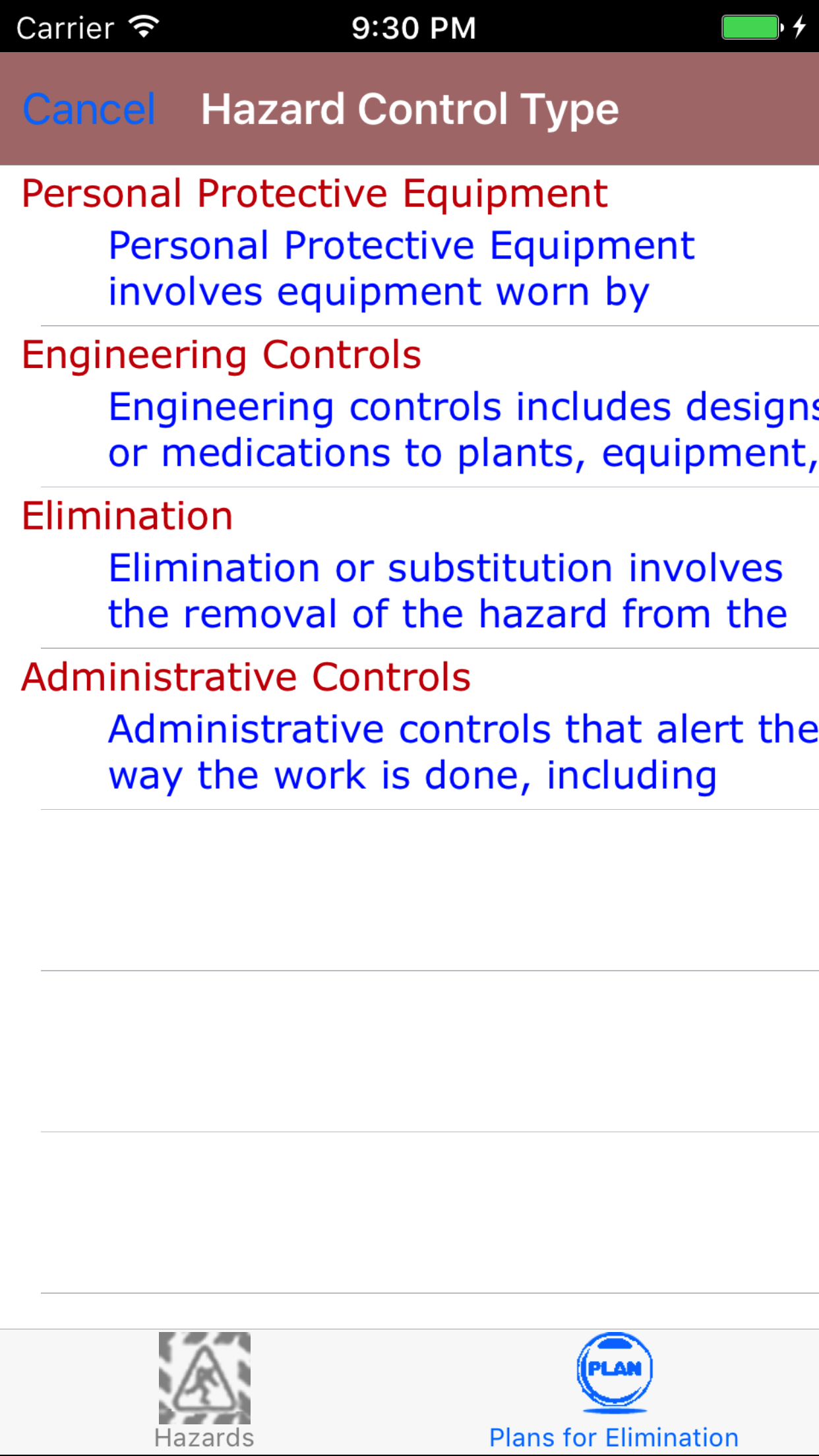
- Hazard Control Type: The hazard control type field, allows field staff to assign a the type of hazard control type used to eliminate the task hazard.
- Tap the hazard control type field, to open the Hazard Control Type screen.
- Scroll the list of hazard control type until the desired hazard control type is displayed on the screen.
- Tap the desired hazard control type to select it or tap Back in the top left corner to leave the hazard control type field unchanged and return to the Add Plan for Elimination screen.
- Tap Save in the top right corner of the screen to add the plan for elimination for the task hazard for the task.
|
|
|
| Step 1 |
|
|
| Step 2 |
|
|
| Steps 3-6 |
|
|
| Step 5 |
|
|
29.Look Up Plans for Elimination |
|
Once on the Step Hazard view of Job Safety Analysis you would like to Edit
Steps
- Tap on the second tab, the plans for elimination tab of the edit task hazard view.
- Scroll the list of plans for elimination until the desired plan for elimination is displayed on the screen.
- Tap the desired plan for elimination to select and open the Edit Plan for Elimination screen.
|
|

|
| Steps 1-3 |
|
|
30.Edit Plan for Elimination |
|
Once on the Plans for Elimination you would like to Edit
Steps
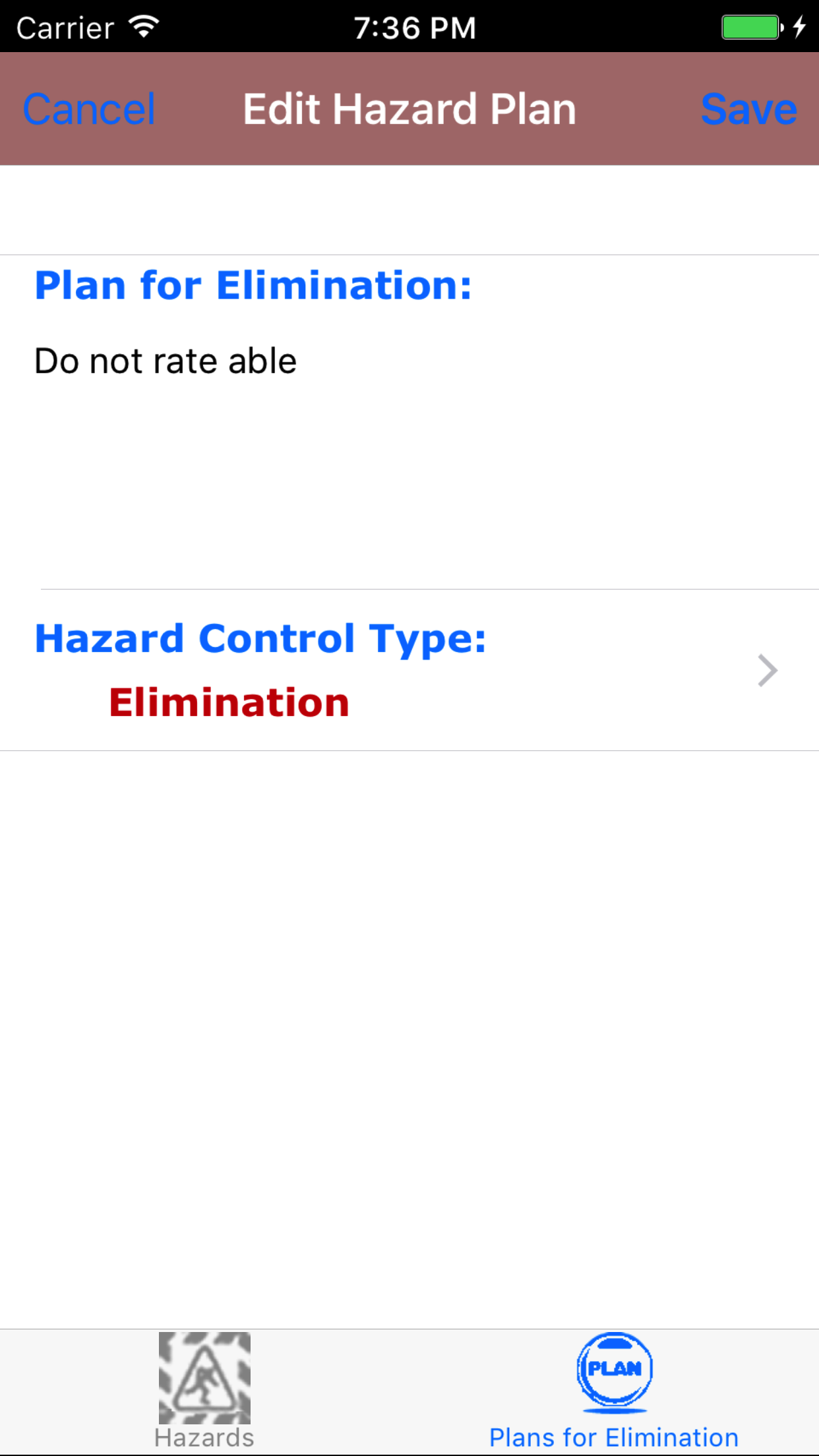
- Plan for elimination:The plan for elimination is a description of the field staffs plan to eliminate a hazard on while working on the step. Field Staff should enter a plan for elimination for all step hazards; while they
must enter a plan for elimination for all step hazards assigned a risk level of Serious Risk or Moderate Risk. The character limit of this field is 250.
- Hazard Control Type: The hazard control type field, allows field staff to assign a the type of hazard control type used to eliminate the task hazard.
- Tap the hazard control type field, to open the Hazard Control Type screen.
- Scroll the list of hazard control type until the desired hazard control type is displayed on the screen.
- Tap the desired hazard control type to select it or tap Back in the top left corner to leave the hazard control type field unchanged and return to the Add Plan for Elimination screen.
- Tap Save in the top right corner of the screen to edit the plan for elimination for the step hazard for the task.
|
|
|
| Steps 1 & 3 |
|
|
|
| Step 2 |
|
|
31.Delete Plan for Elimination |
|
Once on the Step Hazards Details for the task hazard you would like to Edit
Steps
- Tap on the second tab, the plans for elimination tab of the edit step hazard view.
- Scroll the list of plans for elimination until the desired plans for elimination is displayed on the screen.
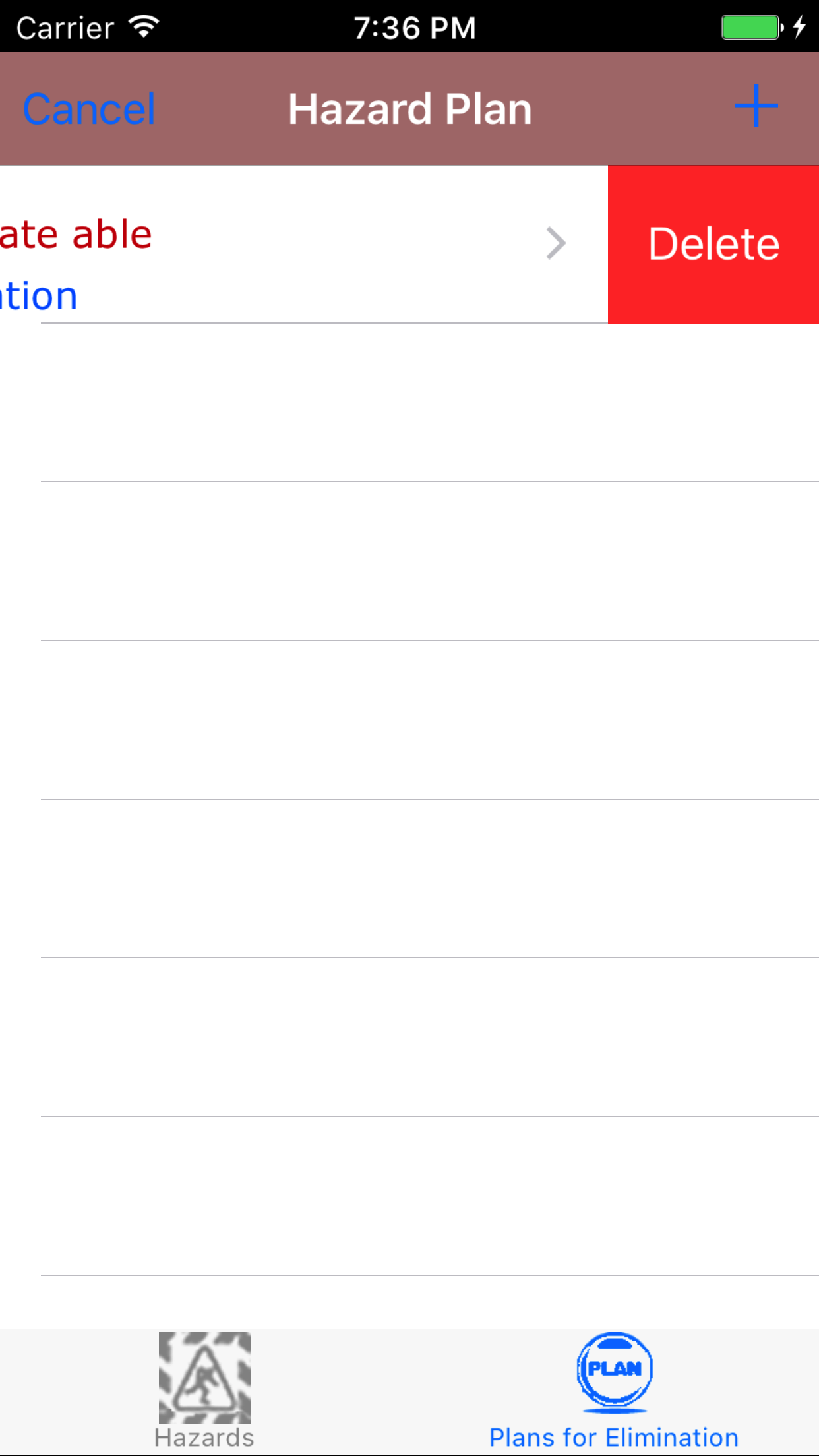
- Swipe from the right edge to the left to bring up the delete button for the plan for elimination.
- Tap the Delete button. The plan for elimination will be deleted from the job safety analysis.
|
|
|
| Steps 1-2 |
|
|
| Step 3 |
|
|
32.Submit Job Safety Analysis |
|
Once the Job Safety Analysis details have been entered, the employees added, the list of steps/ step hazards and plans for elimination edited to
reflect the task, the Job Safety Analysis should be submitted.
Once on the Job Safety Analysis you would like to Edit
Steps
- Tap on the first tab, the Job Safety Analysis details view.
- Tap the Submit Job Safety Analysis button.
Once a job safety analysis has been submitted a email will be sent to the employee set up in R & T Electric Pro to receive job safety analysis updates,
and all field staff included on the job safety analysis.
|
|
|
33.Close Out Job Safety Analysis |
|
Once the Job Safety Analysis details have been entered, the employees added, the list of steps/ step hazards and plans for elimination edited to
reflect the task to be preformed the Job Safety Analysis should be closed out.
Once on the Job Safety Analysis you would like to Edit
Steps
- Tap on the first tab, the Job Safety Analysis details view.
- Tap the Close Out Job Safety Analysis button.
Once a job safety analysis has been closed out a email will be sent to the employee set up in R & T Electric Pro to receive job safety analysis updates,
and all field staff included on the job safety analysis.
|
|
|
34.Delete Job Safety Analysis |
|
Once in the Job Safety Analysis section
Steps
- Tap the second tab on the menu, the Job Safety Analysis view.
To Search Job Safety Analysis: Pull down on the list view, the search is defaulted to search by date enter the date in following
format YYYY-MM-DD. The other options for the Job Safety Analysis search are by task and employee last name. Enter your search
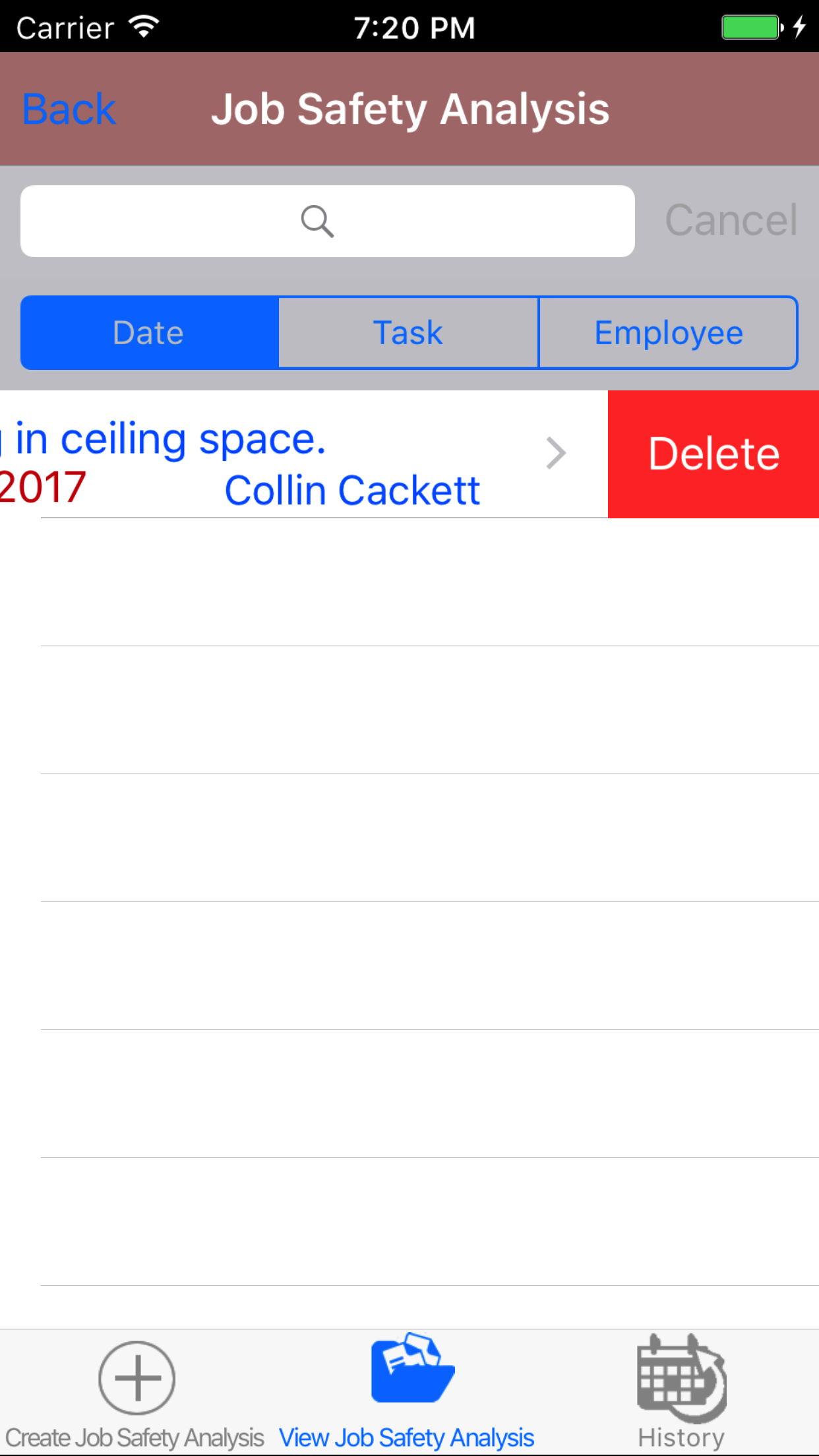
criteria and click the Search button.
- Scroll the list of Job Safety Analysis until the desired Job Safety Analysis is displayed on the screen.
- Swipe from the right edge to the left to bring up the delete button for the job safety analysis.
- Tap the Delete button. The job safety analysis will be deleted.
|
|
| Steps 1-4 |
|
|
35.View Closed Out Job Safety Analysis |
|
After Job Safety Analysis have been closed out, they will be available to look at through the History view on the iPhone Application
Once on the Job Safety Analysis section
Steps
|
|
|
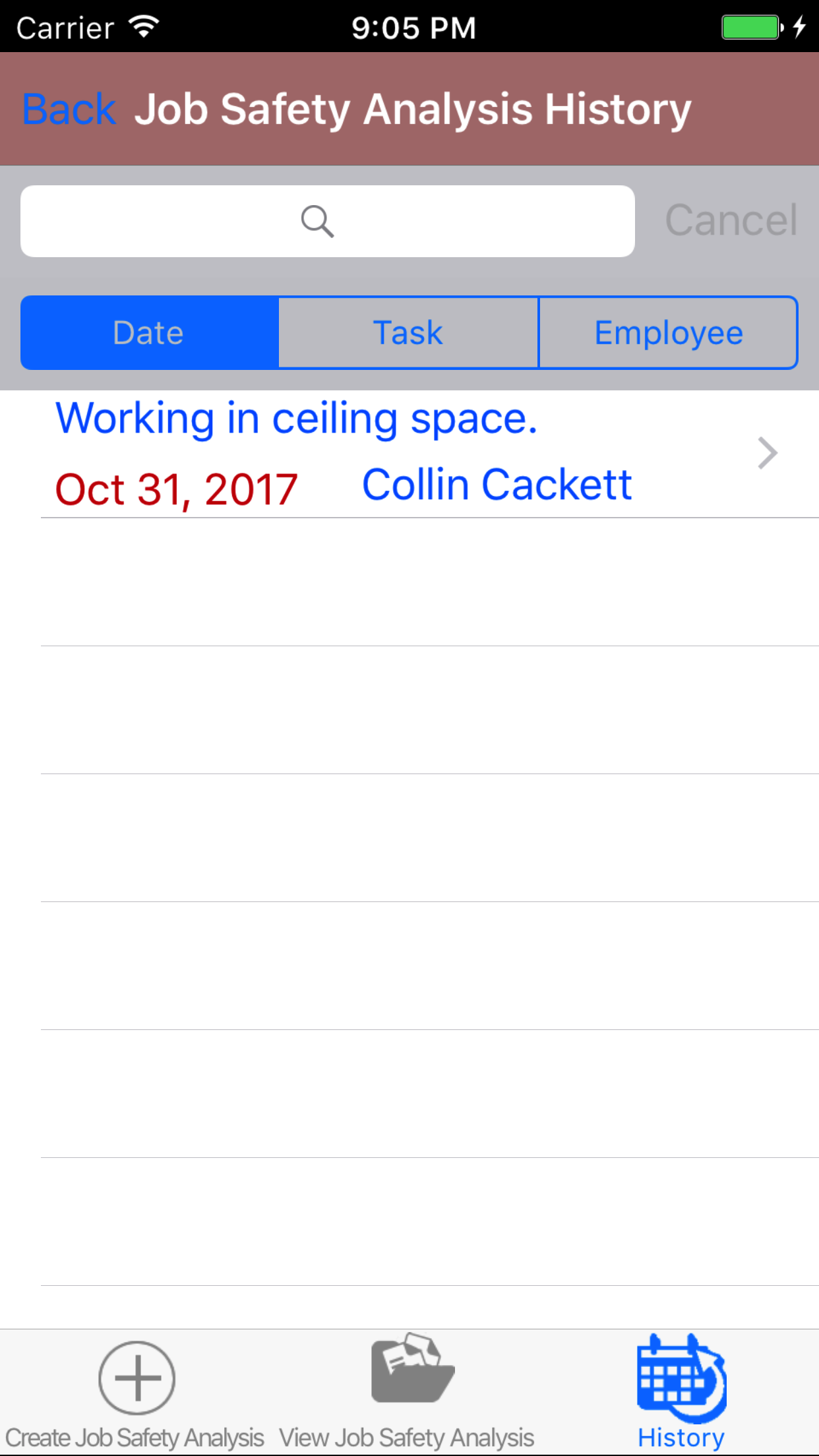
- Tap the third tab on the menu, the History tab of the main menu view. This loads with a list of the closed out Job
Safety Analysis listing the the task in blue text, employee who developed the analysis in blue text, date of the Job Safety Analysis in red text.
To Search Job Safety Analysis: Pull down on the list view, the search is defaulted to search by date enter the date in following
format YYYY-MM-DD. The other options for the Job Safety Analysis search are by task and employee last name. Enter your search
criteria and click the Search button.
- Scroll the list of Job Safety Analysis until the desired Job Safety Analysis is displayed on the screen.
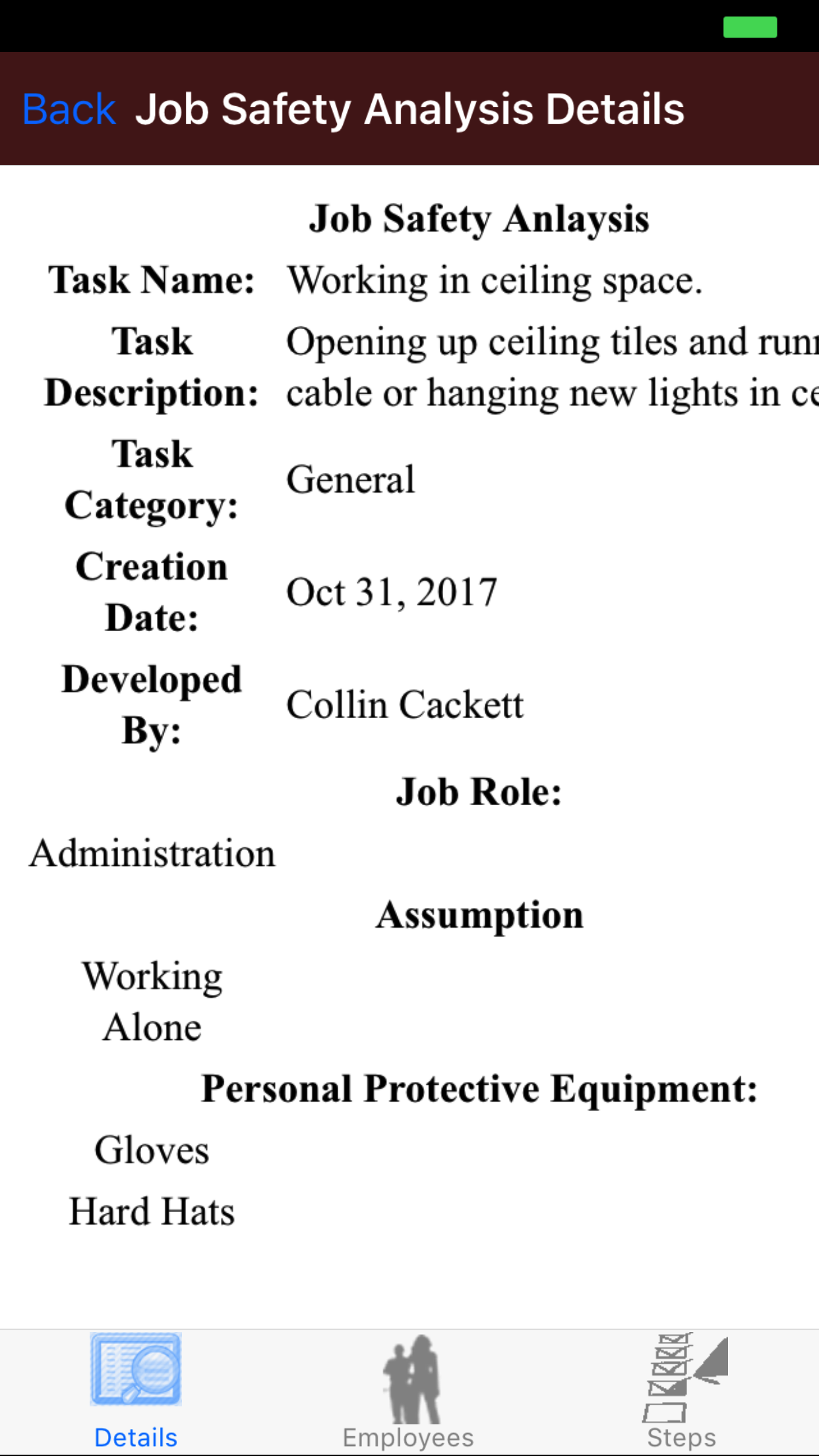
- Tap on the Job Safety Analysis you would like to view. This loads the first tab, the Job Safety Analysis details tab of the History view.
It loads the following details including date, task information, employee whom developed the analysis, the job roles, assumptions and personal protective equipment recommended.
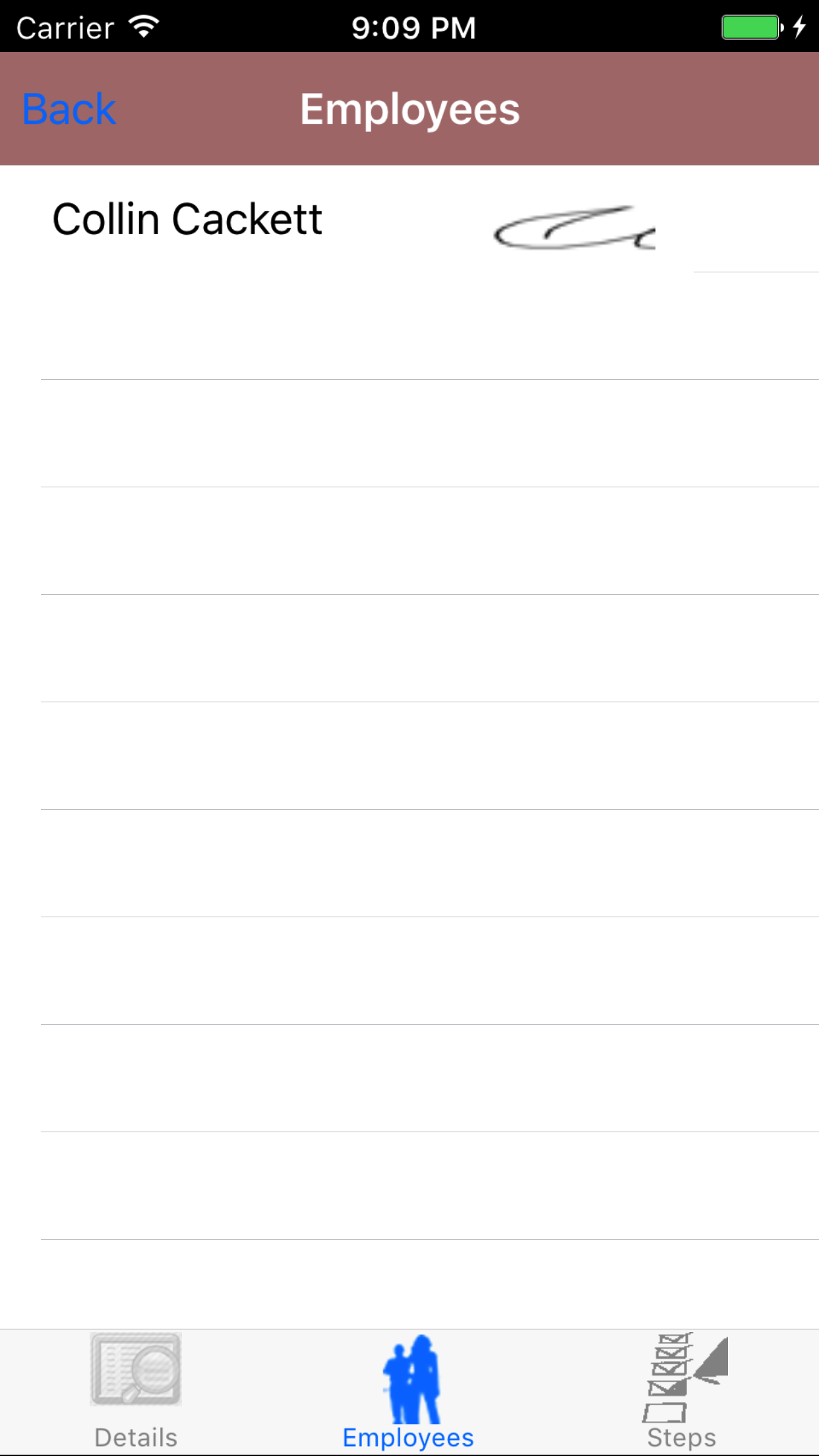
- Tap the second tab, the Employee's tab of the History view. This loads with the employee’s names and their signatures
of the employees who have taken part in the development of the analysis.
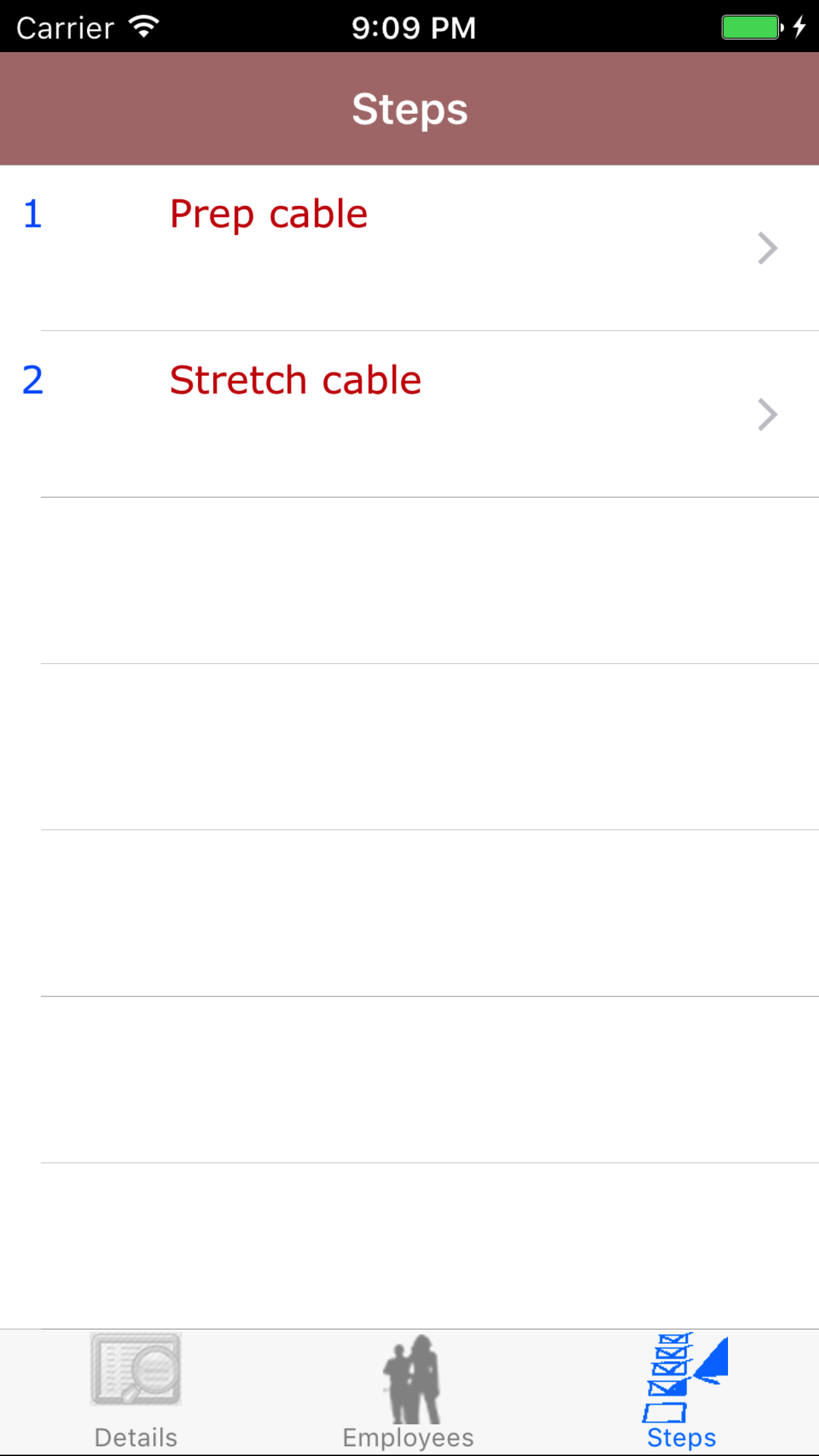
- Tap the third tab, the Steps tab of the History view. This loads the list of the Steps that were added for the Job Safety Analysis,
listing the step name and the step number of all the steps.
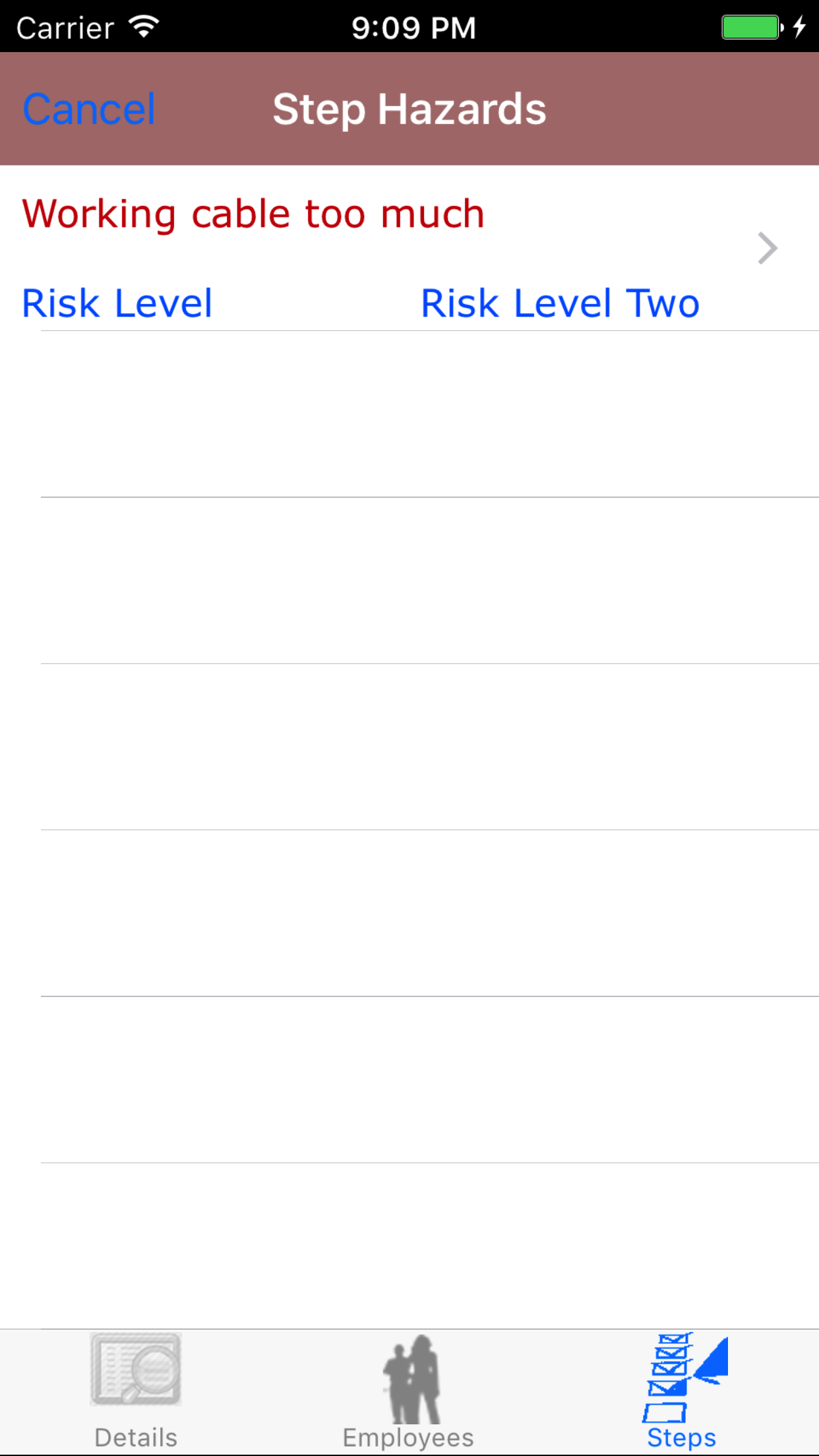
- Tap on a Steps, to load the Steps Hazard view. This loads the list of Step Hazards of a Step, displaying the hazard description, and the risk level of each task hazard.
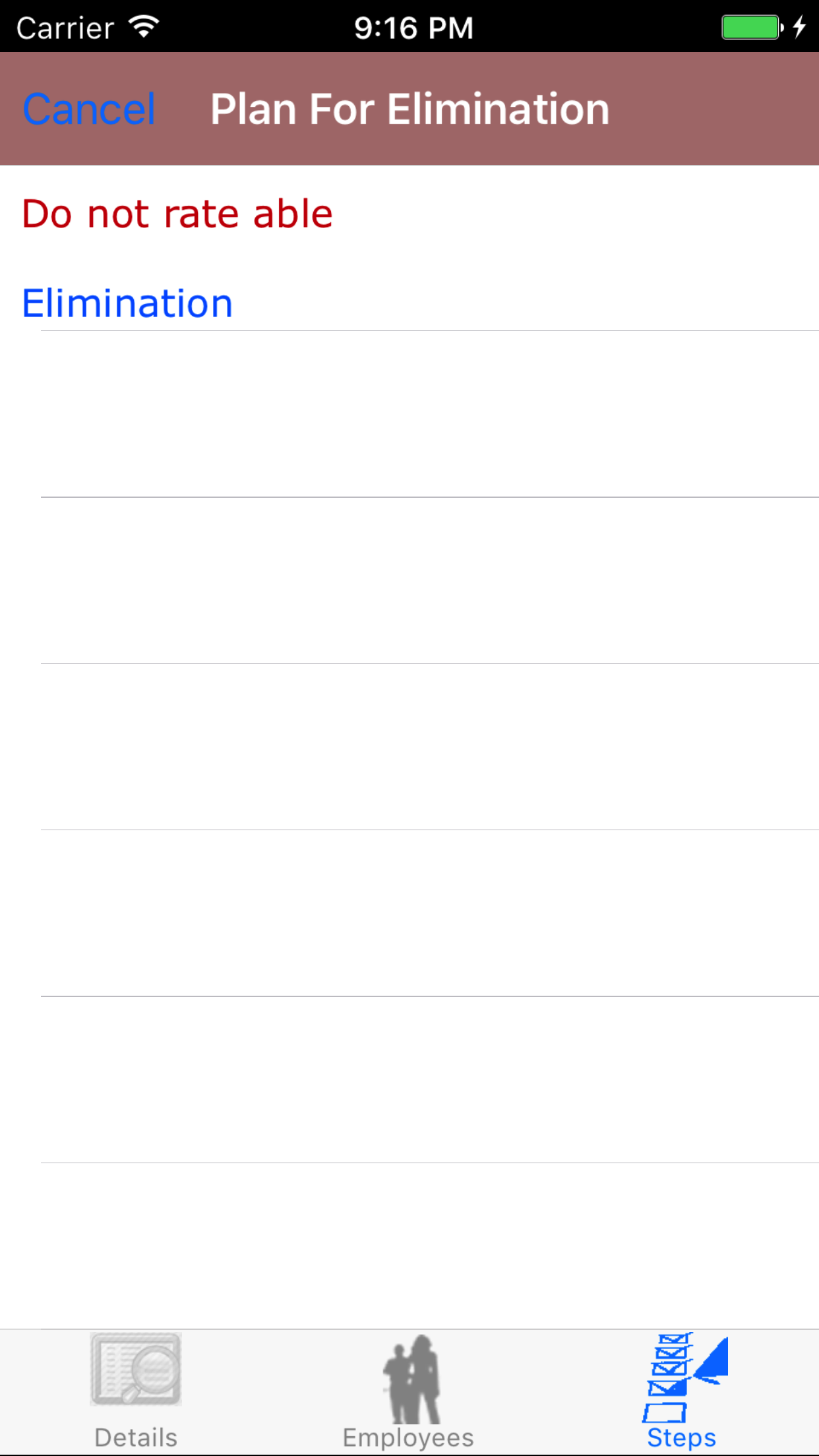
- Tap on a Step Hazard, to load the Plans for Elimination view. This loads the list of Plans for Elimination of a Task Hazard,which displays, the plan for elimination and, hazard control type name.
|
|
| Steps 1-2 |
|
|
|
|
| Step 3 |
|
|
|
| Step 4 |
|
|
|
| Step 5 |
|
|
|
| Step 5.a |
|
|
|
| Step 5.b |
|
|
|
36.Update Job Safety Analysis |
|
As other field staff create job safety analysis and include other field staff on their job safety analysis staff will
have to update their phones in order to have a copy of their updated job safety analysis on their phone.
Steps
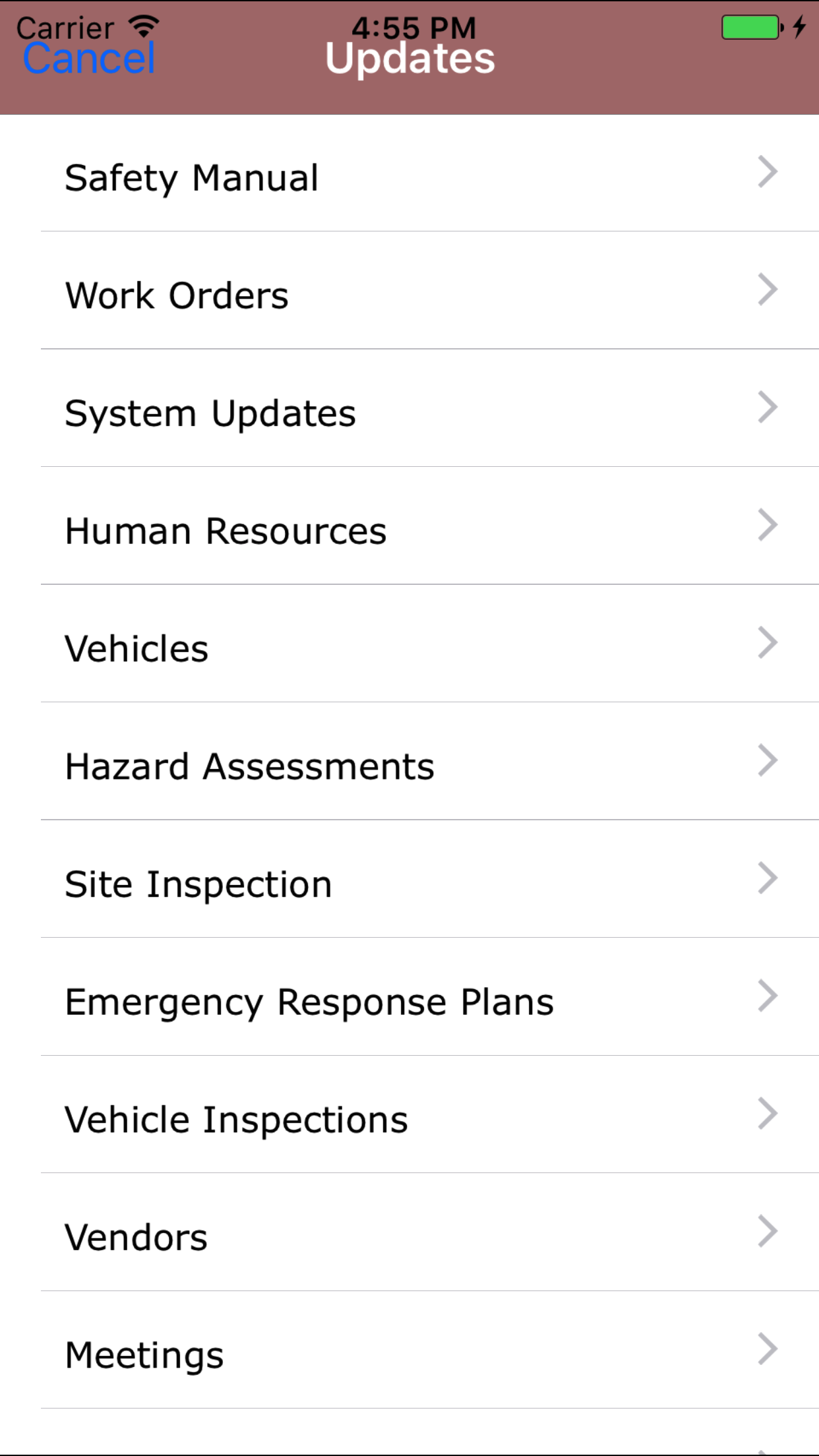
- From the Menu screen, tap the Updates button.
- Scroll the list of sections until you find the Job Safety Analysis button.
- Tap on the Job Safety Analysis button.
|
|
|
|
| Step 1 |
|
|
| Step 2 |
|
|