|
The job site section in the IPhone application allows field staff to quickly view a companies list of job sites and if your company has
entered job sites locations you will be able to view on a map, the locations of job site. This feature is good for new field staff that are
not aware where job site's are located. This will improve safety as field staff will have a clear idea where a job site is and will not
be confused while driving.
Configuring Company Job Sites
Companie's need to manage the list of Job Sites. R & T Electric Pro's allows companies to manage a companies job sites.
Management, Office Staff and Safety Officers can edit the the list of Job Site's For more information about configuring your
job sites in this manual click here to view the job site section.
|
|
|
1.View List of Job Site |
|
Job sites can be viewed through the R & T Electric Pro IPhone Application.
Steps
- From the Menu screen, tap the Company button.
- Then tap on the Job Site button to open the Job Site screen.
- This loads with a list of the job sites listing the job site names in red text,
address in blue text and if the job sites location has been entered a information
icon will show up on the right side of the row.
To Search Job Sites: Pull down on the list view, the search is defaulted to search by job site name.
The other option for the Job Site search is by customer name. Enter your search
criteria and click the Search button.
- Scroll the list of job sites until the desired job site is displayed on the screen.
As the job site change on a constant basis as the work being done changes, with new job sites added and map locations. The IPhone App
will need to be updated. To do so follow the steps in the Update Job Sites section
|
|
|
2.View Job Site on Map |
|
Job Sites that have their map coordinates entered in R & T Electric Pro can be viewed on the map through the R & T Electric Pro IPhone Application.
Steps
- From the Menu screen, tap the Company button.
- Then tap on the Job Site button to open the Job Site screen.
- This loads with a list of the job sites listing the job site names in red text,
address in blue text and if the job sites location has been entered a information
icon will show up on the right side of the row.
- Scroll the list of job sites until the desired job site is displayed on the screen. Job Sites with a information icon can be viewed on the map.
- Tap on the Job Site you would like to view. This opens the map with a pins on the locations of the job site's for the customer.
As the job site change on a constant basis as the work being done changes, with new job sites added and map locations. The IPhone App
will need to be updated. To do so follow the steps in the Update Job Sites section
|
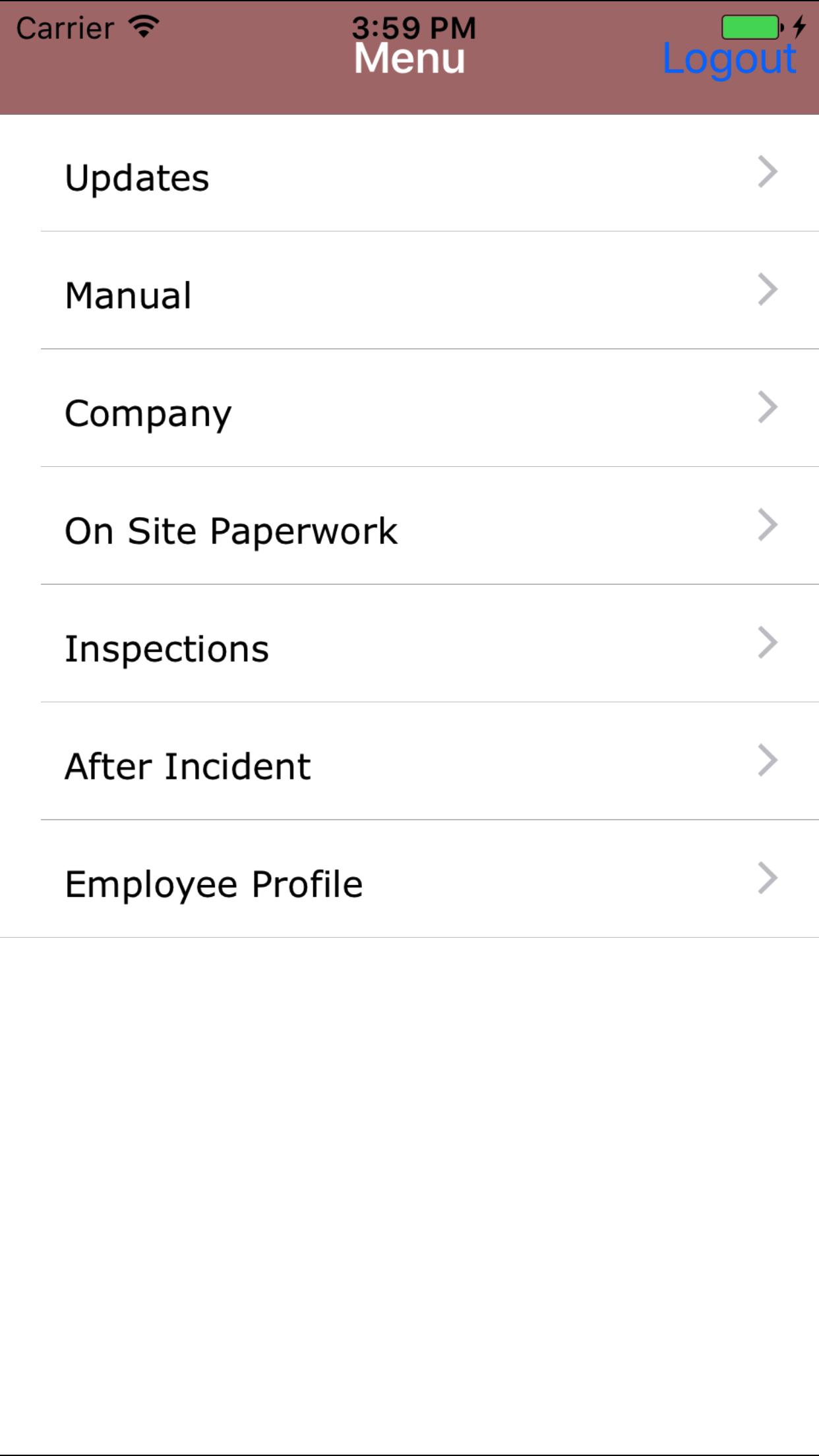
|
| Step 1 |
|
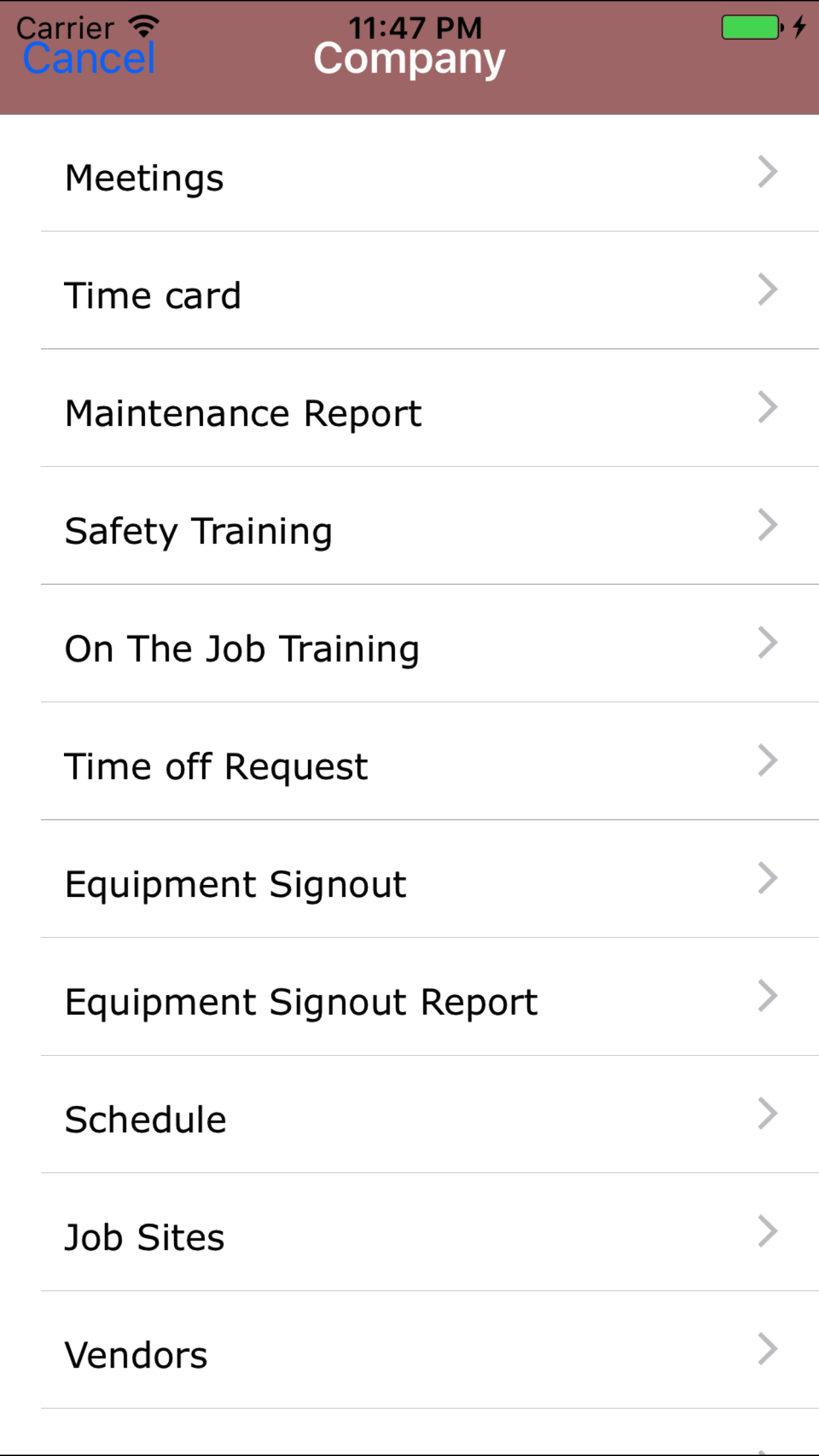
|
| Step 2 |
|
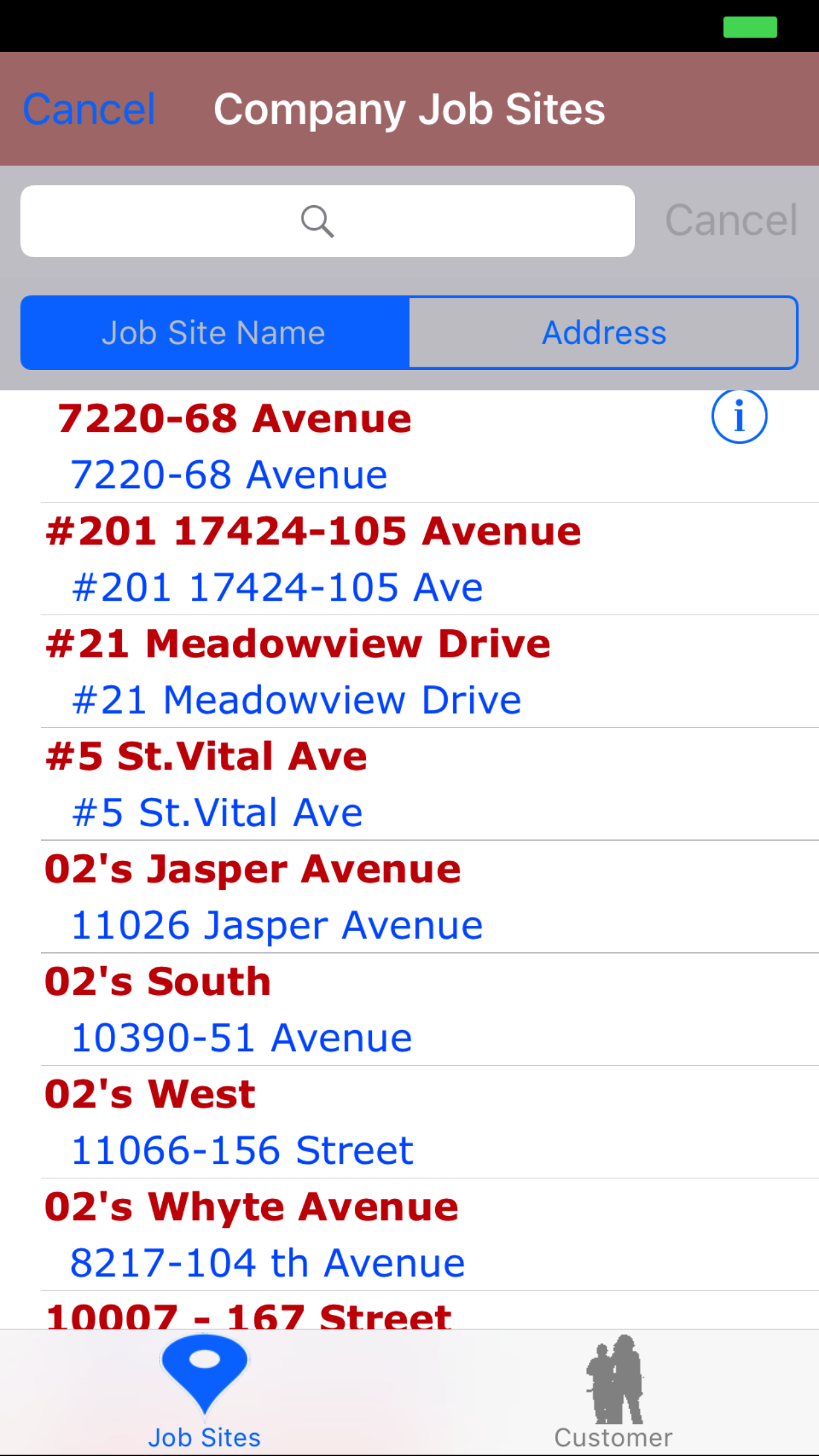
|
| Steps 3-4 |
|
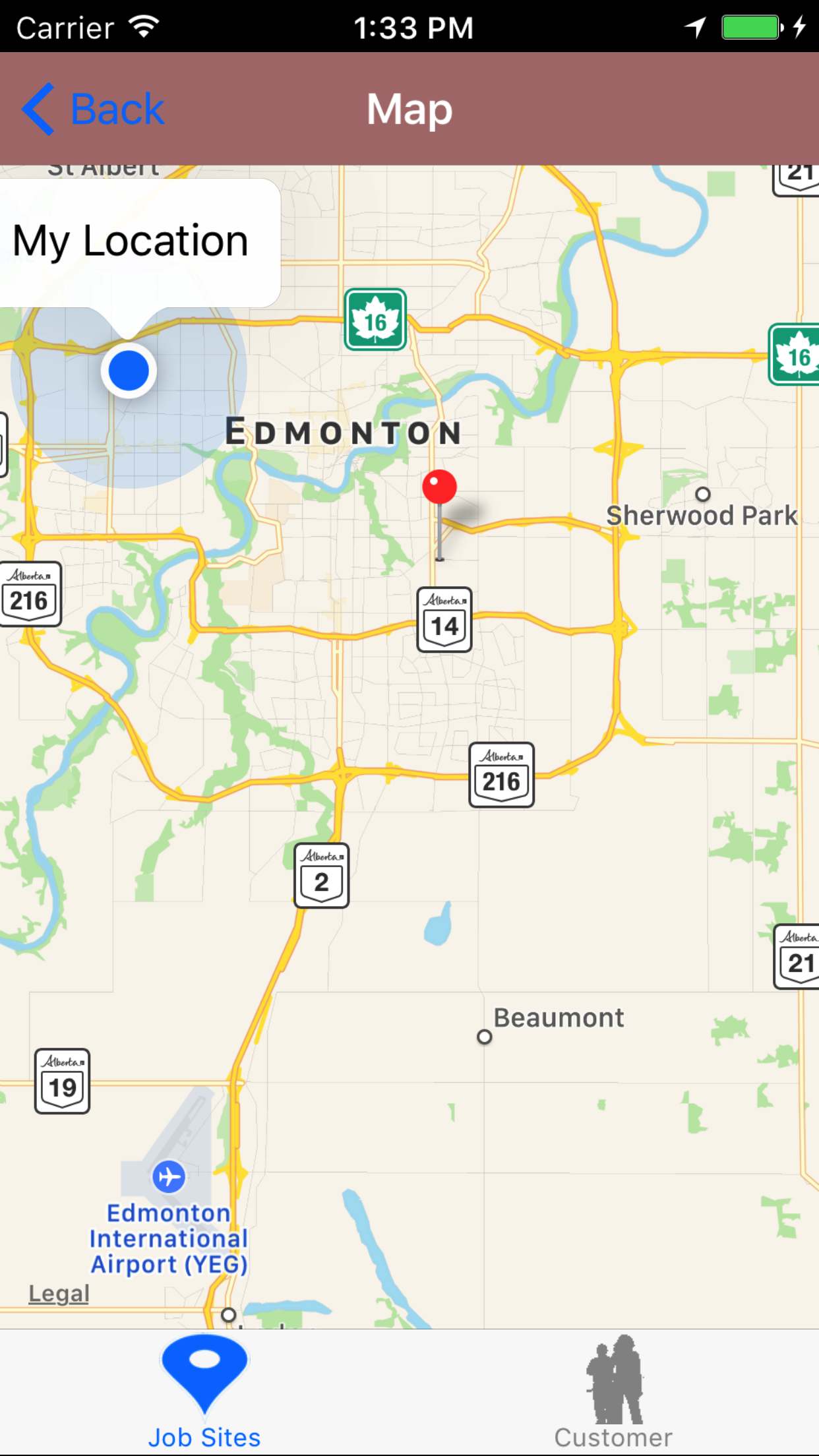
|
| Step 5 |
|
|
3.View Customer Job Sites on Map |
|
Job Sites that have their map coordinates entered in R & T Electric Pro can be viewed on the map through the R & T Electric Pro IPhone Application.
Steps
- From the Menu screen, tap the Company button.
- Then tap on the Job Site button to open the Job Site screen.
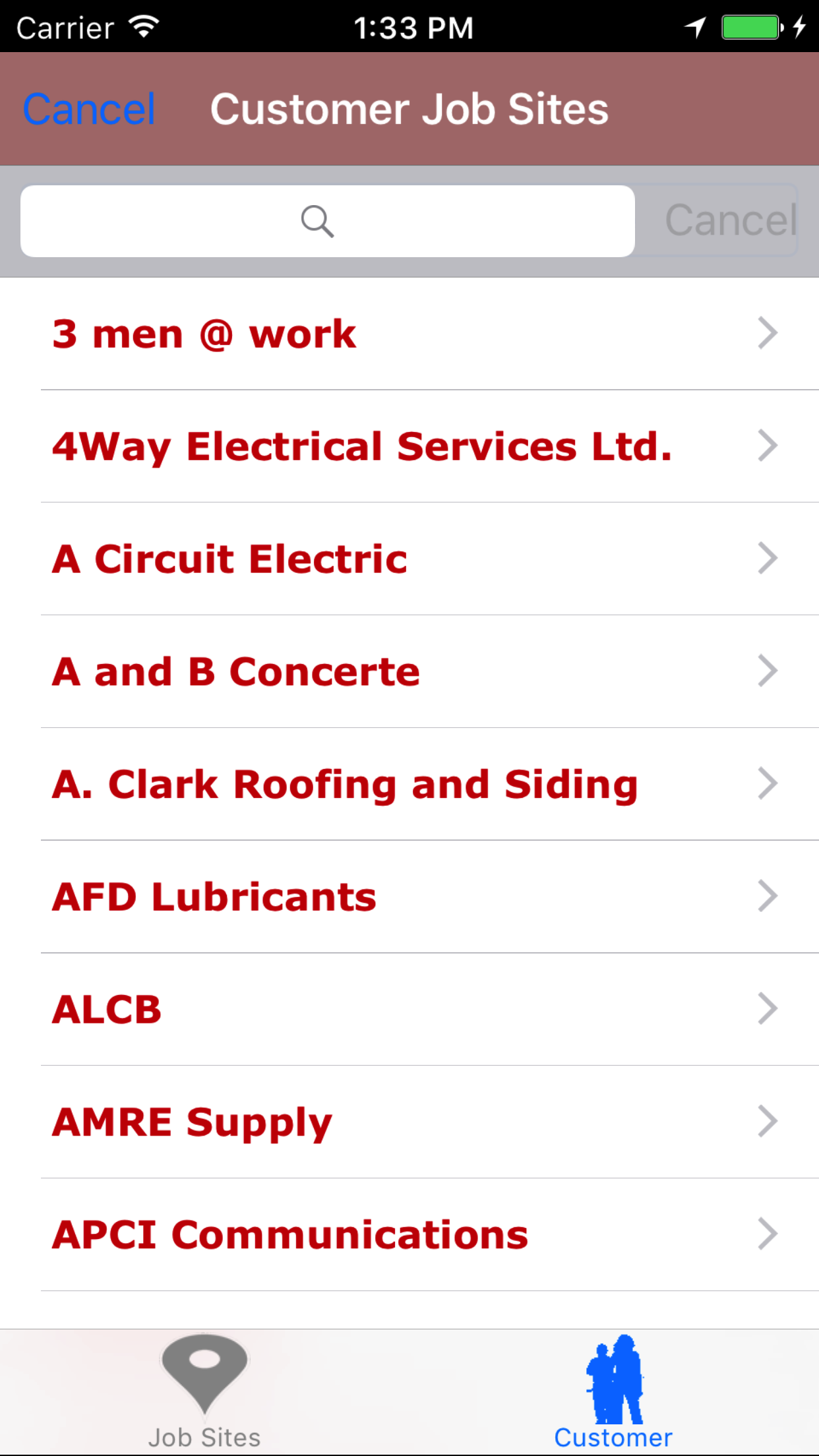
- Tap the second tab, the customers tab.
- This loads with a list of the customers listing the customer names in red text.
To Search Customers: Pull down on the list view, the search by customer name.
Enter your search criteria and click the Search button.
- Scroll the list of customers until the desired customer is displayed on the screen.
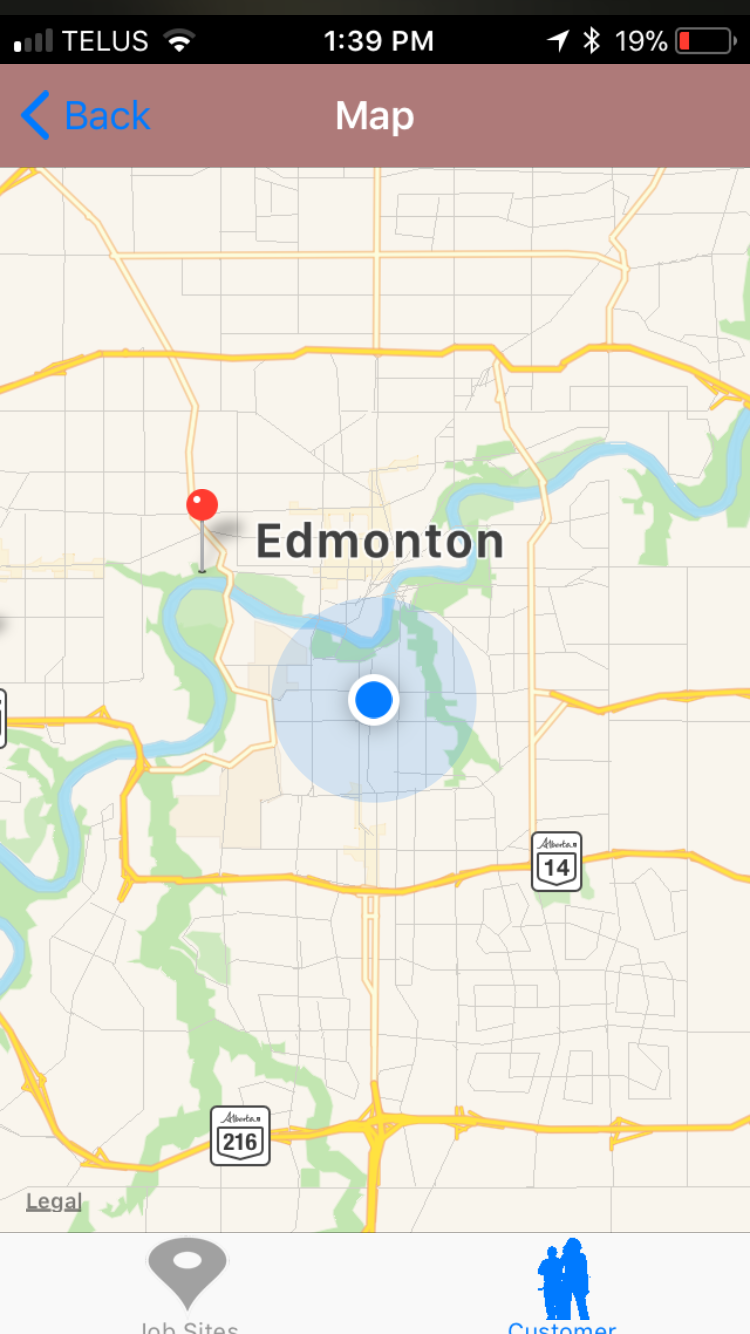
- Tap on the Customer you would like to view. This opens the map with a pin on the location of the job site.
As the job site change on a constant basis as the work being done changes, with new job sites added and map locations. The IPhone App
will need to be updated. To do so follow the steps in the Update Job Sites section
|
|
|
| Step 1 |
|
|
|
| Step 2 |
|
|
| Steps 3-4 |
|
|
| Step 5 |
|
|
4.Update Job Site |
|
As the job site change on a constant basis as the work being done changes and as job site map coordinates are added to R & T Electric Pro.
The iPhone App will need to be updated.
Steps
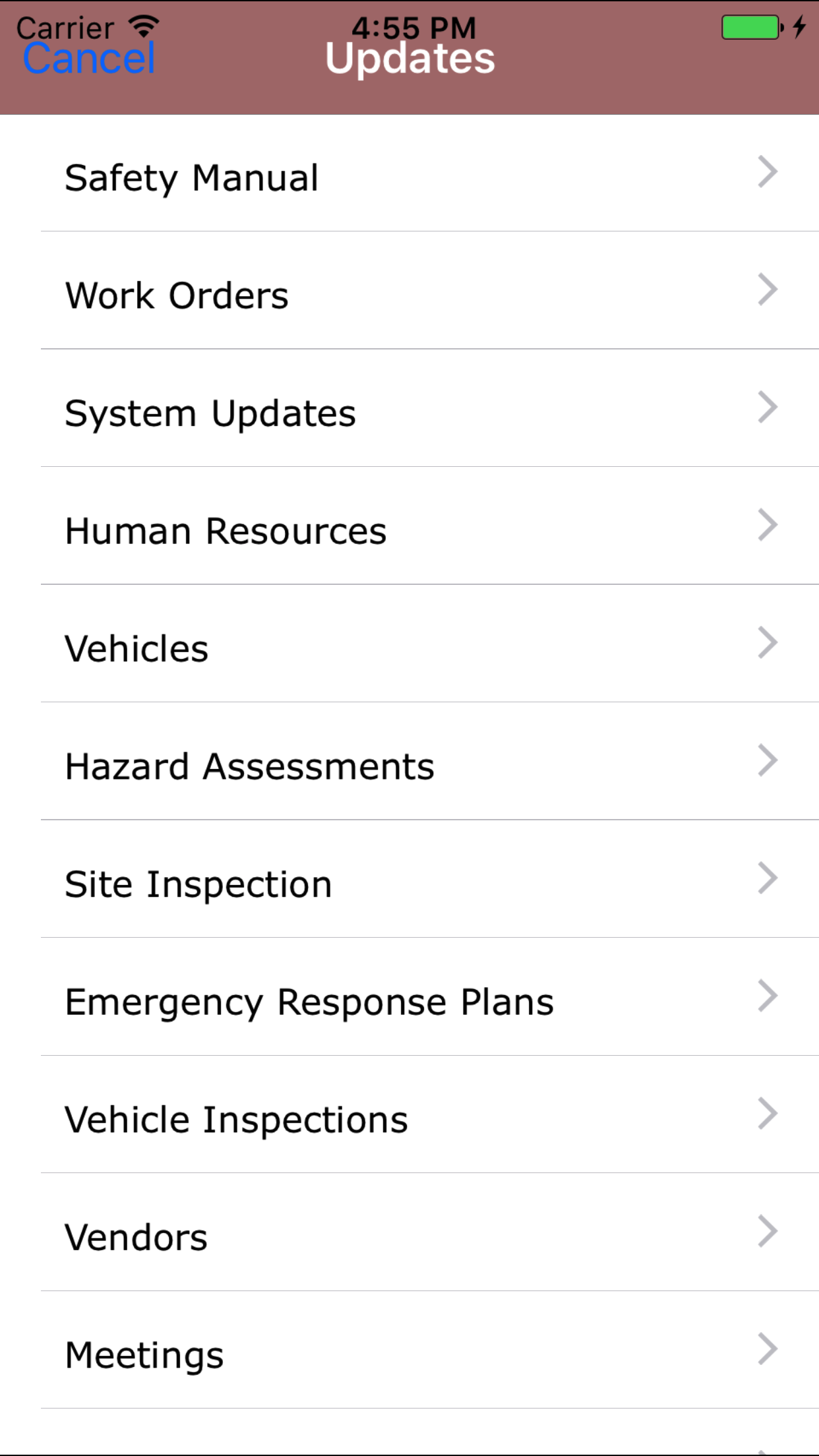
- From the Menu screen, tap the Updates button.
- Scroll the list of sections until you find the Work Order button.
- Tap on the Vendor button.
|
|
|
|
| Step 1 |
|
|
| Step 2 |
|
|
