|
The material safety data sheets section in the IPhone application allows companies to manage the list of controlled products on each job sites. For each controlled
product field staff to download the Material Safety Data Sheets (Which will be referred to as MSDS for the rest of the document) for each controlled product.
One of the most important questions of any safety audits is always, do field staff have access to the MSDS on the job site for controlled products on site? If your safety
program is managed through Safety Net the answer is always Yes, because every field staff will have the material safety data sheets in Smartphone application.
Configuring Company Material Safety Data Sheets for Job Sites
Companine's need to manage the list of controlled products on each Job Site and provide field staff access to the MSDS for each product. R & T Electric Pro's allows companies
to manage what controlled products are assigned to each Job Site.
Management, Office Staff and Safety Officers can edit the the list of controlled products are on each JobSite. For more information about configuring your
company MSDS in this manual click here to view the company MSDS section.
|
|
|
1.View List of MSDS for Company Job Site |
|
MSDS can be viewed through the R & T Electric Pro iPhone Application.
Steps
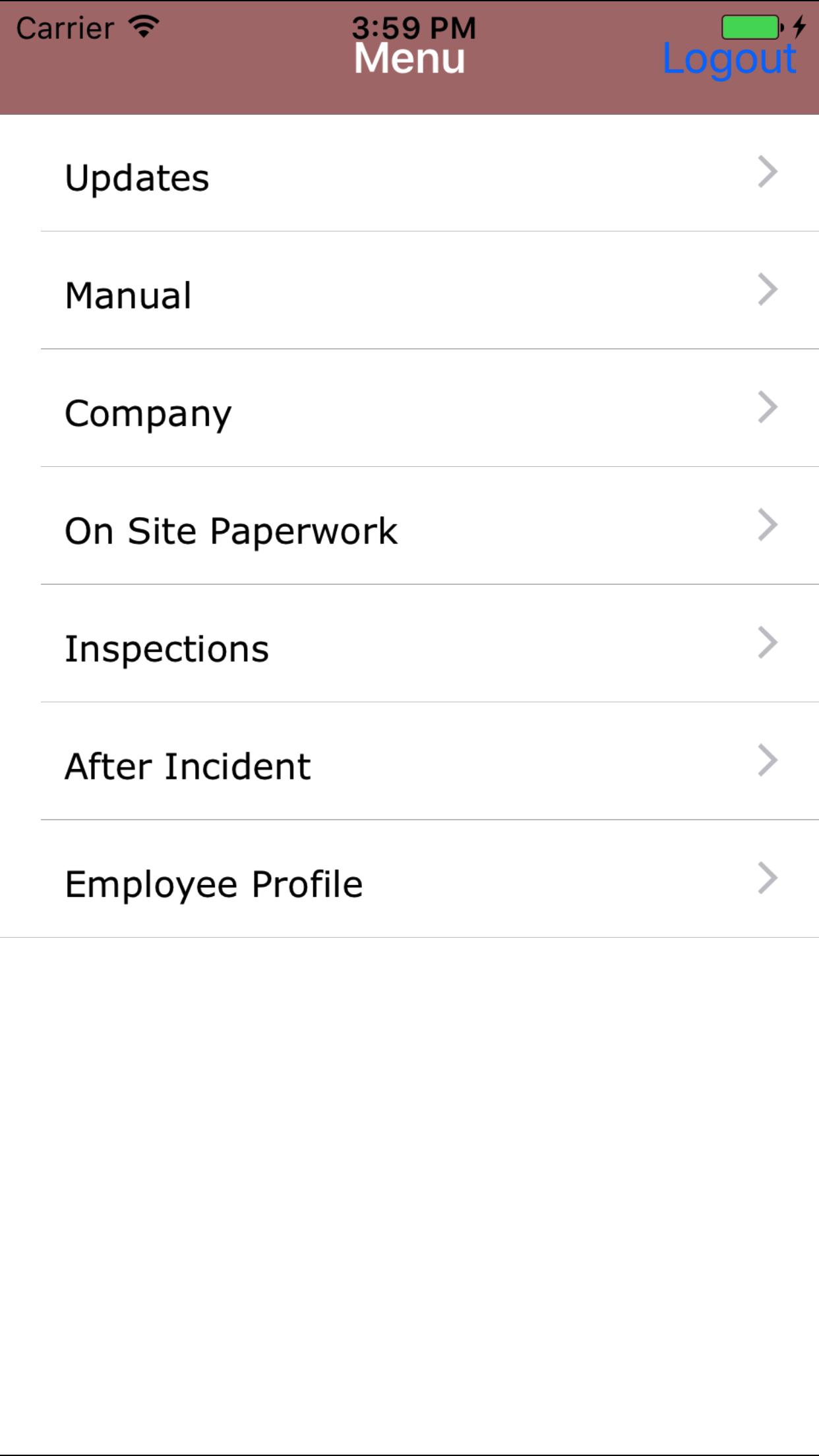
- From the Menu screen, tap the Manual button.
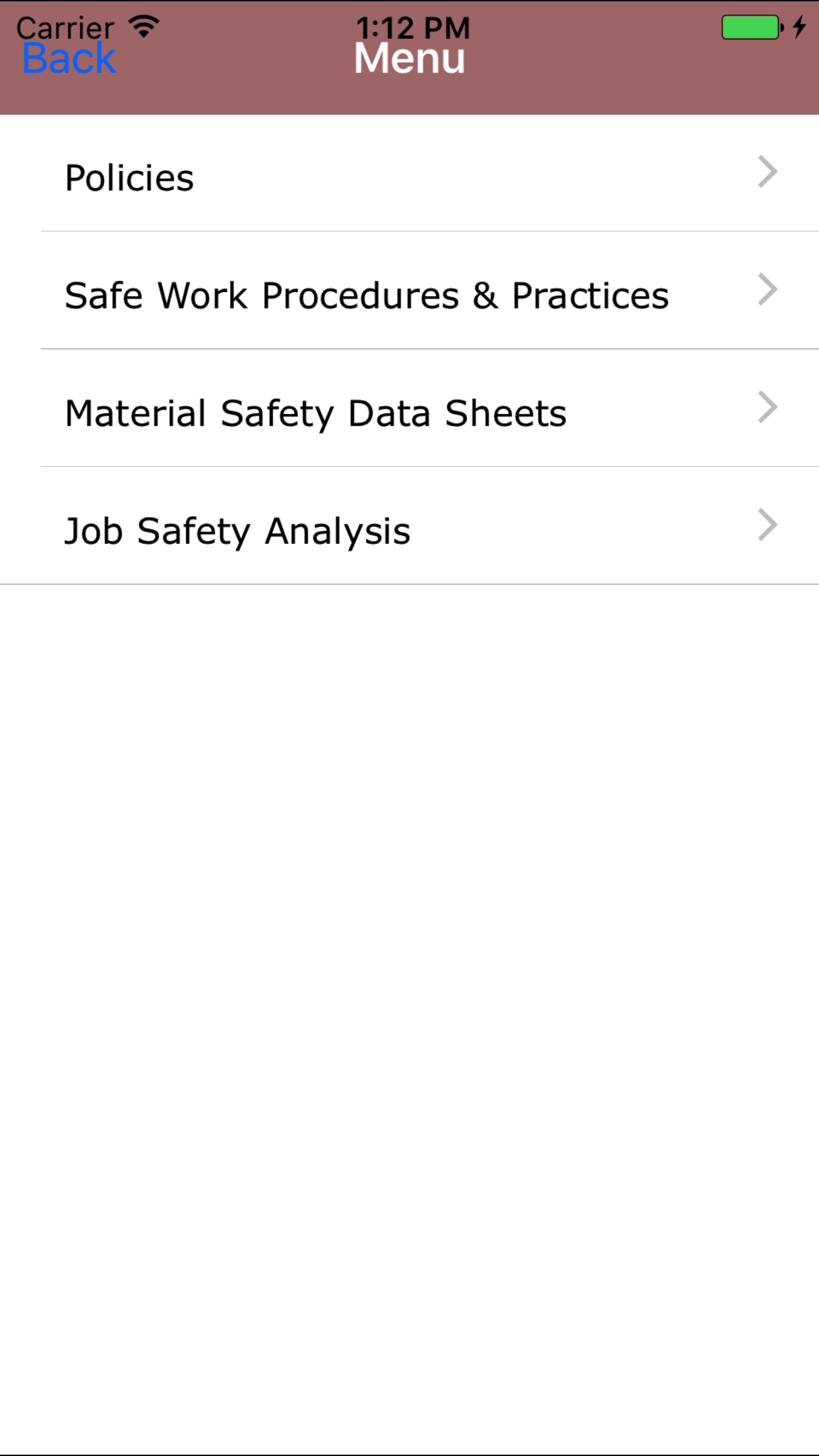
- Then tap on the Material Safety Data Sheets button to open the Material Safety Data Sheets screen.
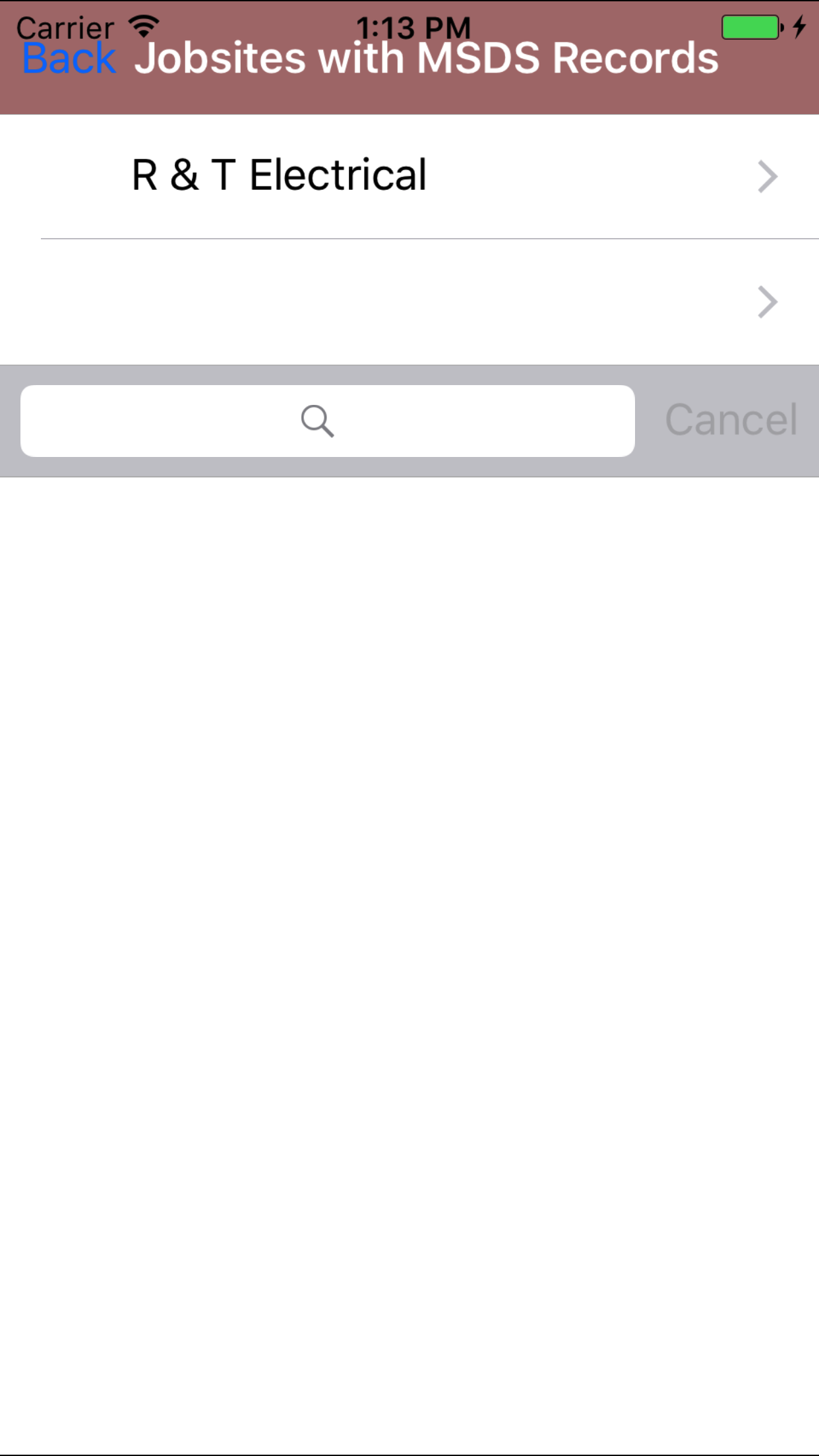
- This loads with a list of the company job sites listing the job site names in black.
To Search Job Sites: Pull down on the list view, the search is by job site name.
Enter your search
criteria and click the Search button.
- Scroll the list of job sites until the desired job site is displayed on the screen.
As the controlled products on each job site change on a constant basis as the work being done changes. The list of controlled products of which
need MSDS for. The IPhone App will need to be updated. To do so follow the steps in the Update Material Safety Data Sheets section
|
|
|
2.View MSDS Information |
|
MSDS information can be viewed through the R & T Electric Pro IPhone Application.
Steps
- From the Menu screen, tap the Manual button.
- Then tap on the Material Safety Data Sheets button to open the Material Safety Data Sheets screen.
- This loads with a list of the company job sites listing the job site names in black.
To Search MSDS Sheets: Pull down on the list view, the search is defaulted to search by product name.
The other options for the MSDS Sheet search are by supplier and product type. Enter your search
criteria and click the Search button.
- Scroll the list of job sites until the desired job site is displayed on the screen.
- Tap on the Job Site you would like to view. This loads with:
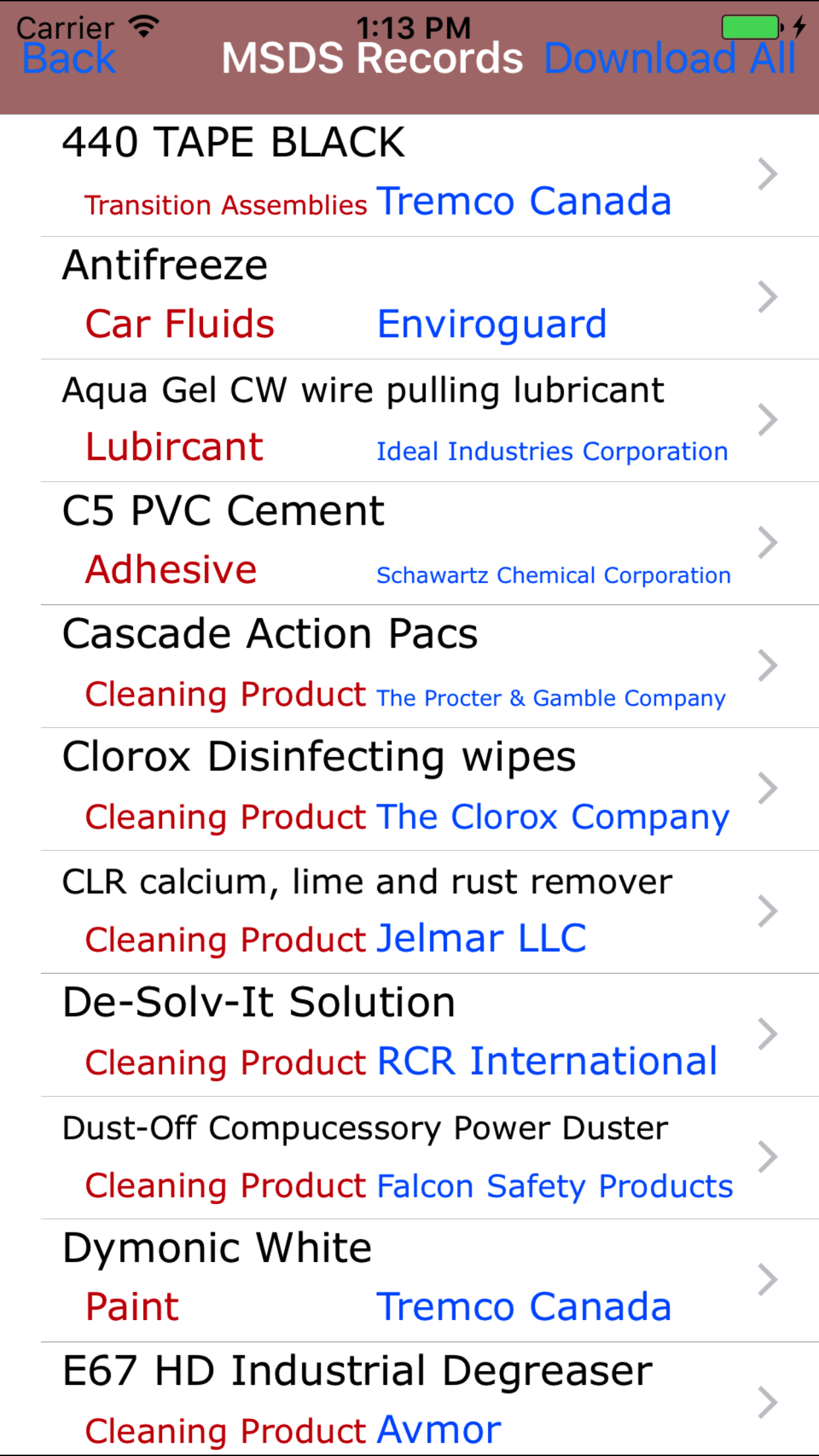
- This loads with a list of the controlled products on the selected job site listing the controlled product
names in black, the product type in red and supplier in blue.
- Scroll the list of controlled product until the desired controlled product is displayed on the screen.
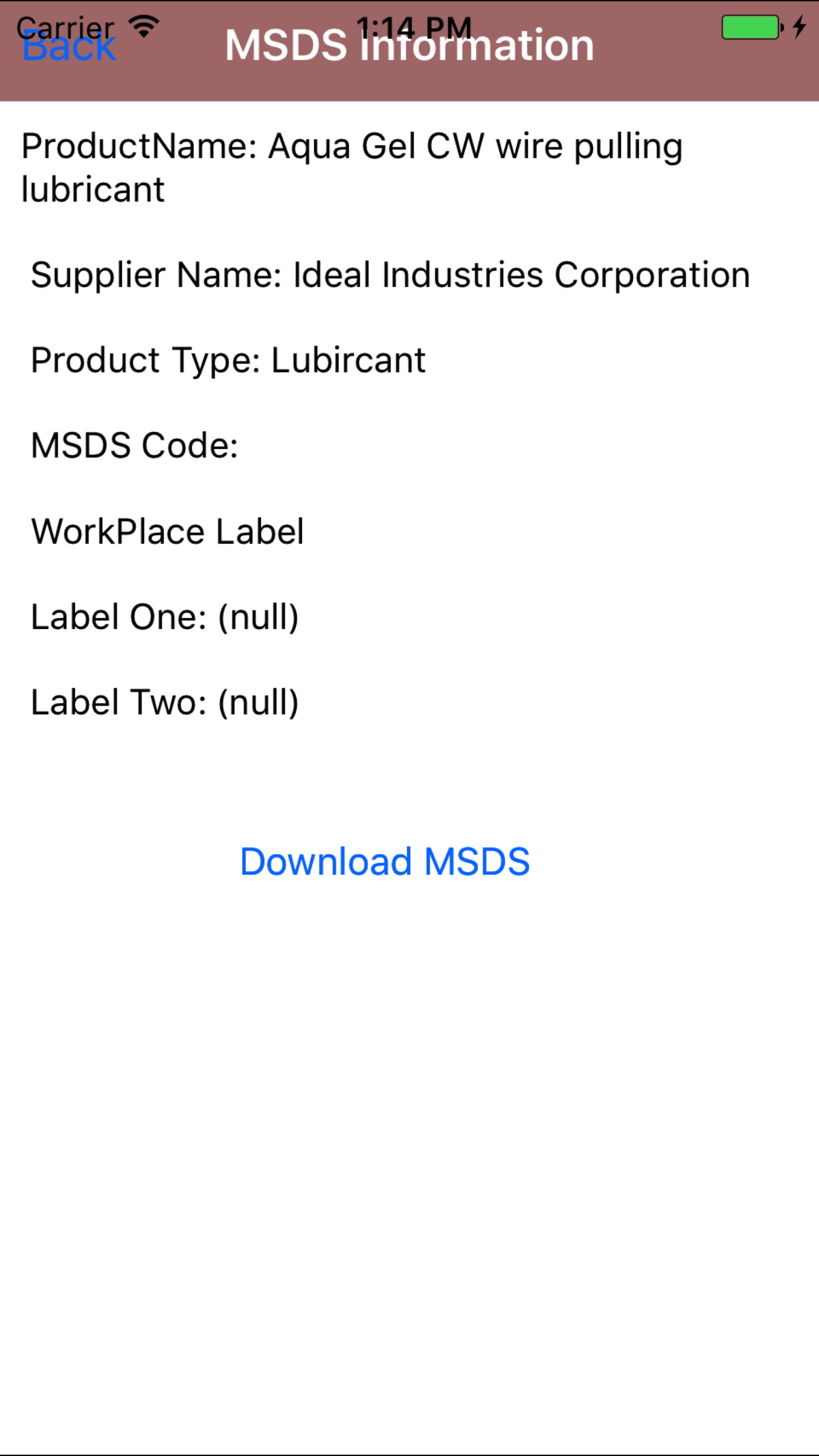
- Tap on the Controlled Product you would like to view. This loads with:
- Product Name
- Supplier Name
- Product Type
- MSDS Code
- The 3 Work Place labels
- R & T Electric Pro will list for field staff the 3 work place labels that are recommended to appear on a work place label
As the controlled products on each job site change on a constant basis as the work being done changes. The list of controlled products of which
need MSDS for. The IPhone App will need to be updated. To do so follow the steps in the Update Material Safety Data Sheets section
|
|
| Step 1 |
|
|
| Step 2 |
|
|
| Steps 3-5 |
|
|
| Steps 6-7 |
|
|
| Step 8 |
|
|
3.Download MSDS PDF |
|
MSDS PDF can be download through the R & T Electric Pro iPhone Application.
Steps
- From the Menu screen, tap the Manual button.
- Then tap on the Material Safety Data Sheets button to open the Material Safety Data Sheets screen.
- This loads with a list of the company job sites listing the job site names in black.
- Scroll the list of job sites until the desired job site is displayed on the screen.
- Tap on the Job Site you would like to view. This loads with:
- This loads with a list of the controlled products on the selected job site listing the controlled product
names in black, the product type in red and supplier in blue.
- Scroll the list of controlled product until the desired controlled product is displayed on the screen.
- Tap on the Controlled Product you would like to view. This loads with:
- Product Name
- Supplier Name
- Product Type
- MSDS Code
- The 3 Work Place labels
- R & T Electric Pro will list for field staff the 3 work place labels that are recommended to appear on a work place label
- Tap the blue Download button to download the MSDS pdf file.
As the controlled products on each job site change on a constant basis as the work being done changes. The list of controlled products of which
need MSDS for. The IPhone App will need to be updated. To do so follow the steps in the Update Material Safety Data Sheets section
|
|
|
| Step 1 |
|
|
|
| Step 2 |
|
|
|
| Steps 3-5 |
|
|
|
| Steps 6-7 |
|
|
|
| Steps 8-9 |
|
|
4.Download All MSDS PDF |
|
MSDS PDF can be download through the R & T Electric Pro IPhone Application.
Steps
- From the Menu screen, tap the Manual button.
- Then tap on the Material Safety Data Sheets button to open the Material Safety Data Sheets screen.
- This loads with a list of the company job sites listing the job site names in black.
- Scroll the list of job sites until the desired job site is displayed on the screen.
- Tap on the Job Site you would like to view. This loads with:
- This loads with a list of the controlled products on the selected job site listing the controlled product
names in black, the product type in red and supplier in blue.
- Tap on the blue Download All button in the top right corner to download all controlled products MSDS
As the controlled products on each job site change on a constant basis as the work being done changes. The list of controlled products of which
need MSDS for. The IPhone App will need to be updated. To do so follow the steps in the Update Material Safety Data Sheets section
|
|
|
| Step 1 |
|
|
|
| Step 2 |
|
|
|
| Steps 3-5 |
|
|
|
| Steps 6-7 |
|
|
5.View MSDS PDF |
|
MSDS PDF can be viewed through the R & T Electric Pro IPhone Application.
Steps
- From the Menu screen, tap the Manual button.
- Then tap on the Material Safety Data Sheets button to open the Material Safety Data Sheets screen.
- This loads with a list of the company job sites listing the job site names in black.
- Scroll the list of job sites until the desired job site is displayed on the screen.
- Tap on the Job Site you would like to view. This loads with:
- This loads with a list of the controlled products on the selected job site listing the controlled product
names in black, the product type in red and supplier in blue.
- Scroll the list of controlled product until the desired controlled product is displayed on the screen.
- Tap on the Controlled Product you would like to view. This loads with:
- Product Name
- Supplier Name
- Product Type
- MSDS Code
- The 3 Work Place labels
- R & T Electric Pro will list for field staff the 3 work place labels that are recommended to appear on a work place label
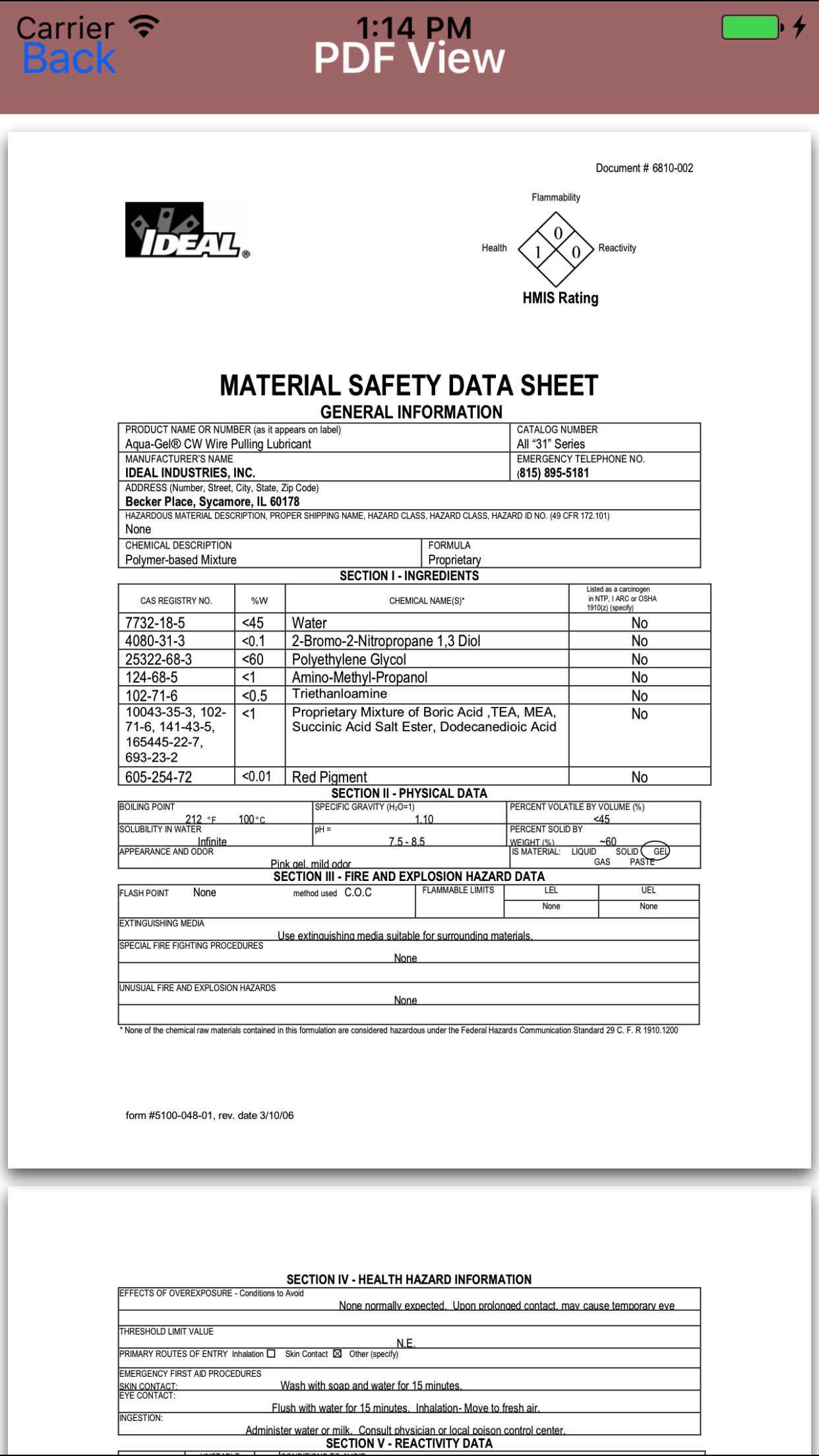
- Once the MSDS pdf file has been downloaded the blue view button will appear. Tap the blue View button
- This loads the PDF for the MSDS sheet of controlled product.
As the controlled products on each job site change on a constant basis as the work being done changes. The list of controlled products of which
need MSDS for. The IPhone App will need to be updated. To do so follow the steps in the Update Material Safety Data Sheets section
|
|
|
| Step 1 |
|
|
|
| Step 2 |
|
|
|
| Steps 3-5 |
|
|
|
| Step 6 |
|
|
|
| Step 7 |
|
|
| Step 8 |
|
|
6.Update Safety Manual |
|
As the controlled products on each job site change on a constant basis as the work being done changes. The list of controlled products of which
need MSDS for. The IPhone App will need to be updated.
Steps
- From the Menu screen, tap the Updates button.
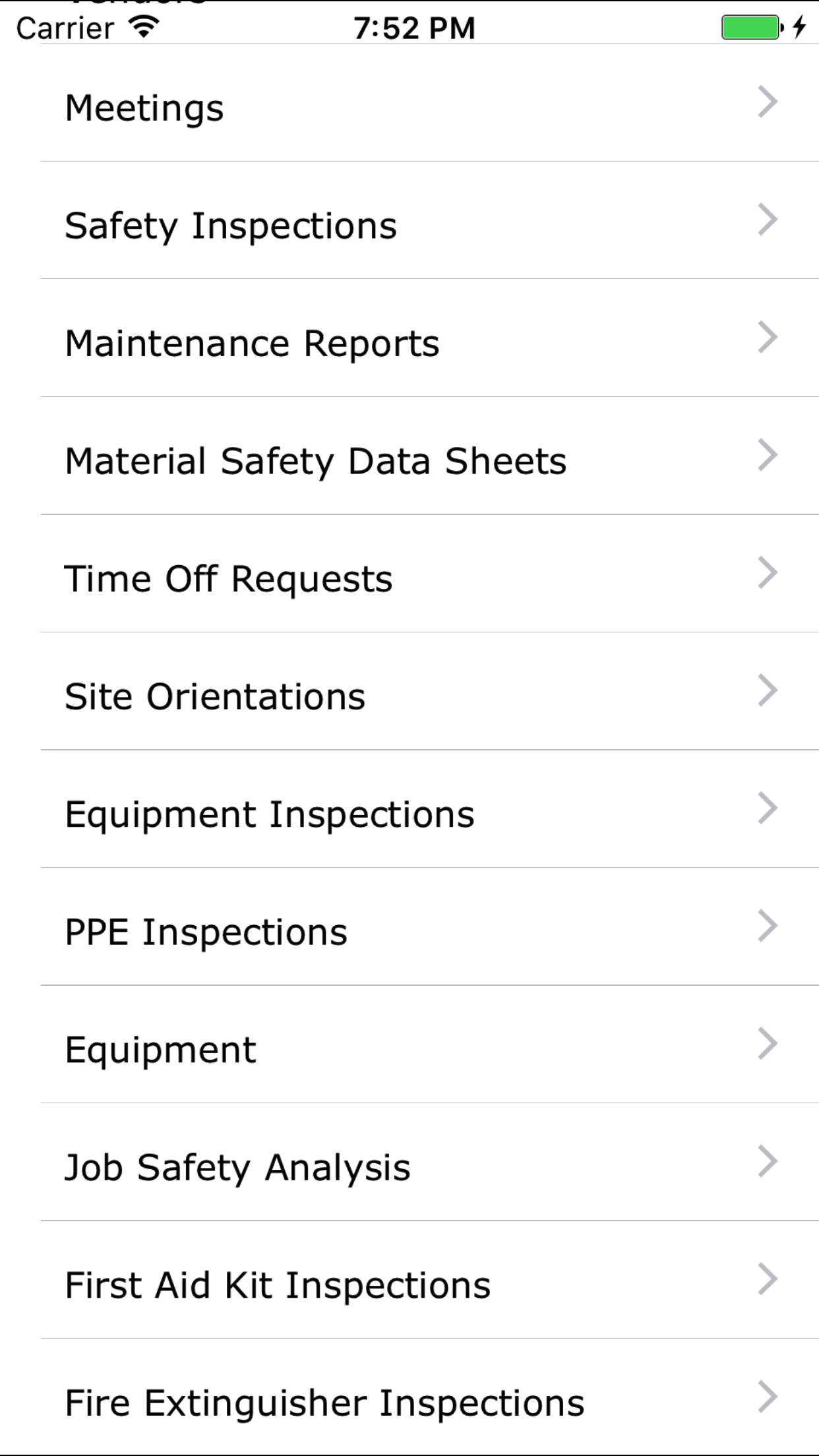
- Scroll the list of sections until you find the Material Safety Data Sheets button.
- Tap on the Material Safety Data Sheets button.
|
|
|
|
| Step 1 |
|
|
| Step 2 |
|
|
