|
The safety investigation section allows a user to input the results of safety investigations performed on job sites for a specific work order after. Safety Investigations will need to occur
when a company employee is involved in a safety incident.
- Safety incident is when employees is injured or requires first aid.
- Near Miss is when no employees are injured or property is damaged.
- Property Damage is when no employees are injured, but property is damaged.
- Spill or Release is when there is a spill or release on a site.
These safety investigation tasks is set up in eight sections
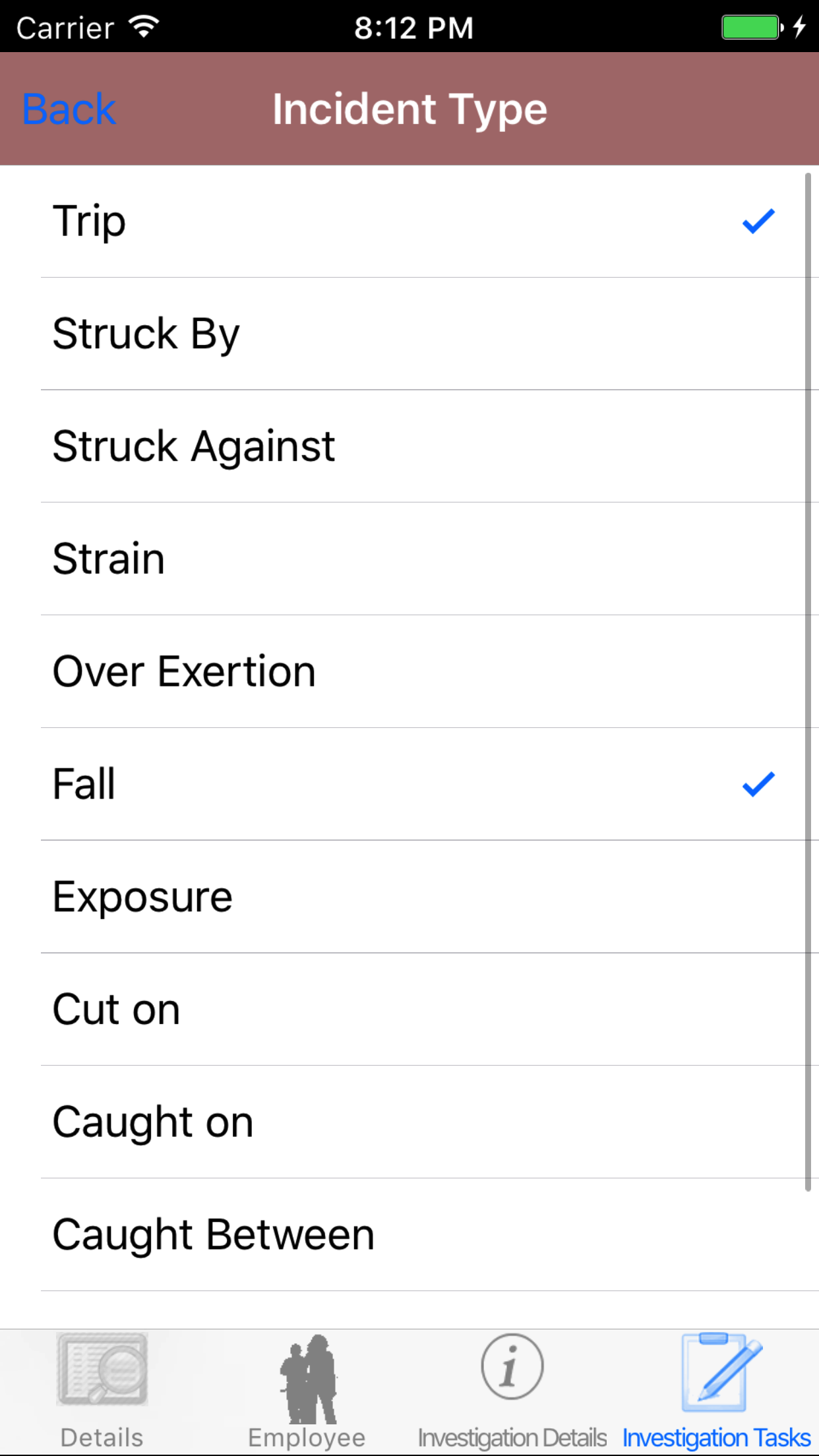
- Incident Type
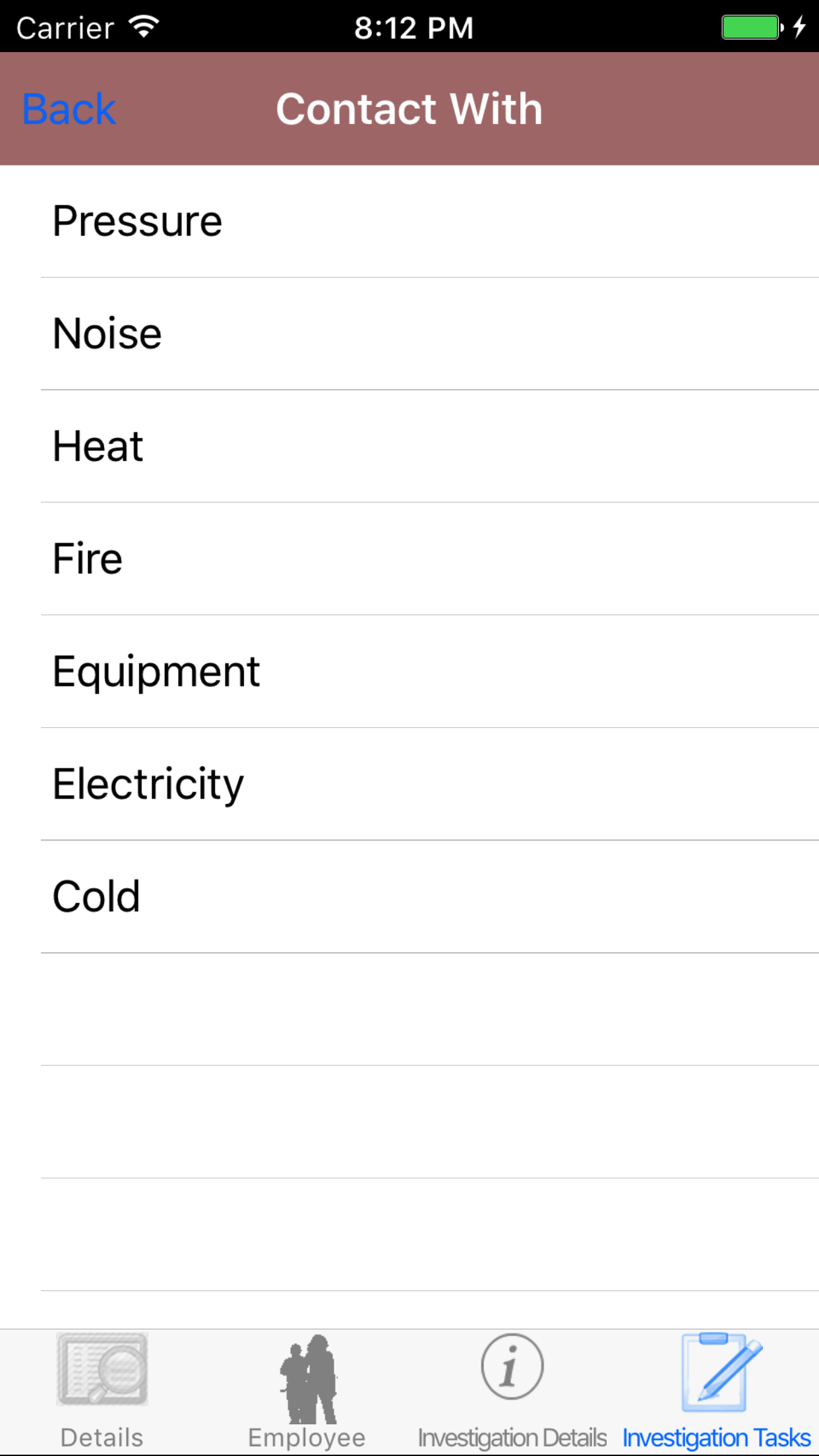
- Contact With
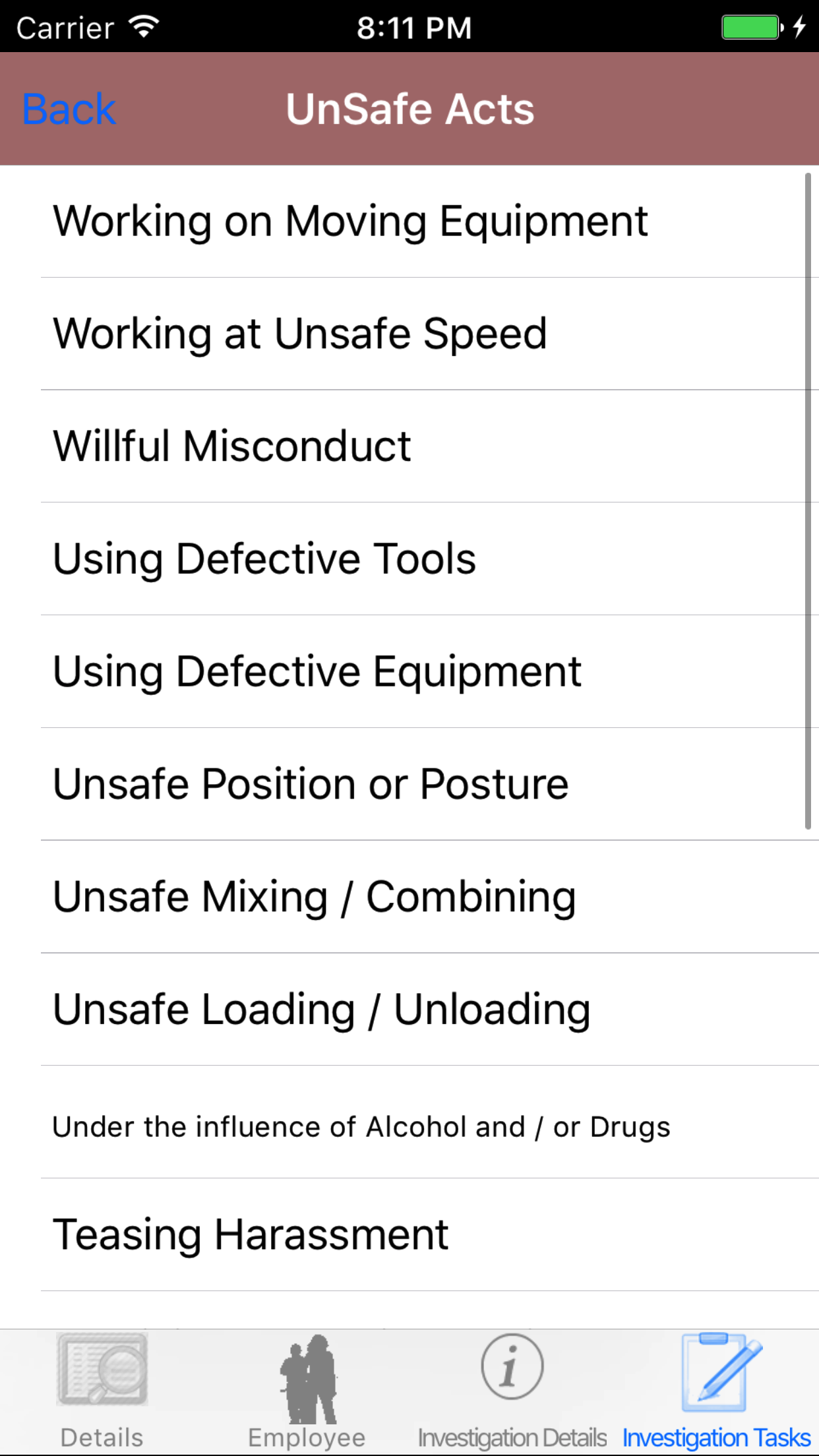
- Unsafe Acts
- Unsafe Conditions
- Personal Factors
- Job Factors
- Root Cause
- Prevention
Once a safety investigation is submitted:
- An email can be sent to the person in charge of the investigation. (For more information about email alerts check the email alerts section of the manual)
- Safety Net Statistics are updated for number of safety investigations completed for companies, employees, work orders, job sites, and customers.
Configuring Safety Net Safety Investigation Task Lists
These safety investigation tasks is set up in eight sections; Incident Types check list, Contact With check list, Unsafe Acts check list, Unsafe Conditions check list,
Personal Factors check list, Job Factors check list, Root Cause check list, and Prevention check list. Companies can build their safety investigation task lists from
default tasks R & T Electric Pro provides. Companies may need to alter their safety investigation task lists as things change over time, as safety regulations or vehicles being used by companies have change
For more information about company safety investigation tasks lists check out the Safety Investigation Tasks lists section of the manual.
|
|
|
1.Add Safety Investigation |
Steps
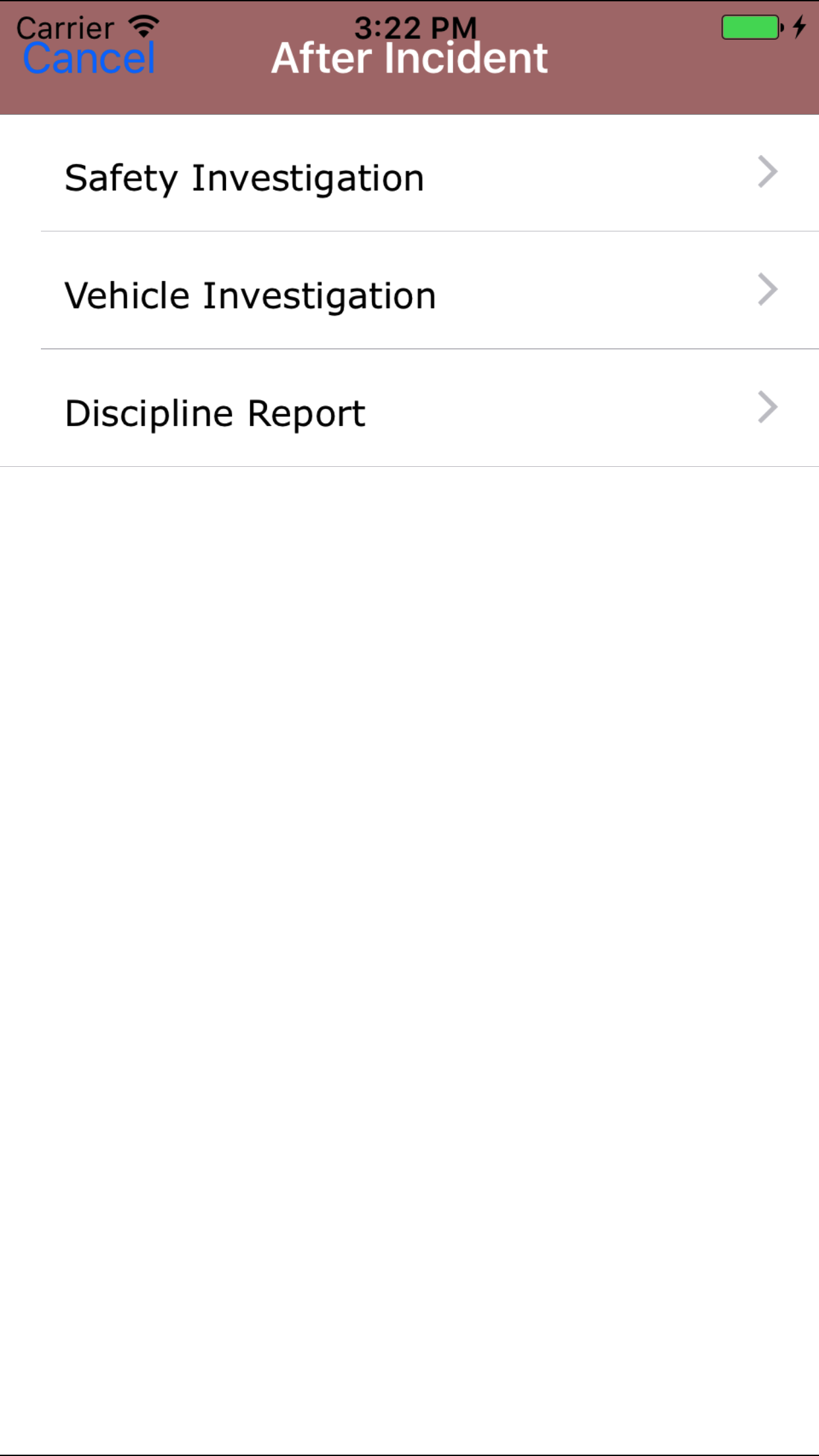
- From the Main Menu screen, tap the After Incident button.
- Then tap on the Safety Investigation button.
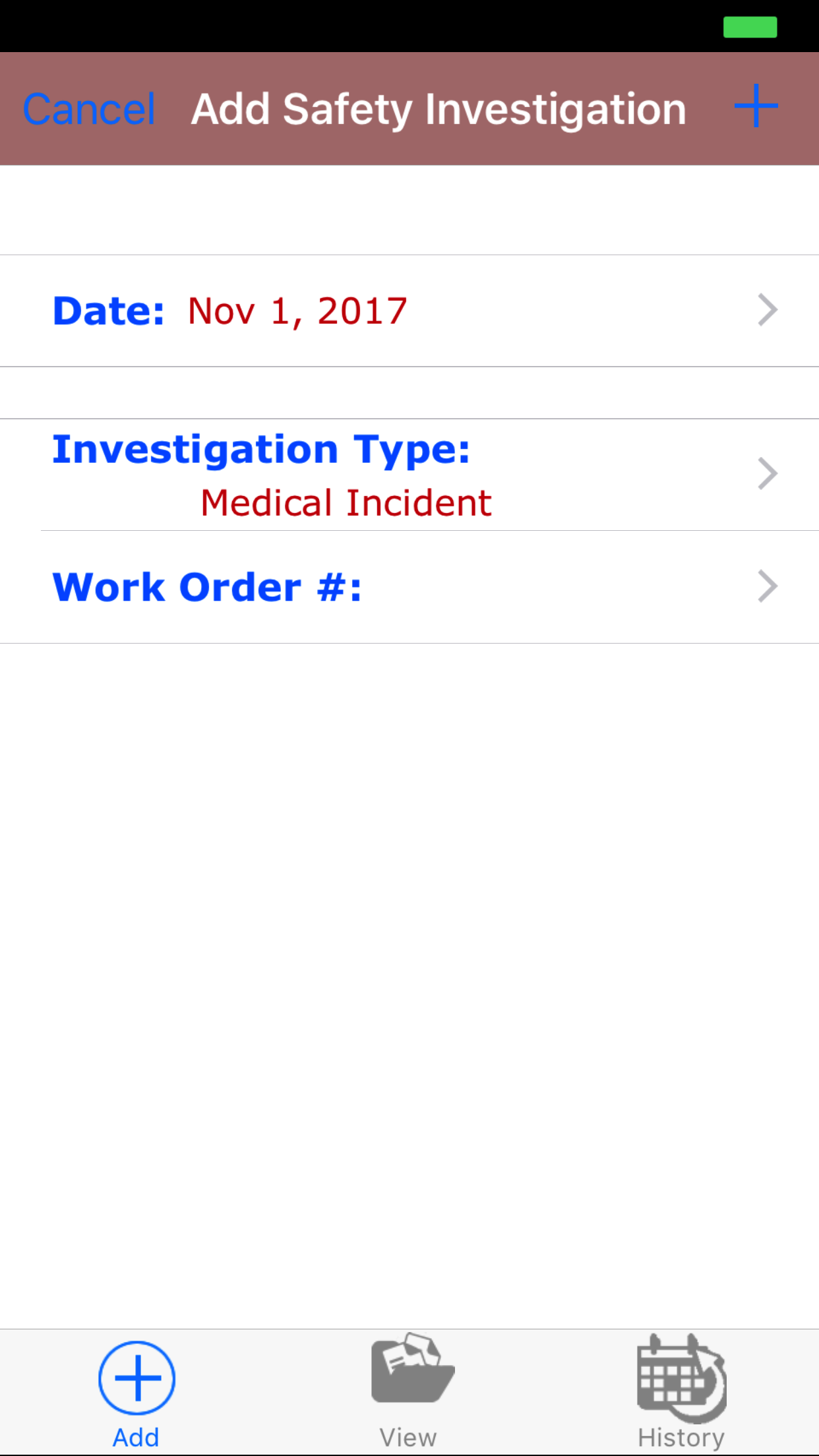
- Date: The date field allow field staff to choose the date and time the safety investigation occurs.
- Tap the Date field to open the Choose Date screen.
- Scroll the date wheel on the far left of the screen until the desired date is highlighted.
- Return to the Add Vehicle Investigation screen by either tapping Save in the top right corner to select the highlighted date or tapping Cancel in the top left corner to leave the Date: field unchanged.
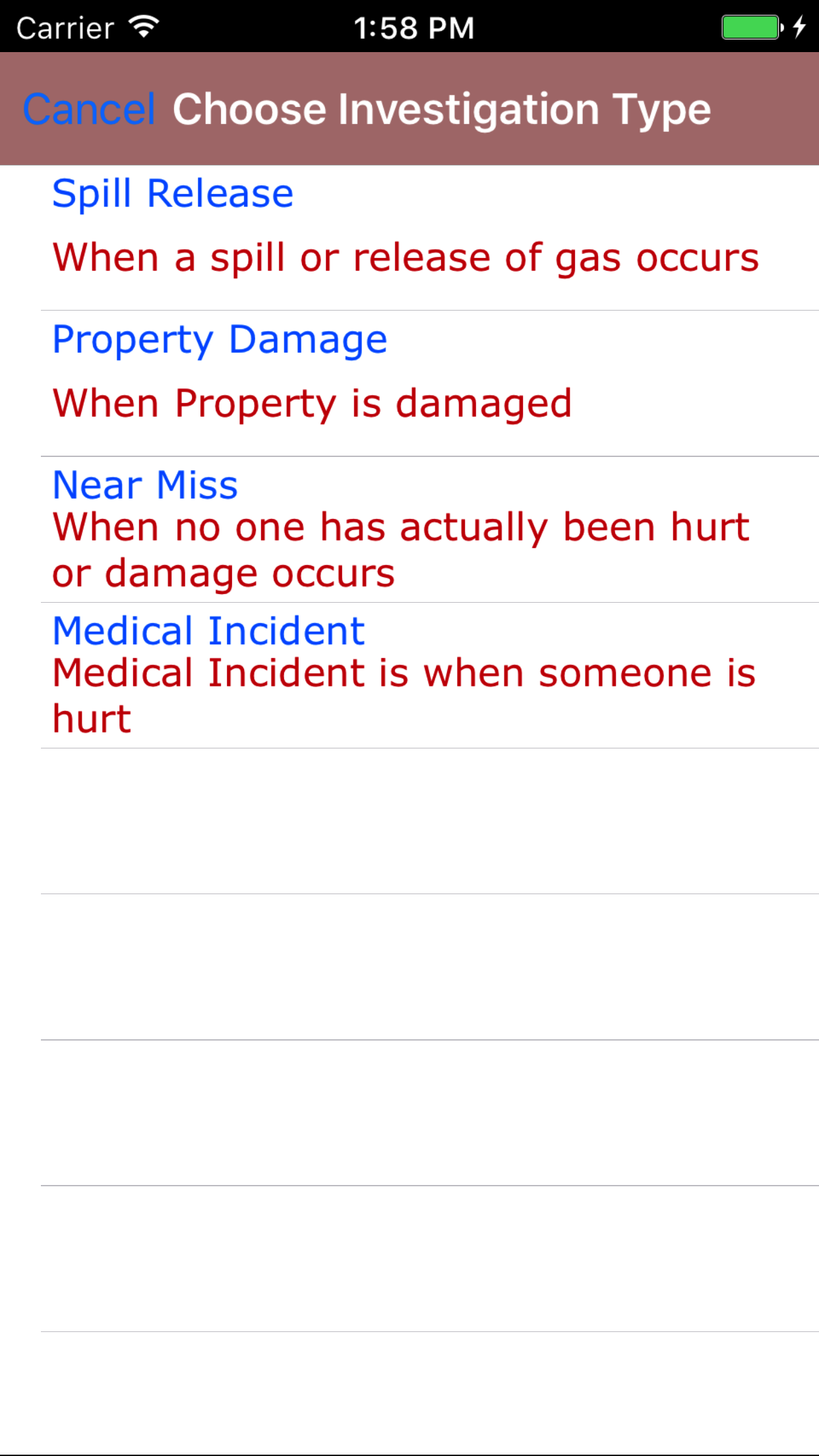
- Tap the Investigation Type field to open the Choose Investigation Type screen.
Investigation type are listed in descending order with the investigation type name in blue text,
the description of the investigation type in red text
- Scroll the list of investigation type until the desired investigation type is displayed on the screen.
- Tap the desired investigation type to select it.
- Return to the Add Safety Investigation screen by either tapping Save in the top right corner to select the highlighted work order or tapping Cancel in the top left corner to leave the Investigation Type field unchanged.
- Tap the Work Order # field to open the Choose Work Order screen.
Work orders are listed in descending order with the work order number in blue text,
the customer name in black text, and the scope of work in red text.
Note: New work orders are not automatically added to the list when they are created, so it may be necessary to update the list click here to view information about updating for the desired work order to be included in the list.
To Search Work Orders: Pull down on the list view, the search is defaulted to search by date enter the date in following
format YYYY-MM-DD. The other options for the Work Order search are by work order number and customer. Enter your search
criteria and click the Search button.
- Scroll the list of work orders until the desired work order is displayed on the screen.
- Tap the desired work order to select it or tap Back in the top left corner to leave the Work Order # field unchanged and return to the Add Safety Investigation screen.
- Return to the Add Safety Investigation screen by either tapping Save in the top right corner to select the highlighted work order or tapping Cancel in the top left corner to leave the Work Order field unchanged.
- Tap the + icon in the top right corner to add the Safety Investigation.
- A pop-up message that reads Safety Investigation Added indicates that the Safety Investigation is ready to have details to be entered and checklists of investigation tasks checked off.
|
|
|
|
|
2.Look Up Open Safety Investigation |
|
Once in the Safety Investigation section
Steps
- Tap the second tab on the menu, the Safety Investigation view.
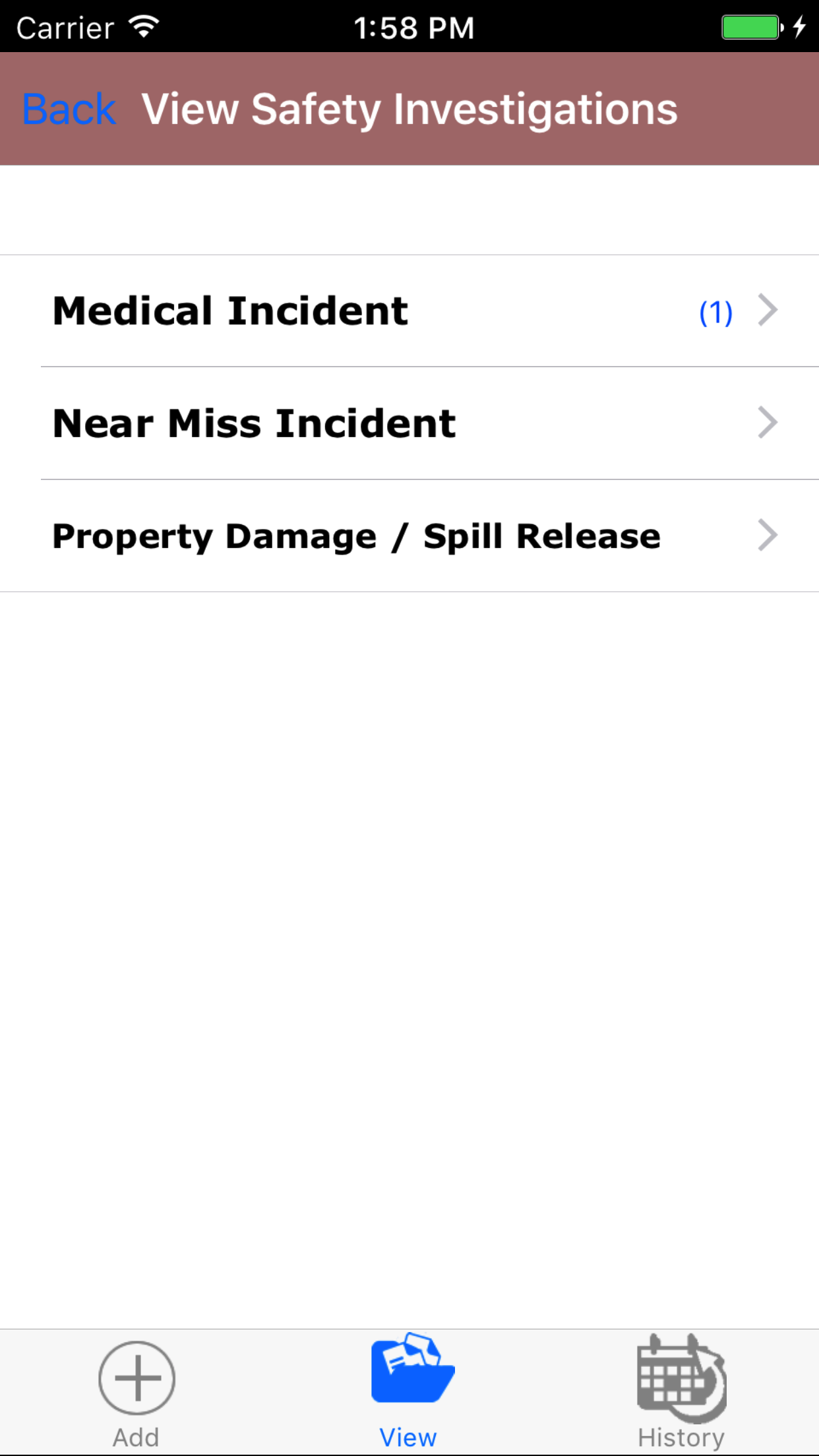
- Safety Investigations are divided into three categories
- Medical Incident
- Near Miss Incident
- Property Damage / Spill Release
- Tap the category your investigation is listed under.
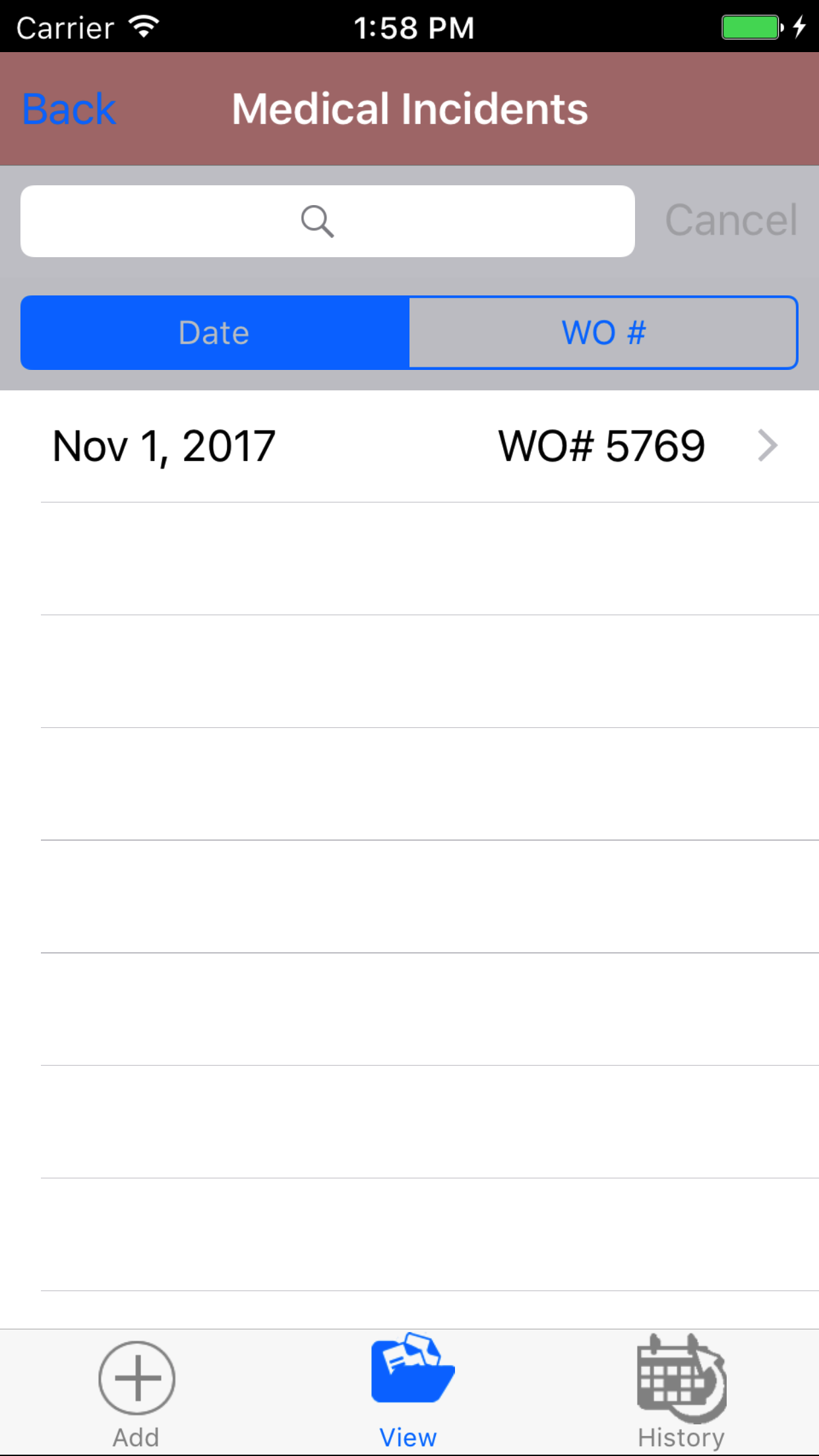
To Search Safety Investigations: Pull down on the list view, the search is defaulted to search by date enter the date in following
format YYYY-MM-DD. The other option for the Safety Investigation search are by work order number.. Enter your search
criteria and click the Search button.
- Scroll the list of Safety Investigations until the desired Safety Investigation is displayed on the screen.
Listing the safety investigation date in red text, the work order number in black text.
- Tap on the Safety Investigation you would like to view. This loads the safety investigation edit screen.
|
|
| Steps 1-2 |
|
| Steps 1-2 |
|
|
3.Edit Safety Investigation |
|
The first step in completing a Safety Investigation is completing the details of the investigation; including date, setting the employee whom inspected the job site,
work order number, scope of work and notes.
Once on the Safety Investigation you would like to Edit, on the details tab.
Steps
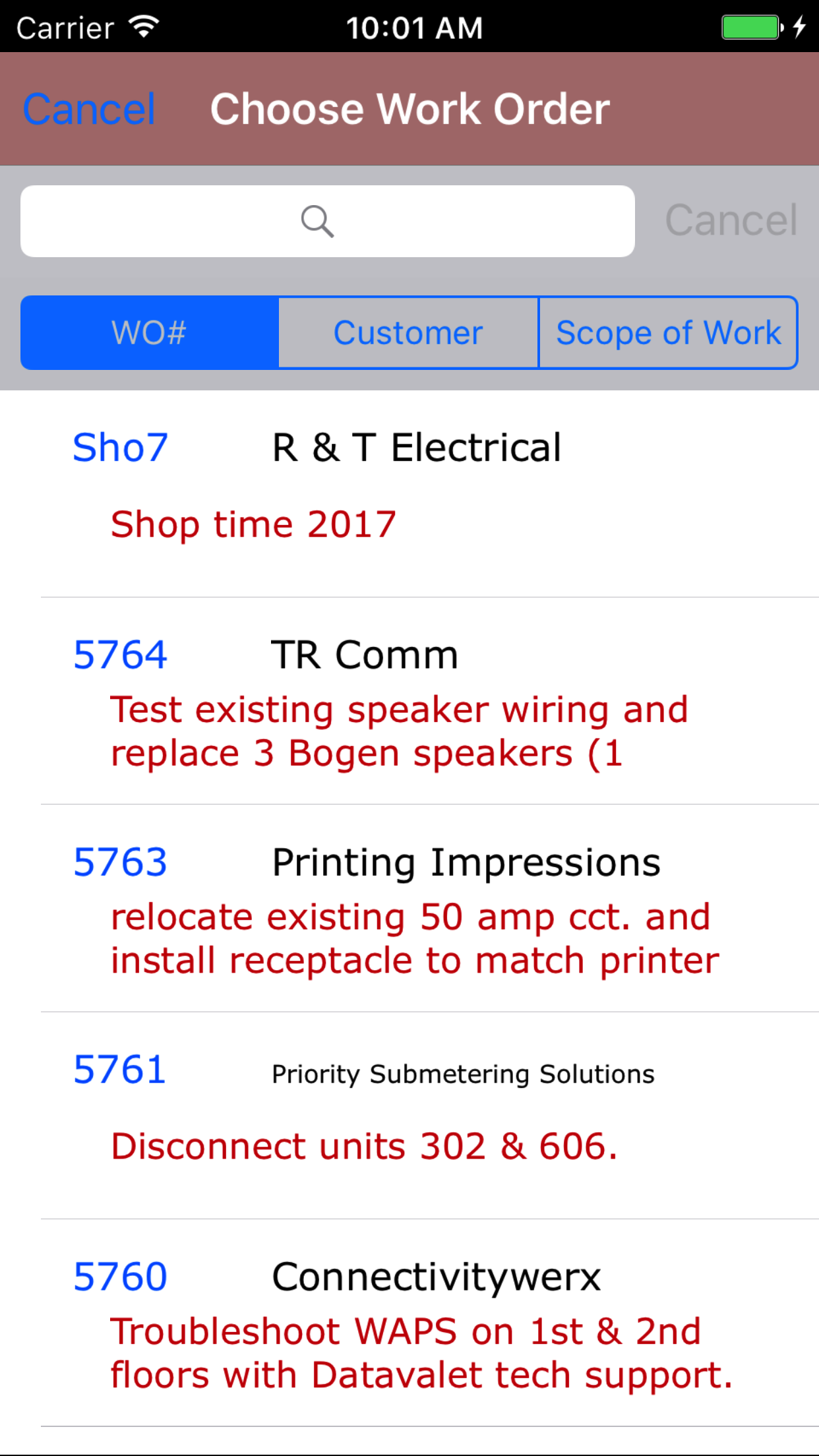
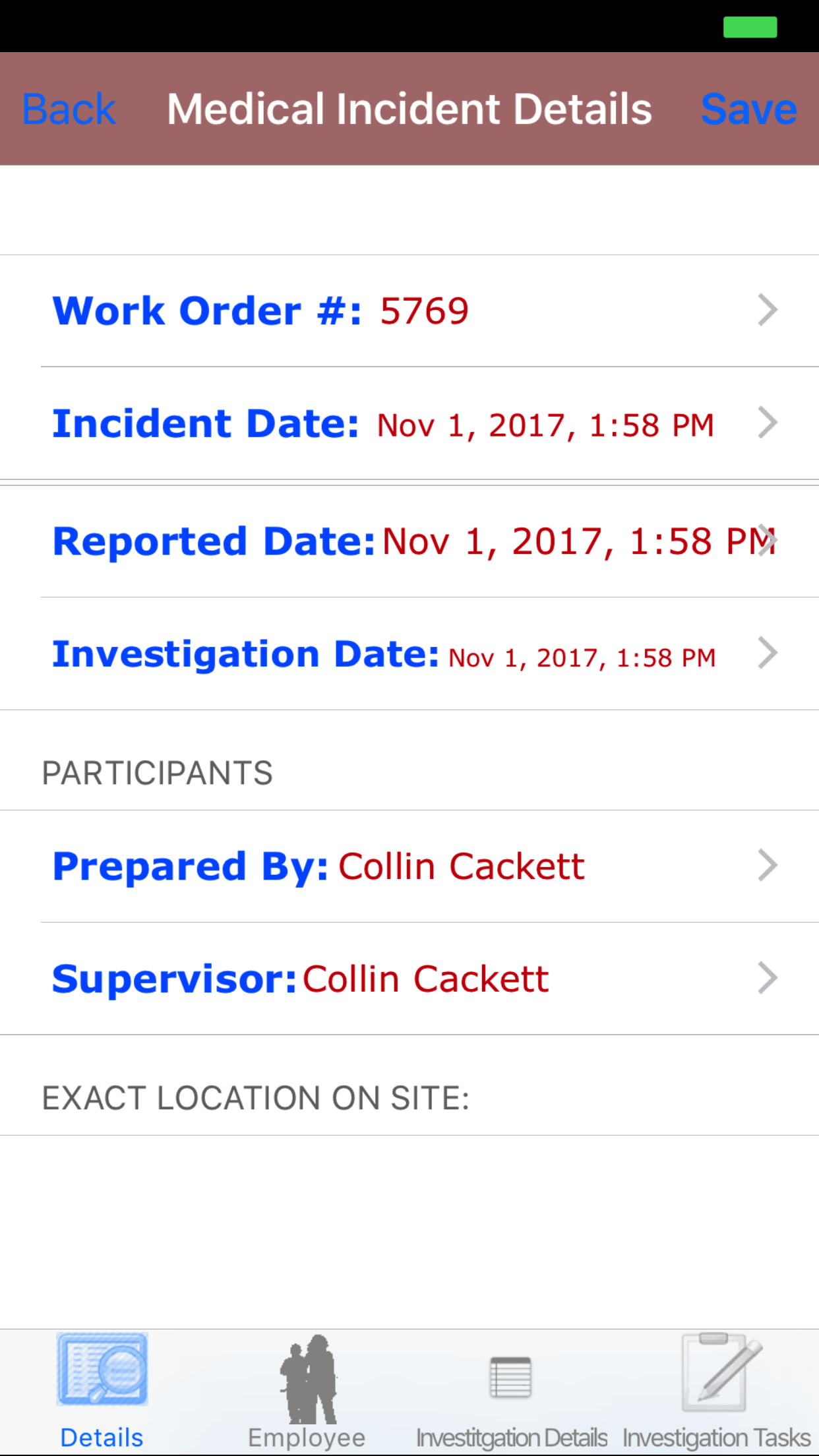
- Tap the Work Order # field to open the Choose Work Order screen.
Work orders are listed in descending order with the work order number in blue text,
the customer name in black text, and the scope of work in red text.
Note: New work orders are not automatically added to the list when they are created, so it may be necessary to update the list click here to view information about updating for the desired work order to be included in the list.
To Search Work Orders: Pull down on the list view, the search is defaulted to search by date enter the date in following
format YYYY-MM-DD. The other options for the Work Order search are by work order number and customer. Enter your search
criteria and click the Search button.
- Scroll the list of work orders until the desired work order is displayed on the screen.
- Tap the desired work order to select it or tap Back in the top left corner to leave the Work Order # field unchanged and return to the Add Hazard Assessment screen.
- Return to the Edit Safety Investigation screen by either tapping Save in the top right corner to select the highlighted work order or tapping Cancel in the top left corner to leave the Work Order field unchanged.
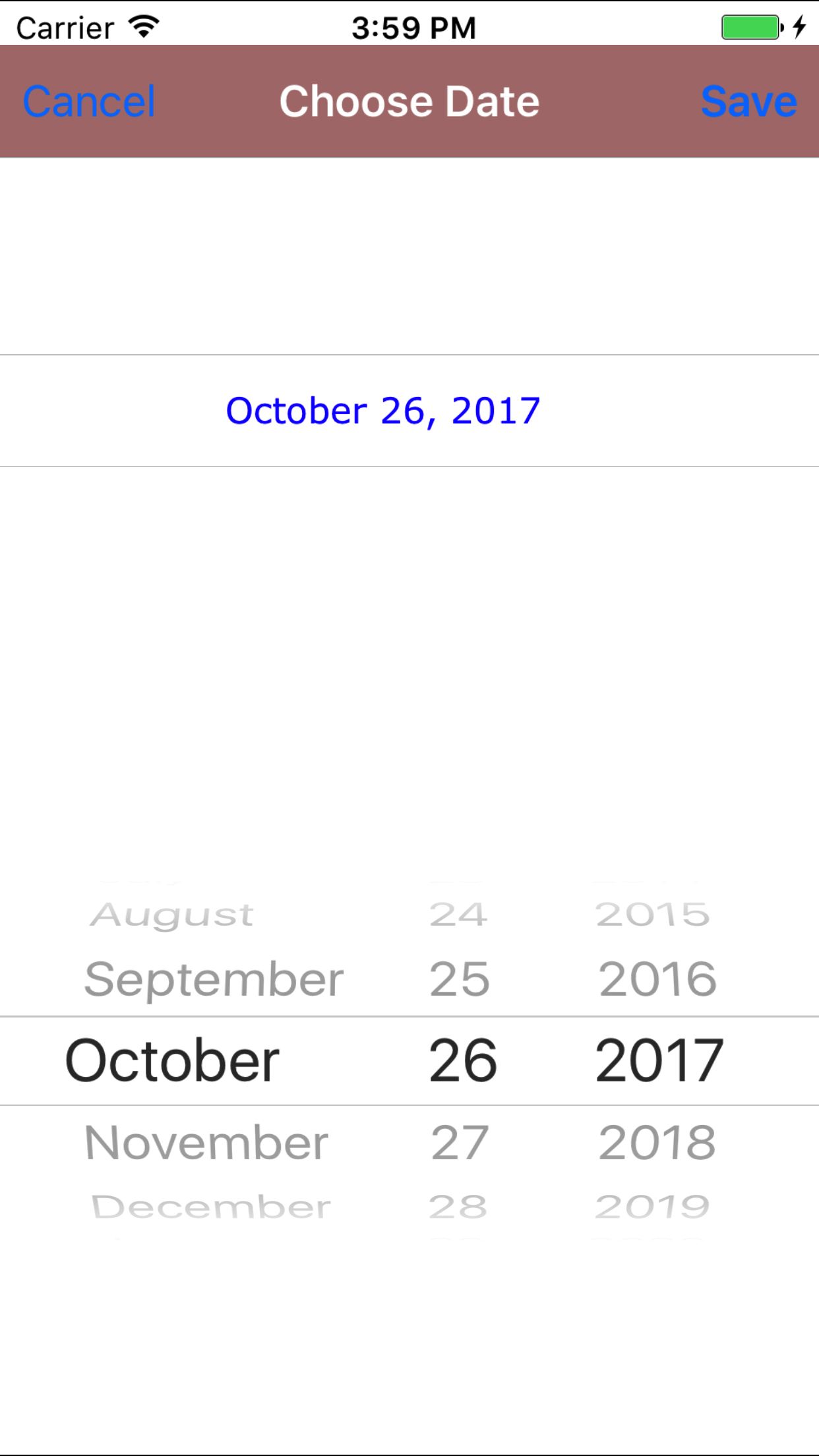
- Incident Date/Time: The date field allow field staff to choose the date and time the incident occurred.
- Tap the Date field to open the Choose Date/Time screen.
- Scroll the date wheel on the far left of the screen until the desired date and time is highlighted.
- Return to the Edit Safety Investigation screen by either tapping Save in the top right corner to select the highlighted date and time or tapping Cancel in the top left corner to leave the Date: field unchanged.
- Reported Date/Time: The date field allow field staff to choose the date and time the incident was reported.
- Tap the Date field to open the Choose Date/Time screen.
- Scroll the date wheel on the far left of the screen until the desired date and time is highlighted.
- Return to the Edit Safety Investigation screen by either tapping Save in the top right corner to select the highlighted date and time or tapping Cancel in the top left corner to leave the Date: field unchanged.
- Investigation Date/Time: The date field allow field staff to choose the date and time the safety investigation occurs.
- Tap the Date field to open the Choose Date/Time screen.
- Scroll the date wheel on the far left of the screen until the desired date and time is highlighted.
- Return to the Edit Safety Investigation screen by either tapping Save in the top right corner to select the highlighted date and time or tapping Cancel in the top left corner to leave the Date: field unchanged.
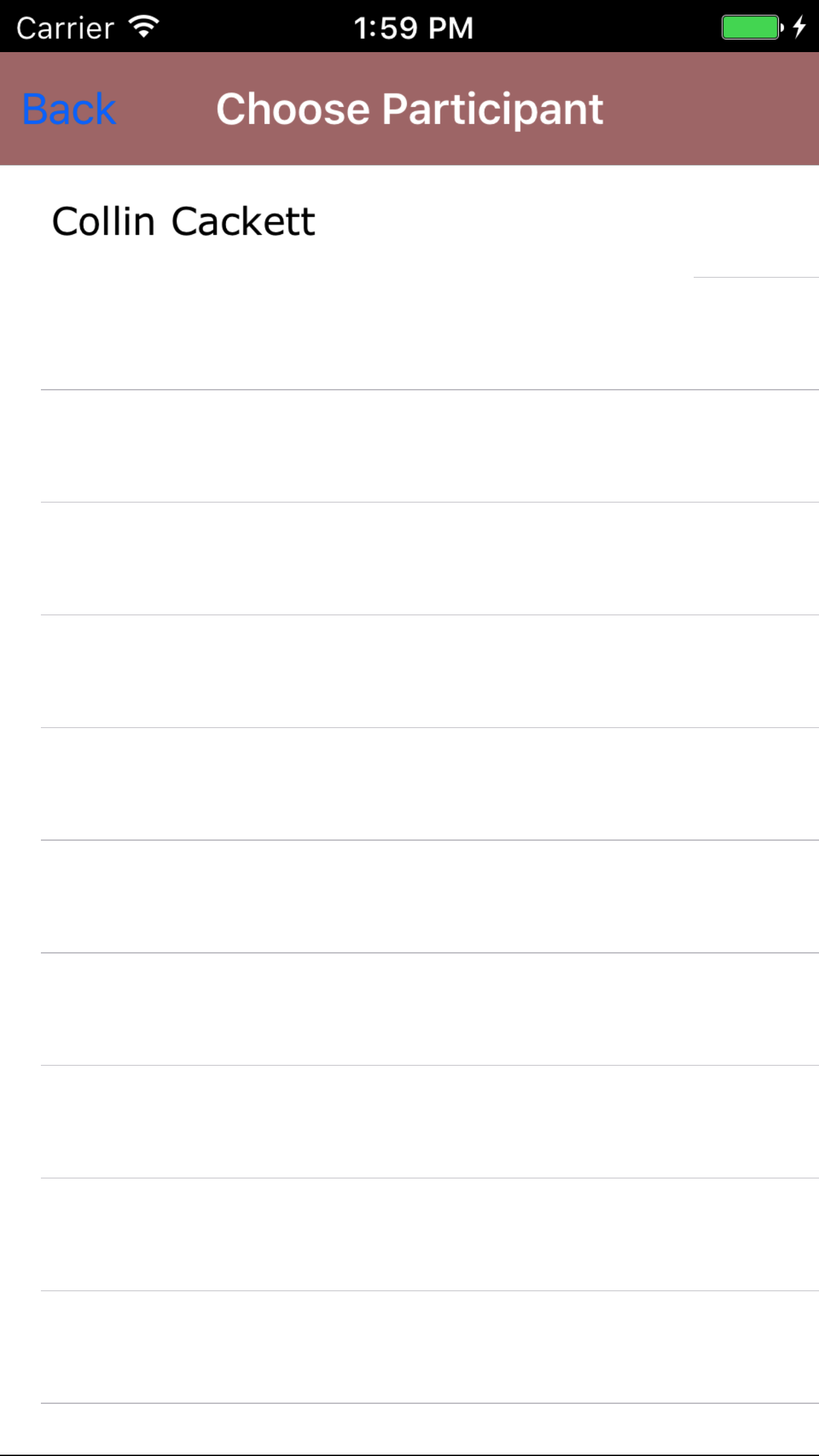
- Prepared By: The inspected by field initialy displays the name of the person who added the Safety Investigation and should be updated to indicate the employee whom prepared the safety investigation report.
- Tap the Prepared By: field to open the Employees screen.
Employees are listed in the order they were added to the Safety Investigation.
- Tap the desired employee to select it or tap Back in the top left corner to leave the Employee field unchanged and return to the Edit Safety Investigation screen.
- Return to the Edit Safety Investigation screen by either tapping Save in the top right corner to select the highlighted date or tapping Cancel in the top left corner to leave the Employee field unchanged.
- Exact Location on Site: The Exact Location on Site field should describe where on the job site the incident occurred. The character limit of this field is 150.
- Tap Save in the top right corner to save any changes to the Safety Investigation Details.
- A pop-up message that reads Safety Investigation Details have been Saved indicates that the safety investigation details have been saved.
|
|
|
| Step 1 |
|
|
| Step 2 |
|
|
| Step 2 |
|
|
| Steps 3-6 |
|
|
4.Add Employee to Safety Investigation |
|
Adding employees to the Safety Investigation is crucial to reporting accurately. Adding other field staff to the safety investigation allows a group of
workers to share and complete a safety investigation as a group. Once a safety investigation is submitted all employee's added to the safety investigation will have access to the safety investigation.
Here are the steps on how to do it:
Once on the Safety Investigation you would like to Edit
Steps
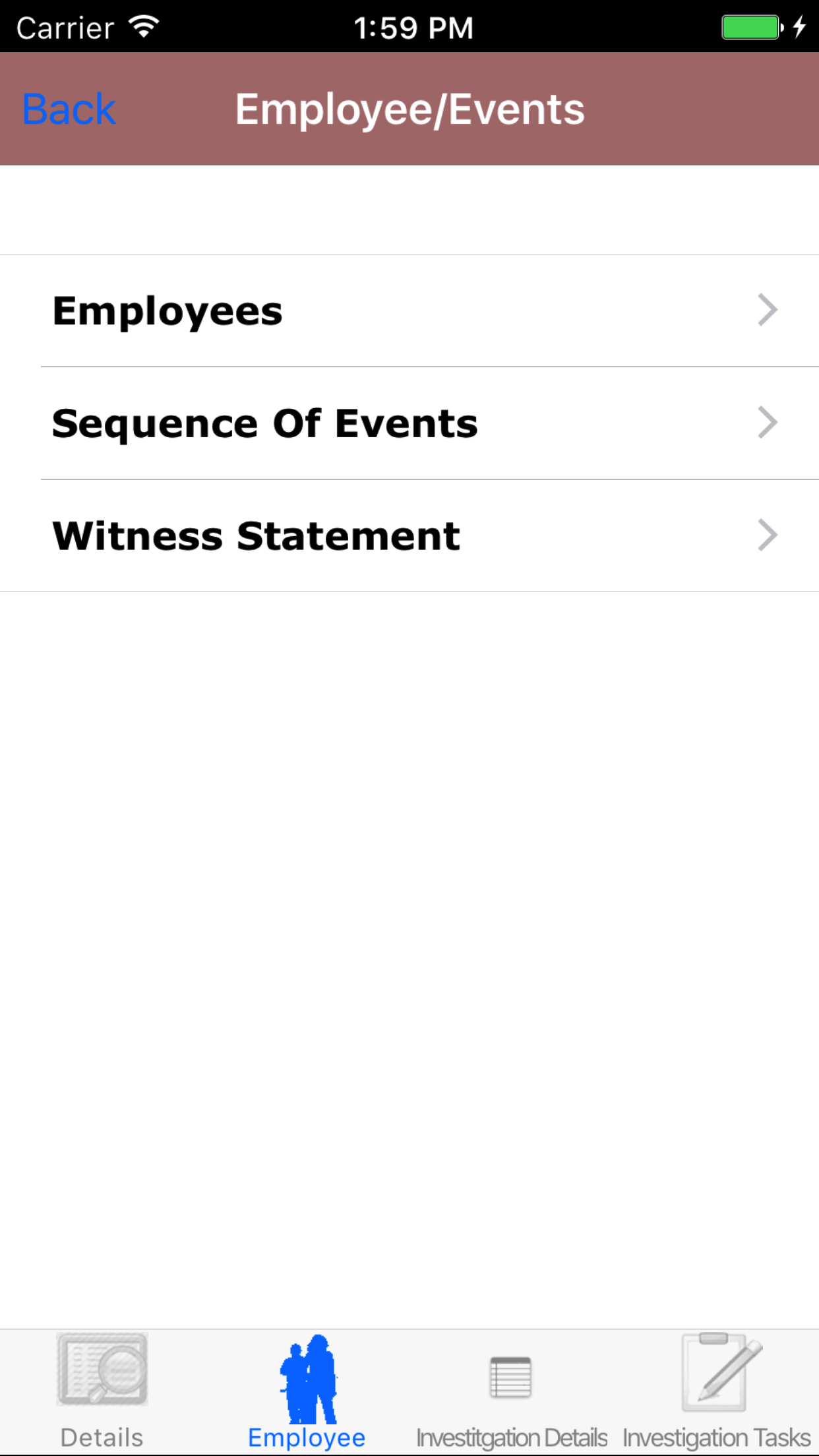
- Tap the Employee icon, the second tab. This opens the list of Employees, Sequence of Events, and Witness Statement.
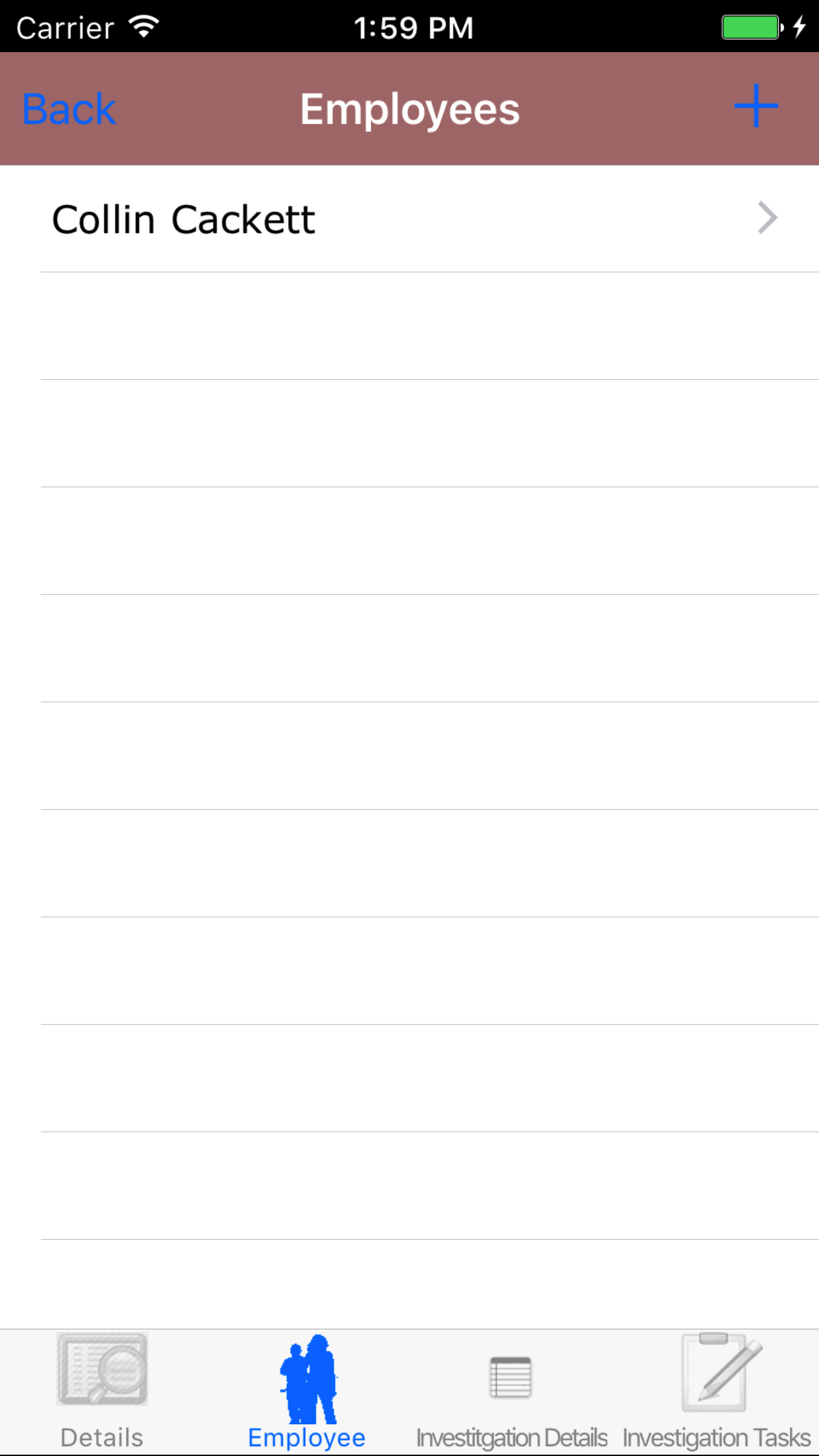
- Tap the Employees button
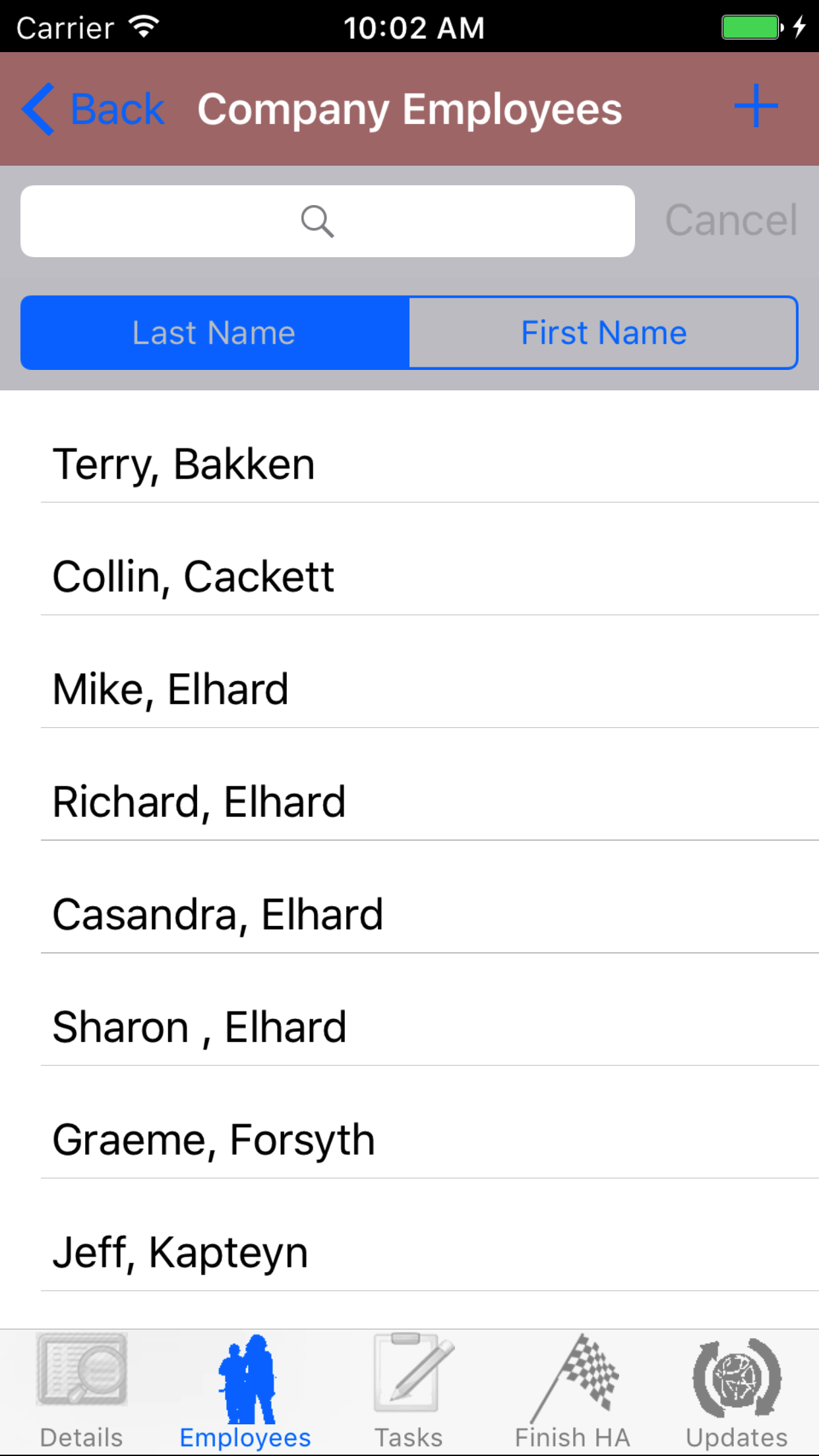
- Tap the + icon in the top right corner to open the Employees list or tap Employees in the top left corner to return to the Employees screen.
Employees are listed in descending order of last name.
To Search Employees: Pull down on the list view, the search is defaulted to search by last name.
The other option for the Employee search is by first name. Enter your search
criteria and click the Search button.
- Scroll the list of employees until the desired employee is displayed on the screen.
- If the desired employee is in the list, tap the employee to add them to the Safety Investigation.
A pop-up message that reads Employee Added indicates that the employee is now listed on the Safety Investigation Employees screen.
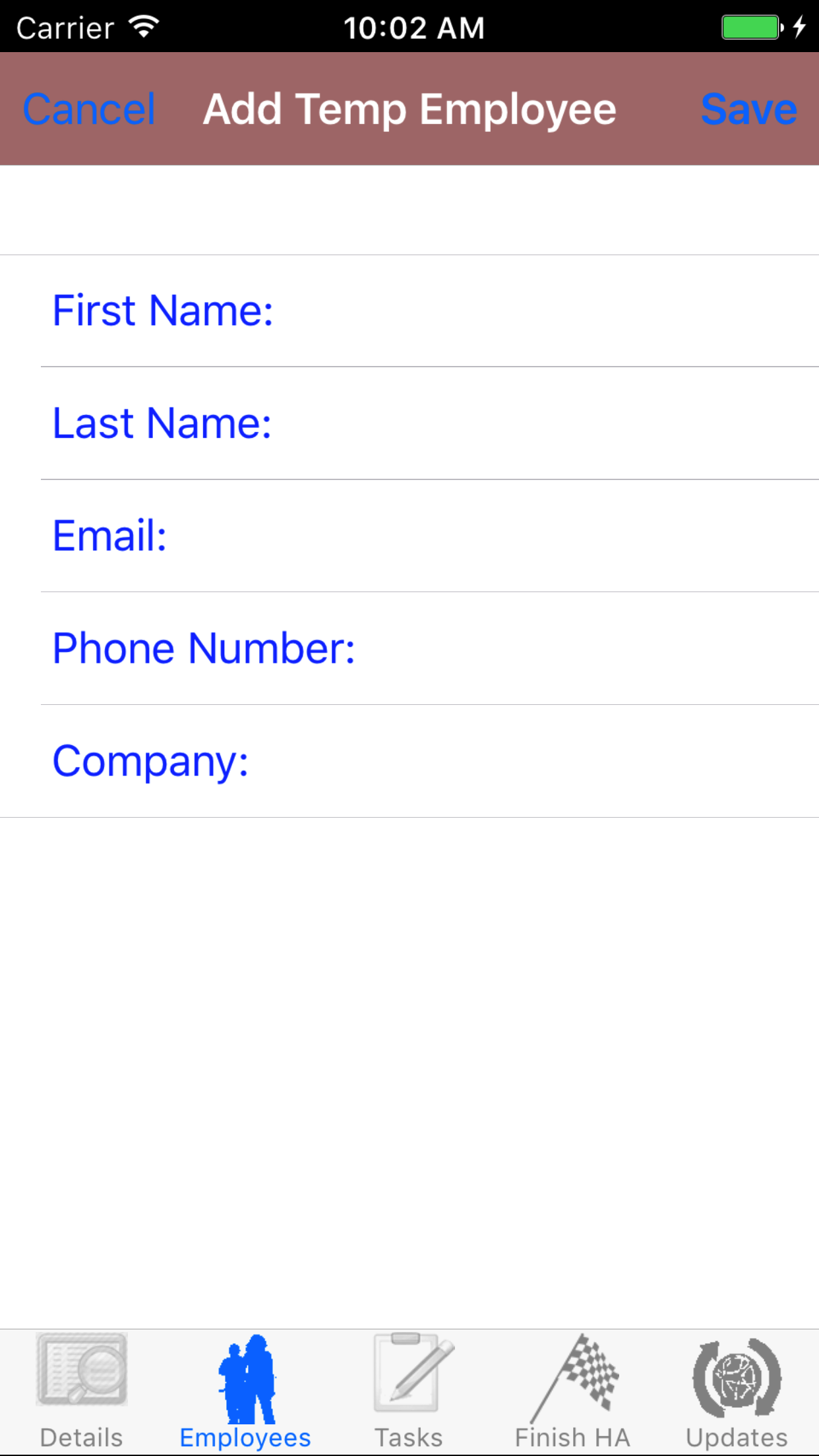
- If the desired employee is not in the list, tap Add Outside Employee in the top left corner of the screen to open the New Employee screen.
- First Name: The First Name field should indicate the legal given name of the employee. The character limit of this field is 25.
- Last Name: The Last Name field should indicate the legal surname of the employee. The character limit of this field is 25.
- Email: The Email field should indicate the best (i.e., most often used for business purposes) e-mail address for the employee. The character limit of this field is 25.
- Phone Number: The Phone Number field should indicate the best (i.e., most often used for business purposes) telephone number (land line or cellular) for the employee. The character limit of this field is 13.
- Company: The Company field should indicate the name of the company for which the employee works. The character limit of this field is 75.
- Tap Save in the top right corner of the screen to add the outside employee to the Safety Investigation.
|
|
| Step 1 |
|
|
| Step 2 |
|
|
| Step 3 |
|
|
| Steps 4-5 |
|
|
|
5.Delete Employee from Safety Investigation |
|
Once on the Safety Investigation you would like to Edit
Steps
- Tap the Employee icon, the second tab. This opens the list of Employees, Sequence of Events, and Witness Statement.
- Tap the Employees button
- Scroll the list of employees until the desired employee is displayed on the screen.
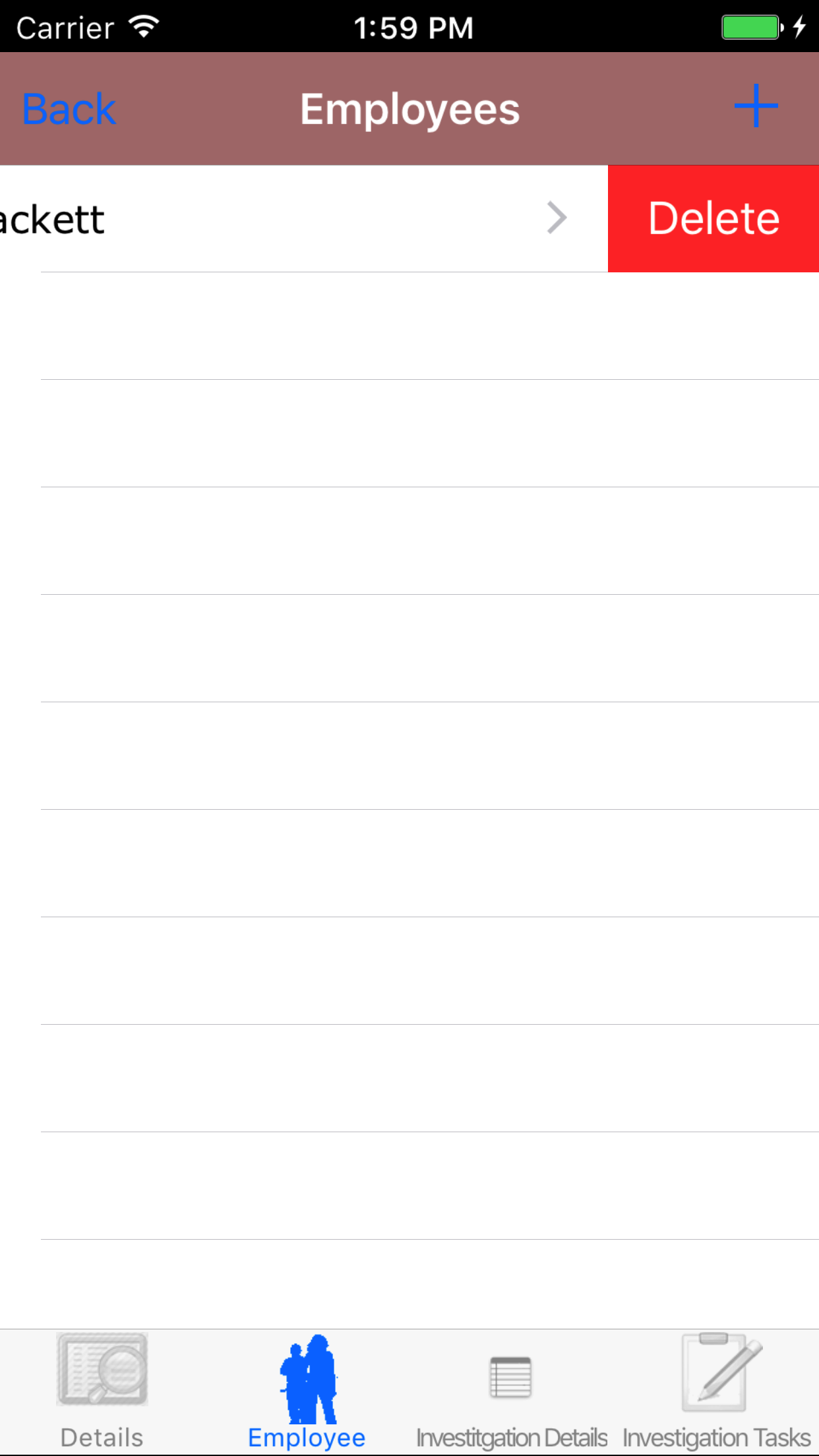
- Swipe from the right edge to the left to bring up the delete button for the employee.
- Tap the Delete button. The employee will be deleted.
|
|
|
| Steps 1-2 |
|
|
| Steps 3-4 |
|
|
|
6.Add Employee Signature |
|
Each employee added to the Safety Investigation must provide an electronic signature to indicate that they taken part in the investigation.
Once on the Safety Investigation you would like to Edit
Steps
- Tap the Employee icon, the second tab. This opens the list of Employees, Sequence of Events, and Witness Statement.
- Tap the Employees button
- Scroll the list of employees until the desired employee is displayed on the screen.
- Tap the desired employee to select them and open the Edit Employee screen
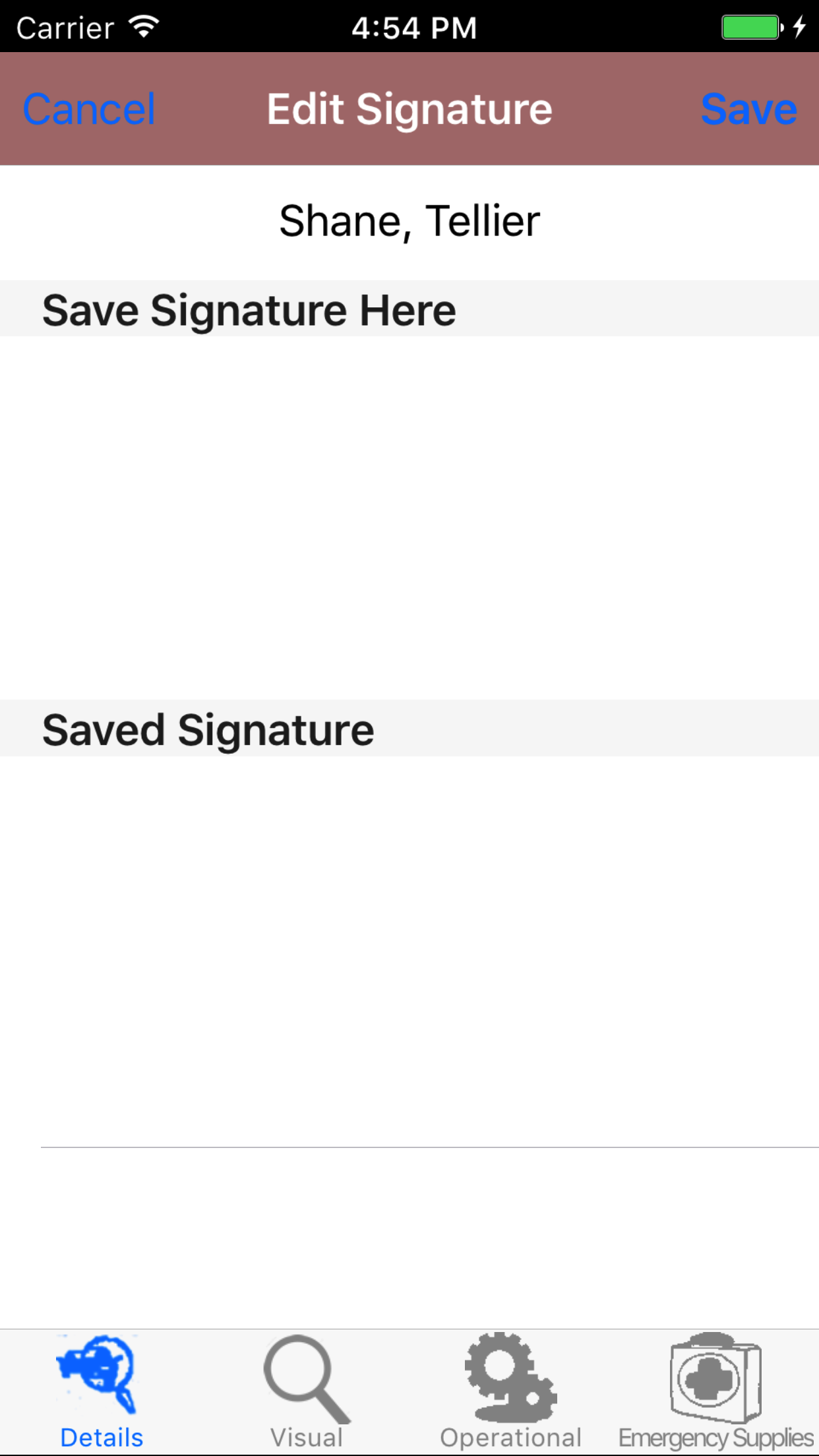
- Have the selected employee sign in the white space beneath the Save New Signature Here label.
- Tap Save in the top right corner of the screen to update the Saved Signature field.
The saved signature will appear below the signature entry screen.
|
|
|
| Steps 1-2 |
|
|
| Steps 3-4 |
|
|
|
7.Add Incident Type Checklist Item |
|
Incident Type Investigation Tasks are safety investigation incident type investigation tasks that a company has set up for their field staff to complete
as part of their safety investigation. To ensure field staff have the most up to date copy of the investigation tasks a company is
using make sure to update your phone on a regular basis. For more information about updating your phone click here.
Once on the Safety Investigation you would like to Edit
Steps
- Tap the Investigation Categories icon at the bottom of the screen to open the Investigation Categories Checklist screen. The screen loads
with the list of the 8 checklist categories of the safety investigation.
- Tap the Type of Incident button which loads with the type of incident investigation tasks listed with Task Name
in black, if the task is checked a checkmark will appear.
- Tap the + icon in the top right corner to add the Type of Incident screen.
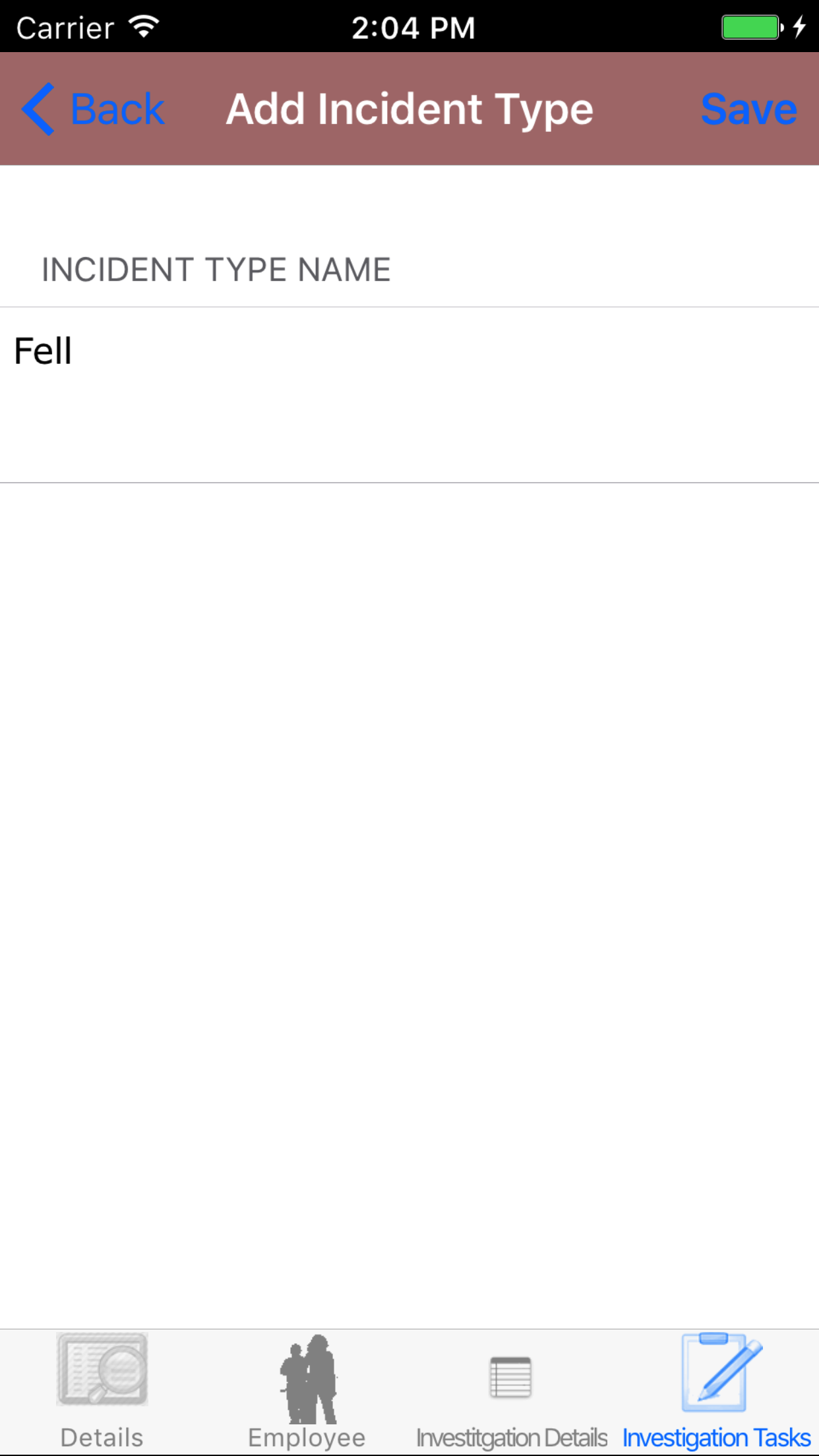
- Incident Type Name: The Incident Type Name field gives the user to add a incident type that did not appear on investigation task list. The character limit of this field is 75.
- Tap the + icon in the top right corner to add the Type of Incident.
|
|
|
|
8.Add Contact With Checklist Item |
|
Contact With Investigation Tasks are safety investigation contact with investigation tasks that a company has set up for their field staff to complete
as part of their safety investigation. To ensure field staff have the most up to date copy of the investigation tasks a company is
using make sure to update your phone on a regular basis. For more information about updating your phone click here.
Once on the Safety Investigation you would like to Edit
Steps
- Tap the Investigation Categories icon at the bottom of the screen to open the Investigation Categories Checklist screen. The screen loads
with the list of the 8 checklist categories of the safety investigation.
- Tap the Contact With button which loads with the contact with investigation tasks listed with Task Name
in black, if the task is checked a checkmark will appear.
- Tap the + icon in the top right corner to add the Contact With screen.
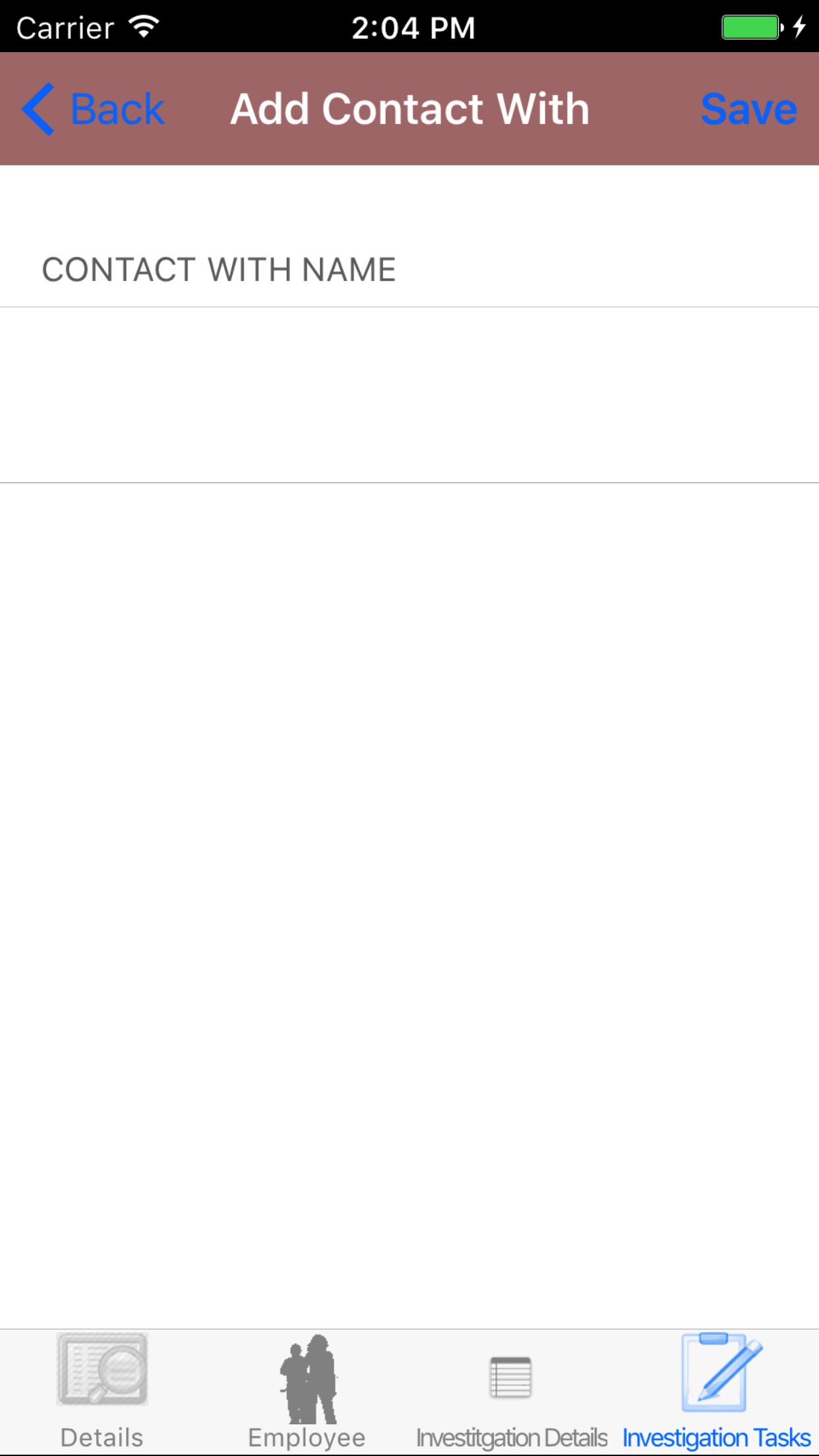
- Contact With Name: The Contact With Name field gives the user to add a contact with that did not appear on investigation task list. The character limit of this field is 75.
- Tap the + icon in the top right corner to add the Contact With.
|
|
|
|
9.Add Unsafe Act Checklist Item |
|
Unsafe Acts Investigation Tasks are safety investigation unsafe acts investigation tasks that a company has set up for their field staff to complete
as part of their safety investigation. To ensure field staff have the most up to date copy of the investigation tasks a company is
using make sure to update your phone on a regular basis. For more information about updating your phone click here.
Once on the Safety Investigation you would like to Edit
Steps
- Tap the Investigation Categories icon at the bottom of the screen to open the Investigation Categories Checklist screen. The screen loads
with the list of the 8 checklist categories of the safety investigation.
- Tap the Unsafe Acts button which loads with the unsafe acts investigation tasks listed with Task Name
in black, if the task is checked a checkmark will appear.
- Tap the + icon in the top right corner to add the Unsafe Acts screen.
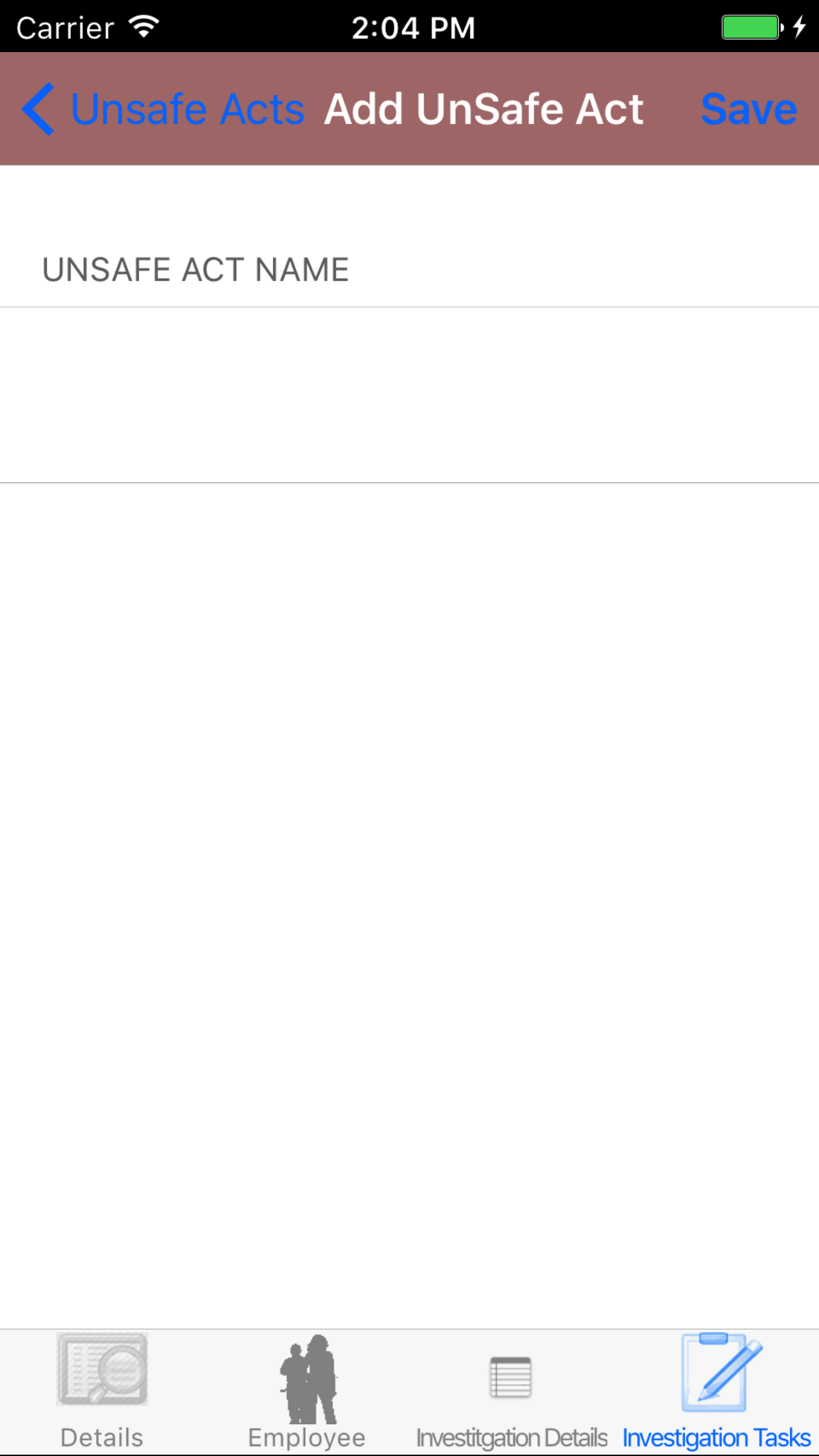
- Unsafe Acts Name: The Unsafe Acts Name field gives the user to add a unsafe acts that did not appear on investigation task list. The character limit of this field is 75.
- Tap the + icon in the top right corner to add the Unsafe Acts.
|
|
|
|
10.Add Unsafe Conditions Checklist Item |
|
Unsafe Conditions Investigation Tasks are safety investigation unsafe conditions investigation tasks that a company has set up for their field staff to complete
as part of their safety investigation. To ensure field staff have the most up to date copy of the investigation tasks a company is
using make sure to update your phone on a regular basis. For more information about updating your phone click here.
Once on the Safety Investigation you would like to Edit
Steps
- Tap the Investigation Categories icon at the bottom of the screen to open the Investigation Categories Checklist screen. The screen loads
with the list of the 8 checklist categories of the safety investigation.
- Tap the Unsafe Conditions button which loads with the unsafe conditions investigation tasks listed with Task Name
in black, if the task is checked a checkmark will appear.
- Tap the + icon in the top right corner to add the Unsafe Conditions screen.
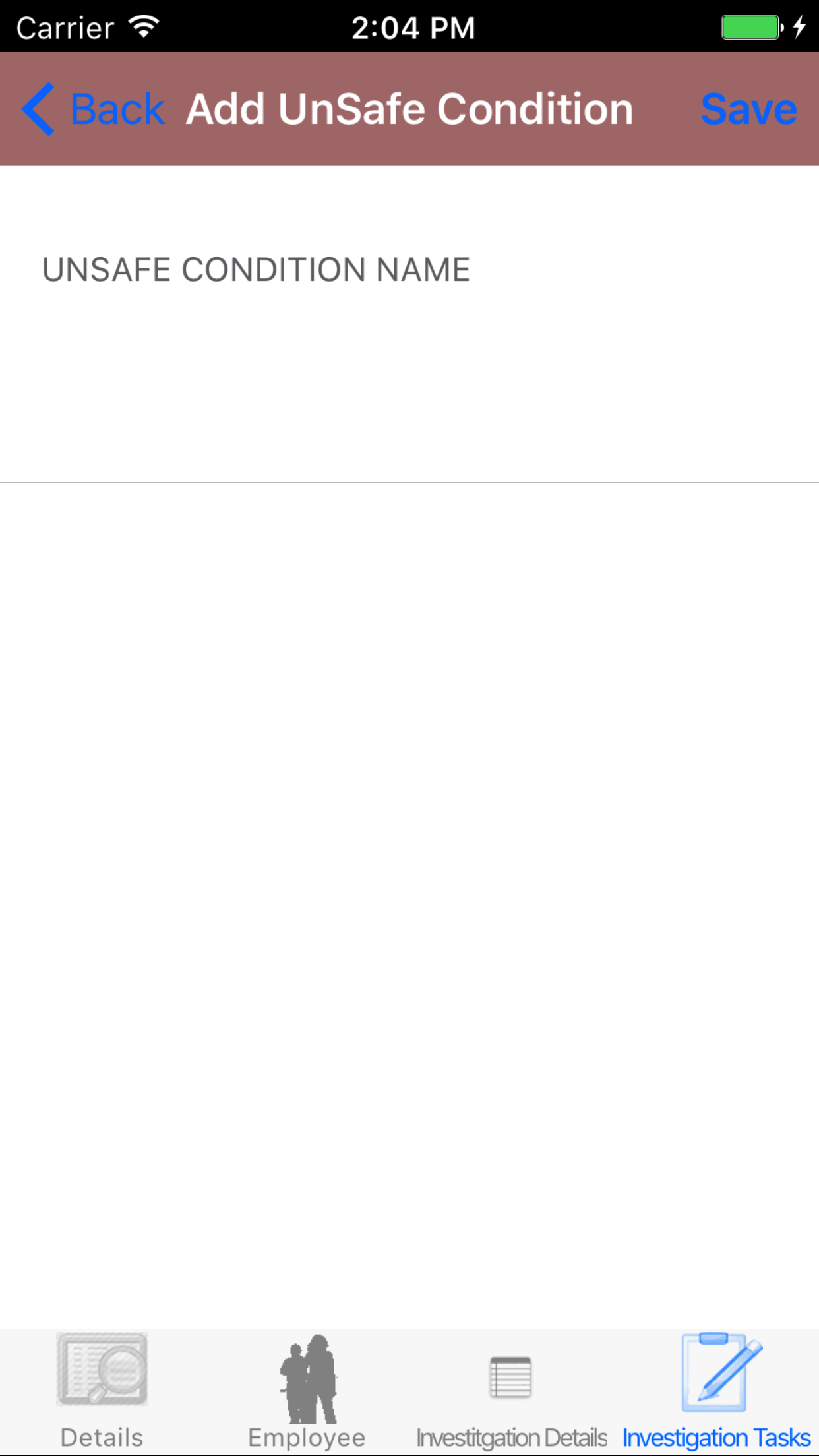
- Unsafe Conditions Name: The Unsafe Conditions Name field gives the user to add a unsafe conditions that did not appear on investigation task list. The character limit of this field is 75.
- Tap the + icon in the top right corner to add the Unsafe Conditions.
|
|
|
|
11.Add Personal Factor Checklist Item |
|
Personal Factors Investigation Tasks are safety investigation personal factors investigation tasks that a company has set up for their field staff to complete
as part of their safety investigation. To ensure field staff have the most up to date copy of the investigation tasks a company is
using make sure to update your phone on a regular basis. For more information about updating your phone click here.
Once on the Safety Investigation you would like to Edit
Steps
- Tap the Investigation Categories icon at the bottom of the screen to open the Investigation Categories Checklist screen. The screen loads
with the list of the 8 checklist categories of the safety investigation.
- Tap the Personal Factors button which loads with the personal factors investigation tasks listed with Task Name
in black, if the task is checked a checkmark will appear.
- Tap the + icon in the top right corner to add the Personal Factor screen.
- Personal Factor Name: The Personal Factor Name field gives the user to add a personal factor that did not appear on investigation task list. The character limit of this field is 75.
- Tap the + icon in the top right corner to add the Personal Factor.
|
|
|
|
12.Add Job Factor Checklist Item |
|
Job Factors Investigation Tasks are safety investigation job factors investigation tasks that a company has set up for their field staff to complete
as part of their safety investigation. To ensure field staff have the most up to date copy of the investigation tasks a company is
using make sure to update your phone on a regular basis. For more information about updating your phone click here.
Once on the Safety Investigation you would like to Edit
Steps
- Tap the Investigation Categories icon at the bottom of the screen to open the Investigation Categories Checklist screen. The screen loads
with the list of the 8 checklist categories of the safety investigation.
- Tap the Job Factors button which loads with the job factors investigation tasks listed with Task Name
in black, if the task is checked a checkmark will appear.
- Tap the + icon in the top right corner to add the Job Factor screen.
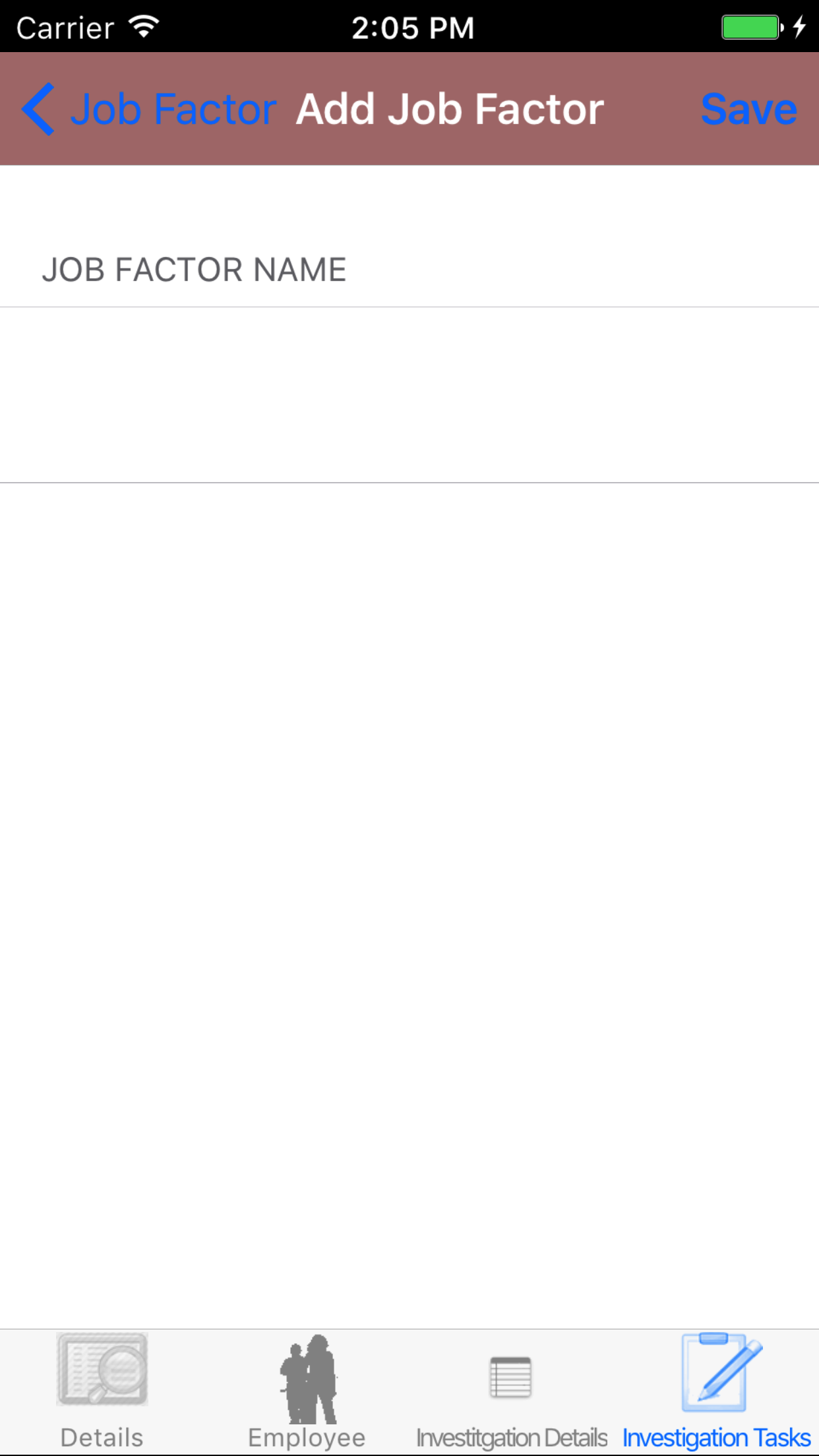
- Job Factor Name: The Job Factor Name field gives the user to add a job factor that did not appear on investigation task list. The character limit of this field is 75.
- Tap the + icon in the top right corner to add the Job Factor.
|
|
|
|
13.Add Root Cause Checklist Item |
|
Root Causes Investigation Tasks are safety investigation root causes investigation tasks that a company has set up for their field staff to complete
as part of their safety investigation. To ensure field staff have the most up to date copy of the investigation tasks a company is
using make sure to update your phone on a regular basis. For more information about updating your phone click here.
Once on the Safety Investigation you would like to Edit
Steps
- Tap the Investigation Categories icon at the bottom of the screen to open the Investigation Categories Checklist screen. The screen loads
with the list of the 8 checklist categories of the safety investigation.
- Tap the Root Causes button which loads with the root causes investigation tasks listed with Task Name
in black, if the task is checked a checkmark will appear.
- Tap the + icon in the top right corner to add the Root Cause screen.
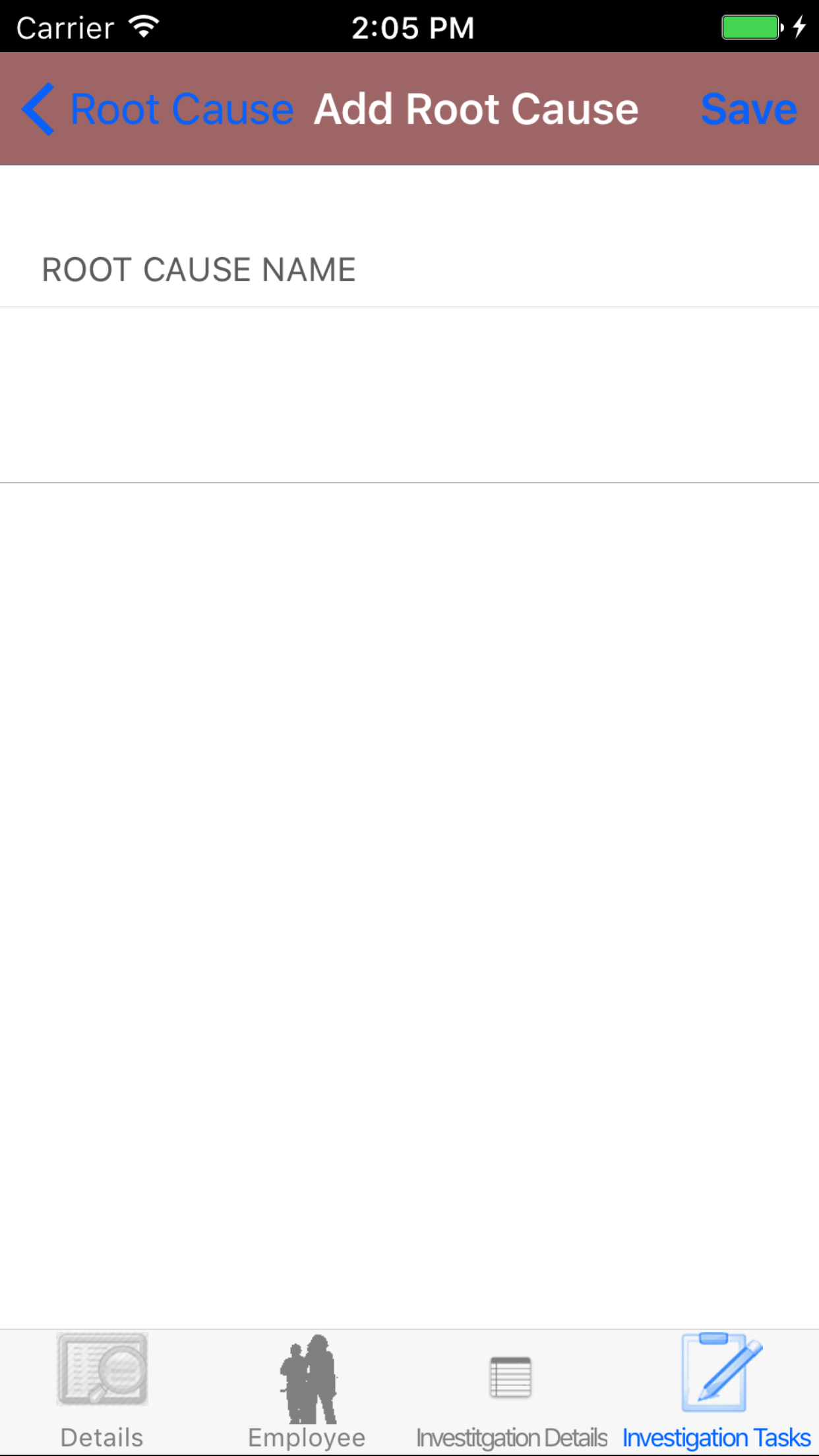
- Root Cause Name: The Job Factor Name field gives the user to add a root cause that did not appear on investigation task list. The character limit of this field is 75.
- Tap the + icon in the top right corner to add the Root Cause.
|
|
|
|
14.Add Prevention Checklist Item |
|
Preventions Investigation Tasks are safety investigation preventions investigation tasks that a company has set up for their field staff to complete
as part of their safety investigation. To ensure field staff have the most up to date copy of the investigation tasks a company is
using make sure to update your phone on a regular basis. For more information about updating your phone click here.
Once on the Safety Investigation you would like to Edit
Steps
- Tap the Investigation Categories icon at the bottom of the screen to open the Investigation Categories Checklist screen. The screen loads
with the list of the 8 checklist categories of the safety investigation.
- Tap the Preventions button which loads with the preventions investigation tasks listed with Task Name
in black, if the task is checked a checkmark will appear.
- Tap the + icon in the top right corner to add the Prevention screen.
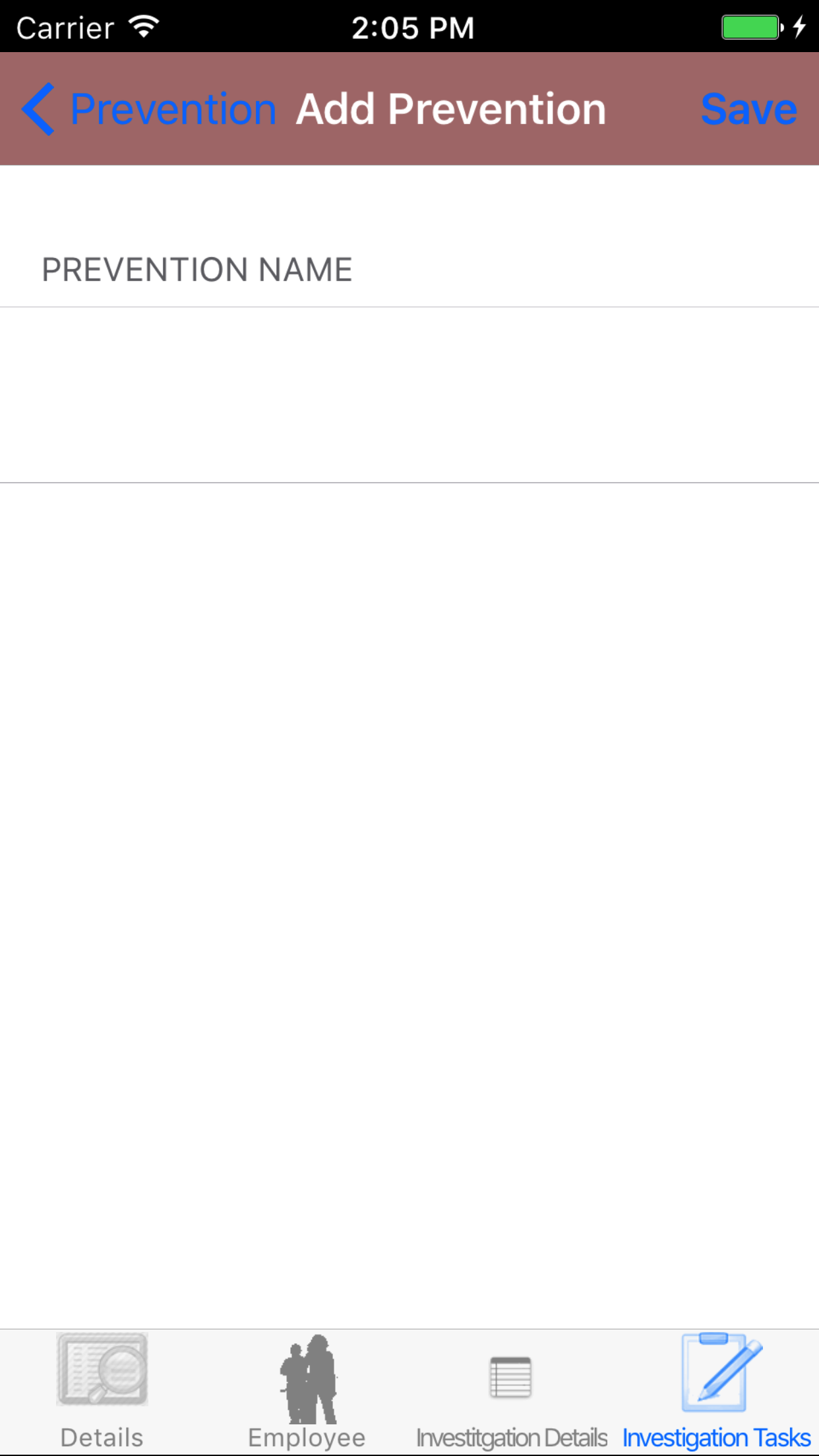
- Prevention Name: The Job Factor Name field gives the user to add a prevention that did not appear on investigation task list. The character limit of this field is 75.
- Tap the + icon in the top right corner to add the Prevention.
|
|
|
|
15.Edit Incident Type Checklist |
|
Incident Type Investigation Tasks are safety investigation incident type investigation tasks that a company has set up for their field staff to complete
as part of their safety investigation. To ensure field staff have the most up to date copy of the investigation tasks a company is
using make sure to update your phone on a regular basis. For more information about updating your phone click here.
Once on the Safety Investigation you would like to Edit
Steps
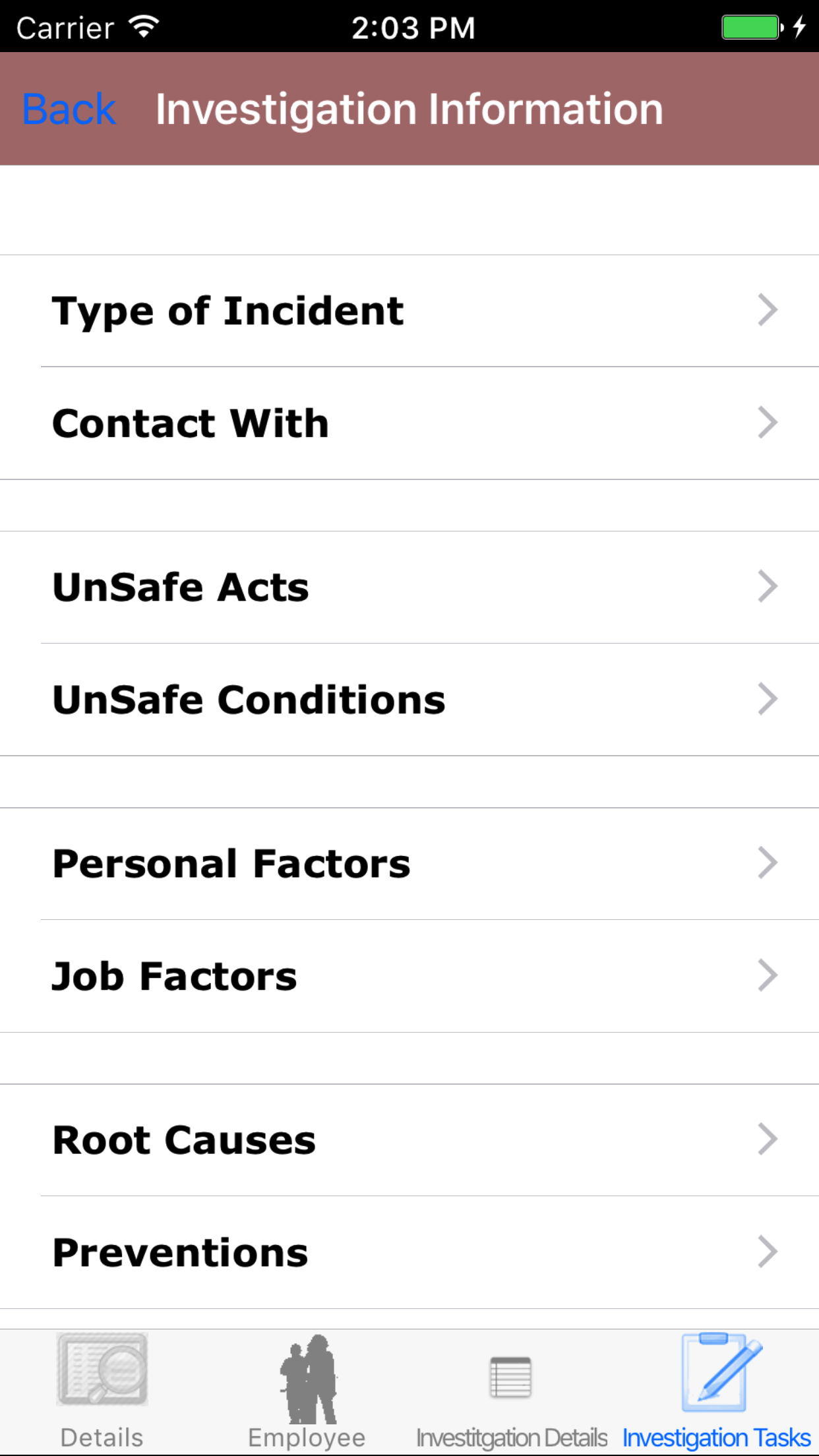
- Tap the Investigation Categories icon at the bottom of the screen to open the Investigation Categories Checklist screen. The screen loads
with the list of the 8 checklist categories of the safety investigation.
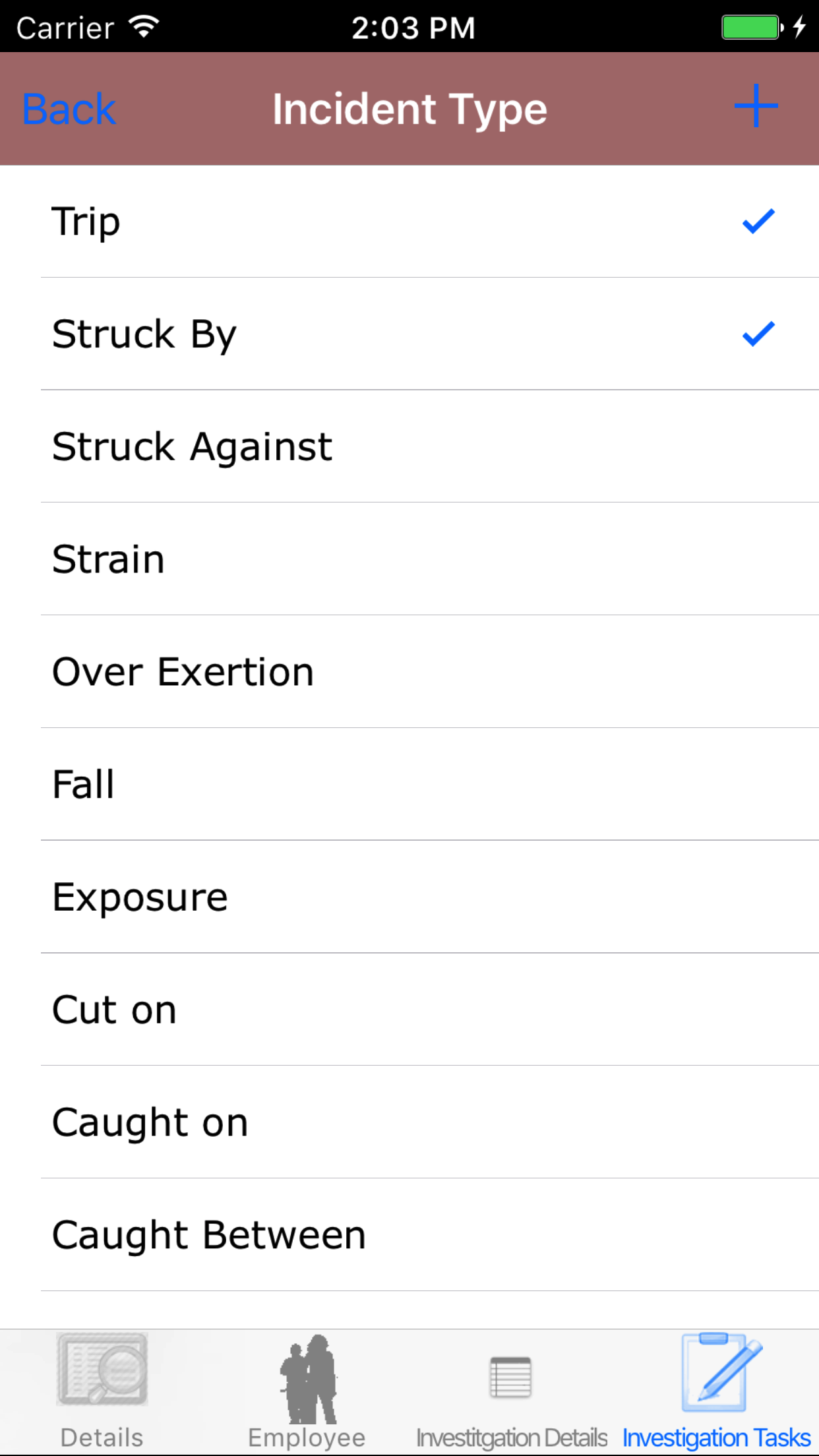
- Tap the Type of Incident button which loads with the type of incident investigation tasks listed with Task Name
in black, if the task is checked a checkmark will appear.
- Scroll the list of tasks until the desired task is displayed on the screen.
- Tap on the Task, which will check or un check a task.
|
|
| Step 1 |
|
|
| Steps 2-3 |
|
|
|
16.Edit Contact With Checklist |
|
Contact With Investigation Tasks are safety investigation contact with investigation tasks that a company has set up for their field staff to complete
as part of their safety investigation. To ensure field staff have the most up to date copy of the investigation tasks a company is
using make sure to update your phone on a regular basis. For more information about updating your phone click here.
Once on the Safety Investigation you would like to Edit
Steps
- Tap the Investigation Categories icon at the bottom of the screen to open the Investigation Categories Checklist screen. The screen loads
with the list of the 8 checklist categories of the safety investigation.
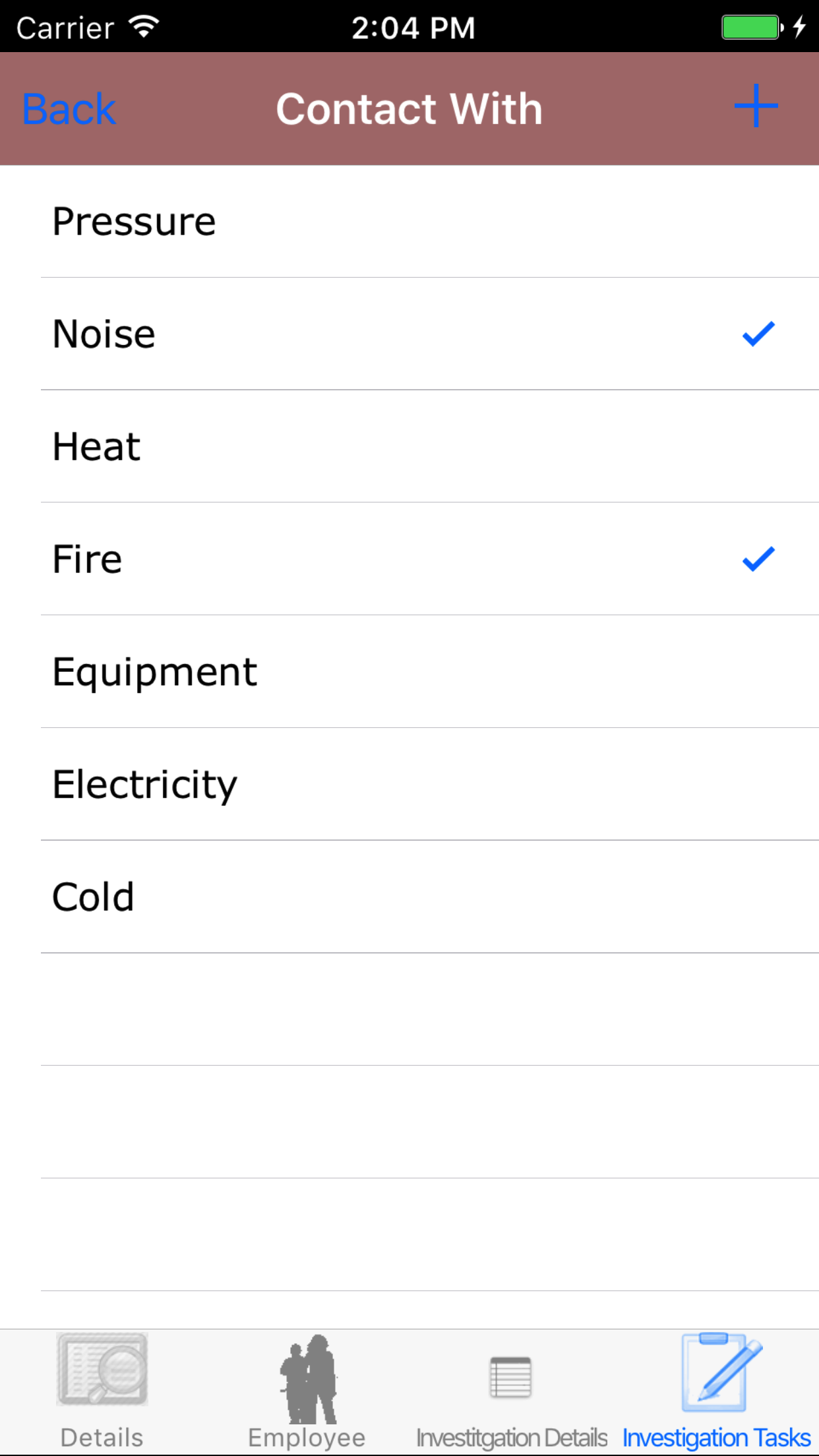
- Tap the Contact With button which loads with the contact with investigation tasks listed with Task Name
in black, if the task is checked a checkmark will appear.
- Scroll the list of tasks until the desired task is displayed on the screen.
- Tap on the Task, which will check or un check a task.
|
|
|
| Step 1 |
|
|
| Steps 2-3 |
|
|
|
17.Edit Unsafe Act Checklist |
|
Unsafe Acts Investigation Tasks are safety investigation unsafe acts investigation tasks that a company has set up for their field staff to complete
as part of their safety investigation. To ensure field staff have the most up to date copy of the investigation tasks a company is
using make sure to update your phone on a regular basis. For more information about updating your phone click here.
Once on the Safety Investigation you would like to Edit
Steps
- Tap the Investigation Categories icon at the bottom of the screen to open the Investigation Categories Checklist screen. The screen loads
with the list of the 8 checklist categories of the safety investigation.
- Tap the Unsafe Acts button which loads with the unsafe acts investigation tasks listed with Task Name
in black, if the task is checked a checkmark will appear.
- Scroll the list of tasks until the desired task is displayed on the screen.
- Tap on the Task, which will check or un check a task.
|
|
|
| Step 1 |
|

|
| Steps 2-3 |
|
|
|
18.Edit Unsafe Conditions Checklist |
|
Unsafe Conditions Investigation Tasks are safety investigation unsafe conditions investigation tasks that a company has set up for their field staff to complete
as part of their safety investigation. To ensure field staff have the most up to date copy of the investigation tasks a company is
using make sure to update your phone on a regular basis. For more information about updating your phone click here.
Once on the Safety Investigation you would like to Edit
Steps
- Tap the Investigation Categories icon at the bottom of the screen to open the Investigation Categories Checklist screen. The screen loads
with the list of the 8 checklist categories of the safety investigation.
- Tap the Unsafe Conditions button which loads with the unsafe conditions investigation tasks listed with Task Name
in black, if the task is checked a checkmark will appear.
- Scroll the list of tasks until the desired task is displayed on the screen.
- Tap on the Task, which will check or un check a task.
|
|
|
| Step 1 |
|

|
| Steps 2-3 |
|
|
|
19.Edit Personal Factor Checklist |
|
Personal Factors Investigation Tasks are safety investigation personal factors investigation tasks that a company has set up for their field staff to complete
as part of their safety investigation. To ensure field staff have the most up to date copy of the investigation tasks a company is
using make sure to update your phone on a regular basis. For more information about updating your phone click here.
Once on the Safety Investigation you would like to Edit
Steps
- Tap the Investigation Categories icon at the bottom of the screen to open the Investigation Categories Checklist screen. The screen loads
with the list of the 8 checklist categories of the safety investigation.
- Tap the Personal Factors button which loads with the personal factors investigation tasks listed with Task Name
in black, if the task is checked a checkmark will appear.
- Scroll the list of tasks until the desired task is displayed on the screen.
- Tap on the Task, which will check or un check a task.
|
|
|
| Step 1 |
|

|
| Steps 2-3 |
|
|
|
20.Edit Job Factor Checklist |
|
Job Factors Investigation Tasks are safety investigation job factors investigation tasks that a company has set up for their field staff to complete
as part of their safety investigation. To ensure field staff have the most up to date copy of the investigation tasks a company is
using make sure to update your phone on a regular basis. For more information about updating your phone click here.
Once on the Safety Investigation you would like to Edit
Steps
- Tap the Investigation Categories icon at the bottom of the screen to open the Investigation Categories Checklist screen. The screen loads
with the list of the 8 checklist categories of the safety investigation.
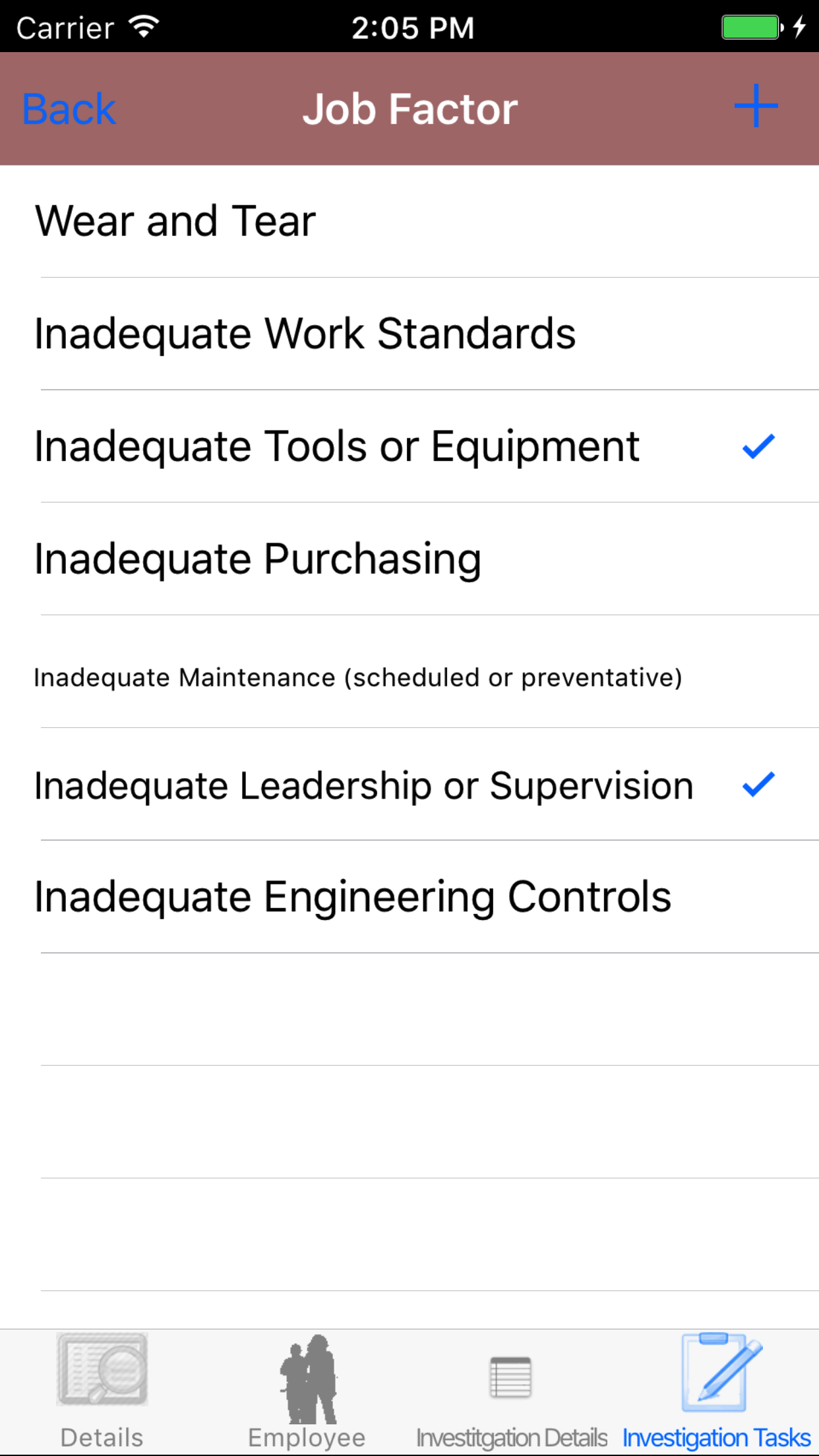
- Tap the Job Factors button which loads with the job factors investigation tasks listed with Task Name
in black, if the task is checked a checkmark will appear.
- Scroll the list of tasks until the desired task is displayed on the screen.
- Tap on the Task, which will check or un check a task.
|
|
|
| Step 1 |
|
|
| Steps 2-3 |
|
|
|
21.Edit Root Cause Checklist |
|
Root Causes Investigation Tasks are safety investigation root causes investigation tasks that a company has set up for their field staff to complete
as part of their safety investigation. To ensure field staff have the most up to date copy of the investigation tasks a company is
using make sure to update your phone on a regular basis. For more information about updating your phone click here.
Once on the Safety Investigation you would like to Edit
Steps
- Tap the Investigation Categories icon at the bottom of the screen to open the Investigation Categories Checklist screen. The screen loads
with the list of the 8 checklist categories of the safety investigation.
- Tap the Root Causes button which loads with the root causes investigation tasks listed with Task Name
in black, if the task is checked a checkmark will appear.
- Scroll the list of tasks until the desired task is displayed on the screen.
- Tap on the Task, which will check or un check a task.
|
|
|
| Step 1 |
|

|
| Steps 2-3 |
|
|
|
22.Edit Prevention Checklist |
|
Preventions Investigation Tasks are safety investigation job factors investigation tasks that a company has set up for their field staff to complete
as part of their safety investigation. To ensure field staff have the most up to date copy of the investigation tasks a company is
using make sure to update your phone on a regular basis. For more information about updating your phone click here.
Once on the Safety Investigation you would like to Edit
Steps
- Tap the Investigation Categories icon at the bottom of the screen to open the Investigation Categories Checklist screen. The screen loads
with the list of the 8 checklist categories of the safety investigation.
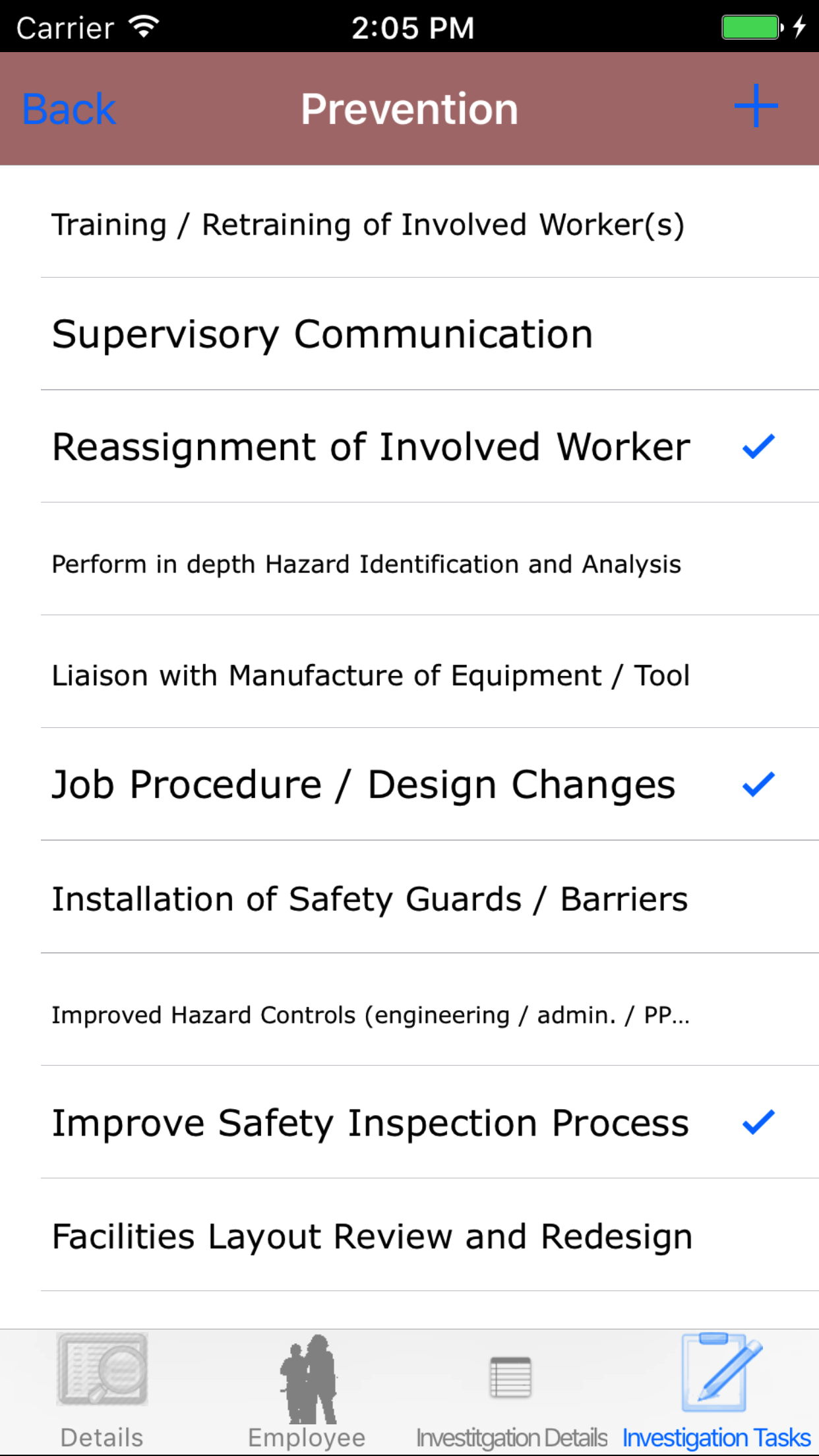
- Tap the Preventions button which loads with the preventions investigation tasks listed with Task Name
in black, if the task is checked a checkmark will appear.
- Scroll the list of tasks until the desired task is displayed on the screen.
- Tap on the Task, which will check or un check a task.
|
|
|
| Step 1 |
|
|
| Steps 2-3 |
|
|
|
23.Add Event Participant |
|
Event Participant are field staff that are involved in the event. In the case of a near miss investigation, not all people involved
were at fault during the near miss.
Once on the Safety Investigation you would like to edit.
Steps
- Tap the Employee icon, the second tab. This opens the list of Employees,Event Particitpants, Sequence of Events, and Witness Statement.
- Tap the Event Participants button
- Tap the + icon in the top right corner to load the add event participants screen
- Scroll the list of Safety Investigation Employees until the desired employee is displayed on the screen.
- Tap the Employee name and they will be added as a event participant
|
|
|
|
| Steps 1-2 |
|

|
| Step 3 |
|

|
| Steps 4-6 |
|
|
24.Delete Event Participant |
|
Once on the Safety Investigation you would like to edit.
Steps
- Tap the Employee icon, the second tab. This opens the list of Employees,Event Participants, Sequence of Events, and Witness Statement.
- Tap the Event Participants button
- Scroll the list of Safety Investigation Employees until the desired employee is displayed on the screen.
- Swipe from the right edge to the left to bring up the delete button for the event participant.
- Tap the Delete button. The event participant will be deleted.
|

|
| Steps 1-5 |
|
|
|
25.Add Sequence of Events |
|
Once on the Safety Investigation you would like to edit.
Steps
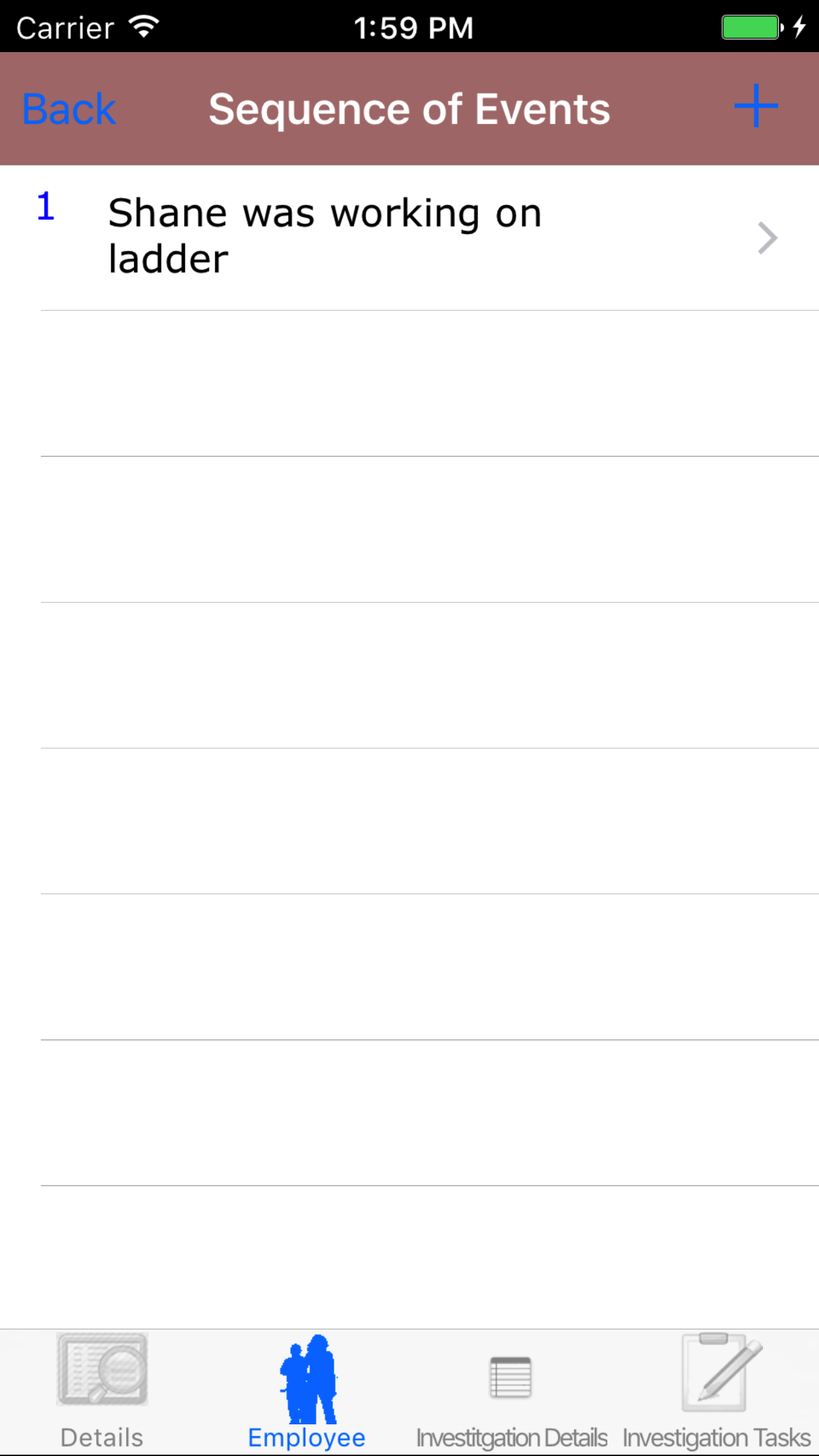
- Tap the Employee icon, the second tab. This opens the list of Employees, Sequence of Events, and Witness Statement.
- Tap the Sequence of Events button
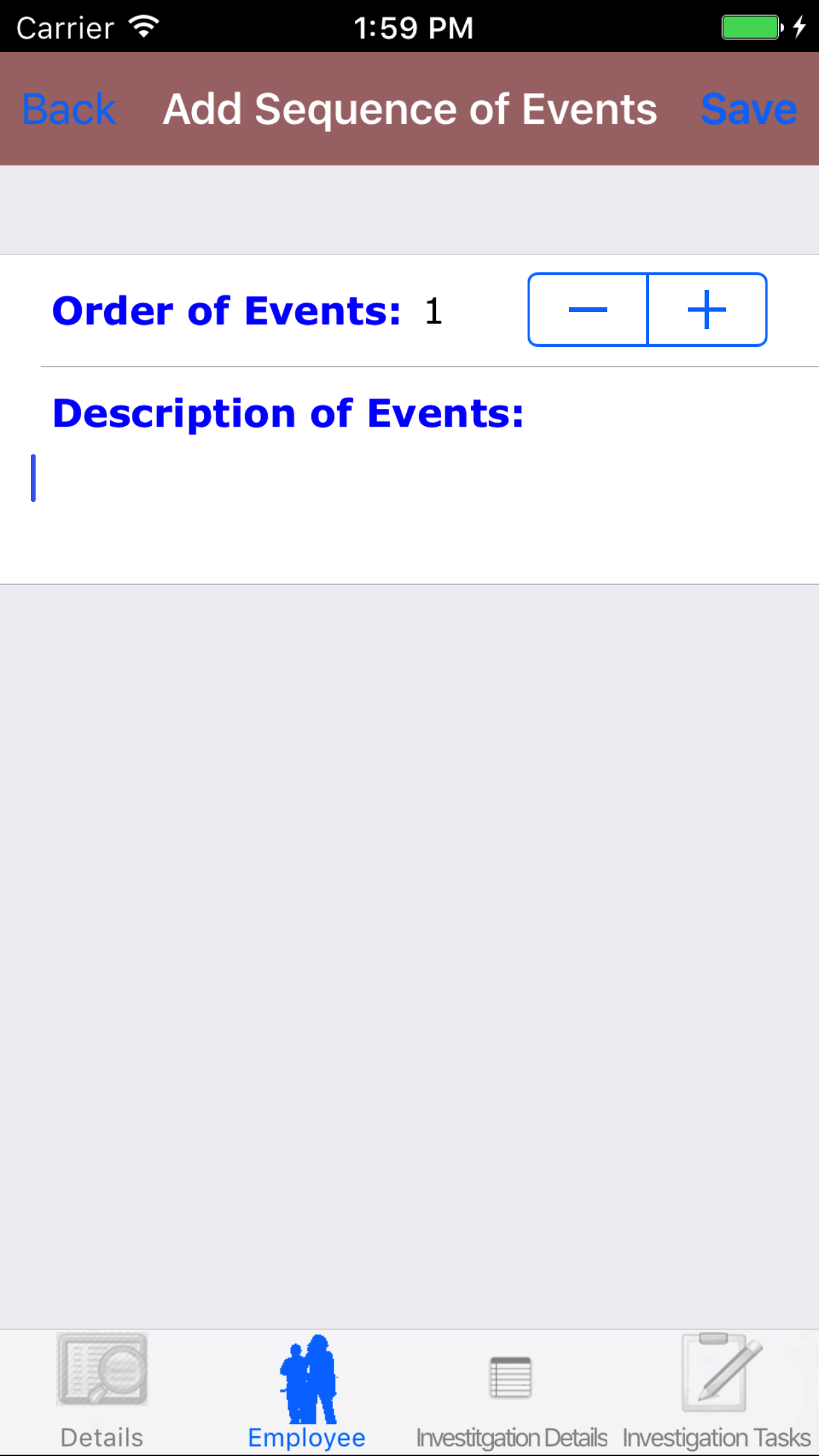
- Tap the + icon in the top right corner to load the add sequence of events screen
Fields
- Order of Events: The order of events field allows users to add sequence of events paragraphs in a specific order in any order they see fit.
- Tap + to increase the order of events number of the sequence of events paragraph or - to decrease the order of events number of the sequence of events paragraph on the Stepper
- Description of Events: The Description of Events field gives the user the ability to describe the sequence of events that has occurred. The user should enter a description of the injury. The character limit of this field is 500.
- Tap Save in the top right corner of the screen to save the sequence of events.
|
|
|
|
| Steps 1-2 |
|
|
| Step 3 |
|
|
| Steps 4-6 |
|
|
26.Look Up Sequence of Events |
|
Once on the Safety Investigation you would like to edit.
Steps
- Tap the Employee icon, the second tab. This opens the list of Employees, Sequence of Events, and Witness Statement.
- Tap the Sequence of Events button
- Scroll the list of Sequence of Events until the desired Sequence of Events is displayed on the screen. The order of events in blue text,
with the description of events in black text.
- Tap on the Sequence of Events you would like to view. This loads the sequence of events edit screen.
|
|
|
| Steps 1-2 |
|
|
|
| Step 3 |
|
|
|
27.Edit Sequence of Events |
|
Once on the Sequence of Events edit screen
Fields
- Order of Events: The order of events field allows users to add sequence of events paragraphs in a specific order in any order they see fit.
- Tap + to increase the order of events number of the sequence of events paragraph or - to decrease the order of events number of the sequence of events paragraph on the Stepper
- Description of Events: The Description of Events field gives the user the ability to describe the sequence of events that has occurred. The user should enter a description of the injury. The character limit of this field is 500.
- Tap Save in the top right corner of the screen to save the sequence of events.
|
|
|
| Steps 1-3 |
|
|
|
28.Delete Sequence of Events |
|
Once on the Safety Investigation you would like to edit.
Steps
- Tap the Employee icon, the second tab. This opens the list of Employees, Sequence of Events, and Witness Statement.
- Tap the Sequence of Events button
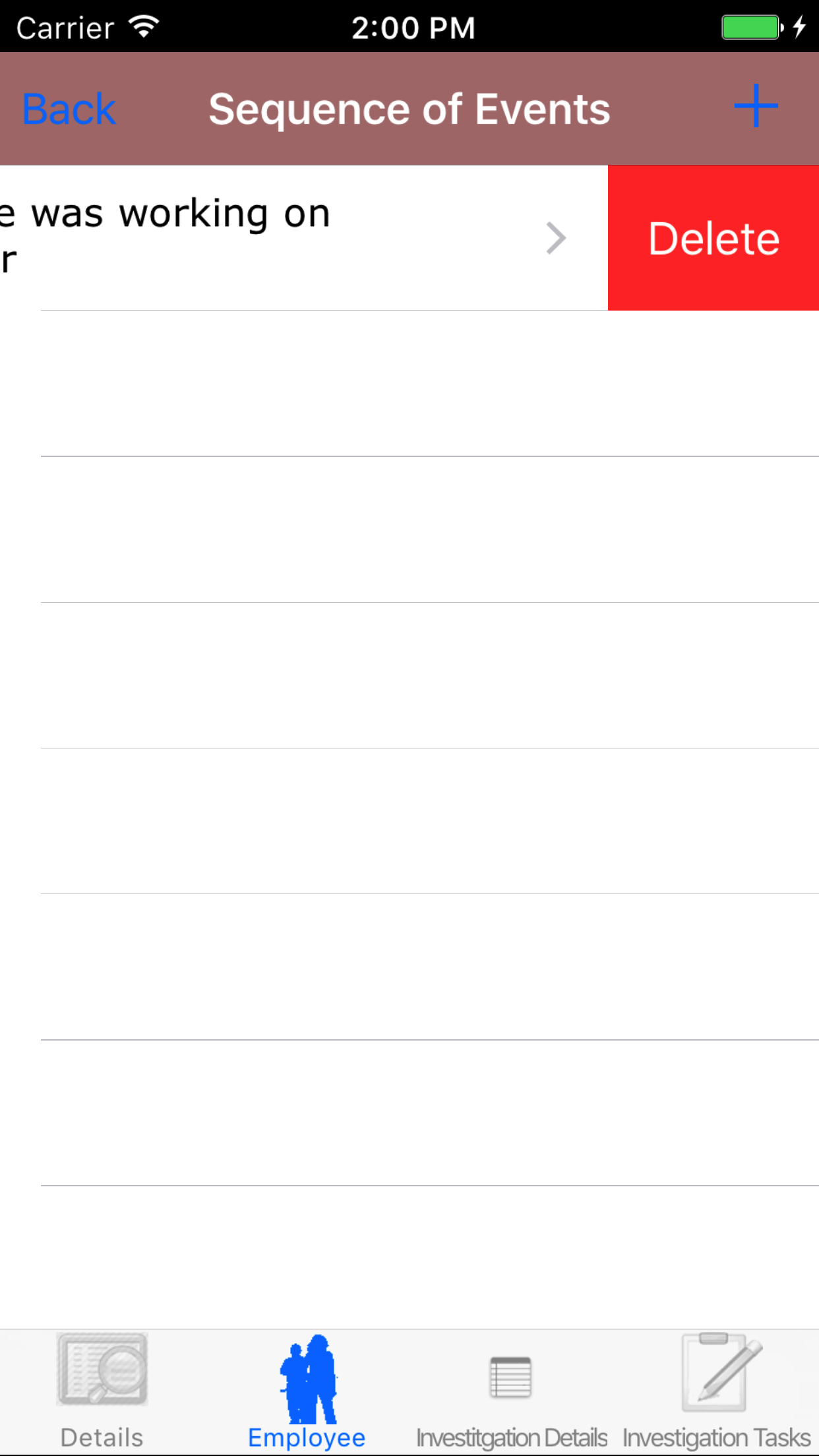
- Scroll the list of Sequence of Events until the desired Sequence of Events is displayed on the screen. The order of events in blue text,
with the description of events in black text.
- Swipe from the right edge to the left to bring up the delete button for the sequence of events.
- Tap the Delete button. The sequence of event will be deleted.
|
|
| Steps 1-5 |
|
|
|
29.Add Witness Statement Employee |
|
Once on the Safety Investigation you would like to edit.
Steps
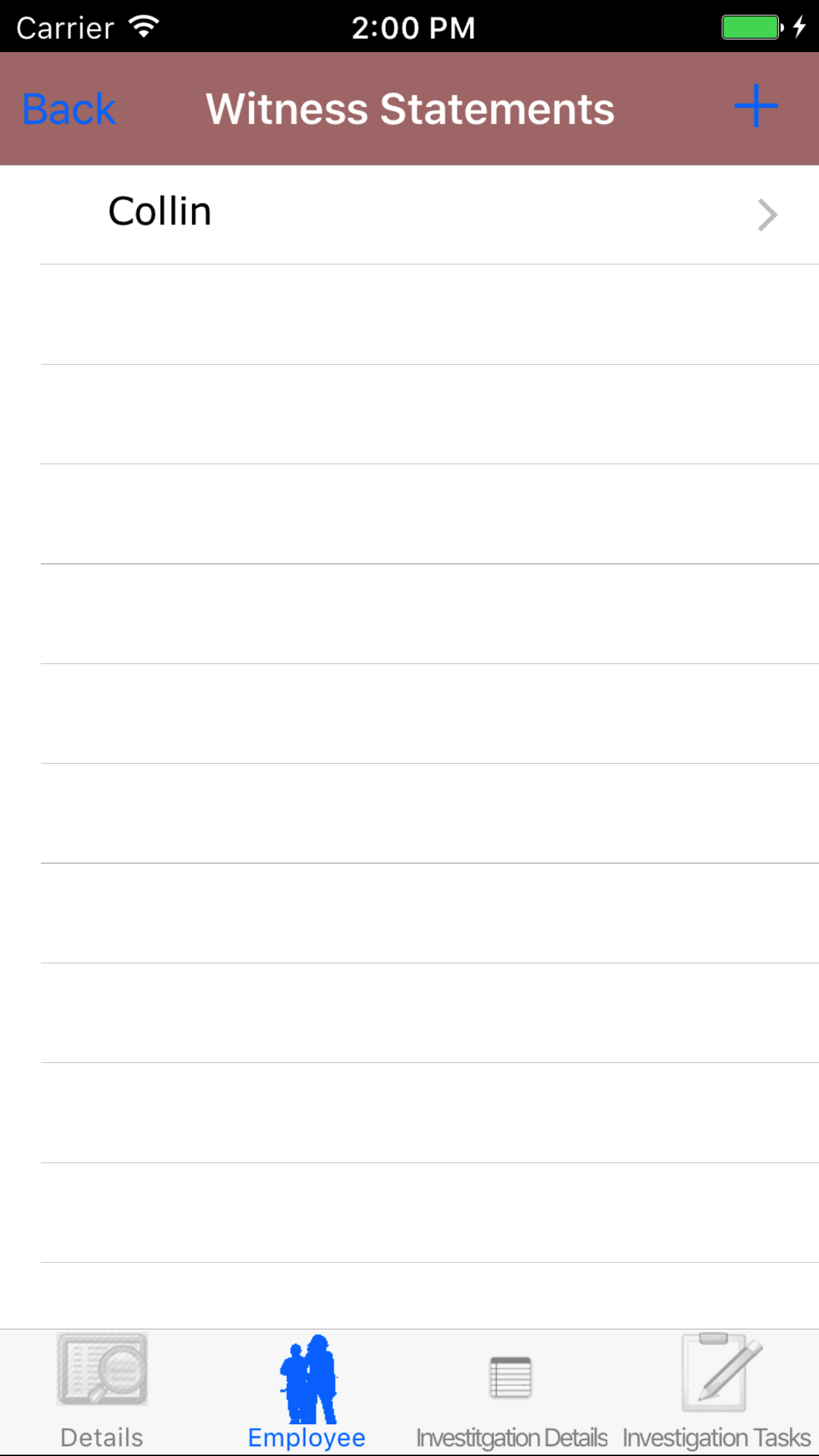
- Tap the Investigation Info icon, the third tab. This opens the list of Employees, Sequence of Events, Witness Statement, Medical Treatment, and Property Damage.
- Tap the Witness Statement button
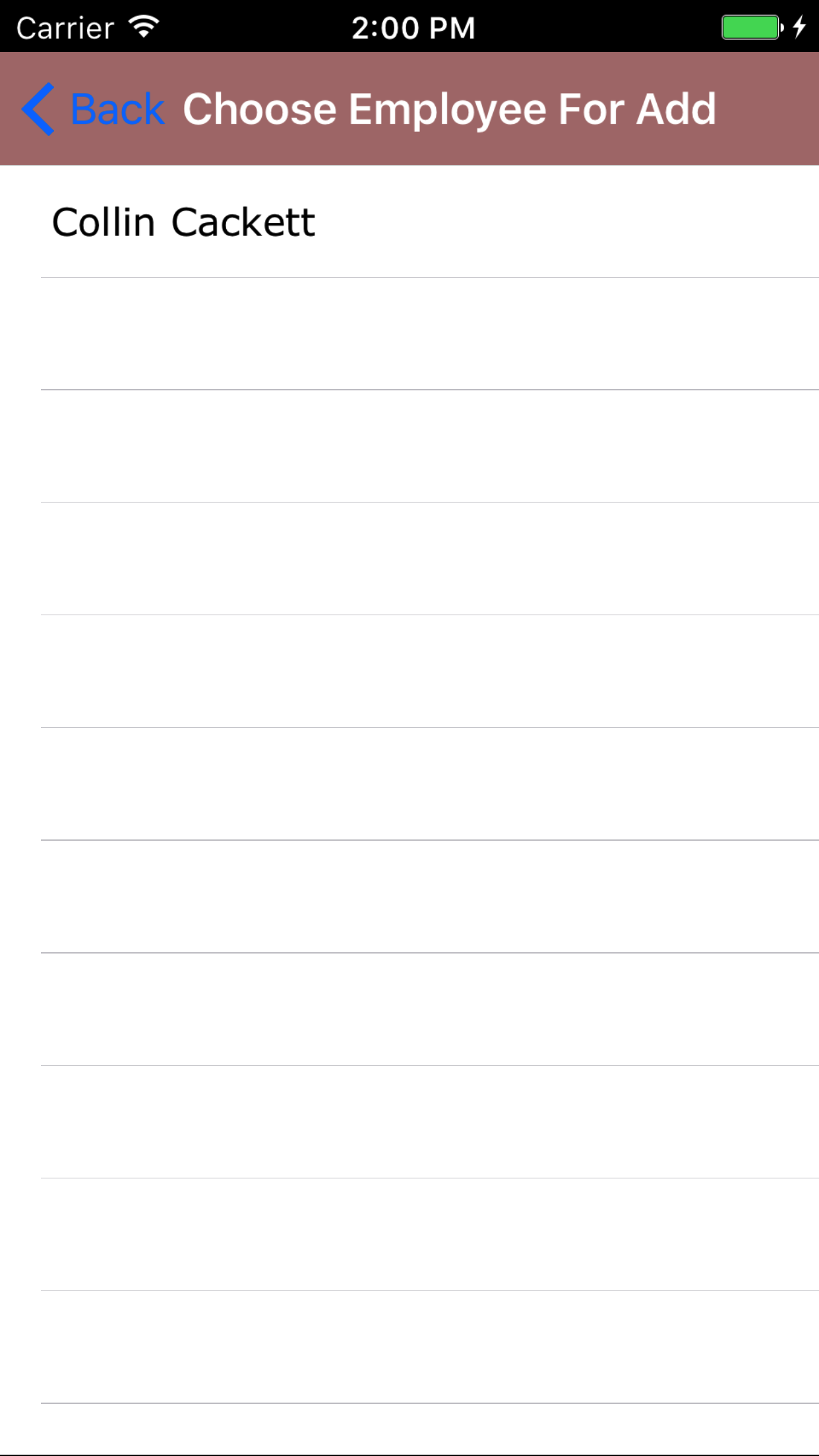
- Scroll the list of Safety Investigation Employees until the desired employee is displayed on the screen.
- Tap the employees name to add a witness statement for selected employee.
|
|

|
| Steps 1-2 |
|
|
| Step 3 |
|
|
| Steps 4-6 |
|
|
30.Add Witness Statement |
|
Once on the Safety Investigation you would like to edit.
Steps
- Tap the Employee icon, the second tab. This opens the list of Employees, Sequence of Events, and Witness Statement.
- Tap the Witness Statement button
- Scroll the list of witness statement for employees until the desired employee is displayed on the screen.
- This loads the list witness statement paragraphs.
- Tap the + icon in the top right corner to load the add witness statement screen
Fields
- Witness Statement: The Witness Statement field gives the user the ability to describe the what happened. The character limit of this field is 500.
- Tap Save in the top right corner of the screen to save the witness statement.
|
|
|
|
| Steps 1-2 |
|
|
|
| Step 3 |
|

|
| Steps 4-5 |
|
|
31.Look Up Witness Statement |
|
Once on the Safety Investigation you would like to edit.
Steps
- Tap the Employee icon, the second tab. This opens the list of Employees, Sequence of Events, and Witness Statement.
- Tap the Sequence of Events button
- Scroll the list of Witness Statement until the desired Witness Statement is displayed on the screen. The witness statement in black text.
- Tap on the witness statements you would like to view. This loads the witness statement edit screen.
|
|
|
| Steps 1-2 |
|
|
|
| Step 3 |
|
|
|
32.Edit Witness Statement |
|
Once on the Witness Statement edit screen
Fields
- Witness Statement: The Witness Statement field gives the user the ability to describe
the how a witness saw the event occurred. The character limit of this field is 500.
- Tap Save in the top right corner of the screen to save the witness statement.
|
|
|
| Steps 1-3 |
|
|
|
33.Delete Witness Statement |
|
Once on the Safety Investigation you would like to edit.
Steps
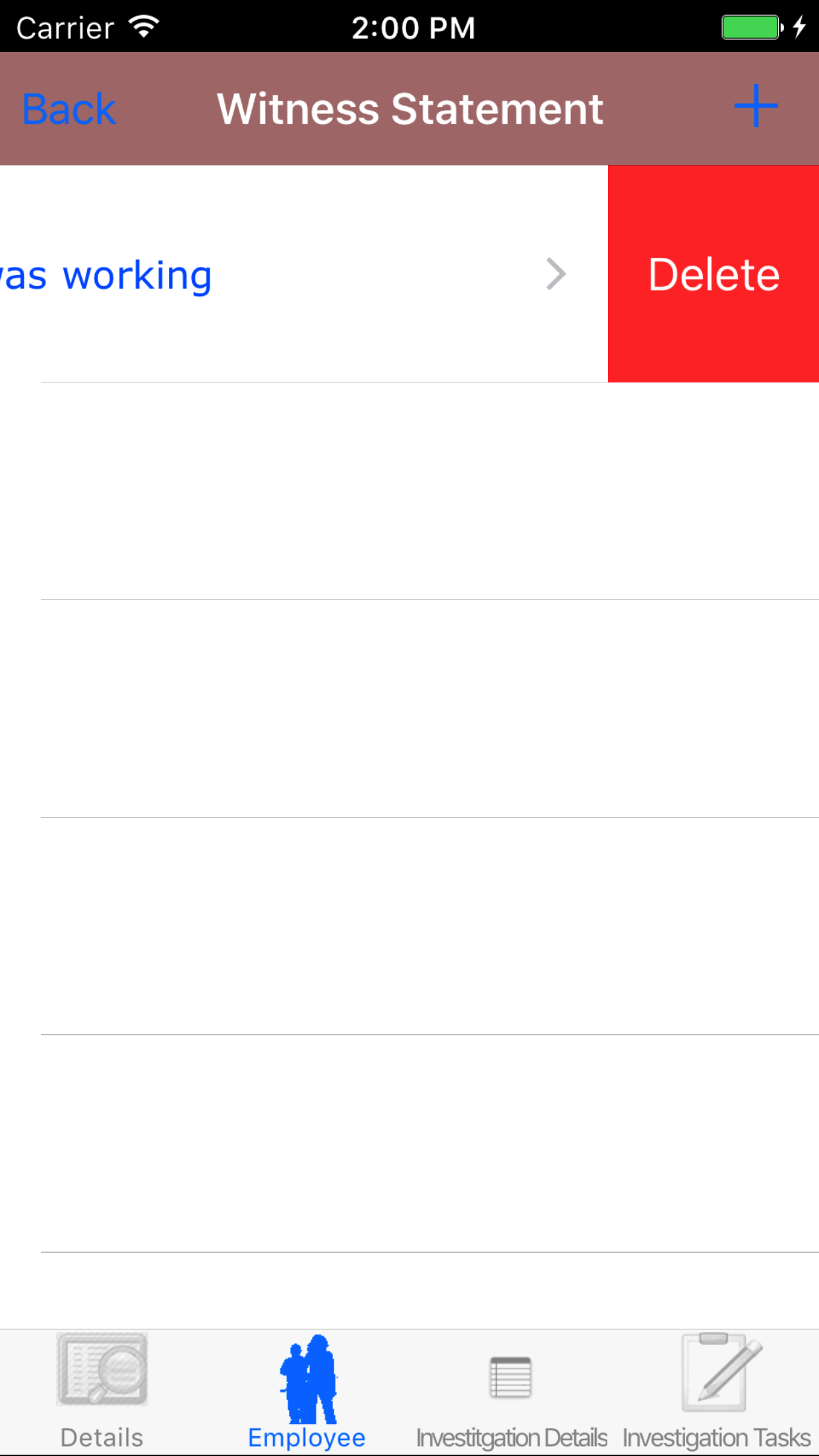
- Tap the Employee icon, the second tab. This opens the list of Employees, Sequence of Events, and Witness Statement.
- Tap the Witness Statements button
- Scroll the list of Witness Statements until the desired Witness Statements is displayed on the screen. The witness statement in black text.
- Long Tap the witness statements to bring up the delete button for the witness statement.
- Tap the Delete button. The witness statement will be deleted.
|
|
| Step 1 |
|
|
|
34.Add Medical Treatment |
|
Once on the Safety Investigation you would like to edit.
If the Safety Investigation is set to Safety Incident, users can add medical treatment details to the Safety Investigation.
Steps
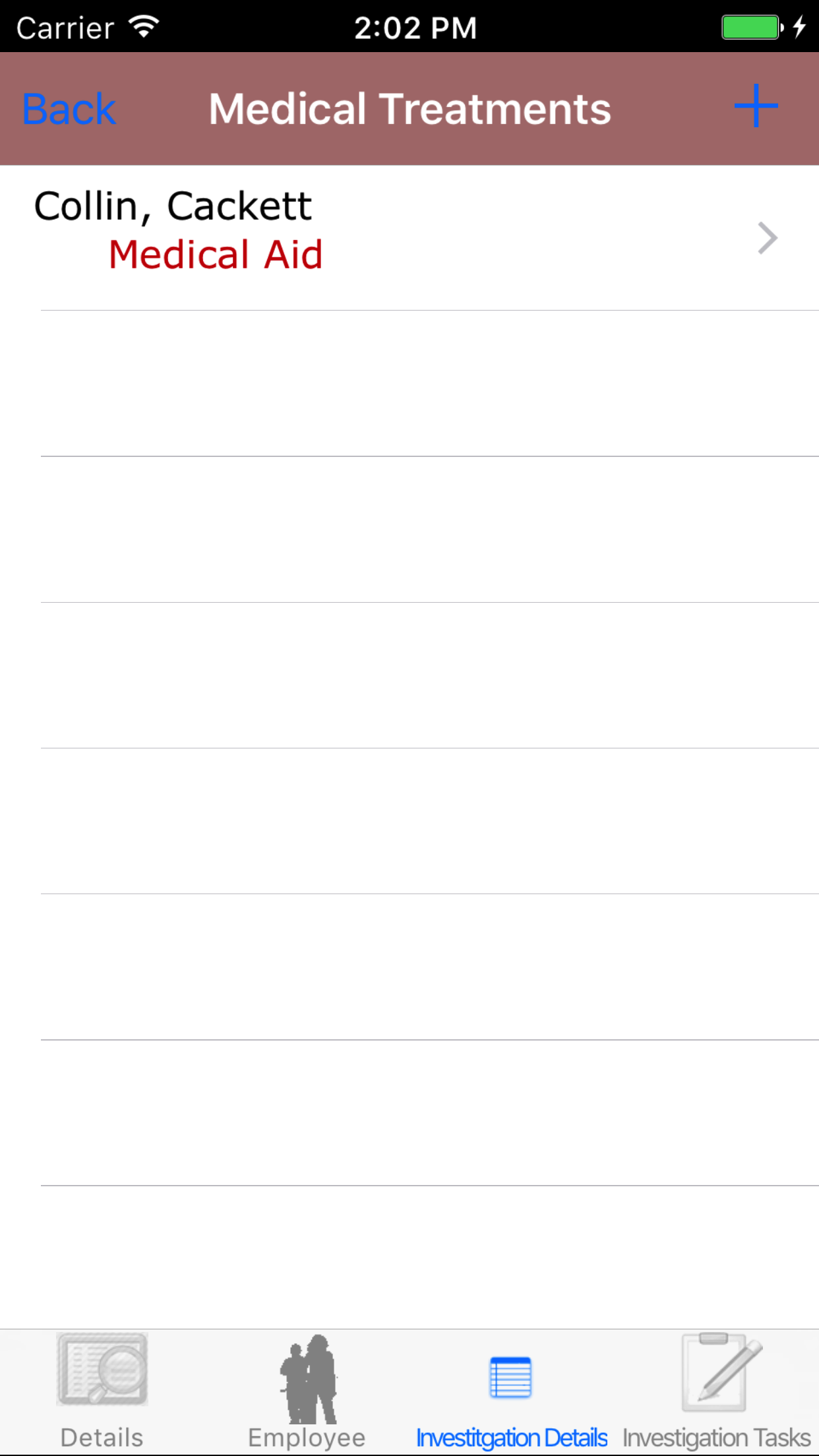
- Tap the Investigation Details icon, the third tab. This opens the list of Medical Treatment or Property Damage
- Tap the Medical Treatment button
- Tap the + icon in the top right corner to load the add medical treatment screen
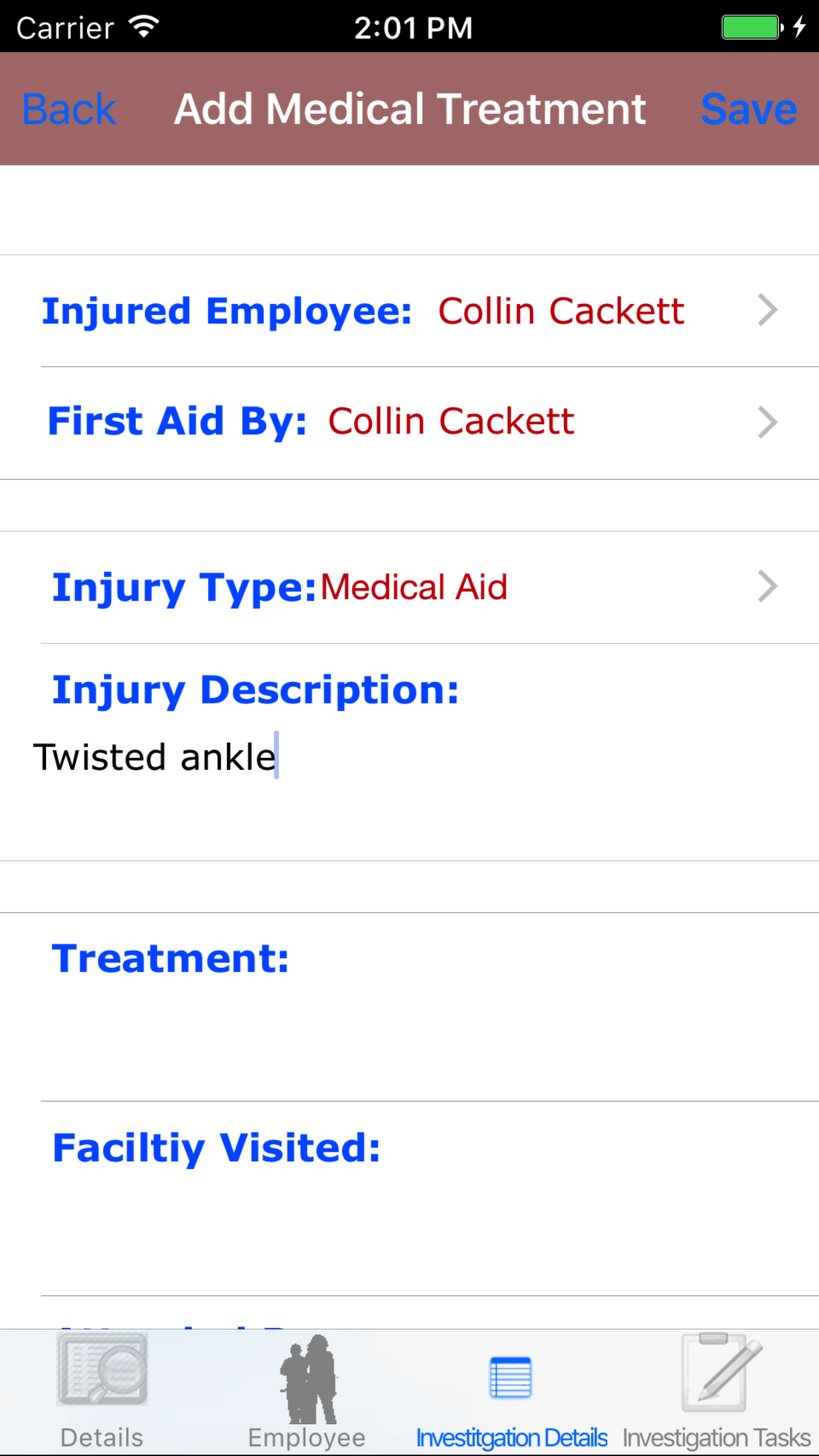
Fields
- Injured Employee: The injured employee field initialy displays the name of the person who added the Safety Investigation and should be updated to indicate the employee who was injured.
- Tap the Prepared By: field to open the Employees screen.
Employees are listed in the order they were added to the Safety Investigation.
- Tap the desired employee to select it or tap Back in the top left corner to leave the Employee field unchanged and return to the Add Medical Treatment screen.
- Return to the Add Medical Treatment screen by either tapping Save in the top right corner to select the highlighted employee or tapping Cancel in the top left corner to leave the Employee field unchanged.
- First Aid By: The first aid by employee field initialy displays the name of the person who added the Safety Investigation and should be updated to indicate the employee who performed the needed first aid
- Tap the Prepared By: field to open the Employees screen.
Employees are listed in the order they were added to the Safety Investigation.
- Tap the desired employee to select it or tap Back in the top left corner to leave the Employee field unchanged and return to the Add Medical Treatment screen.
- Return to the Add Medical Treatment screen by either tapping Save in the top right corner to select the highlighted employee or tapping Cancel in the top left corner to leave the Employee field unchanged.
- Injury Type: The injury type field initialy displays first aid, if clicked on it can be changed to better describe the situation.
- Tap the Injury Type: field to open the Choose Injury Type screen.
Injury Types are listed
- Tap the desired injury type to select it.
- Return to the Add Medical Treatment screen by either tapping Save in the top right corner to select the highlighted injury type or tapping Cancel in the top left corner to leave the Injury Type field unchanged.
- Injury Description: The Injury Description field gives the user the ability to describe the injury that has occurred. The user should enter a description of the injury. The character limit of this field is 250.
- Treatment: The Treatment field gives the user the ability to provide a description of the first aid treatment given. The character limit of this field is 250.
- Facility Visited: The Facility Visited field gives the user the ability to describe the facility visited to take care of the injury. The character limit of this field is 250.
- Attended By: The Attended By field gives the user the ability to provide a name of the medical professional that handled the care. The character limit of this field is 125.
- Other Attended By: The Other Attended By field gives the user the ability to provide a name of the secondary medical professional that handled the care. The character limit of this field is 125.
- Lost Time: The lost time field initialy displays no, if clicked on it can be changed to better describe the situation.
Lost Time values include:
- Lost Time: Injured Employee will be missing work based on the injury sustained.
- Modified Work: Injured Employee will be on a modified work schedule until they recover from the injury.
- No: Injured Employee will NOT be missing work based on the injury sustained.
- WCB Report Completed: The WCB (Workers Compensation Board) Report Completed field should be set to Yes if a WCB report for the incident has been
filled in. Most areas of operation require that a WCB Report is filled in by the Injured Employee and the Employer.
- Tap Yes on the No|Yes selector to indicate that a WCB report for the incident has been
filled in.
- Recurring Injury: The Recurring Injury field should be set to Yes if the injury sustain is a recurring injury for the injured employee. When a injury is considered recurring some issues how it will be handled changed.
- Tap Yes on the No|Yes selector to indicate that a injury is recurring
- Recurring Injury Description: The Recurring Injury Description field gives the user the ability to provide a description of the recurring injury. The character limit of this field is 150.
- Tap Save in the top right corner of the screen to save the medical treatment
|
|

|
| Steps 1-2 |
|
|
| Step 3 |
|
|
| Steps 4-15 |
|
|
35.Look Up Medical Treatment |
|
Once on the Safety Investigation you would like to edit.
Steps
- Tap the Investigation Details icon, the third tab. This opens the list of Medical Treatment or Property Damage
- Tap the Medical Treatment button
- Scroll the list of Medical Treatments until the desired Medical Treatment is displayed on the screen. The employee injured in black text,
with the injury type in red text.
- Tap on the Medical Treatments you would like to view. This loads the medical treatment edit screen.
|
|
|
| Steps 1-2 |
|
|
|
| Step 3 |
|
|
|
36.Edit Medical Treatment |
|
Once on the Medical Treatment edit screen
Fields
- Injured Employee: The injured employee field initialy displays the name of the person who added the Safety Investigation and should be updated to indicate the employee who was injured.
- Tap the Prepared By: field to open the Employees screen.
Employees are listed in the order they were added to the Safety Investigation.
- Tap the desired employee to select it or tap Back in the top left corner to leave the Employee field unchanged and return to the Add Medical Treatment screen.
- Return to the Edit Medical Treatment screen by either tapping Save in the top right corner to select the highlighted employee or tapping Cancel in the top left corner to leave the Employee field unchanged.
- First Aid By: The first aid by employee field initialy displays the name of the person who added the Safety Investigation and should be updated to indicate the employee who performed the needed first aid
- Tap the Prepared By: field to open the Employees screen.
Employees are listed in the order they were added to the Safety Investigation.
- Tap the desired employee to select it or tap Back in the top left corner to leave the Employee field unchanged and return to the Add Medical Treatment screen.
- Return to the Edit Medical Treatment screen by either tapping Save in the top right corner to select the highlighted employee or tapping Cancel in the top left corner to leave the Employee field unchanged.
- Injury Type: The injury type field initialy displays first aid, if clicked on it can be changed to better describe the situation.
- Tap the Injury Type: field to open the Choose Injury Type screen.
Injury Types are listed
- Tap the desired injury type to select it.
- Return to the Edit Medical Treatment screen by either tapping Save in the top right corner to select the highlighted injury type or tapping Cancel in the top left corner to leave the Injury Type field unchanged.
- Injury Description: The Injury Description field gives the user the ability to describe the injury that has occurred. The user should enter a description of the injury. The character limit of this field is 250.
- Treatment: The Treatment field gives the user the ability to provide a description of the first aid treatment given. The character limit of this field is 250.
- Facility Visited: The Facility Visited field gives the user the ability to describe the facility visited to take care of the injury. The character limit of this field is 250.
- Attended By: The Attended By field gives the user the ability to provide a name of the medical professional that handled the care. The character limit of this field is 125.
- Other Attended By: The Other Attended By field gives the user the ability to provide a name of the secondary medical professional that handled the care. The character limit of this field is 125.
- Lost Time: The lost time field initialy displays no, if clicked on it can be changed to better describe the situation.
Lost Time values include:
- Lost Time: Injured Employee will be missing work based on the injury sustained.
- Modified Work: Injured Employee will be on a modified work schedule until they recover from the injury.
- No: Injured Employee will NOT be missing work based on the injury sustained.
- WCB Report Completed: The WCB (Workers Compensation Board) Report Completed field should be set to Yes if a WCB report for the incident has been
filled in. Most areas of operation require that a WCB Report is filled in by the Injured Employee and the Employer.
- Tap Yes on the No|Yes selector to indicate that a WCB report for the incident has been
filled in.
- Recurring Injury: The Recurring Injury field should be set to Yes if the injury sustain is a recurring injury for the injured employee. When a injury is considered recurring some issues how it will be handled changed.
- Tap Yes on the No|Yes selector to indicate that a injury is recurring
- Recurring Injury Description: The Recurring Injury Description field gives the user the ability to provide a description of the recurring injury. The character limit of this field is 150.
- Tap Save in the top right corner of the screen to save the medical treatment
|
|
|
| Steps 1-13 |
|
|
|
37.Delete Medical Treatment |
|
Once on the Safety Investigation you would like to edit.
Steps
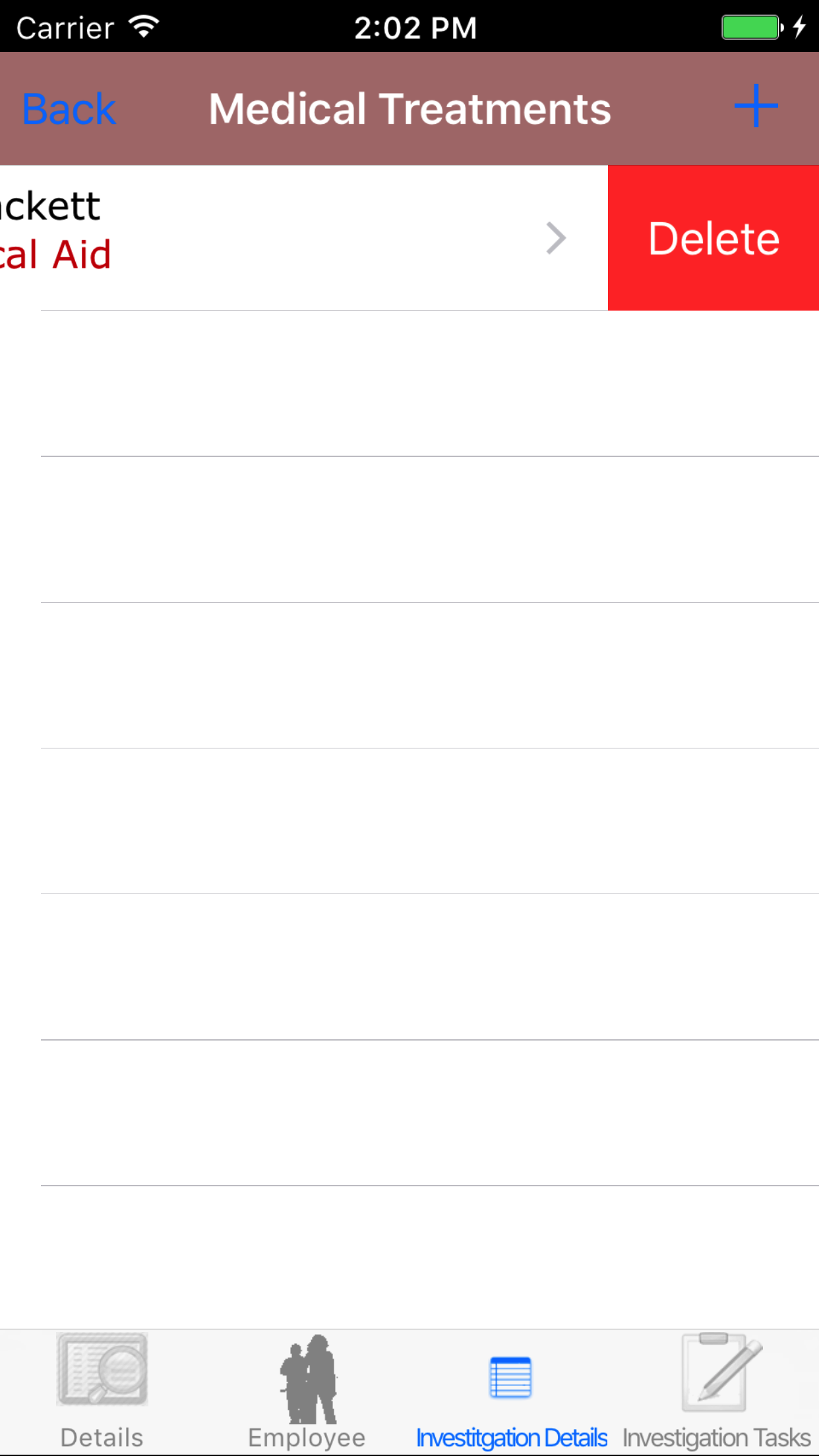
- Tap the Investigation Details icon, the third tab. This opens the list of Medical Treatment or Property Damage
- Tap the Property Damage button
- Scroll the list of Medical Treatments until the desired Medical Treatment is displayed on the screen. The employee injured in black text,
with the injury type in red text.
- Scroll the list of Medical Treatment until the desired Medical Treatment is displayed on the screen.
- Swipe from the right edge to the left to bring up the delete button for the medical treatment.
- Tap the Delete button. The medical treatment will be deleted.
|
|
| Step 1 |
|
|
|
38.Add Property Damage |
|
Once on the Safety Investigation you would like to edit.
If the Safety Investigation is set to Safety Incident / Spill Release or Property Damage, users can add property damage details to the Safety Investigation.
Steps
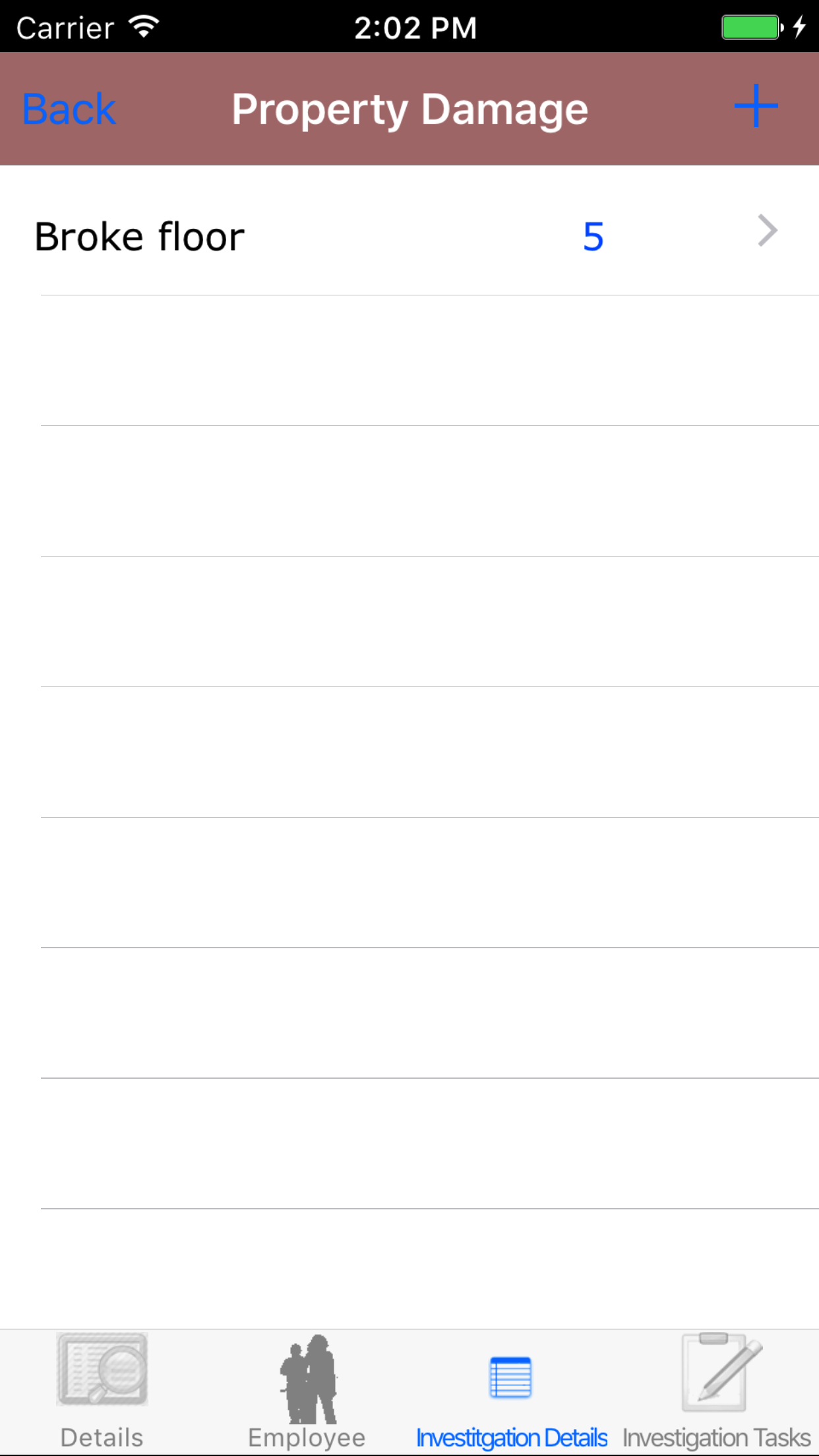
- Tap the Investigation Details icon, the third tab. This opens the list of Medical Treatment or Property Damage
- Tap the Property Damage button
- Tap the + icon in the top right corner to load the add property damage screen
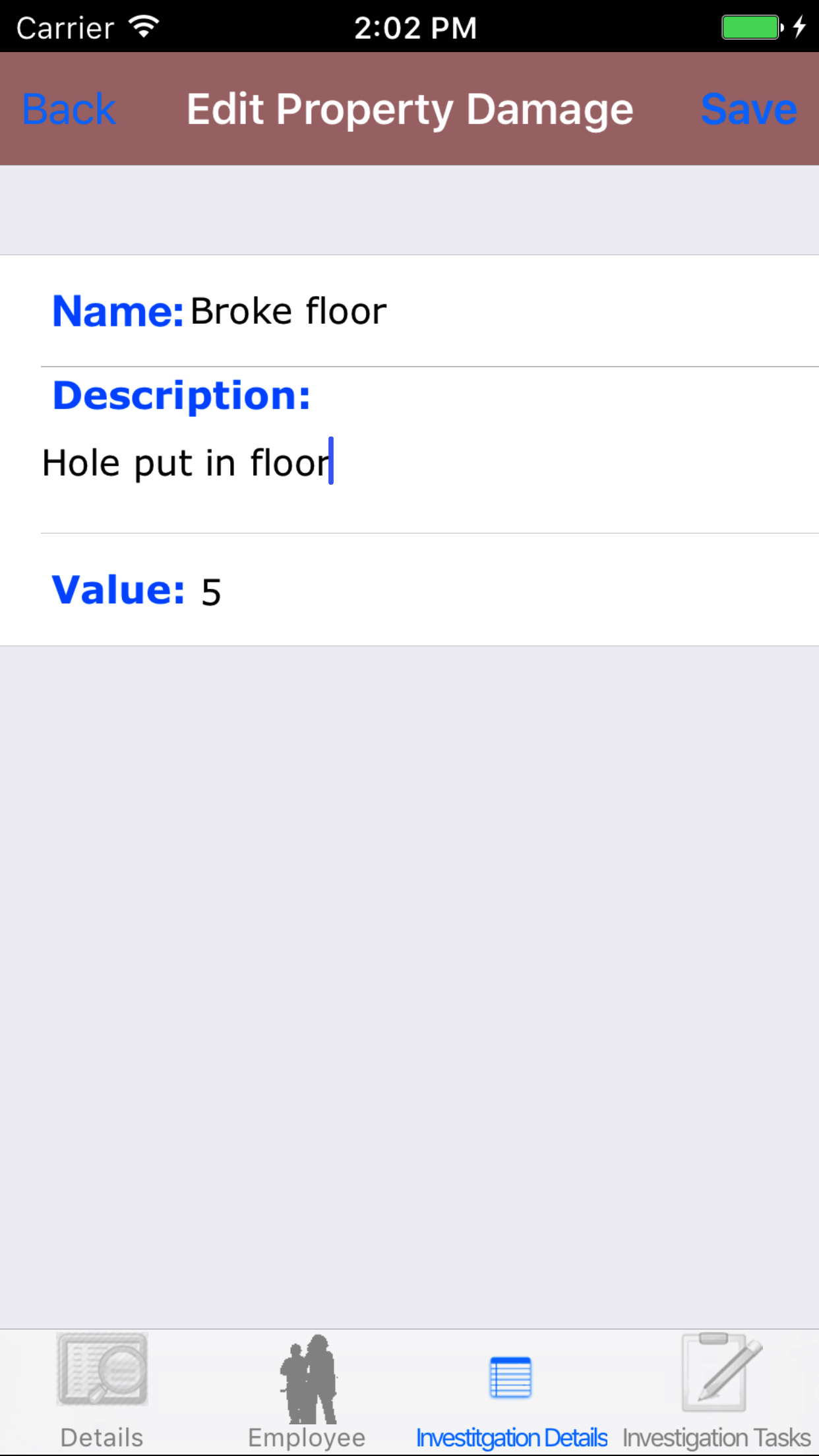
Fields
- Name: The Name field gives the user the ability to describe the property damaged. The character limit of this field is 50.
- Description: The Description field gives the user the ability to further describe in detail of what was damaged. The character limit of this field is 250.
- Value: The Value field gives the user the ability to enter a cost of the damages to the property. The field only excepts a number value.
- Tap Save in the top right corner of the screen to save the property damage
|
|
|
|
| Steps 1-2 |
|
|
| Step 3 |
|
|
| Steps 4-7 |
|
|
39.Look Up Property Damage |
|
Once on the Safety Investigation you would like to edit.
Steps
- Tap the Investigation Details icon, the third tab. This opens the list of Medical Treatment or Property Damage
- Tap the Property Damage button
- Scroll the list of Property Damages until the desired Property Damage is displayed on the screen. The property damage name in black text,
with the value in blue text.
- Tap on the Property Damage you would like to view. This loads the property damage edit screen.
|
|
|
| Steps 1-2 |
|
|
|
| Step 3 |
|
|
|
40.Edit Property Damage |
|
Once on the Property Damage edit screen
Fields
- Date: The date field allow field staff to choose the date the issue should is resolved by.
- Tap the Date field to open the Choose Date screen.
- Scroll the date wheel on the far left of the screen until the desired date is highlighted.
- Return to the Add Follow Up screen by either tapping Save in the top right corner to select the highlighted date or tapping Cancel in the top left corner to leave the Date: field unchanged.
- Follow Up Description: The Follow up Description field gives the user the ability to describe the solution to solve the problem. The character limit of this field is 250.
- Tap Save in the top right corner of the screen to save the property damage
|
|
|
| Steps 1-4 |
|
|
|
41.Delete Property Damage |
|
Once on the Safety Investigation you would like to edit.
Steps
- Tap the Investigation Details icon, the third tab. This opens the list of Medical Treatment or Property Damage
- Tap the Property Damage button
- Scroll the list of Property Damages until the desired Property Damage is displayed on the screen. The property damage name in black text,
with the value in blue text.
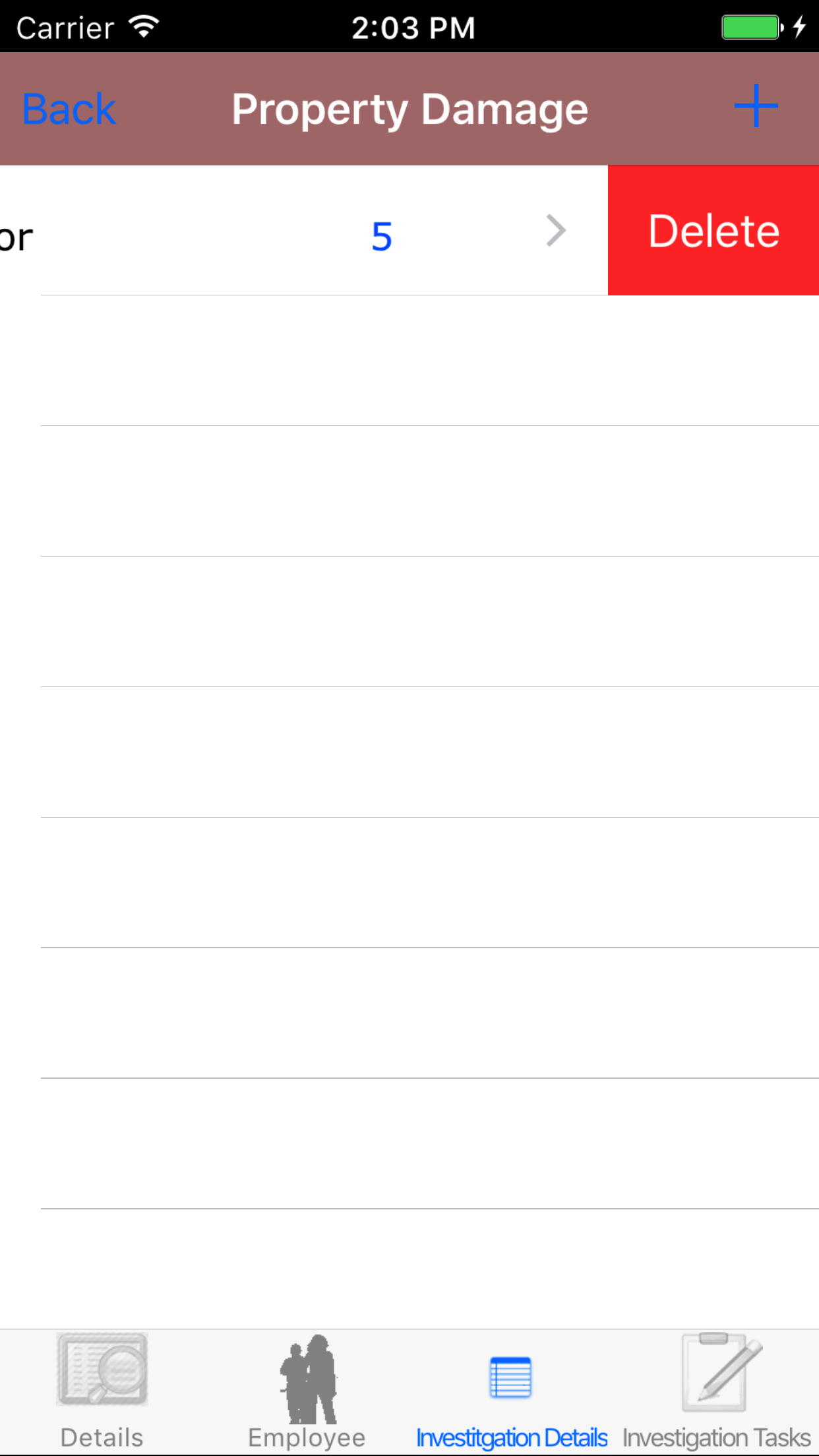
- Swipe from the right edge to the left to bring up the delete button for the property damage.
- Tap the Delete button. The property damage will be deleted.
|
|
| Step 1 |
|
|
|
42.Submit Safety Investigation |
|
Once on the Safety Investigation Section.
Steps
- Tap the second tab on the menu, the Safety Investigation view.
- Tap the Submit Safety Investigation button.
|
|
|
| Step 1 |
|
|
|
43.Delete Safety Investigation |
|
Once in the Safety Investigation section
Steps
- Tap the second tab on the menu, the Safety Investigation view.
- Safety Investigations are divided into three categories
- Medical Incident
- Near Miss Incident
- Property Damage / Spill Release
- Tap the category your investigation is listed under.
To Search Safety Investigations: Pull down on the list view, the search is defaulted to search by date enter the date in following
format YYYY-MM-DD. The other option for the Safety Investigation search are by work order number.. Enter your search
criteria and click the Search button.
- Scroll the list of Safety Investigations until the desired Safety Investigation is displayed on the screen.
Listing the safety investigation date in red text, the work order number in black text.
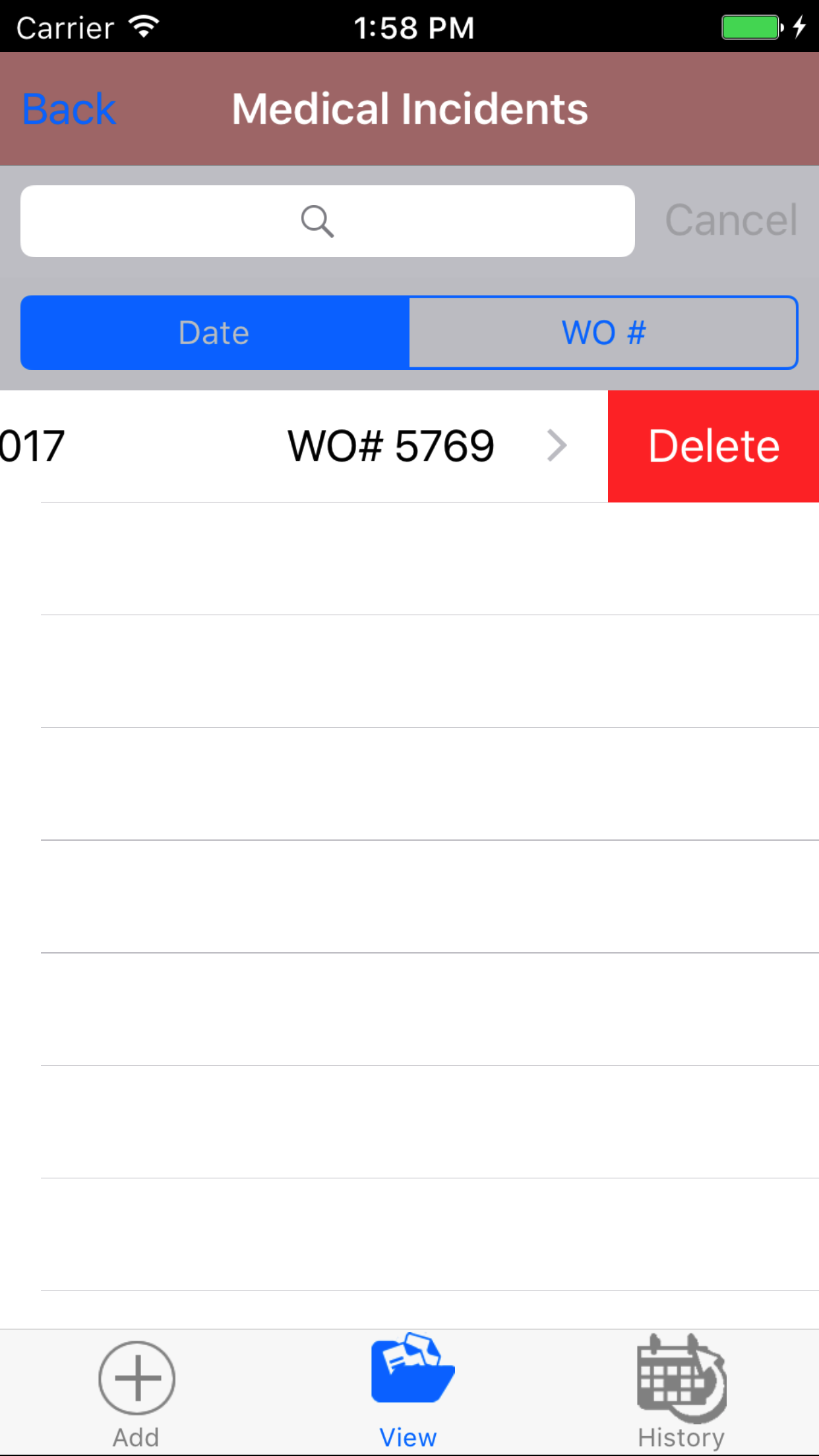
- Swipe from the right edge to the left to bring up the delete button for the safety investigation.
- Tap the Delete button. The vehicle inspection will be deleted.
|
|
| Steps 1-3 |
|
|
44.View Closed Safety Investigation |
|
After Safety Investigations have been closed out, they will be available to look at through the History view on the iPhone Application.
Once on the Safety Investigation section
Steps
|
|
|
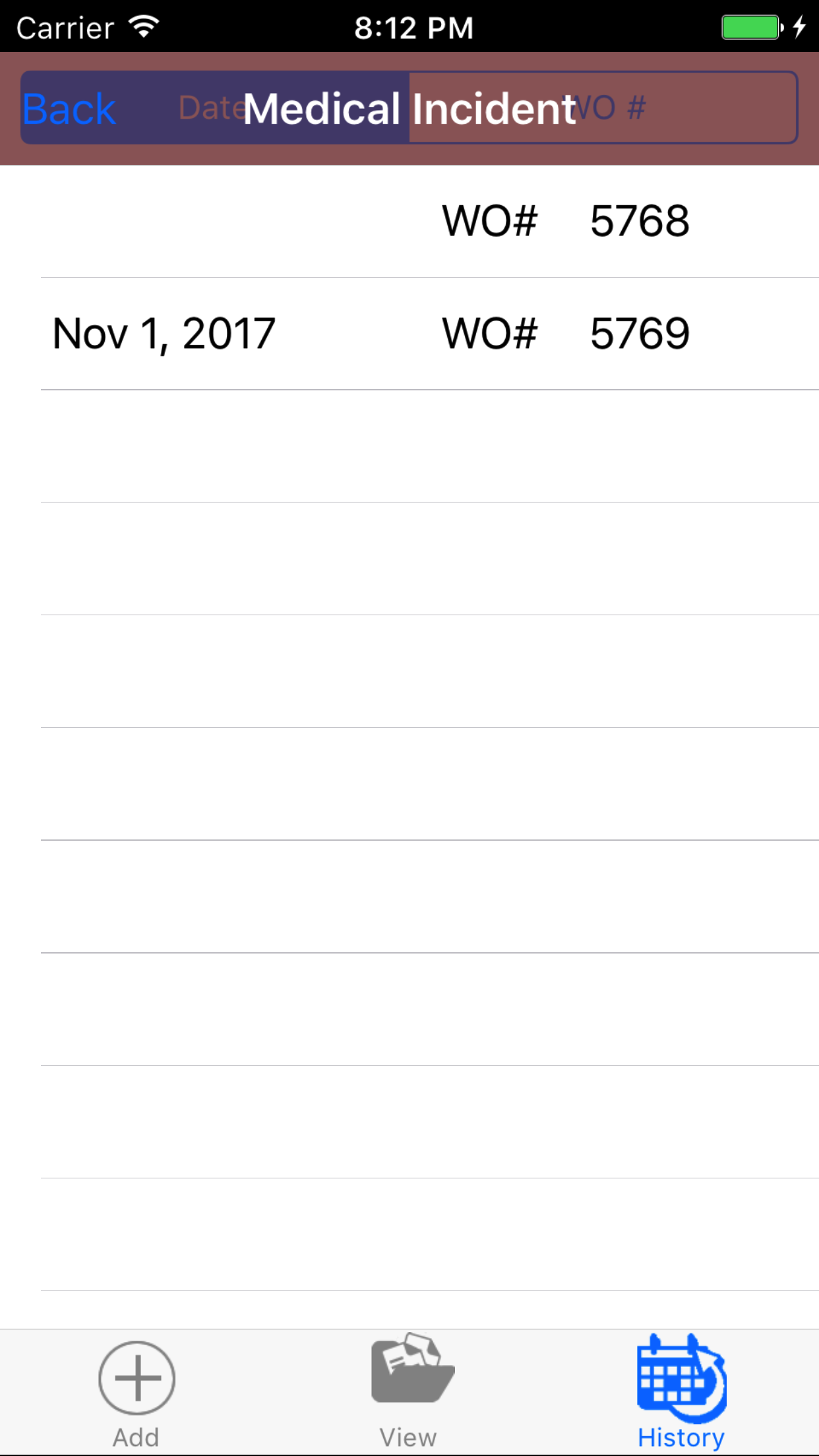
- Tap the third tab on the menu, the History tab of the main menu view. This loads with a list of the closed out
Safety Investigations listing the the date, work order number, customer and job site name of the Safety Investigation in black.
To Search Safety Investigations: Pull down on the list view, the search is defaulted to search by date enter the date in following
format YYYY-MM-DD. The other option for the Safety Investigation search are by work order number.. Enter your search
criteria and click the Search button.
- Scroll the list of Safety Investigations until the desired Safety Investigation is displayed on the screen.
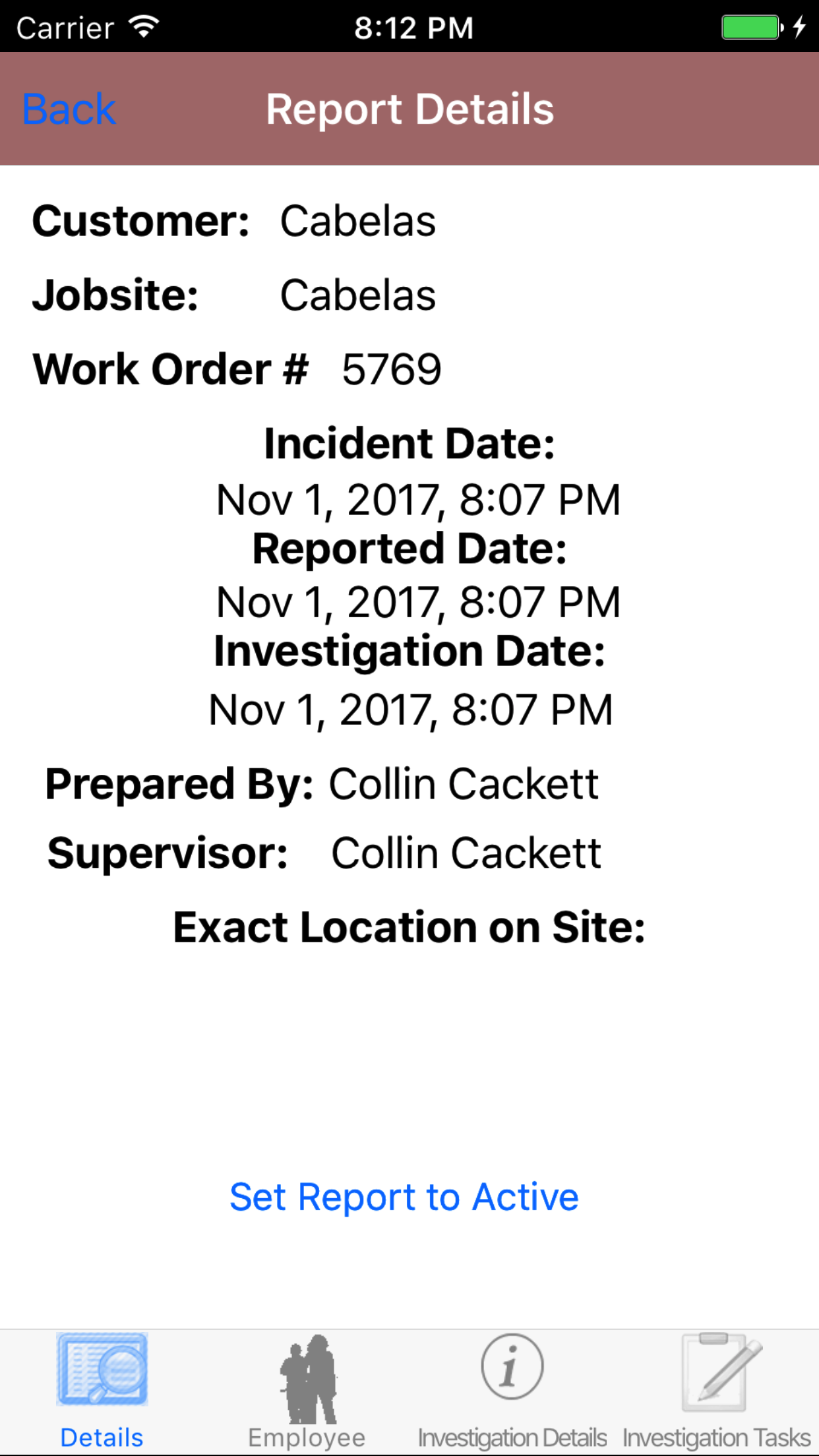
- Tap on the Safety Investigation you would like to view. This loads the first tab, the Safety Investigation details tab of the History view.
It loads the following details including date, customer name, scope of work, notes, signature and inspected by name.
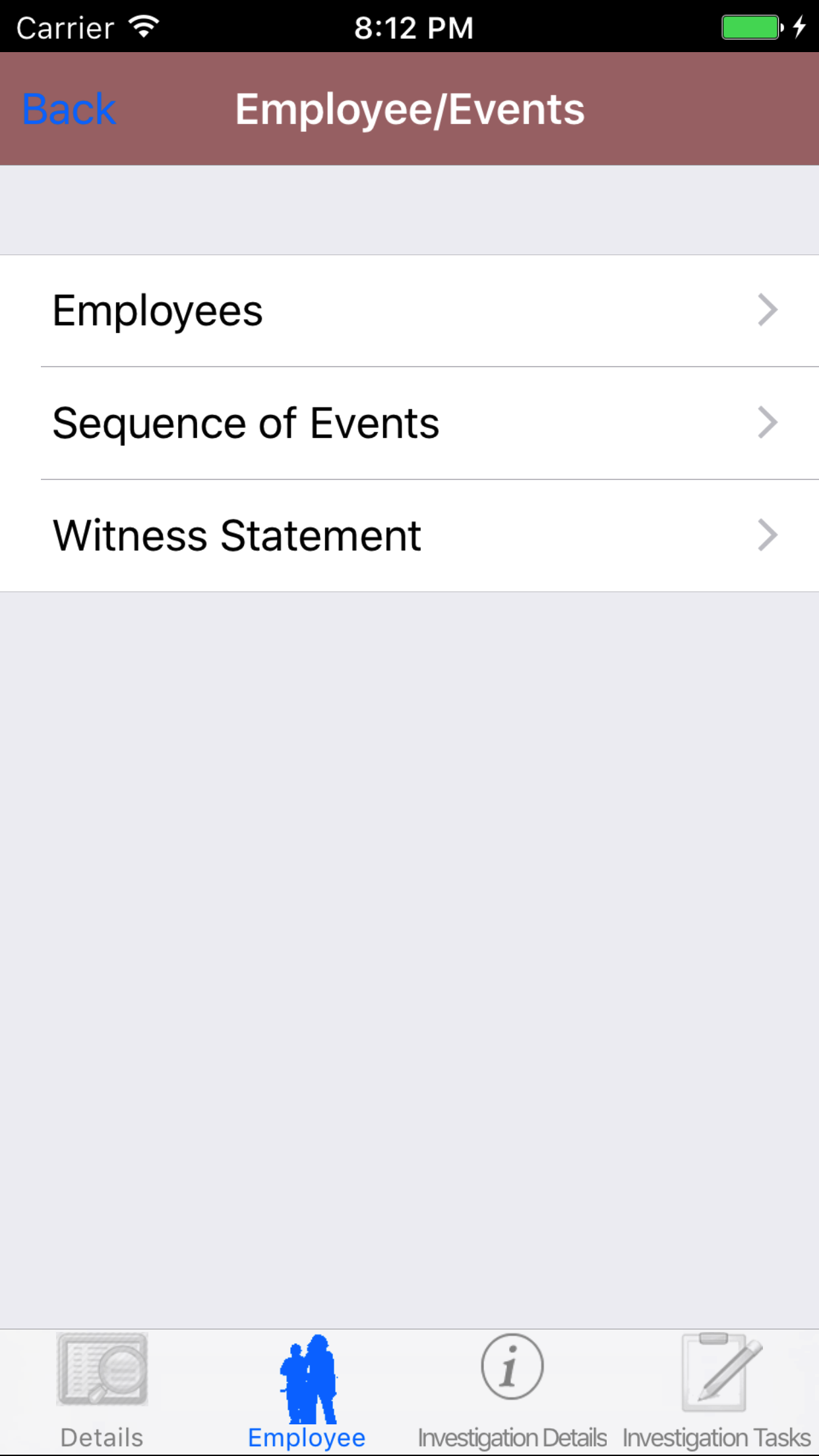
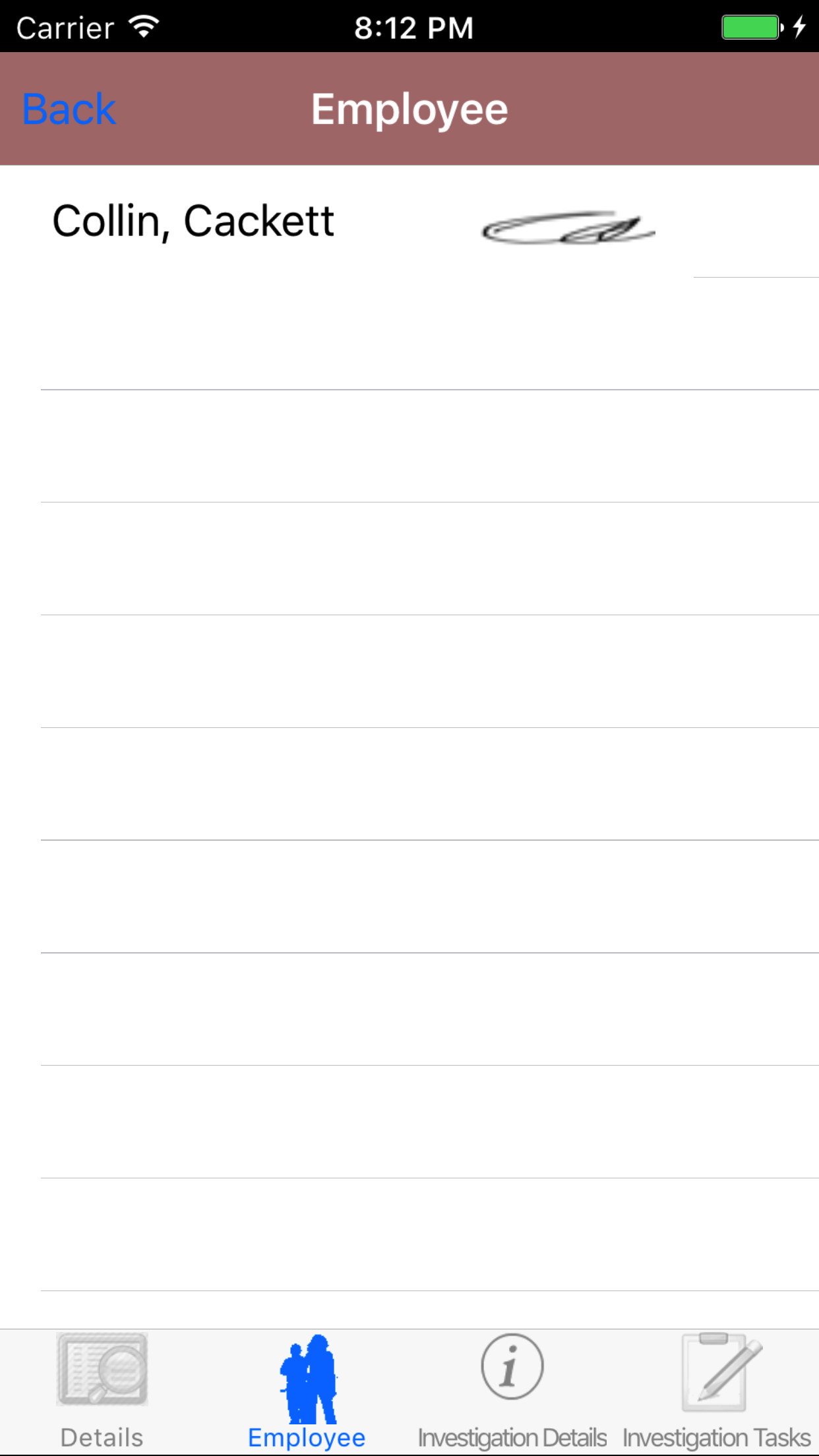
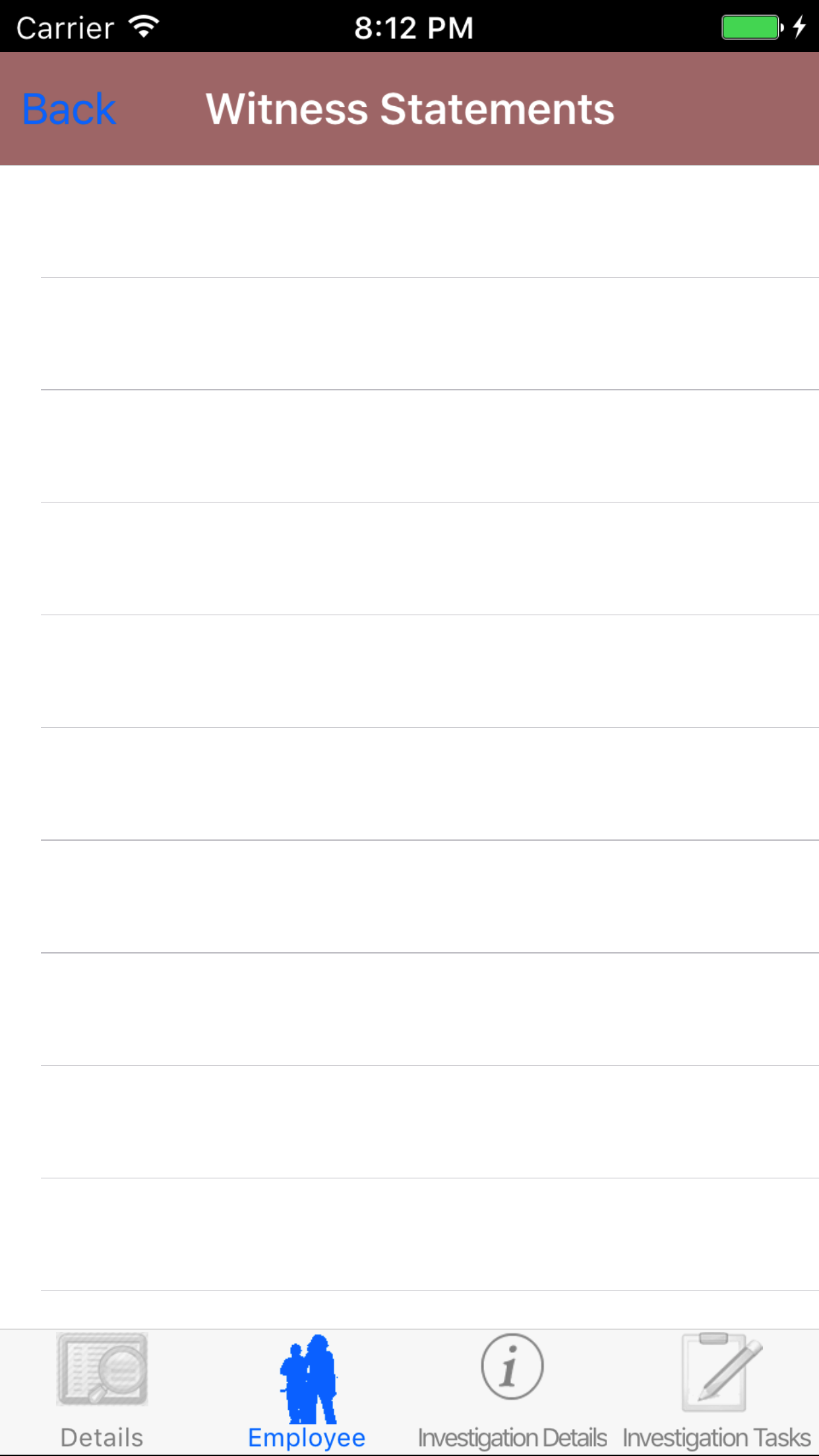
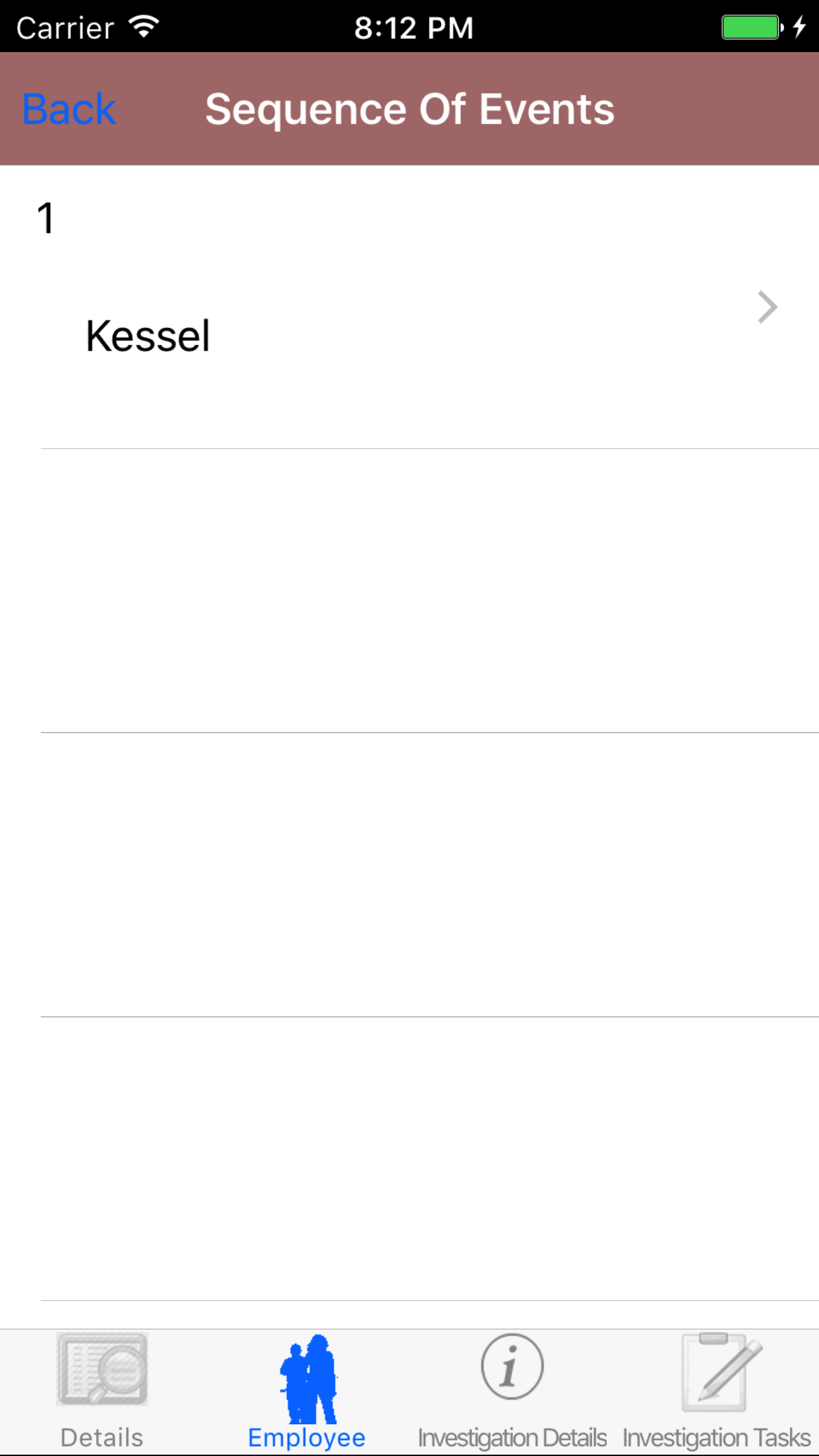
- Tap the second tab, the Employee's tab of the History view. This loads with the employee's names and their signatures
of the employees assigned to the Safety Investigation.
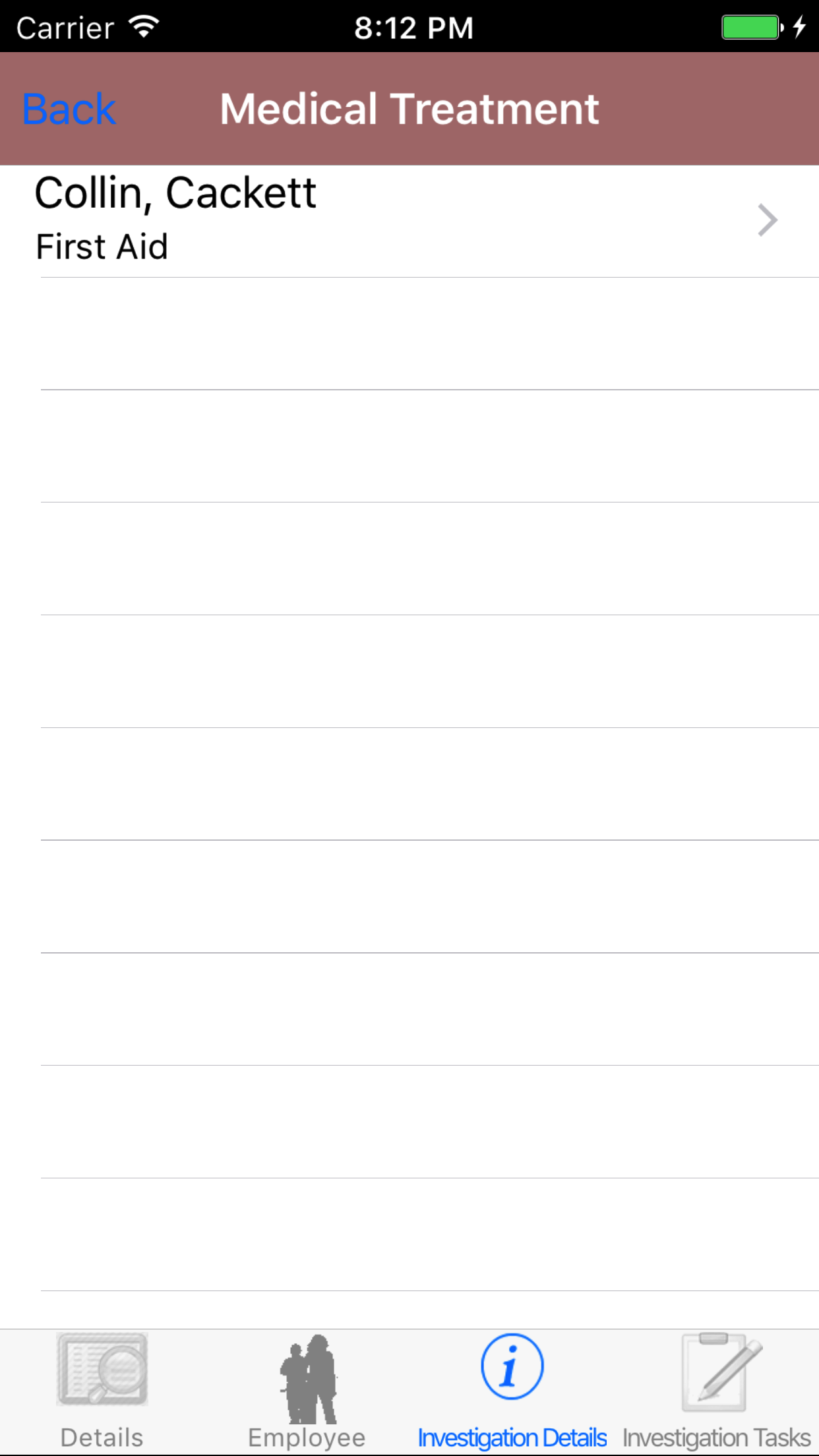
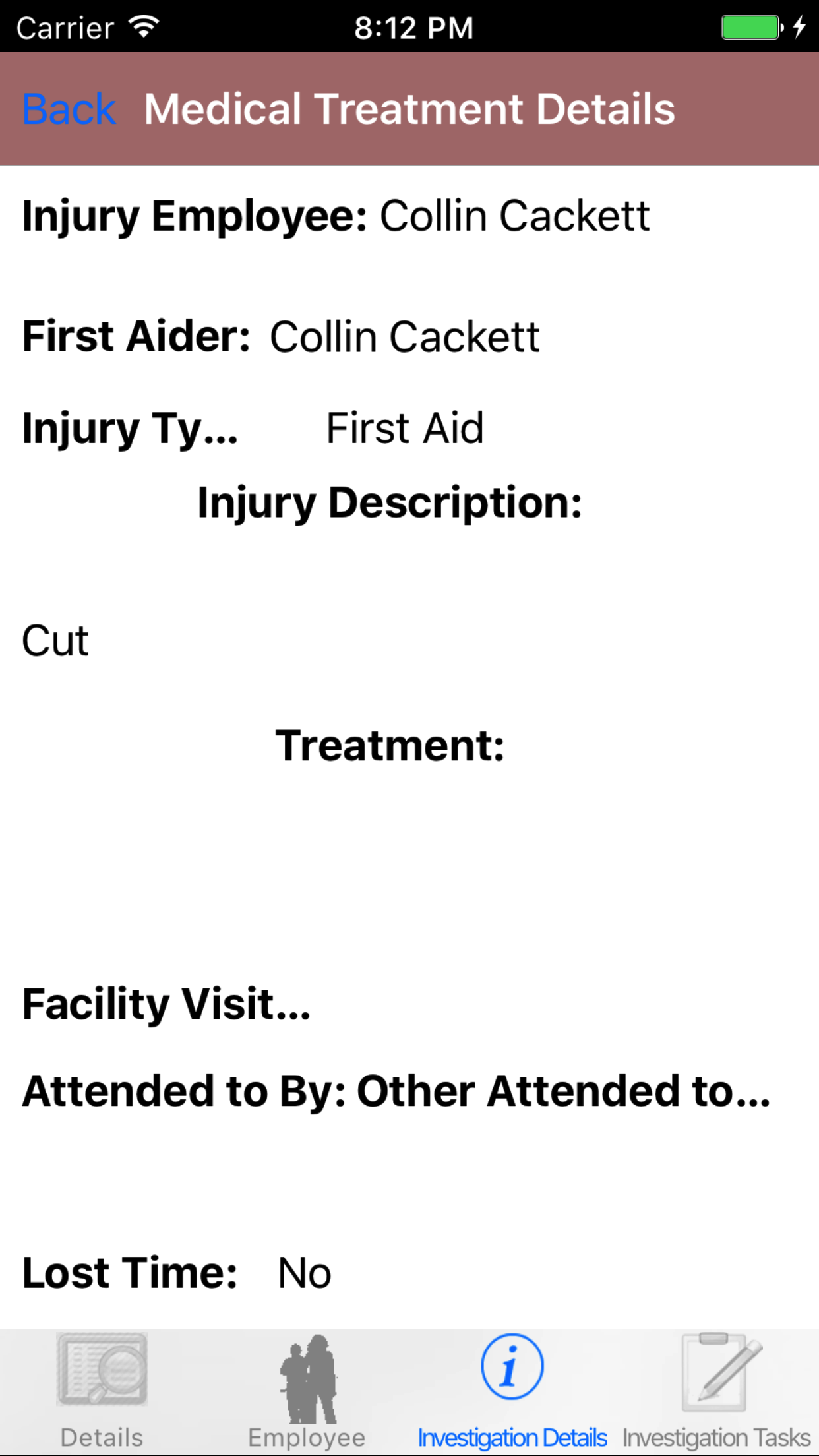
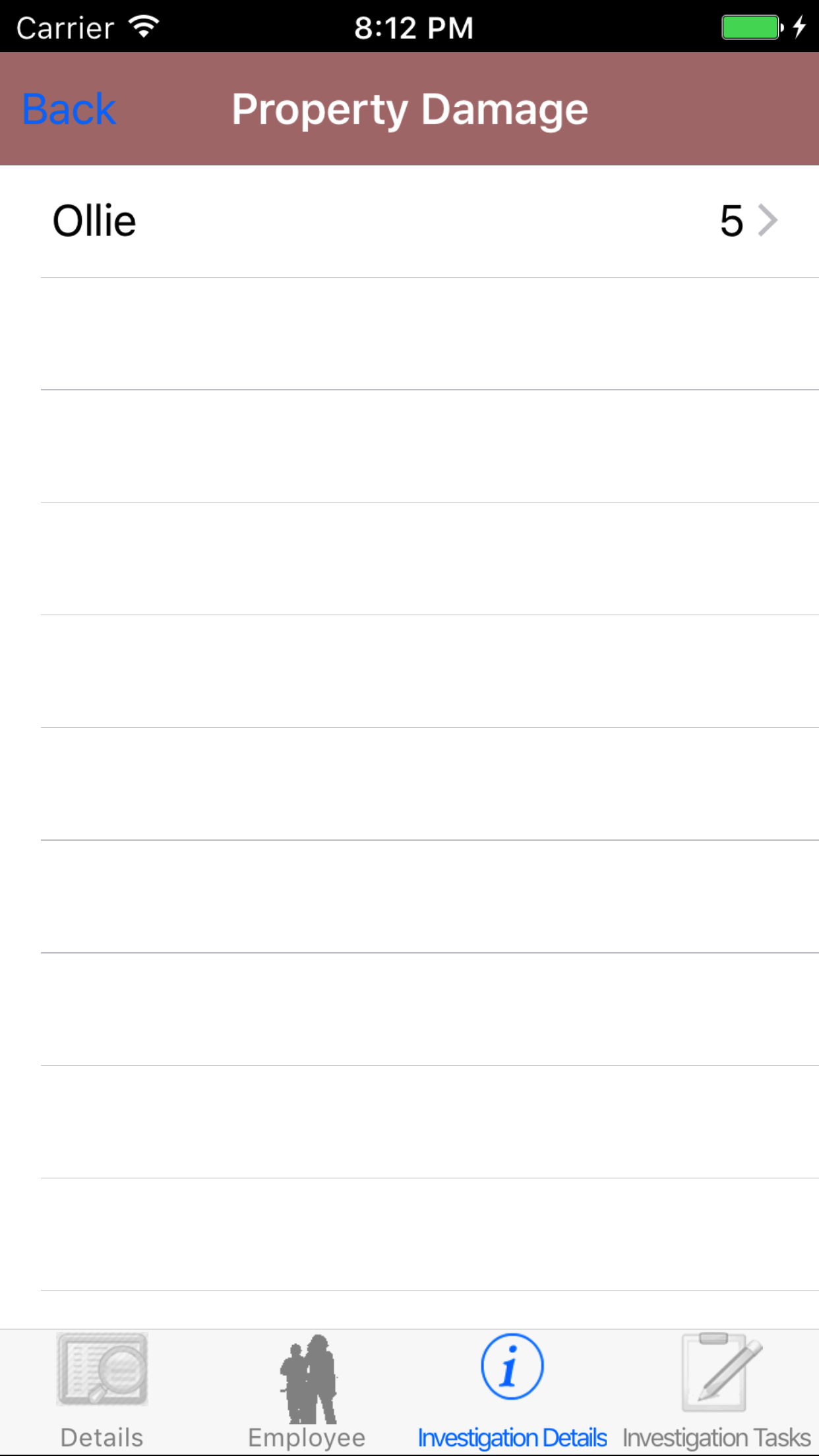
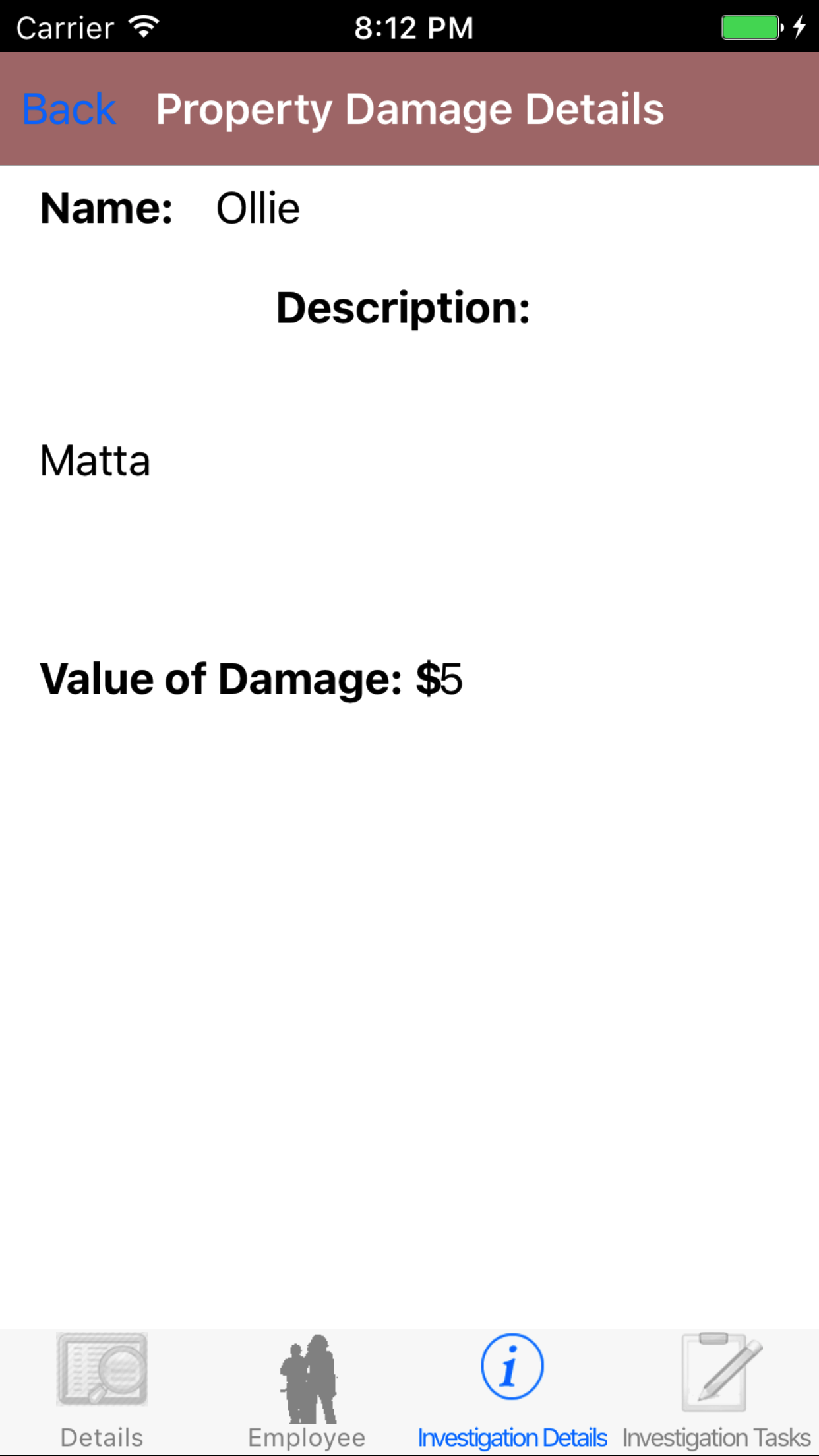
- Tap the third tab, the Investigation Details tab of the History view. This loads with the medical treatment and property damage, tapping
into each section then each detail.
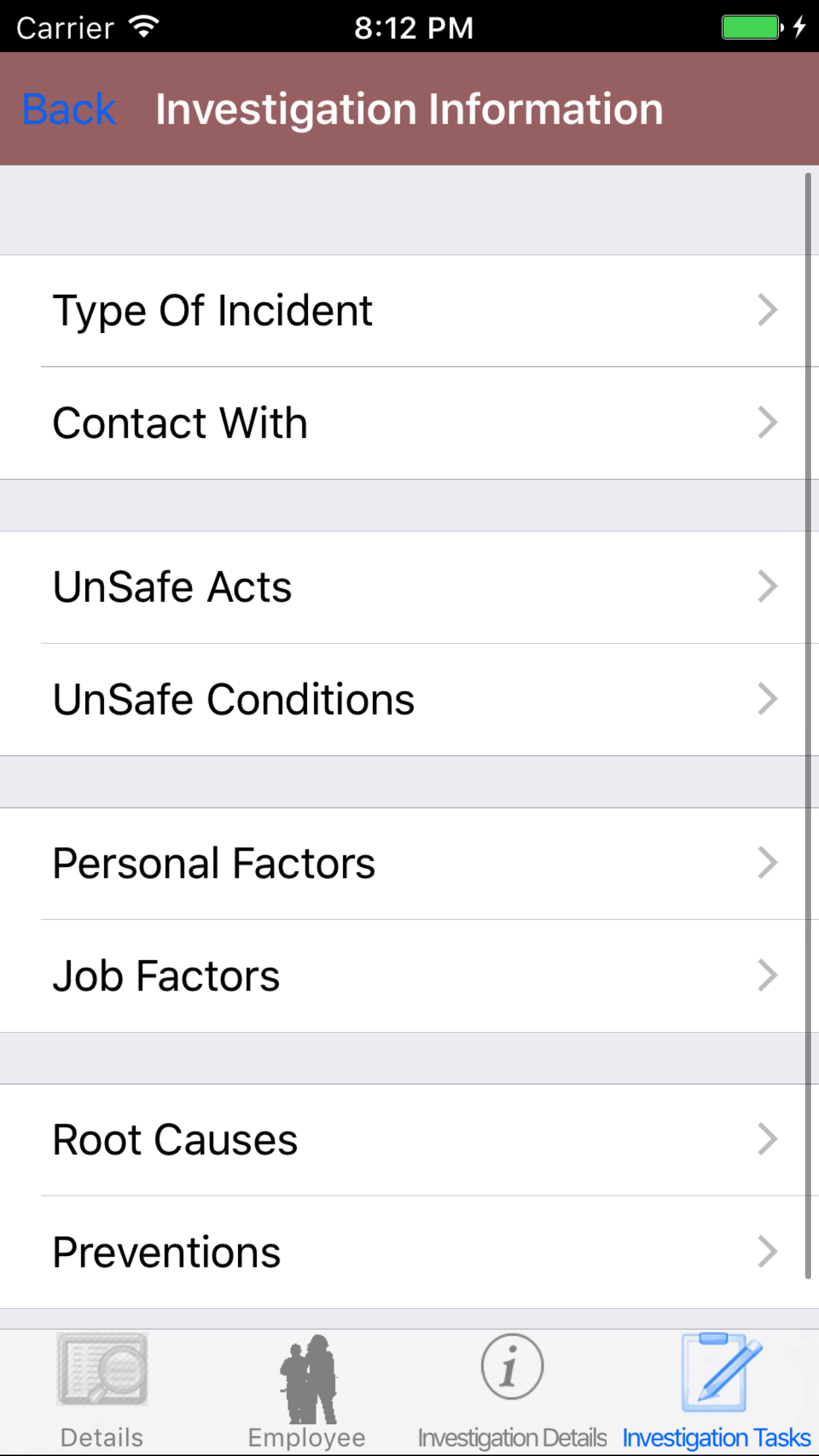
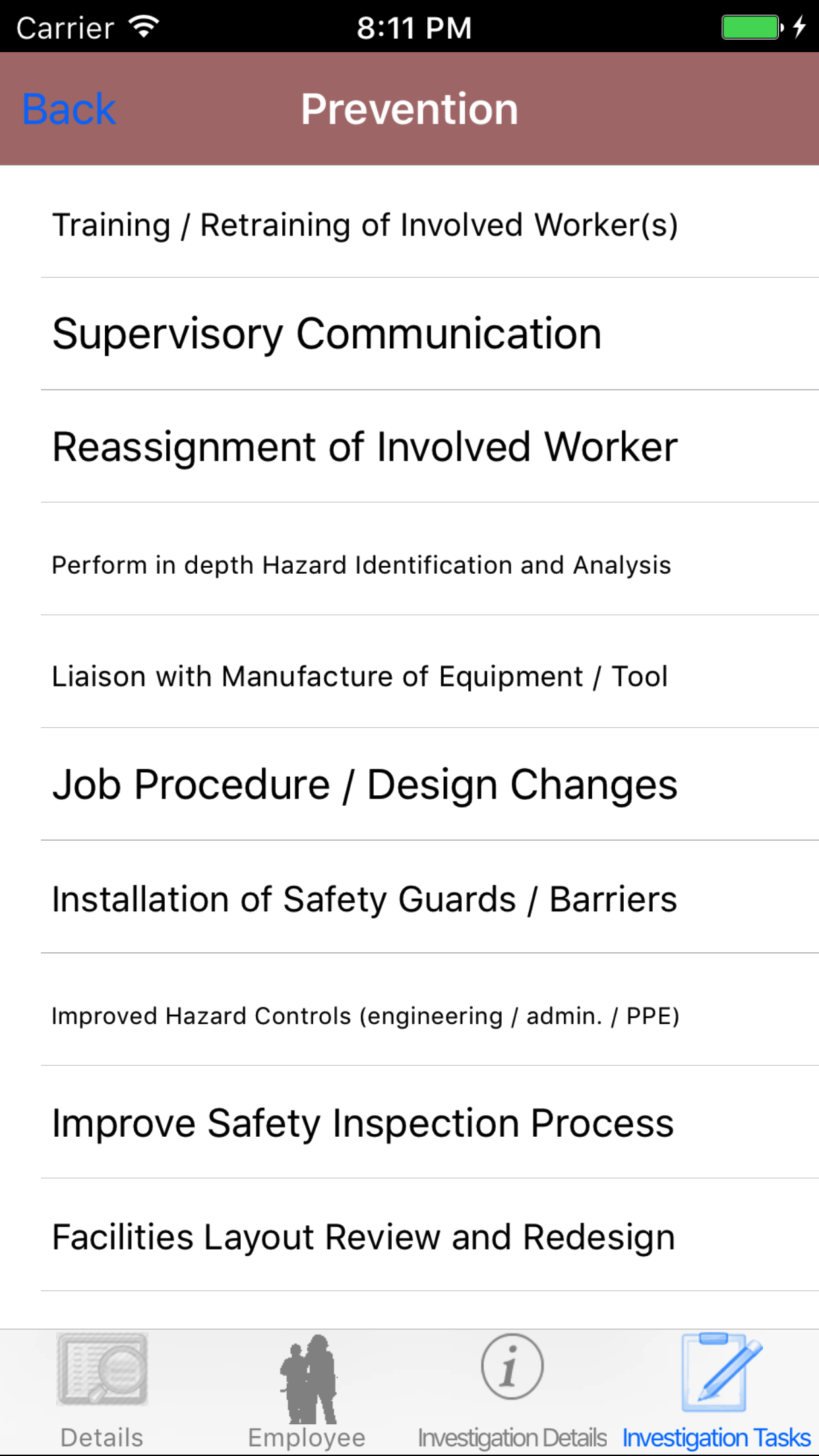
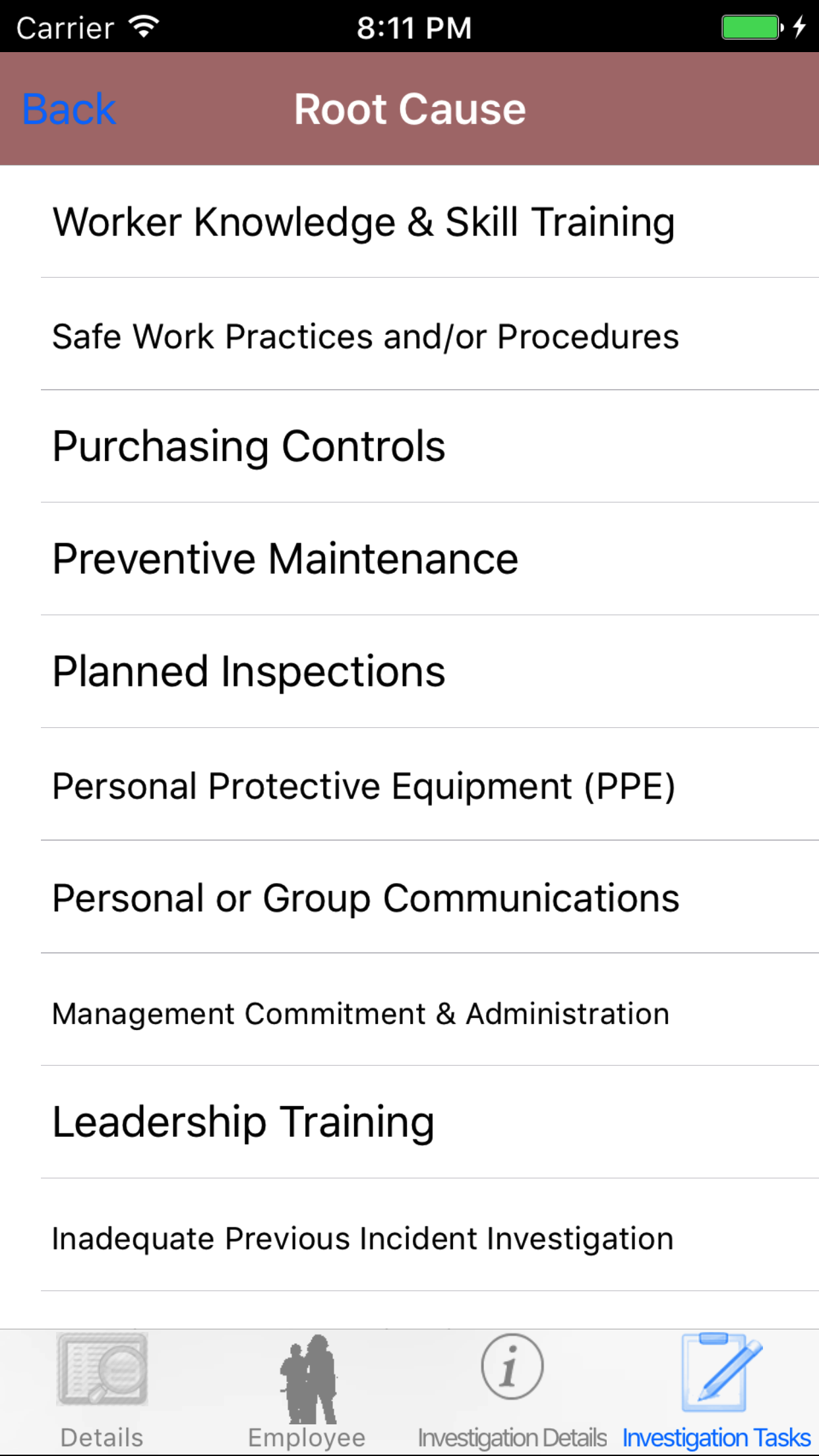
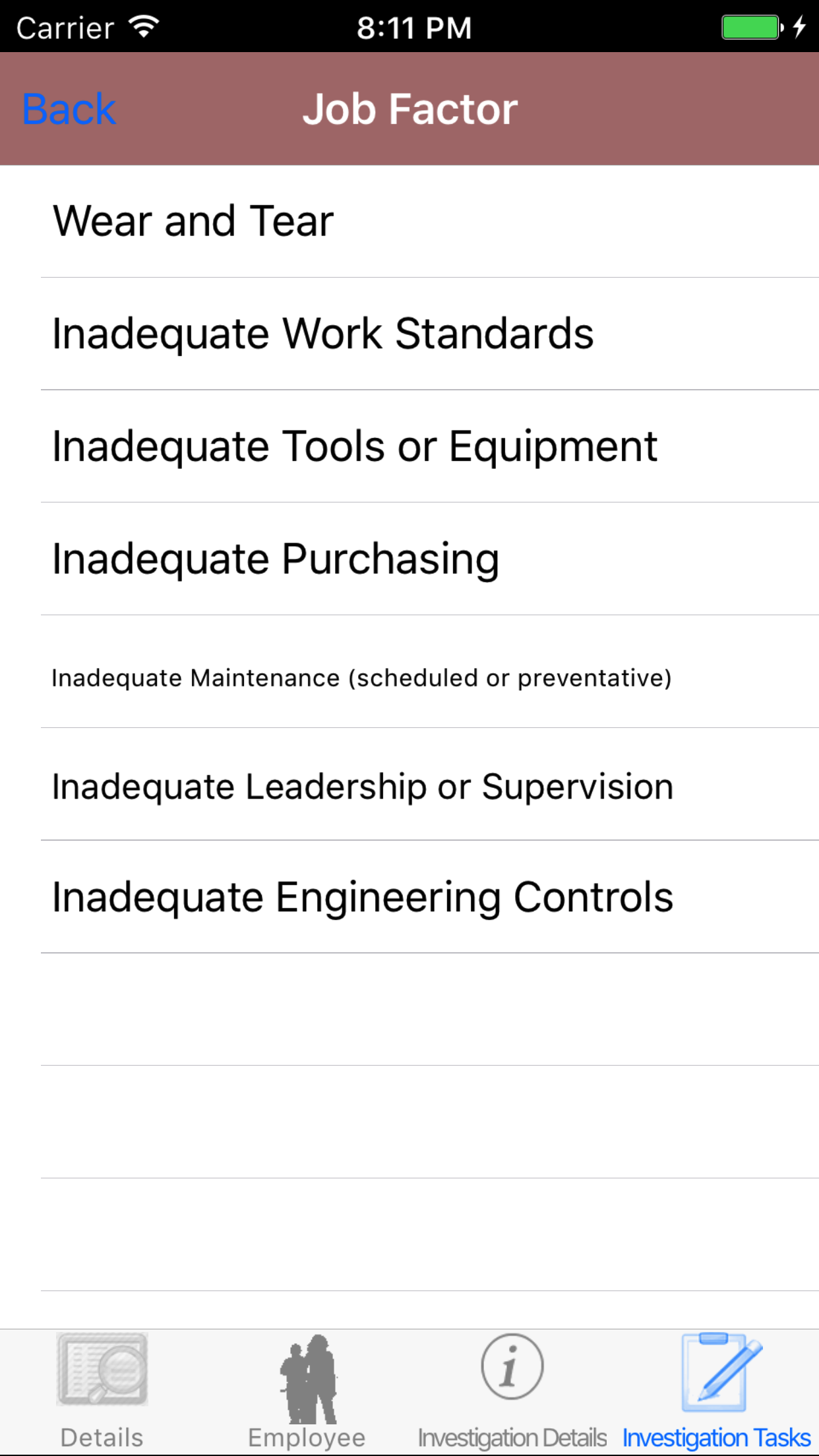
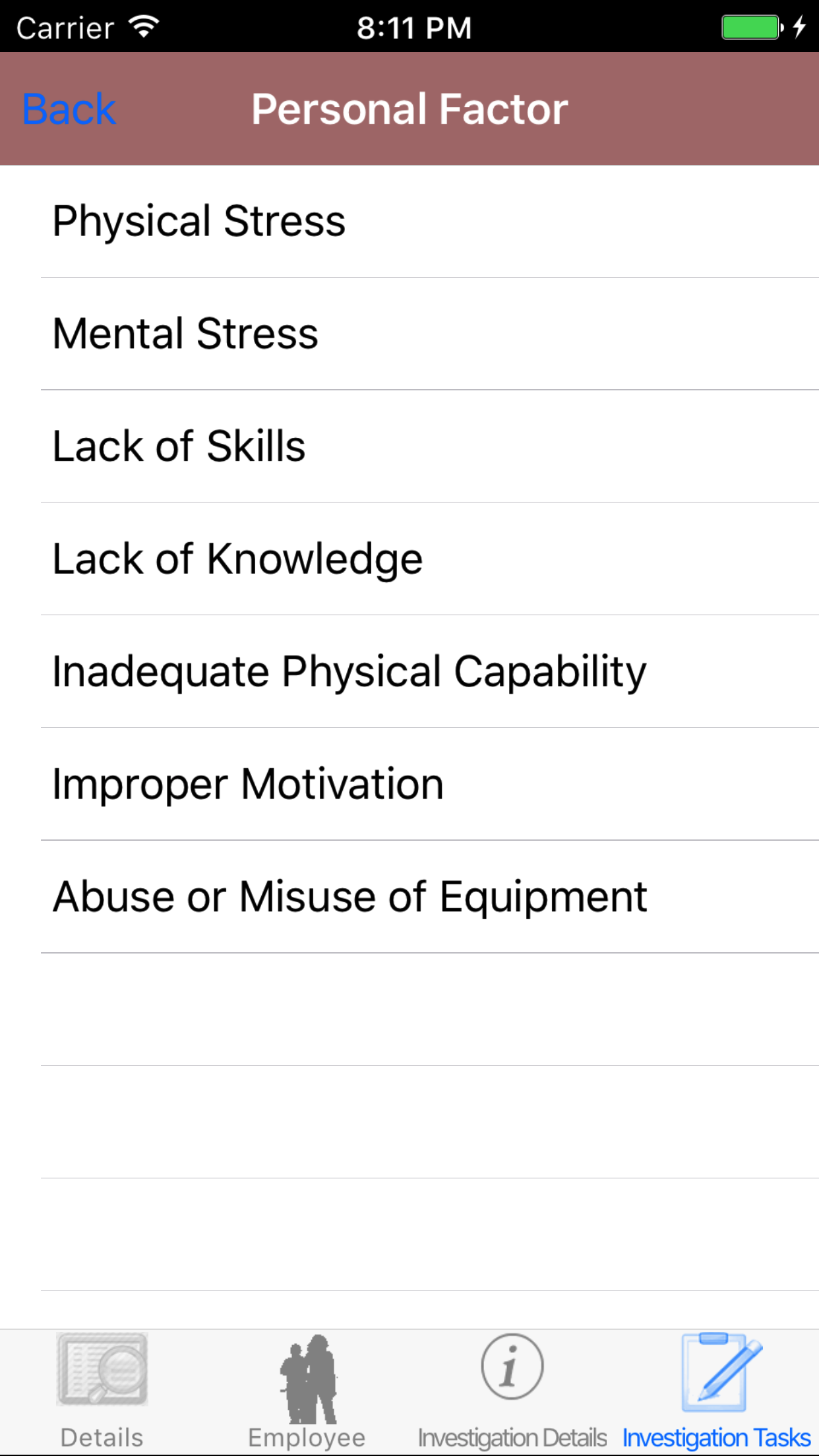
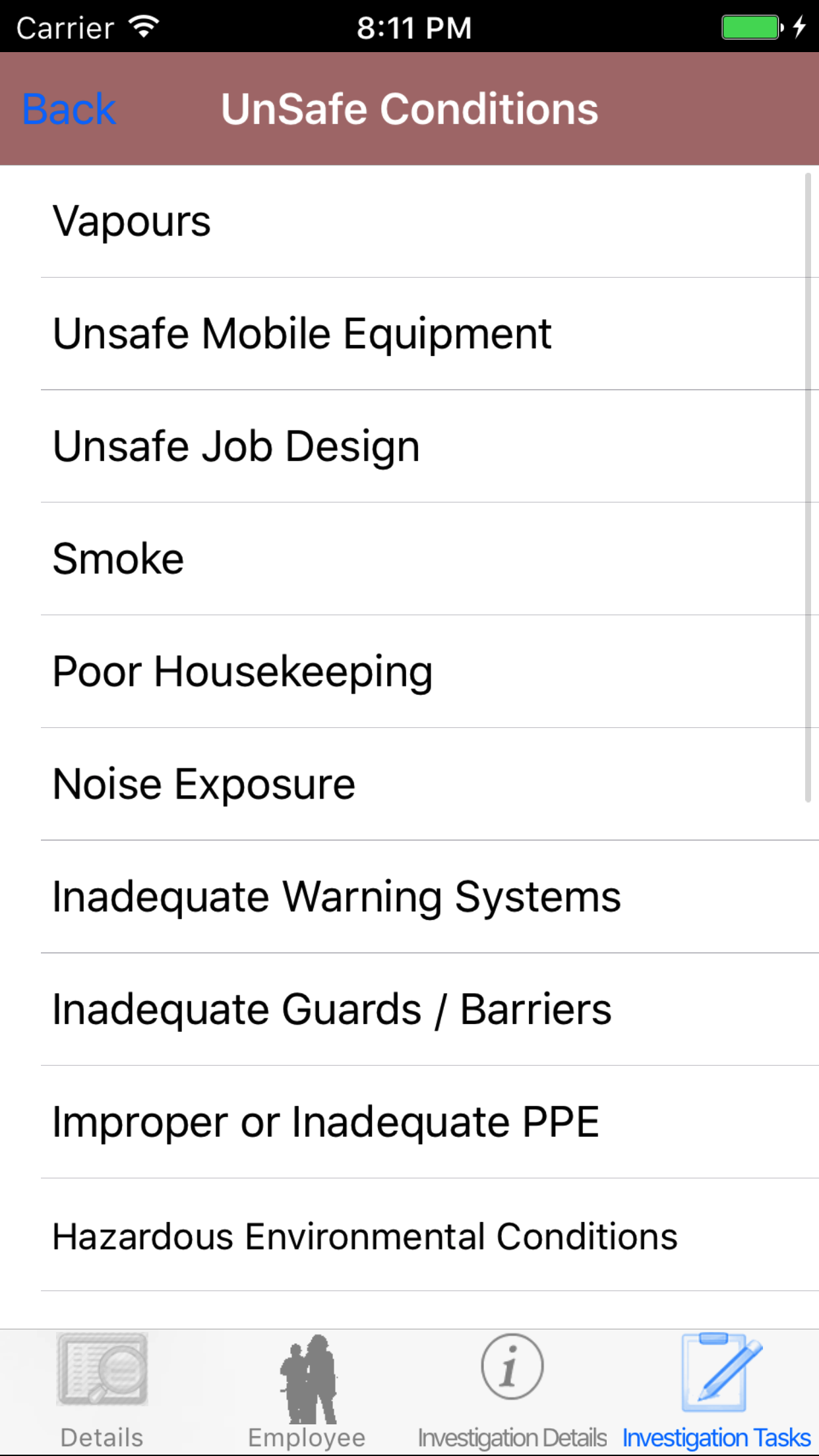
- Tap the fourth tab, the Investigation Categories tab of the History view.The screen loads
with the list of the 8 checklist categories of the safety investigation. Tap on each category to view the investigation tasks.
|
|
| Steps 1-2 |
|
|
|
|
| Step 3 |
|
|
|
| Step 4 |
|
|
|
| Step 4.b |
|
|
|
| Step 4.c |
|
|
|
| Step 4.d |
|
|

|
| Step 5 |
|
|
|
| Step 6 |
|
|
|
| Step 6.b |
|
|
|
| Step 7 |
|
|
|
| Step 7.b |
|
|
|
| Step 8 |
|
|
|
| Step 9 |
|
|
|
| Step 10 |
|
|
|
| Step 11 |
|
|
|
| Step 12 |
|
|
|
| Step 13 |
|
|
|
| Step 14 |
|
|
|
| Step 15 |
|
|
|
| Step 16 |
|
|
|
45.Update Safety Investigations |
|
To ensure field staff have the most up to date copy of the investigation tasks a company is
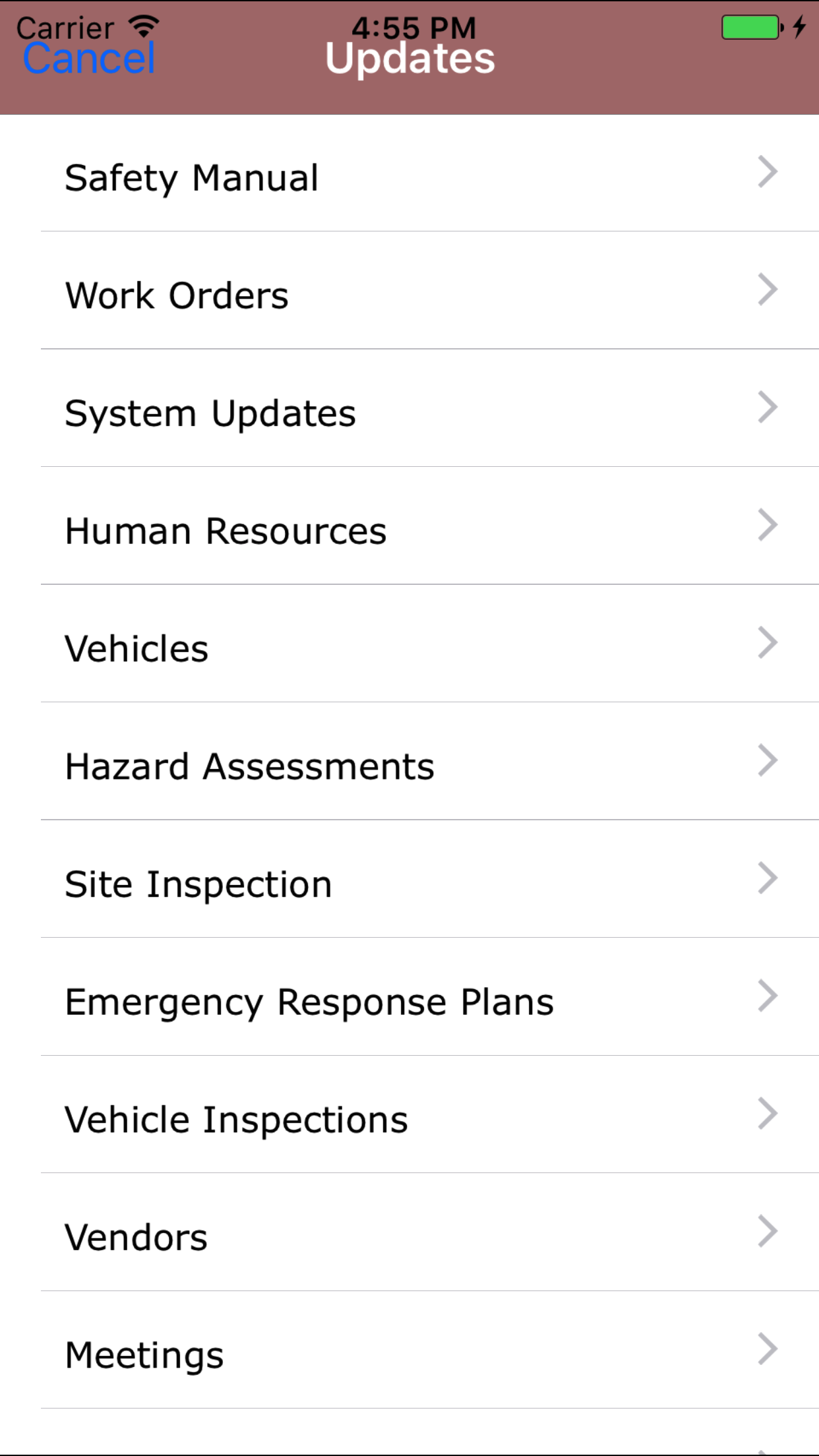
using make sure to update your phone on a regular basis. For more information about updating your phone.
Steps
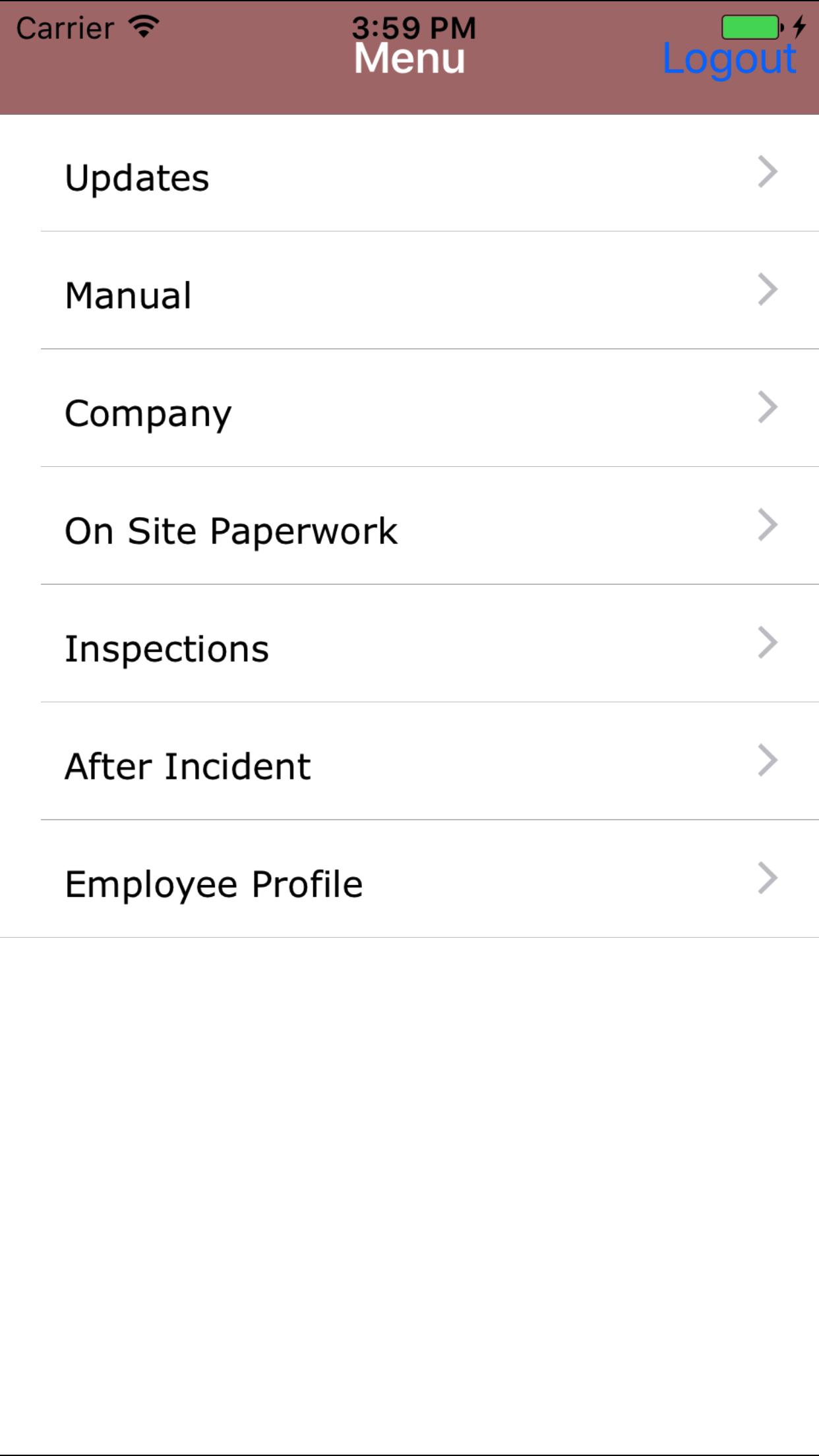
- From the Menu screen, tap the Updates button.
- Scroll the list of sections until you find the Safety Investigation button.
- Tap on the Safety Investigation button.
|
|
|
| Step 1 |
|
|
| Steps 2-3 |
|
|