Manual Web Site Manual

Training

The Training section allows field staff to view training records of company staff, including viewing course information and downloading certificates directly to the smart phone application.

When Training courses are about to expire R & T Electric Pro will the companies representative in charge of training is about to expire and the also the employee themselves.

Companies configure which training courses they will track training records for. Depending on what type of work a company does their list of safety training courses will vary from other companies.

Configuring Training Expiry Email Alert

The company representative that receives a email from R & T Electric Pro, when a training course is about to expire has expired is a function of who is set up to receive the Employee Training. The person whom should receive this email, should probably be involved in safety or crew management. To configure Safety Net for whom receives receives this email alert in the Company Email Alert section.

Management, Office Staff and Safety Officers can edit who should receive the Employee Training email alert in the company email alert section. For more information about configuring your company email alerts in this web site manual click here to view the company email alert section.

Configuring Company Training Courses

The company representative can configure which courses their field staff will have training records kept for.

Management, Office Staff and Safety Officers can configure which training courses field staff will have training records kept for. For more information about configuring your company training records in this web site manual click here to view the training course section.

Table of Contents

#Section Name#Section Name
1View Employee Training Courses 2Download Training Course Certificate
3View Training Course Certificate 4Update Training Course Certificate

1.View Employee Training Courses

Steps
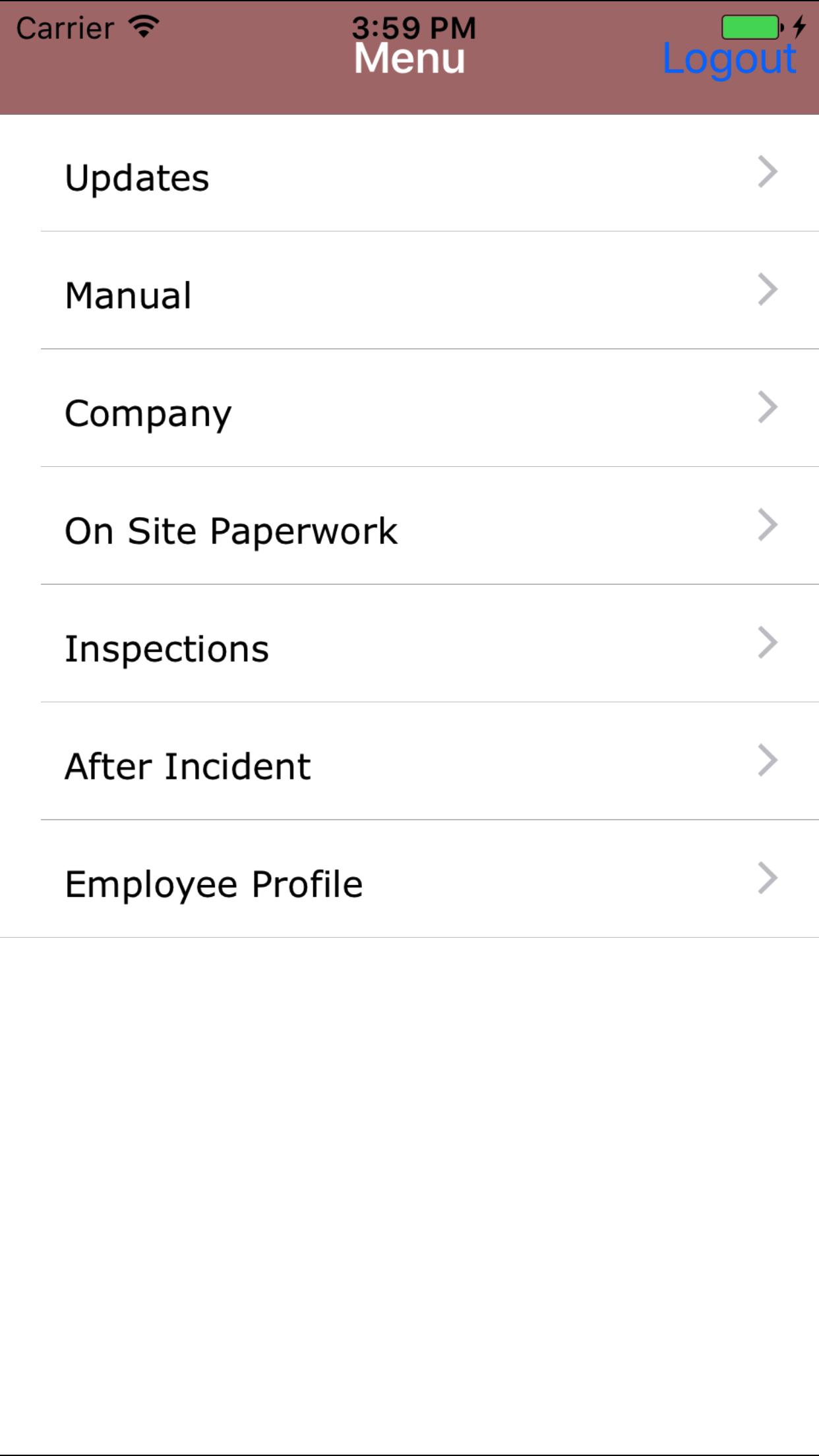
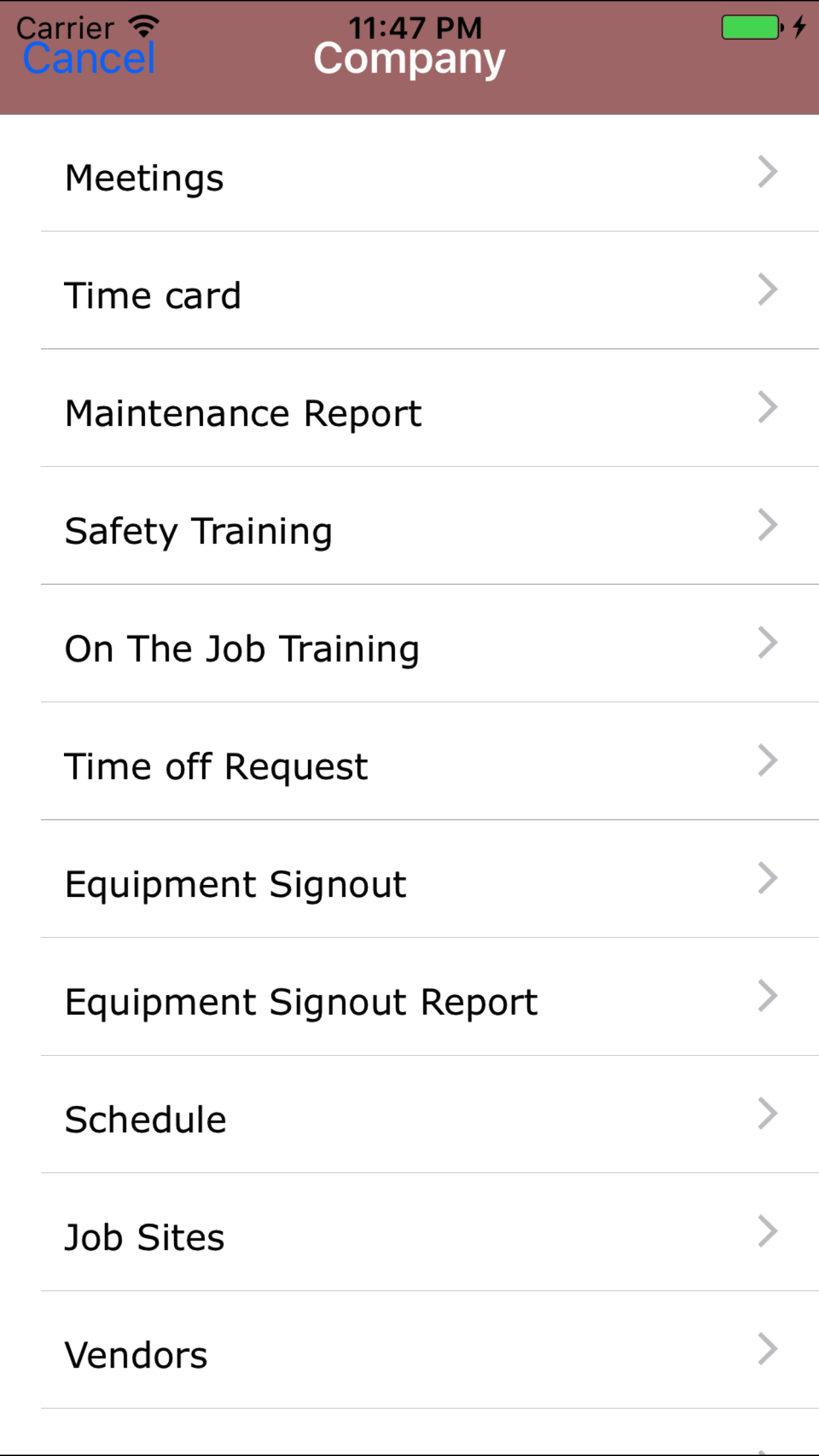
  1. From the Main Menu screen, tap the Company button.
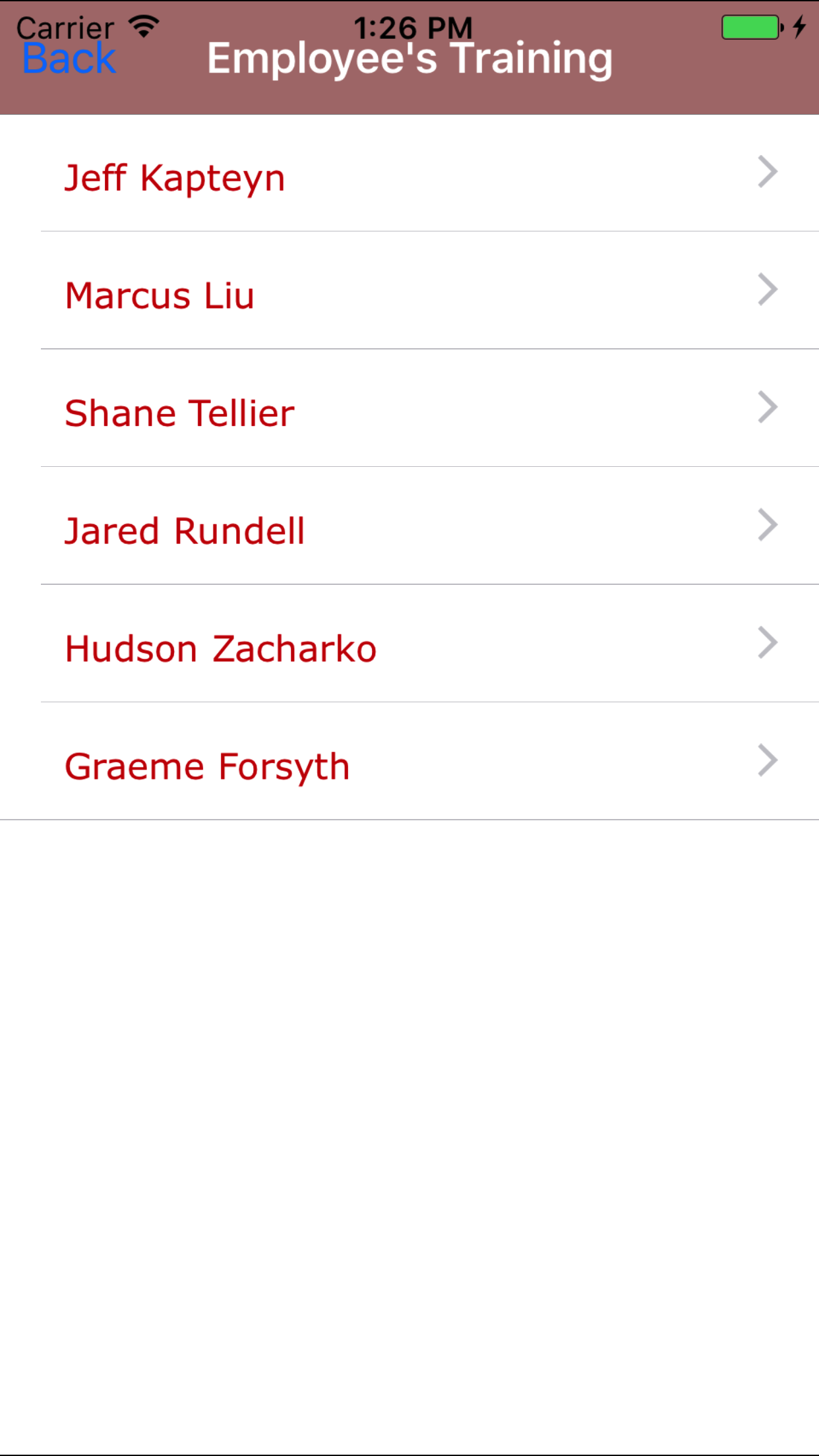
  2. Then tap on the Safety Training button to open the Safety Training section. Which loads with the list of a companies field staff.
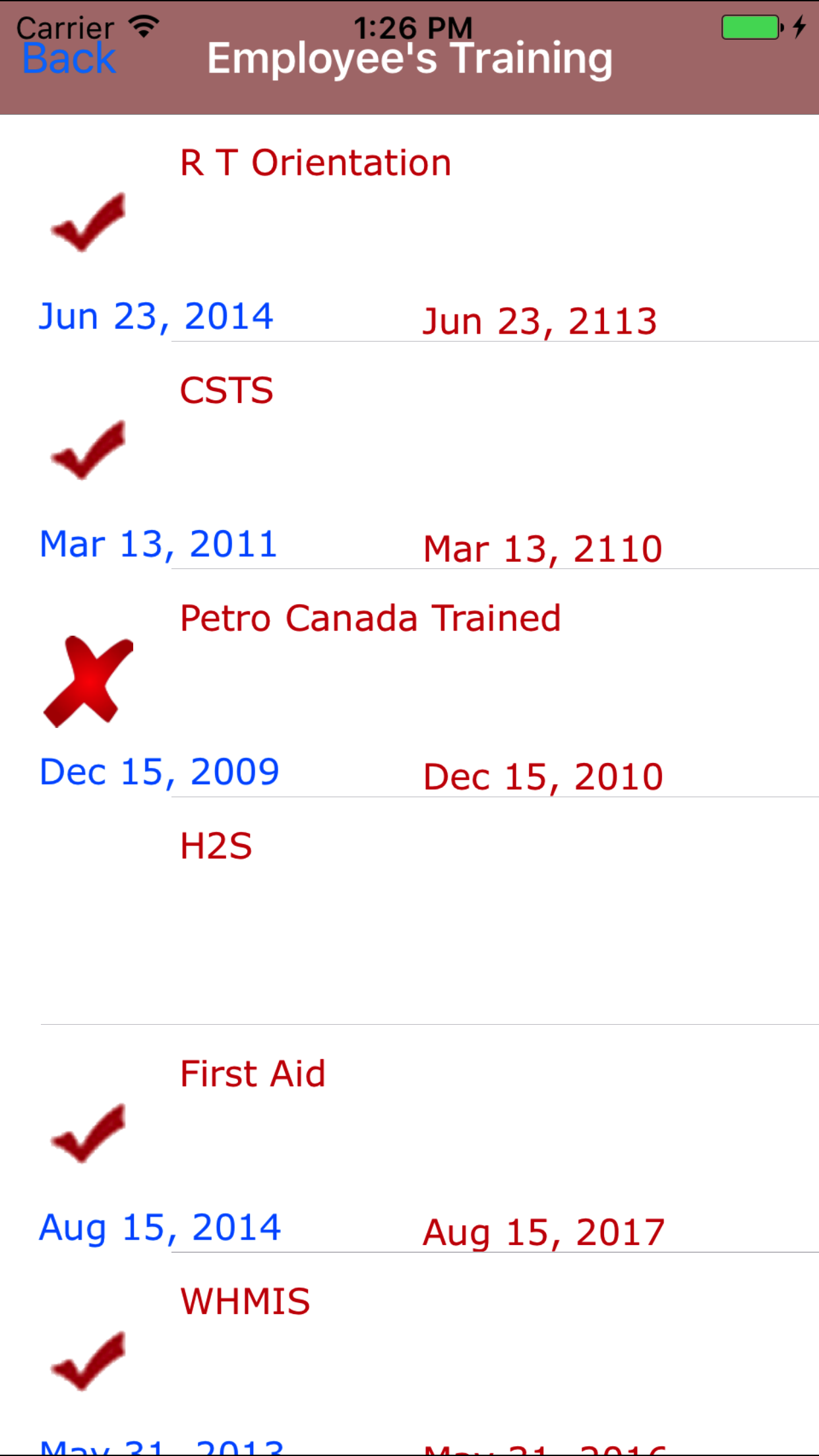
  3. Tap on the Employee name to view their training records, which loads with the list of training courses. For each record a Checkmark will appear for all courses with a valid certification, and a X for courses that have expired. The Course Name in red text, the Course Description in black text, the Certification Date in blue text, and the Expiry Date in red text.
  4. Tap on the training course to view the training course details.
Step 1
Step 2
Steps 3
Step 4
Step 5

2.Download Training Course Certificate

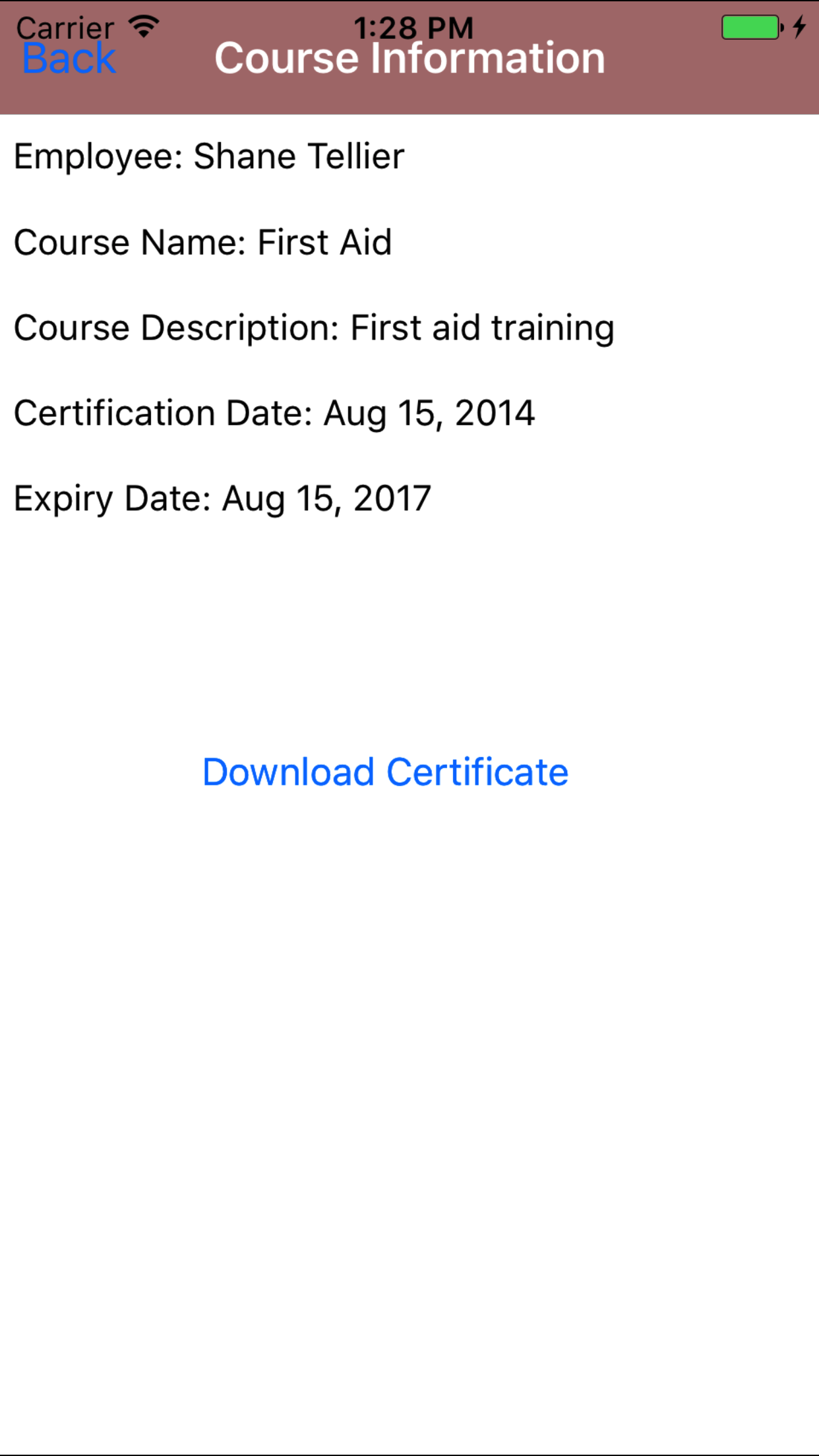
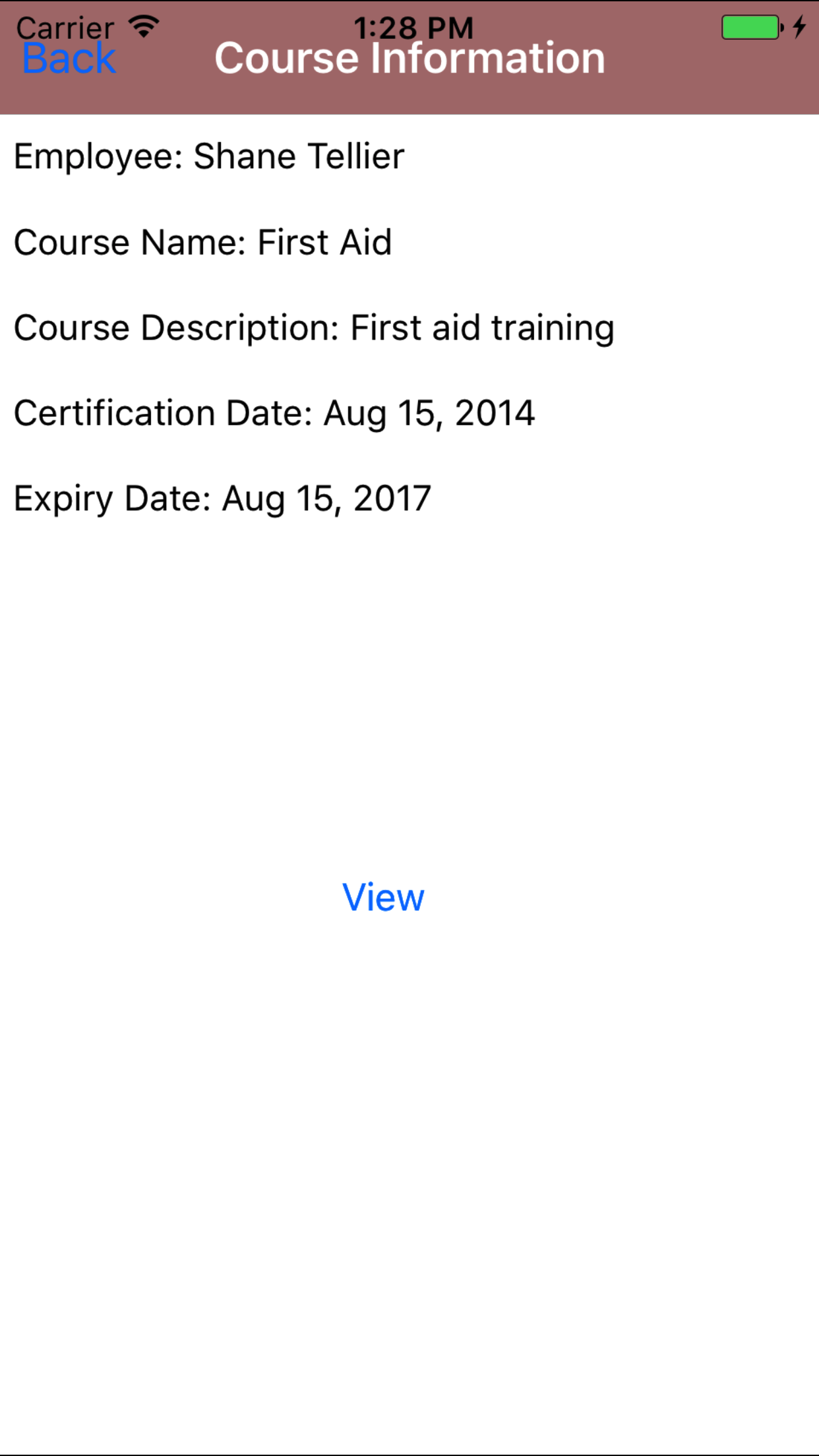
Once a training course detail screen, if the course has been completed by the selected field staff either a Download Certificate button or a View button will appear. If the View button appears the certificate has already been downloaded.

Steps
  1. Tap Download Certificate button, after the certificate has been downloaded the View button will appear.
Steps 1

3.View Training Course Certificate

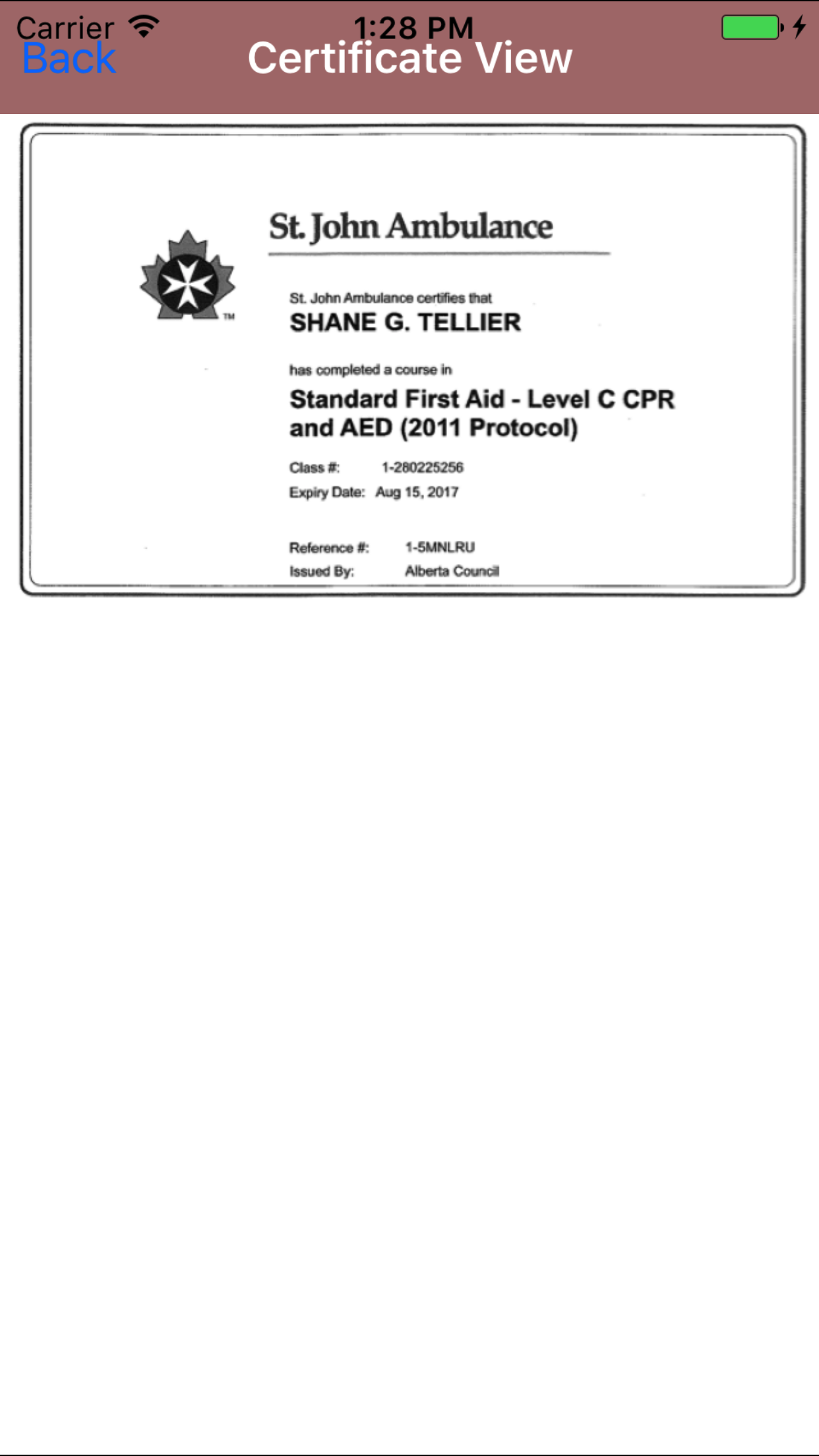
Once a training course detail screen, if the course has been completed by the selected field staff either a Download Certificate button or a View button will appear. If the View button appears the certificate has already been downloaded. If the Download Certificate button appear, follow the steps in Download Training Course Certificate, before trying to view a certificate.

Steps
  1. Tap View button, the certificate image will load on the next screen.
Step 1
Step 2

24.Update Training Course Certificates

To ensure field staff have the most up to date copy employees, training certificates, schedules and time cards a company is using make sure to update your phone on a regular basis.

Safety Net handles this for Timecard Entries, by updating Human Resources including: employee, safety training, customer, job site, work order, schedule and timecard information.

Steps
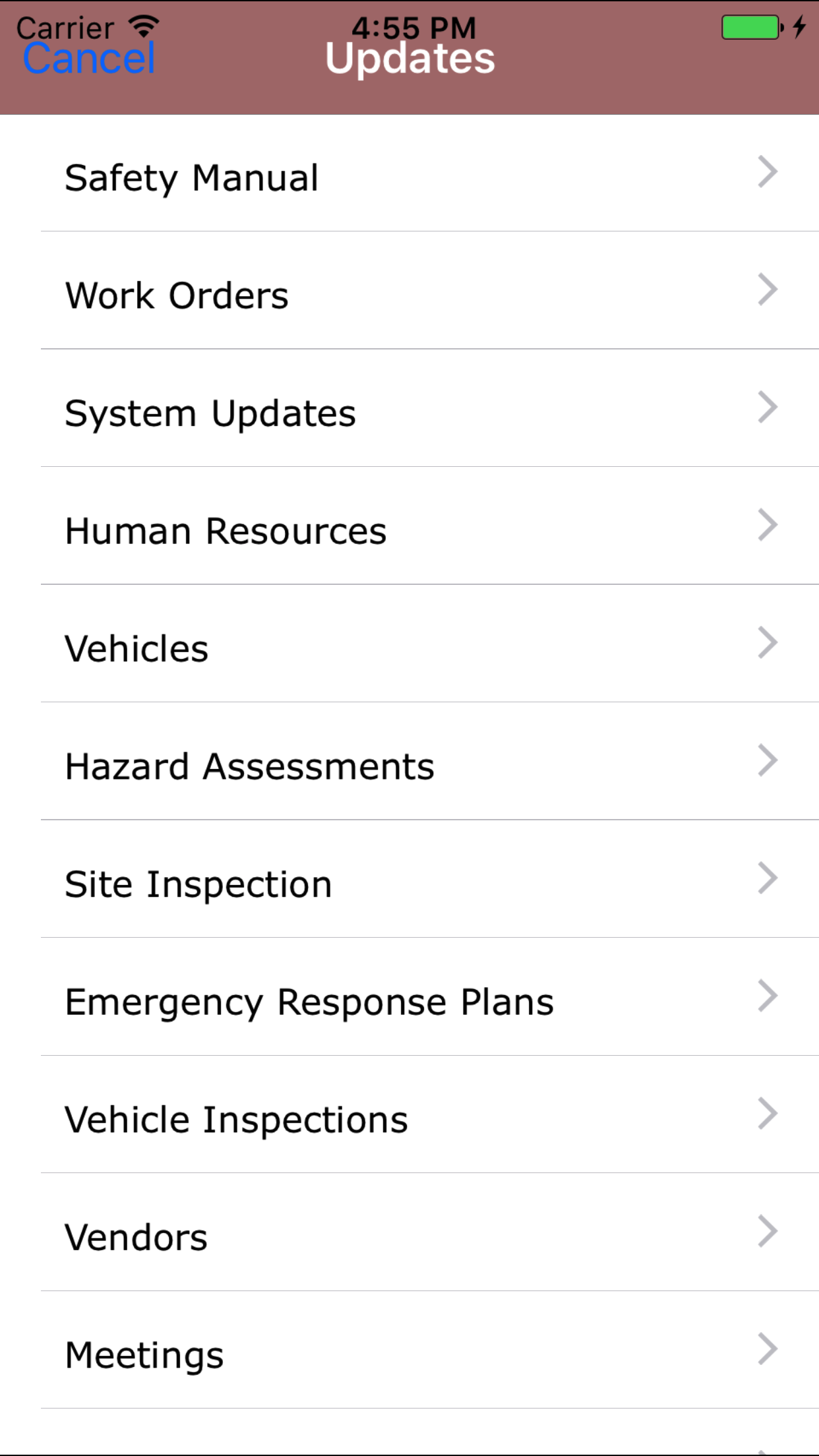
  1. From the Menu screen, tap the Updates button.
  2. Scroll the list of sections until you find the Human Resources button.
  3. Tap on the Human Resources button.
Step 1
Steps 2-3