|
The site inspection section allows field staff to create site inspection for job sites.
Site inspections are examinations of jobs sites before work is started on the job site. They look
at the unsafe acts and conditions present on the site. Allow field staff the opprotunity to come
up with solutions to theses acts and conditions before work is start.
Site Inspections take into consideration the location of site of the work, the scope of work, and the time of day.
Configuring Safety Net for how often a Site Inspections should be updated
SafetyNet can be configured to match your companies safety policy regarding how often site inspections must be conducted and/or updated. This can be configured in the Company Safety Settings section for more information in this
manual click here.
The site inspection section is only available to users that have the site inspection section turned on for their users group.
To change users access to site inspections, management and office staff
can change access in Application Section to view the information about the Application Section Click Here
|
|
|
1.Add Site Inspection |
Steps
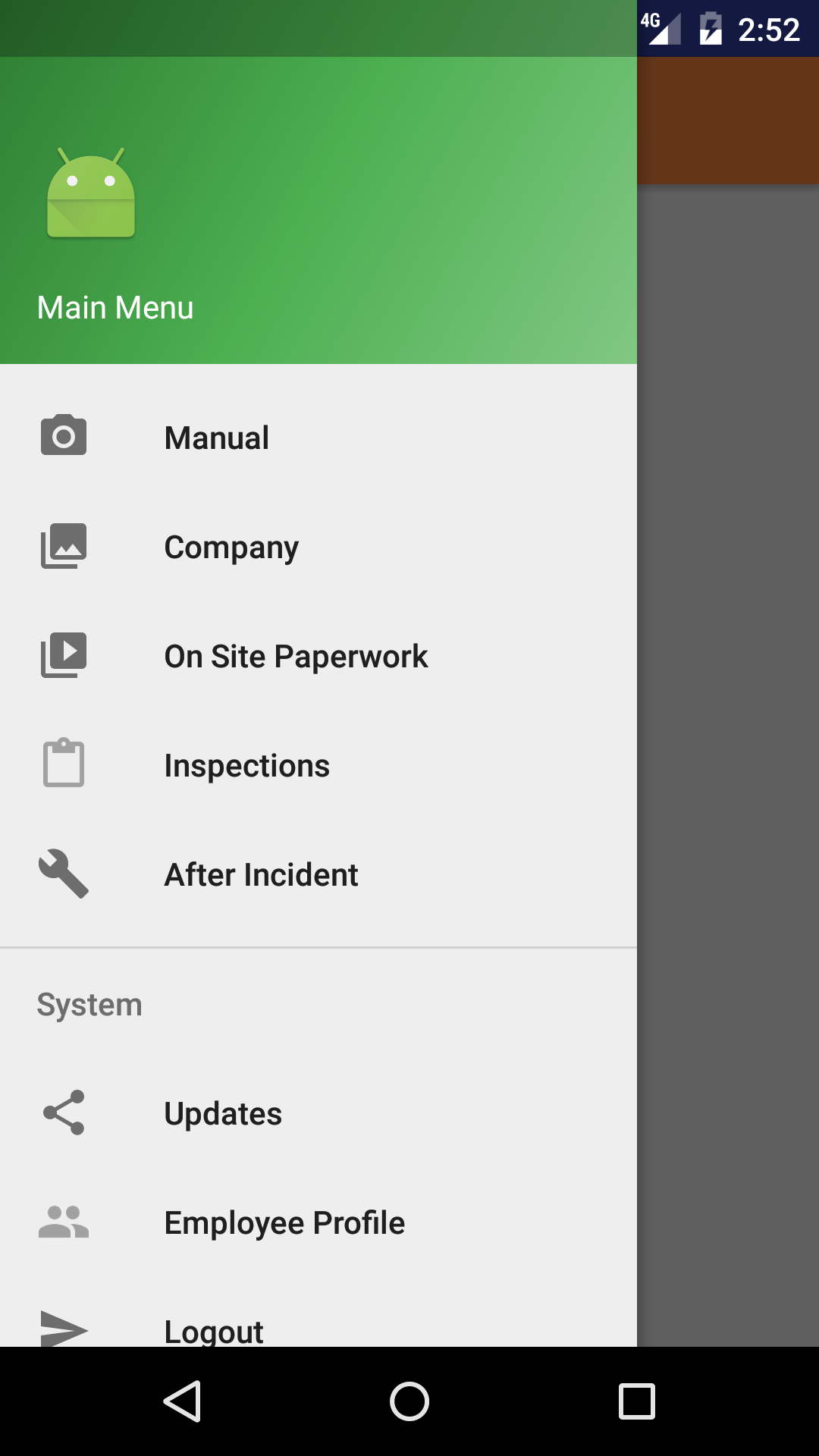
- From the Main Menu screen, tap the Inspection button.
- Then tap on the Site Inspection button.
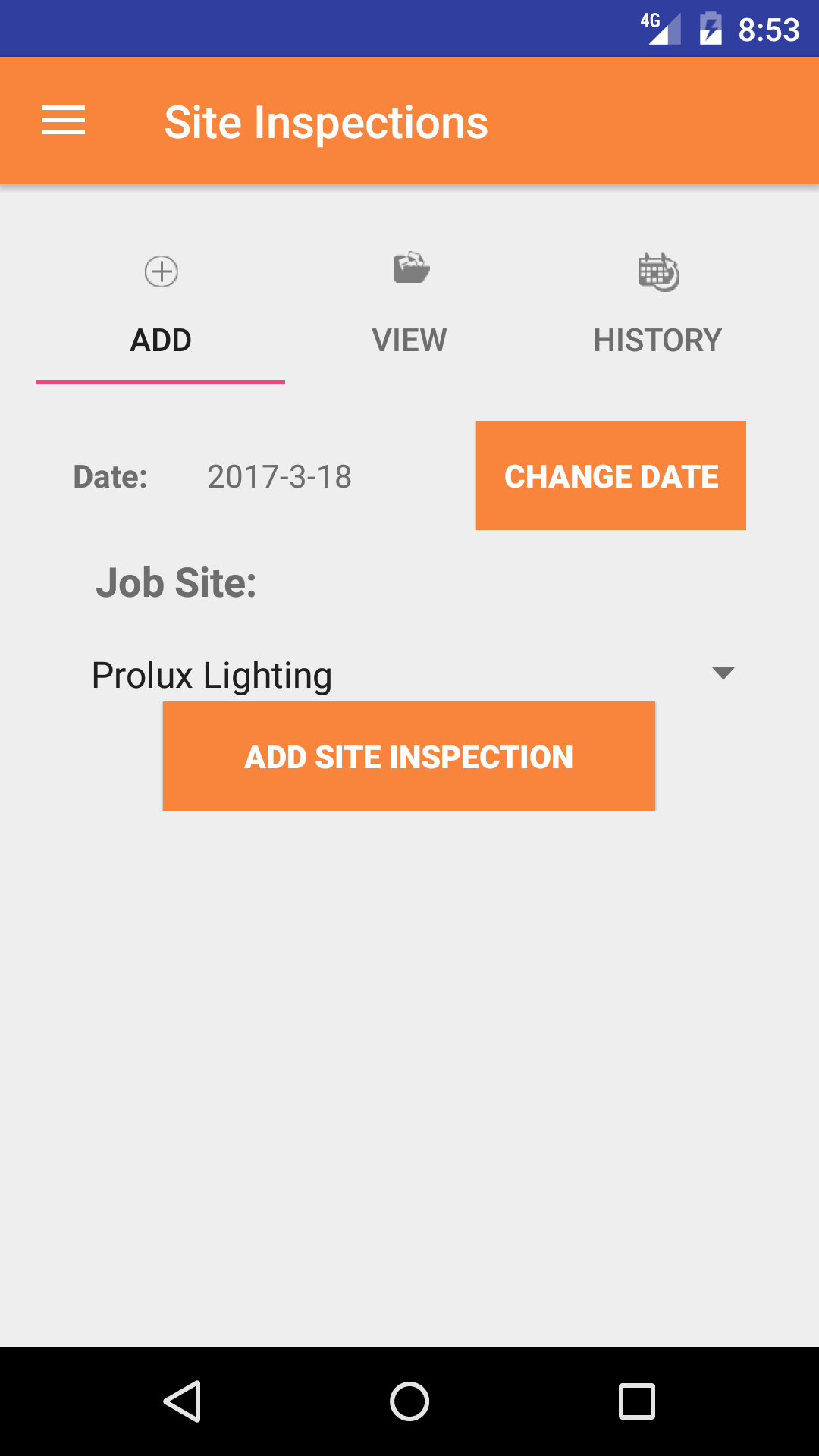
- This opens the Add Site Inspection entry screen.
- Date: The date field allow field staff to choose the date the site inspection occurs.
- Tap the Date button to open the Choose Date screen.
- Scroll the calender screen and select the date from the calender.
- Job Site select box
Job Site Names are listed in descending order job site name.
Note: Job Sites by nature will be updated and added to the list all the time, so it may be necessary to update the list click here.
- Scroll the list of job sites until the desired job site is displayed on the screen.
- Tap the desired job site to select it or tap Back in the top left corner to leave the Job Site field unchanged and return to the Add Site Inspection screen.
- Tap the Add Site Inspection button to add the Site Inspection.
- A pop-up message that reads Site Inspection Added indicates that the Site Inspection is ready to have details to be entered.
|
|
| Step 1 |
|
|
| Steps 2-5 |
|
|
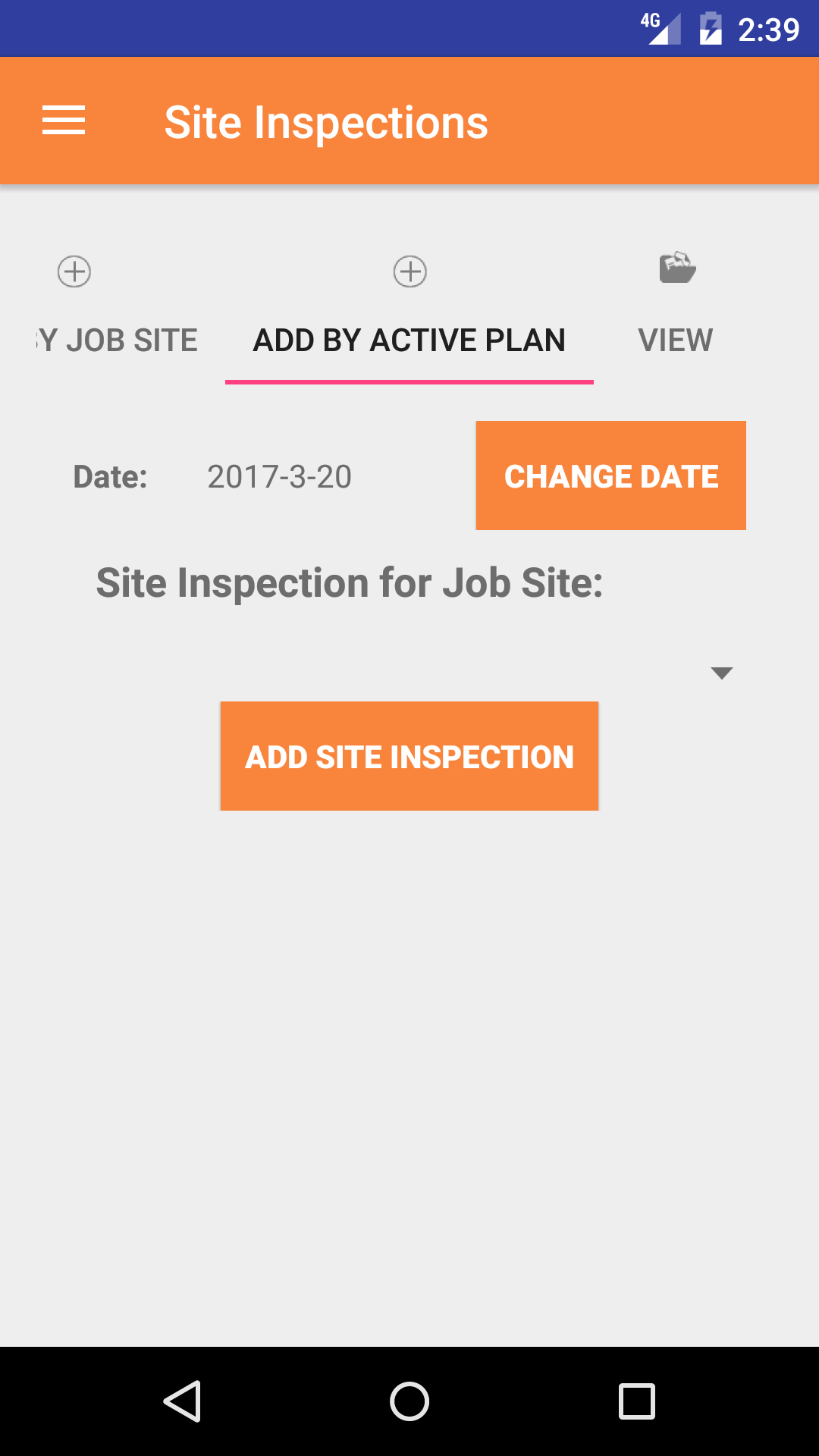
1.Add Site Inspection By Active Plan |
Steps
- From the Main Menu screen, tap the Inspection button.
- Then tap on the Site Inspection button.
- This opens the Add Site Inspection entry screen.
- Tap the second tab on the top of the screen to Open the Add Site Inspection By Existing screen.
- Date: The date field allow field staff to choose the date the site inspection occurs.
- Tap the Date button to open the Choose Date screen.
- Scroll the calender screen and select the date from the calender.
- Active Plan select Box
Job Site Names are listed in descending order job site name.
Note: Job Sites by nature will be updated and added to the list all the time, so it may be necessary to update the list click here.
- Scroll the list of job sites until the desired job site is displayed on the screen.
- Tap the desired job site to select it.
- Tap the Add Site Inspection button to add the Site Inspection.
- A pop-up message that reads Site Inspection Added indicates that the Site Inspection is ready to have details to be entered.
|
|
|
| Step 1 |
|
|
| Steps 2-5 |
|
|
3.Look Up Open Site Inspection |
|
Once in the Site Inspection< section
Steps
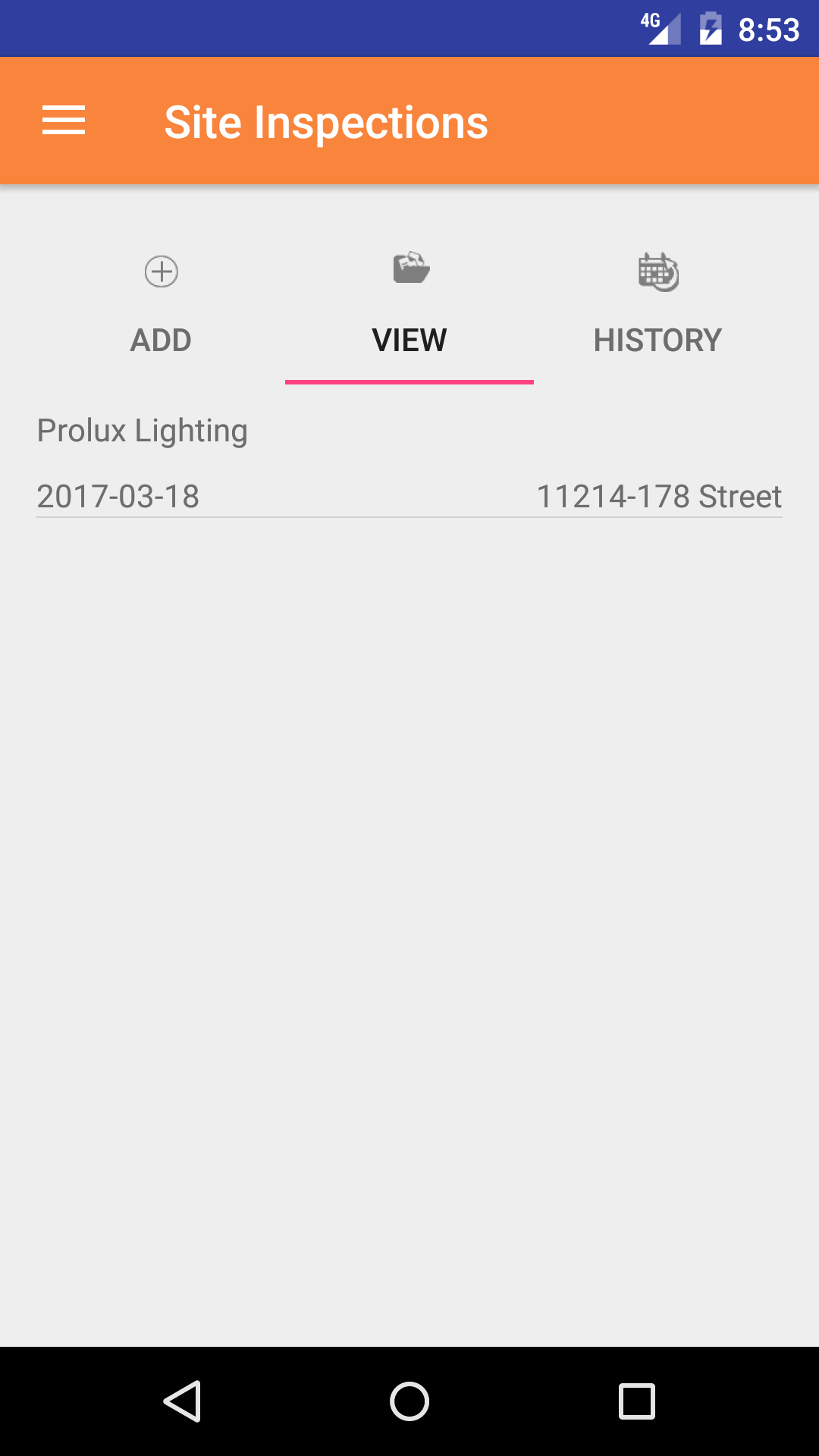
- Tap the second tab on the menu, the Site Inspection view.
- Scroll the list of Site Inspections until the desired Site Inspection is displayed on the screen.
Listing the site inspection date in black text, the job site in black text and
the address in black text.
- Tap on the Site Inspection you would like to view. This loads the site inspection edit screen.
|
|
| Steps 1-3 |
|
|
4.Edit Site Inspection Details |
|
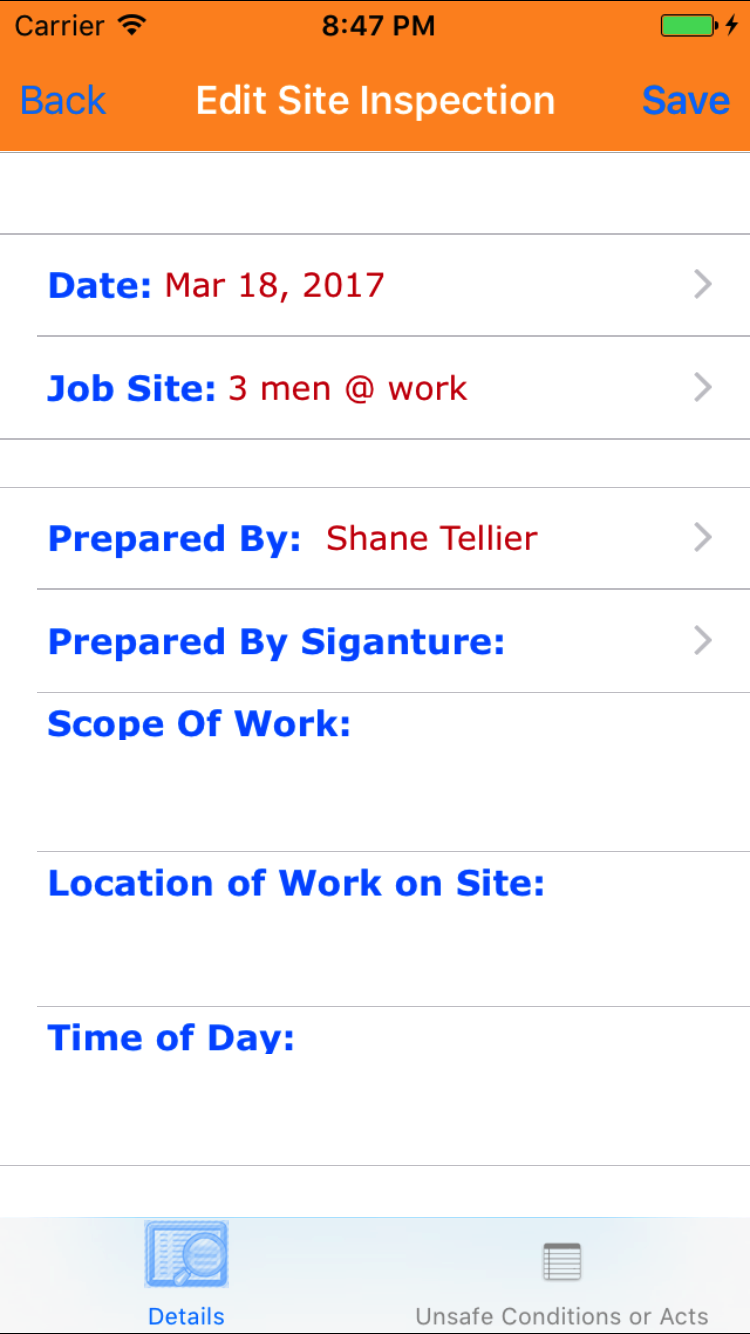
The first step in completing a Site Inspection is completing the details of the plan the date, scope of work
, location of work on site, and time of day.
Once on the Site Inspection you would like to Edit, on the first details tab.
Fields
- Date: The date field allow field staff to choose the date the site inspection occurs.
- Tap the Date button to open the Choose Date screen.
- Scroll the calender screen and select the date from the calender.
- Prepared By select box.
>Employees are listed in descending order with the employee name.
Note: Employees by nature will be updated and added to the list all the time, so it may be necessary to update the list click here.
- Scroll the list of employee until the desired employee is displayed on the screen.
- Tap the desired employee to select it.
- Scope of Work: The Scope of Work field allows field staff to enter the scope of work being performed on the job site. The character limit of this field is 250.
- Location of Work on Site: The Location of Work on Site field allows field staff to enter description of where on the site the work will be performed. The character limit of this field is 250.
- Time of Day: The Time of Day field allows field staff to enter a description of the time of day when the work will be done. The character limit of this field is 250.
- Tap Save in the top right corner to save any changes to the Site Inspection Details.
- A pop-up message that reads Site Inspection Details have been Saved indicates that the site inspection details have been saved.
|
|
| Step 1-6 |
|
|
5.Add Employee Signature |
|
The employee creating the site inspection must provide an electronic signature to indicate that they have created the inspection.
Once on the Site Inspection you would like to Edit, on the first tab
Steps
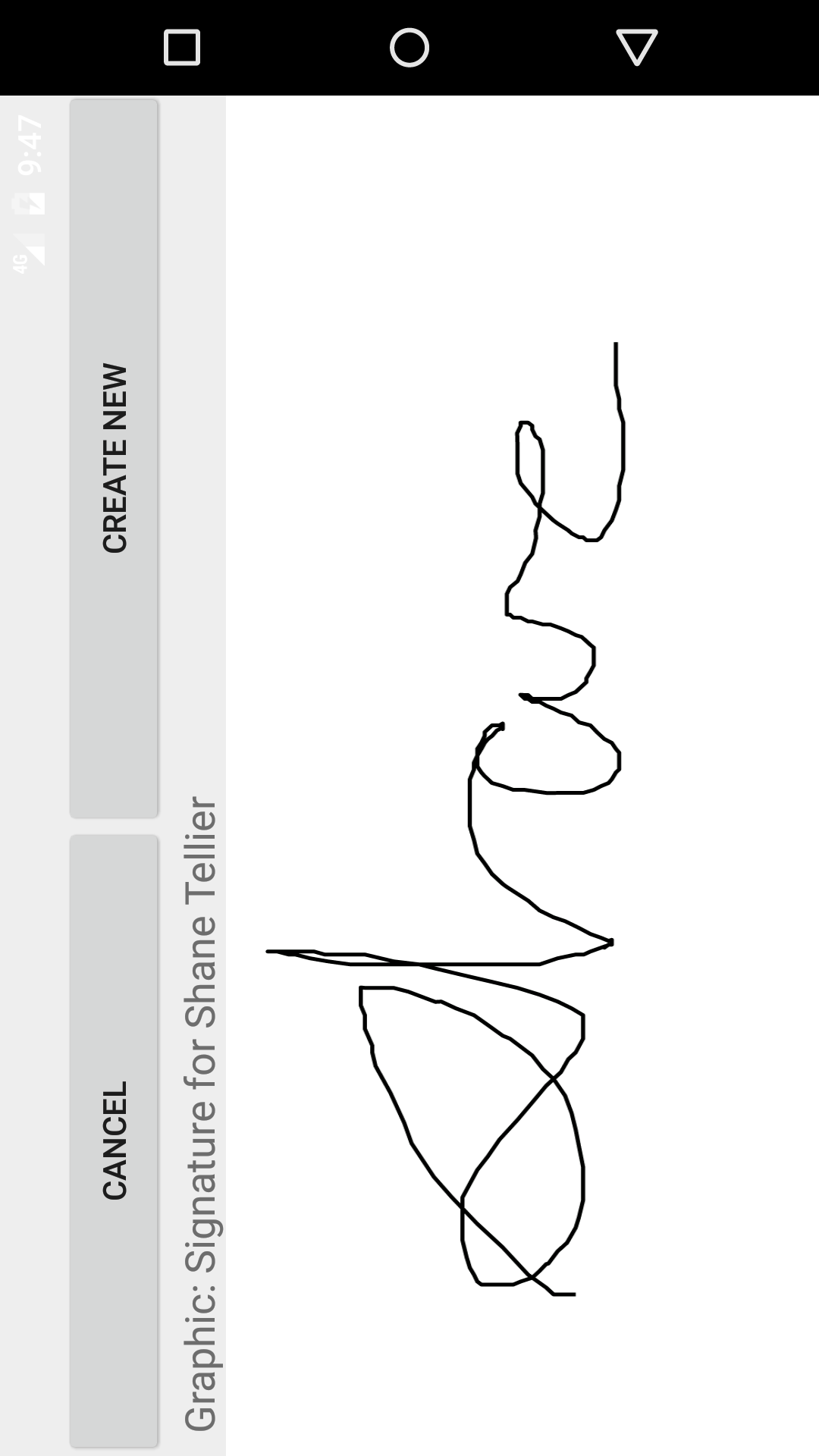
- Tap the Prepared By Signature button to open the View Signature screen.
- Tap the Create new button to open the Signature Edit screen.
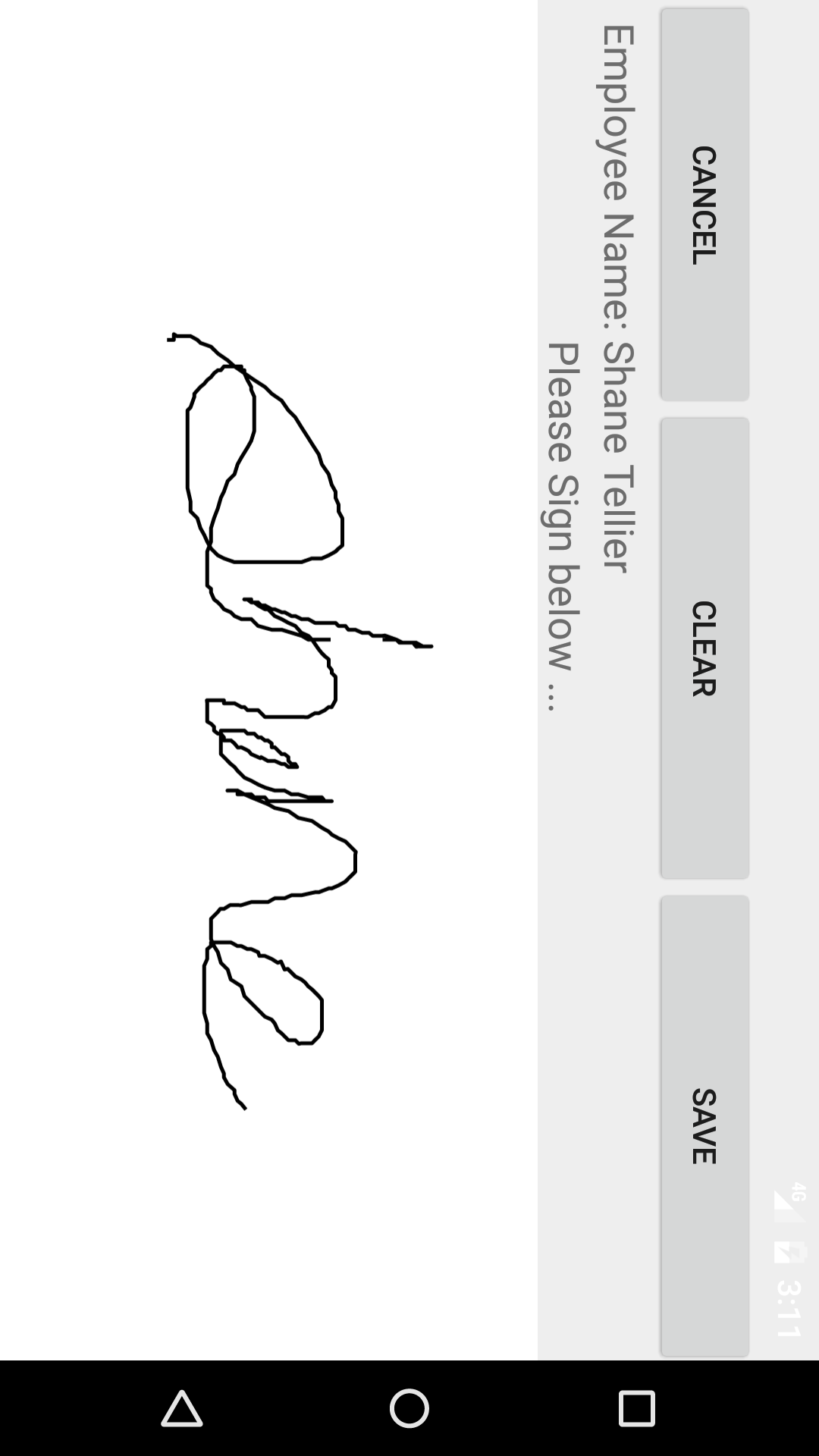
- Sign in the white space beneath the Save New Drawing Here label.
- Tap Save in the top right corner of the screen to update the Signature field.
|
|
|
6.Add Condition Found |
|
Conditions Found are the the unsafe acts or unsafe conditions that may occur on a job site. For each condition found on the site inspection, users should include
the corrective actions to correct the condition. Its important that field staff knows what the conditions are and how they are being taken care of so they can preform there
jobs properly and safely.
Once on the Site Inspection you would like to view
Steps
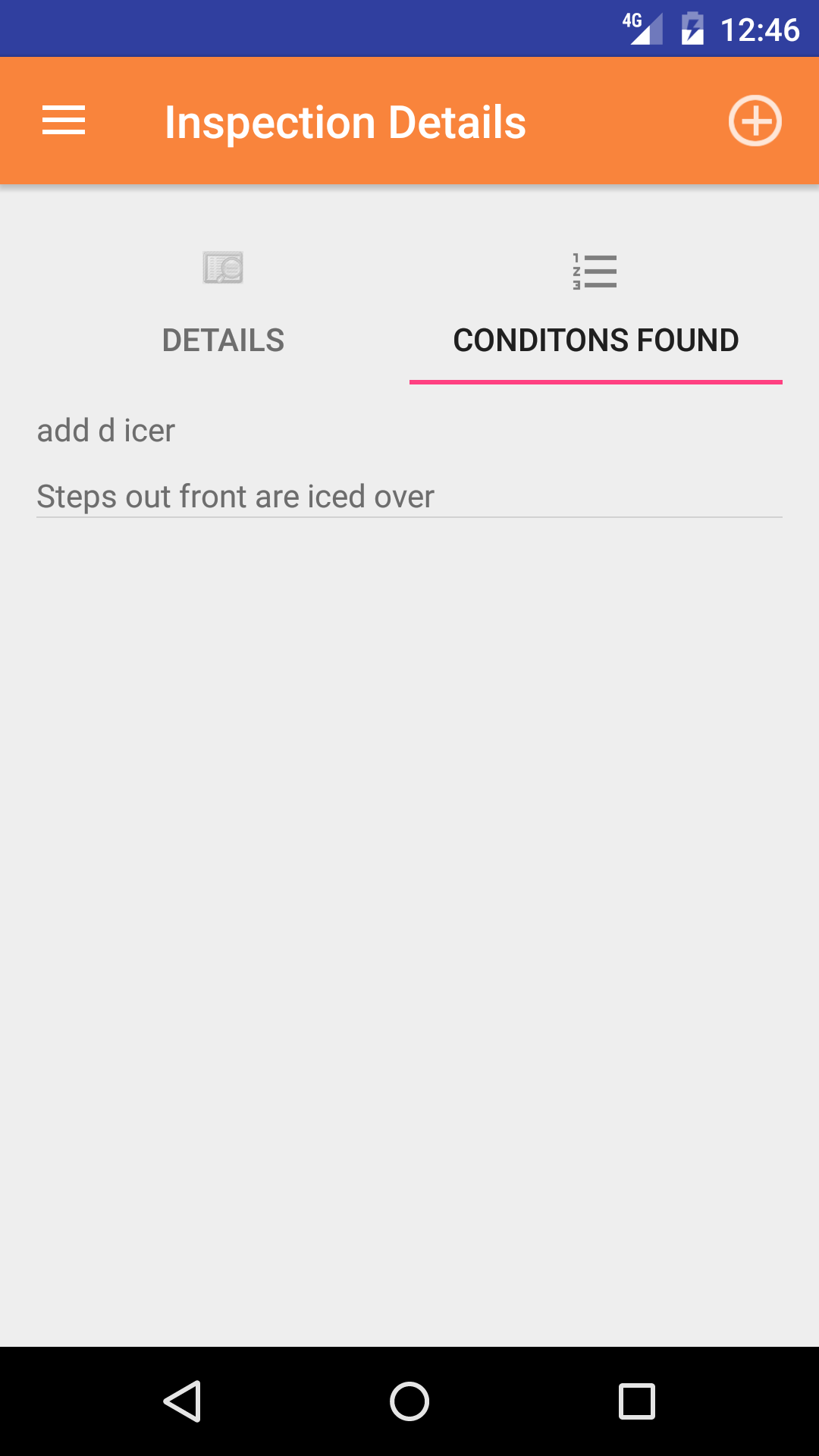
- Tap on the second tab, the Conditions Found icon at the bottom of the screen to open the Conditions Found screen. The screen loads with the list
of conditions found, Listing the unsafe act or condition in black text and the correction action in black text.
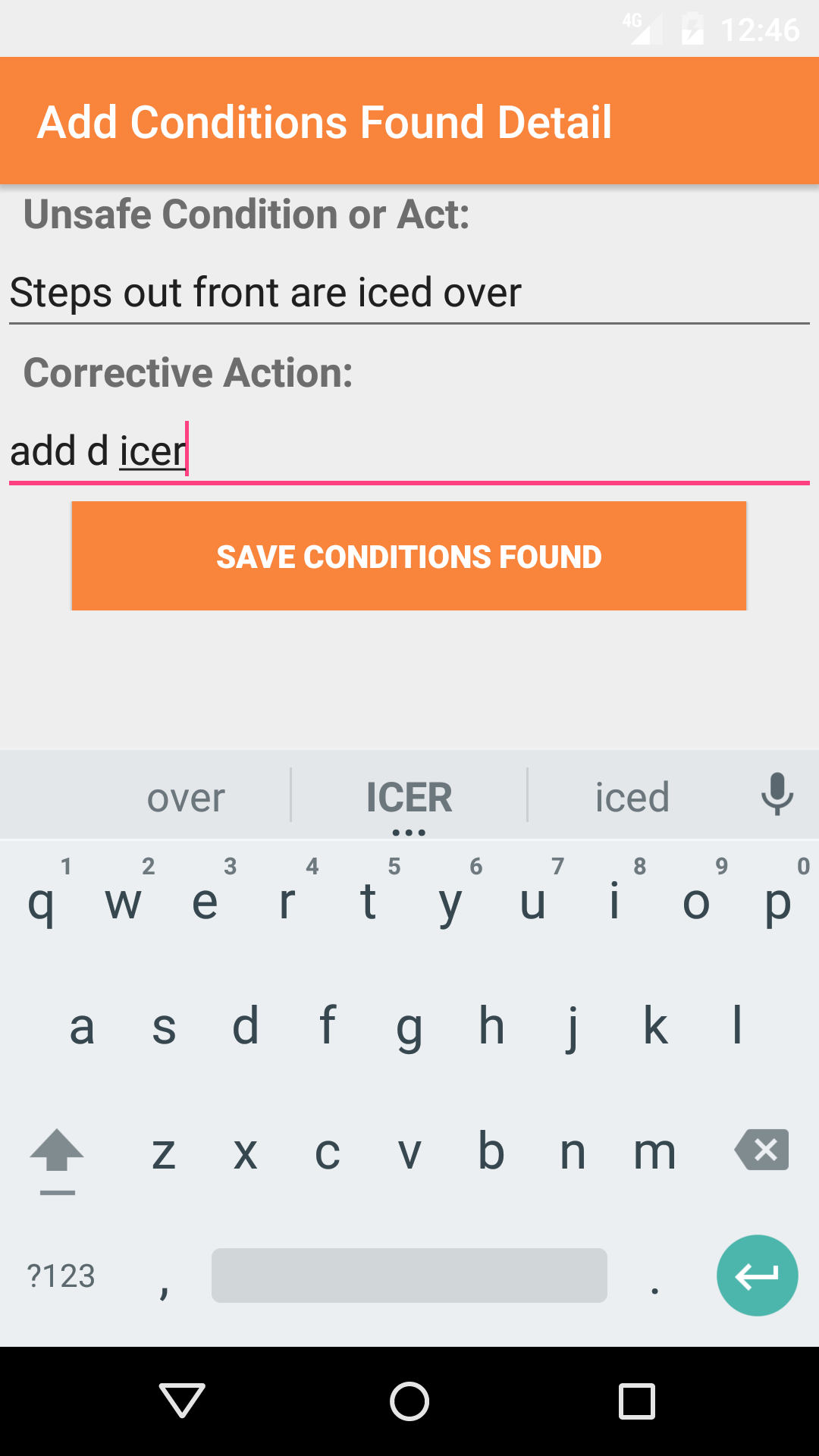
- Tap the + icon in the top right corner to open the Add Condition Found screen.
Fields
- Unsafe Condition or Act: The Unsafe Condition or Act field allows field staff to enter unsafe condition or act found on a job site. The character limit of this field is 250.
- Corrective Action: The Corrective Action field allows field staff to enter corrective action for the given unsafe condition or act. The character limit of this field is 250.
- Tap + icon in the top right corner to save the possible emergency.
|
|
| Steps 1-2 |
|
|
| Steps 4-5 |
|
|
|
7.Look Up Condition Found |
|
Once on the Site Inspection you would like to view
Steps
- Tap on the second tab, the Conditions Found icon at the bottom of the screen to open the Conditions Found screen. The screen loads with the list
of conditions found, Listing the unsafe act or condition in blue text and the correction action in red text.
- Scroll the list of Conditions Found until the desired condition is displayed on the screen.
- Tap on the desire conditions found. This loads the edit Conditions Found screen.
|
|
|
| Steps 1-3 |
|
|
8.Edit Condition Found |
|
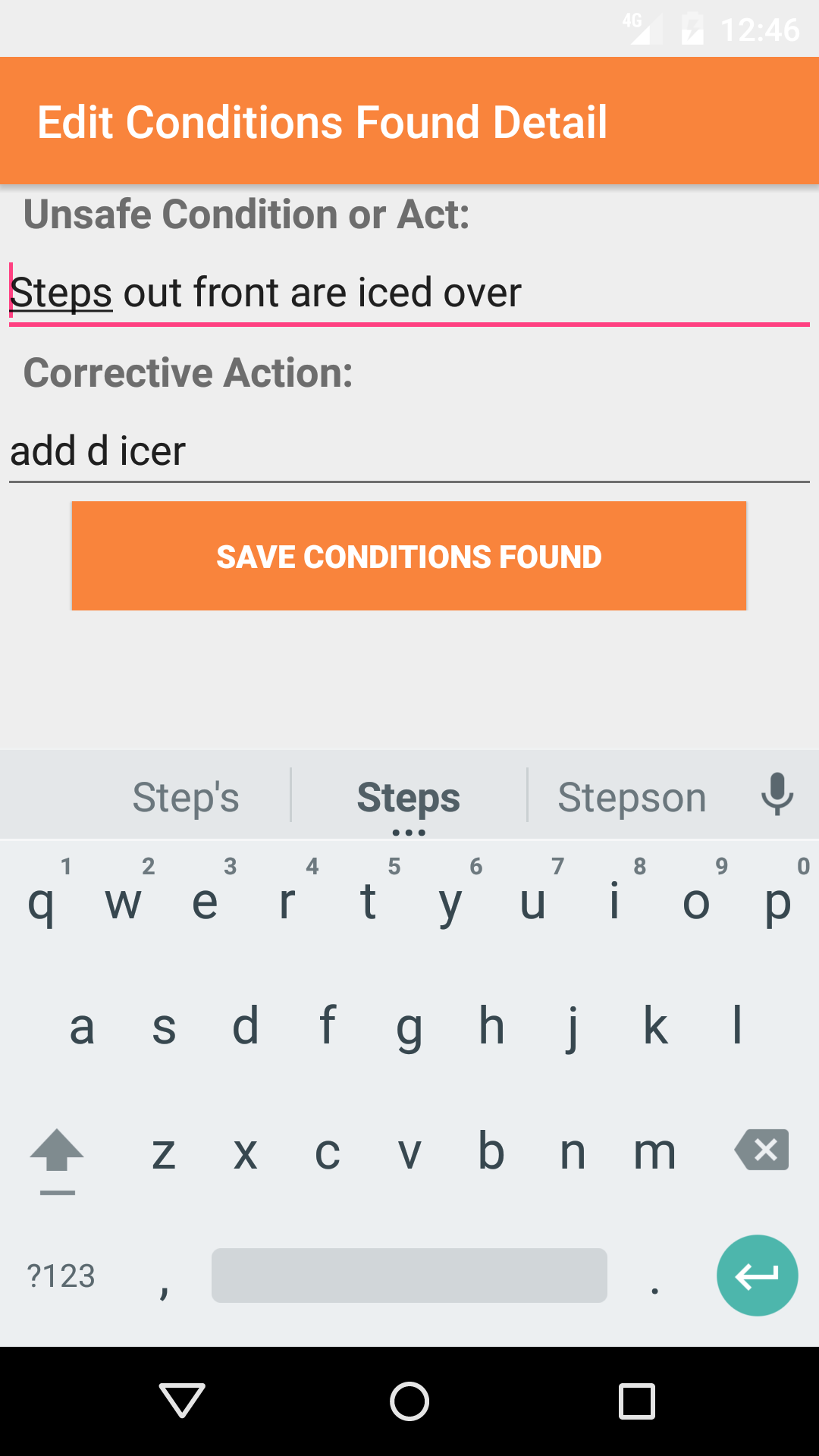
Once on the Condition Found you would like to edit.
Fields
- Unsafe Condition or Act: The Unsafe Condition or Act field allows field staff to enter unsafe condition or act found on a job site. The character limit of this field is 250.
- Corrective Action: The Corrective Action field allows field staff to enter corrective action for the given unsafe condition or act. The character limit of this field is 250.
- Tap Save button in the top right corner to save the condition found.
|
|
| Steps 1-3 |
|
|
9.Delete Condition Found |
|
Once in the Emergency Response Plan section
Steps
- Tap on the second tab, the Conditions Found icon at the bottom of the screen to open the Conditions Found screen. The screen loads with the list
of conditions found, Listing the unsafe act or condition in blue text and the correction action in red text.
- Scroll the list of Conditions Found until the desired condition is displayed on the screen.
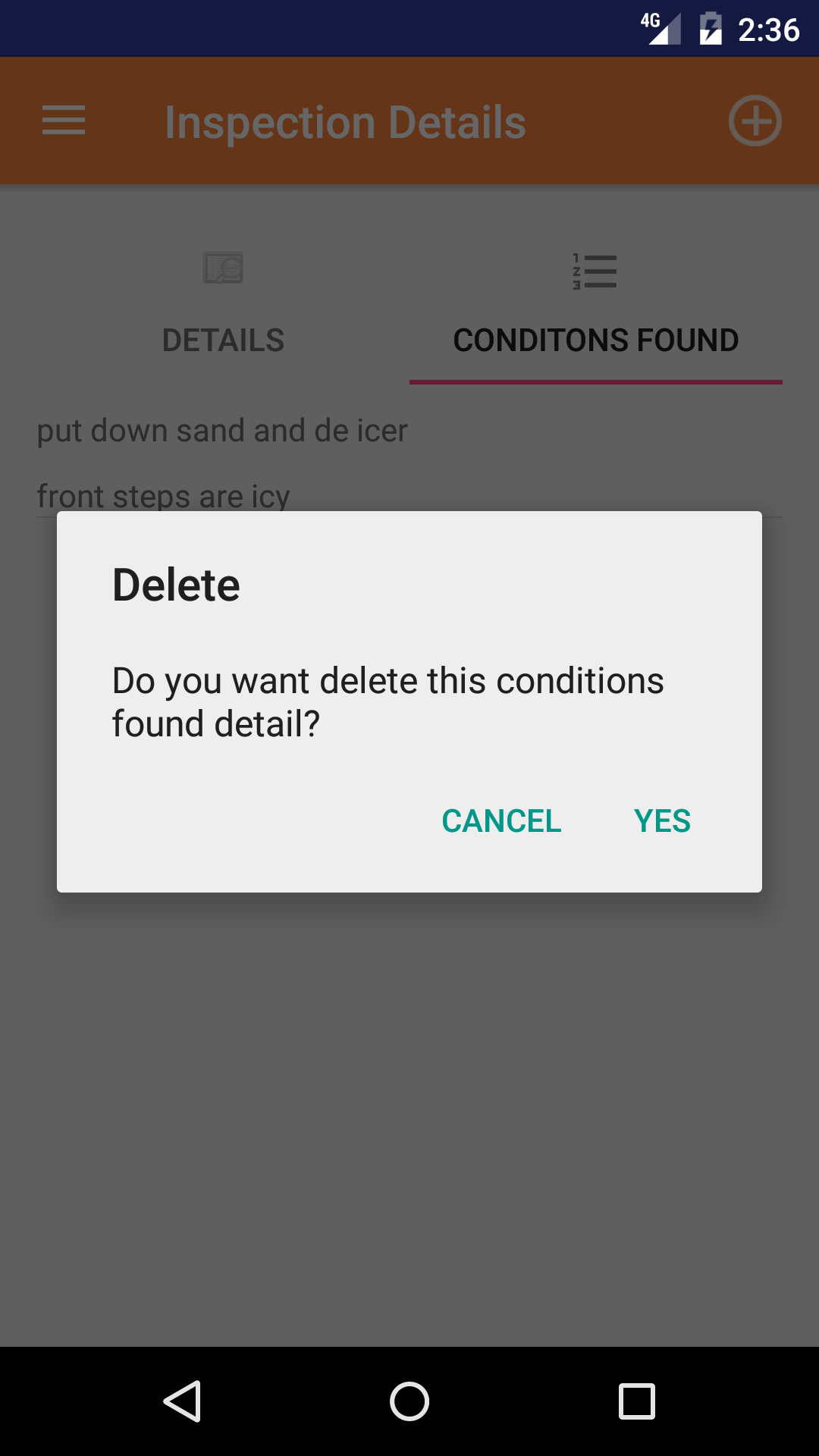
- Swipe from the right edge to the left to bring up the delete button for the condition found.
- Tap the Delete button. The condition found will be deleted.
|
|
| Steps 1-4 |
|
|
10.Submit Site Inspection |
|
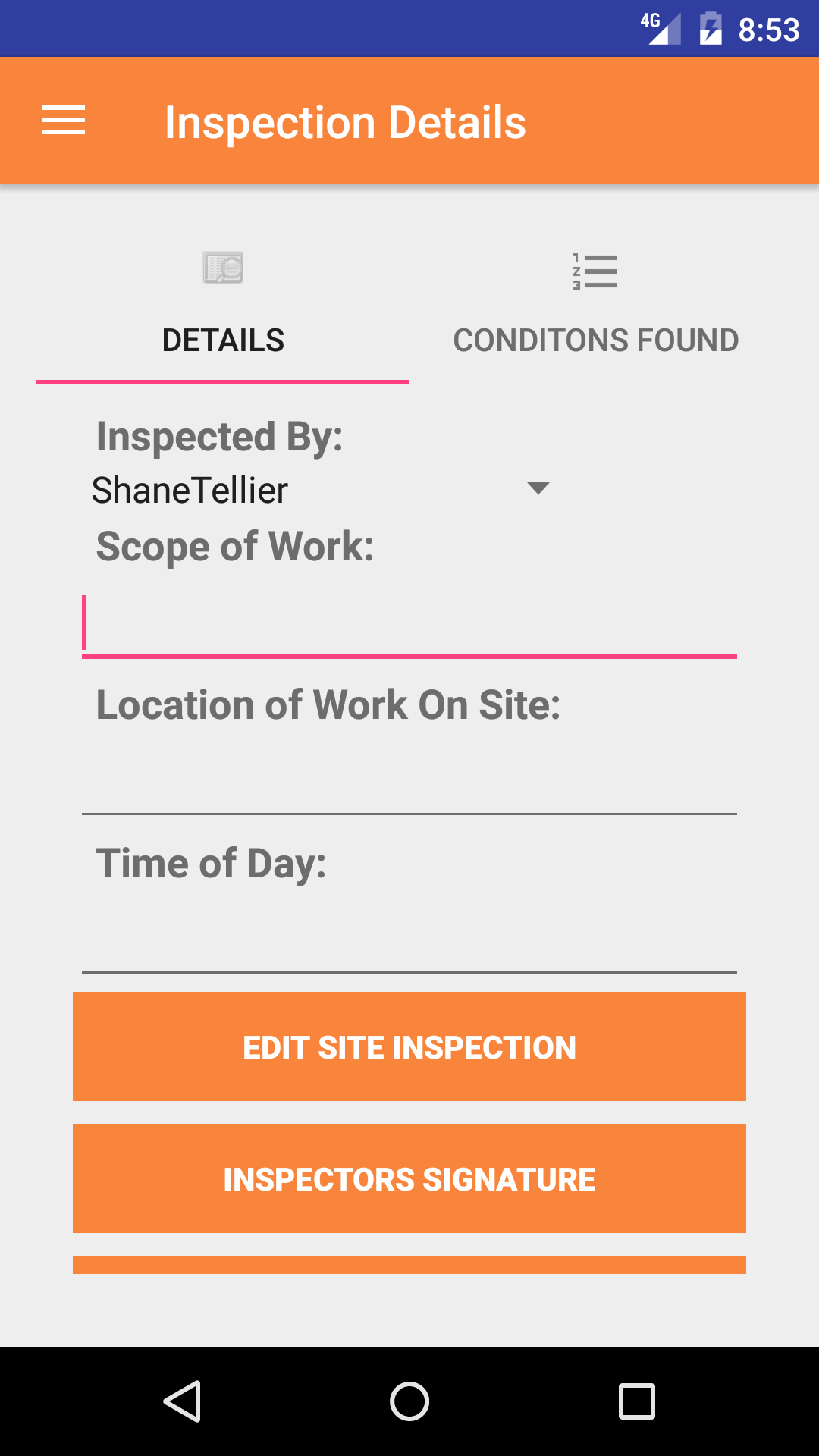
Once on the Site Inspection you would like to Edit, on the first tab
Steps
- Tap Submit Site Inspection button to submit the site inspection.
|
|
| Step 1 |
|
|
|
11.Delete Site Inspection |
|
Once in the Site Inspection section
Steps
- Tap the second tab on the menu, the Site Inspection view.
- Scroll the list of Site Inspections until the desired Site Inspection is displayed on the screen.
Listing the site inspection date in black text, the job site in black text and
the address in black text.
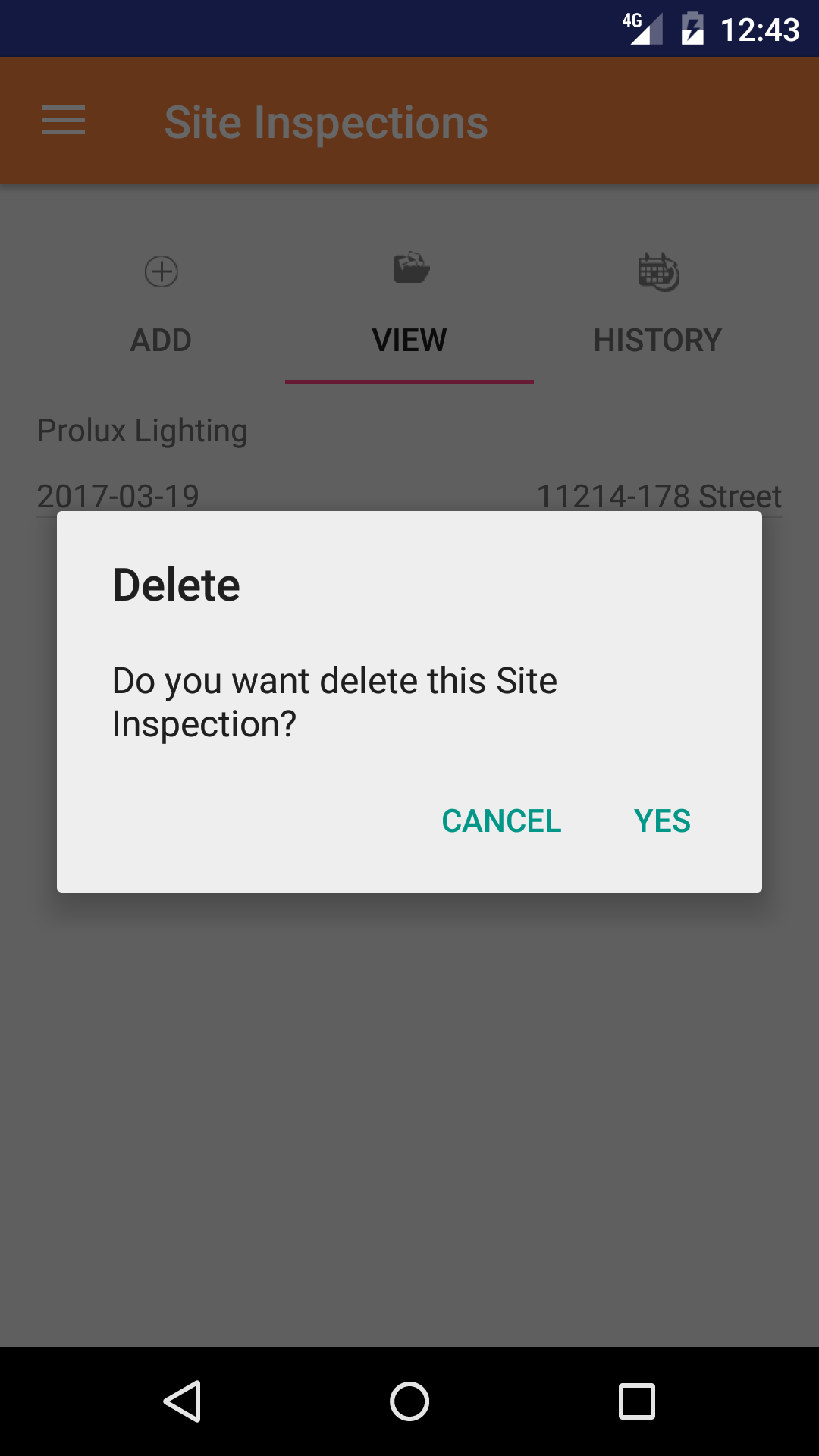
- Swipe from the right edge to the left to bring up the delete button for the site inspection.
- Tap the Delete button. The site inspection will be deleted.
|
|
|
| Steps 1-2 |
|
|
| Steps 3-4 |
|
|
12.View Closed Site Inspection |
|
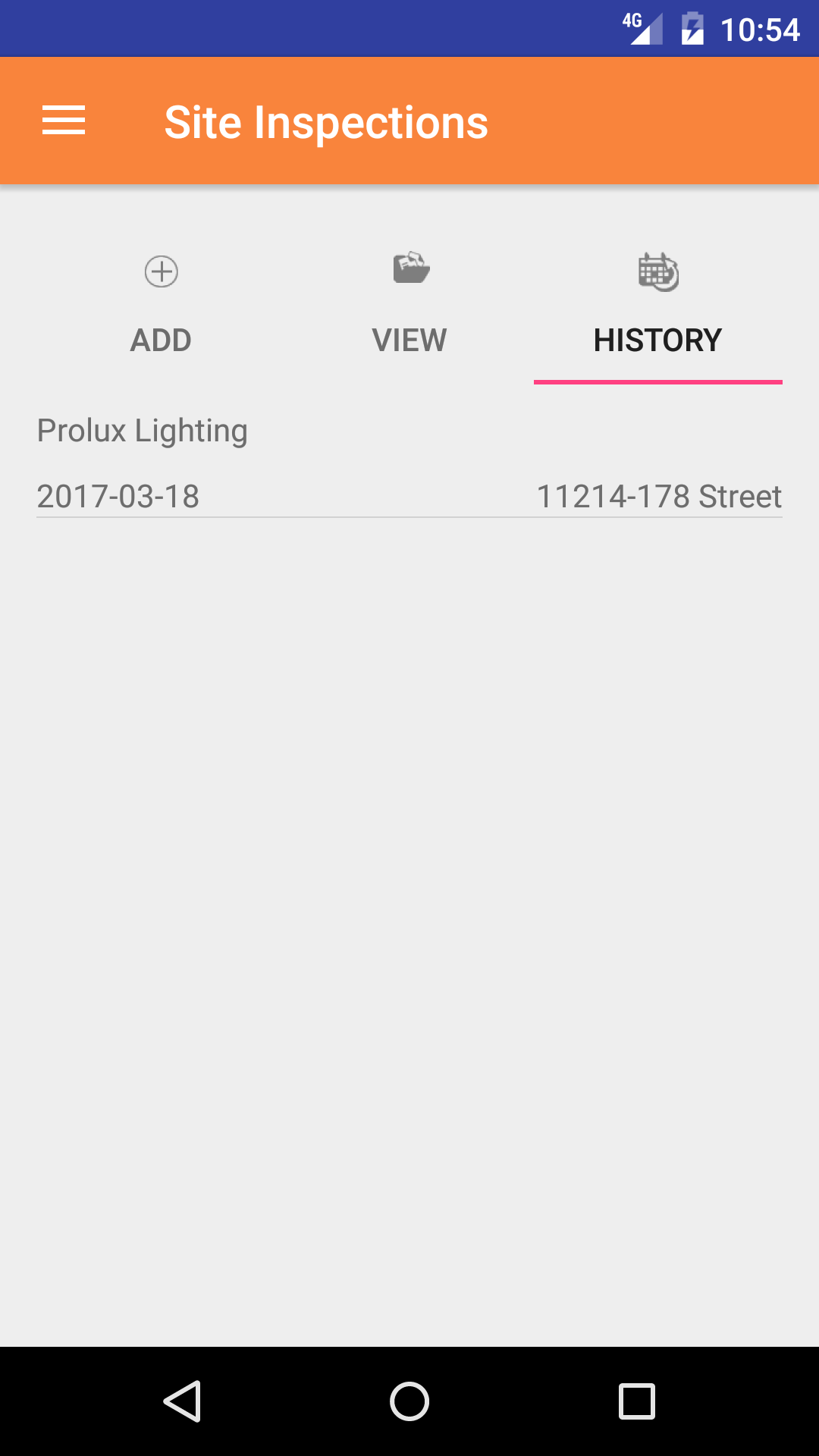
After Site Inspections have been closed out, they will be available to look at through the History view on the Android Application.
- Then tap on the third tab on the bottom of the screen, this opens the Site Inspection History screen.
The screen loads with emergency response plan date and job site name in black with the scope of work in red.
- Scroll the list of Site Inspections until the desired Site Inspection is displayed on the screen.
Listing the site inspection date in black text, the job site in black text and
the address in black text.
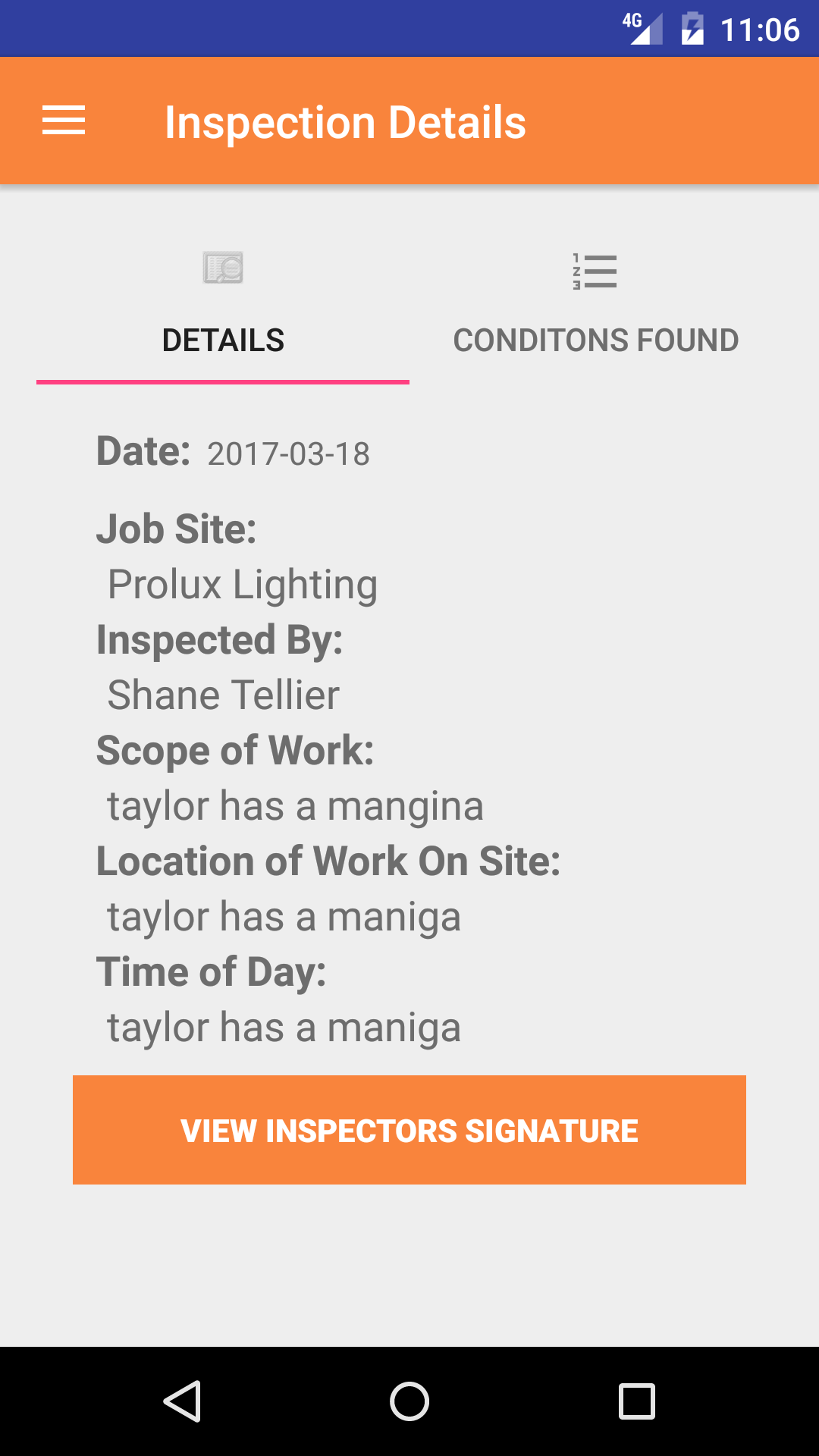
- Tap the site inspection you would like to view, this loads the site inspection detail page of the history section.
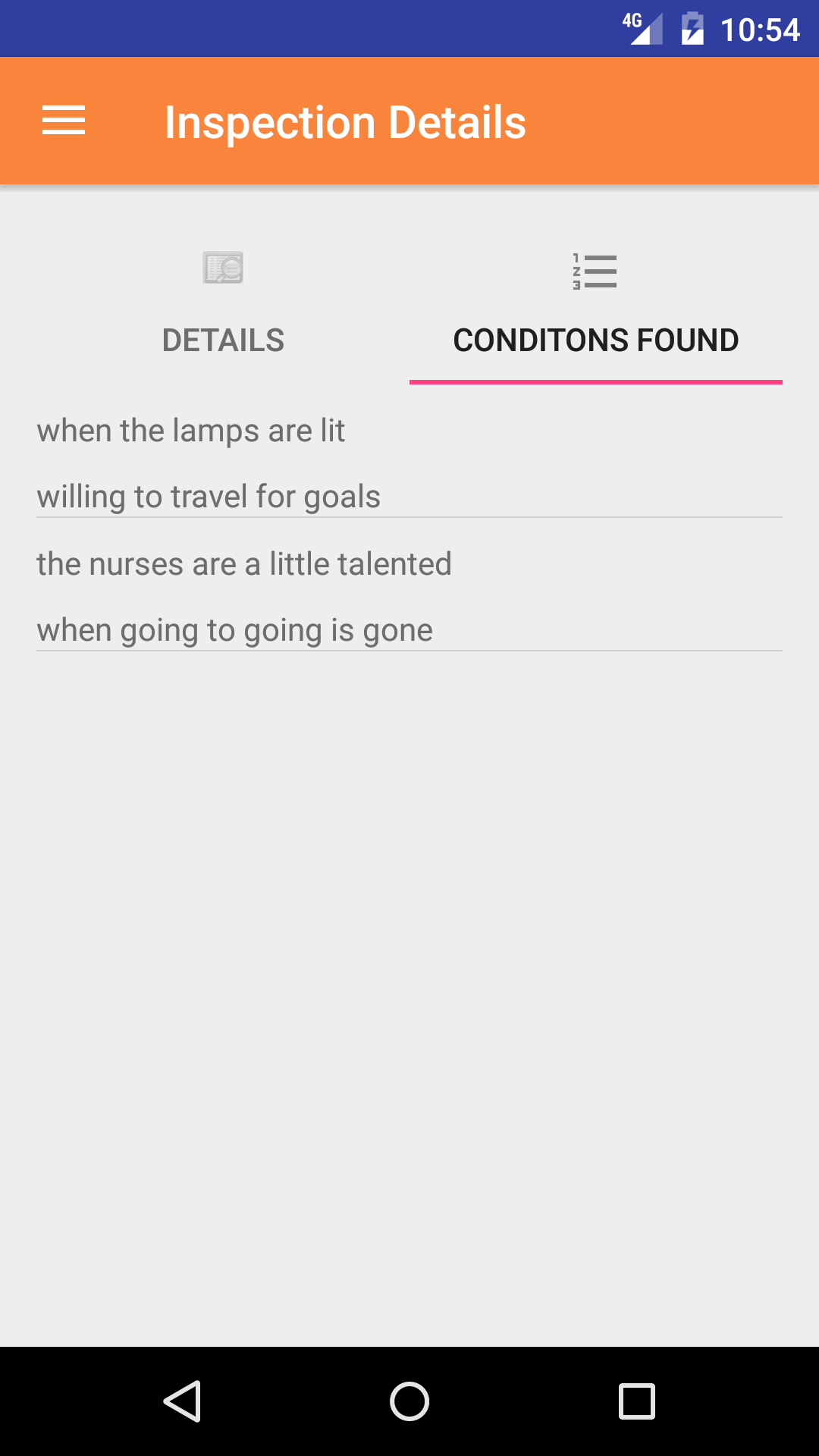
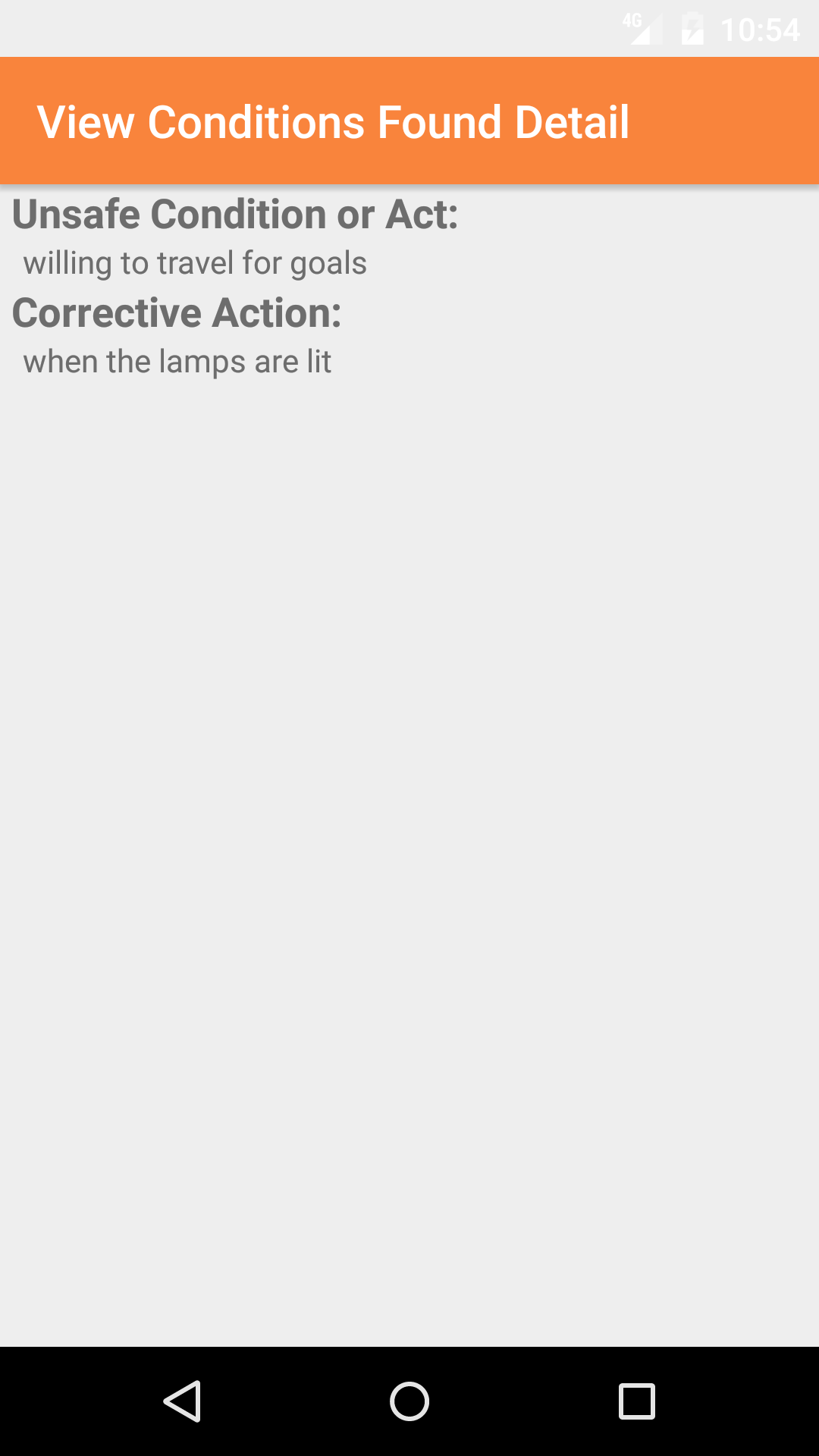
- Tap the second tab, the conditions found tab of the History view. This loads with the conditions found of the Site Inspection.
- Tap on the Conditions Found to view the details of the condition found.
|
|
|
|
| Steps 1-2 |
|
|
| Step 3 |
|
|
| Steps 4 |
|
|
| Steps 5 |
|
|
|
13.Update Site Inspections |
|
As other field staff and employee's perform site inspection the library of
existing site inspections for field staff to use will grow, there will be a need for field staff to update their Android application.
Steps
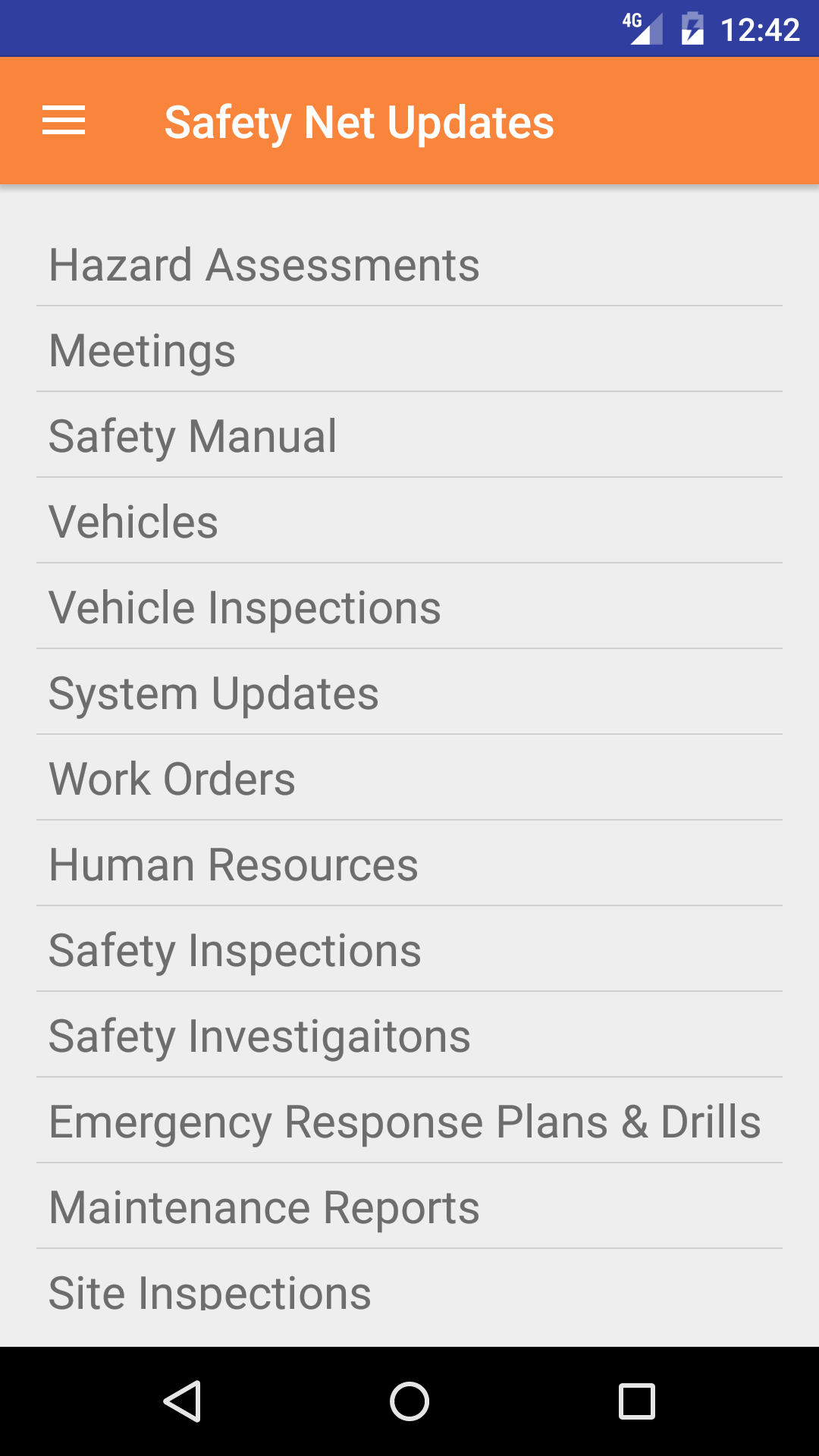
- From the Menu screen, tap the Updates button.
- Scroll the list of sections until you find the Site Inspection button.
- Tap on the Site Inspection button.
|
|
|
|
| Step 1 |
|
|
| Steps 2-3 |
|
|

 App Manual