Manual

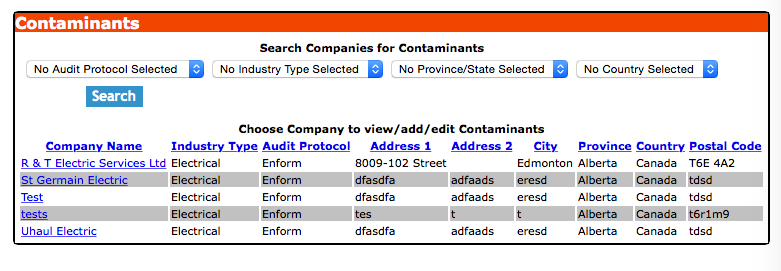
Company Contaminant

Through SafetyNet's company contaminants section companies can manage the list of contaminants they want their staff to test for as part of the confined space entry report. Confined Space Entry Report will need to occur when a company employee is involved in work in a area deemed to be confined space.

These confined space contaminants are set up so companies can build a list of contaminants their staff need to test for as part of their confined space entry report. Companies can choose from default contaminants SafetyNet provides. Companies may need to alter their contaminants lists as things change over time, as safety regulations by companies have changed.

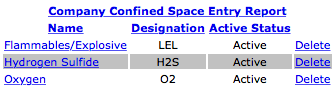
To view how your companies' confined space entry report will appear with all active considerations, contaminants and confined space notes click the "Company Confined Space Entry Report" link, which will show what the confined space entry report will look like.

The confined space entry reports section is only available to users that have the confined space entry reports section turned on for their users group. To change users access to confined space entry reports, management and office staff can change access in Application Section to view the information about the Application Section Click Here

Table of Contents

#Section Name#Section Name#Section Name
1Add Company Contaminants 2Add Company Contaminants from Default 3Delete Company Contaminant
4Look up Company Contaminant 5Edit Company Contaminant

1.Add Company Contaminants

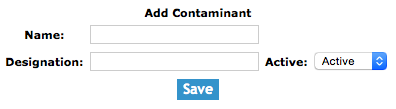
To add a Company Contaminant, click on the 'Add Contaminants' link.

On the next screen, under Add Contaminant heading, select:

Fields

Contaminant Name: Allows the user to input the contaminant name. The contaminant name should be the proper name of the contaminant, which the field staff will be testing for during the confined space entry. The character limit of this field is 150.

Designation: Allows the user to input the designation of the contaminant. The contaminant designation should be the proper elemental designation of the chemical to be tested for during the confined space entry. The character limit of this field is 25.

Active Status: By selecting a active status from the select box, which loads with active and inactive. Only contaminants set to active will be added to a confined space entry report.

Then click the 'Save' button. The edit company contaminant screen will load. From here, proceed to edit as per the instructions below.

2.Add From Company Contaminant from Default

To add a Company Contaminant from Default, click on the 'Add From Default Contaminant' link.

On the next screen, under Default Contaminant heading, select:

Then click the 'Add Default Contaminant For Company' link of the default contaminant.

3.Delete Company Contaminant

Deleting company contaminant may have to be done if the company contaminants was added to the system incorrectly. Only company contaminants that have not do not have been included in a confined space entry report can be deleted.

To delete a company contaminants click the 'Delete' link of the company contaminant you want to delete.

4.Look up Company Contaminant

To get to the edit screen of a contaminant, click on the name of the company contaminant that you would like to edit.

5.Edit Company Contaminant

The company contaminant section allows users to edit the company contaminant. Contaminants includes the contaminant name, designation and active status.

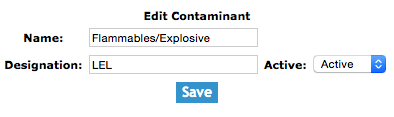
Once on the edit contaminant screen

Fields

Contaminant Name: Allows the user to input the contaminant name. The contaminant name should be the proper name of the contaminant, which the field staff will be testing for during the confined space entry. The character limit of this field is 150.

Designation: Allows the user to input the designation of the contaminant. The contaminant designation should be the proper elemental designation of the chemical to be tested for during the confined space entry. The character limit of this field is 25.

Active Status: By selecting a active status from the select box, which loads with active and inactive. Only contaminants set to active will be added to a confined space entry report.

Once the necessary information has been input, click the 'Save' button.