|
To add a Employee, click on the 'Add Employee' link.
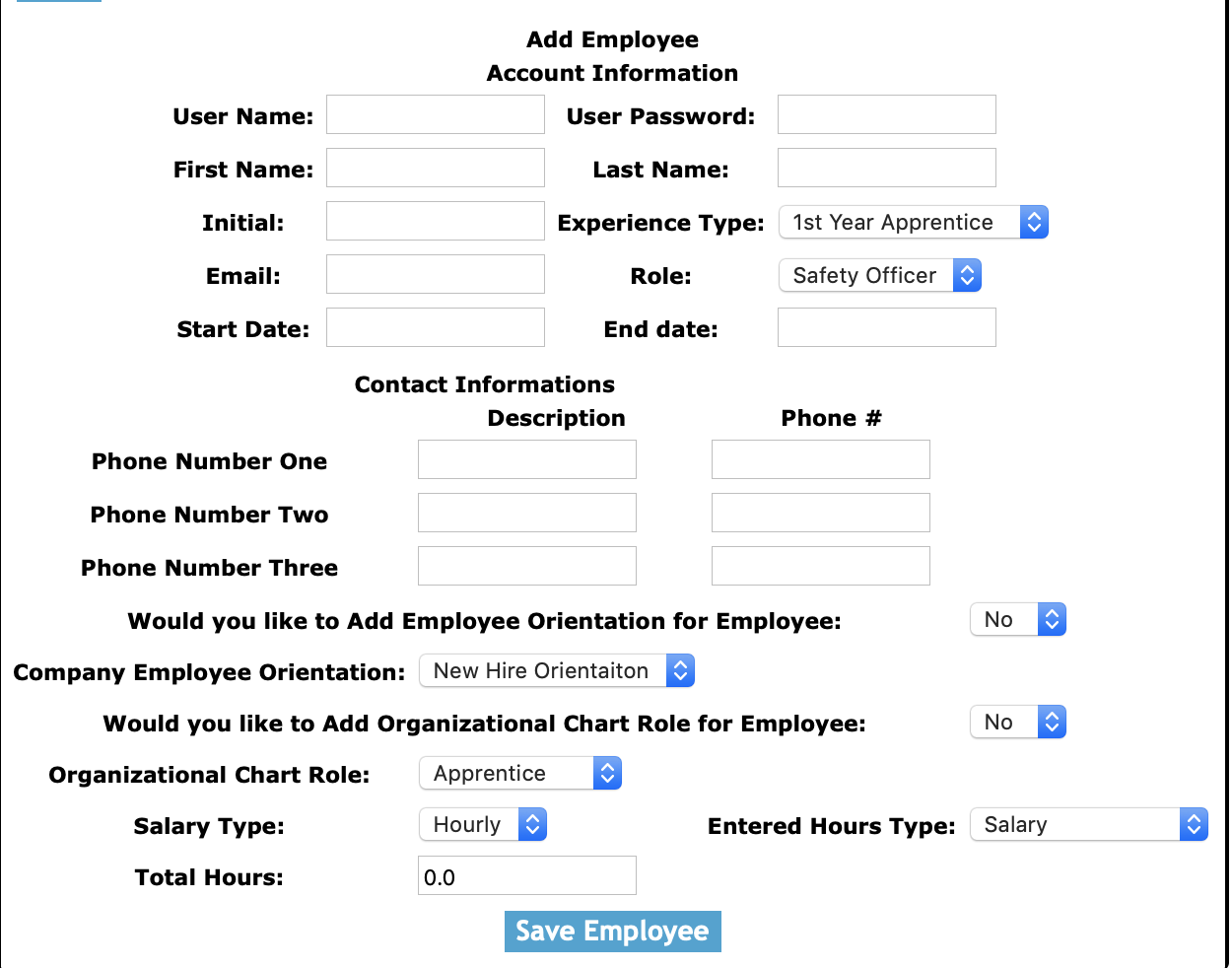
On the next screen, under Add Employee heading, select:
Fields
User Name: Enter the employee's user name. The character limit of this field is 15.
User Password: Enter the employee's user password. The character limit of this field is 15.
First Name: Enter the employee's first name. The character limit of this field is 25.
Last Name: Enter the employee's last name. The character limit of this field is 25.
Initial: Enter the employee's initial. The character limit of this field is 3.
Experience Type: Choose the employee's experience type in the select box.
Email: Enter the employee's contact email. The character limit of this field is 50.
Role: Choose what is the employee's role in the select box.
Start Date: Enter the employee's start date. The format of this field is YYYY-MM-DD.
End Date: Enter the employee's end date. The format of this field is YYYY-MM-DD.
SafetyNet has allows employee's to save three phone numbers.
Description: Enter the description of phone line. The character limit of 20.
Phone Number: Enter the phone number. The character limit is 20.
If company have added Company Employee Orientations SafetyNet allows users to add the employee orientation
Would you like to Add Employee Orientation for Employee: Choose Yes to add a employee orientation for the new employee
Company Employee Orientation: If you have chosen Yes above, choose a company employee orientation from the select box.
If company have added Organization Chart titles SafetyNet allows users to add the employee to the Organizational chart
Would you like to Add Organizational Chart Role for Employee: Choose Yes to add a organizational chart title for the new employee
Organizational Chart Role: If you have chosen Yes above, choose a organizational chart role from the select box.
Click 'Add Employee' to add the employee account.
|