|
Through SafetyNet’s company vehicle investigation tasks section companies can manage the tasks a company wants their staff to inspect on vehicle investigations. Vehicle
Investigations will need to occur when a company vehicle is involved in a vehicle accident or has a vehicle incident. A Vehicle accident is when one or more vehicles
are damage, while a vehicle incidents’ are driving violations or complaints received about the operation of vehicles in your companies fleet. These vehicle investigation
tasks is set up in six sections; Unsafe Acts check list, Unsafe Conditions check list, Personal Factors check list, Root Cause check list, and Prevention check list.
Companies can build their vehicle investigation task lists from default tasks SafetyNet provides. Companies may need to alter their vehicle investigation task lists as
things change over time, as safety regulations or vehicles being used by companies have changed.
To view how your companies’ vehicle investigation will appear with all active investigation tasks, click the “Company Vehicle Investigation” link, which will show
what the vehicle investigation will look like.
The vehicle investigation section is only available to users that have the vehicle investigation section turned on for their users group.
To change users access to vehicle investigations, management and office staff
can change access in Application Section to view the information about the Application Section Click Here
|
|
|
1.Search Vehicle Investigation Tasks |
|
Vehicle investigation tasks can be searched by Active or Inactive. Users can narrow down the search with this search criteria.
|

|
2.Delete a Unsafe Conditions Investigation Task |
|
Deleting a unsafe conditions investigation task may be required if an item was added by mistake. Unsafe conditions investigation tasks
cannot be deleted after a vehicle investigation has been created with the task on it. Instead of deleting a task after in has been
added to a vehicle investigation, edit the unsafe conditions investigation tasks and set it to inactive.
To remove a unsafe conditions task, click the "Delete" link to the right of the task.
|
3.Look up Unsafe Conditions Investigation Task |
|
To get to the edit screen of a unsafe conditions investigation task, click on the name of the task you would like to edit.
|
4.Add or Edit Unsafe Conditions Investigation Task |
|
The unsafe conditions investigation tasks section allows users to add or edit unsafe conditions investigation tasks of a
safety inspection. Unsafe conditions tasks should include the unsafe conditions that your company encounters on a regular basis.
To add a new task click on the "Add Vehicle Investigation Task" link.
To load a task to edit, click on the unsafe conditions investigation task name.
Once on the add or edit screen.
Fields
Task Name: Allows a user to add/edit the name of the task of the unsafe conditions investigation task. The character limit of this field is 50.
Active: Allows a user to select the active status. Setting a task to inactive will mean, that task will not show up on future vehicle investigation.
|

|
|
Once the data is input, click the "Save Unsafe Act Task" button.
|
5.Delete a Unsafe Acts Investigation Task |
|
Deleting a unsafe acts investigation task may be required if an item was added by mistake. Unsafe acts investigation tasks cannot be deleted after a vehicle
investigation has been created with the task on it. Instead of deleting a task after in has been added to a vehicle investigation, edit the unsafe acts
investigation tasks and set it to inactive.
To remove a unsafe acts investigation task, click the "Delete" link to the right of the task.
|
6.Look up Unsafe Acts Investigation Task |
|
To get to the edit screen of a unsafe act investigation task, click on the name of the task you would like to edit.
|
7.Add or Edit Unsafe Acts Investigation Task |
|
The unsafe act investigation tasks section allows users to add or edit unsafe act investigation tasks of a vehicle investigation. Unsafe act investigation tasks
should include the excessive speed, stunting, failure to signal and any other vehicle violations you feel necessary to include in your investigation form. Over
time you can add or remove investigation tasks from your investigation form.
To add a new task click on the "Add Vehicle Investigation Task" link.
To load a task to edit, click on the unsafe act investigation task name.
Once on the add or edit screen.
Fields
Task Name: Allows a user to add/edit the name of the task of the unsafe act investigation task. The character limit of this field is 50.
Active: Allows a user to select the active status. Setting a task to inactive will mean, that task will not show up on future vehicle investigations.
|

|
|
Once the information has been edited, click the "Save Unsafe Act Task" button.
|
8.Delete a Personal Factor Investigation Task |
|
Deleting a personal factor investigation task may be required if an item was added by mistake. Personal factor investigation tasks cannot be deleted after a vehicle
investigation has been created with the task on it. Instead of deleting a task after in has been added to a vehicle investigation, edit the personal factor
investigation tasks and set it to inactive.
To remove a task, click the "Delete" link to the right of the task.
|
9.Look up Personal Factor Investigation Tasks |
|
To get to the edit screen of an personal factor investigation task, click on the name of the task you would like to edit.
|
10.Add or Edit Personal Factor Investigation Task |
|
The personal factor investigation tasks section allows users to add or edit personal factor investigation tasks of a vehicle investigation. Personal factor investigation
tasks should include the distracted driver, driver fatigue, overly aggressive drivers and any other personal factors you feel necessary to include in your investigation
form. Over time you can add or remove investigation tasks from your investigation form.
To add a new task click on the "Add Vehicle Investigation Task" link.
To load a task to edit, click on the personal factor investigation task name.
Once on the add or edit screen.
Fields
Task Name: Allows a user to add/edit the name of the task of the personal factor investigation task. The character limit of this field is 50.
Active: Allows a user to select the active status. Setting a task to inactive will mean, that task will not show up on future vehicle investigations.
|

|
|
Once the information has been edited, click the "Save Personal Factor Task" button.
|
11.Delete a Root Cause Investigation Task |
|
Deleting a root cause investigation task may be required if an item was added by mistake. Root Cause investigation tasks cannot be deleted after a vehicle investigation
has been created with the task on it. Instead of deleting a task after in has been added to a vehicle investigation, edit the root cause investigation tasks and set it
to inactive.
To remove a task, click the "Delete" link to the right of the task.
|
12.Look up Root Cause Investigation Task |
|
To get to the edit screen of an root cause investigation task, click on the name of the task you would like to edit.
|
13.Add or Edit Root Cause Investigation Task |
|
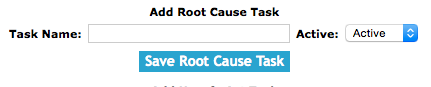
The root cause investigation tasks section allows users to add or edit root cause investigation tasks of a vehicle investigation. Root Cause investigation tasks should
include the drivers driving skills, preventative maintenance, traffic laws were not obeyed and any other root causes you feel necessary to include in your investigation
form. Over time you can add or remove investigation tasks from your investigation form.
To add a new task click on the "Add Vehicle Investigation Task" link.
To load a task to edit, click on the root cause investigation task name.
Once on the add or edit screen.
Fields
Task Name: Allows a user to add/edit the name of the task of the root cause investigation task. The character limit of this field is 50.
Active: Allows a user to select the active status. Setting a task to inactive will mean, that task will not show up on future vehicle investigations.
|
|
|
Once the information has been edited, click the "Save Root Cause Task" button.
|
14.Delete a Prevention Investigation Task |
|
Deleting a prevention investigation task may be required if an item was added by mistake. Prevention investigation tasks cannot be deleted after a vehicle investigation
has been created with the task on it. Instead of deleting a task after in has been added to a vehicle investigation edit the prevention investigation tasks and set it to inactive.
To remove a task, click the "Delete" link to the right of the task.
|
15.Look up Prevention Investigation Tasks |
|
To get to the edit screen of an prevention investigation task, click on the name of the task you would like to edit.
|
16.Add or Edit Prevention Investigation Task |
|
The prevention investigation tasks section allows users to add or edit prevention investigation tasks of a vehicle investigation. Prevention investigation tasks should include the driver leaving
enough room, proper maintenance of vehicle, and taking breaks during long trips and any other prevention tasks you feel necessary to include in your investigation form. Over time you can add or remove
investigation tasks from your investigation form.
To add a new task click on the "Add Vehicle Investigation Task" link.
To load a task to edit, click on the prevention investigation task name.
Once on the add or edit screen.
Fields
Task Name: Allows a user to add/edit the name of the task of the prevention investigation task. The character limit of this field is 50.
Active: Allows a user to select the active status. Setting a task to inactive will mean, that task will not show up on future vehicle investigations.
|

|
|
Once the information has been edited, click the "Save Prevention Task" button.
|
17.Add Default Vehicle Investigation Tasks |
|
SafetyNet has developed default vehicle investigation tasks that can be added to your companies vehicle investigation.
|
18.Add Default Unsafe Acts Tasks |
|
|
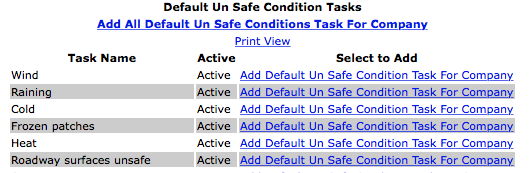
An item can be added to the unsafe acts investigation task by clicking "Add Default Unsafe Acts For Company" link to the right of the Task Name./p>
All of the tasks can be added to the unsafe acts investigation form by clicking the "Add All Default Unsafe Acts Tasks for Company" link below the header title.
The form can then be viewed by clicking "Print View" link.
|
19.Add Default Unsafe Condition Investigation Tasks |
|
|
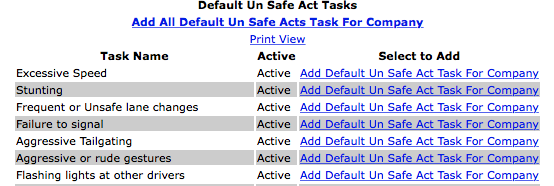
An item can be added to the unsafe conditions investigation task by clicking "Add Default Unsafe Condition For Company" link to the right of the Task Name.
All of the tasks can be added to the unsafe conditions investigation tasks by clicking "Add All Default Unsafe Condition Task for Company" link below the header title.
The form can be viewed by clicking "Print View" link.
|
20.Add Default Personal Factors Investigation Tasks |

|
|
An item can be added to the personal factor investigation tasks by clicking "Add Default Personal Factor Task For Company" link.
All of the tasks can be added to the personal factor investigation tasks by clicking "Add All Default Personal Factor Task For Company" link below the header title.
The form can be viewed by clicking "Print View" link.
|
21.Add Default Root Cause Investigation Tasks |
|
|
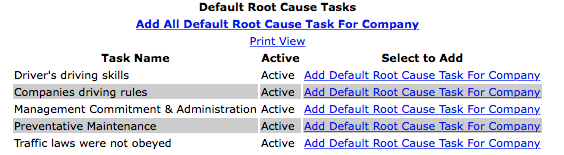
An item can be added to the root cause investigation tasks by clicking "Add Default Root Cause Task For Company" link.
All of the tasks can be added to the root cause investigation tasks by clicking "Add All Default Root Cause Task For Company" link below the header title.
The form can be viewed by clicking "Print View" link.
|
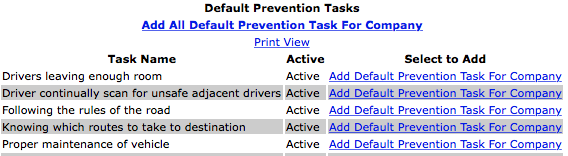
22.Add Default Prevention Investigation Tasks |
|
|
An item can be added to the prevention investigation tasks by clicking "Add Default Prevention Task For Company" link.
All of the tasks can be added to the prevention investigation tasks by clicking "Add All Default Prevention Task For Company" link below the header title.
The form can be viewed by clicking "Print View" link.
|