Manual

Work Order

The Work Order section allows users to add work orders for customers for work to be done on a specific job site. Companies can add a scope of work, a work order number.

The scope of work will be populated by emergency response plans and hazard assessments when a work order is selected to add a report.

Work Orders will need to be constantly updated over time, as companies start new projects, only work orders in progress will show up for field staff to complete.

Work Orders include the following information:

  • Work Order Number
  • Scope of Work
  • Job Site
  • Work Type
  • other fields...

Once work orders are created for customers SafetyNet"s main purpose takes over, Safety Statistics Tracking. As staff enter timecard entries and complete site inspections, site orientations, emergency response plans, hazard assessments, safety inspections, fire extinguisher inspections, first aid kit inspections, and safety investigations. Statistics for customer"s and their job sites and work orders will be tracked for specific months, years and overall.

Table of Contents

#Section Name#Section Name#Section Name
1Search Work Order 2Delete Work Order 3Add Work Order
4Look Up Work Order 5Edit Work Order

1.Search Work Order

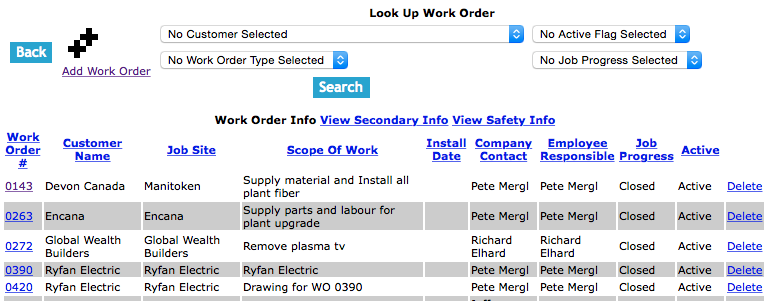
Work Orders can be searched by a combination of active status, client type, province/state and country. Users can narrow search results by choosing any combination of the four search criteria.

All search results can be sorted by clicking on the results headings Work Order #, Customer Name, Job Site, Scope of Work,Install Date, Company Contact, Employee Responsible, Job Progress, and Active Status. Clicking on the same heading can do switching the results order from ascending to descending.

2.Delete Work Order

Deleting work order may have to be done if the Work Order was added to the system incorrectly. Only work orders that have not had timecard entries entered, or safety paper work created can be deleted.

To delete a work order click the 'Delete' link of the work order you want to delete.

3.Add Work Order

To add a Work Order, click on the 'Add Work Order' link.

Then choose the customer from the customer select box and click the 'Choose Customer' button.

On the next screen, under Add Work Order heading:

Fields

Work Order #: Enter the work order number. The character limit of this field is 15.

Scope of Work: Enter the scope of work. The character limit of this field is 500.

Company Contact: Choose the company contact person in the select box.

Employee Responsible: Choose the employee responsible for the work order in the select box.

Install Date: Enter the install date. The format of this field is YYYY-MM-DD.

Job Site: Choose the job site in the select box.

Work Order Type: Choose the work order type in the select box.

Job Progress: Choose the job progress in the select box.

Work Type: Choose the work type in the select box.

Site Contact Email: The site contact email field allows field staff to include the email address for a work order. The character limit of this field is 100.

Click the 'Save Work Order ' button, to add the work order.

Look Up Work Order

Once in the Work Order section. Click on the work order number of the work order, this will load the edit work order view along with the work orders associated safety statistics.

Edit Work Order

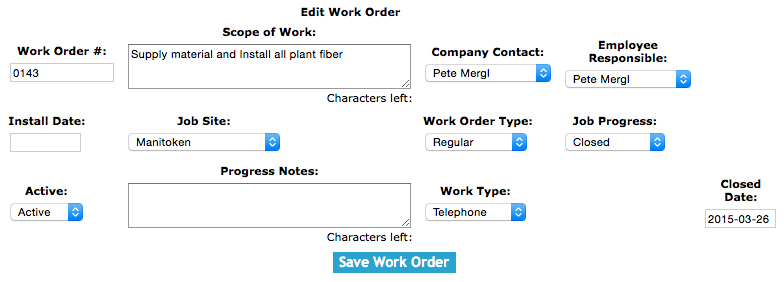
Once on the edit work order section, under the Edit Work Order heading:

Fields

Work Order #: Enter the work order number. The character limit of this field is 15.

Scope of Work: Enter the scope of work. The character limit of this field is 500.

Company Contact: Choose the company contact person in the select box.

Employee Responsible: Choose the employee responsible for the work order in the select box.

Install Date: Enter the install date. The format of this field is YYYY-MM-DD.

Job Site: Choose the job site in the select box.

Work Order Type: Choose the work order type in the select box.

Job Progress: Choose the job progress in the select box.

Work Type: Choose the work type in the select box.

Site Contact Email: The site contact email field allows field staff to include the email address for a work order. The character limit of this field is 100.

Click the 'Save Work Order ' button, to edit the work order.