|
The meeting section is set up to allow company staff to create a meeting and specify
the meeting date, meeting time, location, and the agenda. Staff can write out an
outline of what will be discussed in the meeting, add the employee’s they would like
to attend and send an email notification to those employee's so they can view the
meetings agenda and meeting notes prior to attending the meeting.
Meetings can be created before the meeting or Staff can have a attendee can take notes
during the meeting. Staff will sign that they attended and participated in the meeting
on the Safety Net smart phone application and the meetings minutes and all attendees
signatures will be sent and saved on Safety Nets server when the meeting is submitted.
A new feature on SafetyNet Meeting section, is the inclusion of Meeting Documents on every meeting.
Staff can include either company policies, safe work practices, and safe job procedures, to be reviewed
in the course of a meeting. These reviews when meetings are closed out will update employees
review status on the safety manual documents that have been reviewed during the meeting.
Some Safety Programs require that staff complete reviews of safety manual documents on some form of annual
basis, including these reviews in the course of meetings helps get this procedure completed as part of regular
meetings. Another advantage of reviewing safety manual documents in meetings is younger field staff can learn
from the older field staffs experience when documents are discussed in a open environment.
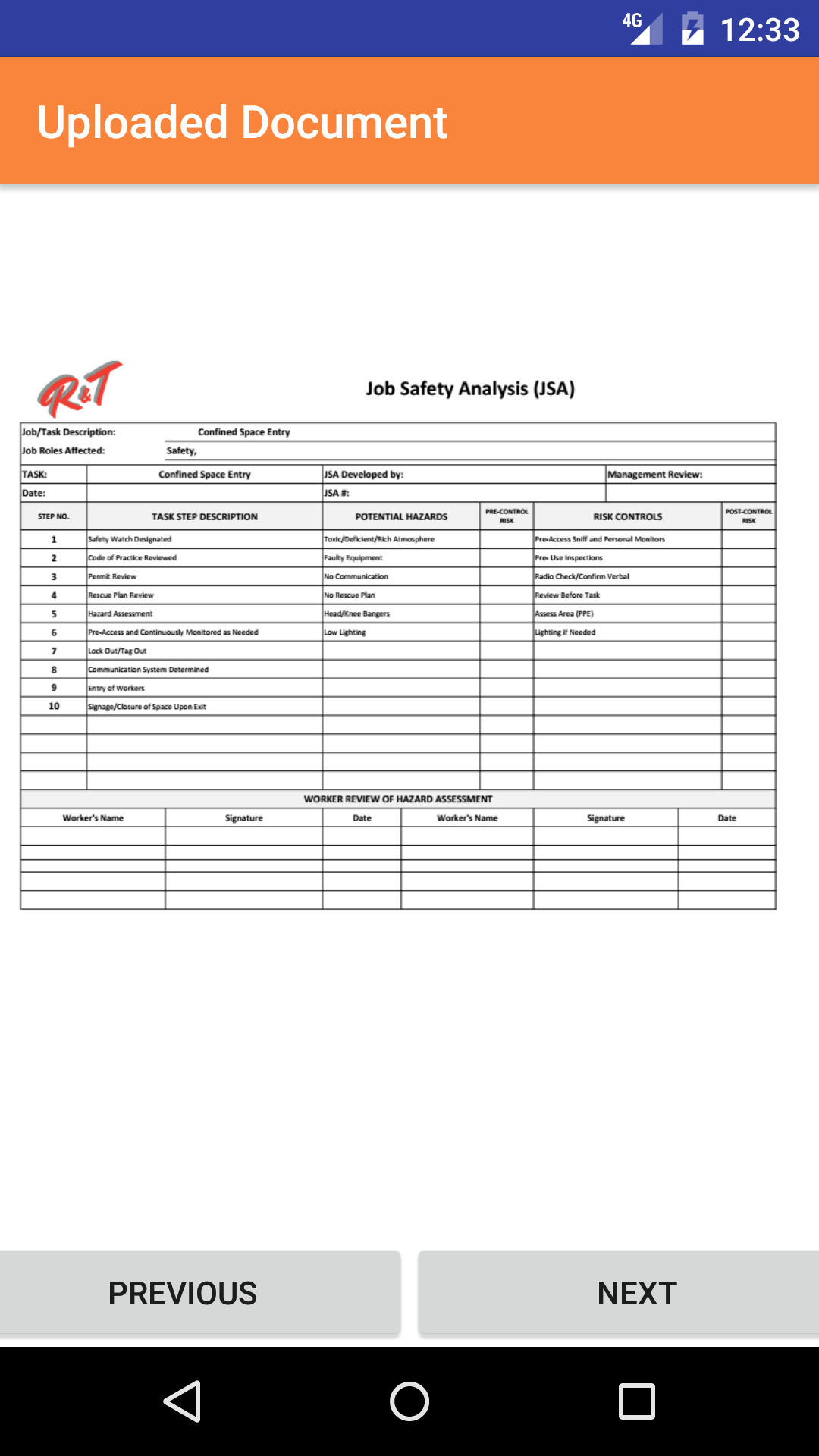
Along with Safety Manual Documents staff can include uploaded PDF documents that can be added to the safety meeting.
This is a excellent way of including important information in a meeting.
The one requirement that SafetyNet requires is that in order for field staff to get credit of a safety document
review they must complete the safety meeting and Sign in the Smartphone Application and the meeting must be closed
for the document review records to be added for the employees involved in the meeting.
Meetings can written up and employees invited to meeting through the SafetyNet web application. For information about the meeting
through the web application click here.
Once a Meeting is submitted:
- 1. An Email can be sent to the employee to review the meetings. (For more information
about email alerts check the email alerts section of the manual).
- 2. Safety Net Statistics are updated for the number of meetings completed for companies and employees.
The meeting section is only available to users that have the meeting section turned on for their users group.
To change users access to meetings, management and office staff
can change access in Application Section to view the information about the Application Section Click Here
|
|
|
1.Add Meeting |
Steps
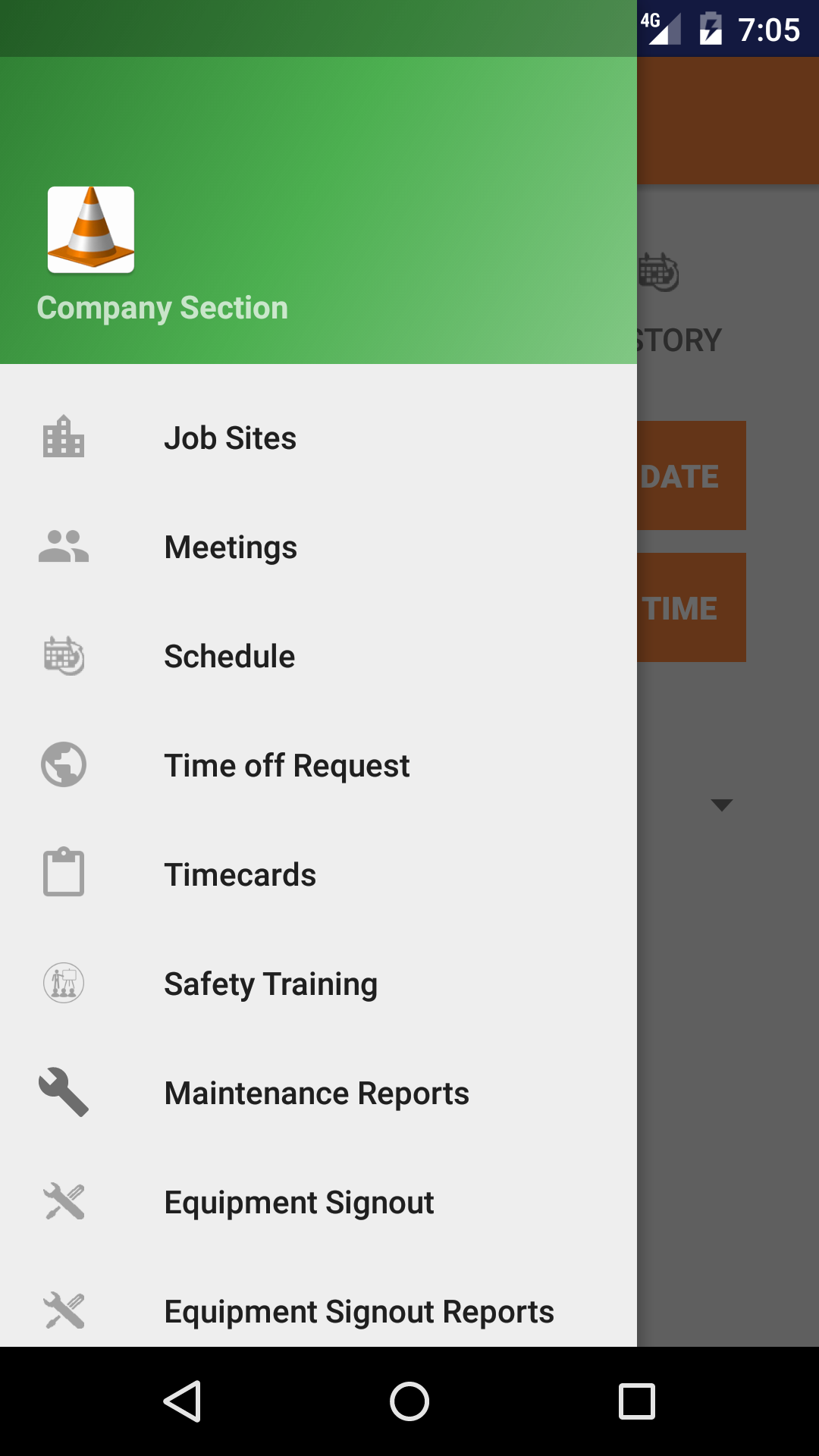
- From the Main Menu screen, tap the Company button.
- Then tap on the Meeting button to open the Meeting section.
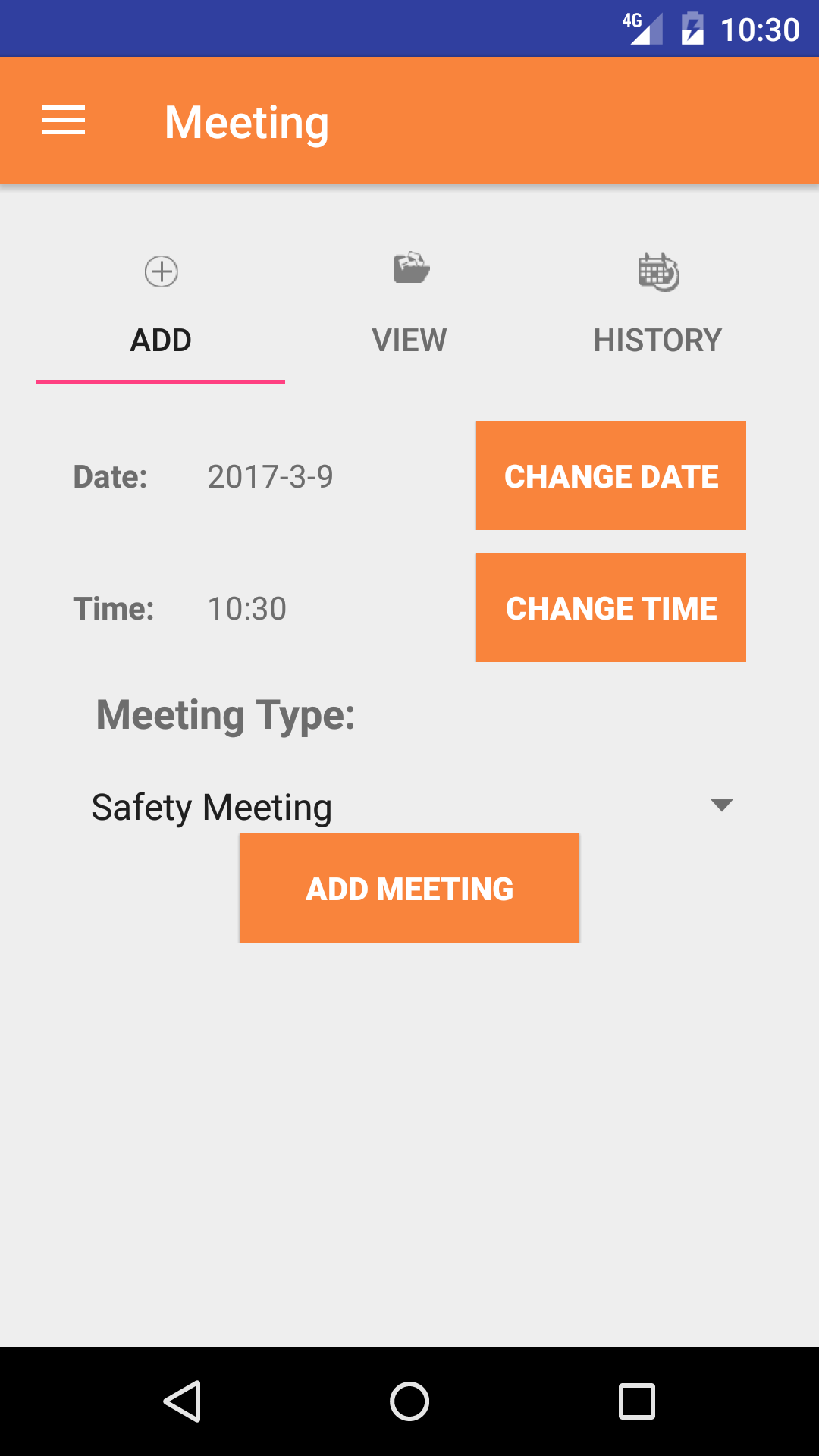
- The meeting section loads with the Add Meeting screen on the first tab.
- Date: The date field allow field staff to choose the date the meeting occurs.
- Tap the Date button to open the Choose Date screen.
- Scroll the calender screen and select the date from the calender.
- Time: The time field allow field staff to choose the time the meeting occurs.
- Tap the Time button to open the Choose Time screen.
- Scroll the clock screen and select the time from the clock.
- Meeting Type select box.
Meeting Types are listed in descending order with the meeting type name.
- Scroll the list of meeting types until the desired meeting type is displayed on the screen.
- Tap the desired meeting type to select it.
- Tap the + icon in the top right corner to add the Meeting.
- A pop-up message that reads Meeting Added indicates that the Meeting is ready for details, employee, and paragraphs information to be entered.
|
|
|
2.Look Up Open Meeting |
|
Once a meeting has been created, it can be accessed on the View Meeting tab. From this tab field staff can:
- Edit the meeting details
- Add/Edit meeting notes
- Add/Edit attendees
- Closing out meeting
Once in the Meeting section
Steps
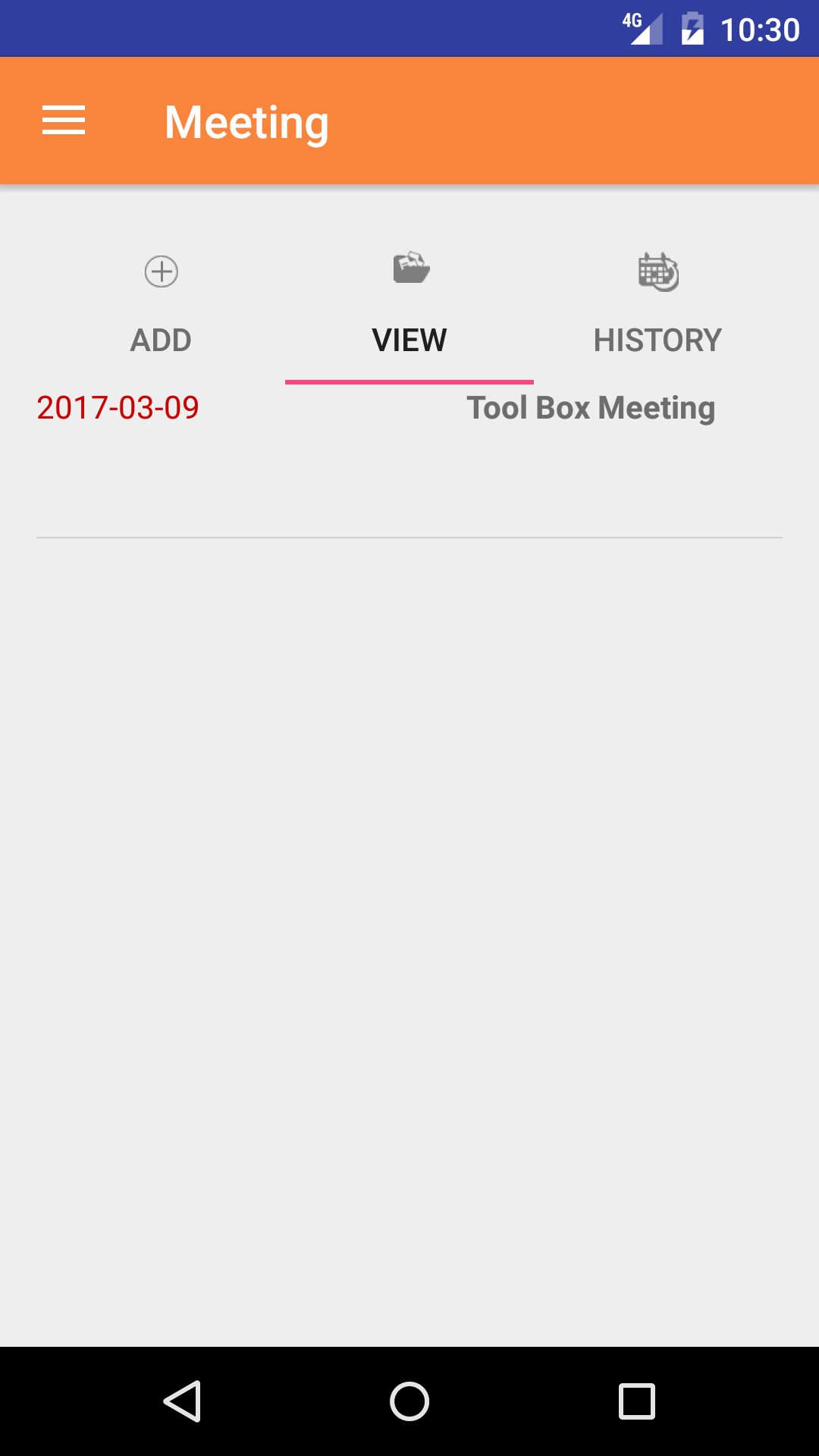
- Tap the second tab on the menu, the Meeting view.
- Scroll the list of Meetings until the desired Meeting is displayed on the screen. The meetings information is displayed:
the date in red on the top line on the left side, the meeting type in black on the top line on the
right side, the meeting location in blue, and the meeting overview in black on the bottom line.
- Tap on the Meeting you would like to view. This loads the meeting details.
|
|
| Steps 1-3 |
|
|
3.Edit Meeting Details |
|
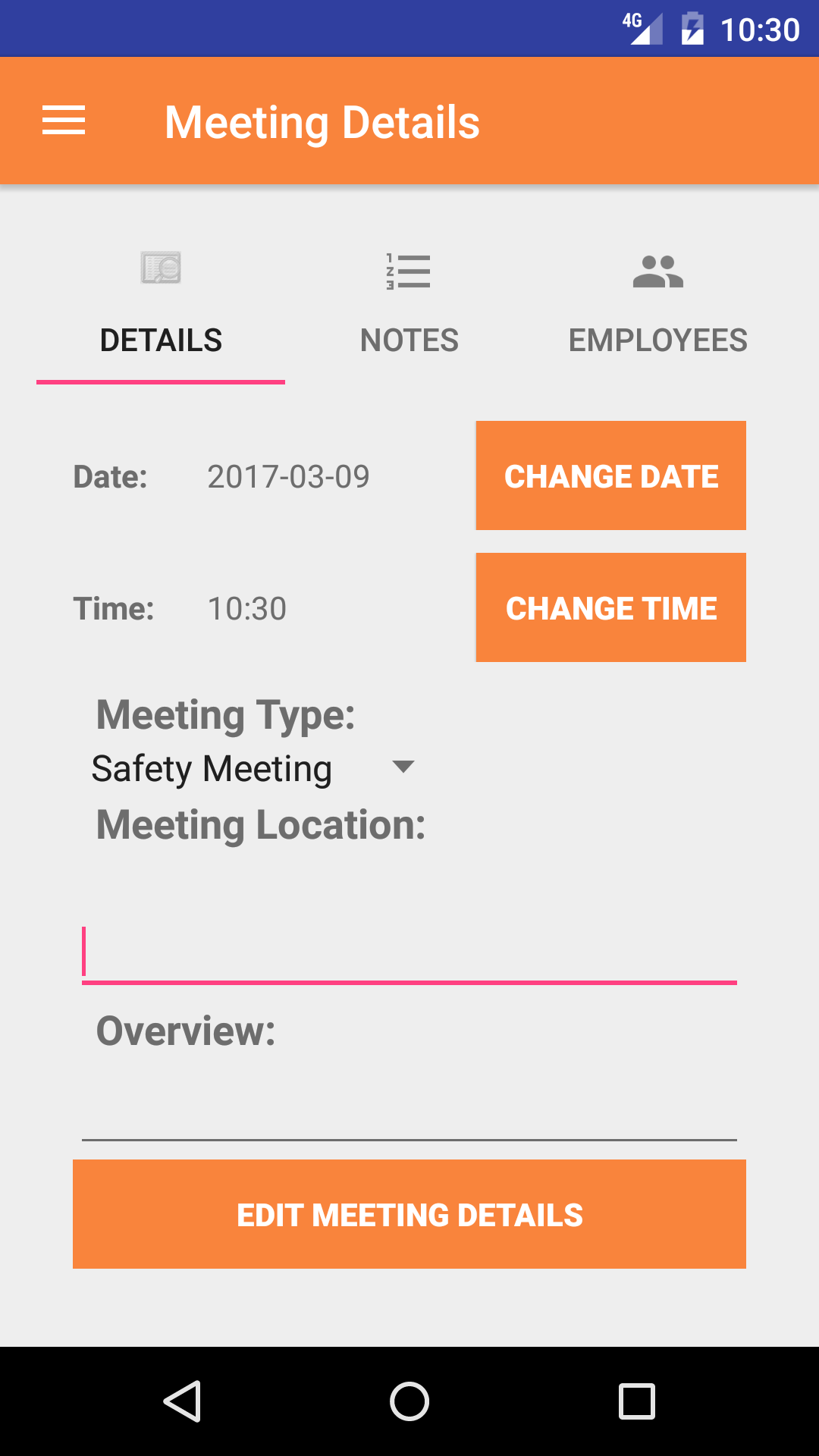
The first step in completing a Meeting is entering the details of the meeting itself - date, meeting type,
meeting type,and overview.
Once on the Meeting you would like to Edit
Steps
- Date: The date field allow field staff to choose the date the meeting occurs.
- Tap the Date button to open the Choose Date screen.
- Scroll the calender screen and select the date from the calender.
- Time: The time field allow field staff to choose the time the meeting occurs.
- Tap the Time button to open the Choose Time screen.
- Scroll the clock screen and select the time from the clock.
- Meeting Type select box.
Meeting Types are listed in descending order with the meeting type name.
- Scroll the list of meeting types until the desired meeting type is displayed on the screen.
- Tap the desired meeting type to select it.
- Meeting Location:: The meeting location field allows field staff to enter the location where the meeting is to take place. The character limit of this field is 100.
- Overview: The overview field allows field staff to enter a overview off what is going to be discussed in the meeting. The character limit of this field is 250.
- Tap Save in the top right corner to save any changes to the Meeting Details.
|
|
| Steps 1-6 |
|
|
|
4.View Meeting Notes |
|
Once a meeting on the meeting you want to view.
Steps
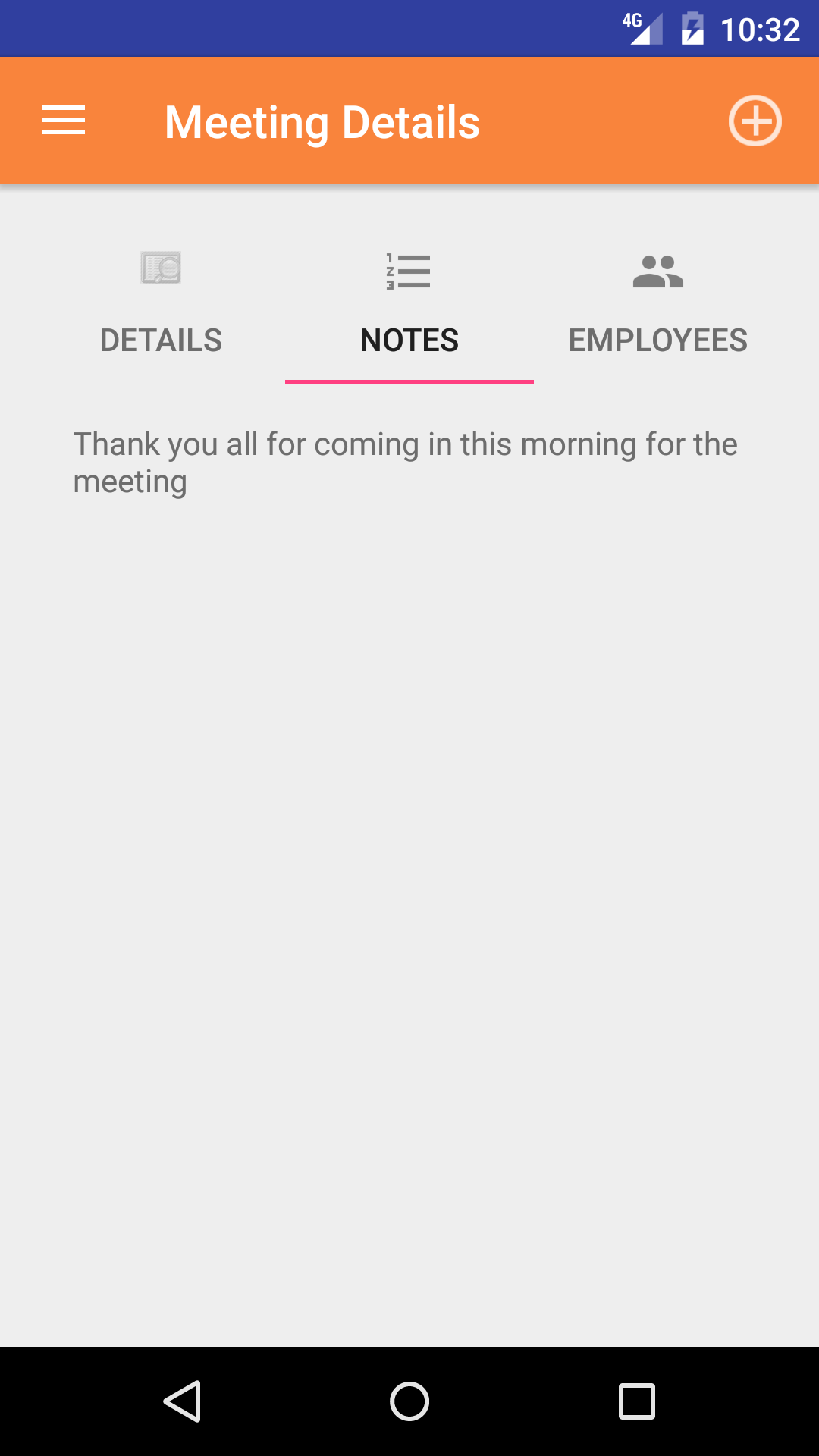
- Tap on the second tab on the menu, Meeting Notes
- This opens the notes for the meeting view in a nice easily readable version. If no notes
have been added for meeting yet the view will be blank.
For information about adding new paragraphs click here for information
about editing paragraphs click here.
|
|
| Steps 1-2 |
|
|
5.Add Paragraph |
|
Add Paragraphs to a meeting is crucial to accurately preparing notes about what will be talked about or is talked about during a meeting. SafetyNet
allows meeting note paragraphs to be numbered or non numbered and either bolded for headings or basic text for paragraphs.
Once on the Meeting Notes view of Meeting you would like to Edit
Steps
- Tap the Edit button on the top right hand corner of the screen to open the meeting notes detail screen. This lists headings in blue and paragraphs in black. If a paragraph is to be numbered the number will appear
on the left hand top corner of each paragraph cell. The order of the the paragraphs number appears in the top right hand corner of each paragraph cell.
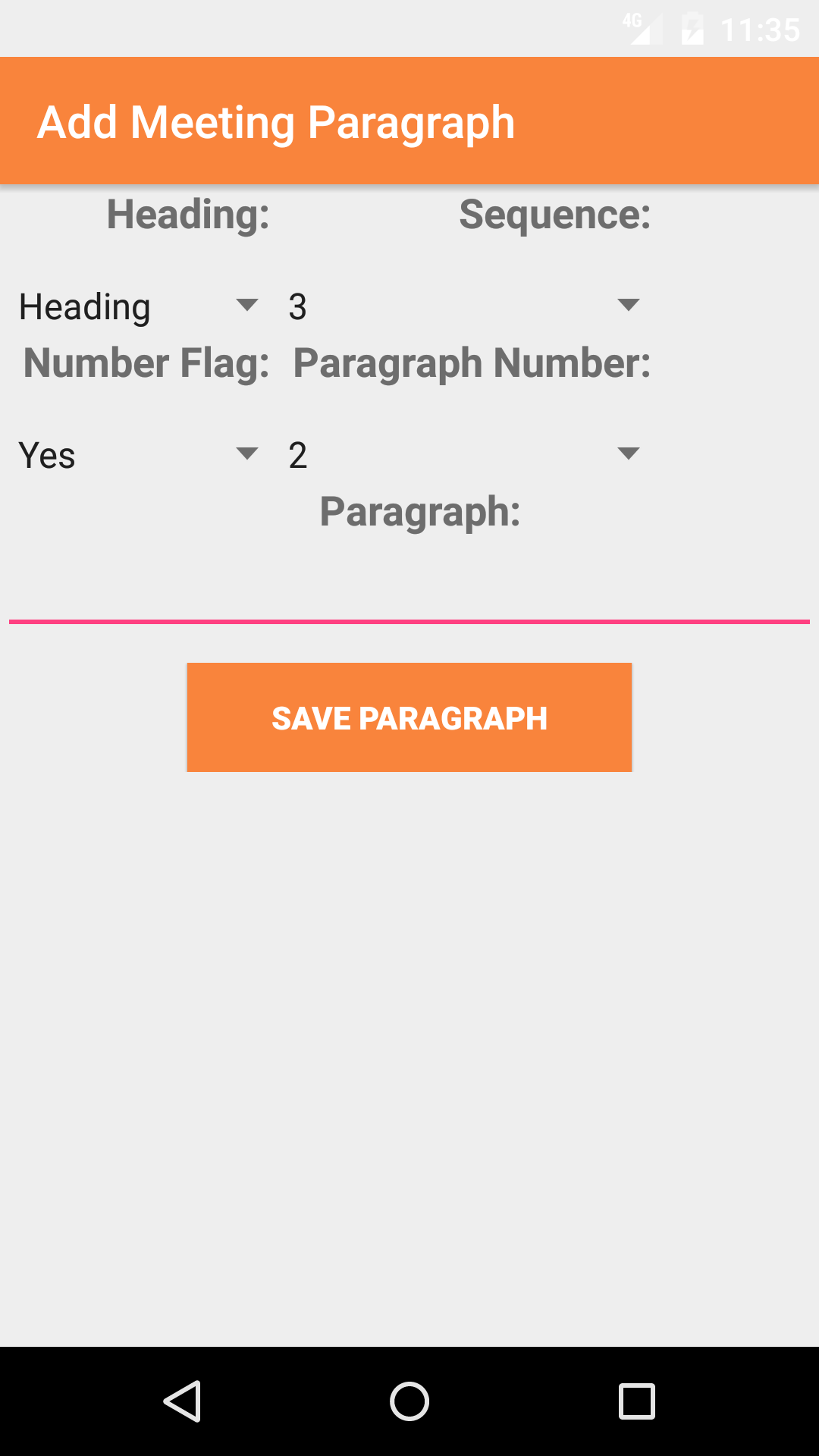
- Tap the + icon in the top right corner to open the Add Paragraph screen.
- Heading: The heading select box allows field staff to select either Heading (for the text to appear in bold text) or Paragraph (for the text to appear in regular text).
- Sequence #: The Sequence # field allows field staff to order the paragraphs of a safety meeting in any order they see fit, select from the select box the number you want the paragraph to be ordered as.
- Numbered: The Numbered select box allows field staff to make paragraphs either Numbered if Yes is chosen or Non Numbered if No is chosen.
- Numbered Value: The Numbered Value field allows field staff to give the paragraph a number value, if the Numbered select box is set to Yes.Select from the select box the number you want the paragraph to be numbered
- Paragraph: The Paragraph field allows field staff to enter a single paragraph of a safety meetings documentation or minutes. The character limit of this field is 500.
- Tap Save in the top right corner of the screen to add a new paragraph to the Meeting.
|
|
|
|
6.Look Up Paragraph |
|
Once on the Meeting Notes view of Meeting you would like to Edit
Steps
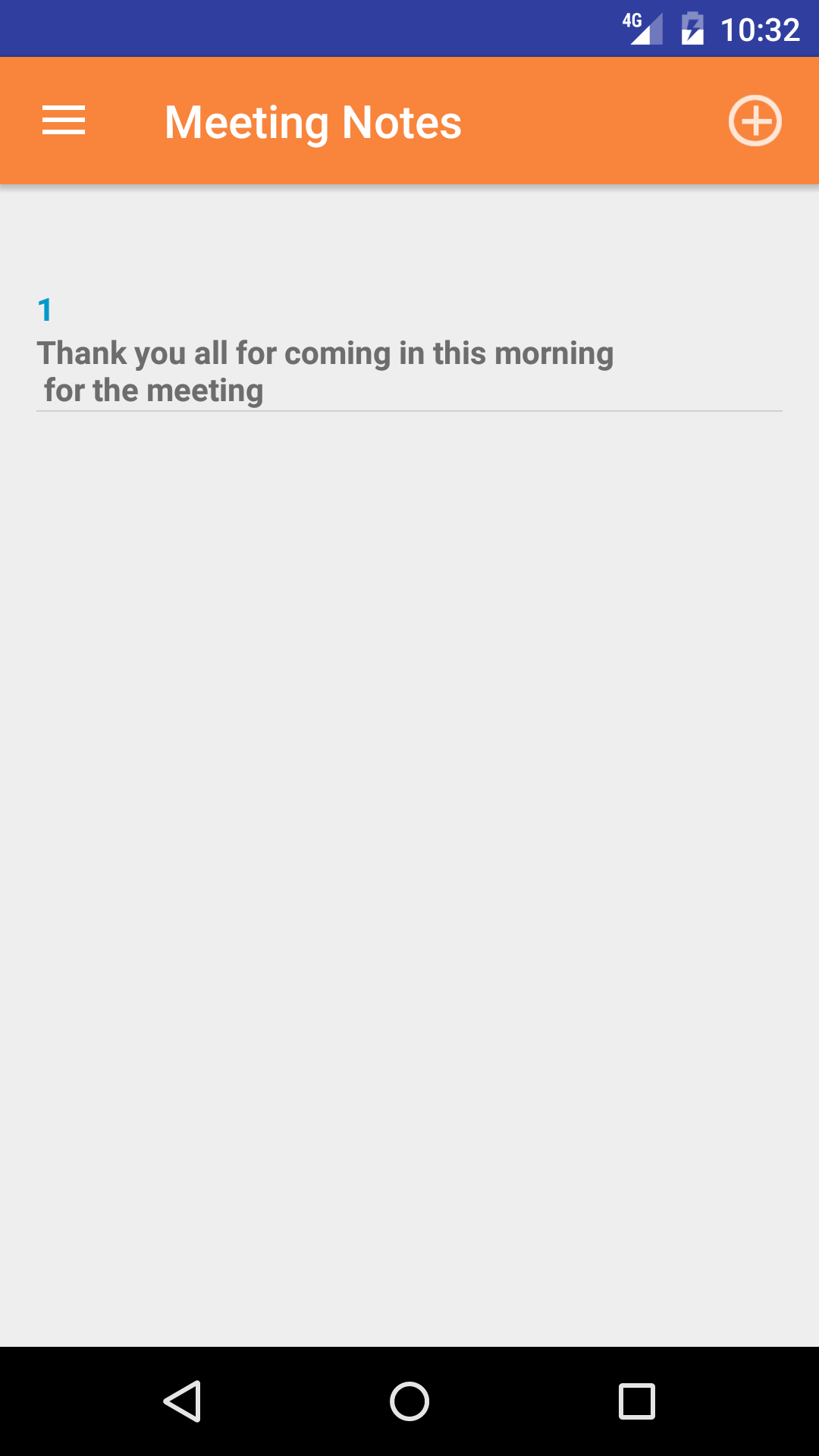
- Tap the Edit button on the top right hand corner of the screen to open the meeting notes detail screen. This lists headings in blue and paragraphs in black. If a paragraph is to be numbered the number will appear
on the left hand top corner of each paragraph cell. The order of the the paragraphs number appears in the top right hand corner of each paragraph cell.
- Scroll the list of paragraphs until the desired paragraph is displayed on the screen.
- Tap the desired paragraph to select and open the Edit Paragraph screen.
|
|
|
| Step 1 |
|
|
| Step 2-3 |
|
|
|
7.Edit Paragraph |
|
Once on the Edit Meeting Notes view of Meeting Paragraph you would like to Edit
Steps
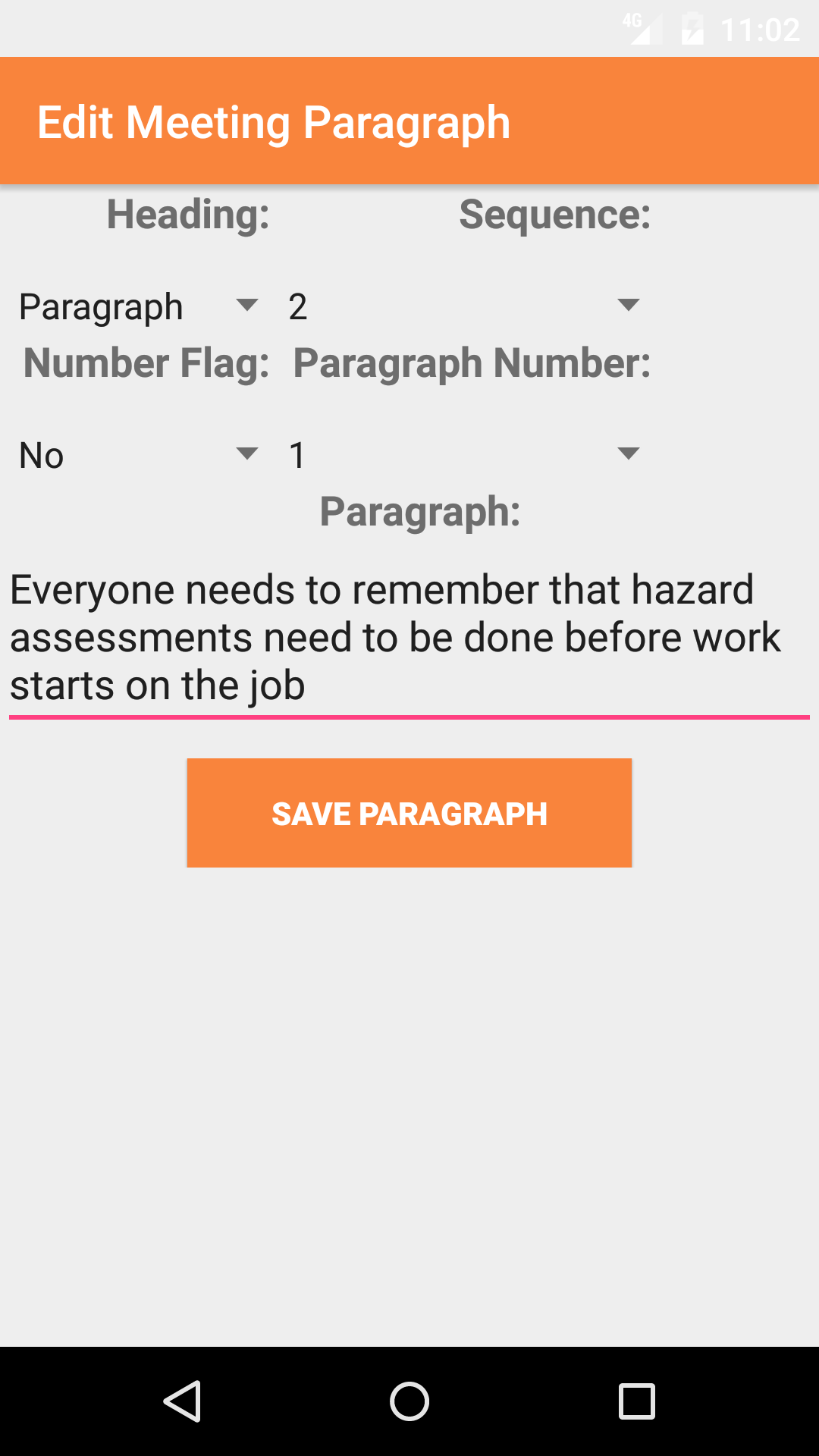
- Heading: The heading select box allows field staff to select either Heading (for the text to appear in bold text) or Paragraph (for the text to appear in regular text).
- Sequence #: The Sequence # field allows field staff to order the paragraphs of a safety meeting in any order they see fit, select from the select box the number you want the paragraph to be ordered as.
- Numbered: The Numbered select box allows field staff to make paragraphs either Numbered if Yes is chosen or Non Numbered if No is chosen.
- Numbered Value: The Numbered Value field allows field staff to give the paragraph a number value, if the Numbered select box is set to Yes.Select from the select box the number you want the paragraph to be numbered
- Paragraph: The Paragraph field allows field staff to enter a single paragraph of a safety meetings documentation or minutes. The character limit of this field is 500.
- Tap Save in the top right corner of the screen to edit a paragraph in the Meeting.
|
|
| Steps 1-6 |
|
|
|
8.Delete Paragraph |
|
Once on the Meeting Notes view of Meeting you would like to Edit
Steps
- Tap the Edit button on the top right hand corner of the screen to open the meeting notes detail screen. This lists headings in blue and paragraphs in black. If a paragraph is to be numbered the number will appear
on the left hand top corner of each paragraph cell. The order of the the paragraphs number appears in the top right hand corner of each paragraph cell.
- Scroll the list of paragraphs until the desired paragraph is displayed on the screen.
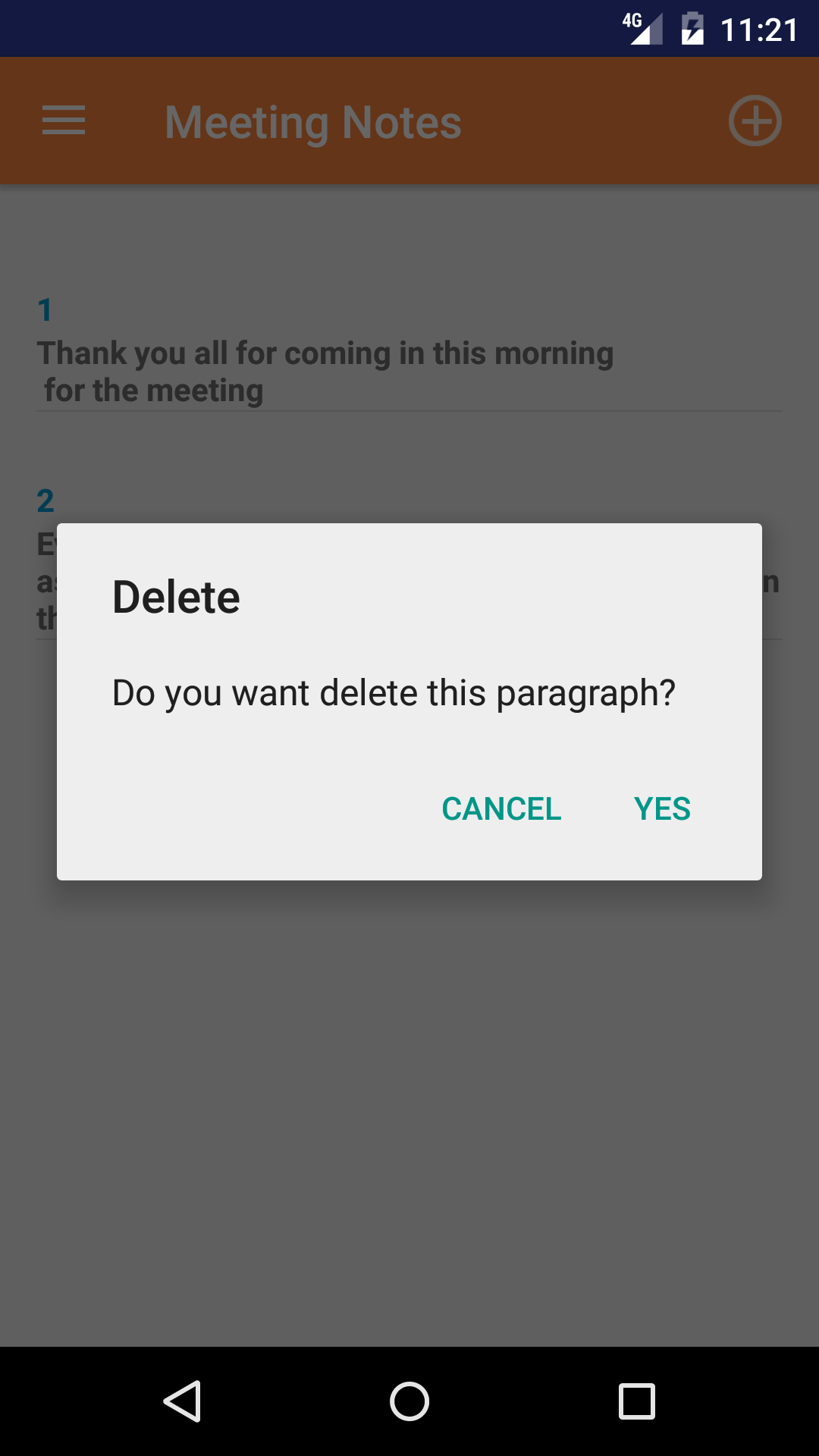
- Swipe from the right edge to the left to bring up the delete button for the paragraph.
- Tap the Delete button. The paragraph will be deleted from the meeting.
|
|
|
| Steps 1 |
|
|
| Steps 2-4 |
|
|
9.Add Company Policy To Meeting |
|
Once on the Meeting Documents view of Meeting you would like to Edit
Steps
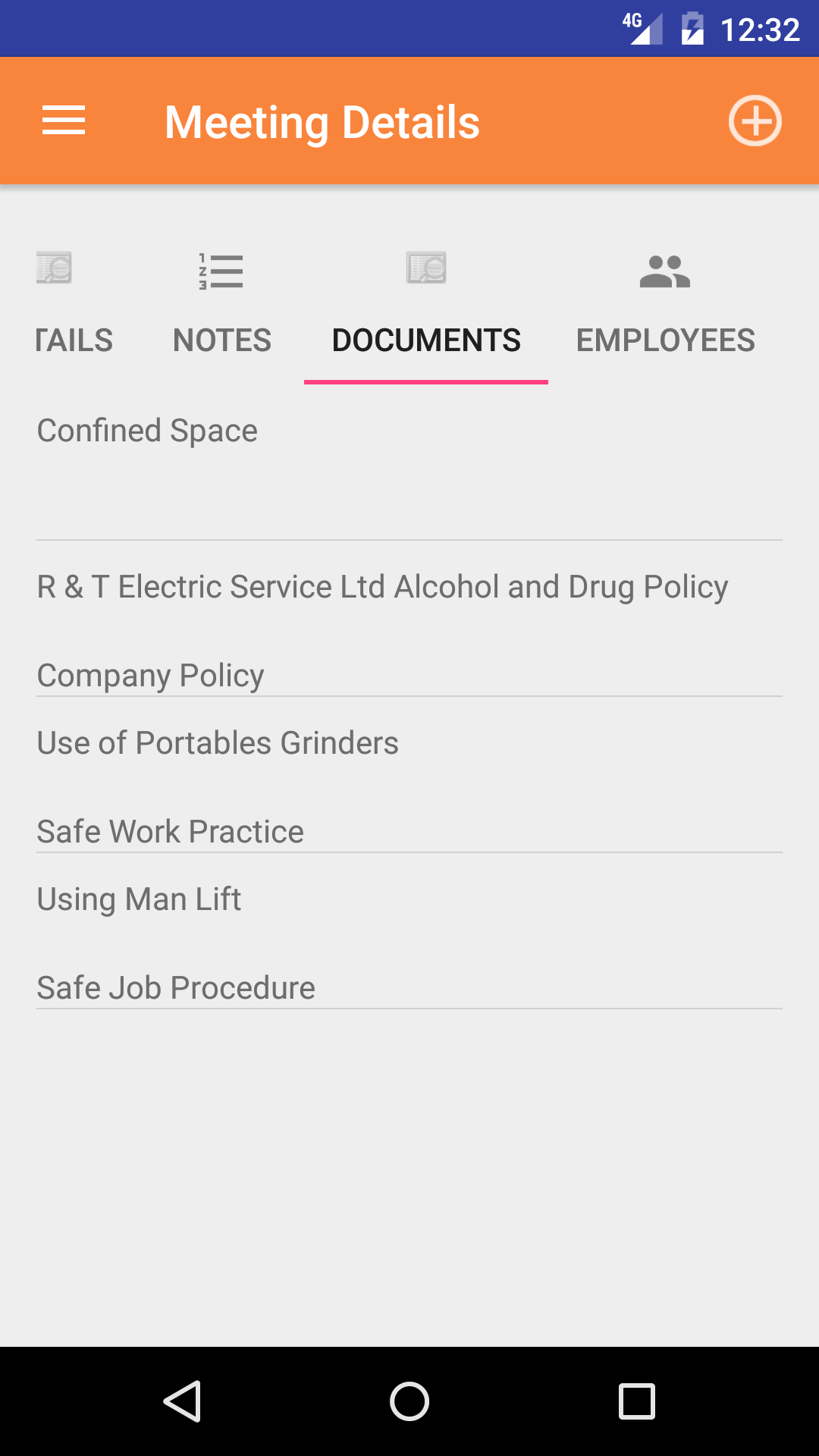
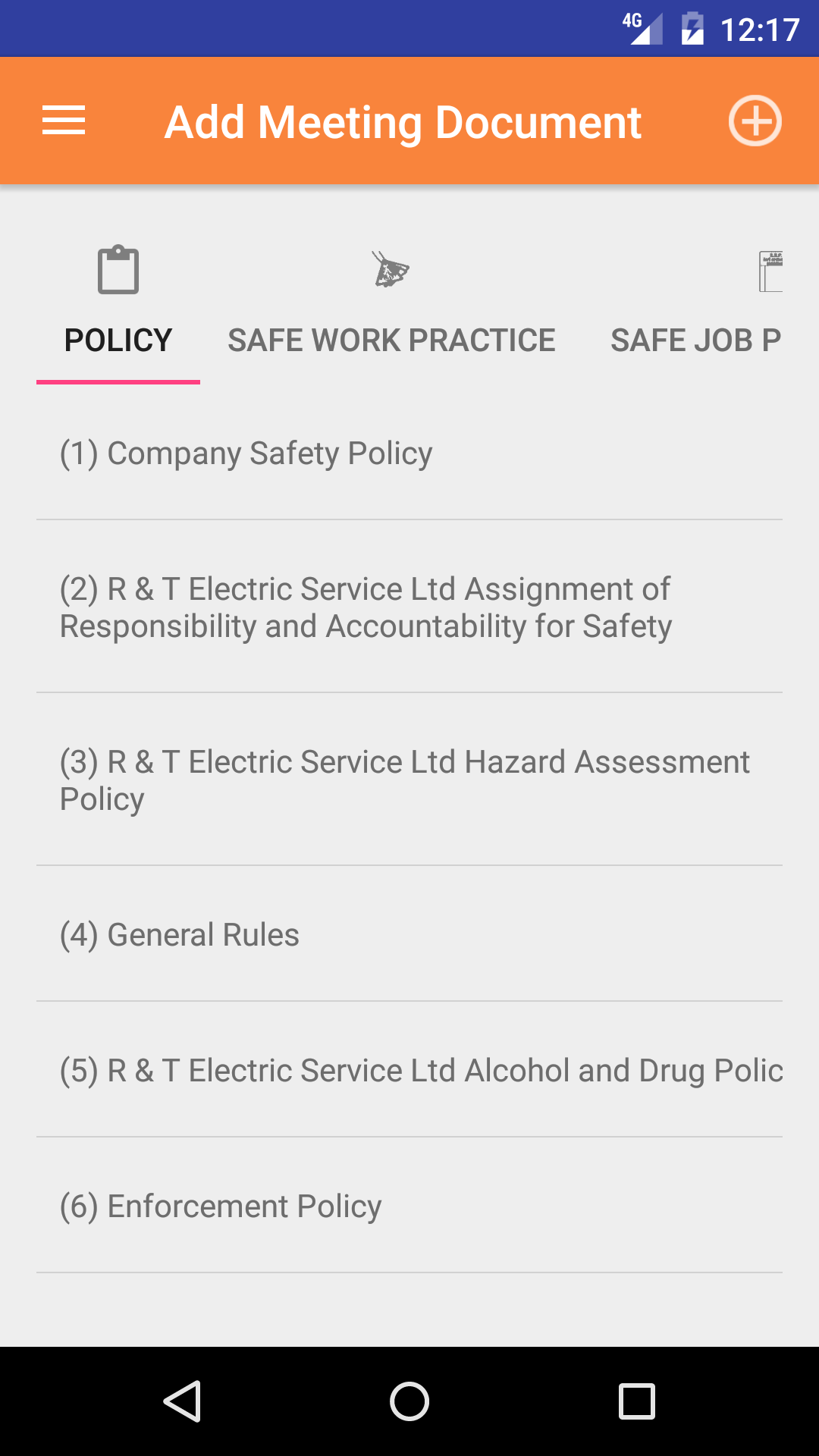
- Tap the + button on the top right hand corner of the screen to open the company policy add screen.
This lists policy number and policy name in black text.
- Scroll the list of safety policy until the desired safety policy is displayed on the screen.
- Tap on the Safety Policy you would like to to add to the meeting. Policies can only be added to a meeting once. When added
a message telling the user that they have added a policy to the meeting
|
|
| Steps 1 |
|
|
| Steps 2-4 |
|
|
10.Add Safe Job Procedure To Meeting |
|
Once on the Meeting Documents view of Meeting you would like to Edit
Steps
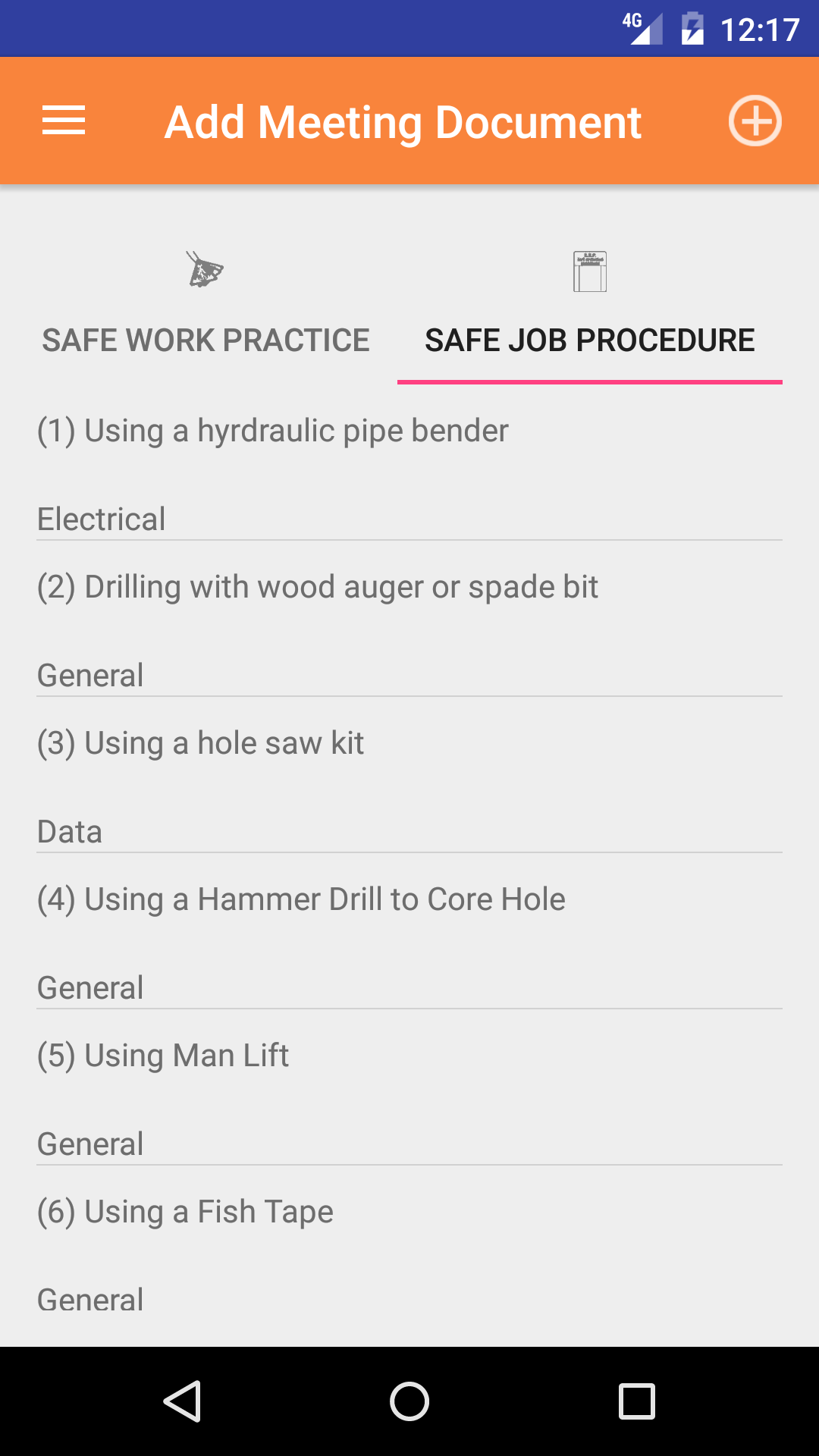
- Tap the + button on the top right hand corner of the screen to open the company policy add screen. Tap the third
tab to view the Safe Job Procedure list. This lists procedure number and procedure name and the task category of the
procedure in black text.
- Scroll the list of safe job procedure until the desired safe job procedure is displayed on the screen.
- Tap on the Safe job procedure you would like to to add to the meeting. Procedures can only be added to a meeting once. When added
a message telling the user that they have added a procedure to the meeting
|
|
|
| Steps 1 |
|
|
| Steps 2-4 |
|
|
11.Add Safe Work Practice To Meeting |
|
Once on the Meeting Documents view of Meeting you would like to Edit
Steps
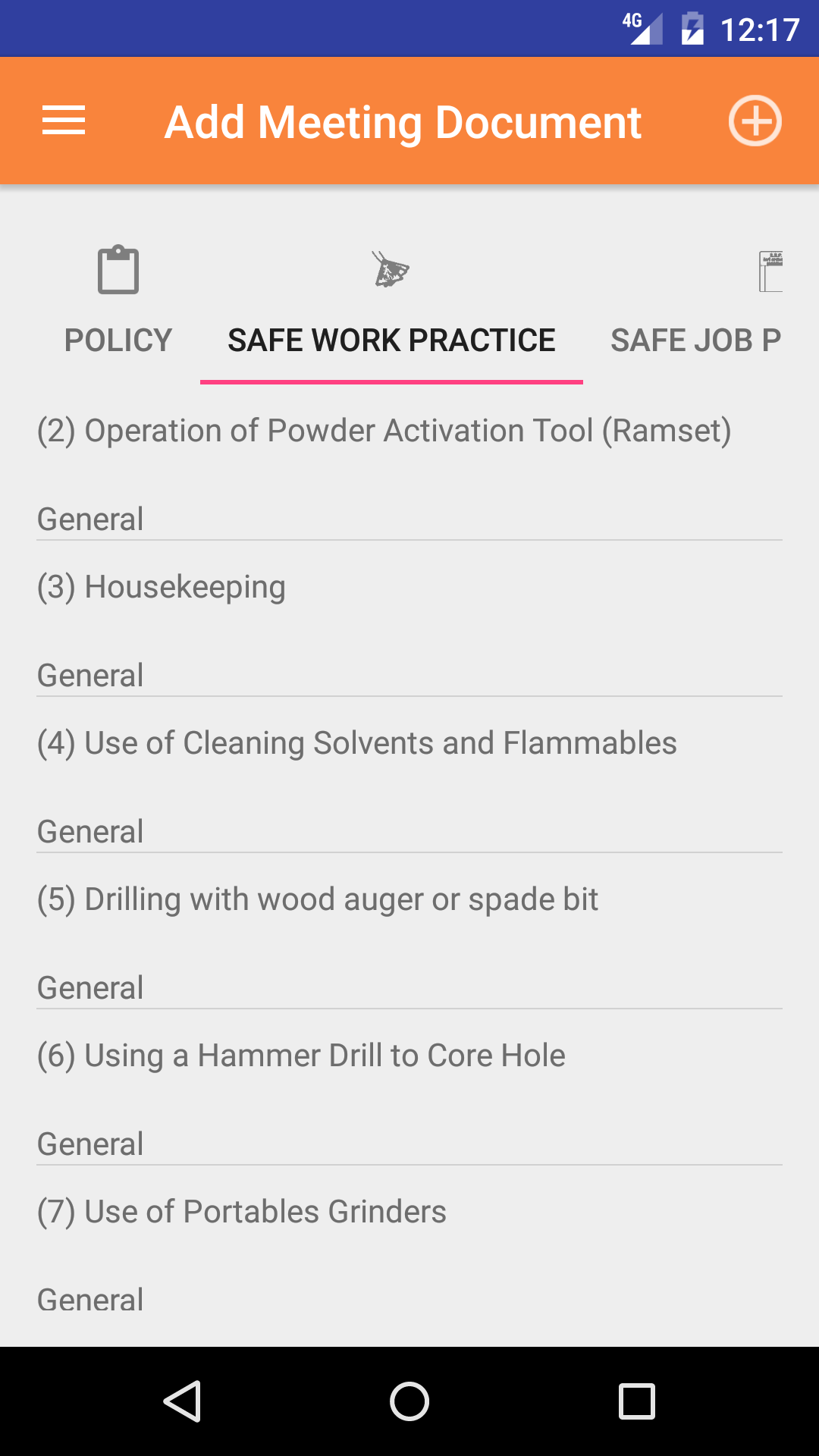
- Tap the + button on the top right hand corner of the screen to open the company policy add screen. Tap the second
tab to view the Safe Work Practice list. This lists practice number and practice name and the task category of the
practice in black text.
- Scroll the list of safety practice until the desired practice is displayed on the screen.
- Tap on the Practice you would like to to add to the meeting. Practices can only be added to a meeting once. When added
a message telling the user that they have added a practice to the meeting
|
|
|
| Steps 1 |
|
|
| Steps 2-4 |
|
|
12.View Meeting Document |
|
Once on the Meeting Documents view of Meeting you would like to Edit
Steps
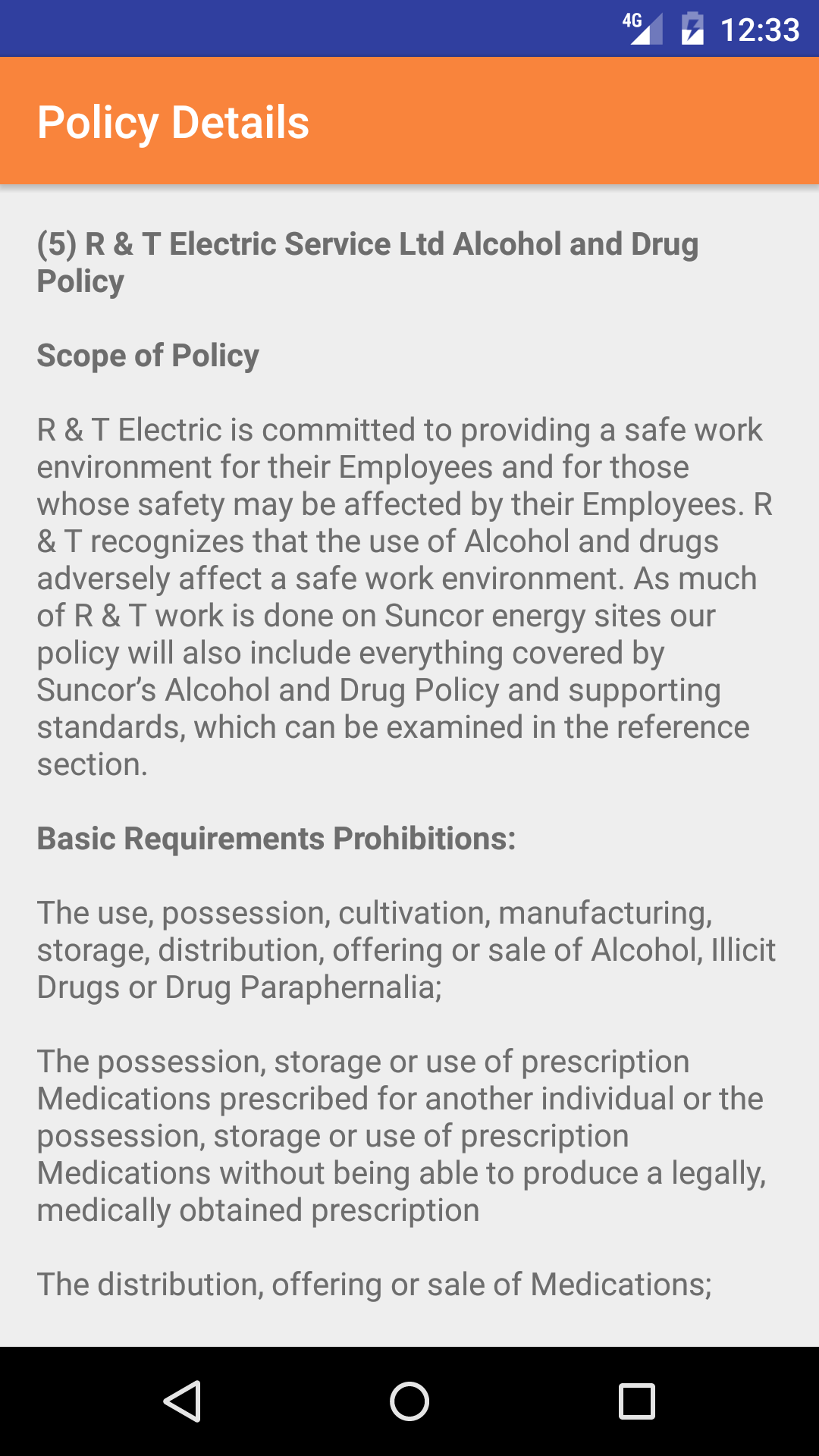
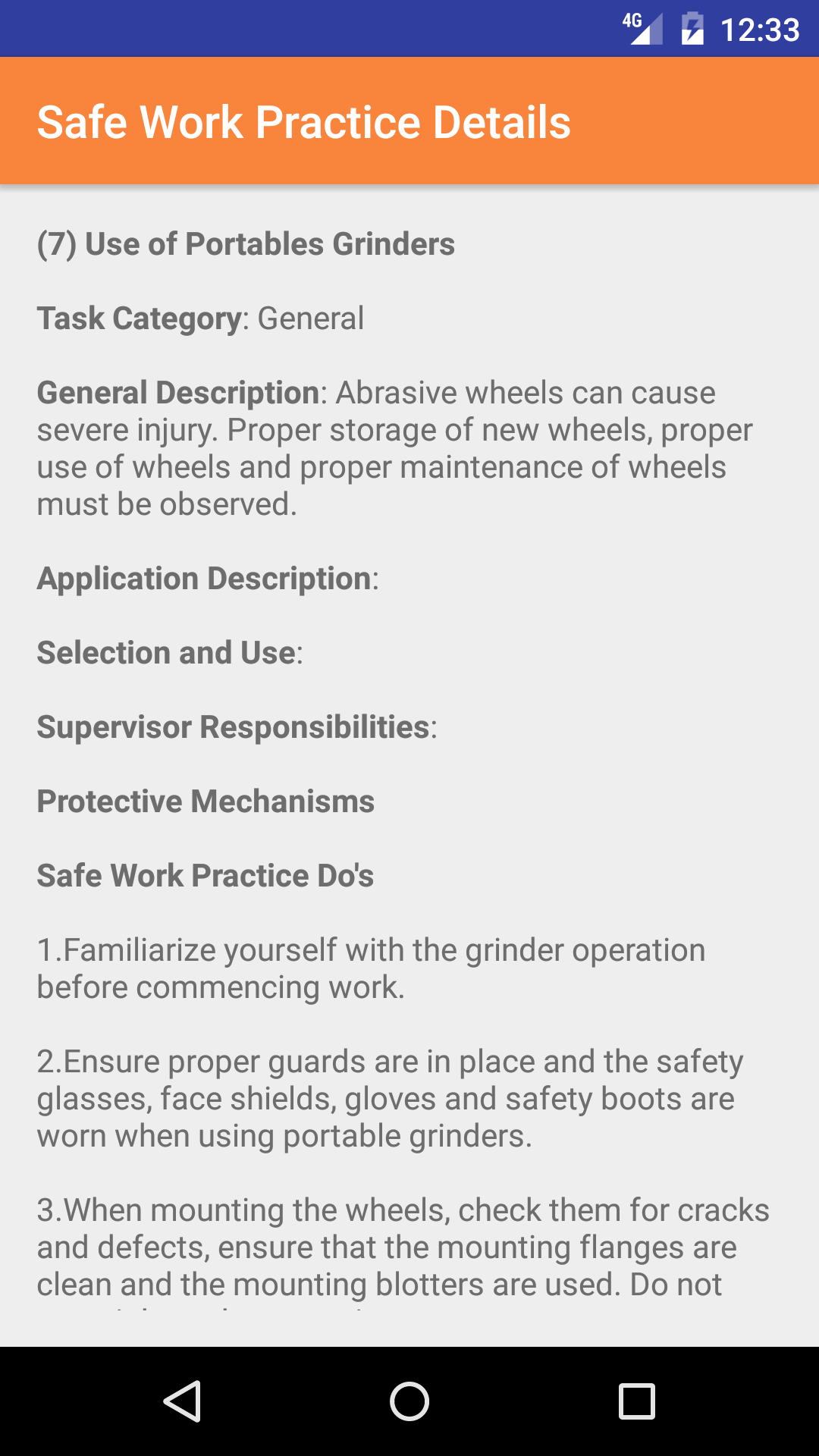
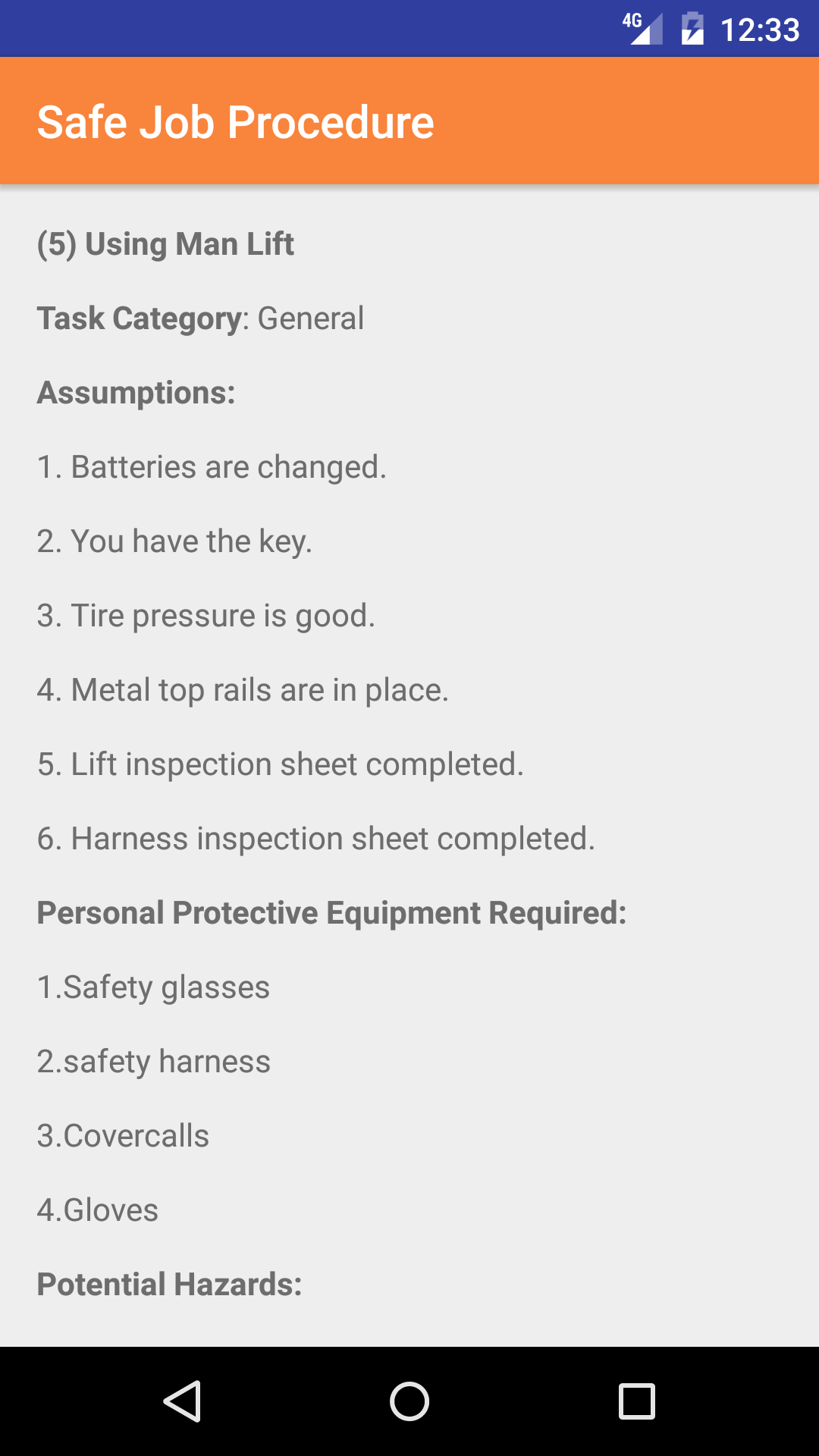
- This lists document name and document type below it in black text.
- Scroll the list of meeting document until the desired meeting document is displayed on the screen.
- Tap on the document you would view, which load a view of the document.
|
|
|
|
| Steps 1 |
|
|
| Policy View |
|
|
| Practice View |
|
|
| Procedure View |
|
|
| Uploaded View |
|
|
13.Delete Meeting Document |
|
Once on the Meeting Documents view of Meeting you would like to Edit
Steps
- This lists document name and document type below it in black text.
- Scroll the list of meeting document until the desired meeting document is displayed on the screen.
- Swipe from the right edge to the left to bring up the delete button for the meeting document.
- Tap the Delete button. The meeting document will be deleted from the meeting.
|
|
14.Add Employee to Meeting |
|
Adding employees to the Meeting is crucial to reporting accurately. In order to have an accurate picture of the meeting, adding employees to
the meeting needed.Here are the steps on how to do it:
Once on the Meeting you would like to Edit
Steps
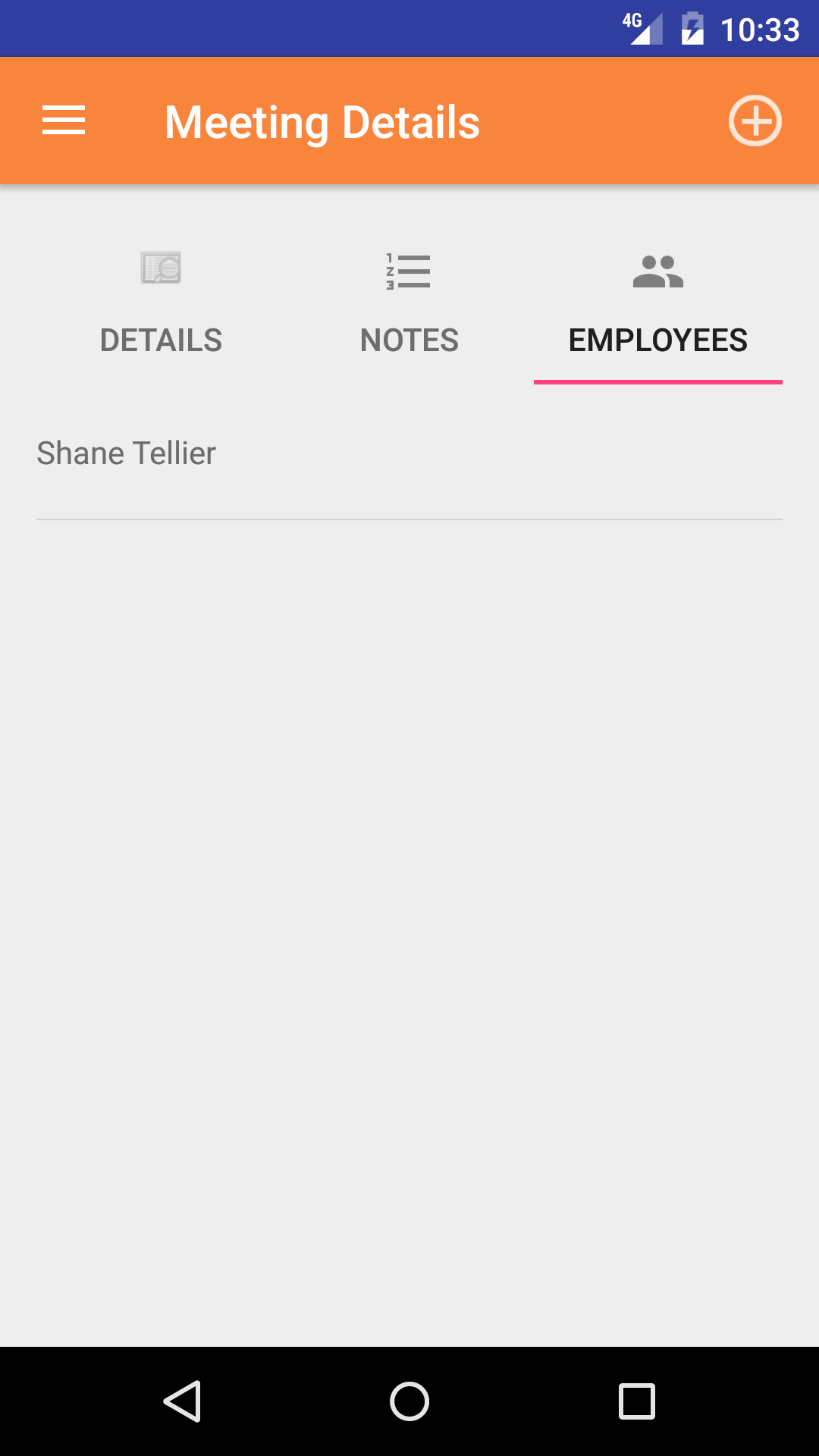
- Tap the Attendees icon the third tab from the left on the bottom of the screen to open the Attendees screen. This screen loads with the employees currently included in the meeting.
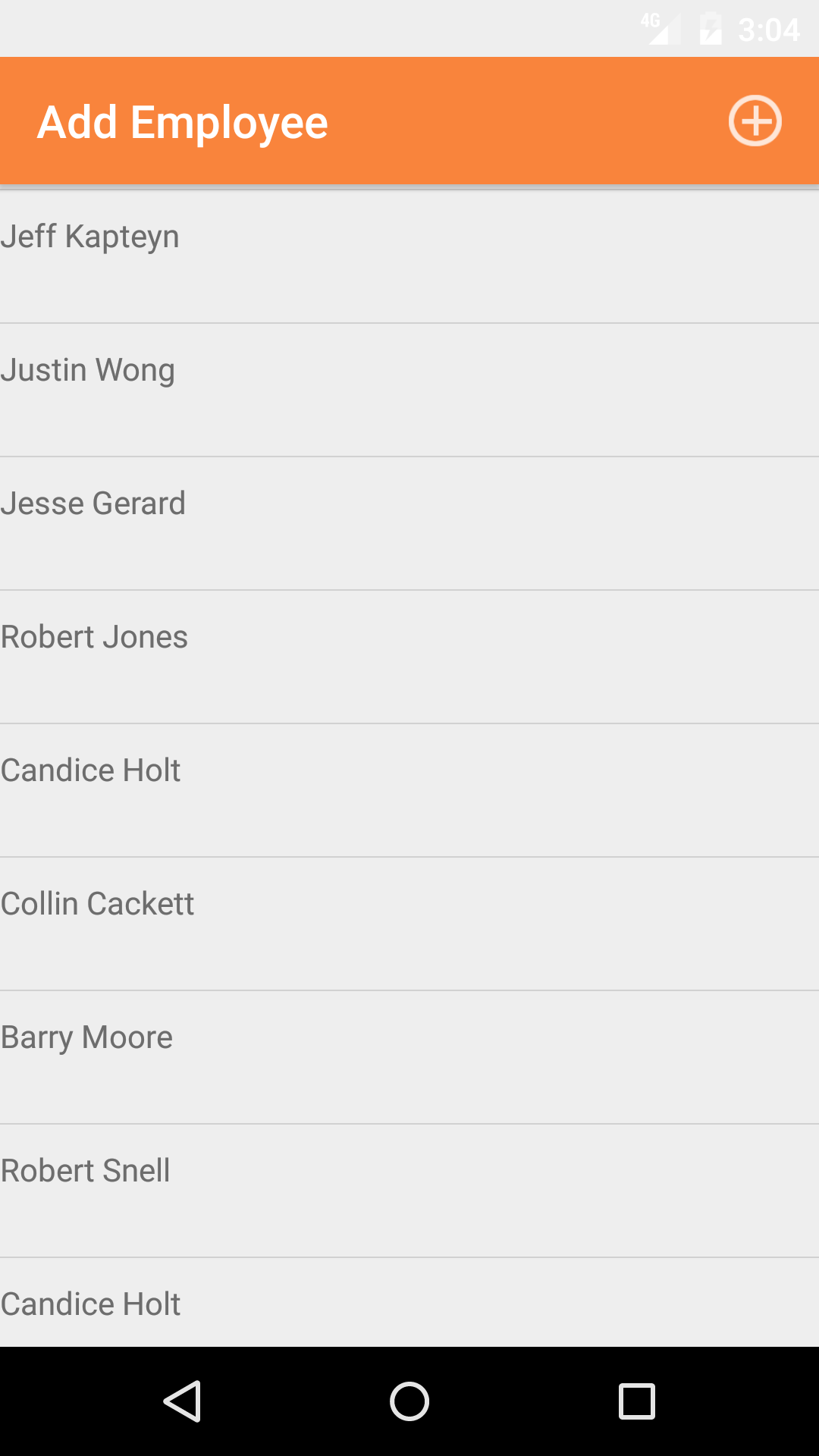
- Tap the + icon in the top right corner to open the Employees list or tap Employees in the top left corner to return to the Employees screen.
Employees are listed in descending order of last name.
- Scroll the list of employees until the desired employee is displayed on the screen.
- Tap on the employees name and they will be added to the meeting
A pop-up message that reads Employee Added indicates that the employee is now listed on the Meeting Employees screen.
|
|
| Step 1 |
|
|
| Step 2 |
|
|
|
15.Add Outside Employee to Meeting |
|
Adding employees to the Meeting is crucial to reporting accurately. In order to have an accurate picture of the meeting, adding employees to
the meeting needed. Sometime a client or a supplier or a vendor or even a sub contractor will attend a meeting to track that this person has attended your meeting.
Here are the steps on how to do it:
Once on the Meeting you would like to Edit
Steps
- Tap the Attendees icon the third tab from the left on the bottom of the screen to open the Attendees screen. This screen loads with the employees currently included in the meeting.
- Tap the + icon in the top right corner to open the Employees list or tap Employees in the top left corner to return to the Employees screen.
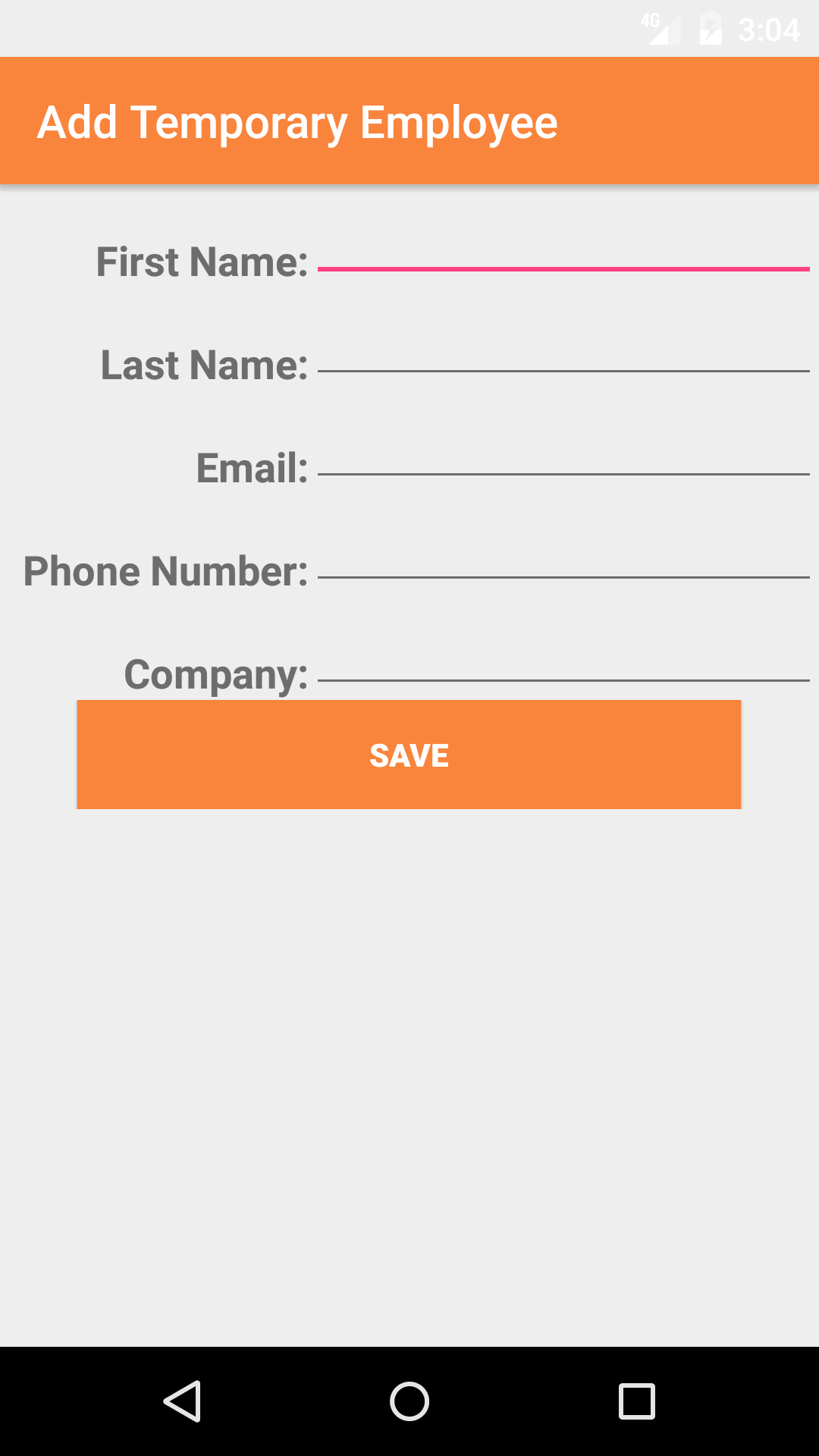
- If the desired employee is not in the list,Tap the + icon in the top right corner of the screen.
- First Name: The First Name field should indicate the legal given name of the employee. The character limit of this field is 25.
- Last Name: The Last Name field should indicate the legal surname of the employee. The character limit of this field is 25.
- Email: The Email field should indicate the best (i.e., most often used for business purposes) e-mail address for the employee. The character limit of this field is 25.
- Phone Number: The Phone Number field should indicate the best (i.e., most often used for business purposes) telephone number (land line or cellular) for the employee. The character limit of this field is 13.
- Company: The Company field should indicate the name of the company for which the employee works. The character limit of this field is 75.
- Tap Save in the top right corner of the screen to add the outside employee to the Meeting.
|
|
|
| Step 1 |
|
|
|
| Steps 2-3 |
|
|
| Steps 4-9 |
|
|
|
16.Add Employee Signature |
|
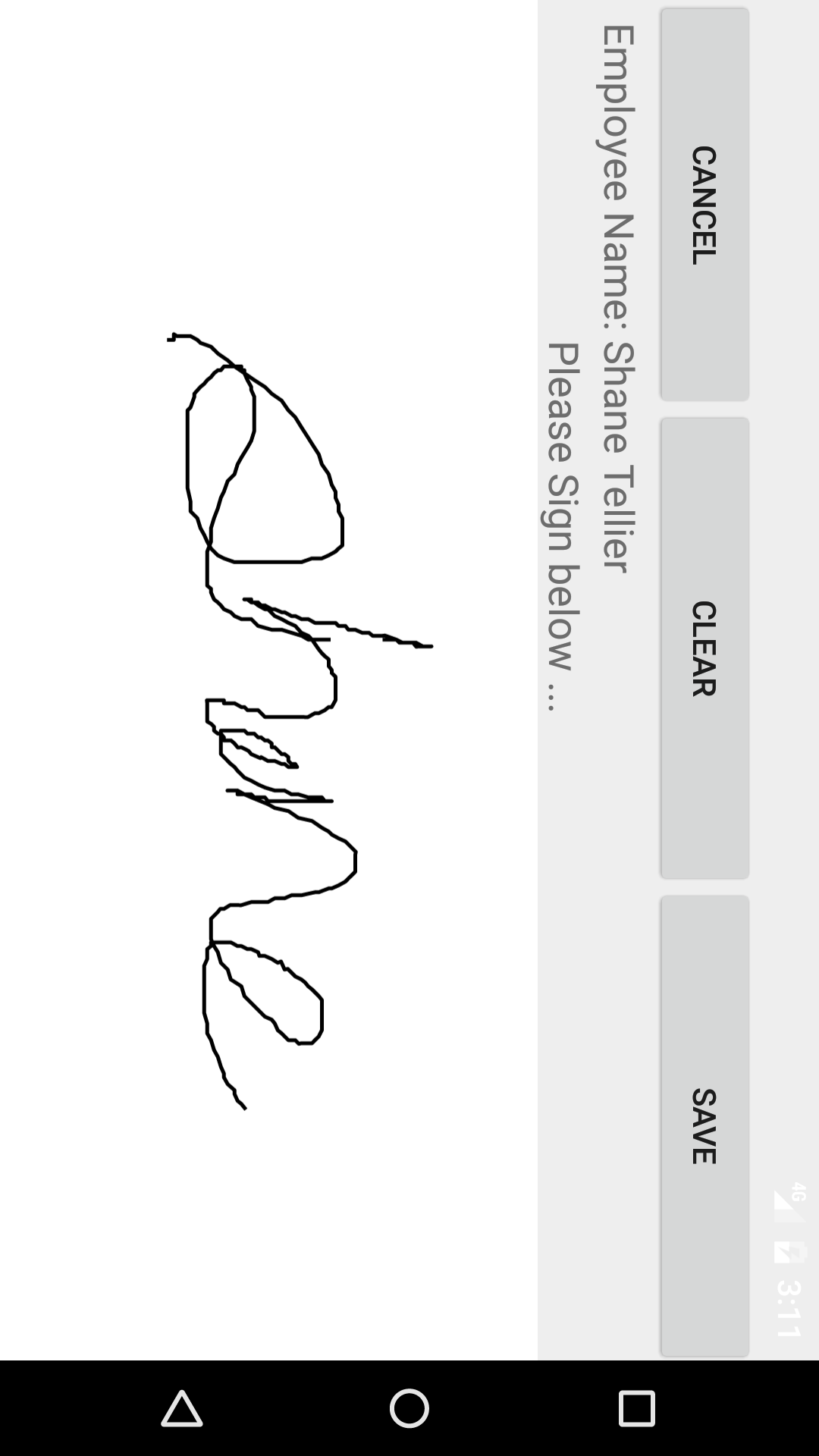
Each employee added to the Meeting must provide an electronic signature to indicate that they have been made aware of all tasks and hazards and will comply with all safe work procedures and plans for elimination.
Once on the Meeting you would like to Edit
Steps
- Tap the Attendee icon at the bottom of the screen to open the Attendees screen.
- Scroll the list of employees until the desired employee is displayed on the screen.
- Tap the desired employee to select them and open the Edit Attendee Signature screen
- Have the selected employee sign in the white space beneath the Please Sign Below label.
- Tap Save in the top right corner of the screen to update the Saved Signature field.
The saved signature will appear below the signature entry screen.
|
|
|
| Steps 1-2 |
|
|
| Steps 3-4 |
|
|
|
17.Delete Attendee from Meeting |
|
Once on the Meeting you would like to Edit
Steps
- Tap the Attendees icon the third tab from the left on the bottom of the screen to open the Attendees screen. This screen loads with the employees currently included in the meeting.
- Scroll the list of attendees until the desired attendees is displayed on the screen.
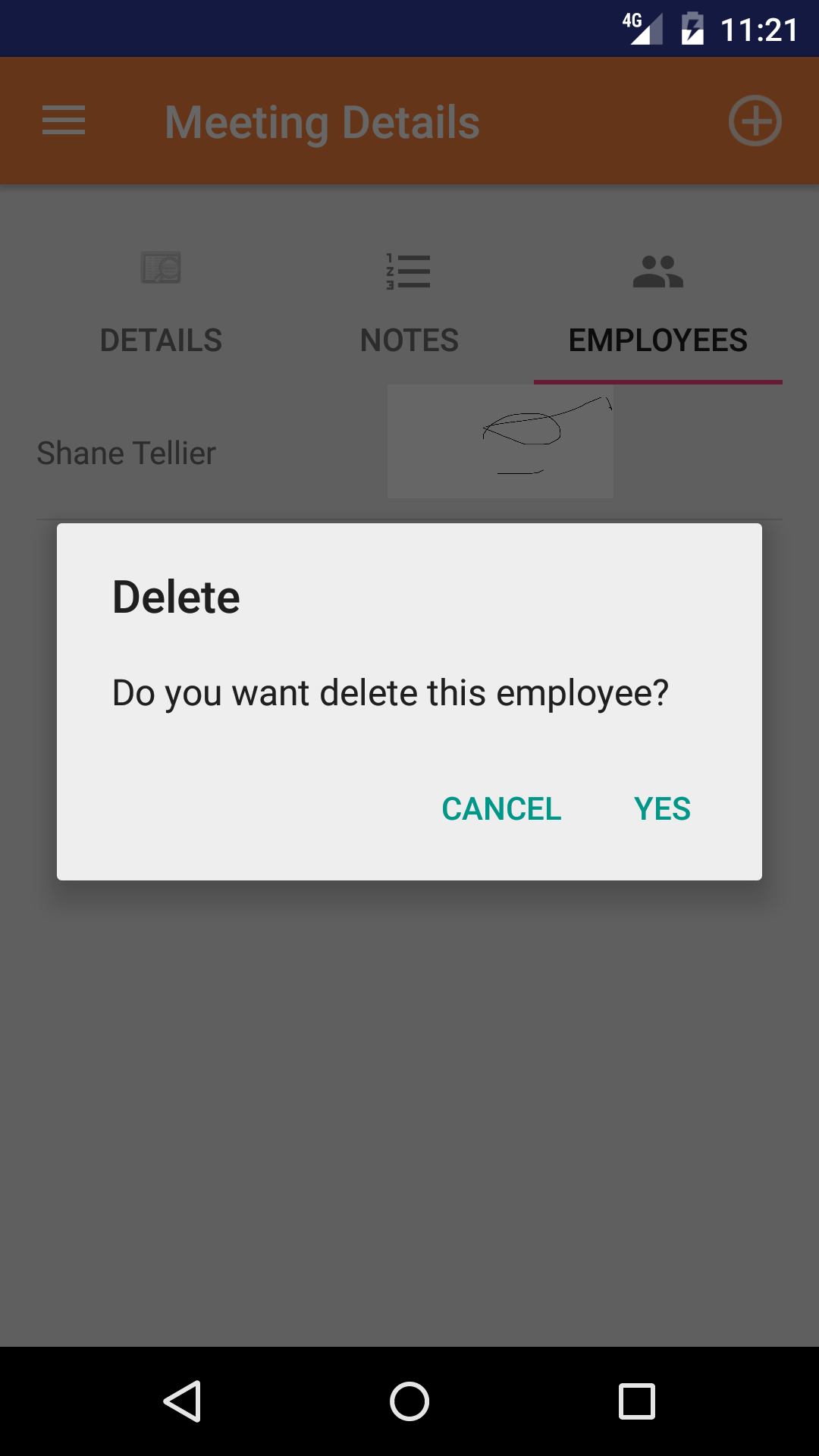
- Long Tap the attendee to bring up the delete screen for the attendee.
- Tap the Delete button. The attendee will be deleted from the meeting.
|
|
|
| Steps 1-2 |
|
|
| Steps 1-2 |
|
|
18.Submit Meeting |
|
Submitting a meeting can be done, so that all meeting attendees can download the meeting notes themselves. This could be done
to make following along with the meeting easier. Once the meeting has been submitted field staff can update their App to get the latest
safety meetings to be added to the system. For more information about Updating Meeting click here.
Once on the Meeting you would like to Edit
Steps
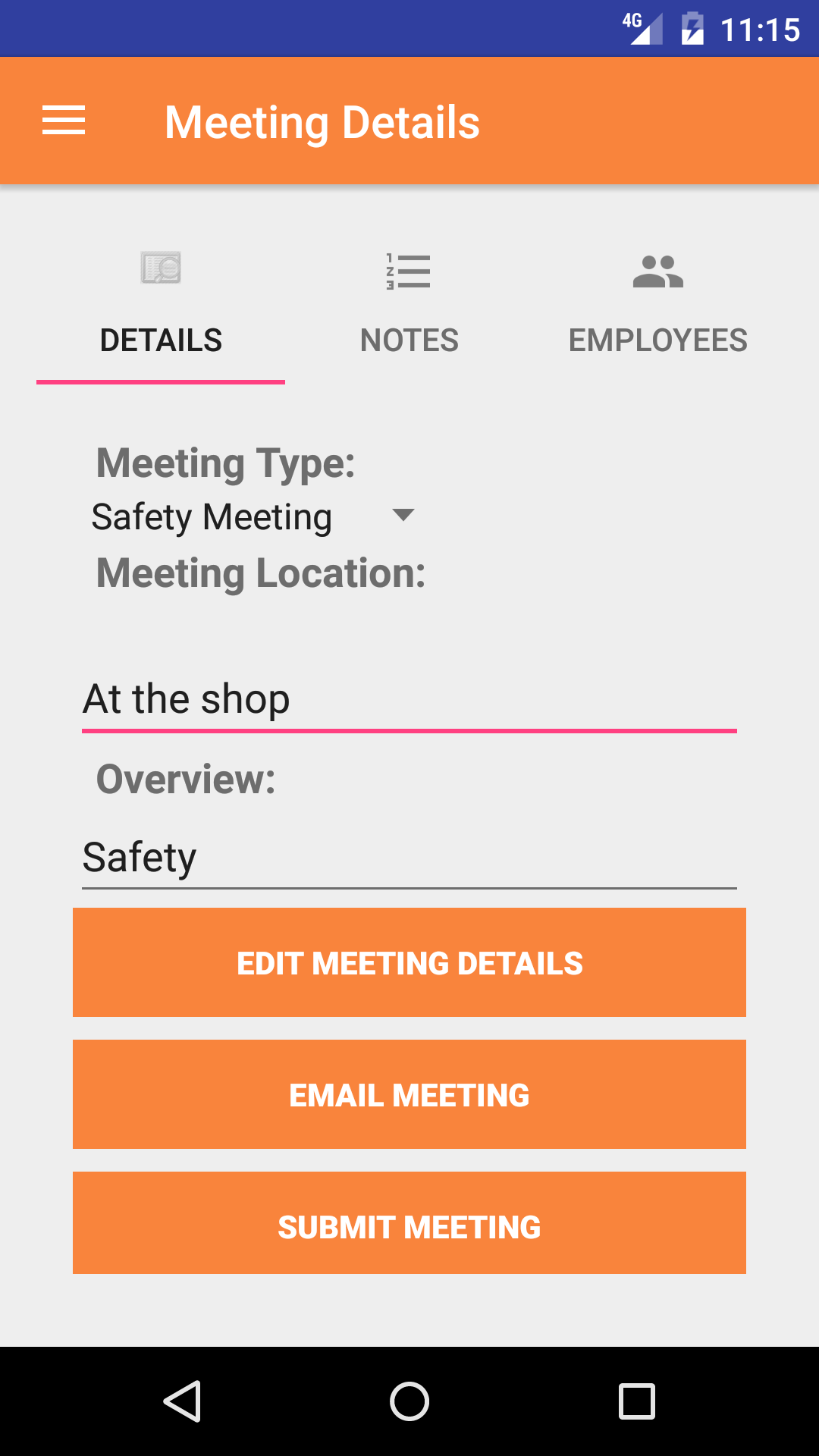
- Tap the Finish icon the fourth tab from the left on the bottom of the screen to open the Finish Details screen.
This screen loads with the meeting details.
- Meeting Date
- Meeting Type
- Meeting Location
- Meeting Overview
- Tap the Submit Meeting button.
|
|
| Steps 1-2 |
|
|
19.Email Meeting |
|
Email a meeting can be done, so that all meeting attendees know that they have been invited to a meeting. SafetyNet thinks providing meeting
attendee's with a copy of the meeting notes before they attend gives attendees a better chance at participating whole heartedly in a meetings
discussions if they new what is going to be discussed a head of time. Field staff emailed will receive a email with a link to the entire meeting. Field
Staff can then download the meeting to their Android App using the update meeting function. For more information about Updating Meeting click here.
Once on the Meeting you would like to Edit
Steps
- Tap the Finish icon the fourth tab from the left on the bottom of the screen to open the Finish Details screen.
This screen loads with the meeting details.
- Meeting Date
- Meeting Type
- Meeting Location
- Meeting Overview
- Tap the Email Meeting button. SafetyNet will send all meeting attendees an email with a link to a view of the meeting.
|
|
|
| Steps 1-2 |
|
|
20.Close Out Meeting |
|
Once a meeting has been conducted, the notes for the meeting updated, and all attendee's sign off on being at the meeting. Its important
that all the information is submitted and the meeting is closed out in SafetyNet.
Once on the Meeting you would like to Edit
Steps
- Tap the Finish icon the fourth tab from the left on the bottom of the screen to open the Finish Details screen.
This screen loads with the meeting details.
- Meeting Date
- Meeting Type
- Meeting Location
- Meeting Overview
- Tap the Close Out Meeting button. All information on the Meeting will be sent to the Web Application and the meeting
will be moved to the History section of the Meeting section of the Android App.
|
|
|
| Steps 1-2 |
|
|
21.Delete Meeting |
|
Once in the Meeting section
Steps
- Tap the second tab on the menu, the Meeting view.
- Scroll the list of Meetings until the desired Meeting is displayed on the screen. The meetings information is displayed:
the date in red on the top line on the left side, the meeting type in black on the top line on the
right side, the meeting location in blue, and the meeting overview in black on the bottom line.
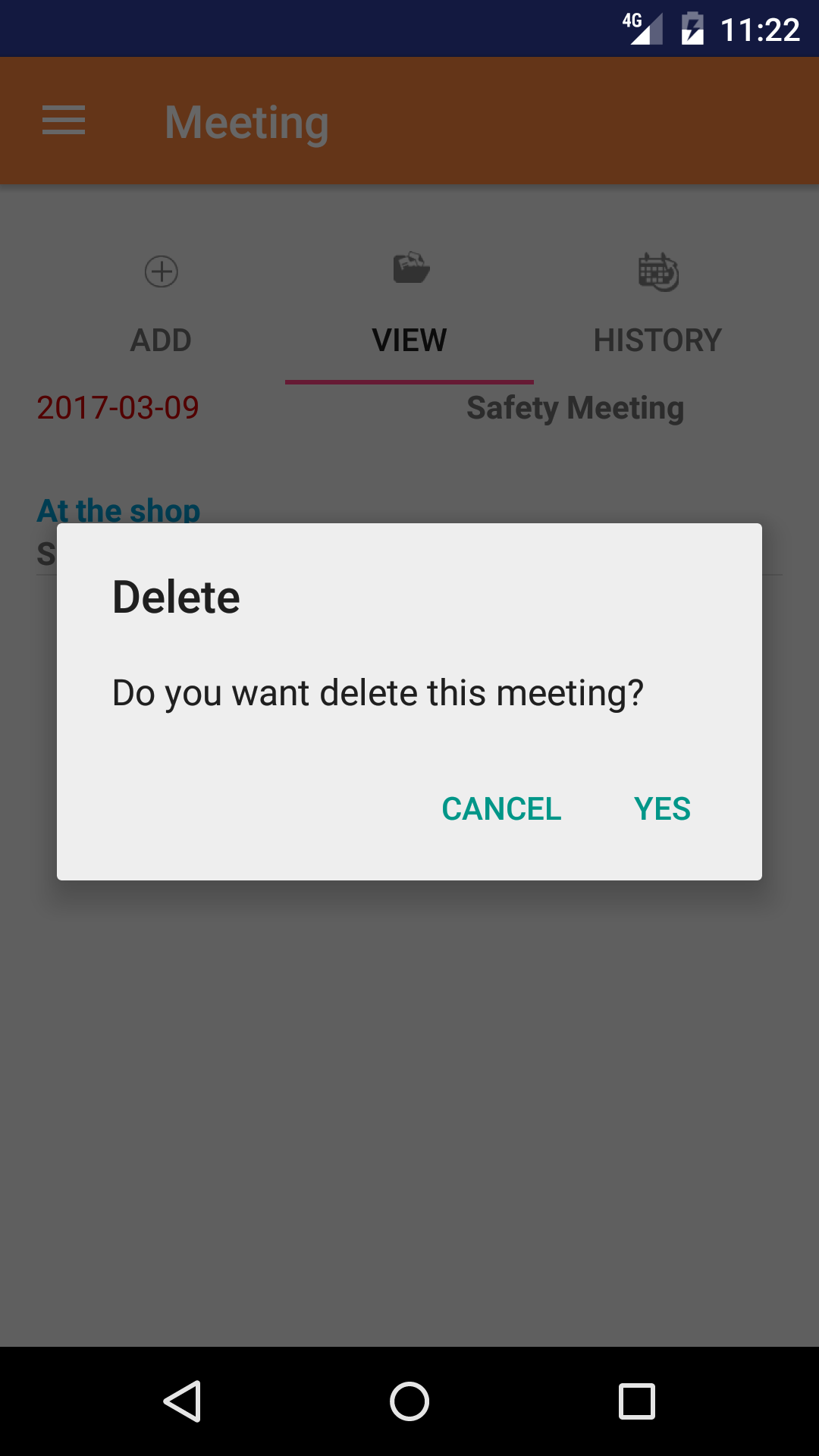
- Long Tap the Meeting to bring up the delete screen for the meeting.
- Tap the Delete button. The meeting will be deleted from the Android Application.
|
|
|
| Steps 1-2 |
|
|
| Steps 1-2 |
|
|
22.View Closed Meeting |
|
After Meetings have been closed out, they will be available to look at through the History view on the iPhone Application.
Once on the Meeting section
Steps
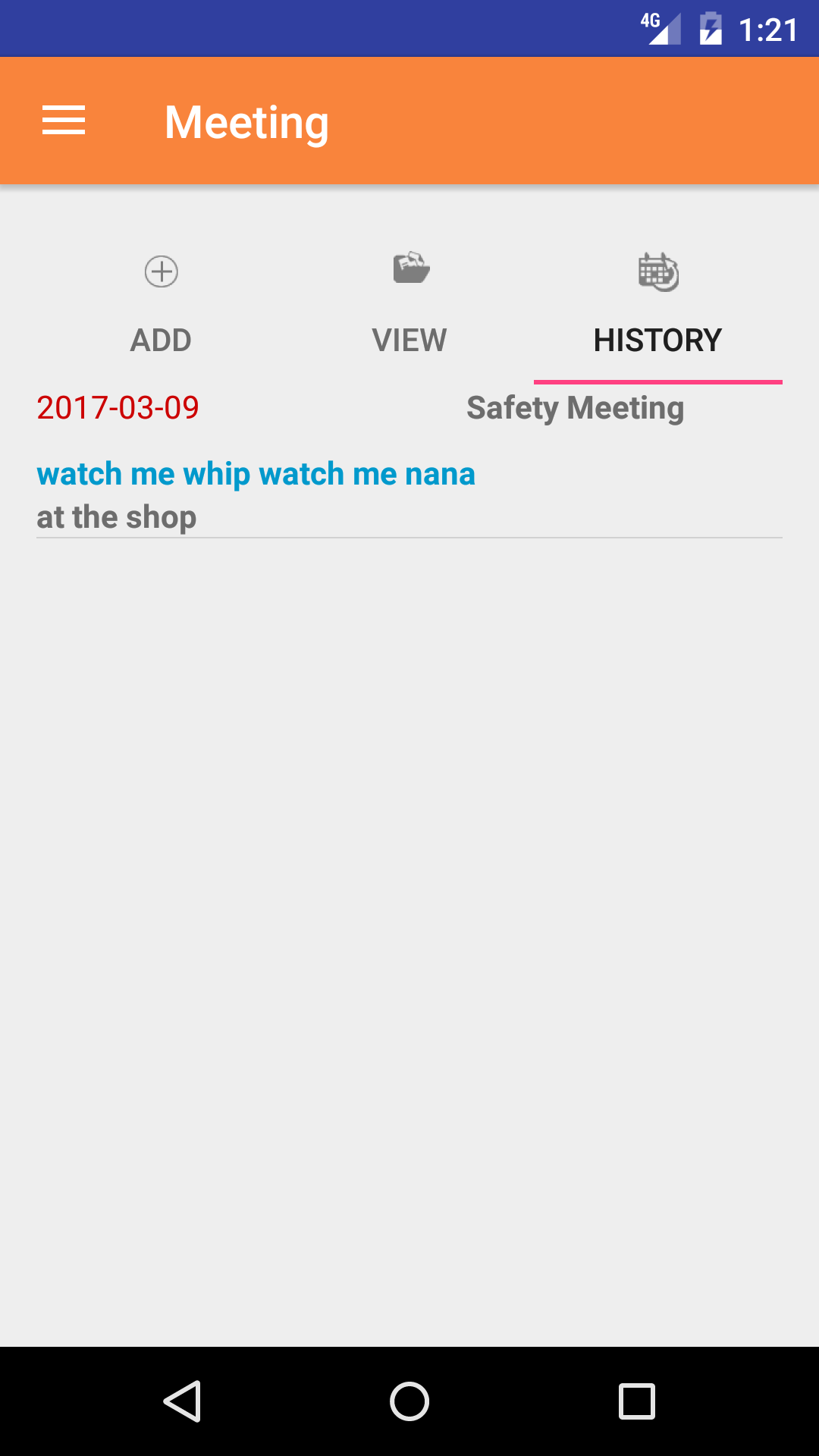
- Tap the third tab on the menu, the History tab of the main menu view. This loads with a list of the closed out Meetings
listing the the date of the meeting, meeting type, overview in black.
- Scroll the list of Meetings until the desired Meeting is displayed on the screen.
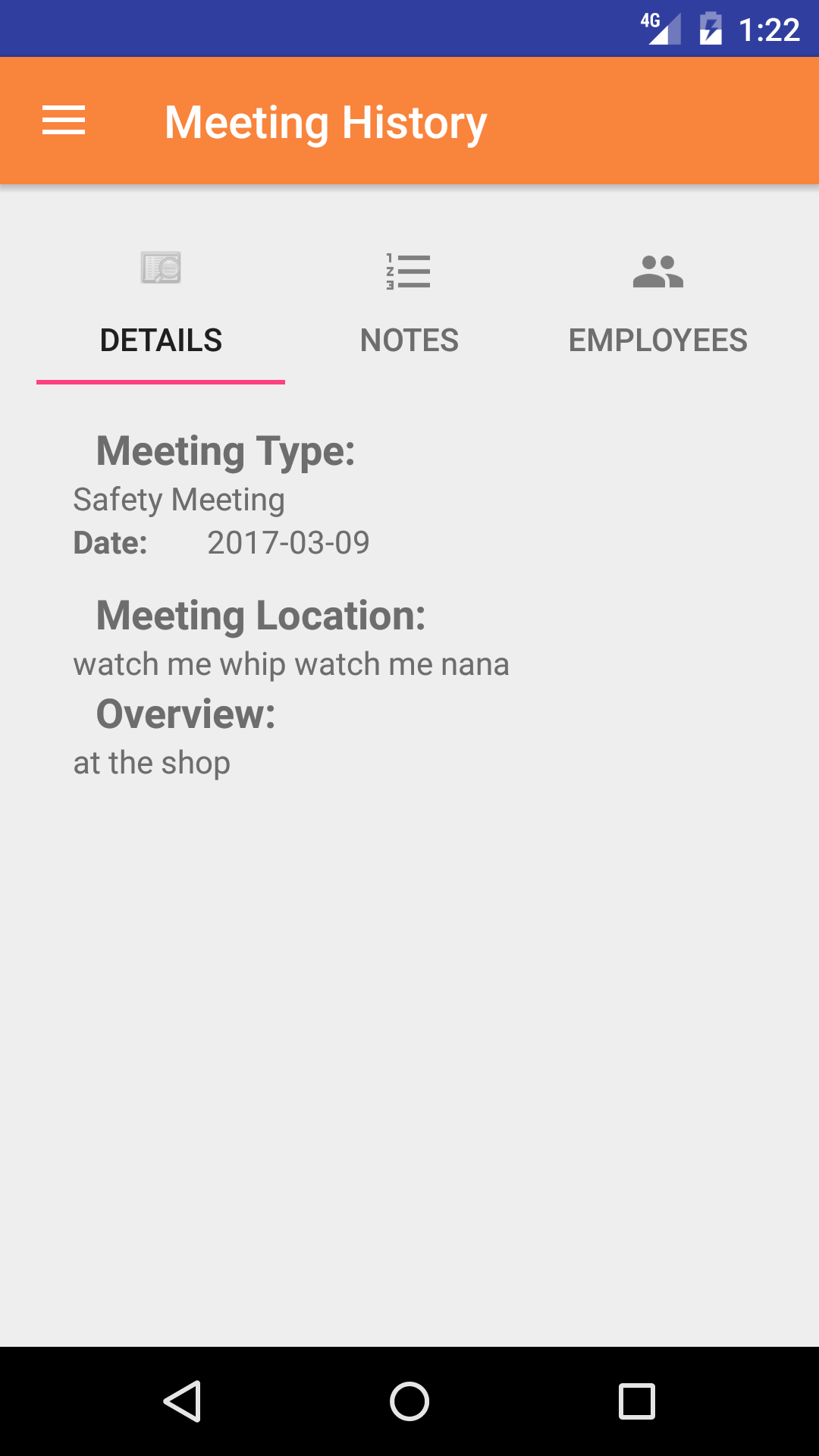
- Tap on the Meeting you would like to view. This loads the first tab, the meeting details tab of the History view.
It loads the following details including:
- Date
- Meeting Type
- Meeting Location
- Meeting Overview
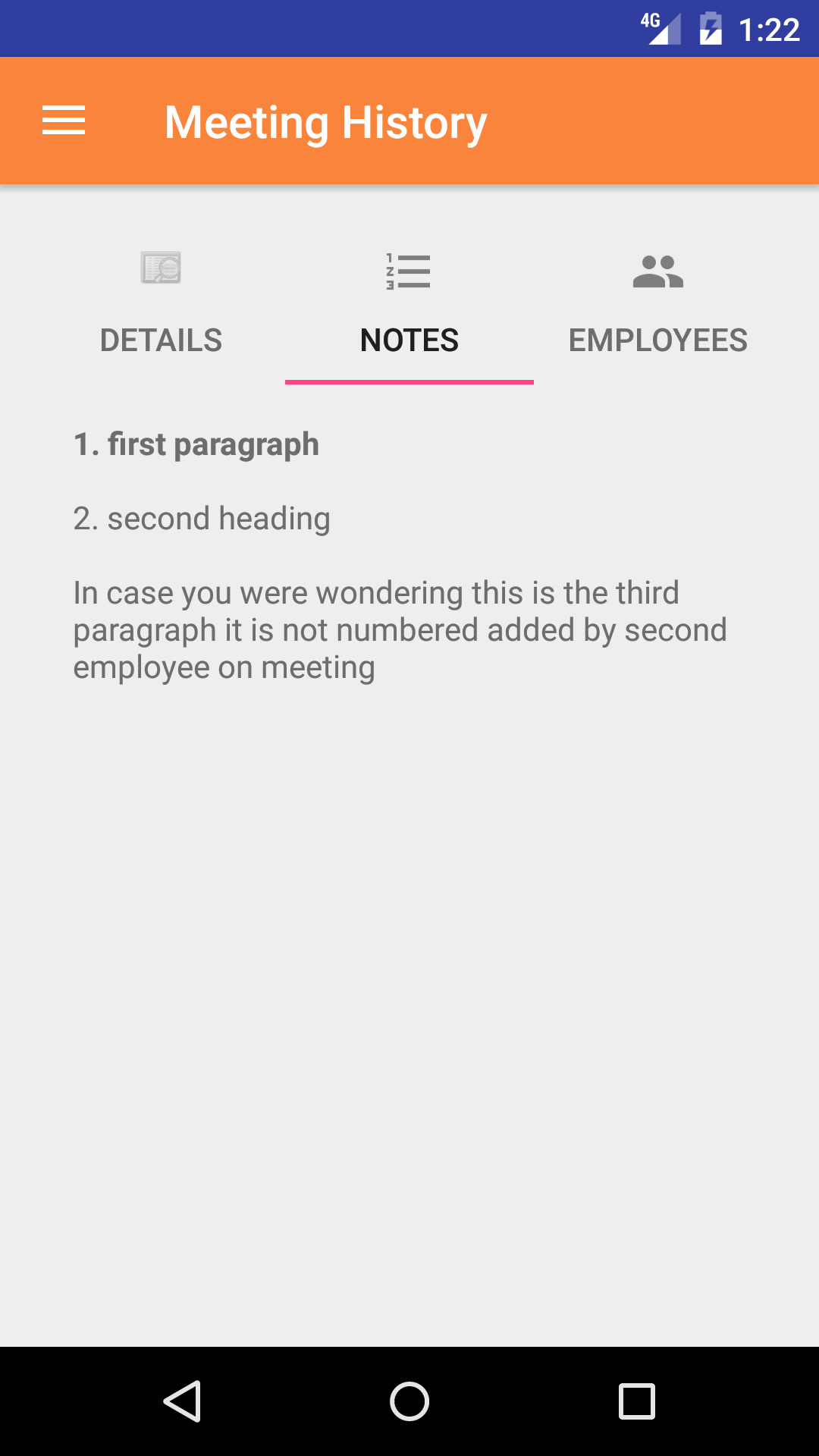
- Tap the second tab, the Notes tab of the History view. This loads with the formatted copy of the meeting notes.
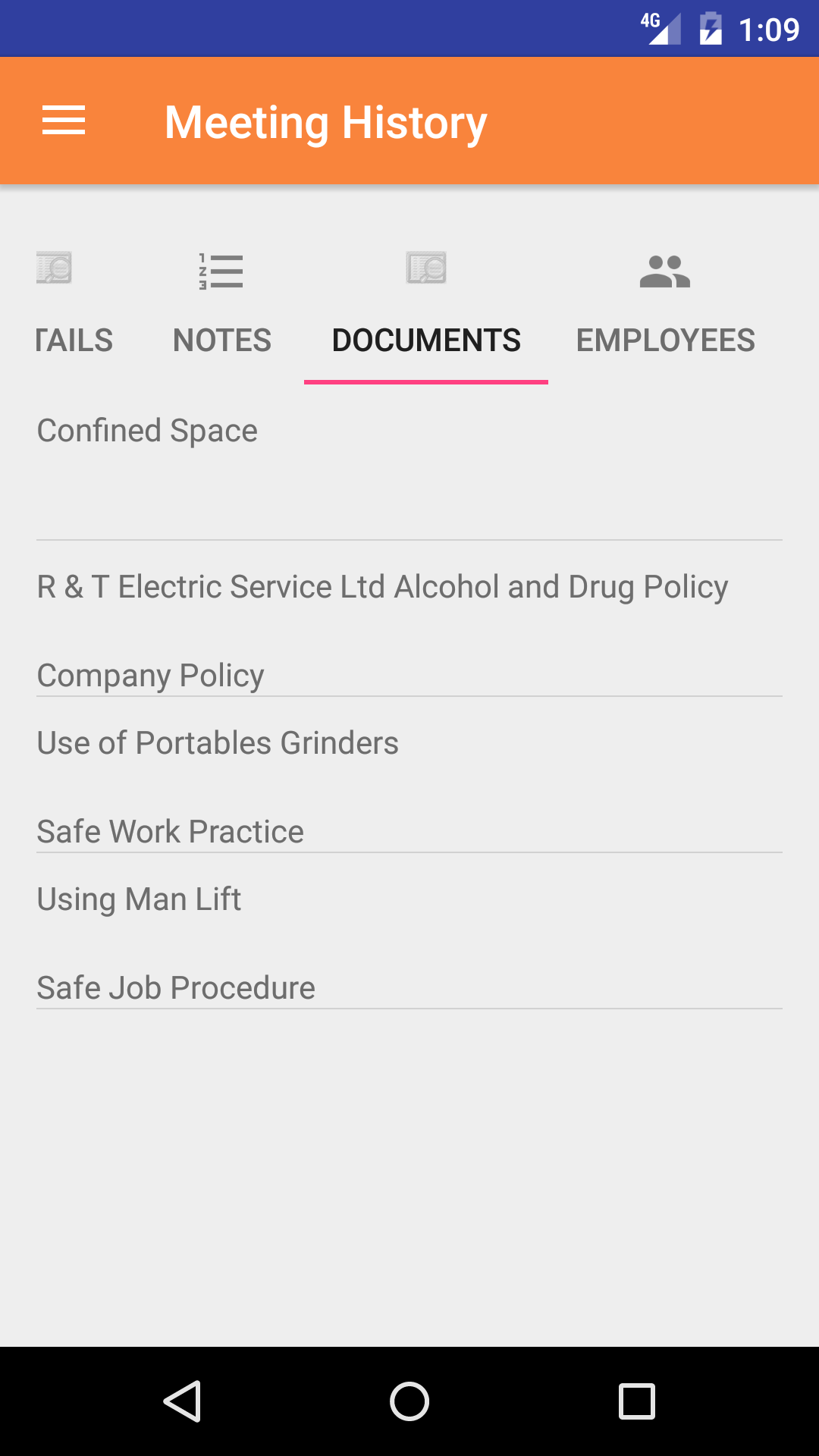
- Tap the third tab, the Meeting Documents tab of the History view. This loads with the list of meeting documents that have been attached, click on them to view.
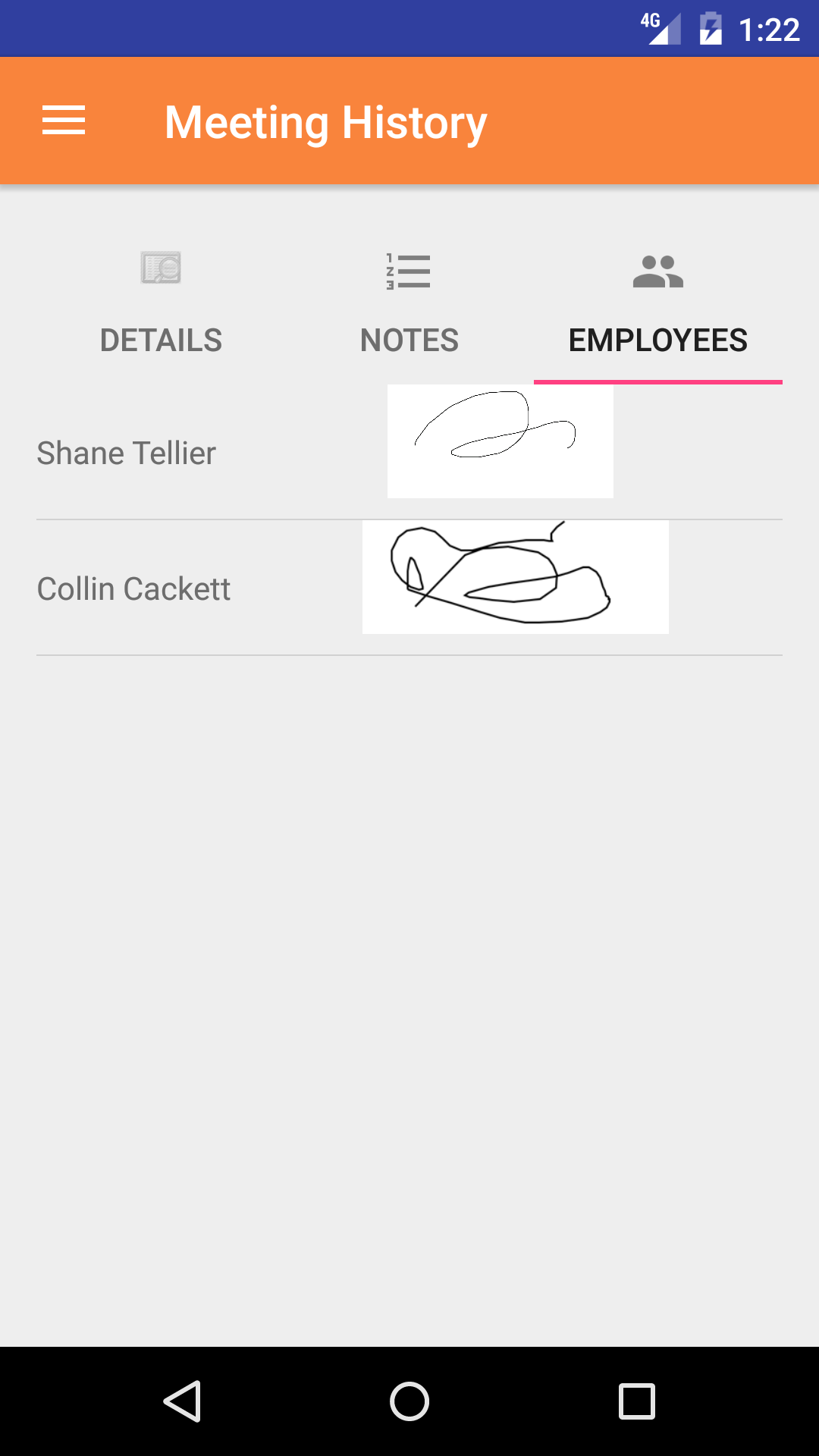
- Tap the fourth tab, the Meeting Attendee's tab of the History view. This loads with the employee's names and their signatures
of the employees who participated in the Meeting.
|
|
|
| Step 1 |
|
|
| Step 2 |
|
|
| Step 3 |
|
|
| Step 4 |
|
|
| Step 5 |
|
|
23.Update Meetings |
|
As employees create meetings others will have to update their phones in order to have a copy of meetings on their phone.
Steps
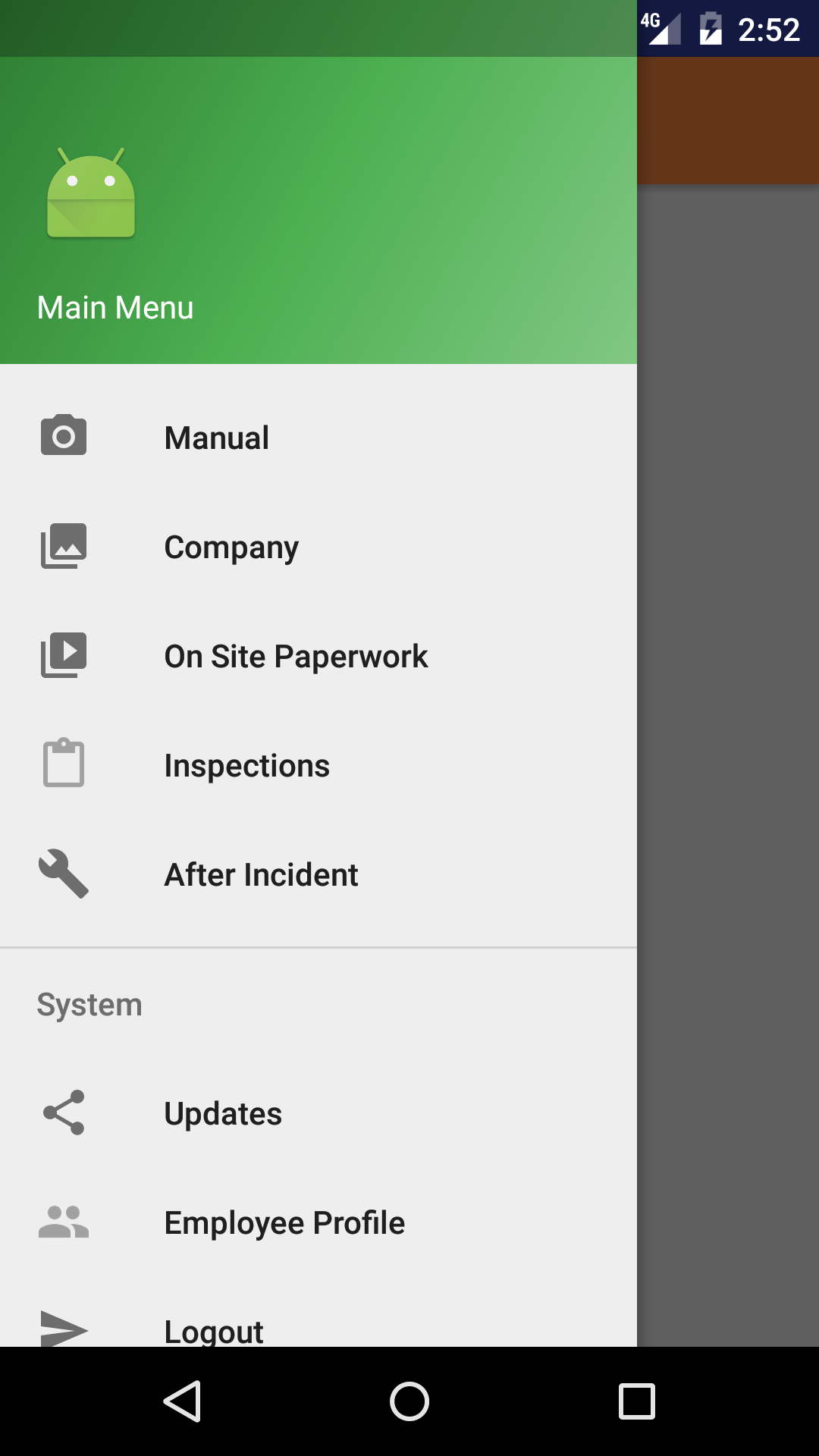
- From the Menu screen, tap the Updates button.
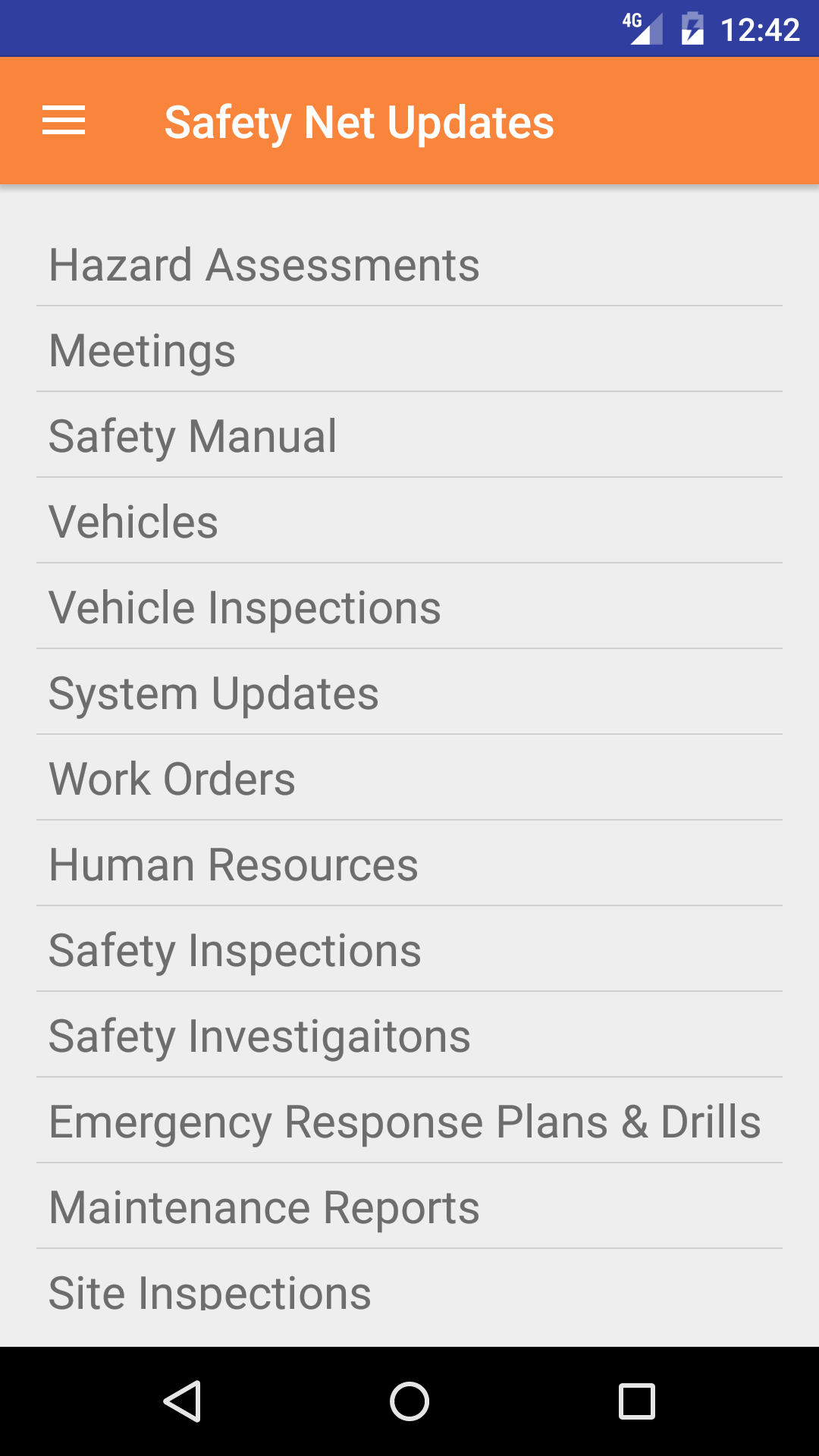
- Scroll the list of sections until you find the Meetings button.
- Tap on the Meetings button.
|
|
|
| Step 1 |
|
|
| Step 2 |
|
|

 App Manual