Manual Web Site Manual App Manual

Safe Work Practices

The safe work practice section in the Android application allows companies to give field staff access to the safe work practices of their safety program. Every company safety program should consist of at least a safe job procedure or a safe work practice for each of the companies tasks'. These safe work practices can be viewed and through the SafetyNet Android Application.

One of the most important questions of any safety audits is always, do field staff have access to the safe work practices on the job site? If your safety program is managed through SafetyNet the answer is always Yes, because every field staff will have the safe work practices in Smartphone application.

The second question asked as part of any safety audits is always, do field staff review safe work practices before starting work on tasks on a job site. If your safety program is managed through SafetyNet the answer again is Yea, because every field staff will have the safe work practices in Smartphone application.

Safety Net Smartphone application allows field staff to view the safe work practices right inside a hazard assessments by clicking on tasks in the field. For information about safe work practices through the Smartphone click here.

Configuring how often Manual Reviews are to Occur

How often manual reviews must occur is a function of your companies policy. To configure Safety Net for how often manual reviews for safe work practices should occur can be configured in the company safety settings.

Management, Office Staff and Safety Officers can edit how often manual reviews should occur in the Company section when they edit the Company Safety settings. For more information about configuring your company safety settings in this manual click here to view the company section.

Configuring how often Approval Reviews are to Occur

How often manual approvals must occur is a function of your companies policy. To configure Safety Net for how often manual approvals for safe work practices should occur can be configured in the company safety settings.

Management, Office Staff and Safety Officers can edit how often manual approvals should occur in the Company section when they edit the Company Safety settings. For more information about configuring your company safety settings in this manual click here to view the company section.

The safe work practice section is only available to users that have the safe work practice section turned on for their users group. To change users access to safe work practices, management and office staff can change access in Application Section to view the information about the Application Section Click Here

Table of Contents

#Section Name#Section Name#Section Name
1View Safe Work Practice 1View Safe Work Practice by Task 3Update Safety Manual

1.View Safe Work Practice

Safe Job Procedures can be viewed through the SafetyNet Android Application.

Steps
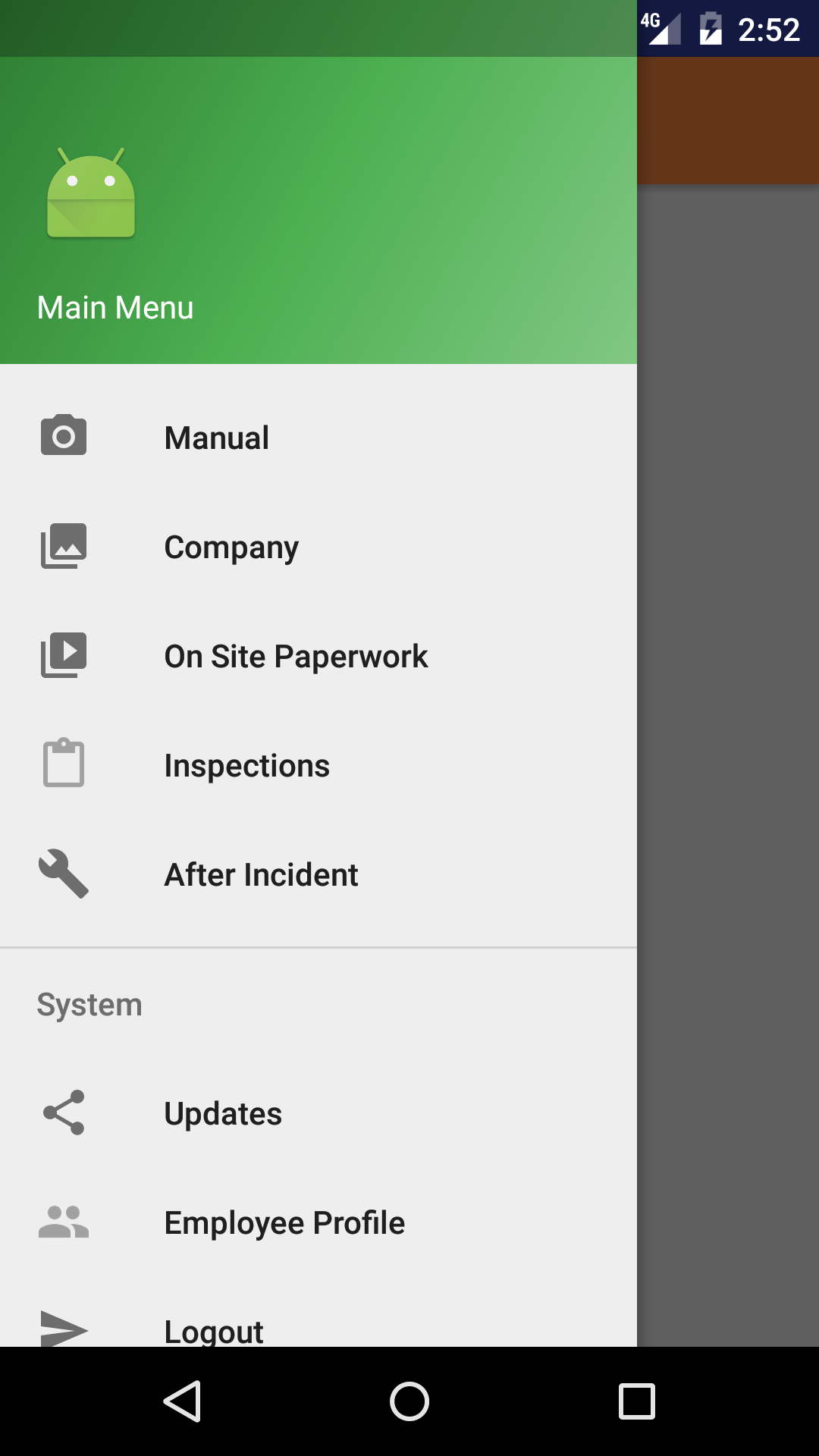
  1. From the Menu screen, tap the Manual button.
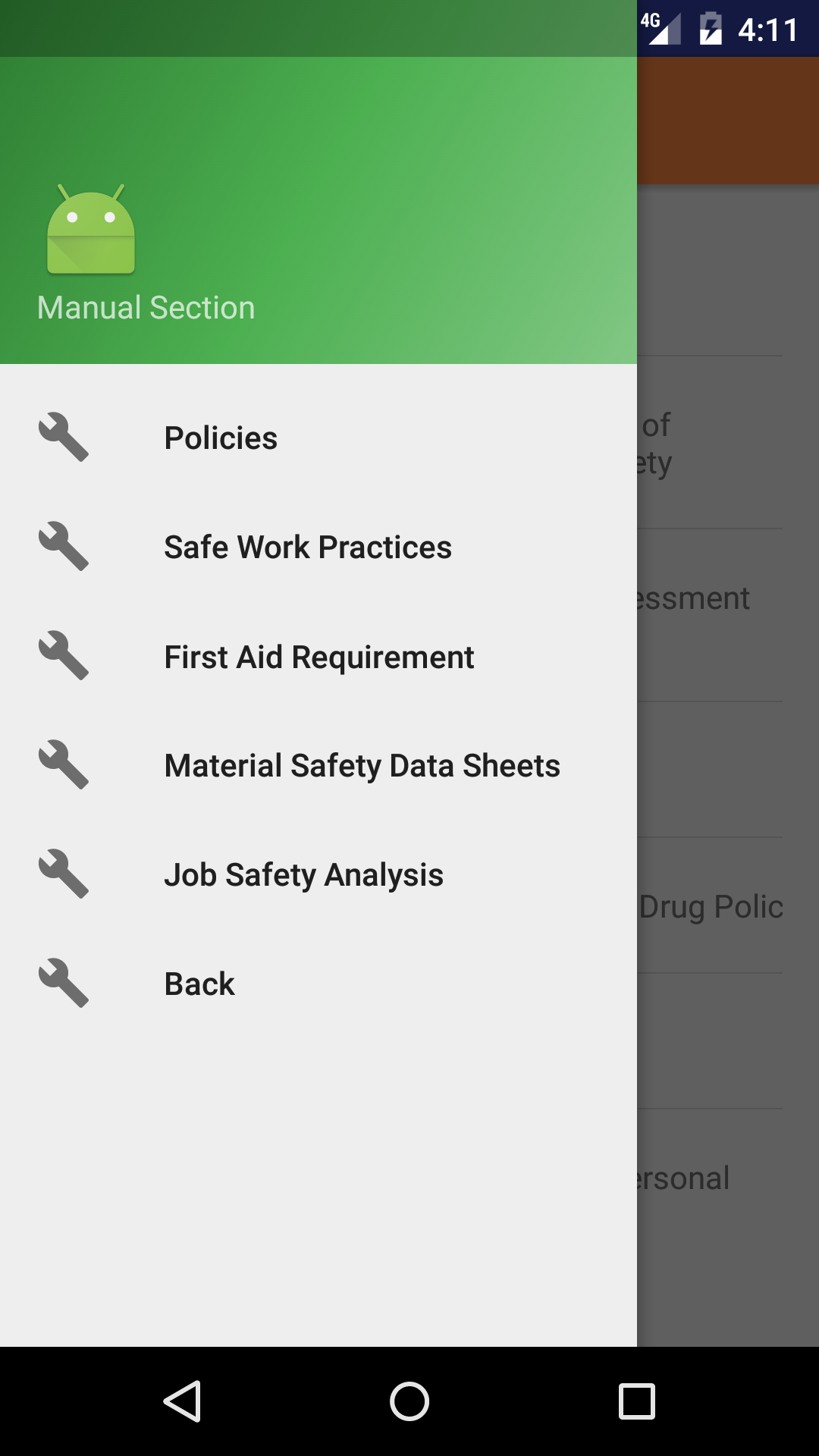
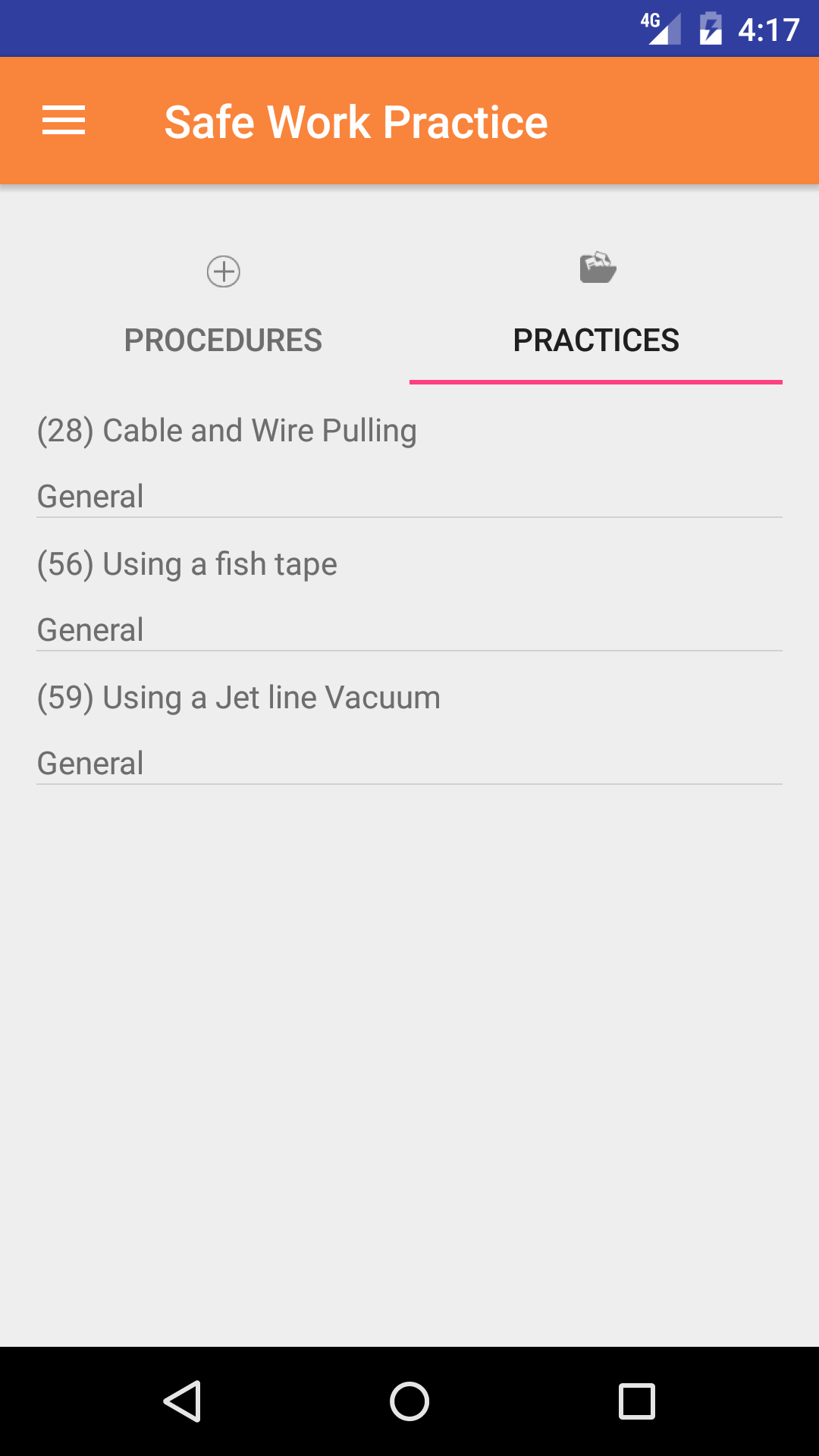
  2. Then tap on the Safe Work Practices and Safe Job Procedures button to open the safe work practice screen on the second tab.
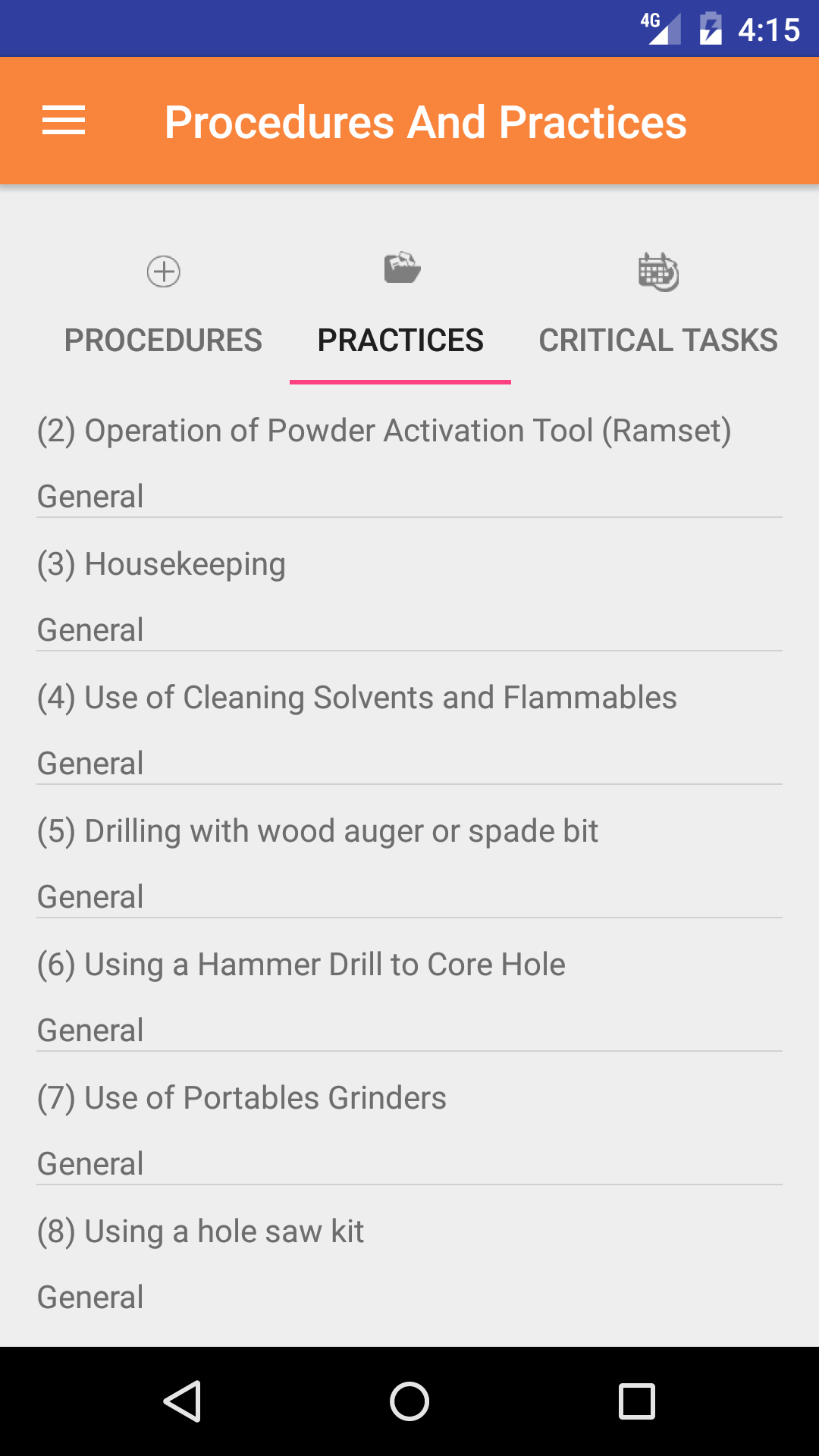
  3. This loads with a list of the safe work practices listing the safe work practice number, safe work practice name and task category in black.
  4. Scroll the list of safe work practices until the desired safe work practice is displayed on the screen.
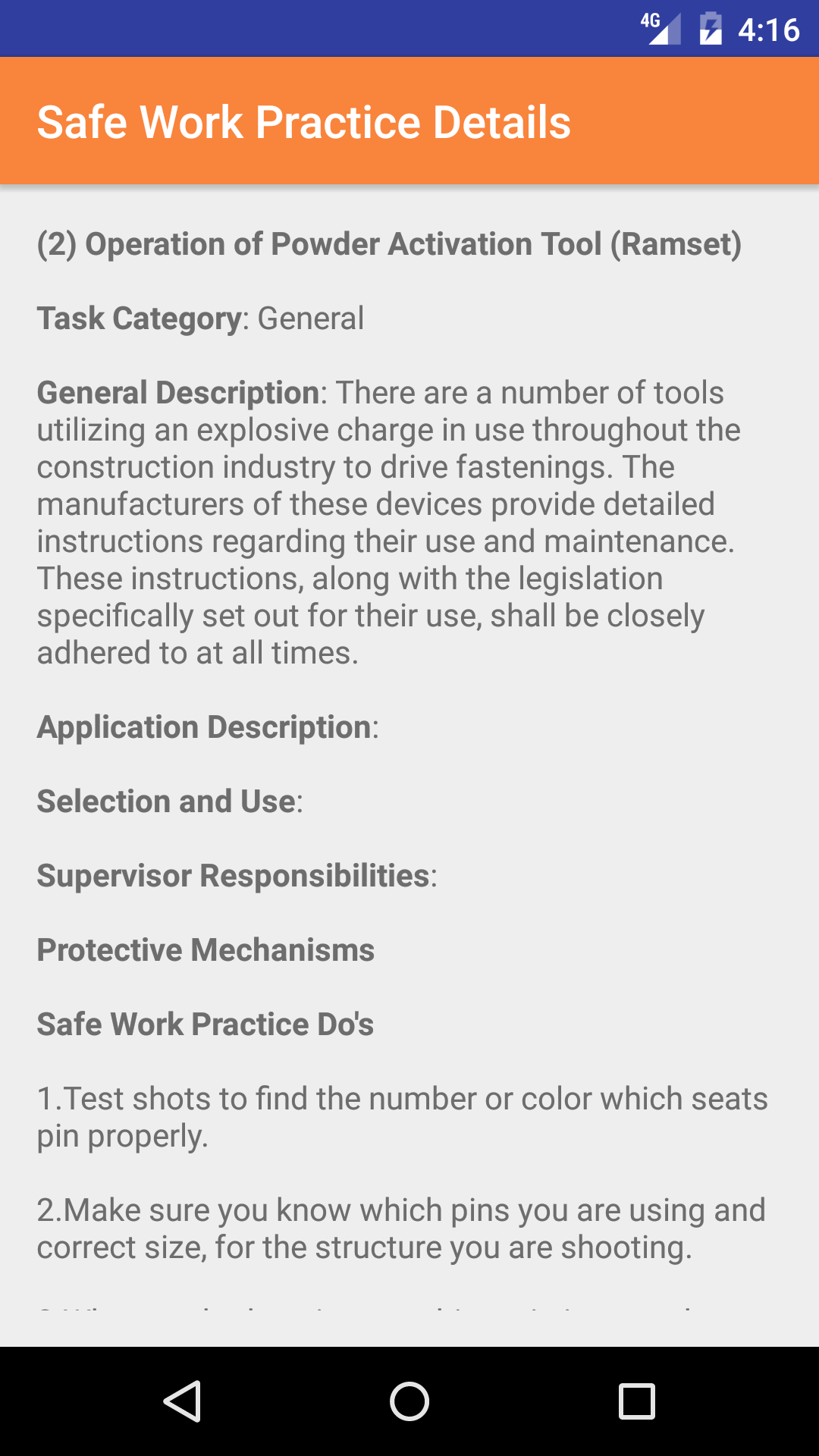
  5. Tap on the Safe Work Practice you would like to view. This loads with:
    1. Safe work practice number
    2. Safe work practice name
    3. Task category
    4. Description
    5. Selection and Use
    6. Supervisor Responsibility
    7. Protective Mechanism
    8. Safe Work Do's
    9. Safe Work Do Not's

A Companies Safety Program is a living document, this means that over time it will change. As new safety standards are introduced new policies, safe work practices, safe job procedures will be created, while others will be adjusted. The Android App will need to be updated. To do so follow the steps in the Update Manual section

Step 1
Step 2
Steps 3-4
Step 5

2.View Safe Work Practice by Task

Safe Work Practices can be viewed through the SafetyNet IPhone Application.

Steps
  1. From the Menu screen, tap the Manual button.
  2. Then tap on the Safe Work Practices and Safe Job Procedures button to open the Safe Job Procedure screen on the second tab.
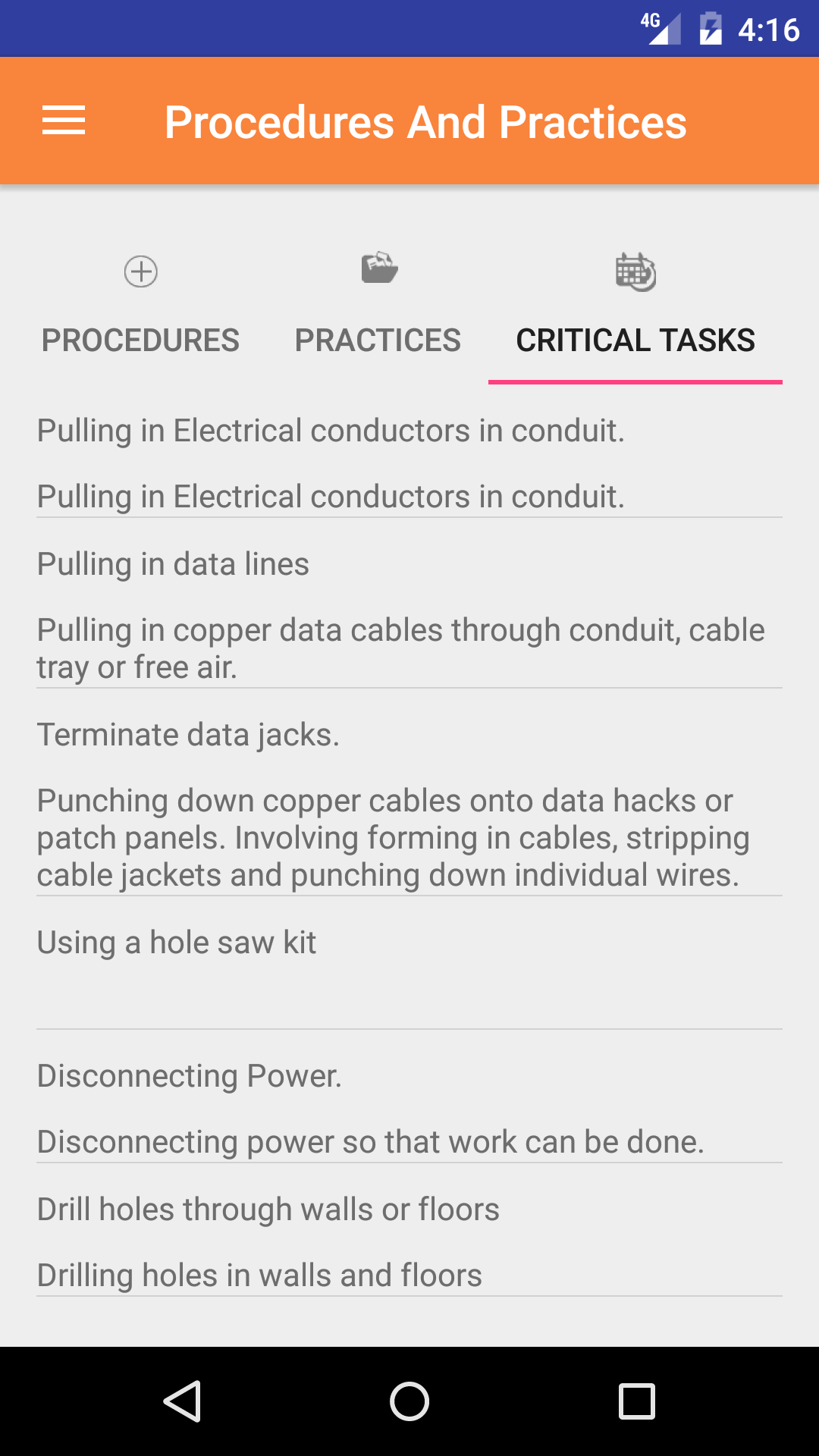
  3. This loads with the safe work practices listing, to view safe work practices by a specific task, tap on the third tab.
  4. This loads with a list of the company tasks listing the task name, and task description in black.
  5. Scroll the list of tasks until the desired task is displayed on the screen.
  6. Tap on the Task you would like to view. This loads the safe work practices related to the selected task on the second tab.
  7. Scroll the list of safe work practice until the desired safe work practice is displayed on the screen.
  8. Tap on the Safe Work Practice you would like to view. This loads with:
    1. Safe work practice number
    2. Safe work practice name
    3. Task category
    4. Description
    5. Selection and Use
    6. Supervisor Responsibility
    7. Protective Mechanism
    8. Safe Work Do's
    9. Safe Work Do Not's

A Companies Safety Program is a living document, this means that over time it will change. As new safety standards are introduced new policies, safe work practices, safe job procedures will be created, while others will be adjusted. The IPhone App will need to be updated. To do so follow the steps in the Update Manual section

Step 1
Step 2
Step 3
Steps 4-6
Step 7
Step 8

3.Update Safety Manual

A Companies Safety Program is a living document, this means that over time it will change. As new safety standards are introduced new policies, safe work practices, safe job procedures will be created, while others will be adjusted. The IPhone App will need to be updated.

Steps
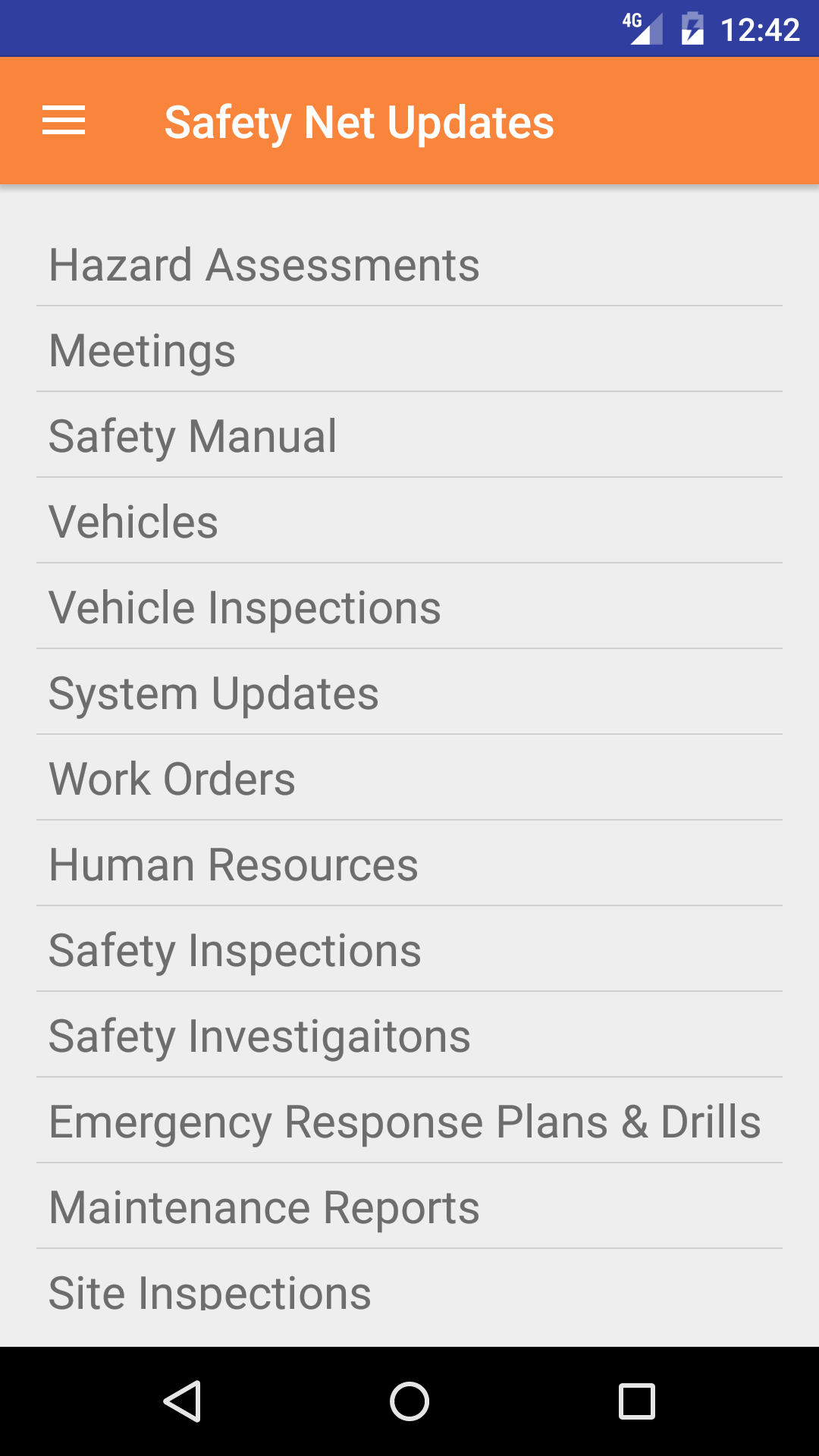
  1. From the Menu screen, tap the Updates button.
  2. Scroll the list of sections until you find the Safety Manual button.
  3. Tap on the Safety Manual button.

Any updates to existing policies, safe work practices or safe job procedures will be download along with any new ones.

Step 1
Step 2