Manual Web Site Manual App Manual

Schedule

Schedule section allows management/safety officer's/office staff to schedule field staff's work schedule by work order. Allowing for appointment booking down to 15 minute appointment windows.

Safety Net Android application allows field staff to view.

The schedule section is only available to users that have the schedule section turned on for their users group. To change users access to schedules, management and office staff can change access in Application Section to view the information about the Application Section Click Here

Table of Contents

#Section Name#Section Name#Section Name
1View Schedule 2Update Schedule

1.View Schedule

Steps
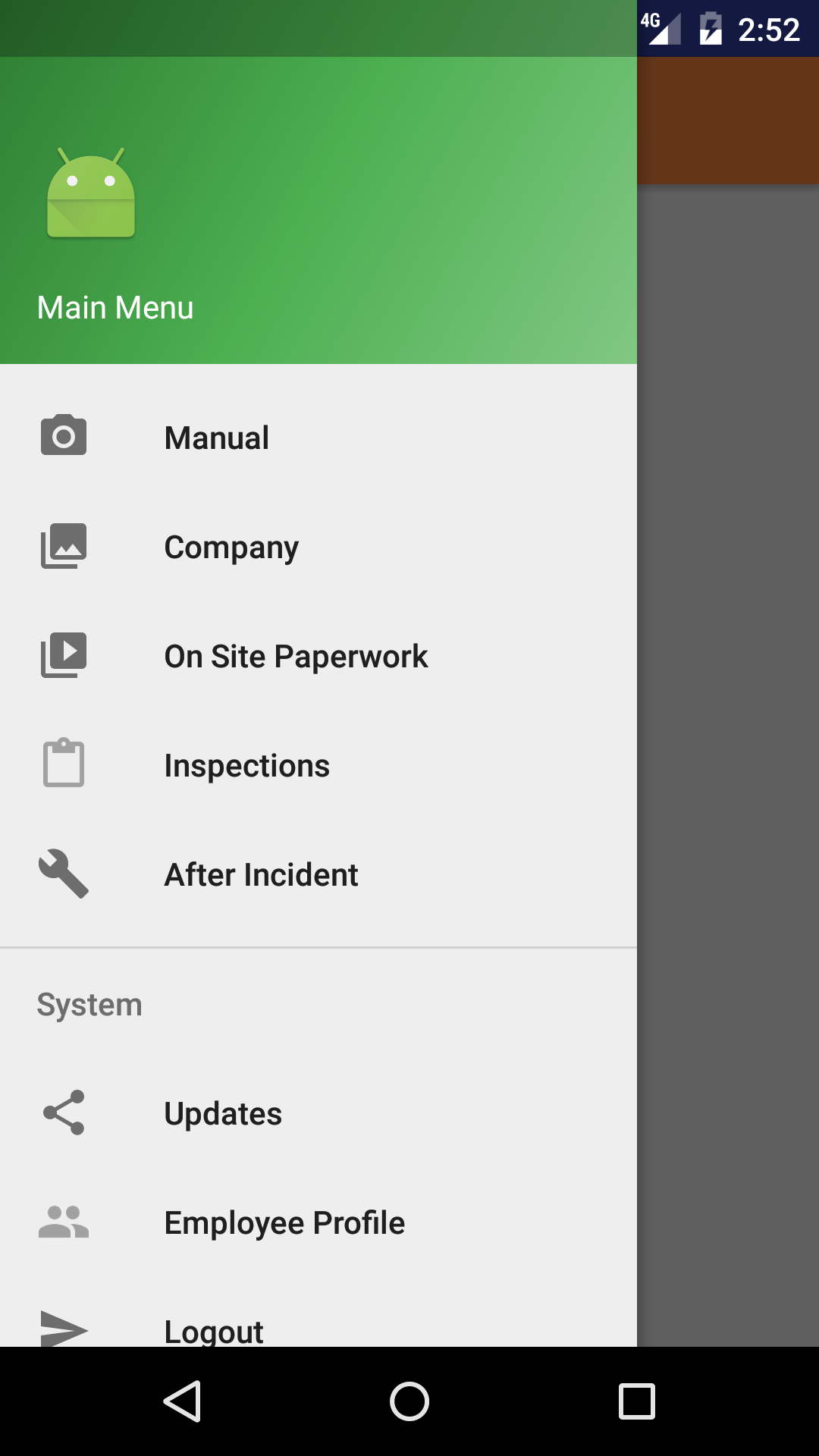
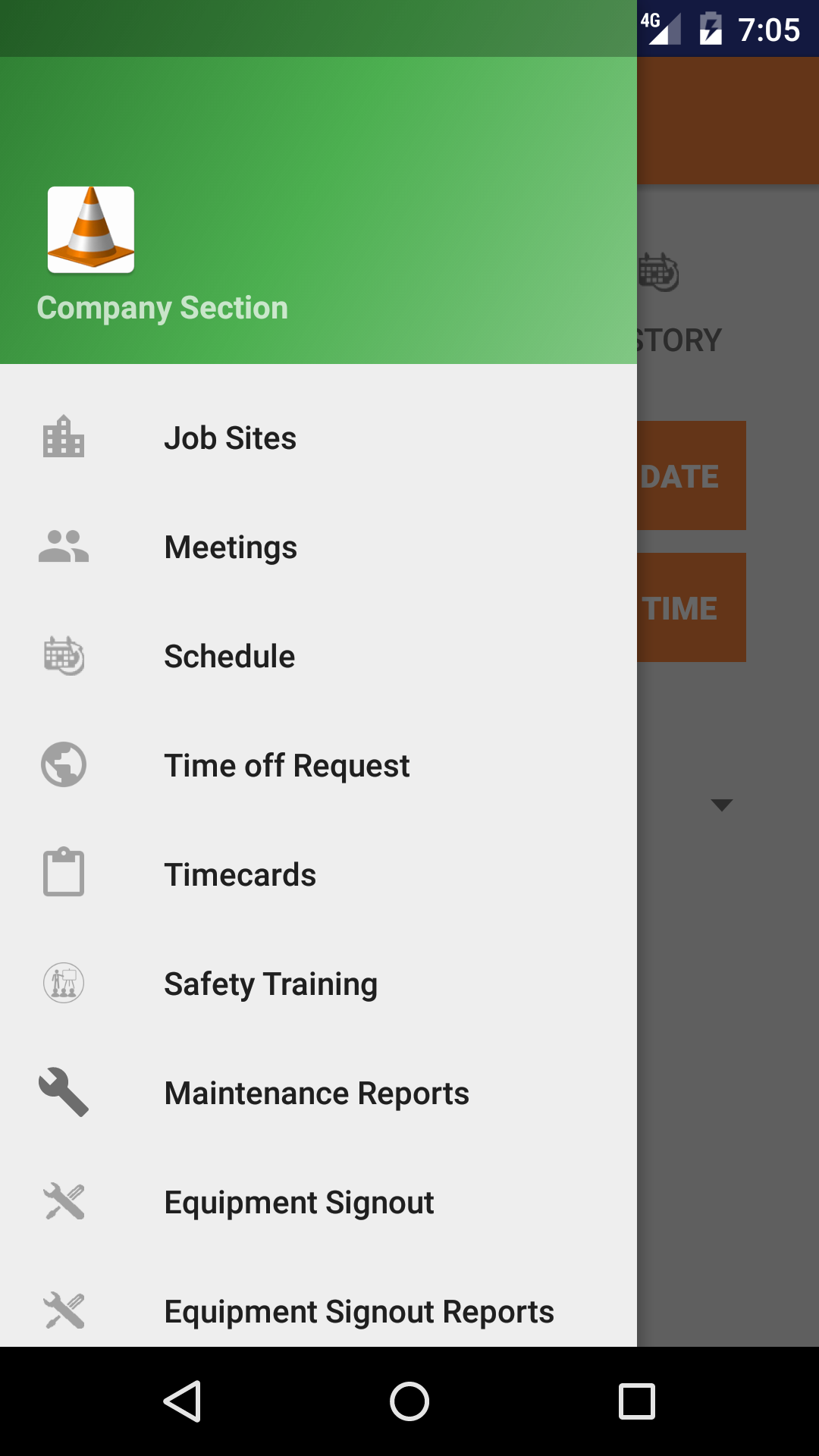
  1. From the Main Menu screen, tap the Company button.
  2. Then tap on the Schedule button to open the Schedule screen.
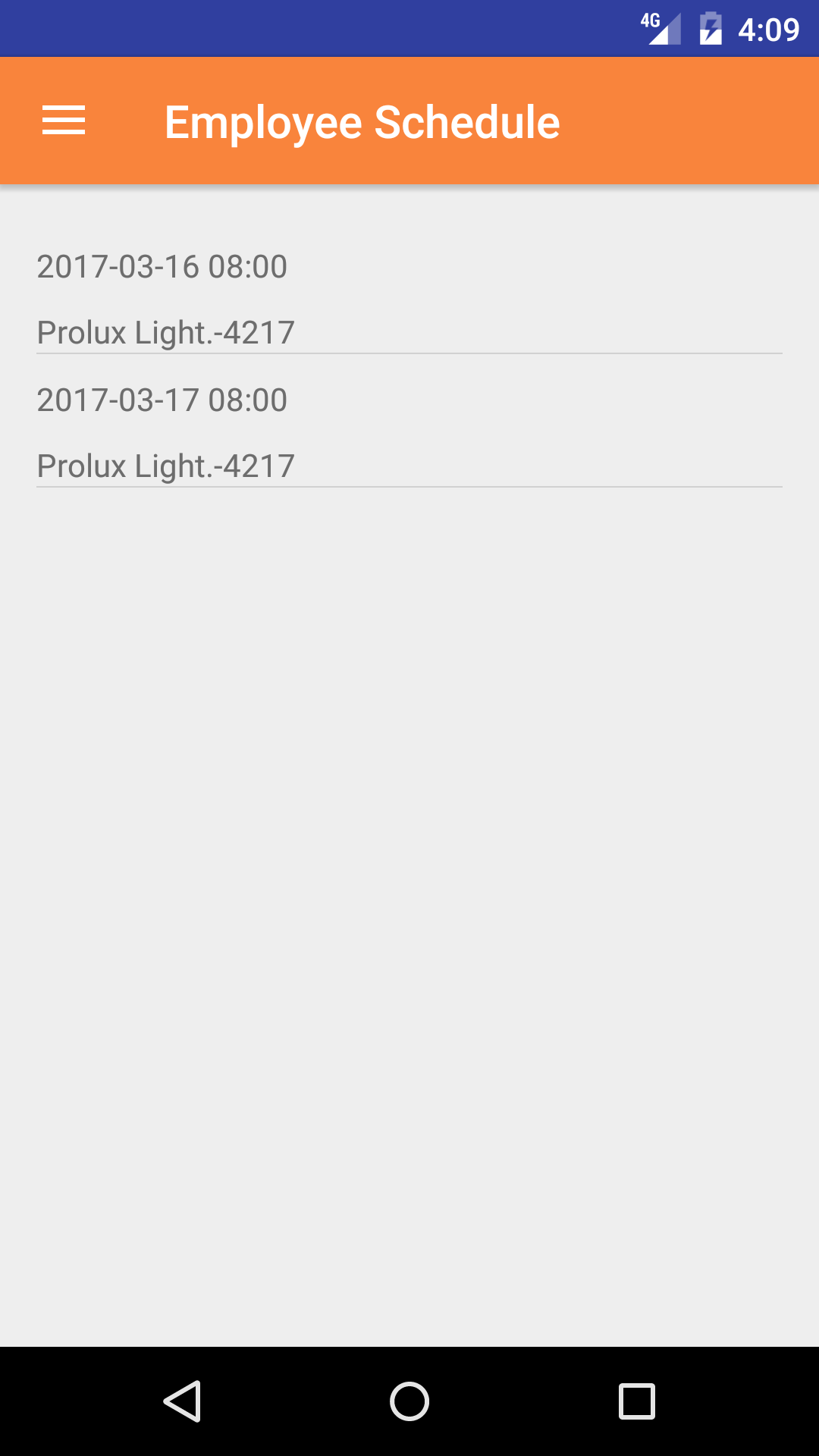
  3. Scroll the list of Schedule records until the desired Schedule is displayed on the screen. The schedule records is displayed: the date in black on the top line on the left side, the customer name-work order number in black.
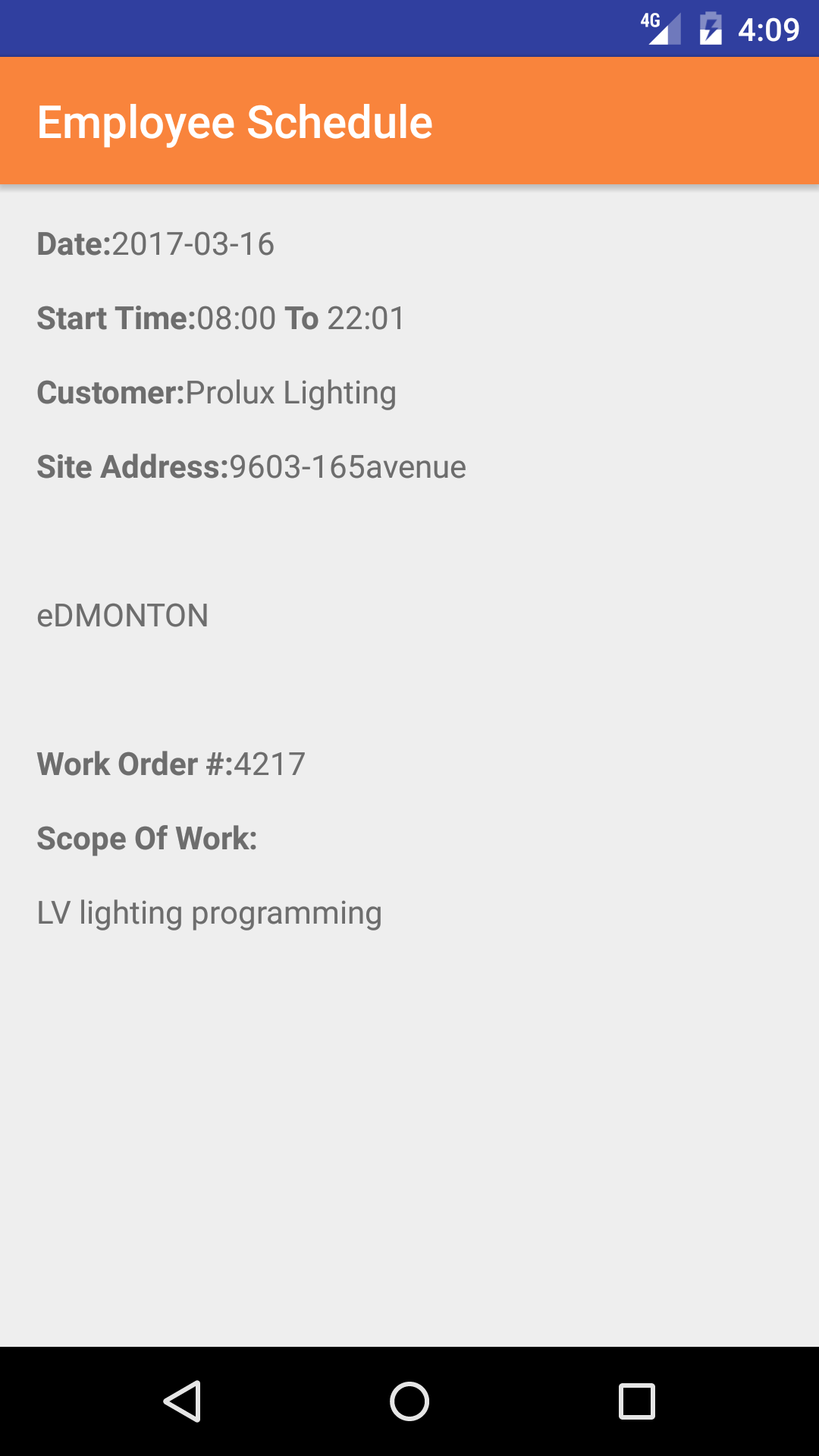
  4. Tap on the Schedule record you would like to view. This loads the schedule record details.
Step 1
Step 2
Step 3
Step 4

2.Update Schedule

As management adds schedule records employees will have to update their phones in order to have a copy of their updated schedule on their phone.

Safety Net handles this for Schedules, by updating Human Resources including: employee, safety training, customer, job site, work order, schedule and timecard information.

Steps
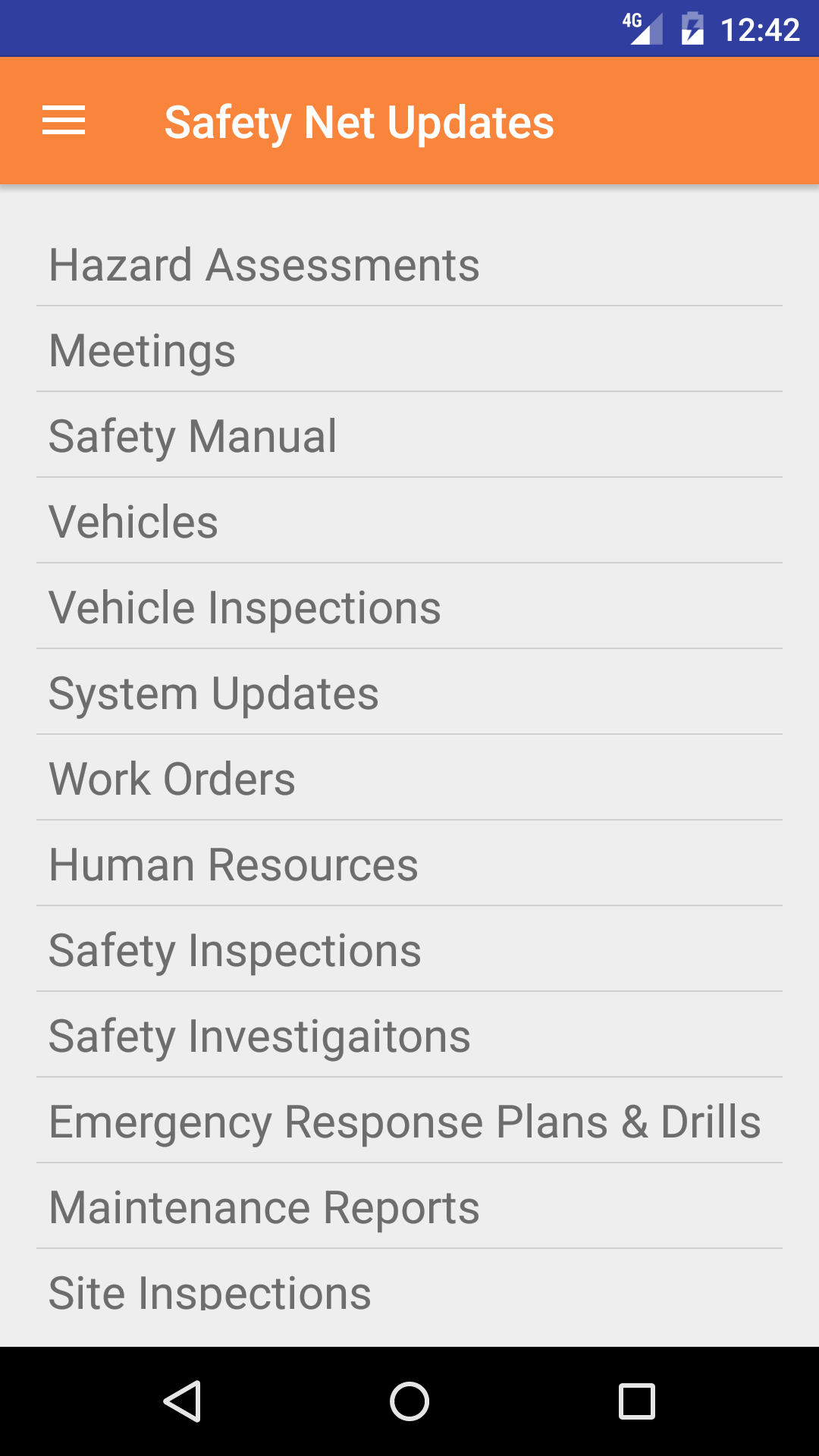
  1. From the Menu screen, tap the Updates button.
  2. Scroll the list of sections until you find the Human Resources button.
  3. Tap on the Human Resources button.
Step 1
Step 2