Manual

Company Equipment Inspections

The company equipment inspection section allows companies to manage equipment inspections. Users can create the basis of what will be used by field staff for future equipment inspections for equipment by creating the company equipment inspections.

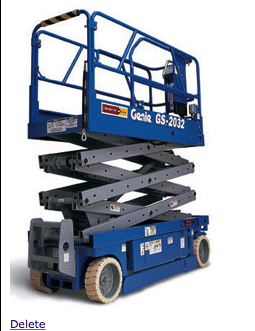
Equipment Inspections are made for a piece of equipment, for the piece of equipment companies can include a list of details that the company wants field staff to inspect. For each equipment inspection can include a equipment graphic, which can be added to help management illustrate the areas that intended to be inspected.

Company Equipment Inspections can be created from scratch for any equipment or based on Default Equipment Inspection from the SafetyNet library of equipment inspections. Companies can set how often equipment inspections are to occur in the edit company safety settings.

IMPORTANT NOTE:

Its important to note that a company equipment inspection are not completed in the field. Equipment Inspections are completed in the field and track which employees participated in these inspections. The company equipment inspections for a equipment are inspections made for equipment a company use, and the list of inspection tasks field staff should inspect as part of a inspection. Companies can determine what they want their staff to look at as part of equipment inspections. One of SafetyNet core beliefs is that saving this information so that I can easily be used and more importantly reused by your staff will over the course of time save your company time and money.

Configuring how often Equipment Inspections are to Occur

How often equipment inspections must occur is a function of your companies policy regarding equipment inspections. SafetyNet Now allows companies to set how often each individual inspection as well as equipment inspections as a whole. When adding a equipment inspection from default inspections the required to be done field for the inspection is set to the companies equipment inspection value is set to how often equipment inspections must be done. To configure Safety Net for how often equipment inspections for equipment should occur can be configured in the company safety settings.

Company Equipment Inspections Appear on Personal Responsibilities Report

Individual Company Equipment Inspections Appear on the Personal Responsibilities Report, how often then must be completed is managed from the company equipment inspection section. Only active company equipment inspections are viewable on the Personal Responsibilities Report. For more information about Personal Responsibilities Report in this manual click here to view the personal responsibilities section.

Management, Office Staff and Safety Officers can edit how often equipment inspections should occur in the Company section when they edit the Company Safety settings. For more information about configuring your company safety settings in this manual click here to view the company section.

The equipment inspection section is only available to users that have the equipment inspection section turned on for their users group. To change users access to equipment inspections, management and office staff can change access in Application Section to view the information about the Application Section Click Here

Table of Contents

#Section Name#Section Name#Section Name
1Search Company Equipment Inspection 2Add Company Equipment Inspection 3Add Company Equipment Inspection from Default
4Delete Company Equipment Inspection 5Look up Company Equipment Inspection 6Edit Equipment Inspection
7Add Equipment Graphic 8Delete Equipment Graphic 9Add Equipment Inspection Detail
10Look up Equipment Inspection Detail 11Edit Equipment Inspection Detail 12Delete Equipment Inspection Detail

1.Search Company Equipment Inspection

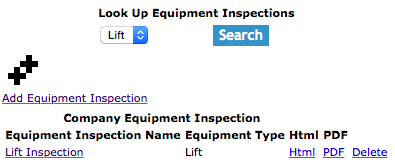
Company Equipment Inspections can be searched by a companies$ customers. Users can narrow search results by choosing to search a specific customer of the company.

All search results can also be sorted by clicking on the results headings Job site name, Site Address. Clicking on the same heading can do switching the results order from ascending to descending.

2.Add Company Equipment Inspection

To add a Company Equipment Inspection, click on the 'Add Company Equipment Inspection' link.

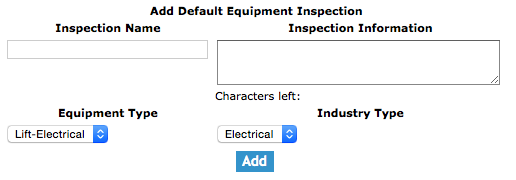
On the next screen, under Add Company Equipment Inspection heading, select:

Fields

Inspection Name: Allows the user to input the inspection name. Its best to name the inspection after the equipment being inspected. The character limit of this field is 50.

Inspection Information: Allows the user to input the inspection information. Allows users to add extra information about the equipment inspection. The character limit of this field is 500.

Equipment Type: By selecting a equipment type from the select box, which loads with a equipment types. The equipment type should be used to put the equipment inspection in the proper type of equipment.

Required to be Done: The Required to be Done select box allows users to choose how often a inspection must be completed. If Number of Days is selected a number of days must be entered in the Number of Days field.

Number of Days: The Number of Days also users to enter a specific number of days a inspection must be completed a new inspection must be done

Then click the 'Add Company Equipment Inspection' button. The edit company equipment inspection screen will load. From here, proceed to edit as per the instructions below.

3.Add From Default Company Equipment Inspection from Default

To add a Company Equipment Inspection from Default, click on the 'Add From Default Company Equipment Inspection' link.

On the next screen, under Default Equipment Inspection heading, select:

Then click the 'Add Default Equipment Inspection For Company' link of the default equipment inspection.

4.Delete Company Equipment Inspection

Deleting company equipment inspections may have to be done if the company equipment inspections was added to the system incorrectly. Only company equipment inspections that have not do not have any details added can be deleted.

To delete a company equipment inspections click the 'Delete' link of the company equipment you want to delete.

5.Look up Company Equipment Inspection

To get to the edit screen of a company equipment inspection, click on the date of the company equipment inspection that you would like to edit.

To view the html version company equipment inspection report in click on the 'Html view' link of the company equipment inspection you would like to view.

From each html view you can also open the PDF version of the report by clicking on the PDF link on the top of the page.

To view a printable document file (PDF) view of the company equipment inspection report, click on the 'PDF view' link of the appropriate company equipment inspection report.

6.Edit Equipment Inspection

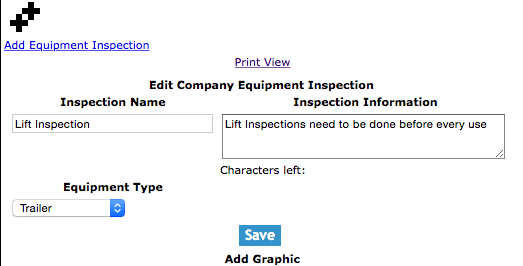
The company equipment inspection section allows users to add or edit the company equipment inspection. Equipment inspection includes the inspection name, inspection information and equipment type.

Once on the edit equipment inspection screen

Fields

Inspection Name: Allows the user to input the inspection name. Its best to name the inspection after the equipment being inspected. The character limit of this field is 50.

Inspection Information: Allows the user to input the inspection information. Allows users to add extra information about the equipment inspection. The character limit of this field is 500.

Equipment Type: By selecting a equipment type from the select box, which loads with a equipment types. The equipment type should be used to put the equipment inspection in the proper type of equipment.

Required to be Done: The Required to be Done select box allows users to choose how often a inspection must be completed. If Number of Days is selected a number of days must be entered in the Number of Days field.

Number of Days: The Number of Days also users to enter a specific number of days a inspection must be completed a new inspection must be done

Active: The active select box allows users to make inspection active or inactive. Only active equipment inspection will be appear on the list of equipment inspections field staff can add new inspections for.

Once the necessary information has been input, click the 'Save' button.

7.Add Equipment Graphic

Once on the edit equipment inspection screen

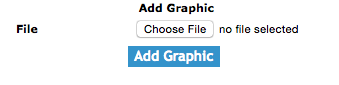
Click the 'Choose file' button.

Select the equipment graphic you would to upload.

Click the 'Add Graphic' button to add a graphic.

8.Delete Equipment Graphic

Once on the edit equipment inspection screen

Click the 'Delete' link to delete a equipment graphic.

9.Add Equipment Inspection Detail

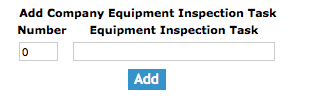
The company equipment inspection detail section allows users to add company equipment inspection details. Equipment inspection details are the inspections tasks which field staff should carry out during a equipment inspection.

To add a new detail click, the 'Add Equipment Inspection Detail' link.

Once on the add screen

Fields

Number: The number field sets the order of which the equipment inspection tasks will appear on in the equipment inspection.

Equipment Inspection Task: The equipment inspection tasks are the tasks involved in a equipment inspection. Inspection Tasks should be tasks field staff should be looking for as part of the equipment inspection. The character limit of this field is 75.

Once the necessary information has been input, click the 'Add' button.

10.Look up Equipment Inspection Detail

Once on the edit equipment inspection screen

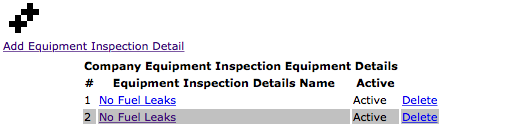
Under the Company Equipment Inspection Equipment Details heading will load with the equipment inspection details

Click the 'Edit' link of the equipment inspection equipment detail you would like to edit.

11.Edit Equipment Inspection Detail

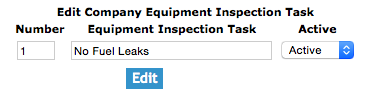
Once on the edit equipment inspection equipment detail screen

Fields

Number: The number field sets the order of which the equipment inspection tasks will appear on in the equipment inspection.

Equipment Inspection Task: The equipment inspection tasks are the tasks involved in a equipment inspection. Inspection Tasks should be tasks field staff should be looking for as part of the equipment inspection. The character limit of this field is 75.

Active: The active select box allows users to make inspection details active or inactive. Only active inspection details will be added equipment inspections.

Once the necessary information has been input, click the 'Edit' button.

12.Delete Equipment Inspection Detail

Deleting a company equipment inspection details may need to be done if a detail was added incorrectly or is not appropriate for the company equipment inspection. To delete the detail, click on the 'Delete' link to the right of the company equipment inspection detail column.

Once on the edit equipment inspection screen

Under the Company Equipment Inspection Equipment Details heading will load with the equipment inspection details

Click the 'Delete' link of the equipment inspection equipment detail you would like to delete.