|
The safety manual policy section allows companies to manage the policies of their safety program. Every companies safety program will be built
on a set of policies that spell out a companies safety program. SafetyNet allows companies to add or edit policies and as many formatted paragraphs
as required. These policies can be viewed and reviewed through SafetyNet"s web application. SafetyNet also keeps records of your staff's review
of policies, to ensure they are being reviewed at the proper intervals.
One of the most important questions of any safety audits is always, do field staff have access to the safety manual on the job site? If your safety
program is managed through SafetyNet the answer is always Yes, because every field staff will have the safety manual in Smartphone application.
Safety Net Smartphone application allows field staff to view the safety manual in the field.
For information about safety manual through the Smartphone click here.
Configuring how often Manual Reviews are to Occur
How often manual reviews must occur is a function of your companies policy. To configure Safety Net for how often manual reviews for safety policies
should occur can be configured in the company safety settings.
Management, Office Staff and Safety Officers can edit how often manual reviews should occur in the Company section when they edit the Company Safety settings. For more information about configuring your
company safety settings in this manual click here to view the company section.
Configuring how often Approval Reviews are to Occur
How often manual approvals must occur is a function of your companies policy. To configure Safety Net for how often manual approvals for safety policies
should occur can be configured in the company safety settings.
Management, Office Staff and Safety Officers can edit how often manual approvals should occur in the Company section when they edit the Company Safety settings. For more information about configuring your
company safety settings in this manual click here to view the company section.
Management, Office Staff and Safety Officers can now save a Safety Manual Snapshot. A Safety Manual Snapshot allows
users to save as a PDF a copy of all Safety Manual Policies, in one PDF file.
Optionally users can also include:
- Safe Work Practices
- Safe Job Procedures
- Document review records for all Policies, Practices and Procedures
The safety manual policy section is only available to users that have the safety manual policy section turned on for their users group.
To change users access to safety manual policies, management and office staff
can change access in Application Section to view the information about the Application Section Click Here
|
|
|
1.Search Safety Policies |
|
All search results can also be sorted by clicking on the results headings policy number, policy name. Clicking on the same heading can do switching the results order from ascending to descending.
|

|
2.Add Safety Policy |
|
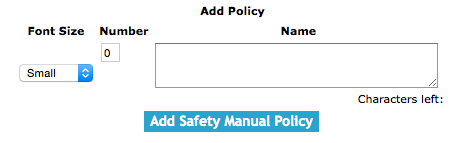
To add a Safety Policy, click on the 'Add Safety Manual Policy' link.
On the next screen, under Add Policy heading, select:
Fields
Font Size: By selecting a font size from the select box, users choose what size of font the safety manual policy is displayed with that font size on the web site.
Which loads with three font size"s. Small, Medium and Large.
Number: The number field sets the policy number of the safety manual policy.
Name: The name field allows the user to add a name for the policy. The policy name field allows users give a safety manual
policy a meaningful name. The character limit of the field is 100.
Click the 'Add Policy' button to create a policy. The edit safety manual policy screen will load. From here, proceed to edit as per the instructions below.
|
|
3.Add Safety Policies from Default |
|
SafetyNet has built a extensive library of safety manual policies, which as a member of SafetyNet your company can use to build or augment your safety program.
To add a safety policy from default safety policy click on the 'Add From Default Safety Manual Policy' link.
On the next screen the Default Safety Manual Policies will load, with a listing policy number, policy name, industry type and audit protocol, clicking the 'Add Default Policy For Company' link for a company
default safety policy record, will create a safety policy with all of the paragraphs from the default safety policy.
To view the html version of the safety policy: click on the html link on the record line. Once on the html version of the default safety policy
by clicking on the 'Print View' link on the top of the policy.
To view the PDF version of the safety policy by clicking on the PDF link on the record line.
To sort the default safety policies click on the results headings policy number, policy name, industry type name and audit protocol name. Clicking on the same heading can do switching the results order from ascending to descending.
|

|
4.Look Up Safety Policies |
|
To get to the edit screen of a safety policy, click on the name of the safety policy that you would like to edit.
To view the html version safety policy report in click on the 'Html view' link of the safety policy you would like to view.
From each html view you can also open the PDF version of the report by clicking on the PDF link on the top of the page.
To view a printable document file (PDF) view of the safety policy report, click on the 'PDF view' link of the appropriate safety policy report.
|
|
|
5.Edit Safety Policies |
|
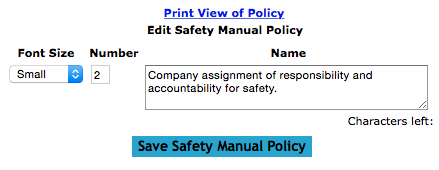
Once on the edit safety policy screen.
Fields
Font Size: By selecting a font size from the select box, users choose what size of font the safety manual policy is displayed with that font size on the web site.
Which loads with three font size"s. Small, Medium and Large.
Number: The number field sets the policy number of the safety manual policy.
Name: The name field allows the user to add a name for the policy. The policy name field allows users give a safety manual
policy a meaningful name. The character limit of the field is 100.
Click the 'Save Safety Manual Policy' button to edit a policy.
|
|
6.Add Safety Policies Paragraph |
|
The content of a safety policy are the paragraphs as they company needs to add or edit paragraphs for a company safety policy. Each paragraph
can be formatted either bold or non bold, and numbered or not numbered. The order of which the paragraphs will appear
can also be controlled.
Once on the edit safety policy screen
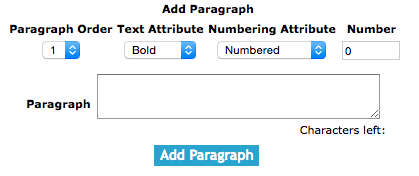
Below the Add Paragraph heading
Fields
Paragraph Order: The paragraph order field allows users to set the order of which paragraphs appear in a safety policy. This value is a numeric value.
Text Attribute: The text attribute select box allows users to make the the text in the paragraph a header and bold or a paragraph un bold.
Numbering Attribute The numbering attribute select box allows users to number the paragraphs or not number the paragraphs.
Paragraph Number: The paragraph number field allows users to number the paragraphs of their policy. In order for a paragraph number to show up beside the
paragraph in the document the numbered flag must be set to numbered. This value is a numeric value.
Paragraph: The paragraph field allows users enter a paragraph to the safety policy. The character limit of this field is 500.
Click the 'Save Paragraph' button to add a paragraph.
|
|
7.Look Up Safety Policies Paragraph |
|
To get to the edit screen of a safety policy paragraph, click on the 'Edit' link of the paragraph that you would like to edit.
|
8.Edit Safety Policies Paragraph |
|
The content of a safety policy are the paragraphs as they company needs to add or edit paragraphs for a company safety policy. Each paragraph
can be formatted either bold or non bold, and numbered or not numbered. The order of which the paragraphs will appear
can also be controlled.
Once on the edit safety policy screen
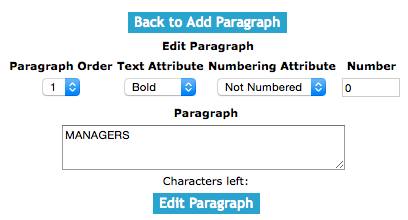
Below the Edit Paragraph heading
Fields
Paragraph Order: The paragraph order field allows users to set the order of which paragraphs appear in a safety policy. This value is a numeric value.
Text Attribute: The text attribute select box allows users to make the the text in the paragraph a header and bold or a paragraph un bold.
Numbering Attribute The numbering attribute select box allows users to number the paragraphs or not number the paragraphs.
Paragraph Number: The paragraph number field allows users to number the paragraphs of their policy. In order for a paragraph number to show up beside the
paragraph in the document the numbered flag must be set to numbered. This value is a numeric value.
Paragraph: The paragraph field allows users enter a paragraph to the safety policy. The character limit of this field is 500.
Click the 'Save Paragraph' button to edit a paragraph.
|
|
9.Delete Safety Policies Paragraph |
|
Deleting a policy paragraph may need to be done if a paragraph was added incorrectly or is not appropriate
for the policy. To delete the paragraph, click on the 'Delete' link to the right of the policy paragraph.
|

|
10.Add Update/Add Documentation |
|
SafetyNet allows companies to track when safety policies are added and when they are updated. They also allow companies to
track who was involved with these updates and additions are done.
Once on the edit policy screen
Below the Safety Policy Approval heading
Fields
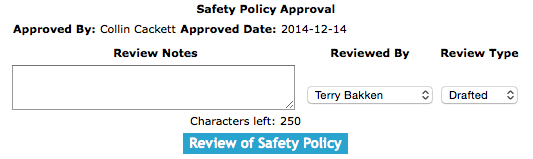
Review Notes: Enter review notes. Review notes can be anything important involved with the update or addition of the policy.
Notes about what was added or notes about the source of the document. The character limit of this field is 250.
Reviewed By: The reviewed by field allows field staff to choose from the select box the company employee who updated or added the policy.
Review Type: The review type field allows field staff to choose from the select box the review type. For the Update/Add
documentation users should choose Drafted, Updated, or Refreshed.
click the 'Review of Safety Policy' button.
|
|
11.Add Management Approval |
|
SafetyNet allows companies to track when safety policies are approved by management and when this approval occurs.
SafetyNet allows companies to configure how often approval reviews of Safety Policies must occur. Once a Safety Policy
requires review a email can be sent to the person in charge of that.
Configuring how often Approval Reviews are to Occur
How often manual approvals must occur is a function of your companies policy. To configure Safety Net for how often manual approvals for safety policies
should occur can be configured in the company safety settings.
Management, Office Staff and Safety Officers can edit how often manual approvals should occur in the Company section when they edit the Company Safety settings. For more information about configuring your
company safety settings in this manual click here to view the company section.
Once on the edit policy screen
Below the Safety Policy Approval heading
Fields
Review Notes: Enter review notes. Review notes in the case of management approval can be any notes management wants to leave about their approval of the safety policy. The character limit of this field is 250.
Reviewed By: The reviewed by field allows field staff to choose from the select box the company employee who approves the policy.
Review Type: The review type field allows field staff to choose from the select box the review type. For the Management
approval users should choose Approved.
click the 'Review of Safety Policy' button.
|
12.Add Review |
|
SafetyNet allows companies to track when safety policies are reviewed by employees and when this reviews occurs.
SafetyNet allows companies to configure how often reviews of Safety Policies must occur for employees. Once a Safety Policy
requires review a email can be sent to each employee whom needs to review a policy.
Configuring how often Approval Reviews are to Occur
How often manual approvals must occur is a function of your companies policy. To configure Safety Net for how often manual approvals for safety policies
should occur can be configured in the company safety settings.
Management, Office Staff and Safety Officers can edit how often manual approvals should occur in the Company section when they edit the Company Safety settings. For more information about configuring your
company safety settings in this manual click here to view the company section.
Once on the edit policy screen
Below the Safety Policy Approval heading
Fields
Review Notes: Enter review notes. Review notes in the case of employee review can be any notes employees wants to leave about their review of the safety policy. The character limit of this field is 250.
Reviewed By: The reviewed by field allows field staff to choose from the select box the company employee who reviews the policy.
Review Type: The review type field allows field staff to choose from the select box the review type. For the Employee
review users should choose Reviewed.
click the 'Review of Safety Policy' button.
|
13.Look Up Review |
|
To look up a Policy review record, click on the Edit link of the policy review that you would like to edit.
|
14.Edit Review |
|
Once on the edit policy review screen
Below the Safety Policy Approval heading
Fields
Review Notes: Enter review notes. Review notes in the case of employee review can be any notes employees wants to leave about their review of the safety policy. The character limit of this field is 250.
Reviewed By: The reviewed by field allows field staff to choose from the select box the company employee who reviews the policy.
Review Type: The review type field allows field staff to choose from the select box the review type. For the Employee
review users should choose Reviewed.
click the 'Review of Safety Policy' button.
|
15.Delete Review |
|
To delete a Policy review record, click on the Delete link of the policy review that you would like to delete.
|

|
16.Delete Safety Policy |
|
To delete a Safety Policy, click on the delete link of the safety policy that you would like to delete.
The policy will not be deleted, if any paragraphs exists for the safety policy the policy will not be deleted
|
|
|
18.Add Safety Manual Snapshot |
|
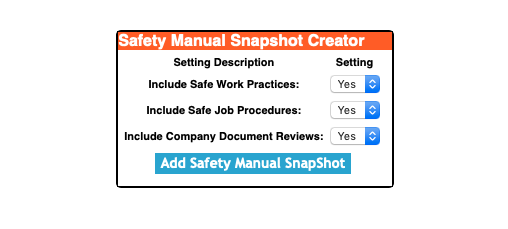
Below the Safety Manual Snapshot Creator heading
Options
Include Safe Work Practice: Choose Yes to include the companies Safe Work Practices in the Company Snapshot.
Include Safe Job Procedure: Choose Yes to include the companies Safe Job Procedure in the Company Snapshot.
Include Company Document Reviews: Choose Yes to include the companies creation, draft and review history of your companies safety policies, safe work practices and safe job procedures.
click the 'Add Safety Manual Snapshot' button.
|
16.Delete Safety Manual Snapshot |
|
To delete a Safety Manual Snapshot, click on the delete link of the safety manual snapshot that you would like to delete.
The safety manual snapshot will not be deleted.
|
|

 App Manual
 App Manual