|
The vehicle inspection section allows a user to input the results of a driver$s
vehicle inspection report. The vehicle inspection can be setup to be done on a
daily, weekly or monthly basis. The vehicle inspection is set up in a number of
sections; basic information, the visual check, operational inspection, emergency
preparedness checks, exterior damage and windshield damage drawings.
Maintenance Report Creation
Maintenance Reports are created for tasks that require attention, once a vehicle inspection
is submitted to R & T Electric Pro. The following reports also create maintenance reports when submitted:
- Vehicle Inspections
- Personal Protective Equipment Inspections
- Equipment Inspections
- First Aid Kit Inspections
- Fire Extinguisher Inspections
For more information about Maintenance Reports in this manual click here to view the maintenance section.
Configuring R & T Electric Pro Vehicle Inspection task lists
On a Vehicle Inspection there are 3 sections of lists that companies must maintain. They are Visual Inspection Tasks, Operational Inspection Tasks and Emergency Preparedness Inspection Tasks. These three sections make up the
majority of the Vehicle inspection. Companies can choose tasks from the list of R & T Electric Pro’s default vehicle inspection tasks or add their own tasks to tailor their inspection to their companies needs.
For more information about company vehicle inspection tasks lists check out the Vehicle Inspection Tasks lists section of the manual.
Configuring R & T Electric Pro for how often a Vehicle Inspection should occur
R & T Electric Pro can be configured to email staff when they must complete a vehicle inspection for the company vehicle they are the primary driver for.
Setting up how often vehicle inspections should occur
How often vehicle inspections must occur is a function of your companies policy regarding vehicle inspections. To configure R & T Electric Pro for how often vehicle inspection should occur can be configured in the company safety settings.
Management, Office Staff and Safety Officers can edit how often vehicle inspections should occur in the Company section when they edit the Company Safety settings.
For more information about company safety setting check out the Edit Company Safety Settings in the Company section of the manual.
Setting up Employees as Primary Drivers for Vehicles
Company Vehicles and employees can be configured to manage and track whom is the primary driver of specific company vehicles. For each vehicle a primary driver is assigned.
Management, Office Staff and Safety Officers can edit primary drivers of company vehicles.
For more information about editing vehicles primary driver check out the Edit Vehicle in the Vehicle section of the manual.
|
|
|
1.Add Vehicle Inspection |
Steps
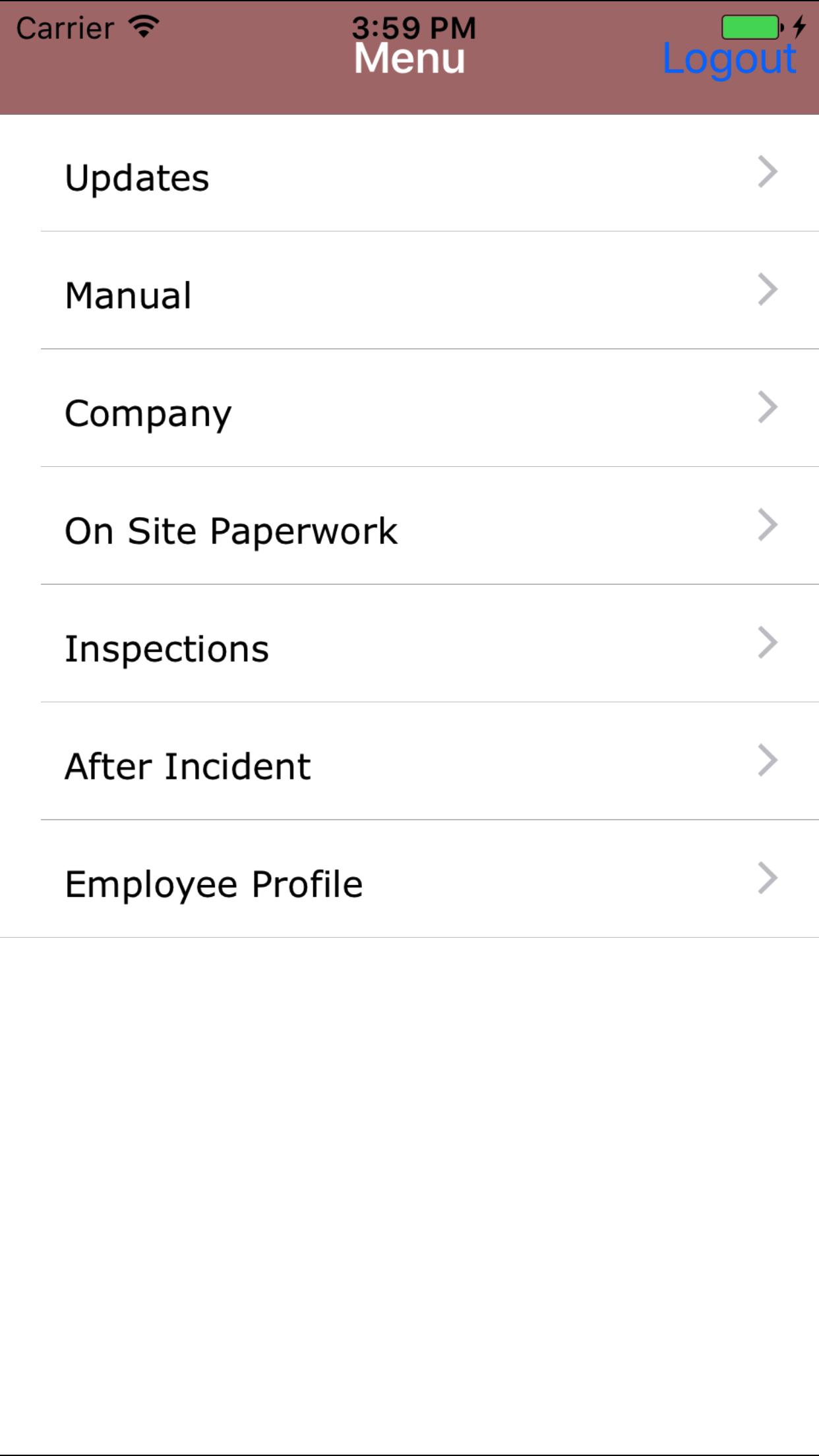
- From the Main Menu screen, tap the Inspection button.
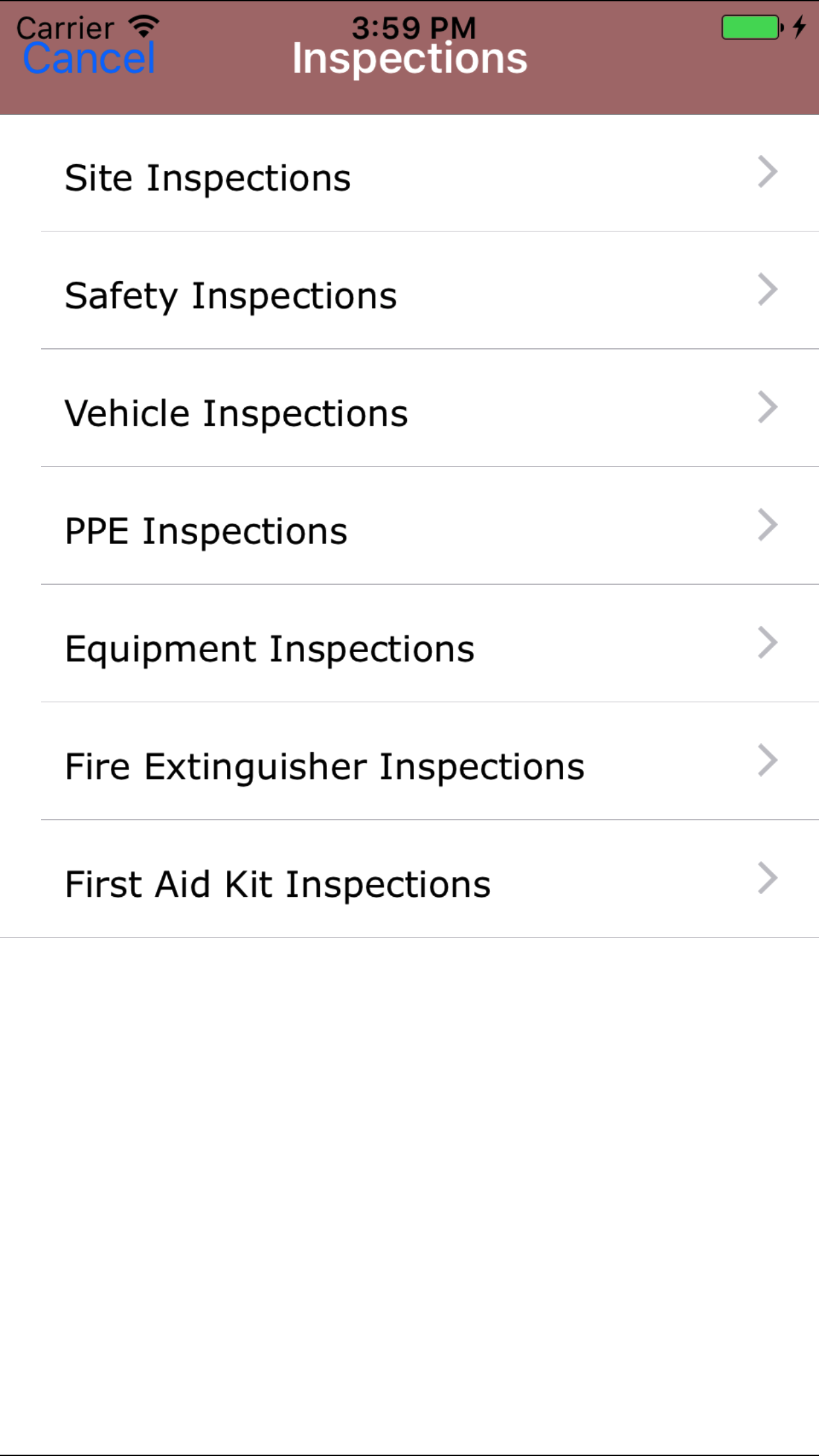
- Then tap on the Vehicle Inspection button.
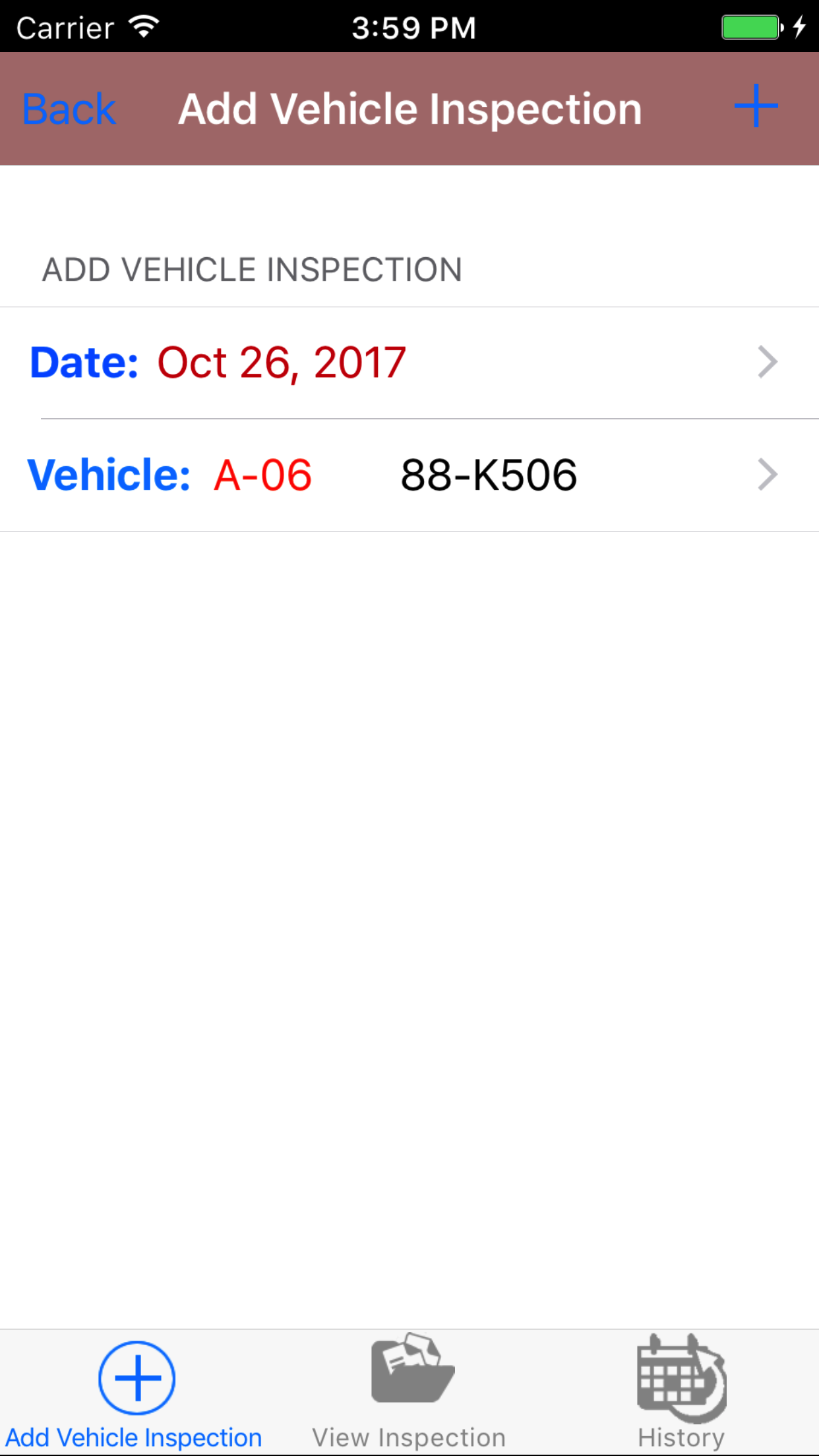
- This opens the Add Vehicle Inspection entry screen.
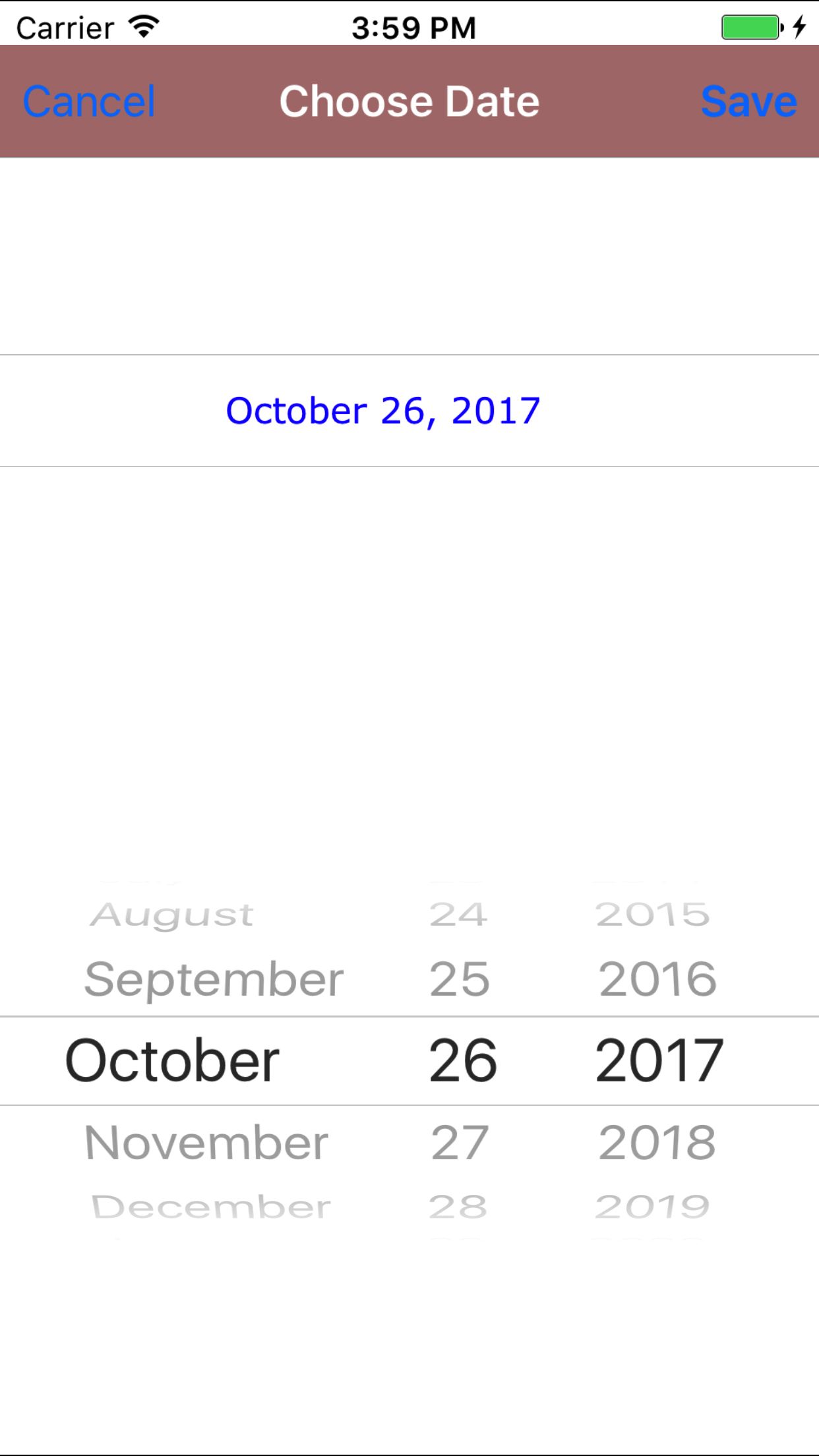
- Date: The date field allow field staff to choose the date and time the vehicle inspection occurs.
- Tap the Date field to open the Choose Date Time screen.
- Scroll the date wheel on the far left of the screen until the desired date is highlighted.
- Return to the Add Vehicle Inspection screen by either tapping Save in the top right corner to select the highlighted date or tapping Cancel in the top left corner to leave the Date: field unchanged.
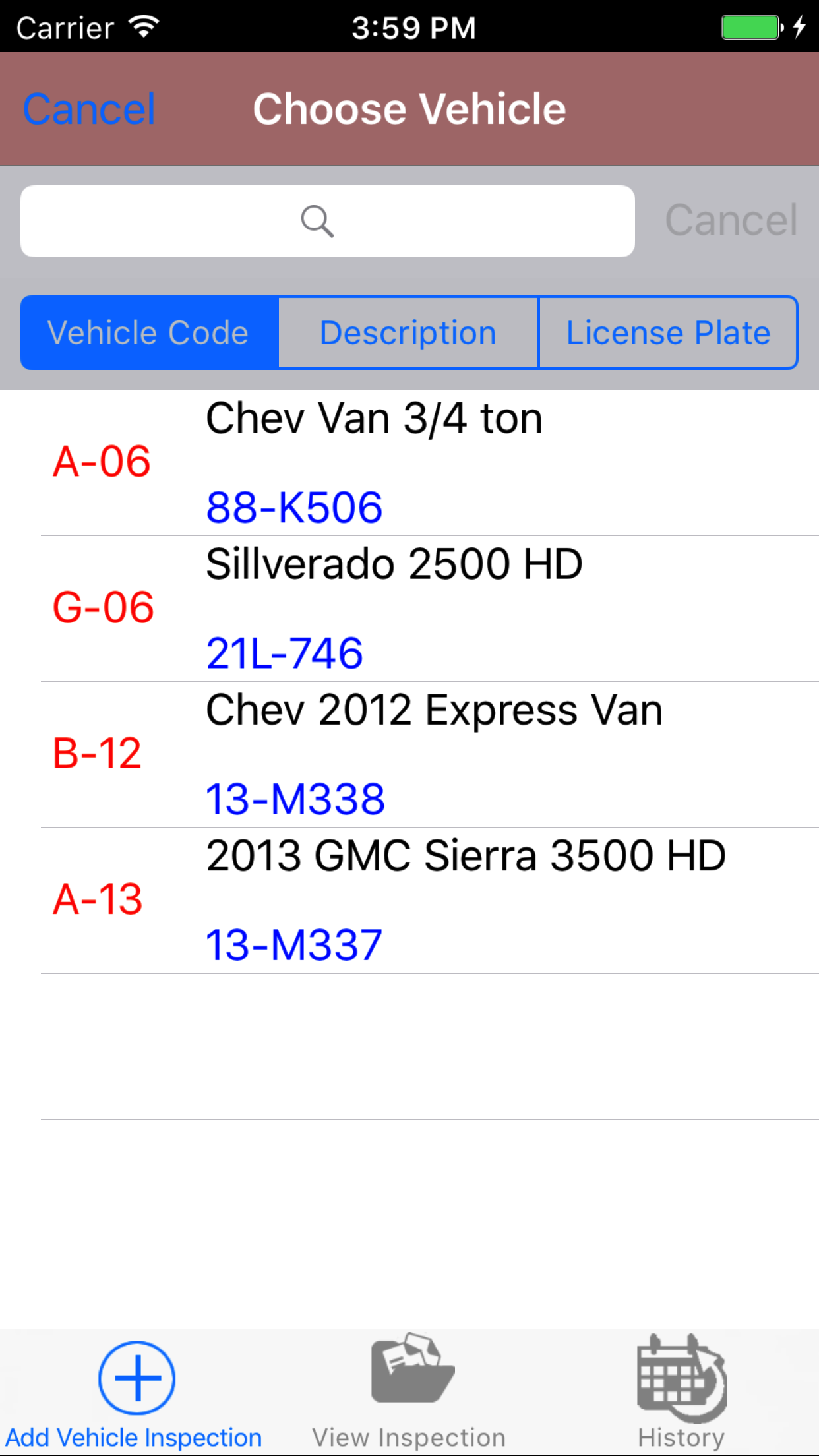
- Tap the Vehicle field to open the Choose Vehicle screen.
Vehicle are listed in descending order with the vehicle code in red text,
the vehicle description in black text, and the license plate number in blue text.
Note: Vehicles are not automatically added to the list when they are created, so it may be necessary to update the list click here to view information about updating for the desired vehicle to be included in the list.
To Search Vehicles: Pull down on the list view, the search is defaulted to search by vehicle code.
The other options for the Vehicle search are by description and license plate. Enter your search
criteria and click the Search button.
- Scroll the list of vehicles until the desired vehicle is displayed on the screen.
- Tap the desired vehicle to select it or tap Back in the top left corner to leave the Vehicle field unchanged and return to the Add Vehicle Inspection screen.
- Return to the Add Vehicle Inspection screen by either tapping the appropriate vehicle or tapping Cancel in the top left corner to leave the Vehicle field unchanged.
- Tap the + icon in the top right corner to add the Vehicle Inspection.
- A pop-up message that reads Vehicle Inspection Added indicates that the Vehicle Inspection is ready to have details to be entered and checklists of inspection tasks checked off.
|
|
| Step 1 |
|
|
| Step 2 |
|
|
|
|
2.Look Up Open Vehicle Inspection |
|
Once in the Vehicle Inspection section
Steps
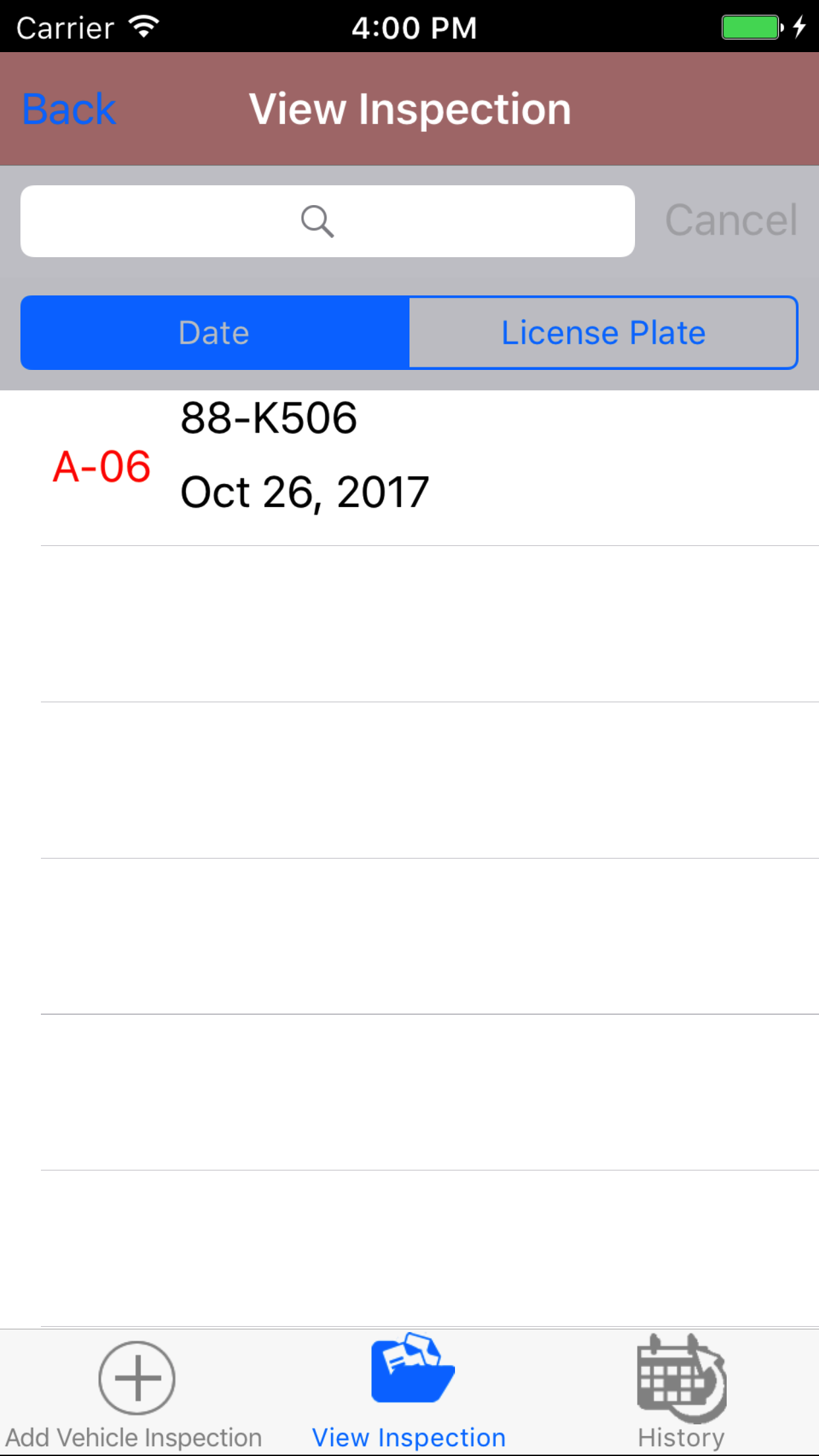
- Tap the second tab on the menu, the Vehicle Inspection view.
- Scroll the list of Vehicle Inspections until the desired Vehicle Inspection is displayed on the screen.
Listing the vehicle code in red text, the license plate number in blue text
and the the inspection date in black text.
- Tap on the Vehicle Inspection you would like to view. This loads the vehicle inspection edit screen.
|
|
| Steps 1-2 |
|
|
3.Edit Vehicle Inspection |
|
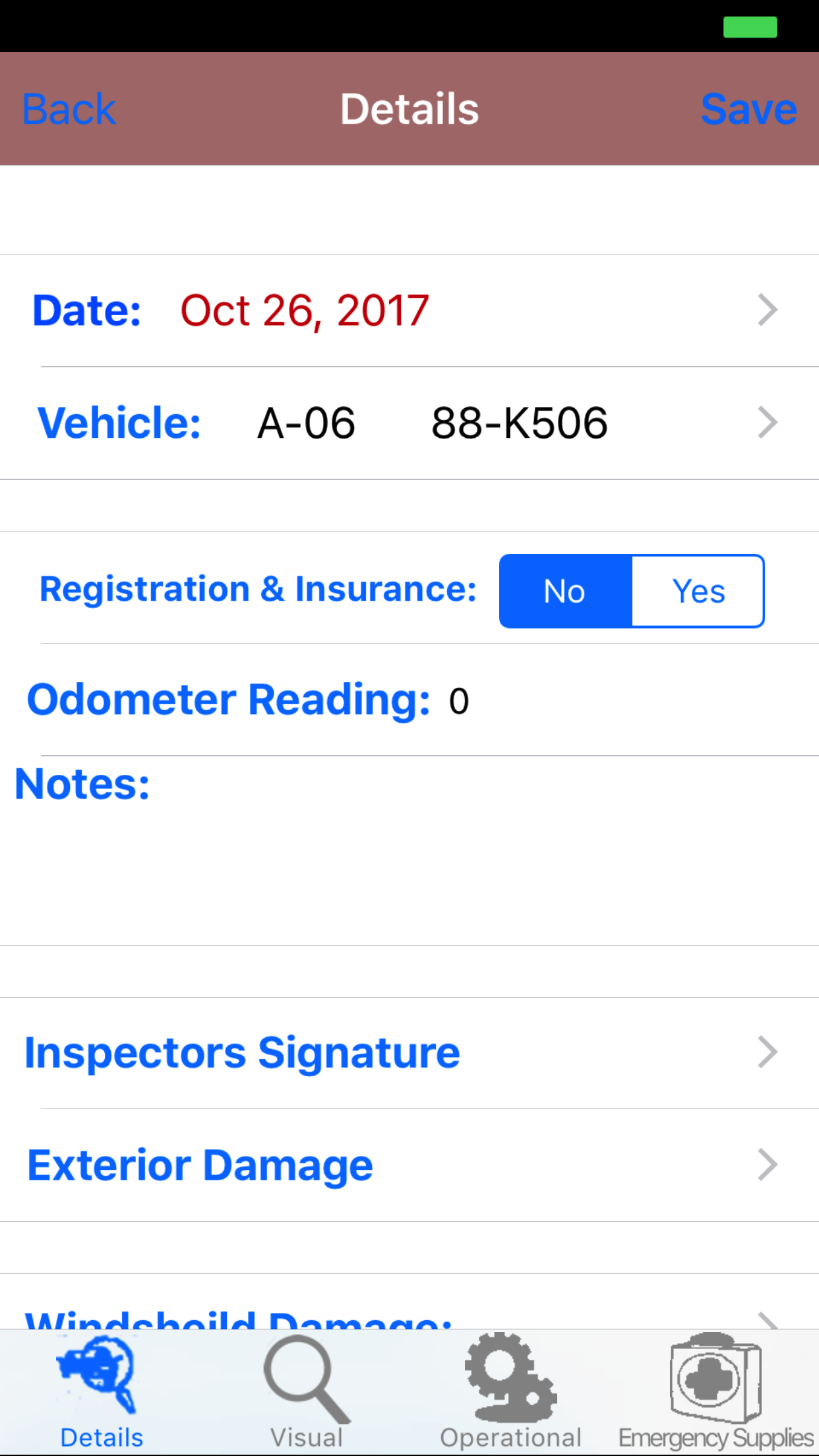
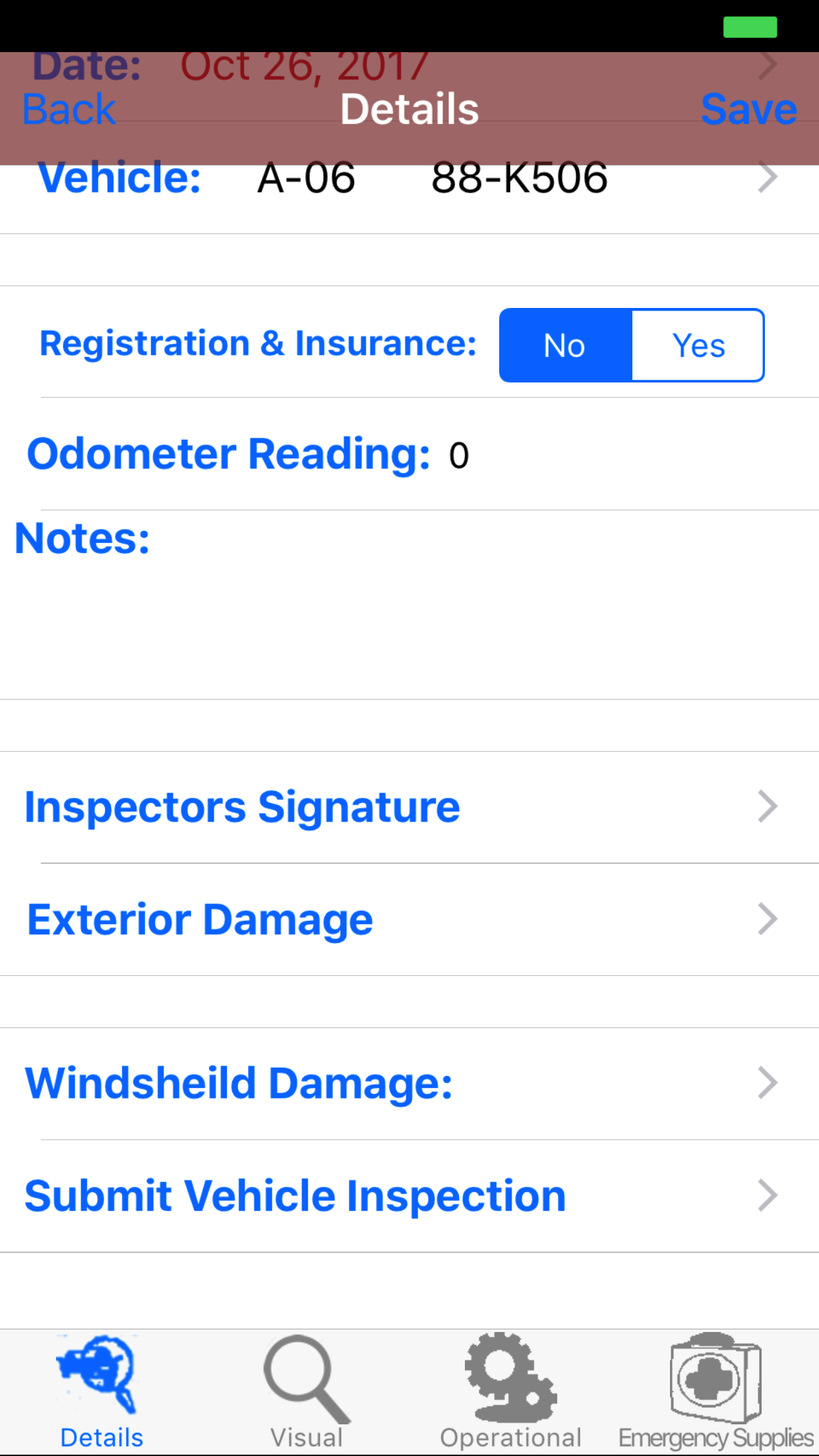
The first step in completing a Vehicle Inspection is completing the details of the inspection you can get from the
cab of the vehicle - Is the Insurance and Registration in the Vehicle? What is the Odometer reading? And any other notes.
Once on the Vehicle Inspection you would like to Edit, on the details tab.
Steps
- Date: The date field allow field staff to choose the date and time the vehicle inspection occurs.
- Tap the Date field to open the Choose Date Time screen.
- Scroll the date wheel on the far left of the screen until the desired date is highlighted.
- Return to the Edit Vehicle Inspection screen by either tapping Save in the top right corner to select the highlighted date or tapping Cancel in the top left corner to leave the Date: field unchanged.
- Tap the Vehicle field to open the Choose Vehicle screen.
Vehicle are listed in descending order with the vehicle code in red text,
the vehicle description in black text, and the license plate number in blue text.
Note: Vehicles are not automatically added to the list when they are created, so it may be necessary to update the list click here to view information about updating for the desired vehicle to be included in the list.
To Search Vehicles: Pull down on the list view, the search is defaulted to search by vehicle code.
The other options for the Vehicle search are by description and license plate. Enter your search
criteria and click the Search button.
- Scroll the list of vehicles until the desired vehicle is displayed on the screen.
- Tap the desired vehicle to select it or tap Back in the top left corner to leave the Vehicle field unchanged and return to the Edit Vehicle Inspection screen.
- Return to the Edit Vehicle Inspection screen by either tapping the appropriate vehicle or tapping Cancel in the top left corner to leave the Vehicle field unchanged.
- Registration and Insurance: The Registration and Insurance field reminds field staff to ensure the vehicle has a valid copy of the registration and the insurance in the vehicle.
- Tap Yes on the Yes|No selector to indicate that a registration and insurance are either in vehicle.
- Odometer Reading: The Odometer Reading field allows field staff to enter the kilometers driven on the vehicle. The value is a numeric value.
- Notes: The Notes field allows field staff to enter any notes or comments about the vehicle inspection. The character limit of the field is 500.
- Tap Save in the top right corner to save any changes to the Vehicle Inspection Details.
- A pop-up message that reads Vehicle Inspection Details have been Saved indicates that the vehicle inspection details have been saved.
|
|
|
|
4.Sign Vehicle Inspection |
|
Once on the Vehicle Inspection you would like to Edit, on the details tab.
Steps
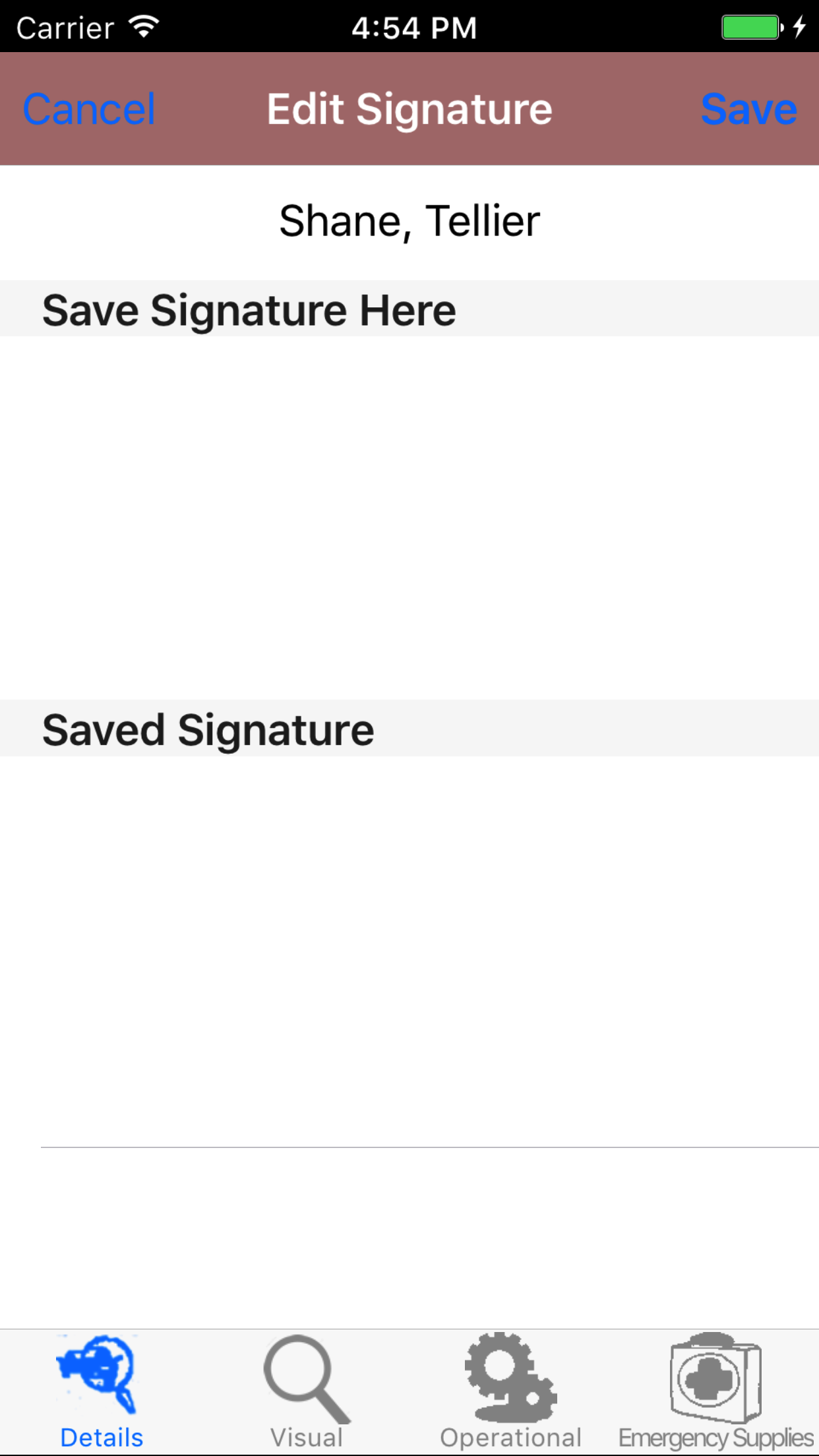
- Tap the Inspectors Signature button to open the Signature screen.
- Sign in the white space beneath the Save New Signature Here label.
- Tap Save in the top right corner of the screen to update the Saved Signature field.
|
|
| Step 1 |
|
|
| Steps 2-3 |
|
|
|
5.Mark Exterior Damage |
|
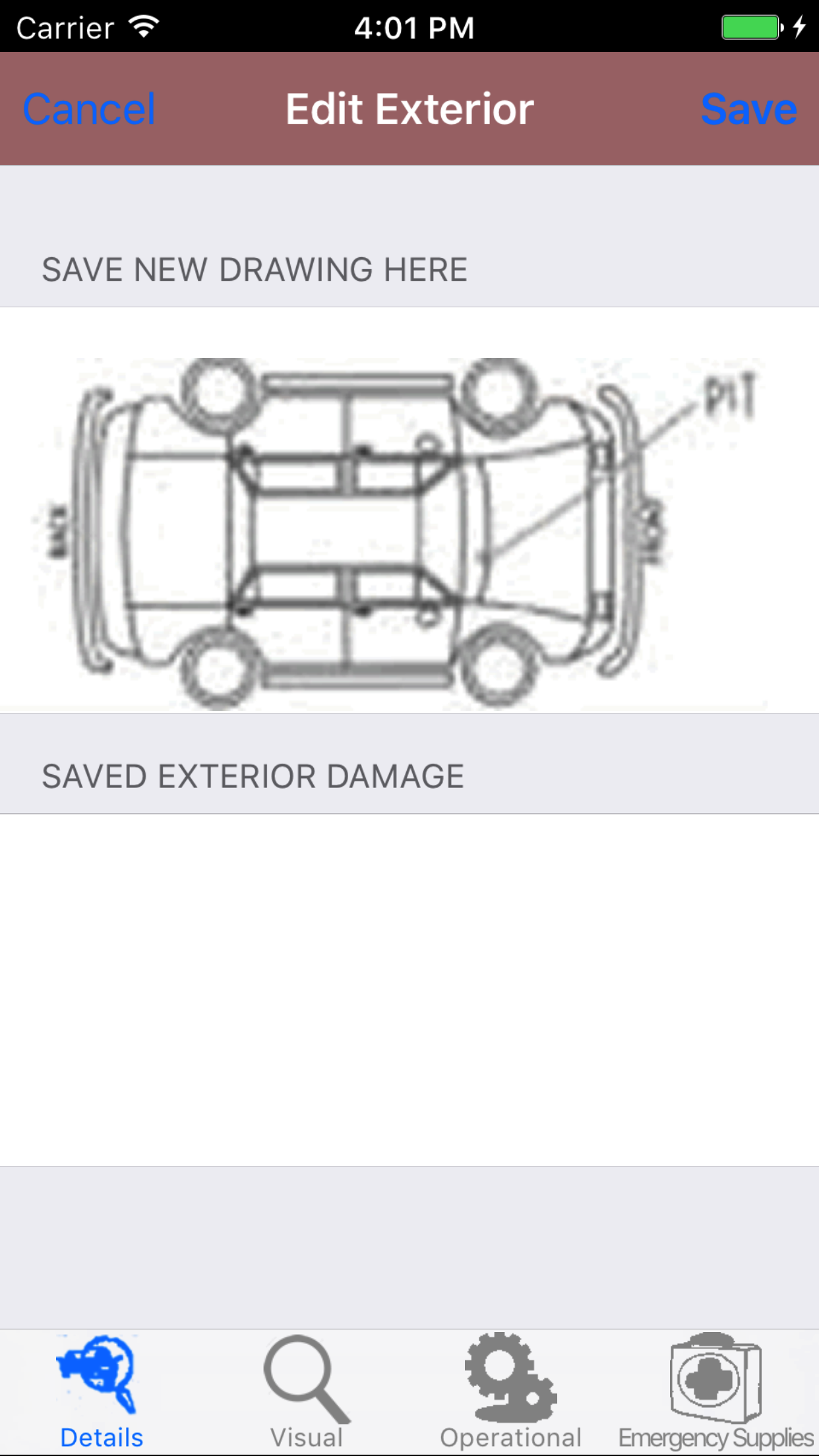
The exterior damage section allows field staff to include a sketch of any damage
to the exterior of the vehicle that they might want to bring to the attention of management.
Once on the Vehicle Inspection you would like to Edit, on the details tab.
Steps
- Tap the Exterior Damage button to open the Exterior Damage screen.
- Sign in the white space beneath the Save New Drawing Here label.
- Tap Save in the top right corner of the screen to update the Exterior Damage field.
|
|
|
| Step 1 |
|
|
| Steps 2-3 |
|
|
|
6.Mark Windshield Damage |
|
The windshield damage section allows field staff to include a sketch of any damage
to the windshield that they might want to bring to the attention of management.
Once on the Vehicle Inspection you would like to Edit, on the details tab.
Steps
- Tap the Windshield Damage button to open the Windshield Damage screen.
- Sign in the white space beneath the Save New Drawing Here label.
- Tap Save in the top right corner of the screen to update the Windshield Damage field.
|
|
|
| Step 1 |
|

|
| Steps 2-3 |
|
|
|
7.Edit Visual Inspection Checklist |
|
Visual Inspection Tasks are vehicle inspection visual inspection tasks that a company has set up for their field staff to complete
as part of their vehicle inspection. To ensure field staff have the most up to date copy of the inspection tasks a company is
using make sure to update your phone on a regular basis. For more information about updating your phone click here.
Once on the Vehicle Inspection you would like to Edit
Steps
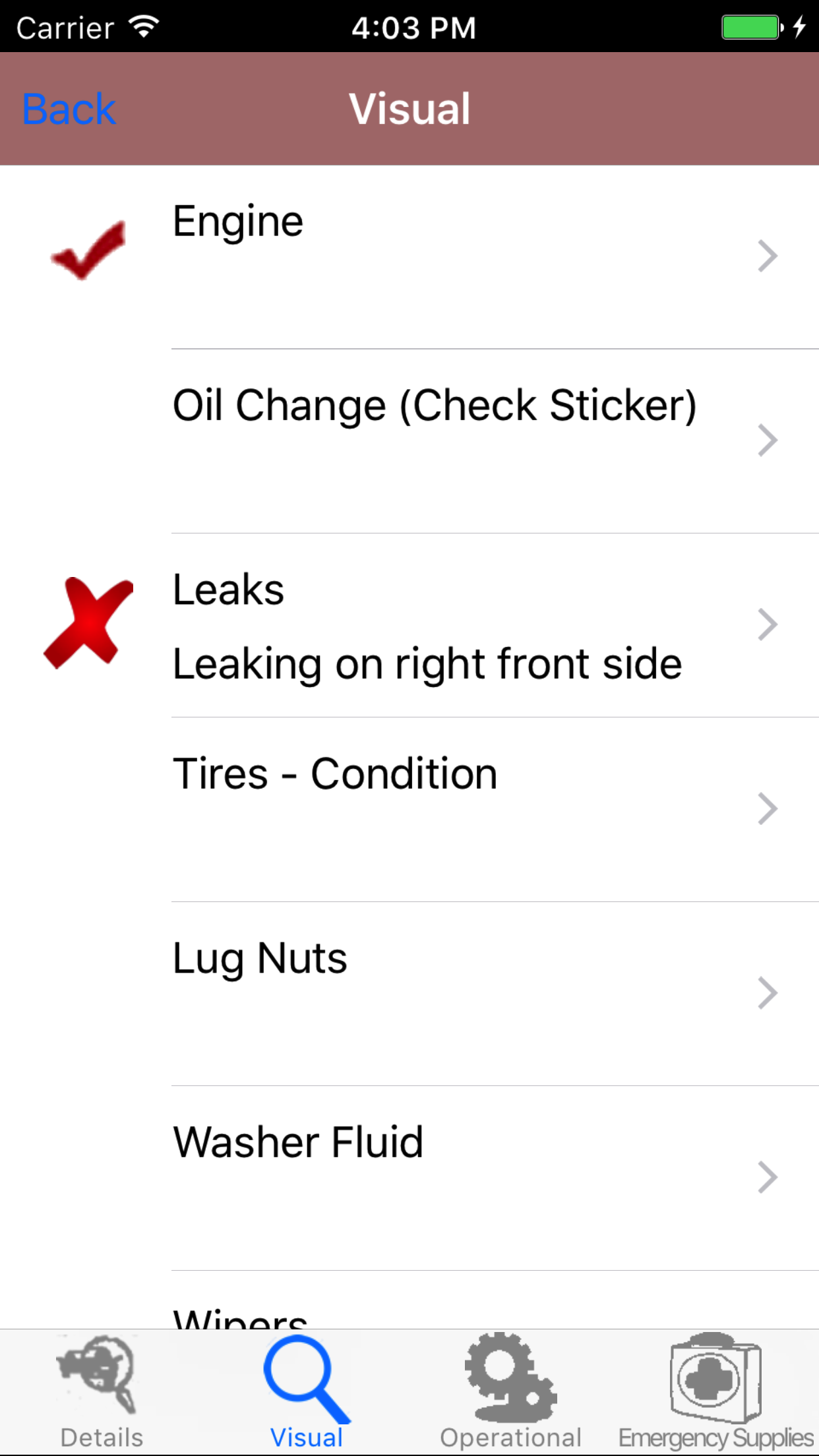
- Tap the Visual icon at the bottom of the screen to open the Visual Inspection Checklist screen. The screen loads
with the visual inspection tasks your company has created for your vehicle inspection. The Task Name
in blue, with the Deficiencies or Comments in red.
- Scroll the list of tasks until the desired task is displayed on the screen.
- Tap on the Task, which will load the Edit Inspection Task screen.
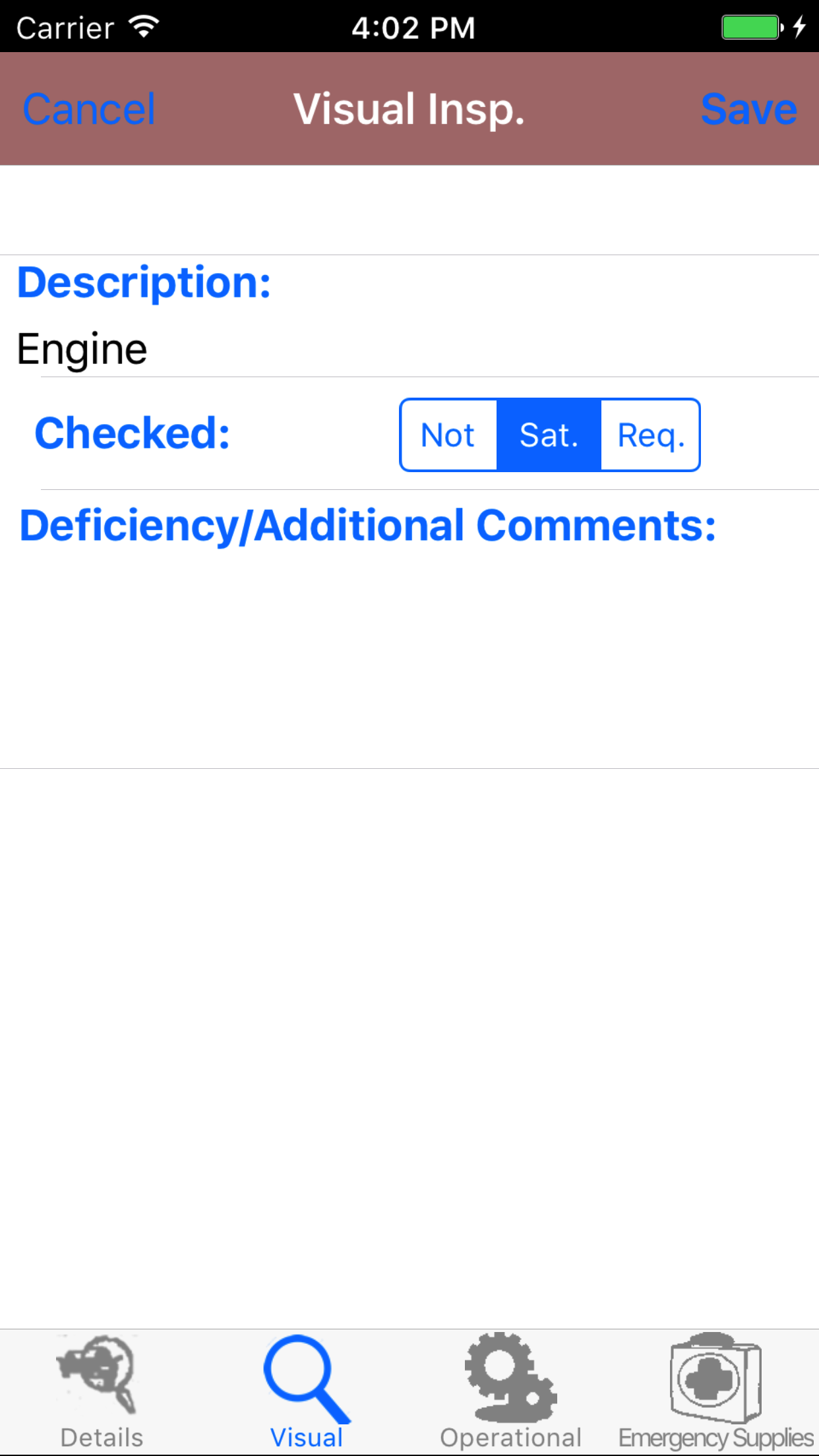
The next screen loads with the Description of the task at the top of the screen and the ability to change the checked
status and deficiency or comment field.
Fields
- Checked: Tap Not|Sat.|Req. to change the status of the inspection task.
- Not: means task has not been checked.
- Sat.: means inspection tasks has been found to be satisfactory.
- Req.: means inspection tasks has been found to be requires attention. Any task marked as Req. requires a description
of the issue to be written in the deficiency or comments field.
- Deficiency or Comments: The Deficiency or Comments field gives the user the ability to describe the issues found with the
subject of the the inspection task. The user should enter a description or a comment about the problem found. The character limit of this field is 250.
- Tap Save in the top right corner of the screen to save the visual inspection task details
|
|
| Steps 1-3 |
|
|
| Steps 4-6 |
|
|
|
8.Edit Operational Inspection Checklist |
|
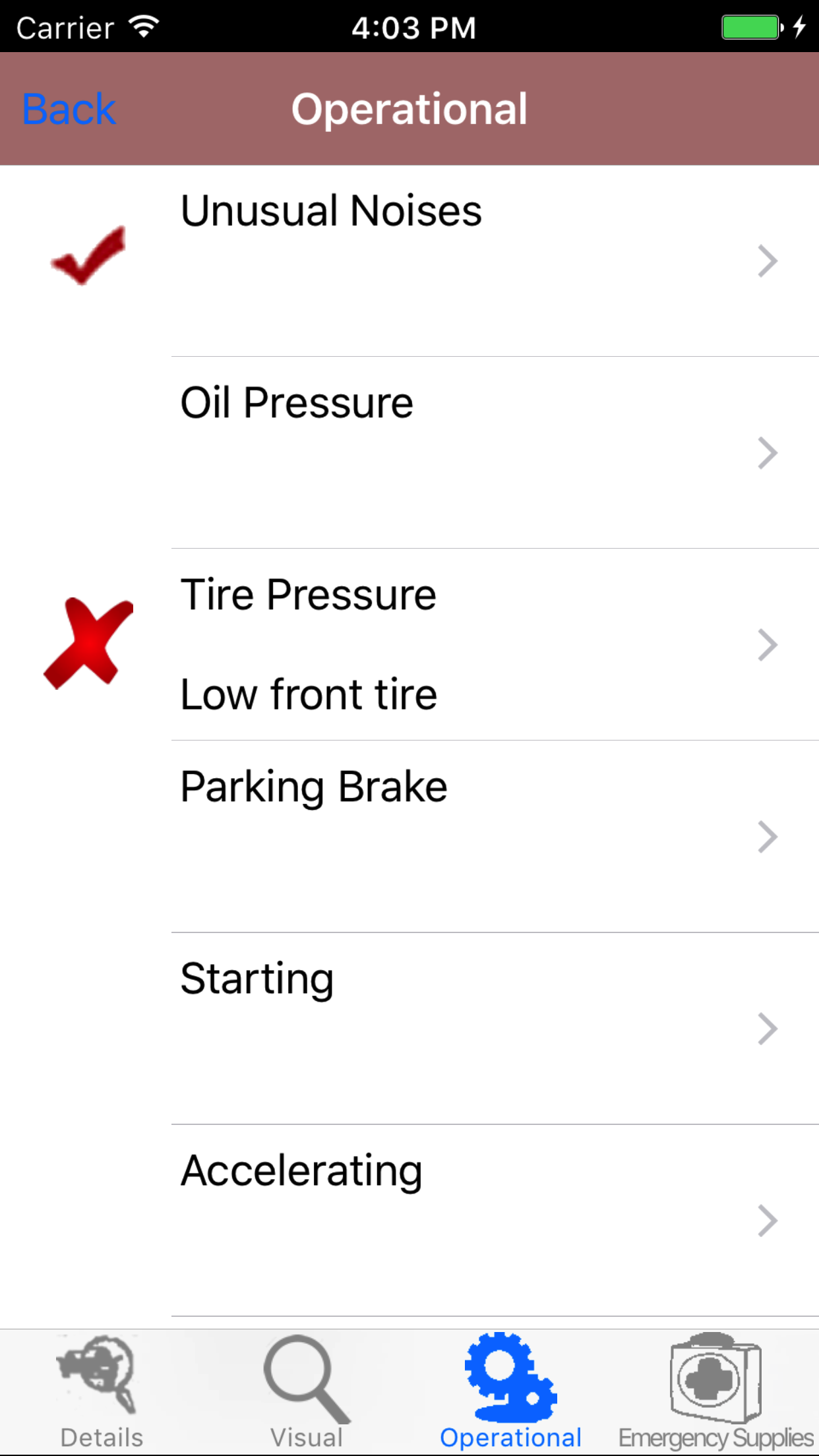
Operational Inspection Tasks are vehicle inspection operational inspection tasks that a company has set up for their field staff to complete
as part of their vehicle inspection. To ensure field staff have the most up to date copy of the inspection tasks a company is
using make sure to update your phone on a regular basis. For more information about updating your phone click here.
Once on the Vehicle Inspection you would like to Edit
Steps
- Tap the Operational icon at the bottom of the screen to open the Operational Inspection Checklist screen. The screen loads
with the operational inspection tasks your company has created for your vehicle inspection. The Task Name
in blue, with the Deficiencies or Comments in red.
- Scroll the list of tasks until the desired task is displayed on the screen.
- Tap on the Task, which will load the Edit Inspection Task screen.
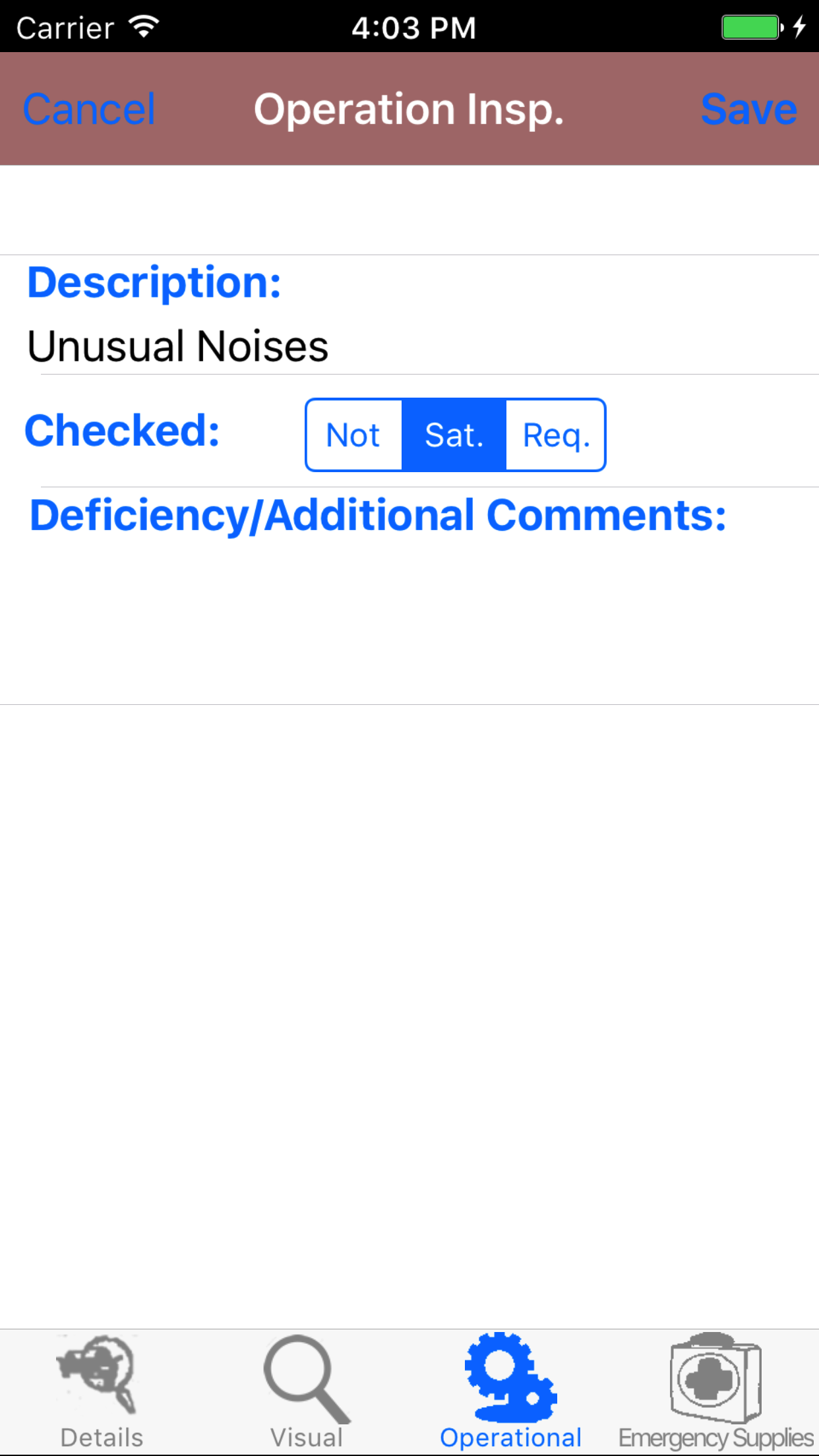
The next screen loads with the Description of the task at the top of the screen and the ability to change the checked
status and deficiency or comment field.
Fields
- Checked: Tap Not|Sat.|Req. to change the status of the inspection task.
- Not: means task has not been checked.
- Sat.: means inspection tasks has been found to be satisfactory.
- Req.: means inspection tasks has been found to be requires attention. Any task marked as Req. requires a description
of the issue to be written in the deficiency or comments field.
- Deficiency or Comments: The Deficiency or Comments field gives the user the ability to describe the issues found with the
subject of the the inspection task. The user should enter a description or a comment about the problem found. The character limit of this field is 250.
- Tap Save in the top right corner of the screen to save the operational inspection task details
|
|
| Steps 1-3 |
|
|
| Steps 4-6 |
|
|
|
9.Edit Emergency Supplies Inspection Checklist |
|
Emergency Supplies Inspection Tasks are vehicle inspection emergency supplies inspection tasks that a company has set up for their field staff to complete
as part of their vehicle inspection. To ensure field staff have the most up to date copy of the inspection tasks a company is
using make sure to update your phone on a regular basis. For more information about updating your phone click here.
Once on the Vehicle Inspection you would like to Edit
Steps
- Tap the Emergency Supplies icon at the bottom of the screen to open the Emergency Supplies Inspection Checklist screen. The screen loads
with the emergency supplies inspection tasks your company has created for your vehicle inspection. The Task Name
in blue, with the Deficiencies or Comments in red.
- Scroll the list of tasks until the desired task is displayed on the screen.
- Tap on the Task, which will load the Edit Inspection Task screen.
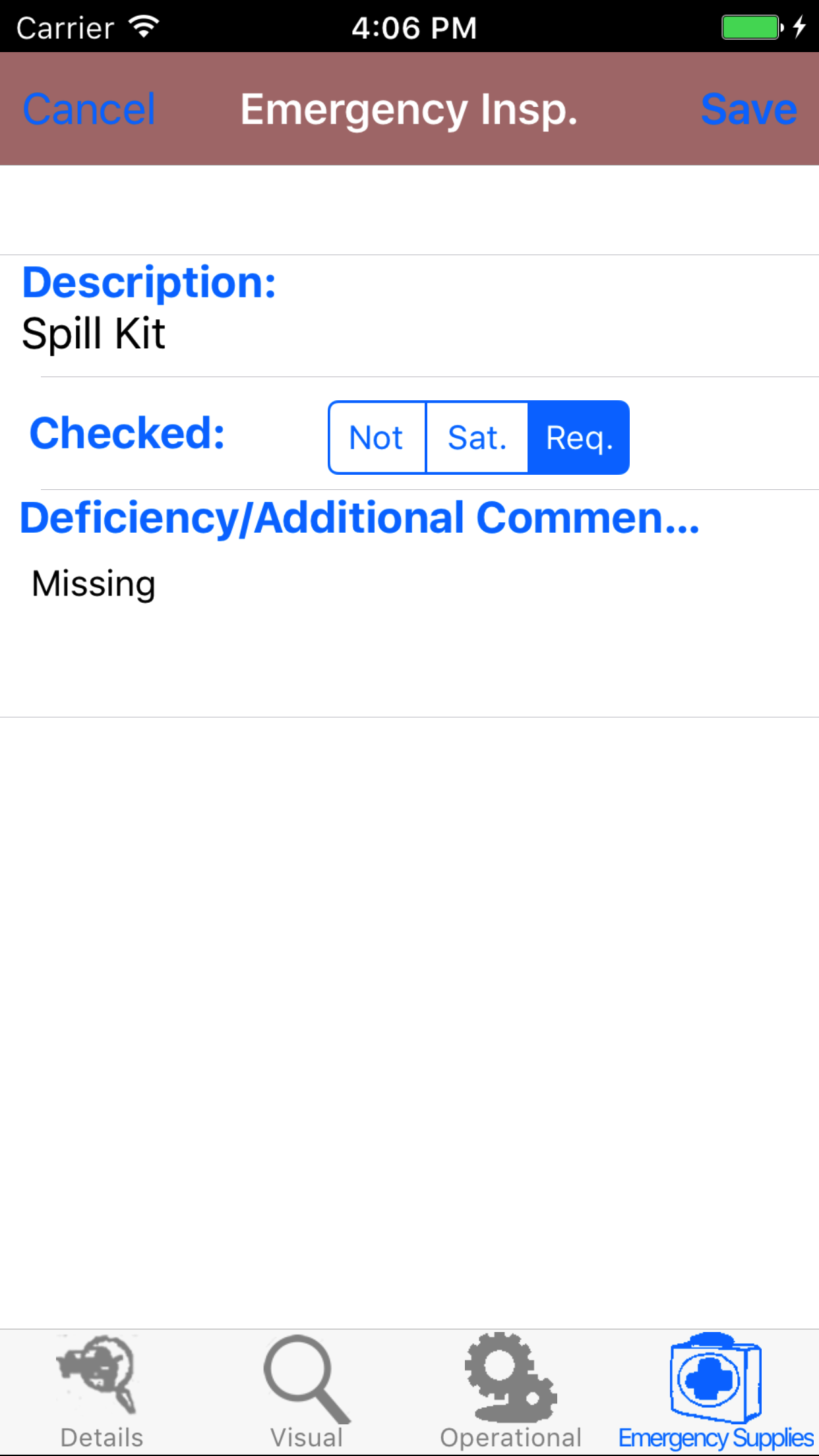
The next screen loads with the Description of the task at the top of the screen and the ability to change the checked
status and deficiency or comment field.
Fields
- Checked: Tap Not|Sat.|Req. to change the status of the inspection task.
- Not: means task has not been checked.
- Sat.: means inspection tasks has been found to be satisfactory.
- Req.: means inspection tasks has been found to be requires attention. Any task marked as Req. requires a description
of the issue to be written in the deficiency or comments field.
- Deficiency or Comments: The Deficiency or Comments field gives the user the ability to describe the issues found with the
subject of the the inspection task. The user should enter a description or a comment about the problem found. The character limit of this field is 250.
- Tap Save in the top right corner of the screen to save the emergency supplies inspection task details
|

|
| Steps 1-3 |
|
|
| Steps 4-6 |
|
|
|
10.Submit Vehicle Inspection |
|
Once on the Vehicle Inspection you would like to Submit, on the details tab.
Steps
- Tap the Submit Vehicle Inspection button.
|
|
|
| Step 1 |
|
|
|
11.Delete Vehicle Inspection |
|
Once in the Vehicle Inspection section
Steps
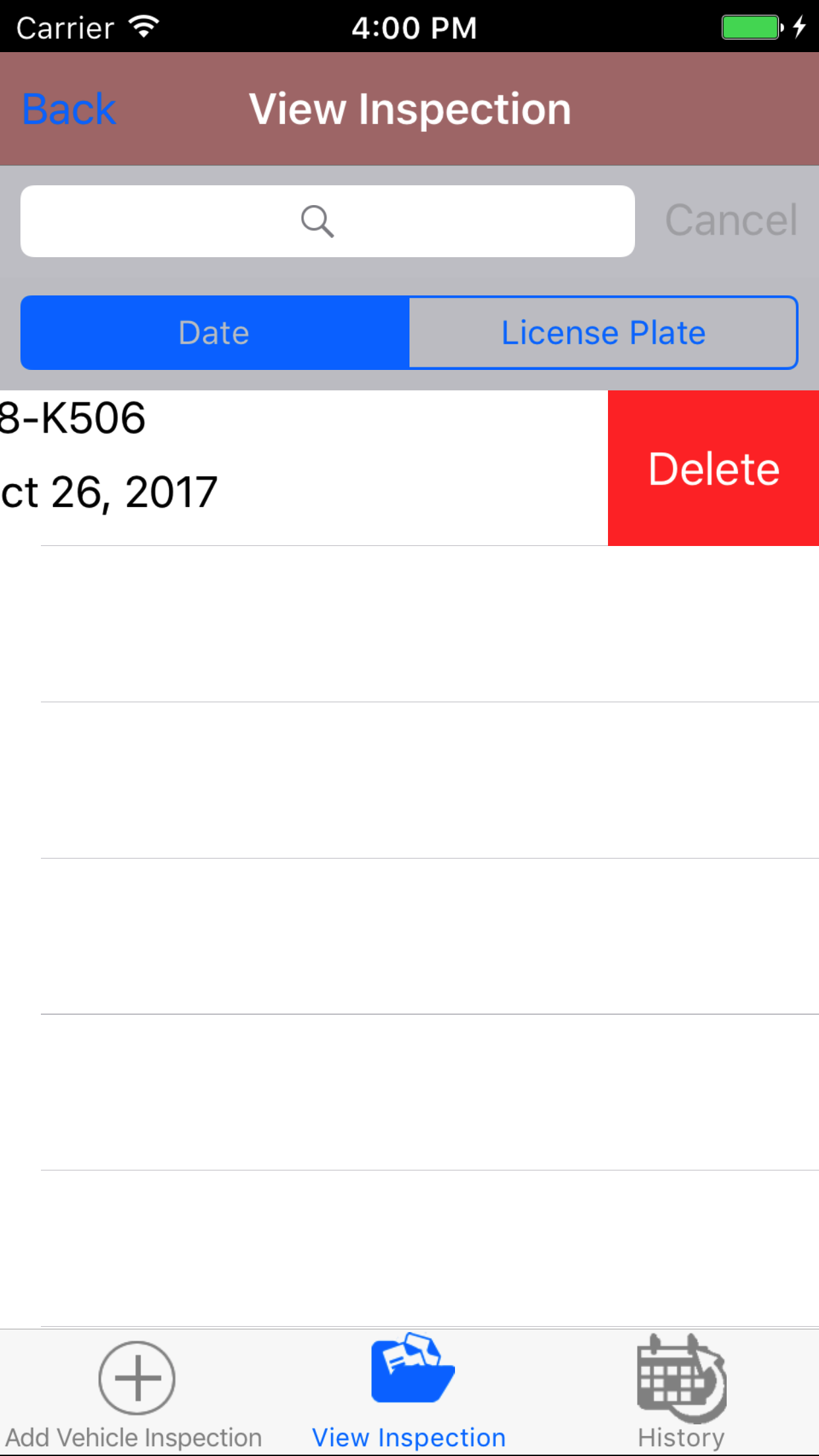
- Tap the second tab on the menu, the Vehicle Inspection view.
- Scroll the list of Vehicle Inspections until the desired Vehicle Inspection is displayed on the screen.
Listing the vehicle code in red text, the license plate number in blue text
and the the inspection date in black text.
- Swipe from the right edge to the left to bring up the delete button for the vehicle inspection.
- Tap the Delete button. The vehicle inspection will be deleted.
|
|
| Steps 1-4 |
|
|
12.View Closed Vehicle Inspection |
|
After Vehicle Inspections have been closed out, they will be available to look at through the History view on the iPhone Application.
Once on the Vehicle Inspection section
Steps
|
|
|
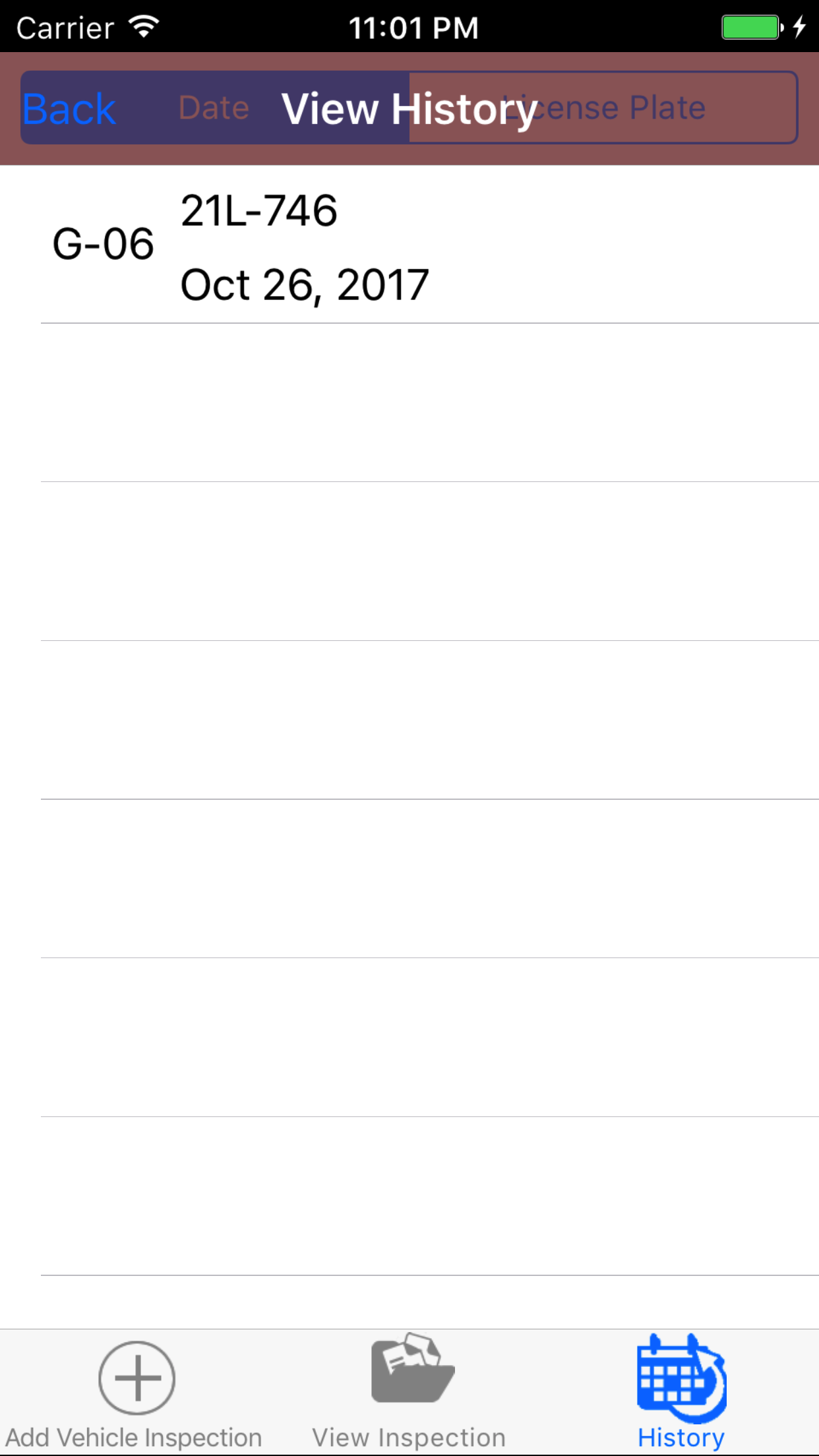
- Tap the third tab on the menu, the History tab of the main menu view. This loads with a list of the closed out
Vehicle Inspections listing the the vehicle code, license plate, date of the Vehicle Inspection in black.
- Scroll the list of Vehicle Inspections until the desired Vehicle Inspection is displayed on the screen.
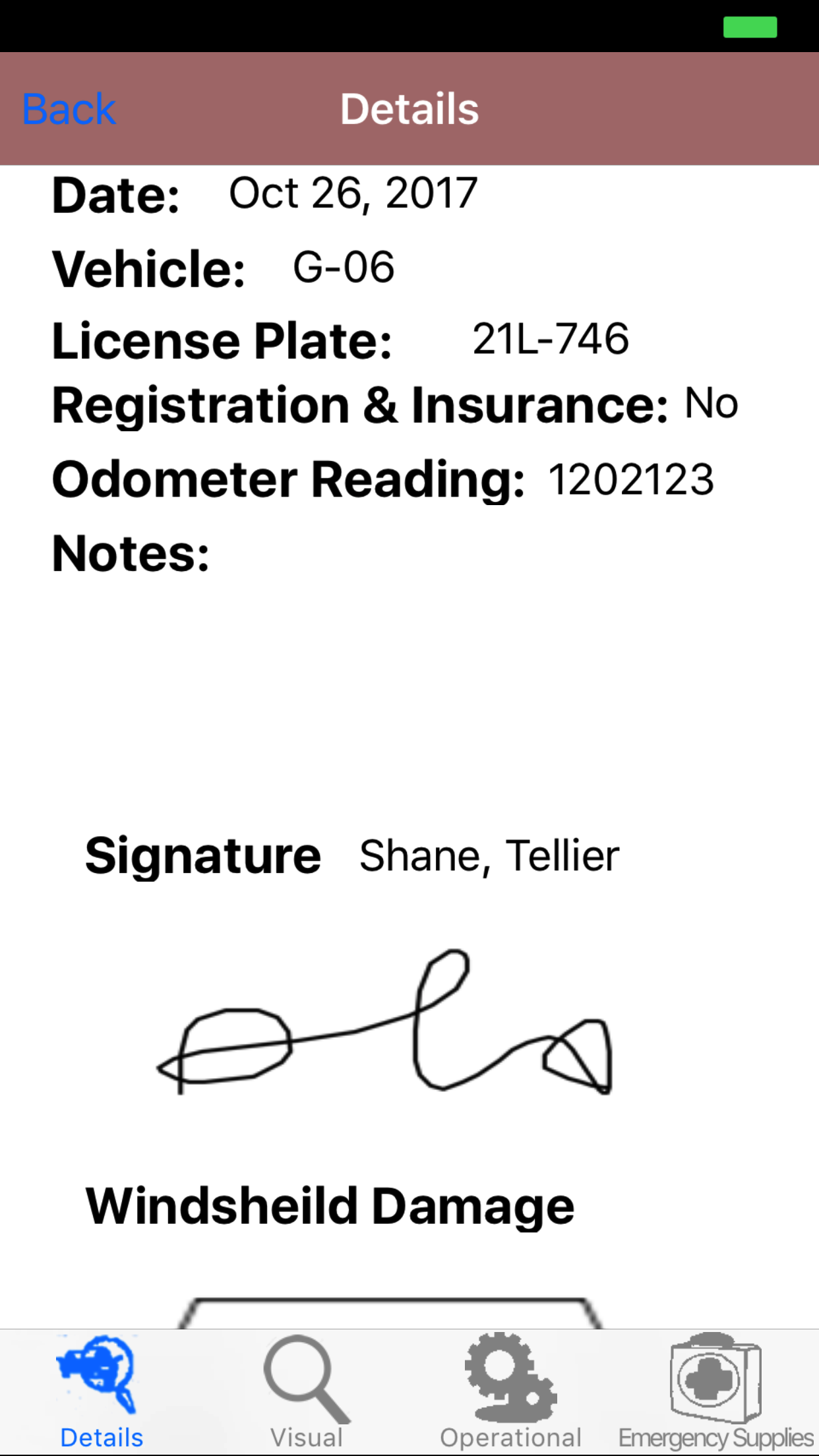
- Tap on the Vehicle Inspection you would like to view. This loads the first tab, the Vehicle Inspection details tab of the History view.
It loads the following details including date, vehicle code, license plate, registration and insurance flag, odometer reading, notes,
, inspectors signature, exterior damage graphic, and the windshield damage graphic.
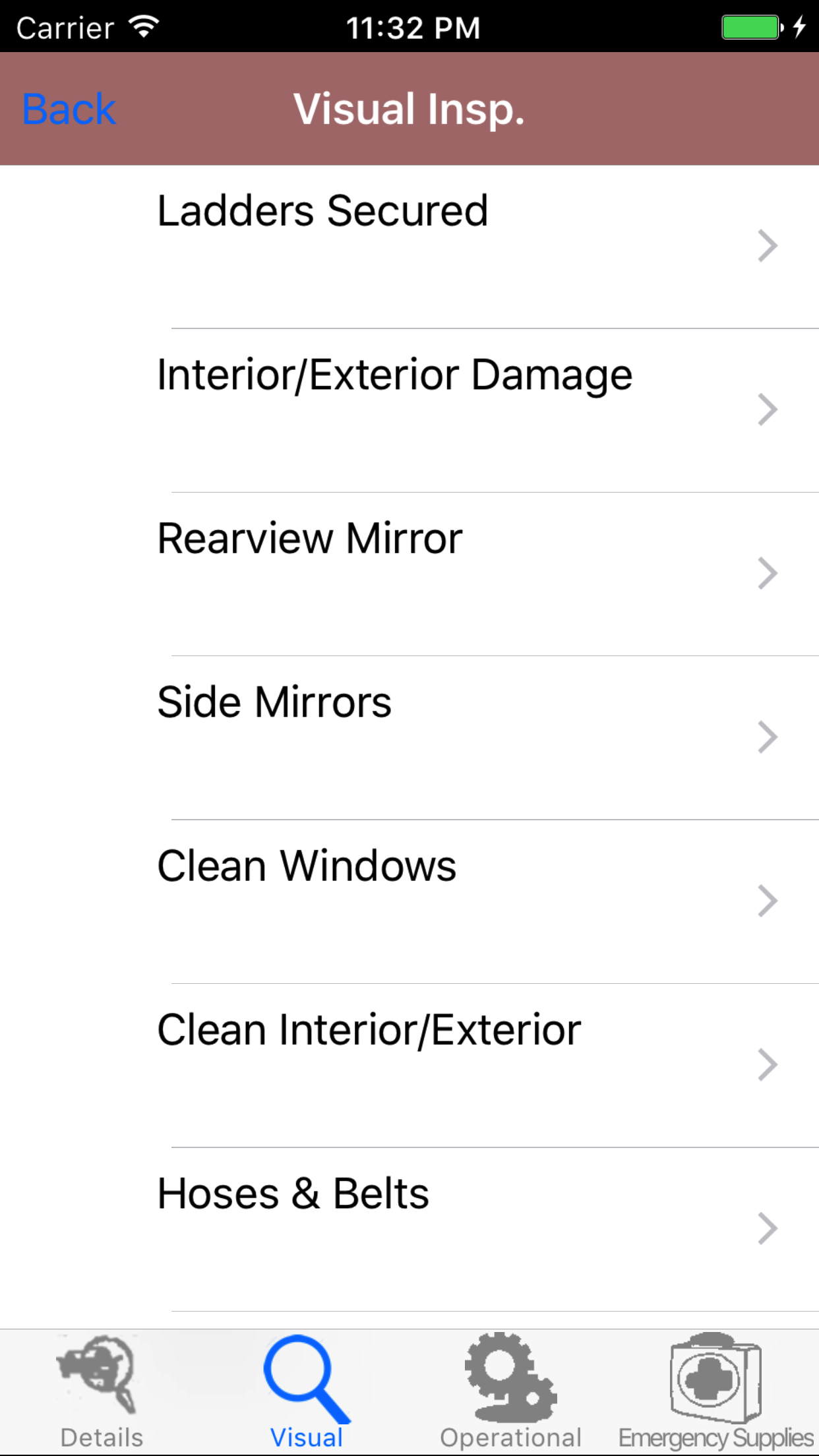
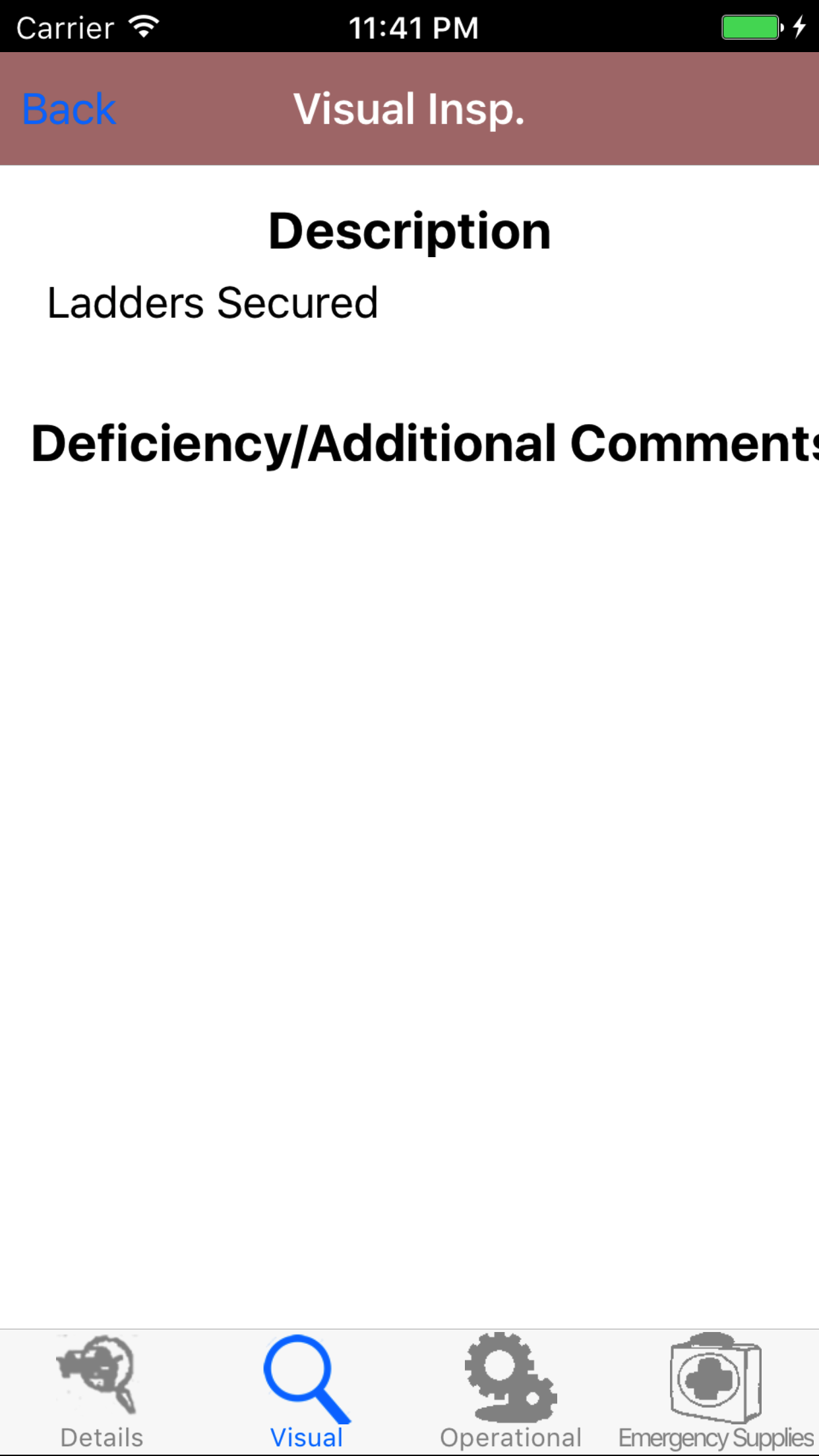
- Tap the second tab, the Visual Inspection Task's tab of the History view. This loads with the visual inspection task name and the deficiency or
comments for each task. Tap on the task, for the full view of the task and the found issues.
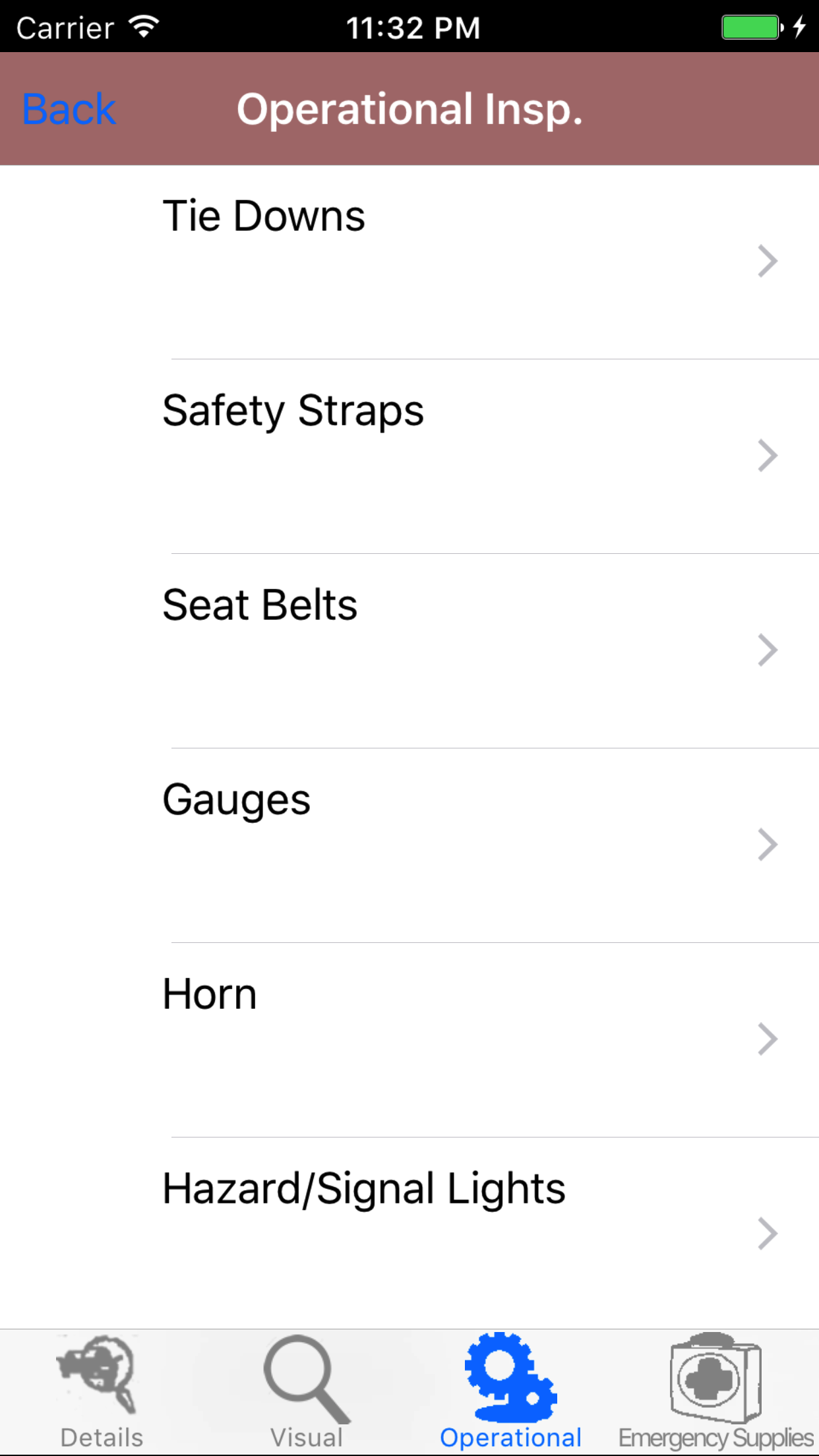
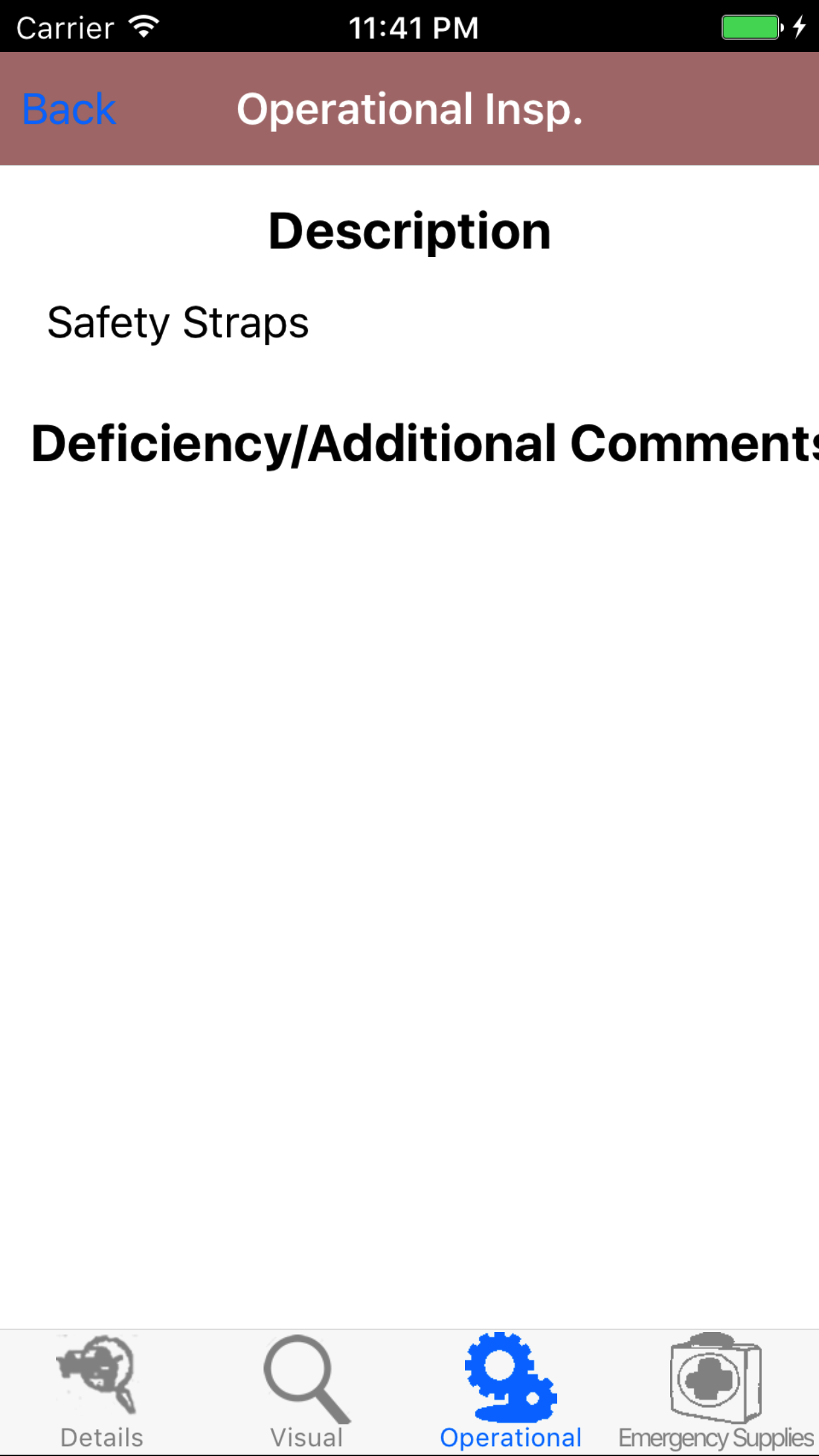
- Tap the third tab, the Operational Inspection Task's tab of the History view. This loads with the operational inspection task name and the deficiency or
comments for each task. Tap on the task, for the full view of the task and the found issues.
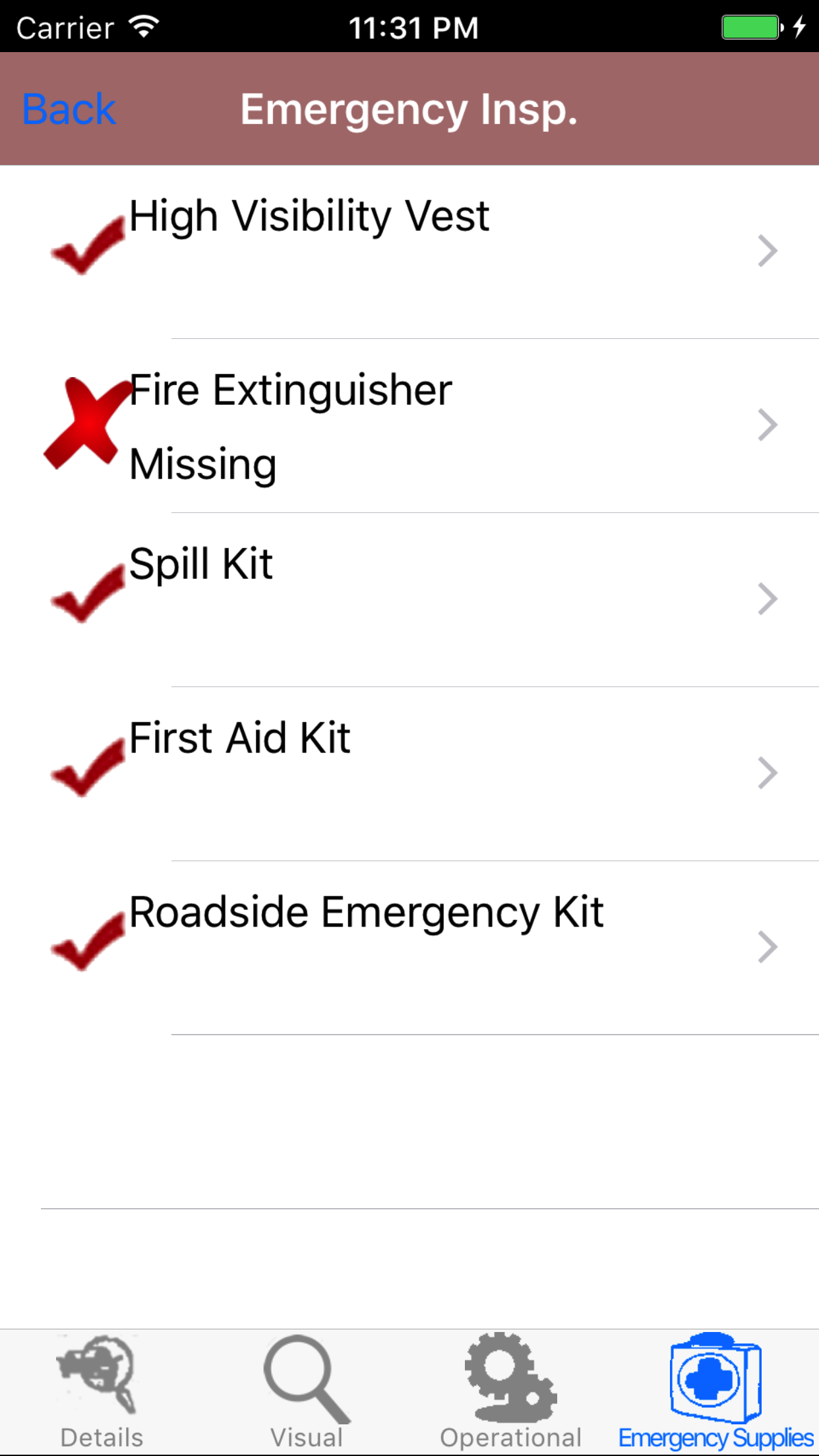
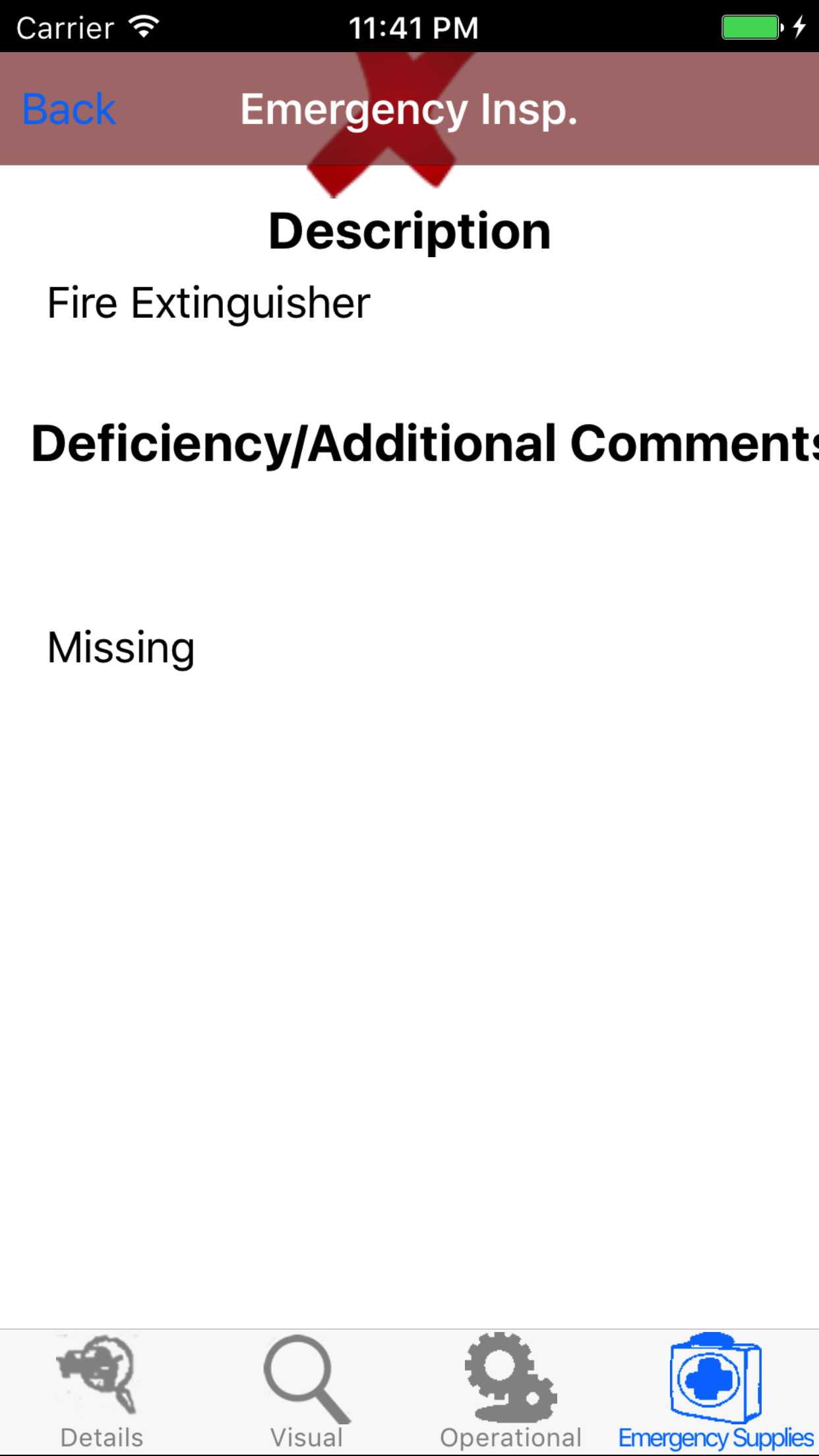
- Tap the fourth tab, the Emergency Supplies Inspection Task's tab of the History view. This loads with the emergency supplies inspection task name and the deficiency or
comments for each task. Tap on the task, for the full view of the task and the found issues.
|
|
| Steps 1-2 |
|
|
|
|
| Step 3 |
|
|
|
| Step 4 |
|
|
|
| Step 4.b |
|
|
|
| Step 5 |
|
|
|
| Step 5.b |
|
|
|
| Step 6 |
|
|
|
| Step 6.b |
|
|
|
13.Update Vehicle Inspections |
|
To ensure field staff have the most up to date copy of the inspection tasks a company is
using and vehicles in the companies fleet make sure to update your phone on a regular basis. For more information about updating your phone.
Steps
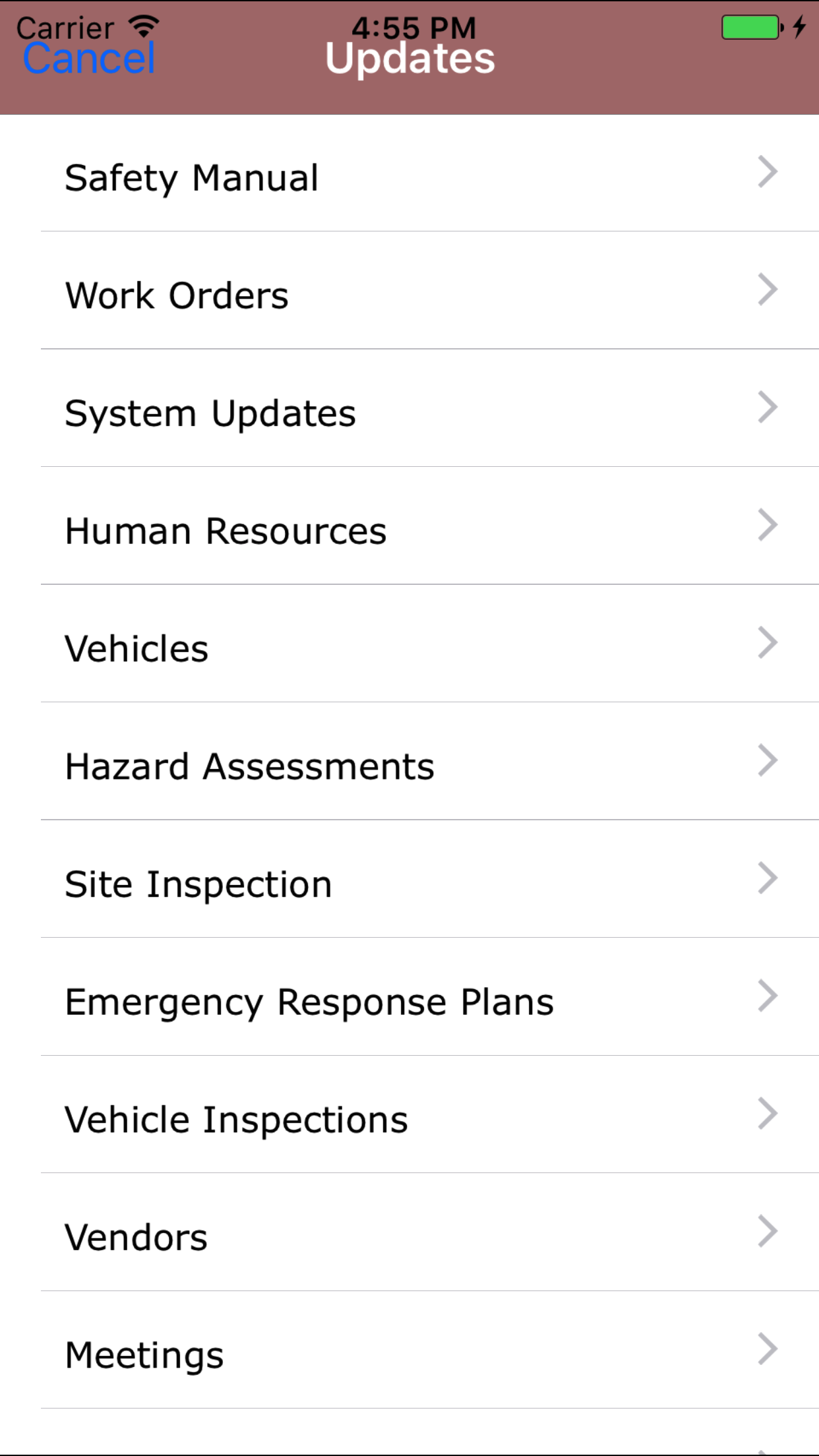
- From the Menu screen, tap the Updates button.
- Scroll the list of sections until you find the Vehicle Inspection button.
- Tap on the Vehicle Inspection button.
|
|
|
|
| Step 1 |
|
|
| Steps 2-3 |
|
|