Table of Contents |
|
|
1.Search Company Site Orientation |
|
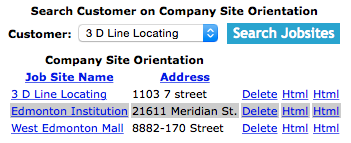
Company Site Orientations can be searched by a company customers. Users can narrow search results by choosing to search a specific customer of the company.
All search results can also be sorted by clicking on the results headings Job site name, Site Address. Clicking on the same heading can do switching the results order from ascending to descending.
|
|
2.Delete Company Site Orientation |
|
Deleting company site orientations may have to be done if the company site orientation was added to the system incorrectly. Only company site orientations that have not do not have any details added can be deleted.
|
3.Look up Company Site Orientation |
|
To get to the edit screen of a company site orientation, click on the jobsite name of the company site orientation that you would like to edit.
To view the html version company site orientation report in click on the "Html view" link of the company site orientation you would like to view.
When you first open report you will be viewing the full company site orientation view of the company site orientation. This includes the description paragraphs for each reviewable section.
Click on the Full Company Site Orientation link on the top of the html view to view the full company site orientation version of the report, including paragraphs.
From each html view you can also open the PDF version of the report by clicking on the PDF link on the top of the page.
To view a printable document file (PDF) view of the company site orientation report, click on the "PDF view" link of the appropriate company site orientation report.
|
4.Add Company Site Orientation for Job Site |
|
To add a Company Site Orientation, click on the "Add Company Site Orientation" link.
On the next screen, under Add Company Site Orientation heading, select:
Fields
Job Site By selecting a job site from the select box, which loads with a customer's name and
then the jobsite name users can choose which jobsite they want to create a site orientation for
. NOTE: To narrow down the numbers of job sites to choose from use the "Search Customer on Add Company Site Orientation" function.
|

|
|
Then click the "Add Site Orientation" button. The edit company site orientation screen will load. From here, proceed to edit as per the instructions below.
|
5.Search Customer on Add Company Site Orientation |
|
While on the "Add Company Site Orientation for Job site" screen, Under the Search Customer on Add Company Site Orientation heading choose a customer:
Fields
Customer: The Customer select box is populated with companies��� customers.
Click the "Search Job Sites" button. The Job Site select box on the Add Company Site Orientation section will load with only the jobsites of the selected customer.
|
6.Edit Company Site Orientation Explanation |
|
Company Site Orientations can be set up, in such a way that when a site orientation is created from them, the safety officer
in charge of the job site can be sent a email with a link to the site orientation so they can view it once the site orientation
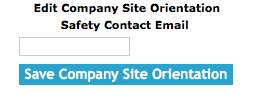
has been submitted. Save the Safety Officers email address in the Safety Contact Emial Address field on the Company Site Orientation
to accomplish this.
To add a new paragraph click, the "Add Company Site Orientation Explanation Paragraph".
To load a paragraph to edit, click on the paragraph.
Once the edit screen
Fields
Site Contact Email: The site contact email field allows field staff to include the email address for a site contact. The character limit of this field is 100.
Click the "Save Company Site Orientation" button to ensure that any information changed is saved in the system.
|
|
7.Add or Edit Company Site Orientation Explanation |
|
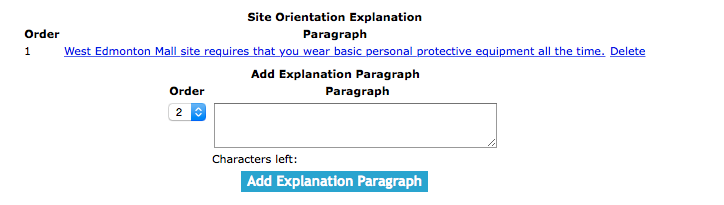
The site explanation section allows users to add or edit site explanation information for the site. Information that should be covered in this section includes such
things such as basic information about the job site and site rules. For the site explanation paragraph sections users can add as many paragraph as required with
each paragraph being limited to 500 characters.
To add a new paragraph click, the "Add Company Site Orientation Explanation Paragraph".
To load a paragraph to edit, click on the paragraph.
Once the add or edit screen
Fields
Order: The order field sets the order of which the paragraph will appear in.
Paragraph: The paragraph field allows the user to add a paragraph. The character limit of the field is 500.
Click the "Save Company Explanation Paragraph" button to ensure that any information changed is saved in the system.
|
|
8.Add Default Explanation Paragraphs |
|
SafetyNet has developed default samples of what can be included in the explanation paragraphs section of a company site orientation,
to include one or many default paragraphs in the company site orientation.
To add a default explanation paragraph click on the "Add Default" under the Explanation graphic.
All of the default explanation paragraphs will load below the "Default Explanation Information" heading.
Click the "Add Default Paragraph" link of the paragraph you would like to add to your company site orientation.
|

|
9.Delete Company Site Orientation Site Explanation Paragraph |
|
Deleting a company site orientation site explanation paragraph may need to be done if a paragraph was added incorrectly or is not appropriate
for the company site orientation. To delete the paragraph, click on the "Delete" link to the right of the company site orientation site explanation column.
|
10.Add or Edit Company Site Orientation Emergency Procedures |
|
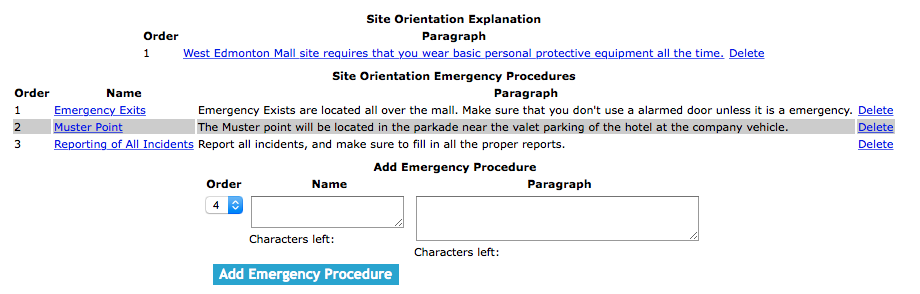
The emergency procedures section allows users to add or edit emergency procedure information for the site. Information that should be covered
in this section includes such things as emergency exits; muster points, and reporting procedures. For each entry users can add a section name
and then a explanation paragraph and the order of which the emergency procedures will appear.
To add a new paragraph click, the "Add New" under the Emergency Procedure graphic.
To load a paragraph to edit, click on the emergency procedure name.
Once the add or edit screen
Fields
Order: The order field sets the order of which the paragraph will appear in.
Name The name of the emergency procedure. The name of the section will appear on the full and checklist versions of the site orientation.
It should a good overview of what the emergency procedure will talk about. The character limit of this field is 100.
Paragraph The paragraph field allows the user to add a explanation of the section. The paragraph will only appear on the full version of the site orientation. The character limit of the field is 500.
Click the "Save Emergency Procedures" button to ensure that any information changed is saved in the system.
|
|
11.Add Default Emergency Procedure Paragraphs |
|
SafetyNet has developed default samples of what can be included in the emergency procedure paragraphs section of a company site orientation,
to include one or many default paragraphs in the company site orientation.
To add a default emergency procedure paragraph click on the "Add Default" under the Emergency Procedure graphic.
All of the default emergency procedure paragraphs will load below the "Default Emergency Procedures Information" heading.
Click the "Add Default Paragraph" link of the paragraph you would like to add to your company site orientation.
|

|
12.Delete Company Site Orientation Emergency Procedure Paragraph |
|
Deleting a company site orientation emergency procedure paragraph may need to be done if a
paragraph was added incorrectly or is not appropriate for the company site orientation. To delete the paragraph, click
on the "Delete" link to the right of the company site orientation emergency procedure column.
|
13.Add or Edit Company Site Orientation Location Information |
|
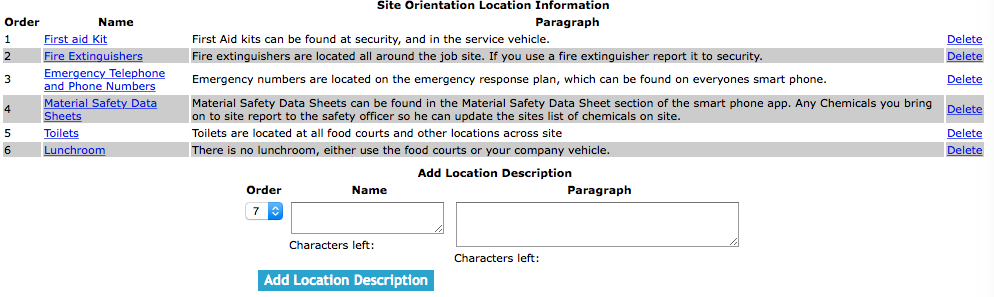
The location section allows users to add or edit location information for the site. Information that should be covered
in this section includes such things as first aid kits, fire extinguishers, and toilets. For each entry users can add
a section name and then a explanation paragraph and the order of which the location will appear.
To add a new paragraph click, the "Add New" under the Location graphic.
To load a paragraph to edit, click on the location information name.
Once the add or edit screen
Fields
Order: The order field sets the order of which the paragraph will appear in.
Name: The name of the location description. The name of the section will appear on the full and checklist versions of the site orientation.
It should a good overview of what the location description will talk about. The character limit of this field is 100.
Paragraph The paragraph field allows the user to add a explanation of the section. The paragraph will only appear on the full version of the site orientation. The character limit of the field is 500.
Click the "Save Location Description" button to ensure that any information changed is saved in the system.
|
|
14.Add Default Location Paragraphs |
|
SafetyNet has developed default samples of what can be included in the location paragraphs section of a company site orientation,
to include one or many default paragraphs in the company site orientation.
To add a default location paragraph click on the "Add Default" under the Location graphic.
All of the default location paragraphs will load below the ���Default Location Information��� heading.
Click the "Add Default Paragraph" link of the paragraph you would like to add to your company site orientation.
|

|
15.Delete Company Site Orientation Location Paragraph |
|
Deleting a company site orientation location paragraph may need to be done if a paragraph was added incorrectly or is not appropriate for the company site orientation. To delete the paragraph,
click on the "Delete" link to the right of the company site orientation location column.
|
16.Add or Edit Company Site Orientation Safety Details Information |
|
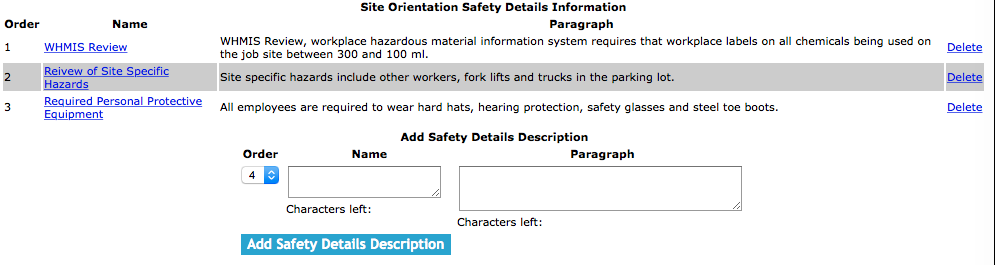
The safety details section allows users to add or edit safety details information for the site. Information that should be covered in this section includes such things as WHMIS review for site, review
of site-specific hazard, and required personal protective equipment. For each entry users can add a section name and then a explanation paragraph and the order of which the location will appear.
To add a new paragraph click, the "Add New" under Safety Details graphic.
To load a paragraph to edit, click on the safety detail name.
Once the add or edit screen
Fields
Order: The order field sets the order of which the paragraph will appear in.
Name The name of the introduction description. The name of the section will appear on the full and checklist versions of the site orientation. It should a good overview of what the introduction description will talk about. The character limit of this field is 100.
Paragraph The paragraph field allows the user to add a explanation of the section. The paragraph will only appear on the full version of the site orientation. The character limit of the field is 500.
Click the "Save Introduction Description" button to ensure that any information changed is saved in the system.
|
|
17.Add Default Safety Details Paragraphs |
|
SafetyNet has developed default samples of what can be included in the safety details paragraphs section of a company site orientation, to include one or many default paragraphs in the company site orientation.
To add a default location paragraph click on the "Add Default" under the Safety Details graphic.
All of the default safety details paragraphs will load below the "Default Safety Details Information" heading.
Click the "Add Default Paragraph" link of the paragraph you would like to add to your company site orientation.
|

|
18.Delete Company Site Orientation Safety Paragraph |
|
Deleting a company site orientation safety paragraph may need to be done if a paragraph was added incorrectly or is not appropriate
for the company site orientation. To delete the paragraph, click on the "Delete" link to the right of the company site orientation safety column.
|
19.Add or Edit Company Site Orientation Introduction Information |
|
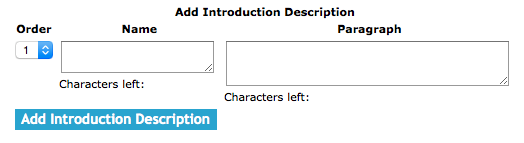
The introduction section allows users to add or edit introduction information for the site. Information that should be covered in this section includes
such things as first aid aiders, supervisors, and other important people. For each entry users can add a section name and then a explanation paragraph
and the order of which the introduction paragraph will appear.
To add a new paragraph click, the "Add New" under the Introduction graphic.
To load a paragraph to edit, click on the introduction name.
Once the add or edit screen
Fields
Order: The order field sets the order of which the paragraph will appear in.
Name The name of the introduction description. The name of the section will appear on the full and checklist versions of the site orientation. It should a good overview of what the introduction description will talk about. The character limit of this field is 100.
Paragraph The paragraph field allows the user to add a explanation of the section. The paragraph will only appear on the full version of the site orientation. The character limit of the field is 500.
Click the "Save Introduction Description" button to ensure that any information changed is saved in the system.
|
|
20.Add Default Introductions Paragraphs |
|
SafetyNet has developed default samples of what can be included in the introductions paragraphs section of a company site orientation, to include one or many default paragraphs in the company site orientation.
To add a default introductions paragraph click on the "Add Default" under the Introductions graphic.
All of the default introduction paragraphs will load below the "Default Introduction Information" heading.
Click the "Add Default Paragraph" link of the paragraph you would like to add to your company site orientation.
|

|
21.Delete Company Site Orientation Introduction Paragraph |
|
Deleting a company site orientation introduction paragraph may need to be done if a paragraph was added incorrectly or is not appropriate for the company site orientation. To delete the paragraph, click on the "Delete"
link to the right of the company site orientation location column.
|