Manual App Manual

Timecard Administration

The Timecard Administration section allows employees to help field staff to enter their hours worked on specific work orders, with a description of the work completed and a field marking the time spent working as either field work or shop time. The time entered can be entered in up to seven different types of time, depending on a companies timecard settings. SafetyNet tracks the total hours worked on work orders, job sites and for customers.

Timecard entries must be locked, until timecard entries have been locked field staff can edit timecard entries. Entries need to be locked eventually.

Timecard entries themselves and total hours entered are important to a companies safety program along with the corresponding hazard assessments and emergency response plans are used to calculate if companies are completing enough hazard assessments and emergency response plans.

When Timecard entries are submitted to SafetyNet a email is sent to the companies representative, with a record of what hours and what work order was worked on. The email also informs the representative if the hours or job description have been edited.

Configuring when Employee Timecard Entries are Locked

Every companies policy of when employees timecard entries will be locked is a function of your companies policy regarding timecard entries. To configure Safety Net for when timecard entries should be locked can be configured in the company safety settings.

Management, Office Staff and Safety Officers can edit when timecard entries should be locked in the Company section when they edit the Company Safety settings. For more information about configuring your company safety settings in this web site manual click here to view the company section.

Configuring how often Hazard Assessments are to Occur

How often hazard assessments must occur is a function of your companies policy regarding hazard assessments. To configure Safety Net for how often hazard assessments should occur can be configured in the company safety settings.

Management, Office Staff and Safety Officers can edit how often hazard assessments should occur in the Company section when they edit the Company Safety settings. For more information about configuring your company safety settings in this web site manual click here to view the company section.

Configuring how often Emergency Response Plans are to Occur

How often emergency response plans must occur is a function of your companies policy regarding emergency response plans. To configure Safety Net for how often emergency response plans should occur can be configured in the company safety settings.

Management, Office Staff and Safety Officers can edit how often emergency response plans should occur in the Company section when they edit the Company Safety settings. For more information about configuring your company safety settings in this web site manual click here to view the company section.

Configuring Company Timecard Settings

Companies can configure up to seven separate time card hourly fields to capture your companies type of work completed. For each active field companies can have those fields count against apprenticeship hours.

Management, Office Staff and Safety Officers can edit companies timecard settings in the Timecard Settings section. For more information about configuring your timecard settings in this web site manual click here to view the timecard settings section.

Configuring Timecard Submission Email Alert

The company representative that receives a email from SafetyNet, when a timecard submission occurs is a function of who is set up to receive the Timecard Submission. To configure Safety Net for whom receives receives this email alert in the Company Email Alert section.

Management, Office Staff and Safety Officers can edit who should receive the Timecard Submission email alert in the company email alert section. For more information about configuring your company email alerts in this web site manual click here to view the company email alert section.

The time card entry section is only available to users that have the time card entry section turned on for their users group. To change users access to time card entries, management and office staff can change access in Application Section to view the information about the Application Section Click Here

Table of Contents

#Section Name#Section Name#Section Name
1Lock Timecard Entries 2Search Employee for Timecard Entries 3Select Employee for Timecard Entries
4Search Employee Timecard Entries 5Add Timecard Entry 6Look Up Timecard Entry
7Edit Timecard Entry 8Edit Timecard Entry Filled in Status 9Delete Timecard Entry
10View Timecard Print View

1.Lock Timecard Entries

Locking timecard entries is important, Locking a timecard entry means field staff will not be able to edit the entry. On the main timecard entry page their are a couple options for how to lock timecard entries.

  1. Entering a date in the start date field will lock all timecard entries for the given day.
  2. Entering a dates in the start and end date fields will lock all timecard entries for the given date range.
  3. Leaving the date fields blank will lock timecard entries according to the that has been set up in company safety settings.

Click the 'Lock Employee Timecard Entries' to lock timecard entries.

2.Search Employee for Timecard Entries

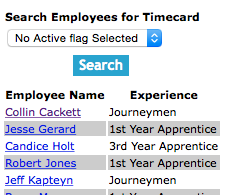
Employees on Timecard Entries can be searched by active status. Users can narrow search results by choosing to view active or inactive.

3.Select Employee for Timecard Entries

To search, add, edit and delete a employees timecard entries you first must choose the employee. Click on the employees name, this will take the user to the employees timecard entry screen.

4.Search Employee Timecard Entries

Employees timecard entries can be searched by a combination of work orders, start date and end date. Users can narrow search results by choosing any combination of the three search criteria.

To Search a specific date, users should enter just a date into the start date field. This will return the results for the entered date.

5.Add Timecard Entry

Once on the employee timecard entry screen screen.

To add a Timecard Entry, click on the 'Add Timecard Entry' link.

Under the Add Timecard Entry heading.

Fields

Date: The timecard entry date is the day the work was done. The field defaults to the current date. The format of this field is YYYY-MM-DD.

Work Order: Selecting a work order from the select box, which loads with a work order number users can choose which work order the timecard entry is for.

Job Type: Selecting a job type from the select box, which loads with Field and Shop.

  • Field: Field means that the work was done in the field and the work requires a hazard assessment.
  • Shop: Shop means that the work was done in the office or was a delivery and the work does not requires a hazard assessment.

FLHA Filled In: Selecting a flha filled in from the select box, which loads with Yes and No.

  • Yes: Yes means that a field level hazard assessment has been filled in.
  • No: No means that no field level hazard assessment has been filled in.

Work Description: The work description field allows field staff to enter a description of work completed during the shift. The character limit of this field is 250.

Time Entry Fields: Each time entry field allows field staff to enter the number of hours of work completed on a given date/shift for a given work order and date.

Click the 'Save Timecard Entry' button to save the timecard entry.

6.Look Up Timecard Entry

To get to the edit screen of a Timecard entry, click on the date of the timecard entry that you would like to edit.

7.Edit Timecard Entry

Once on the edit timecard entry screen

Below the Edit Timecard Entry heading

Fields

Date: The timecard entry date is the day the work was done. The format of this field is YYYY-MM-DD.

Work Order: Selecting a work order from the select box, which loads with a work order number users can choose which work order the timecard entry is for.

Job Type: Selecting a job type from the select box, which loads with Field and Shop.

  • Field: Field means that the work was done in the field and the work requires a hazard assessment.
  • Shop: Shop means that the work was done in the office or was a delivery and the work does not requires a hazard assessment.

FLHA Filled In: Selecting a flha filled in from the select box, which loads with Yes and No.

  • Yes: Yes means that a field level hazard assessment has been filled in.
  • No: No means that no field level hazard assessment has been filled in.

Work Description: The work description field allows field staff to enter a description of work completed during the shift. The character limit of this field is 250.

Time Entry Fields: Each time entry field allows field staff to enter the number of hours of work completed on a given date/shift for a given work order and date.

Click the 'Save Timecard Entry' button to save the timecard entry.

8.Edit Timecard Entry Filled in Status

When a hazard assessment is submitted to SafetyNet, it automatically updates the timecard entry record and updates the flag that a hazard assessment has been completed on the job site for the given day. In certain situations your field staff may have to complete paper copies of a hazard assessment. To quickly give the field staff credit for completing the paper version of the hazard assessment. Simply use the Change Filled In Status feature

To edit a timecard entry filled in status of a Timecard entry record, click on the Change Filled In Status link of the timecard entry that you would like to change the status of.

Its important to note that clicking the link more then once will reverse the status change.

9.Delete Timecard Entry

To delete a Timecard entry, click on the delete link of the timecard entry that you would like to delete.

10.View Timecard Print View

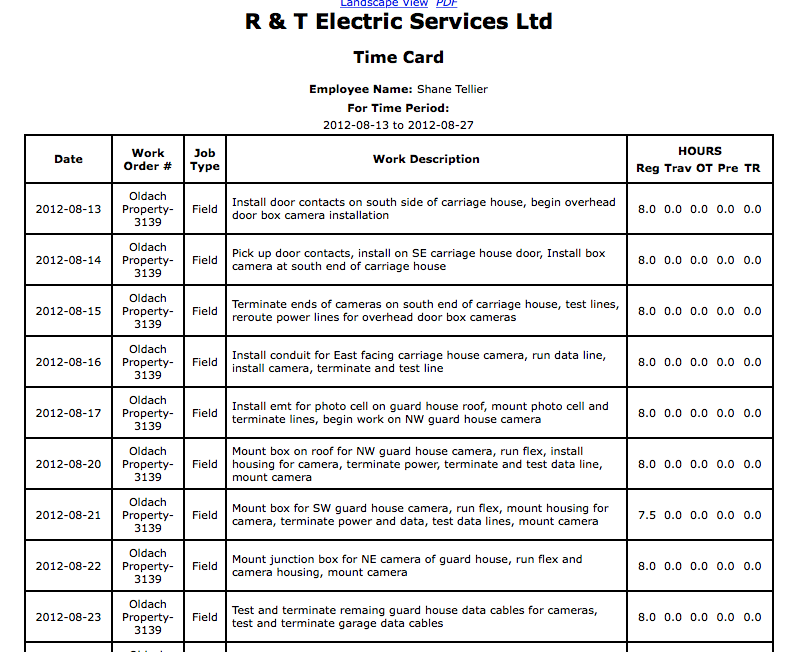
SafetyNet has developed a easily printable version representation of a field staff"s timecard for Payroll, which totals up the hours and displays the employee"s description of work and time spent on each work order for each day of a pay period. With a location of field staff to sign off their timecard.

To view the Timecard Print View, click on the Timecard Print View link at the top of the records.

Users should Look up Employee Timecard Entries using the pay period start and end dates as the search criteria to return the payroll"s timecard entries.